Prerequisites
- An Azure account with an active subscription. If you don’t have one, create a free Azure account, which includes a free trial subscription.
- A Foundry project. If you don’t have one, create a project.
- Application Insights configured for observability metrics (optional but recommended).
Agent inventory
The Assets pane provides a unified, searchable table of all AI assets across projects within a subscription. This inventory brings together critical metadata and health indicators, so you can assess and act on your AI estate efficiently. Foundry Control Plane automatically discovers supported agents within resources in the selected subscription and displays them on the Agents tab. To view them, select Operate > Assets > Agents.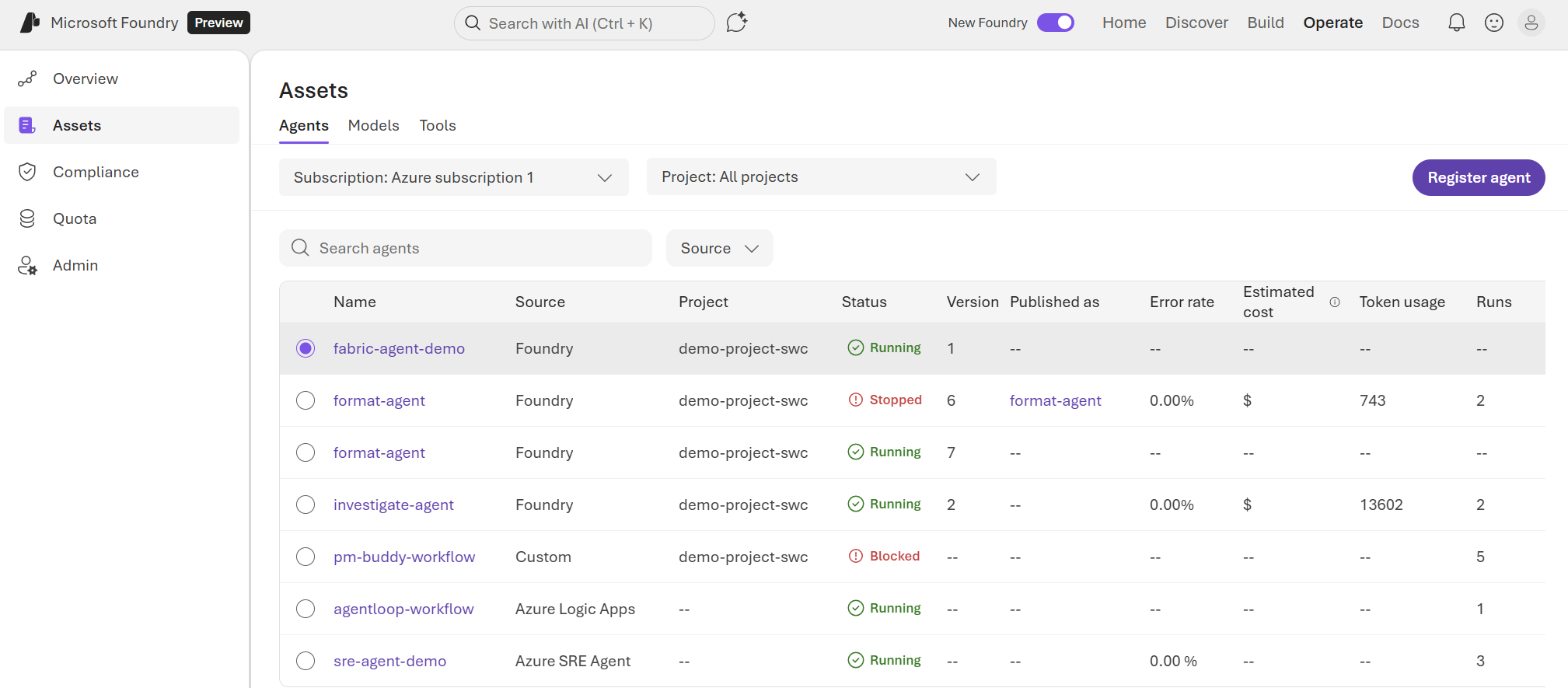
| Column | Description | Agent platform |
|---|---|---|
| Name | The name of the agent or the agentic resource. | All |
| Source | The source platform where the agent or resource was discovered. See the list of supported platforms later in this article. | All |
| Project | The Foundry project associated with the agent. For custom agents, it’s the project where the agent was registered. | Foundry Custom |
| Status | Refers to a broad range of conditions, including operational, health, or lifecycle status of the agent. Agents transition to different values, depending on the platform and lifecycle operations. Possible values are: - Running - Stopped - Blocked - Unknown | All |
| Version | The version of the agent asset. | Foundry |
| Published as | Indicates if the agent was published as an agent application. Published agents in Foundry have their own endpoint for invocation. | Foundry |
| Error rate | The proportion of failed runs compared to successful ones in the last month. This column requires observability configured. | All |
| Estimated cost | The estimated cost of the agent executions in the last month, based on the number of tokens consumed. This column requires observability configured. | Foundry |
| Token usage | The estimated tokens consumed by the runs in the last month. This column requires observability configured. | Foundry |
| Runs | The number of executions in the last month. This column requires observability configured. | All |
| Monitoring features | The number of monitoring features that are enabled in the agent. See The three stages of AI application lifecycle evaluation. | Foundry |
| Entra ID | The Microsoft Entra Agent ID application and object ID associated with the agent. An agent identity is a special service principal in Microsoft Entra ID. It represents an identity that the agent identity blueprint created and is authorized to impersonate. See Agent identity concepts in Microsoft Foundry. | Foundry |
Permissions model
Foundry Control Plane automatically discovers agents that users can access. Because Foundry Control Plane aggregates information across resources within the subscription, different users might see different agents listed on the Assets pane, depending on their access level on each resource. The following roles affect what you can see and do:| Role | Scope | Capabilities |
|---|---|---|
| Reader | Resource, resource group, or subscription | View agent inventory and traces |
| Contributor | Resource, resource group, or subscription | View and perform lifecycle operations (start, stop, block) |
| Owner | Resource, resource group, or subscription | Full management, including permissions |
These roles are the minimum requirements. Custom roles with equivalent permissions also work. The agents you see depend on your role assignments across the resources in the selected subscription.
Supported agent platforms
Foundry Control Plane automatically discovers agents in the following platforms:- Foundry agents, including prompt-based agents, workflows, and hosted agents
- Azure SRE Agent
- Azure Logic Apps agent loops
- Custom agents
Foundry agents
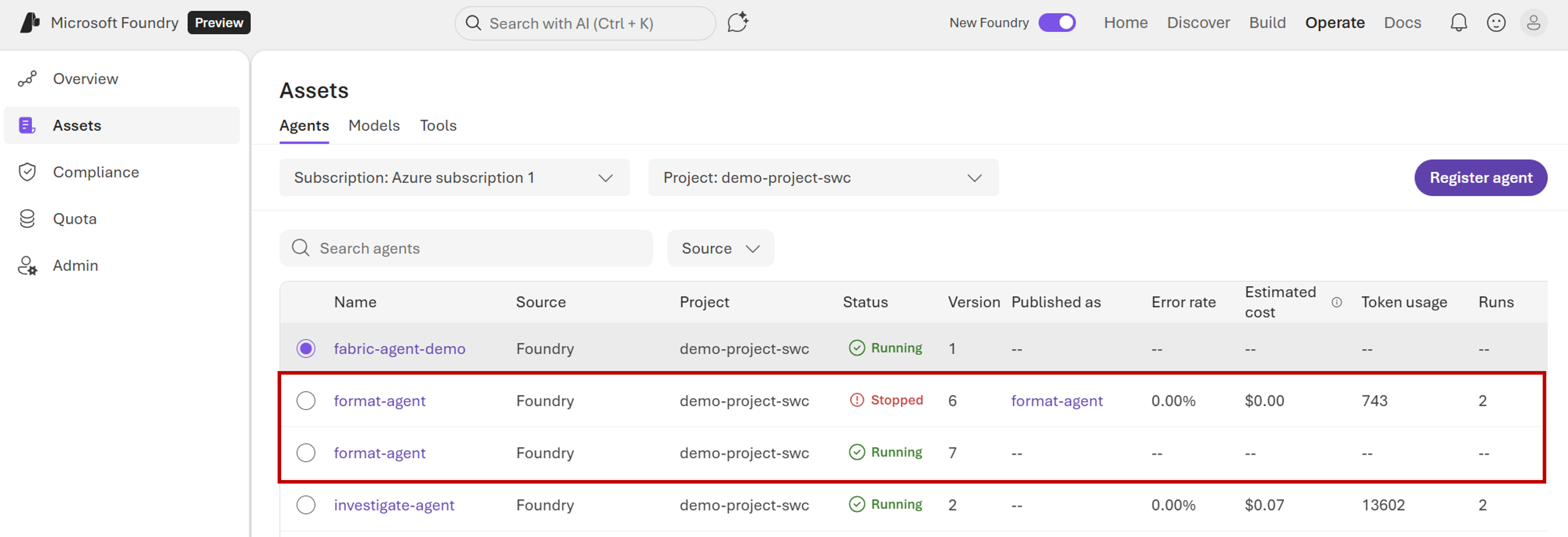
Foundry Control Plane helps you manage agents across all your Foundry projects. When you create an agent or workflow in a Foundry project, the agent appears in the inventory. Foundry Control Plane lists all the agents across all the projects within a subscription. For each agent, the information includes:- The latest version of the agent.
- Versions published as agent applications.
format-agent agent was published, but version 7 (latest) is still under development.
Foundry classic agents and Azure OpenAI assistants aren’t supported.
Azure SRE Agent
Azure SRE Agent helps you maintain the health and performance of your Azure resources through AI-powered monitoring and assistance. Agents continuously watch your resources for problems, provide troubleshooting help, and suggest remediation steps in a natural-language chat interface. Learn more about Azure SRE Agent. Foundry Control Plane discovers Azure SRE Agent resources in your subscription and displays them in the inventory.Azure Logic Apps agent loop
Azure Logic Apps supports workflows that complete tasks by using agent loops with large language models (LLMs). An agent loop uses an iterative process to solve complex, multistep problems. Learn more about workflows with AI agents and models in Logic Apps. Foundry Control Plane discovers Logic Apps resources that contain agent loop workflows and lists them in the inventory.Observability features, including traces and metrics, aren’t supported in Logic Apps agent loops.
Custom agents
For agentic platforms that Foundry Control Plane doesn’t support, you can manually register agents in a Foundry project to enable management. Registering custom agents that run in Azure compute services or other cloud environments can help you gain visibility into their operations and control their behavior. You can register a custom agent in Foundry Control Plane and develop the agent in the technology of your choice, for both platform and infrastructure solutions. Learn how to register an agent in Foundry Control Plane to enable management.Observability of agents
Foundry Control Plane uses the Application Insights resources that host your agents to help you monitor and diagnose those agents. When such data is available, Foundry Control Plane can:- Compute runs and error rates.
- Compute usage metrics, including token usage and cost.
- Collect execution traces.
View traces
You can view traces and logs sent to Foundry. Traces are stored in Application Insights, and you can query them by using the Foundry portal or any other compatible tool. To view them:- On the toolbar, select Operate.
- On the left pane, select Assets.
- Select the agent.
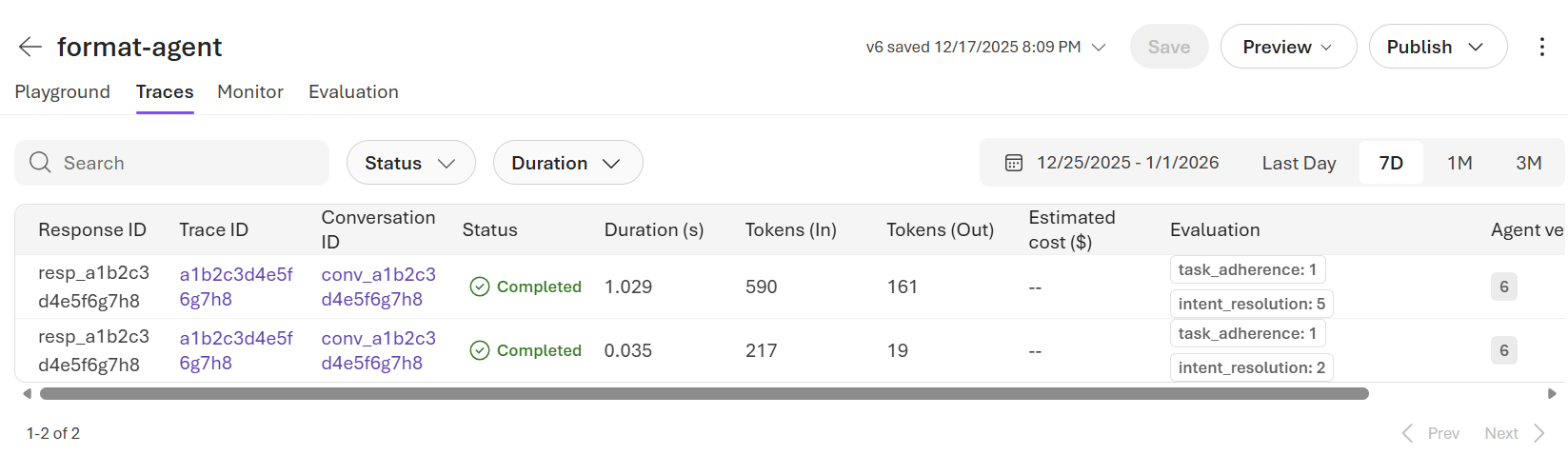
- Select the Traces tab. The tab shows one entry for each call made to the agent. Two columns contain IDs associated with the call: Trace ID and Conversation ID. Traces are stored in Application Insights and contain data to diagnose behavior. The Conversation ID column applies for Foundry agents. It contains the conversation associated with the trace. Conversations are stored in the Foundry service.
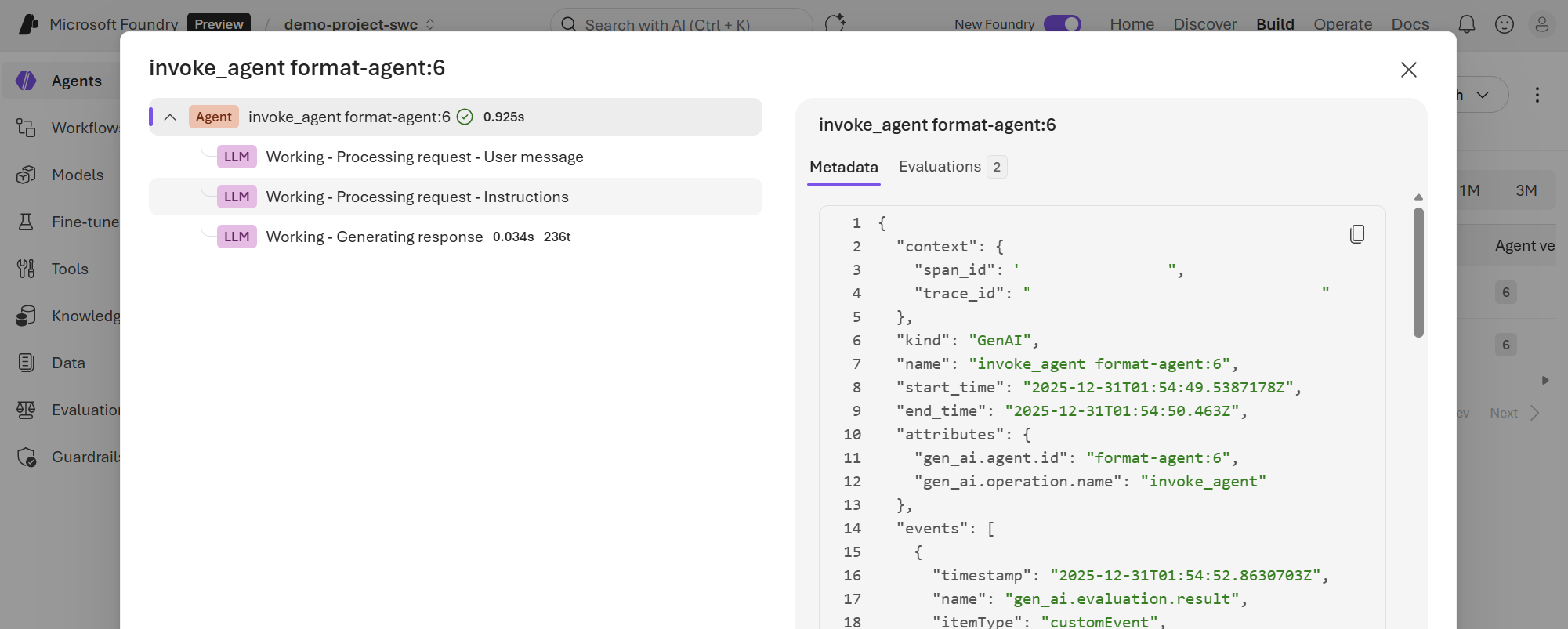
- To see the details, select a value in the Trace ID column.
Lifecycle operations
Foundry Control Plane helps organizations control agents to manage usage and infrastructure cost. Different agent platforms support different operations. The following table summarizes supported actions for each platform. A Foundry agent’s support depends on the agent type and its publishing state.| Platform | Agent type | Published | Supported actions | Notes |
|---|---|---|---|---|
| Foundry | Prompt Workflow | No | None | Unpublished agents don’t have dedicated deployments, and they use the project’s endpoint to receive requests. Their lifecycle is attached to the project’s lifecycle. To stop an unpublished prompt agent or workflow, you must delete it. |
| Foundry | Hosted | No | Start/stop | Stopping a hosted agent stops the deployment associated with it. Any compute attached to it is deallocated. |
| Foundry | Prompt Workflow Hosted | Yes | Start/stop | Stopping a published agent stops the deployment associated with it. It deallocates any compute attached. |
| Azure SRE Agent | Not applicable | Not applicable | Start/stop | |
| Azure Logic Apps | Not applicable | Not applicable | Start/stop | You can stop an Azure Logic Apps agent loop by stopping the Logic Apps resource that hosts it. Stopping a Logic Apps resource stops all the workflows associated with it. |
| Custom | Not applicable | Not applicable | Block/unblock | Foundry doesn’t have access to the underlying infrastructure where the agent runs, so start and stop operations aren’t available. However, Foundry can block incoming requests to the agent. Blocking prevents clients from using the agent. |
Start and stop agents
When you stop an agent, you stop the infrastructure that’s associated with it and move the agent to the Stopped state. Stopping an agent deprovisions its infrastructure and prevents new runs. Any workflows or resources connected to this agent can’t access it. This operation doesn’t terminate existing runs. To stop an agent:- On the toolbar, select Operate.
- On the left pane, select Assets.
- Select the agent that you want to stop. The information pane appears.
- Select Update status, and then select Stop.
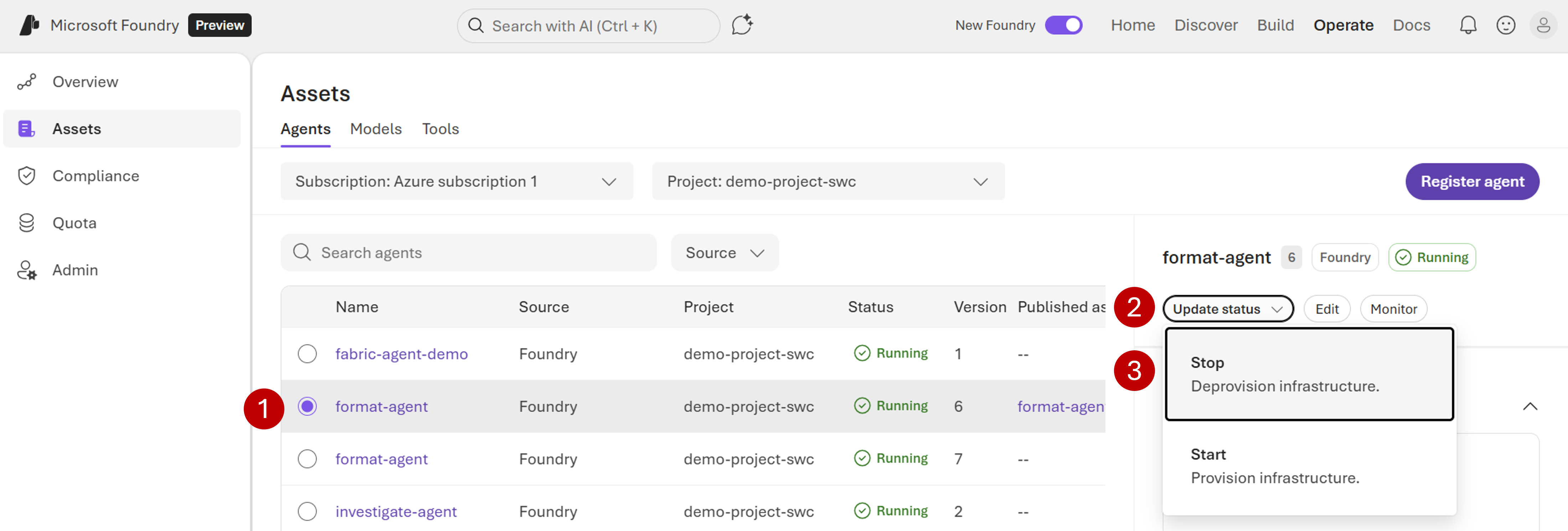
- Confirm the operation.
The operation might take a few minutes to complete. Refresh the Assets pane to verify the updated status.
- Select Update status, and then select Start.
- Confirm the operation.
Block and unblock agents
For custom agents, Foundry doesn’t have access to the underlying infrastructure where the agent runs, so start and stop operations aren’t available. However, Foundry can block incoming requests to the agent. Blocking prevents clients from using the agent. This capability allows administrators to disable an agent if it misbehaves. To block incoming requests to your agent:- On the toolbar, select Operate.
- On the left pane, select Assets.
- Select the agent that you want to block. The information pane appears.
- Select Update status, and then select Block.
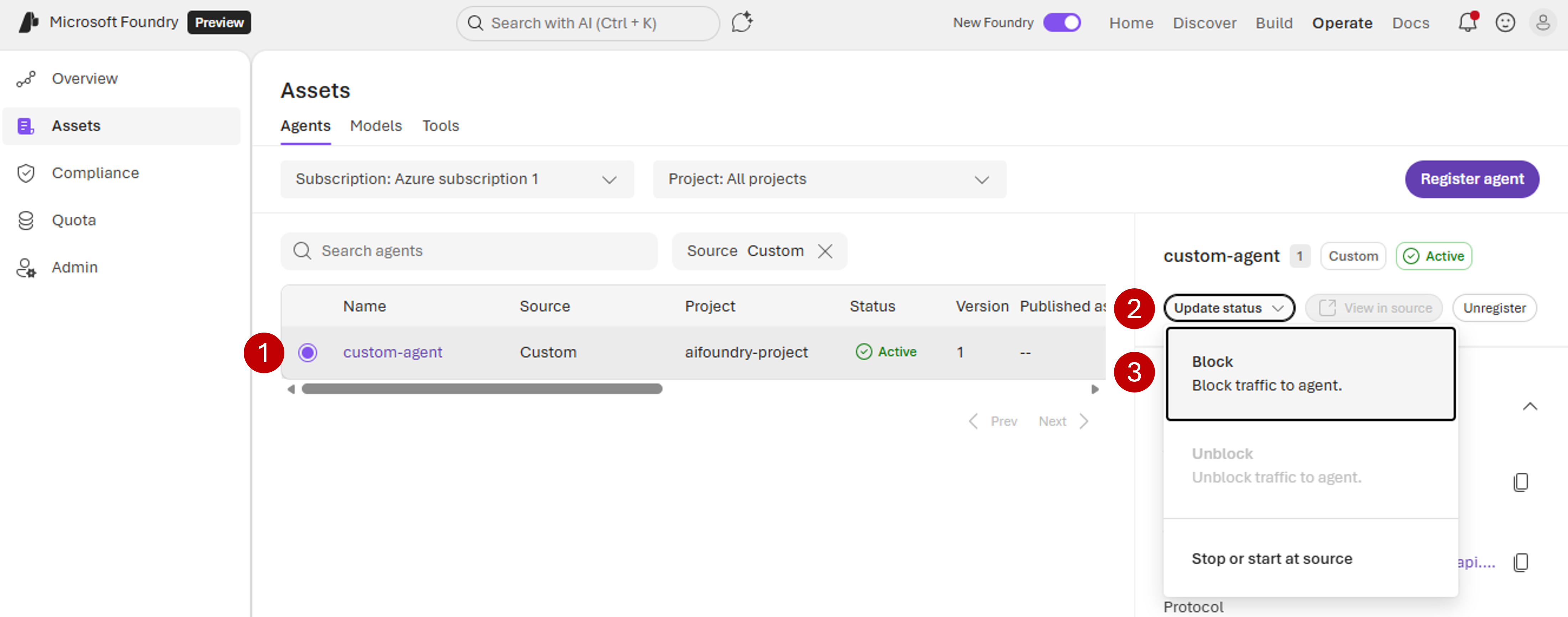
- Confirm the operation.
The operation might take a few minutes to complete. Refresh the Assets pane to verify the updated status.
- Select Update status, and then select Unblock.
- Confirm the operation.
Handle unknown states
Under certain circumstances, agents can display the status Unknown. This status indicates that Foundry Control Plane can’t determine the agent’s state because the source platform is unavailable or the agent failed to report back. To troubleshoot an Unknown status:- Verify that the source platform (for example, Azure Logic Apps or Azure SRE Agent) is operational.
- For custom agents, confirm the agent’s infrastructure is running and accessible.
- Check the agent’s Application Insights logs for error traces.
- If the status doesn’t resolve, try stopping and restarting the agent.
Troubleshooting
Observability data isn’t visible
If metrics like error rate, token usage, or cost don’t appear for an agent:- Verify that Application Insights is configured for the resource that hosts the agent.
- Confirm you have the required permissions to view Application Insights data and cost metrics.
- Run the agent after you configure Application Insights. Metrics and traces are collected only for runs that occur after configuration. Past runs aren’t retroactively captured.
- Wait up to 15 minutes for data to propagate after the first post-configuration run.
Agent doesn’t appear in inventory
If an expected agent doesn’t appear in the Assets pane:- Confirm the agent is in a supported platform.
- Verify you have RBAC permissions on the resource that hosts the agent.
- Check that the agent is within the currently selected subscription.
- For custom agents, verify the agent is registered in a Foundry project.