Prerequisites
Before you begin, ensure you have:- Azure subscription: An active Azure subscription with the resources you want to monitor.
- Role-based access control (RBAC): One or both of the following roles at the subscription or resource group scope:
- Cost Management Reader – View costs and usage data.
- AI User – View Foundry resource data and costs.
- Supported Azure account type: One of the supported account types for Cost Management.
Foundry doesn’t have a dedicated page in the Azure pricing calculator because Foundry is composed of several optional Azure services. This article shows how to use the calculator to estimate costs for these services.
Estimate costs before using Foundry
Use the Azure pricing calculator to estimate costs before you add Foundry resources.- Go to the Azure pricing calculator.
- Search for and select a product, such as Azure Speech in Foundry or Azure Language in Foundry.
- Select additional products to estimate costs for multiple services. For example, add Azure AI Search to include potential search costs.
- As you add resources to your project, return to the calculator and update estimates.
Costs associated with Foundry
When you create a Foundry resource, you pay for the Azure services you use, such as Azure OpenAI, Azure Speech in Foundry, Content Safety, Azure Vision in Foundry, Azure Document Intelligence, and Azure Language in Foundry. Costs vary by service and feature. For details, see the Foundry Tools pricing page.Understand billing models for Foundry
Foundry resources run on Azure infrastructure and accrue costs when deployed. When you create or use Foundry resources, you’re charged based on the services you use. Two billing models are available:- Pay-as-you-go (Serverless API): You’re billed according to your usage of each Azure service.
- Commitment tiers: You commit to using service features for a fixed fee, providing predictable costs. For details, see Commitment tier pricing.
If you use the resource above the quota provided by the commitment plan, you pay for the extra usage as described in the overage amount in the Azure portal when you buy a commitment plan.
Understand the billing model for Foundry Models
Token-based pricing
Language and vision models process inputs by breaking them down into tokens. Each token is roughly four characters of text; image and audio content are also converted to tokens for billing. You’re charged per 1,000 tokens (input and output combined). Token pricing varies by model series and deployment type. For the latest rates, see the Azure OpenAI pricing page.Models sold directly by Azure
Models sold directly by Azure (including Azure OpenAI) appear as billing meters under each Foundry resource. Microsoft handles billing directly; you see separate meters for each model’s input and output usage.Fine-tuned models
Azure OpenAI fine-tuned models are charged in three ways:- Training: Charged per token in your training file.
- Hosting: Hourly cost per deployed model (applies even if the model is unused).
- Inference: Per 1,000 tokens (input and output) when the model is called.
Inactive deployments (unused for 15 consecutive days) are deleted automatically. This deletion doesn’t affect the underlying model; you can redeploy it at any time. However, deployed fine-tuned models incur hourly hosting costs even if inactive, so remove unused deployments promptly to control costs.
HTTP Error response code and billing status
If the service performs processing, you’re charged even if the status code isn’t successful (not 200). For example, a 400 error due to a content filter or input limit, or a 408 error due to a timeout. If the service doesn’t perform processing, you aren’t charged. For example, a 401 error due to authentication or a 429 error due to exceeding the rate limit.Monitor costs
Track your Foundry spending using cost analysis tools. You can view costs by day, month, or year, compare against budgets, and identify spending trends. Access cost information from the Microsoft Foundry portal or the Azure portal. Reference: Cost analysisYour Foundry costs are only a subset of your overall application or solution costs. You need to monitor costs for all Azure resources used in your application or solution.
Configure permissions to view costs
To view Foundry costs, ensure you have the AI User role and Cost Management Reader role at the resource group or subscription level. Or you can create the following custom rules:Microsoft.Consumption/*/readMicrosoft.CostManagement/*/readMicrosoft.Resources/subscriptions/readMicrosoft.CognitiveServices/accounts/AIServices/usage/read
You need the Owner role at the subscription or resource group scope to create custom roles in that scope.
<subscriptionId>, <resourceGroupName>, and <foundryResourceName> with your actual values.
Monitor in Foundry portal
- Sign in to Microsoft Foundry. Make sure the New Foundry toggle is on. These steps refer to Foundry (new).

- Use the sections below to monitor costs.
Estimates do not reflect discounts or contracted pricing that may appear on your final bill. Estimates cover standard deployment costs only, not provisioned throughput.
Agent costs
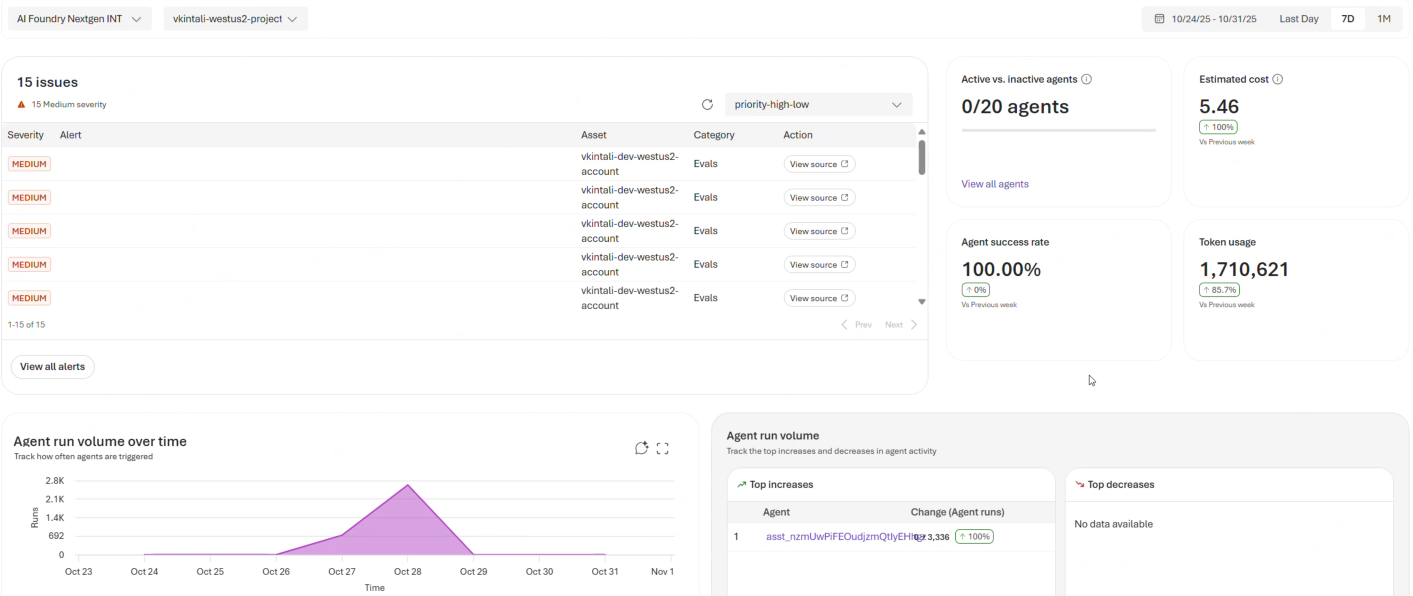
- Select Operate in the upper-right navigation.
- Select Overview in the left pane.
- At the top of the page, select the subscription, one or more projects, and a date range.
- The Estimated cost tile shows estimates of all the agents for the selected project(s) for the selected dates. These estimates do not currently include prompt agent and non-Foundry agent costs.
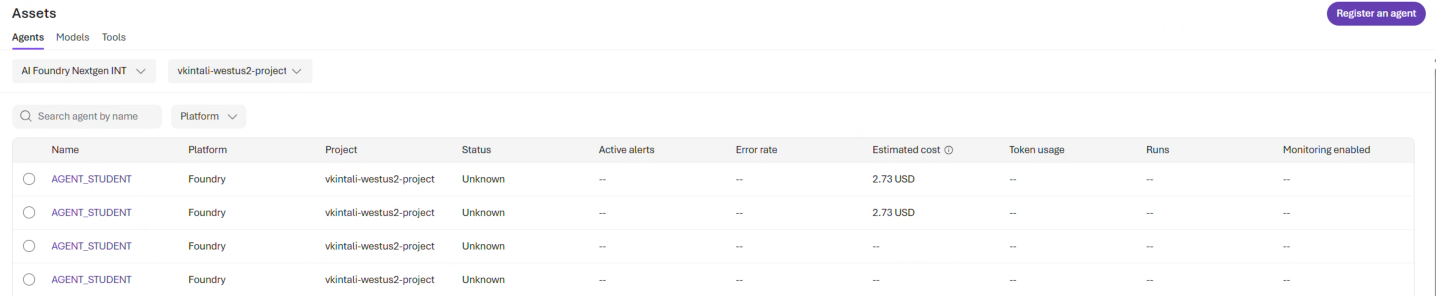
- Select Assets in the left pane.
- Select the Agents tab.
- The Estimated costs column shows monthly estimates based on agent configuration and usage patterns.
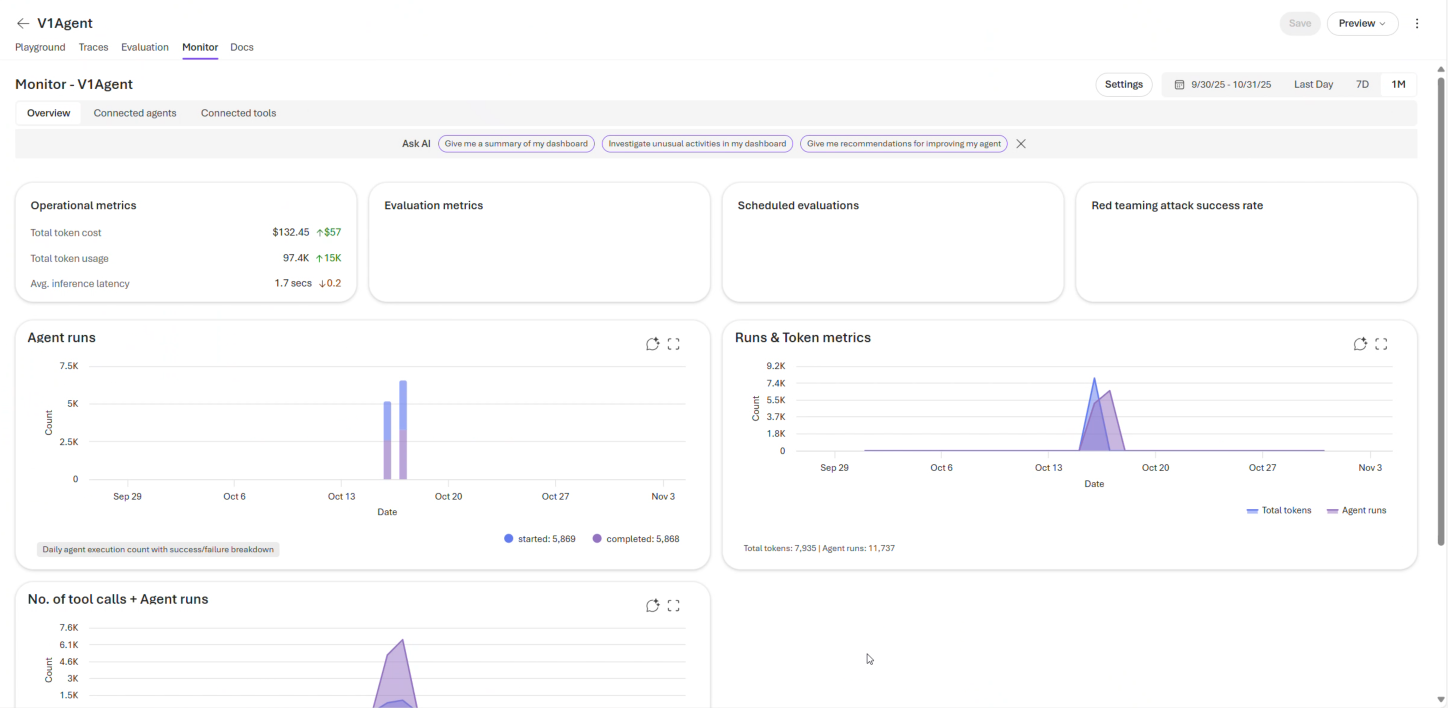
- Select Build in the upper-right navigation.
- Select Agents in the left pane.
- Select an agent.
- Select the Monitor tab.
- Set the date range in the upper-right corner.
- View token costs and usage metrics for the selected range.
Model deployment costs
- Select Build in the upper-right navigation.
- Select Models in the left pane.
- Select a model.
- Select the Monitor tab.
- Set the date range in the upper-right corner. You see total cost and an estimated cost chart for the selected range.
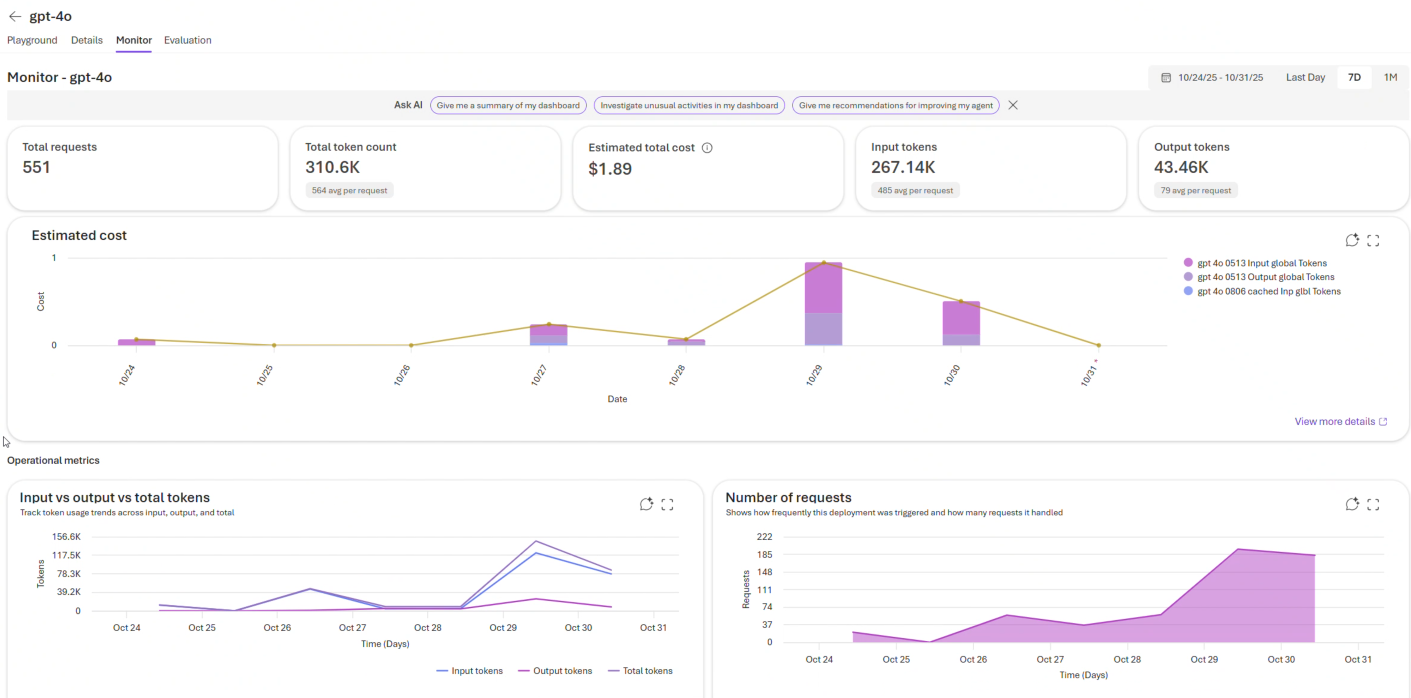
Token and request charts can sometimes show lower values than the Estimated cost view because late‑arrival usage events may not be included in those charts. If there’s a mismatch, rely on Estimated cost as the most accurate view, and note that your Azure Cost Management invoice remains the final source of truth.
Monitor in Azure portal
- Sign in to the Azure portal.
- View costs for your resource group or individual Foundry resource.
To open your Foundry resource in Azure portal:
- Sign in to Microsoft Foundry. Make sure the New Foundry toggle is on. These steps refer to Foundry (new).
- Select Operate from the upper-right navigation.
- Select Admin.
- Select the link for the parent resource in the second column.
- Select Manage this resource in the Azure portal under the View resource heading in the upper-right.
- In the Azure portal, select Cost analysis under Cost Management (for your resource group or Foundry resource).
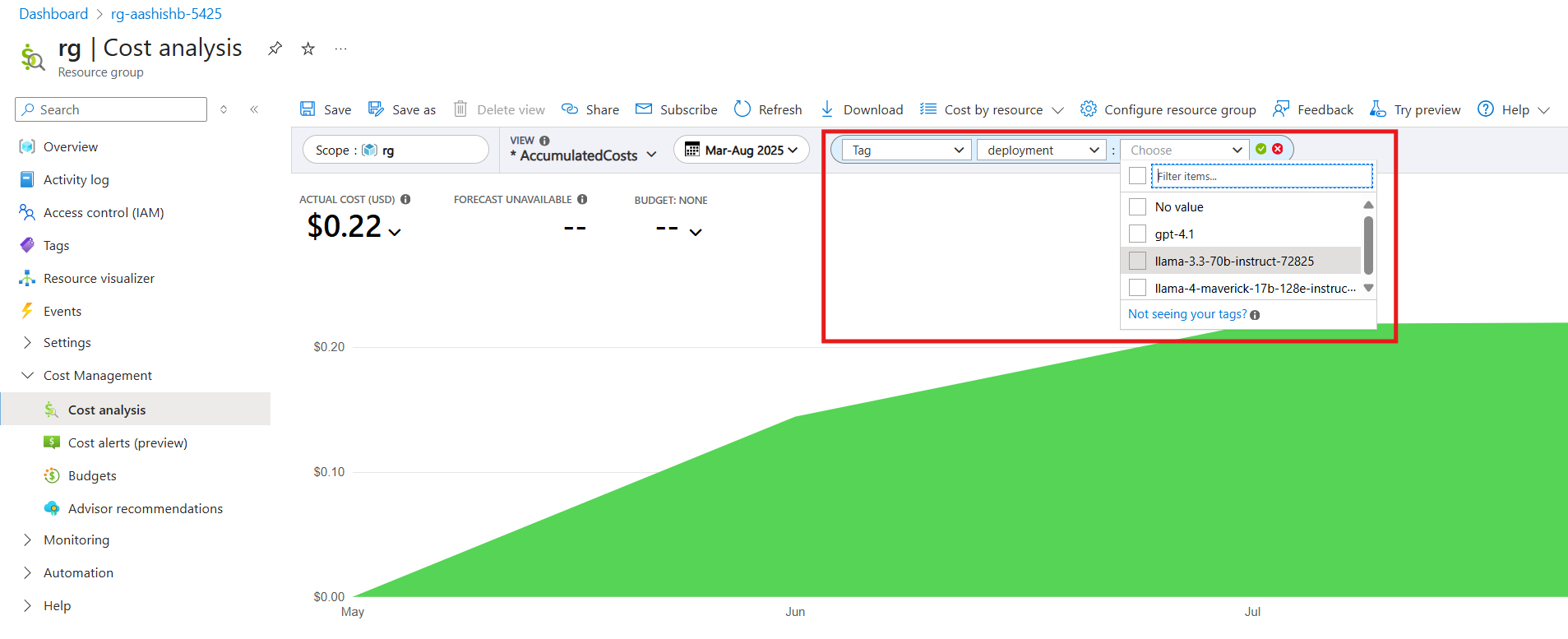
- View the cost overview. Optionally, add filters (deployment tags, user-defined tags) to segment costs by model deployment:
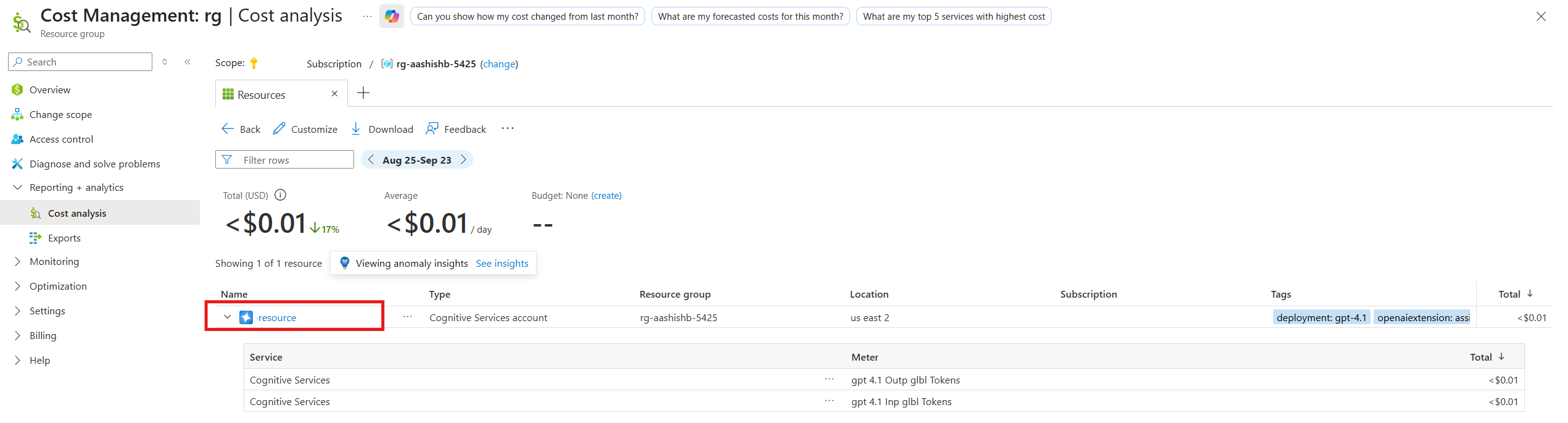
- Select Costs by resource > Resources to see your Foundry resource cost split across model deployments:
Understand cost breakdown by meter
Use the Cost Analysis tool to view costs grouped by billing meter:- Sign in to the Azure portal and select your resource group.
- Select Cost analysis under Cost Management.
- By default, cost analysis is scoped to the selected resource group.
Scope Cost Analysis to the resource group where you deployed the Foundry resource. The cost meters associated with Models from Partners and Community display under the resource group instead of the Foundry resource.
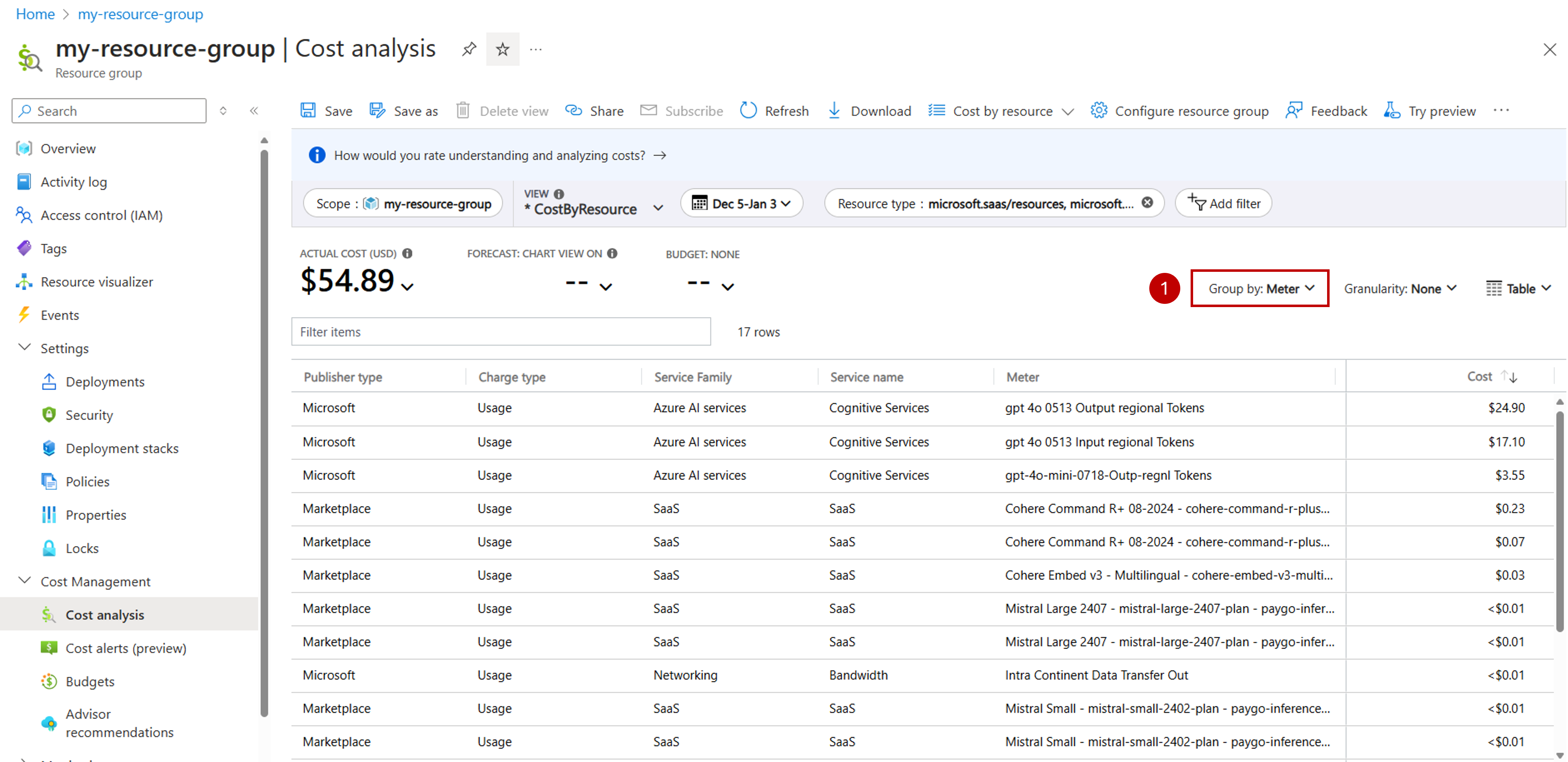
- Modify Group by to Meter. You can now see that for this particular resource group, the source of the costs comes from different model series.
Models sold directly by Azure
Models sold directly by Azure (including Azure OpenAI) are charged directly. They appear as billing meters under each Foundry resource. Microsoft handles this billing directly. When you inspect your bill, you see billing meters that account for inputs and outputs for each consumed model.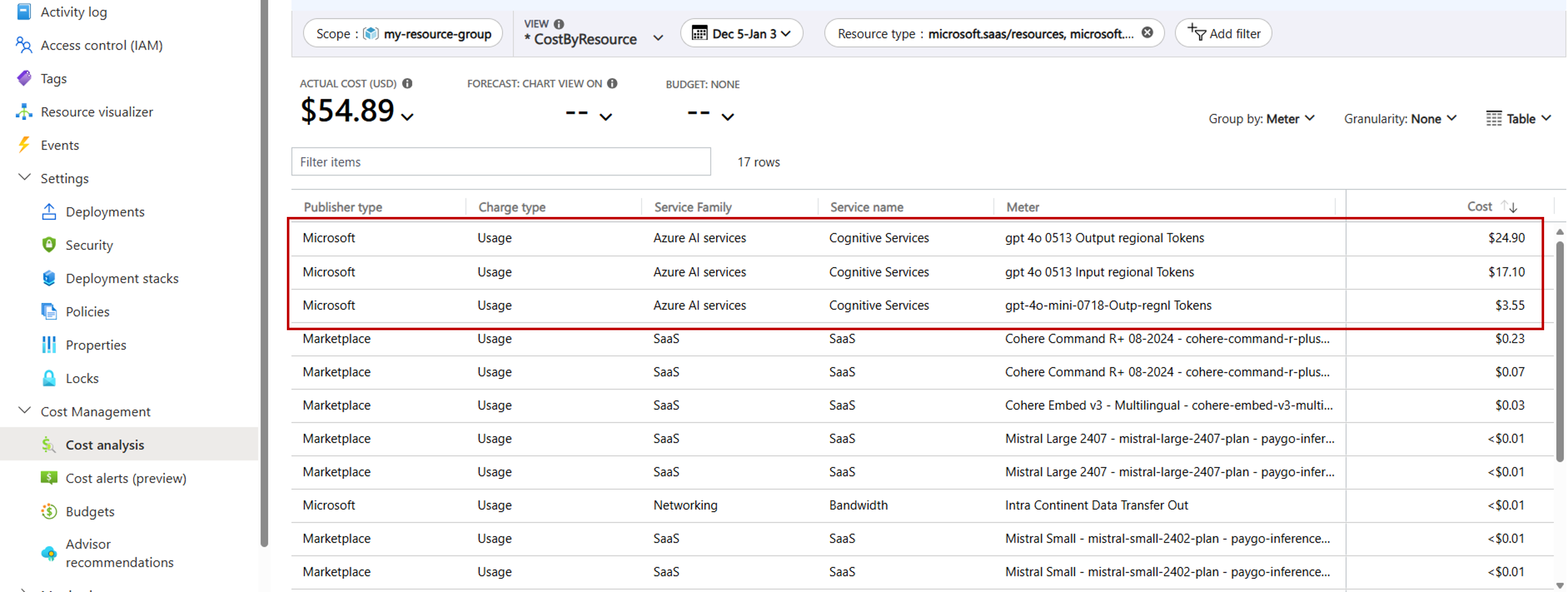
Monitor costs by resource
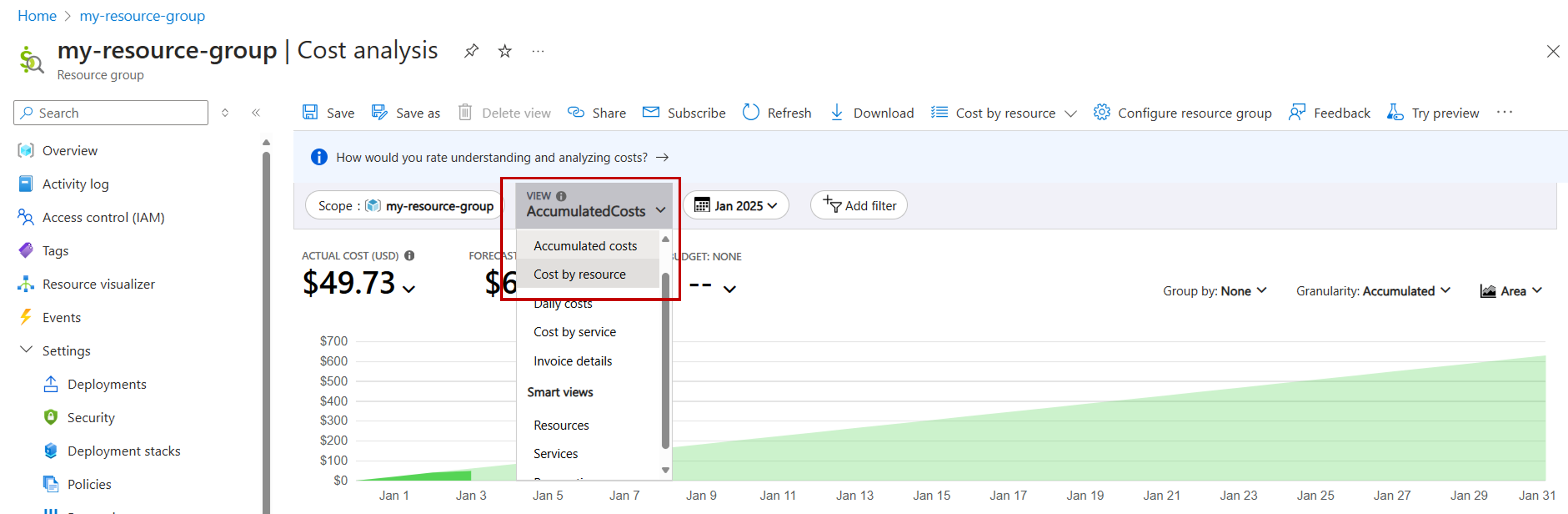
You can get more detailed billing information by grouping costs by resource:- In Cost Analysis, select View > Cost by resource.
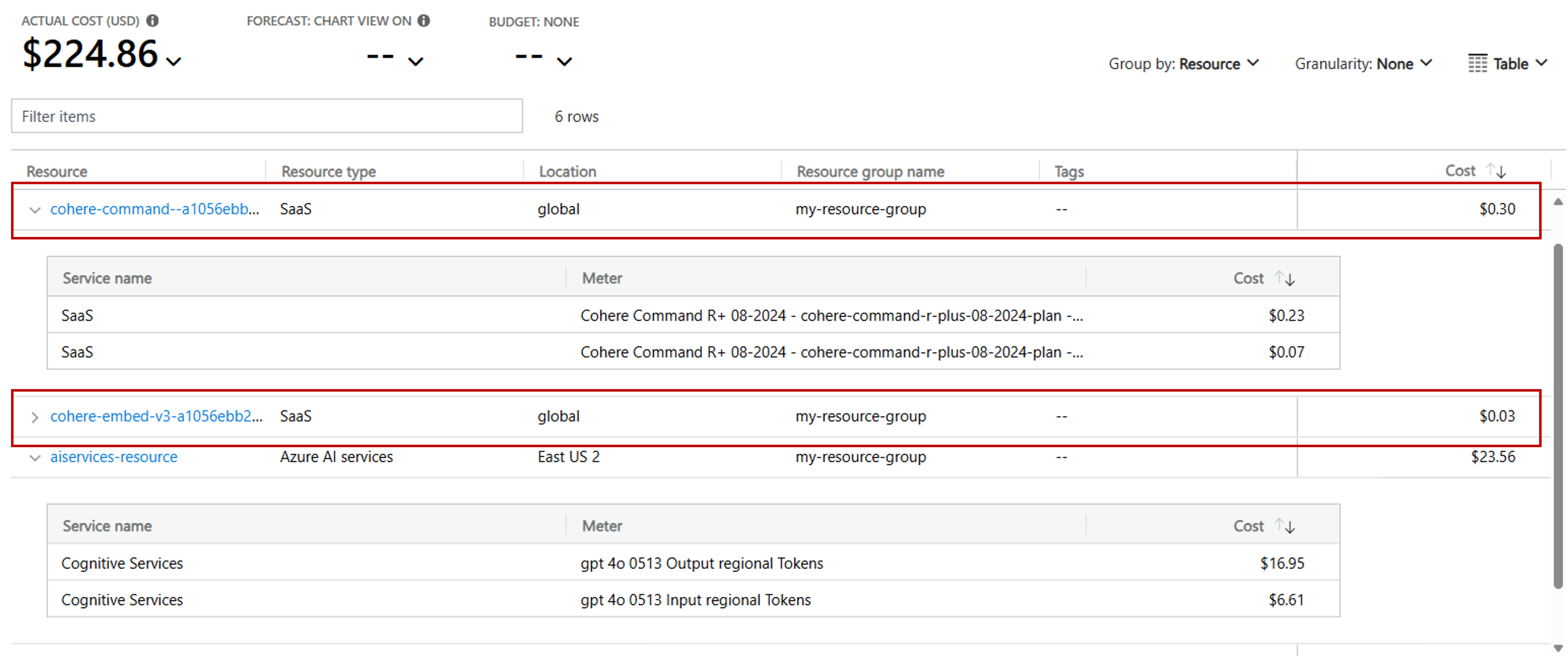
- Now you can see the resources generating each of the billing meters. To understand the breakdown of what makes up that cost, it can help to modify Group by to Meter and switching the chart type to Line.
- Azure OpenAI models and Microsoft models are displayed as meters under each Foundry Tool resource.
- Some providers’ models are displayed as meters under Global resources. The word Global isn’t related to the SKU of the model deployment (for instance, Global standard). If you have multiple Foundry Tool resources, your bill contains one entry for each model for each Foundry Tool resource. The resource meters have the format [model-name]-[GUID] where [GUID] is an identifier unique an associated with a given Foundry Tools resource. You notice billing meters accounting for inputs and outputs for each model you consumed.
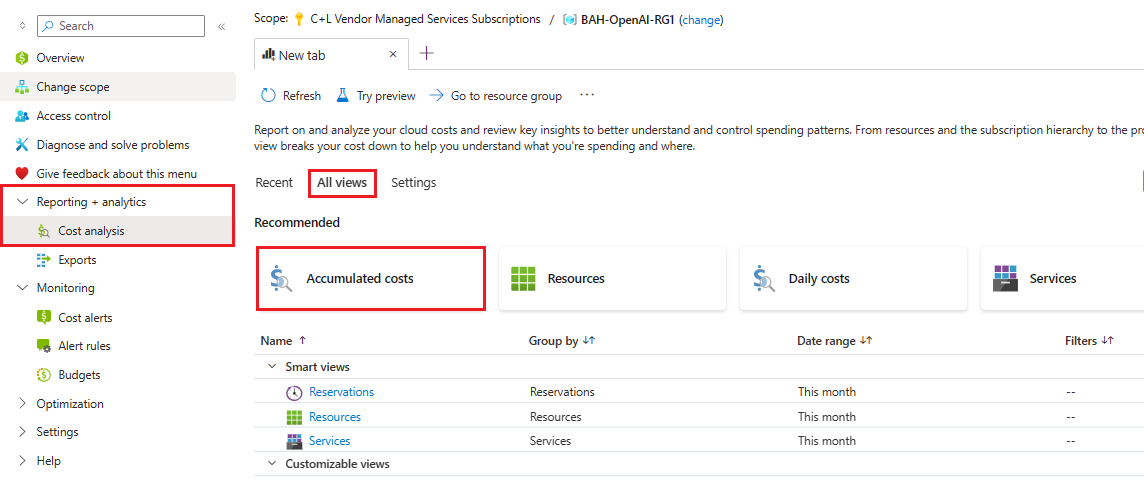
- Search for Cost Management in the top Azure search bar to navigate to the full service experience, which includes more options such as creating budgets.
- If necessary, select change if the Scope: isn’t pointing to the resource group or subscription you want to analyze.
- On the left, select Reporting + analytics > Cost analysis.
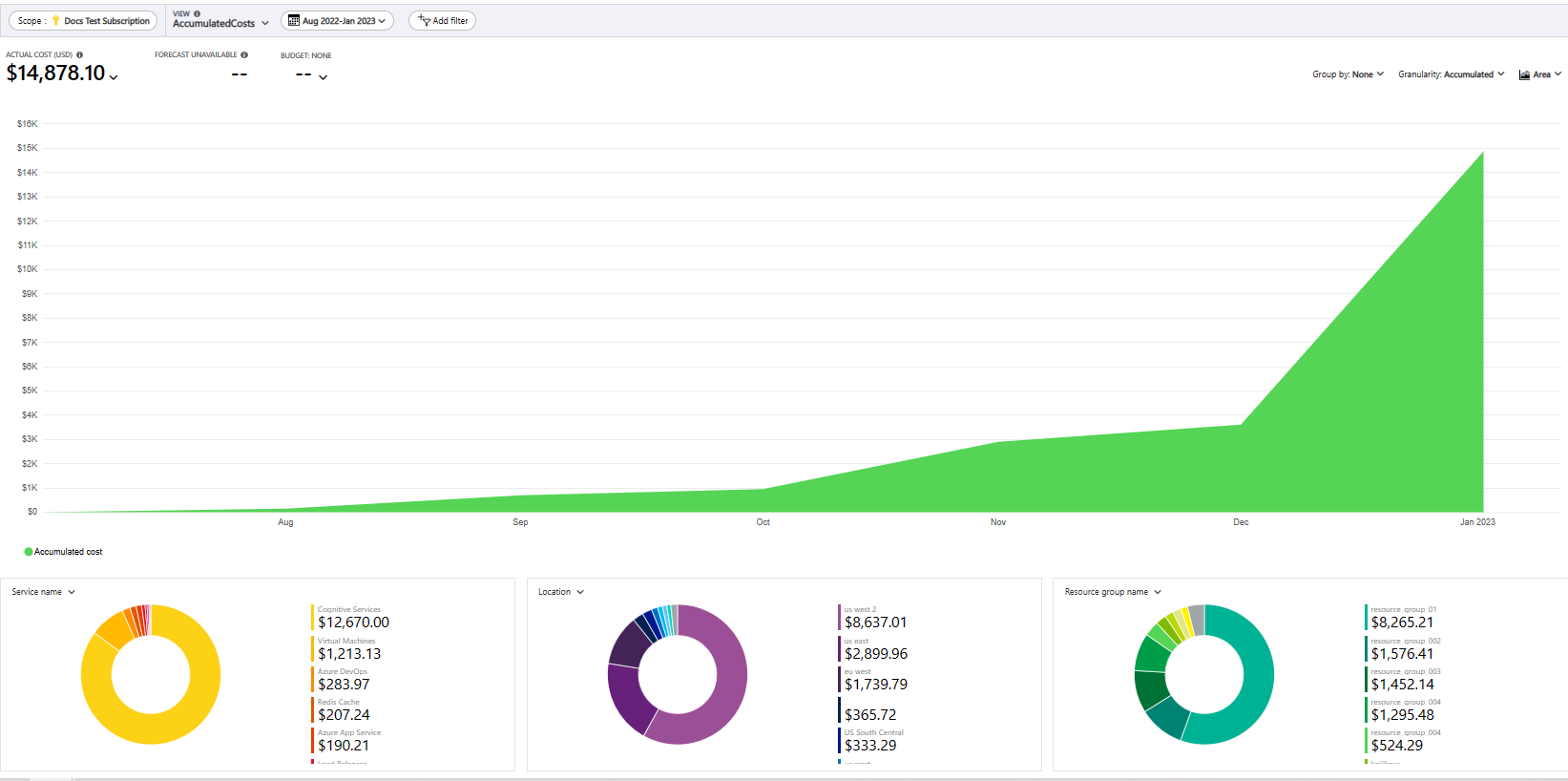
- On the All views tab, select Accumulated costs.
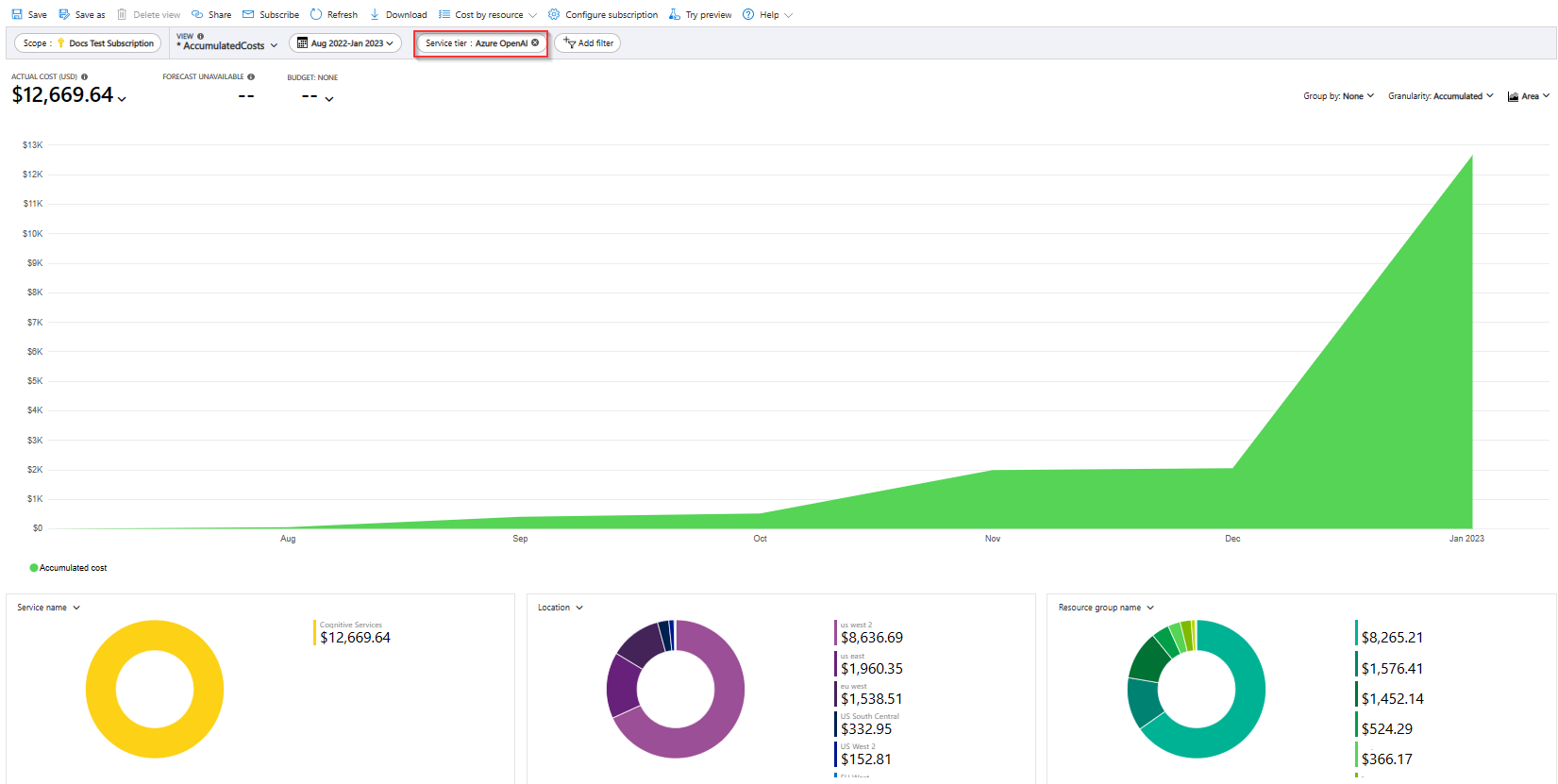
Create budgets
Prevent cost overruns with automated alerts. Create budgets that track your spending limits and set up alerts to notify you when costs approach or exceed thresholds. Best practice: Create budgets and alerts for Azure subscriptions and resource groups as part of an overall cost monitoring strategy. Create budgets with filters for specific resources or services in Azure if you want more granularity in your monitoring. Filters help ensure that you don’t accidentally create new resources that cost more money. For more about filter options when you create a budget, see Group and filter options.While OpenAI has an option for hard limits that prevent you from going over your budget, Azure OpenAI doesn’t currently provide this functionality. You can start automation from action groups as part of your budget notifications to take more advanced actions, but this functionality requires additional custom development.
Export cost data
You can export your cost data to a storage account. Exporting data is helpful when you or others need to do additional data analysis for costs. For example, finance teams can analyze the data by using Excel or Power BI. You can export your costs on a daily, weekly, or monthly schedule and set a custom date range. Exporting cost data is the recommended way to retrieve cost datasets.Other costs that might accrue
Enabling capabilities such as sending data to Azure Monitor Logs and alerting incur extra costs for those services. These costs are visible under those other services and at the subscription level, but aren’t visible when scoped just to your Foundry resource.Using Azure Prepayment
You can pay for Models Sold Directly by Azure charges with your Azure Prepayment (previously called monetary commitment) credit. However, you can’t use Azure Prepayment credit to pay for charges for other provider models because they’re billed through Azure Marketplace. For more information, see Azure pricing calculator.Related content
- Foundry status dashboard
- Learn how to optimize your cloud investment with cost management.
- Learn more about managing costs with cost analysis.
- Learn about how to prevent unexpected costs.
- Take the Cost Management guided learning course.