Upgrade or switch models with Ask AI (preview)
Items marked (preview) in this article are currently in public preview. This preview is provided without a service-level agreement, and we don’t recommend it for production workloads. Certain features might not be supported or might have constrained capabilities. For more information, see Supplemental Terms of Use for Microsoft Azure Previews.
Ask AI model upgrade recommendations are available for models deployed through Foundry Models. For information about Ask AI capabilities and availability, see What is Ask AI?
Prerequisites
- A Foundry project with one or more deployed models or agents.
- Access to Ask AI (the chat assistant) in the Foundry portal.
- At least one evaluation dataset in CSV or JSONL format. The dataset should include columns for the input query and the expected (ground truth) response for your scenario. For dataset preparation guidance, see Evaluate your generative AI app.
- Contributor role (or higher) on the Foundry resource to deploy models, and Azure AI User role (or higher) on the Foundry project to build and run evaluations. For more information, see Role-based access control for Microsoft Foundry.
Open a chat session in Ask AI
You can start a chat with Ask AI from any page in the Foundry portal.- Select the Ask AI icon at the top of the page.
- Select a predefined prompt, such as Should I upgrade my model?, from the Ask AI banner. These prompts appear on model detail, agent, and monitoring pages.
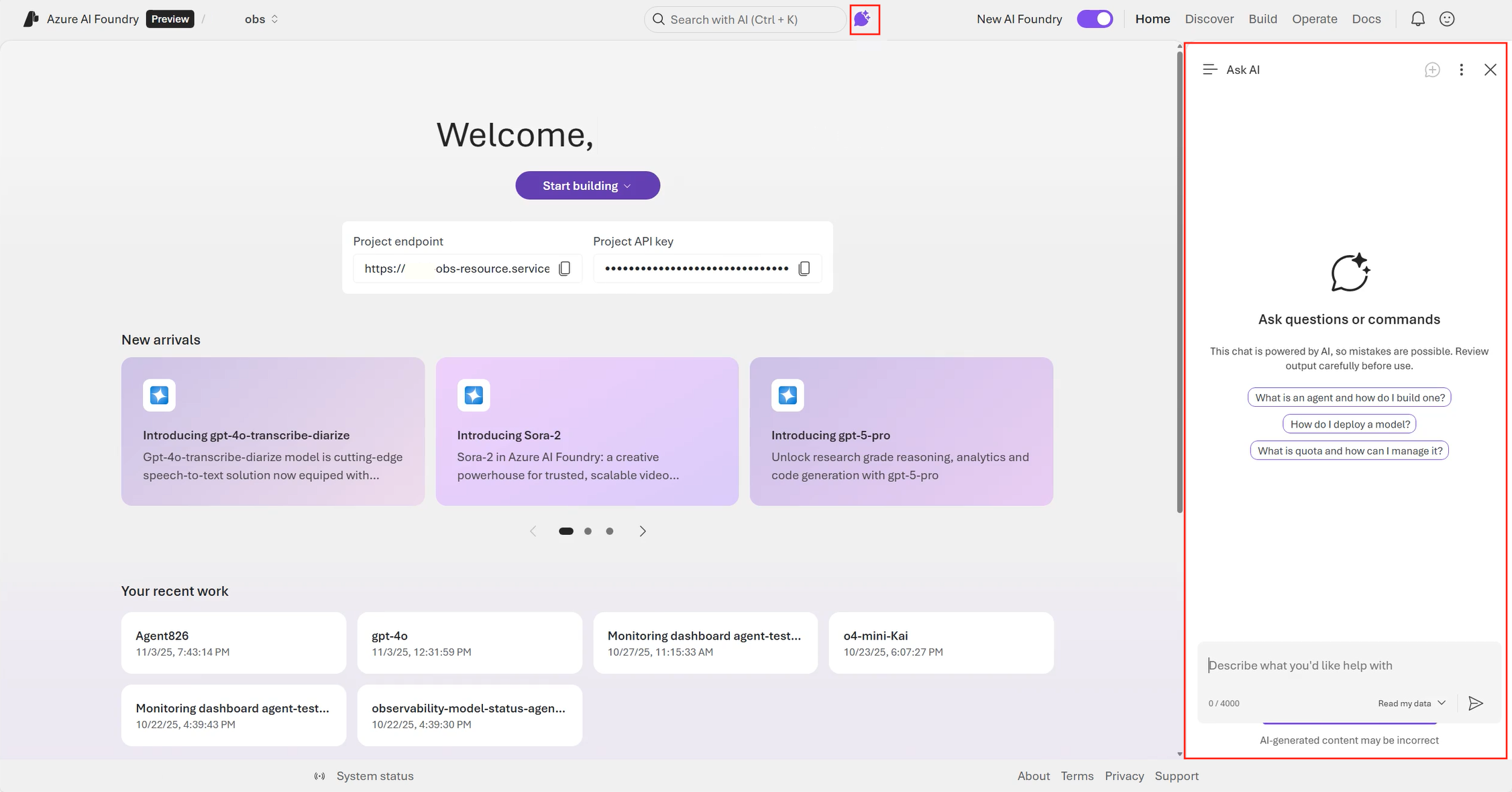
Review model upgrade recommendations
Use Ask AI to check whether any of your deployed models are deprecated or have newer versions available.- In the Ask AI chat panel, type a question about your deployed models. For example, try “Should I upgrade my model?” or “Is any model I’m using deprecated?”
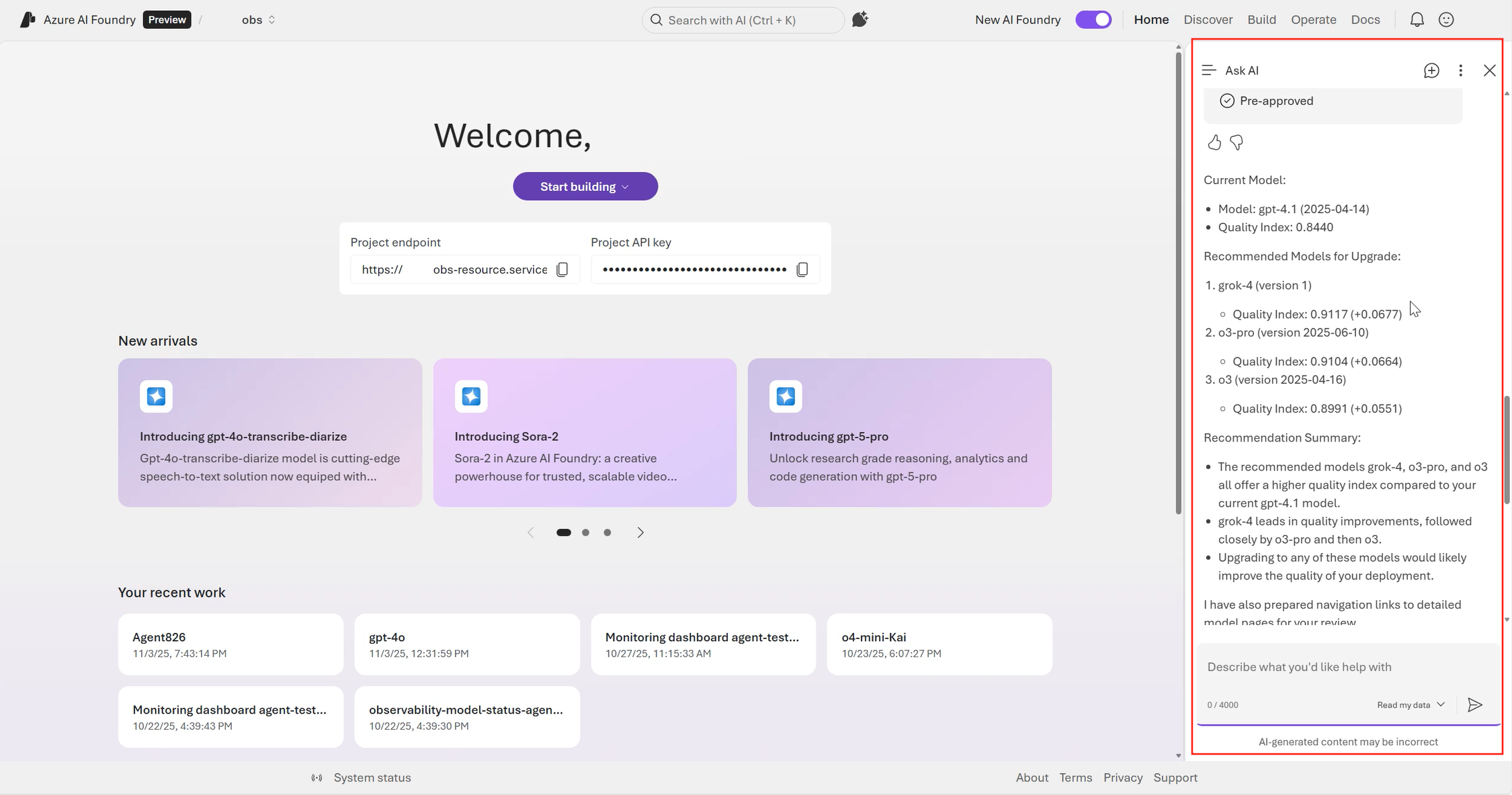
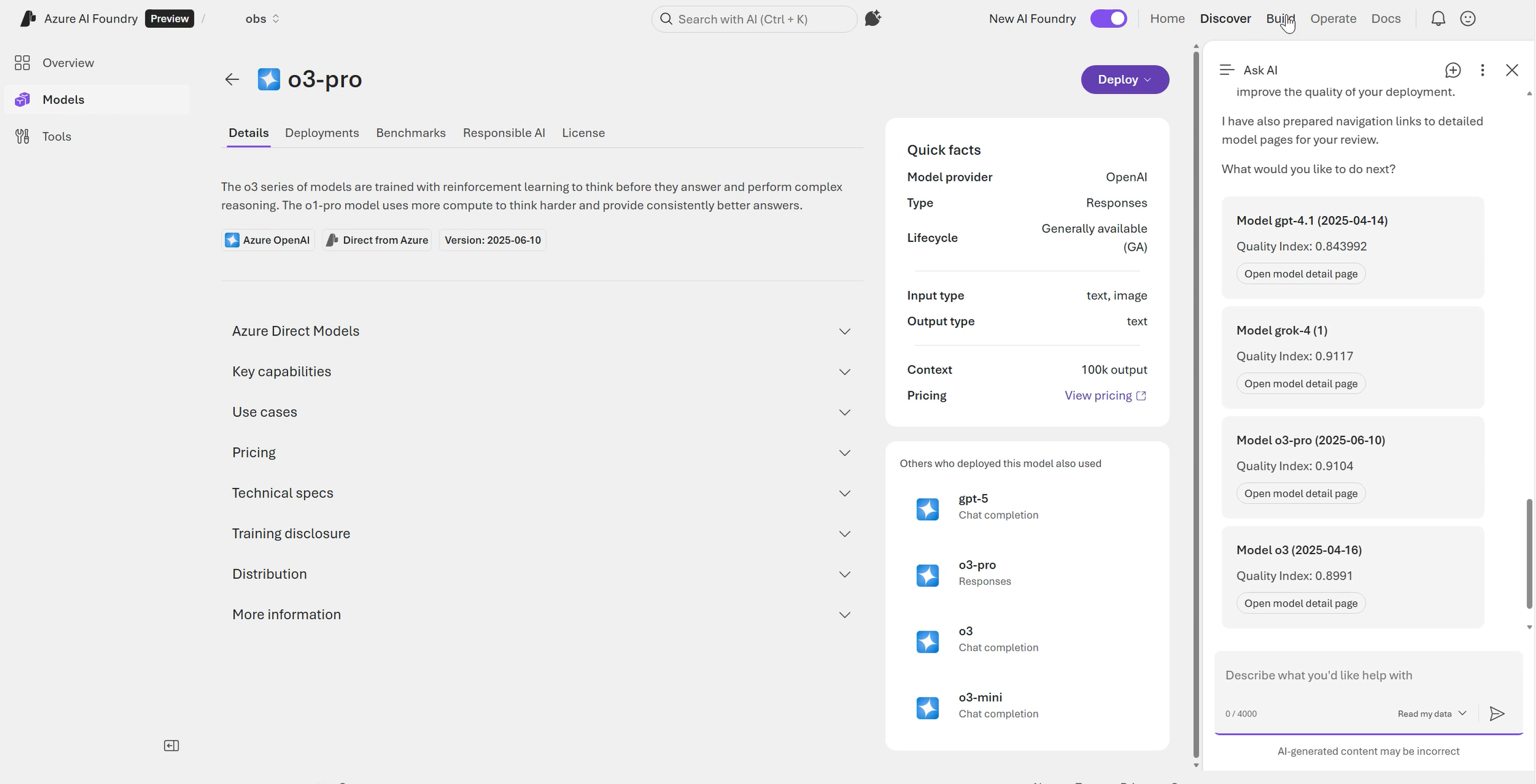
- Review the list of recommended models that Ask AI displays. Key differences between your current model and the recommended alternatives are highlighted.
- Select a model name to view its details in the model catalog, or select Deploy to go to the model deployment page. To learn how to deploy a model, see Add and configure models to Foundry Models.
- After you deploy the recommended model, go to the Deployments page and confirm the deployment status shows Succeeded before proceeding to evaluation.
Evaluate and compare model performance
After deploying the new model, evaluate it against your current model using the same agent instructions and configurations.- In Ask AI, ask to evaluate the newly deployed model. Either follow the link that Ask AI provides or let Ask AI set up the evaluation run for you. For details on manual setup, see Evaluate your generative AI app.
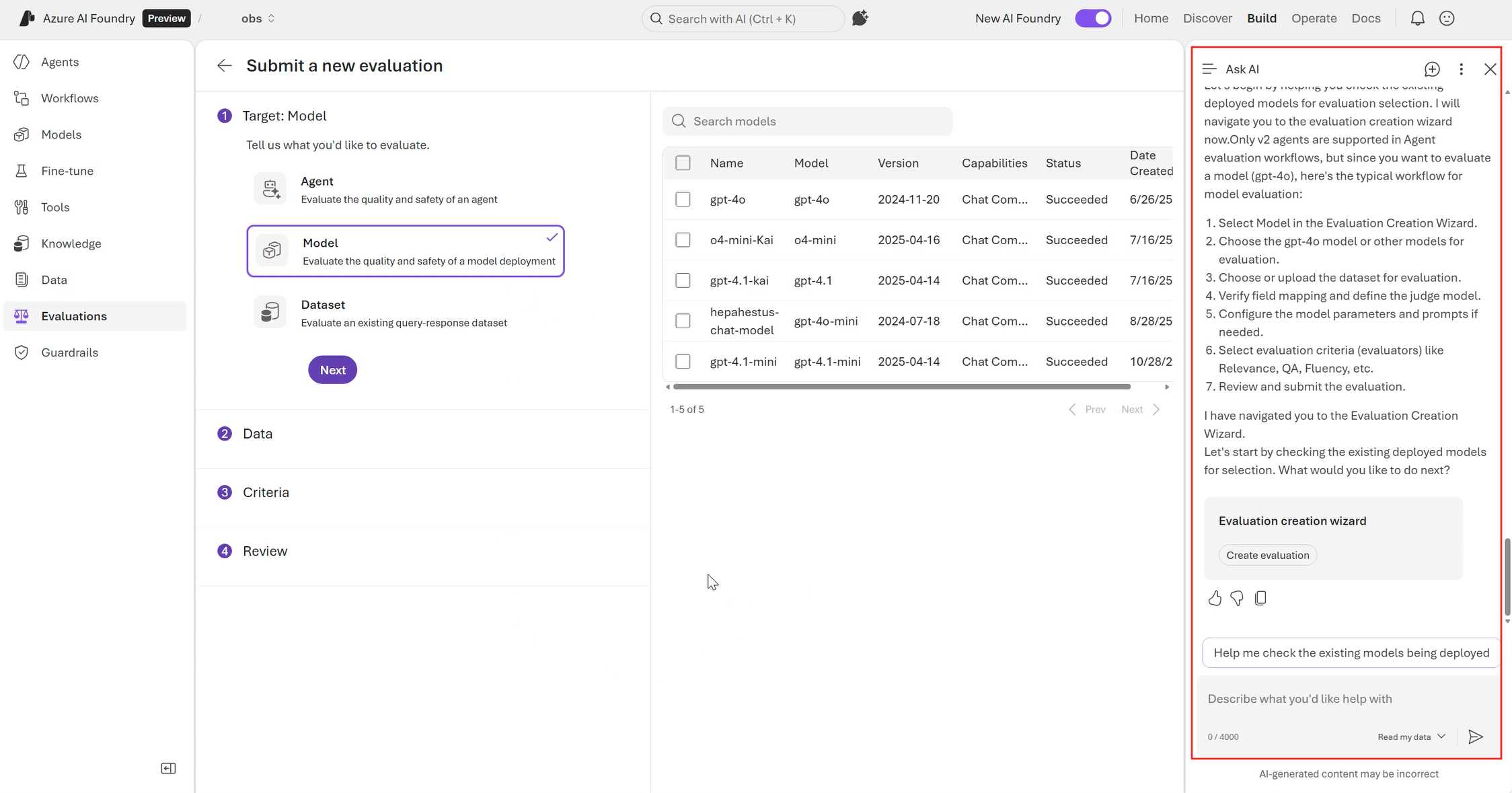
- After the evaluation completes, open the evaluation detail page to review metric scores for both models side by side.
- Use compare or cluster analysis to analyze differences in relevance, groundedness, and coherence.
Update your agent to use the new model
After you confirm the new model meets your requirements, update your agent to use it:- In Ask AI, type a request like “Update my agent to use the new model.”
- Ask AI identifies the agent and current model, then displays the proposed change. Review the summary.
- Select Apply to confirm the model switch. Ask AI creates a new agent version that uses the updated model.
- Verify the update by checking the agent version history on the Agent Playground page. The page shows the new version with the updated model in the version history.
When you update the agent model, the change applies to new conversations. In-progress conversations continue to use the previous model until they complete.
Roll back to a previous model
If the new model doesn’t meet your requirements after the update, revert to the previous version:- Go to the Agent Playground page and select your agent.
- Open the version history and select the previous version.
- Select Restore to revert the agent to the earlier model configuration.
- Verify the rollback by testing the agent in the playground.
Rolling back restores the agent configuration only. Evaluation runs and deployment records for the new model remain in your project history.
Troubleshoot common issues
| Issue | Resolution |
|---|---|
| Ask AI doesn’t suggest any model upgrades | Verify that your deployed model has a newer version available in the model catalog. Ask AI only recommends upgrades when newer versions exist. |
| Evaluation run fails to start | Confirm that your evaluation dataset is in CSV or JSONL format, and that you have the Azure AI User role (or higher) on the project. |
| New model performs worse than the current model | Use compare to review per-metric scores. Consider testing with a different model or adjusting agent instructions before switching. |
| Agent update doesn’t take effect | Check the agent version history in Agent Playground to confirm the new version was created. To revert, see Roll back to a previous model. |