- Invoke your Agent Application using the Responses API protocol
- Publish agents to Microsoft 365 Copilot and Microsoft Teams
What is publishing?
During development, you build and test your agent inside a Foundry project. The project gives you and your teammates a shared workspace, but it isn’t designed for broad distribution because everyone with project access can interact with all agents and shares the same conversation context and permissions. Publishing is the step that moves an agent out of that shared development space and into a production-ready Azure resource. When you publish an agent version, Foundry creates an Agent Application resource that wraps your agent version with its own invocation URL, authentication policy, unique Entra agent identity, and unique Entra agent blueprint. A Deployment is also created as a child resource of the application, referencing the specific agent version being published and supporting start/stop lifecycle management.Foundry Agent Applications are not registered in the Microsoft Entra agent registry.
Why publish?
Publishing gives you capabilities that project-level development doesn’t provide:- External sharing — Grant access to teammates or customers without giving them access to your Foundry project.
- Stable endpoint — The application URL stays the same even as you roll out new agent versions.
- Distinct agent identity — The published agent gets its own Entra agent identity and Entra agent blueprint, separate from the project’s shared identity and blueprint.
- Independent RBAC and authorization — The Agent Application is a separate Azure resource with its own RBAC scope. You can assign roles like Azure AI User directly on the Agent Application resource to control who can invoke it.
- Azure Policy integration — As an Azure Resource Manager (ARM) resource, the application can be governed by Azure Policy.
- Integration with Microsoft 365 Copilot and Teams — Distribute your Agent Application to channels like Microsoft 365 Copilot and Teams.
What changes when you publish?
The most important change is identity. An unpublished agent uses the project’s shared agent identity. Once published, the agent receives its own dedicated agent identity. Any tools that use agent identity authentication will switch from the project’s shared identity to the agent application’s unique agent identity.What to watch for
Because the identity changes, permissions don’t transfer automatically. When you publish an agent, you must reassign RBAC permissions to the new agent identity for any resources that the agent needs to access. If you skip this step, tool calls that work during development fail with authorization errors once the agent is published.Prerequisites
- A Foundry project with at least one agent version created
- Azure AI Project Manager role on the Foundry resource scope to publish agents
- Azure AI User role on the Agent Application scope to chat with a published agent using the Responses API protocol
- Familiarity with Azure role-based access control (RBAC) for permission configuration
- Familiarity with Agent identity concepts in Foundry
- Install the required language runtimes, global tools, and Visual Studio Code extensions as described in Prepare your development environment
Code in this article uses packages that are currently in preview. This preview is provided without a service-level agreement, and we don’t recommend it for production workloads. Certain features might not be supported or might have constrained capabilities. For more information, see Supplemental Terms of Use for Microsoft Azure Previews.
Understand Agent Applications and deployments
Before publishing, it’s important to understand the relationship between projects, agent versions, applications, and deployments.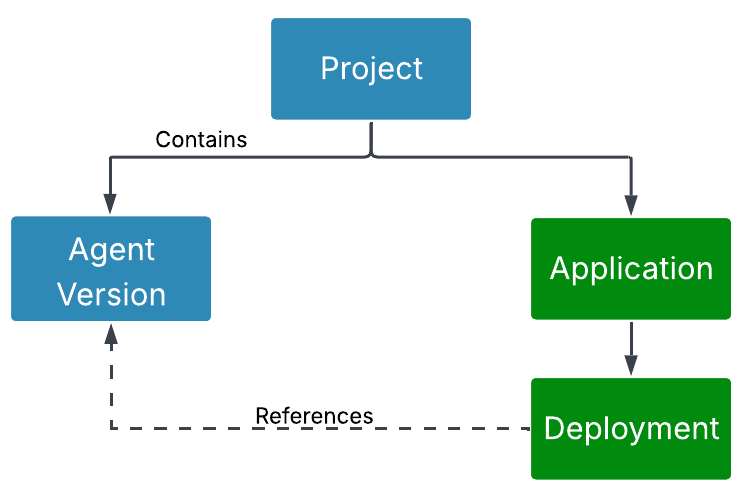
Routing and version management
Each Agent Application acts as a routing table to specific agent deployments. Currently, an Agent Application supports one active deployment, directing 100% of the traffic received by the application’s endpoint to that deployment. When you publish a new agent version to an existing application, 100% of the traffic received by the application’s endpoint is directed to the deployment referencing the new agent version.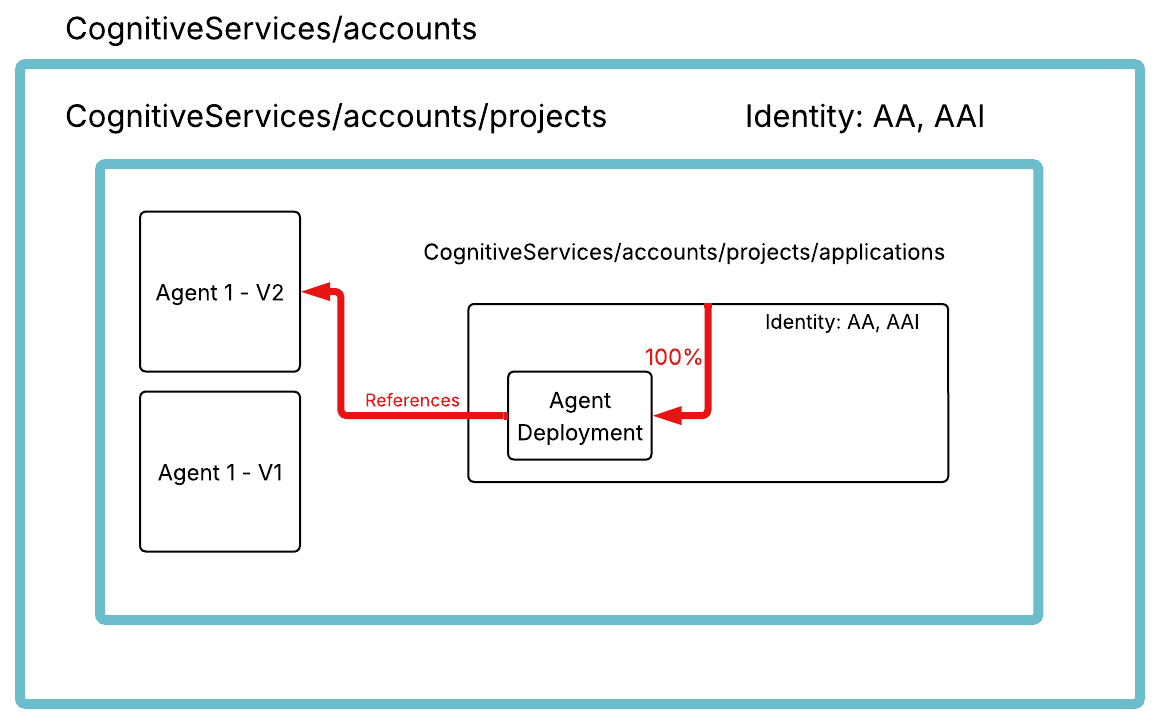
Invoke Agent Applications
An Agent Application resource exposes a stable endpoint with multiple protocol and authentication options.Currently, only one protocol — either Responses or Activity Protocol — can be enabled for an Agent Application at a time.
Protocols
Responses protocol
Foundry agents by default expose an OpenAI-compatible protocol based around Responses for interacting with agents. For applications, this endpoint is exposed at:https://{accountName}.services.ai.azure.com/api/projects/{projectName}/applications/{applicationName}/protocols/openai
The OpenAI-compatible API exposed through applications has been modified to ensure users’ conversations remain private. This restriction is temporary and will be removed once we support end-user isolation. As a result, the API is more limited than the OpenAI API served by the project endpoint. Specifically:
- Only the stateless Responses API (
POST /responses) is supported. - Other APIs including
/conversations,/files,/vector_stores, and/containersare inaccessible.
Activity Protocol
Foundry agents can also expose the Activity Protocol used by Azure Bot Service. For applications this endpoint is exposed at:https://{accountName}.services.ai.azure.com/api/projects/{projectName}/applications/{applicationName}/protocols/activityprotocol
Authentication
You can configure inbound end-user authentication on the application. The following options are available:- Default (RBAC): The caller must have the Azure AI User role (or a custom role with the
/applications/invoke/actionpermission) on the Agent Application resource. Choose this option if you want to invoke your agent application using the Responses API protocol. For more information about Foundry RBAC roles, see Role-based access control for Microsoft Foundry. - Channels (Azure Bot Service): When you publish to M365/Teams or to A365 as a digital worker, channels is the authentication that is used. This is selected automatically in the UI through the M365/Teams publish flow.
Publish an agent
Foundry portal
This section shows you how to publish an agent using the Foundry portal interface.- In the Agent Builder, create or select an agent version you want to publish.
- Select Publish Agent to create an Agent Application and deployment.
-
Configure authentication for your Agent Application:
- By default, the authentication type is set to RBAC (Role-Based Access Control).
- Users calling the agent application using Responses protocol must be granted the Azure AI User built-in Azure RBAC role (or an equivalent custom role) on the Agent Application resource.
-
Assign permissions for tool authentication:
- If your agent includes tools that use agent identity for authentication, the newly created agent identity must have appropriate permissions
- Navigate to each Azure resource your agent accesses and assign the required RBAC role to the new agent identity
-
After publishing, you can:
- Share the published endpoint with external consumers or integrate it into your existing application.
- Share and chat with your application in channels like Teams/M365 Copilot.
REST API
To publish an agent version, you must create an application and deployment that reference your agent version.Agent Applications are Azure resources. Use the latest API version available for your subscription and account when calling the management endpoint.
Before you begin
- Sign in and acquire an Azure Resource Manager access token:
accessToken value as the Authorization: Bearer <token> header in the following requests.
If you want to capture only the token value (for example, for use in a script), use:
-
Collect the values you need for the request URL.
subscription_id: Use the subscription that contains your Foundry resource. You can find it in the Azure portal (Subscriptions) or by runningaz account show --query id -o tsv.resource_group: The resource group that contains your Foundry resource. You can find it on the Foundry resource Overview page in the Azure portal.account_name: The name of your Foundry resource (the Azure resource name).project_name: The Foundry project name.application_nameanddeployment_name: Choose names for the Agent Application and deployment you want to create.
-
Choose an
api-version.
1. Create agent application.
For a full property reference and an infrastructure-as-code (Bicep) example for Agent Applications, see the Azure Resource Manager template reference for Microsoft.CognitiveServices/accounts/projects/applications. Required field: Set theagentName field to the name of the agent you want to publish.
The following example shows only the minimum required fields. By default authorizationPolicy is set to Default (Azure RBAC) and trafficRoutingPolicy routes all traffic to the first deployment.
2. Create an agent deployment.
For a full property reference and an infrastructure-as-code (Bicep) example for Agent deployments, see the Azure Resource Manager template reference for Microsoft.CognitiveServices/accounts/projects/applications/agentDeployments. Required fields:deploymentType: The deployment mode. UseManagedfor prompt and workflow agents. UseHostedfor hosted agents.agents: The agent name and version to deploy.protocols: The protocol the deployment exposes. For responses, setprotocolasResponsesandversionas1.0.
minReplicas: Sets the minimum number of replicasmaxReplicas: Sets the maximum number of replicas
Prompt and workflow agents
Hosted agents
3. Verify deployment is running
Prompt and workflow agent deployments typically start running automatically. Hosted agent deployments inherit the state of the published agent version — if the version is stopped, the deployment is also stopped. To check the current state, get the deployment resource and inspect propertystate:
Verify publishing succeeded
Confirm that your agent published successfully before sharing the endpoint with consumers. After you publish, verify that:- The Agent Application resource exists.
- The deployment is running.
- You can invoke the application endpoint.
Quick verification by calling the endpoint
To run the following commands, you need the Azure CLI.- Get an access token for the calling user.
- Call the Agent Application endpoint (Responses protocol).
403 Forbidden, confirm the caller has the Azure AI User role on the Agent Application resource.
Update a published Agent Application
When you need to roll out a new version of your agent, update the existing application and deployment to reference the new agent version.Foundry portal
- In the Agent Builder, navigate to the specific agent version you want to publish.
- Select Publish Updates.
- Confirm the update. The Agent Application automatically directs 100% of traffic to the new agent version.
REST API
If your agent name remains the same and you only want to roll out a new agent version, update the deployment to reference a new agent version.- Update the Agent Application to allow the new agent name.
- Create or update a deployment to reference the new agent version.
- If you created a new deployment, update the Agent Application’s traffic routing policy so 100% of traffic goes to the new deployment.
Invoke your Agent Application
Agent applications currently support one protocol at a time, but this can be changed. When you create an Agent Application in the Foundry UI, it defaults to the Responses API protocol. If you later publish to Microsoft 365 or Teams, the publishing flow configures the Activity Protocol.
Security and privacy considerations
- Use least privilege. Grant users the minimum role they need (for example, separate publish permissions from invoke permissions).
- Avoid sharing project access when you only need to share an agent. Use the Agent Application endpoint and RBAC on the application resource.
- Don’t embed access tokens in source code, scripts, or client applications. Use Microsoft Entra authentication flows appropriate for your app.
- Plan for identity changes when you publish. Tool calls authenticated by agent identity use the application identity after publishing, not the project identity.
- Store conversation history in your client if you need multi-turn experiences. Agent Applications currently restrict APIs and don’t store responses.
Limitations
Agents published as Agent Applications have the following limitations:| Limitation | Description |
|---|---|
| No UI or CLI management | There isn’t a dedicated UI/CLI for advanced management operations. Use the REST API for management operations not available in the Foundry portal publishing flow. |
Troubleshooting
| Issue | Likely cause | Resolution |
|---|---|---|
| Publish Agent is disabled | Missing Azure AI Project Manager role on the Foundry resource scope | Assign the Azure AI Project Manager role on the Foundry resource (account) scope, not just on the project scope. |
403 Forbidden when invoking the endpoint | Caller lacks invoke permissions on the Agent Application resource | Assign the Azure AI User role on the Agent Application resource to the caller. |
401 Unauthorized when invoking the endpoint | The access token is missing, expired, or for the wrong resource | Reauthenticate and request a token for https://ai.azure.com. |
| Tool calls fail after publishing | The Agent Application identity doesn’t have the same access as the project identity | Reassign the required RBAC roles to the published agent identity for any downstream Azure resources it must access. |
| Multi-turn conversations don’t work as expected | Agent Applications don’t store conversation state for you | Store conversation history in your client and send the context as part of your request. |
Clean up resources
If you no longer need a published endpoint, delete the Agent Application Azure resource (and its deployments). Deleting the application doesn’t delete your agent versions in the Foundry project.Reference: Agent Application and deployment properties
Use the following tables when you construct REST API requests or need to understand the fields returned in responses.Related content
- Learn about Agent identity concepts in Foundry
- Learn about Hosted agents
- Learn how to publish agents to Microsoft 365 Copilot and Microsoft Teams