Items marked (preview) in this article are currently in public preview. This preview is provided without a service-level agreement, and we don’t recommend it for production workloads. Certain features might not be supported or might have constrained capabilities. For more information, see Supplemental Terms of Use for Microsoft Azure Previews.
Prerequisites
- A Foundry project.
- An Azure Monitor Application Insights resource to store traces (create a new one or connect an existing one).
- Access to the Application Insights resource connected to your project.
Connect Application Insights to your Foundry project
Foundry stores traces in Azure Application Insights by using OpenTelemetry semantic conventions.- Sign in to Microsoft Foundry. Make sure the New Foundry toggle is on. These steps refer to Foundry (new).

- Open your Foundry project.
- In the left navigation, select Agents.
- At the top, select Traces.
- On the right, select Connect, to create or connect an Application Insights resource:
- To connect an existing resource, select the resource and then select Connect.
- To create a new resource, select Create new and complete the wizard.

Make sure you have the permissions you need to query telemetry.
- For log-based queries, start by assigning the Log Analytics Reader role.
- To learn how to assign roles, see Assign Azure roles using the Azure portal.
- To manage access at scale, use Microsoft Entra groups.
Instrument AI agents
Choose the approach that matches how you build and run your agent.Server-side traces in the Foundry portal
Start with server-side traces. Foundry logs traces for common agent and workflow scenarios without changing your code.- Foundry automatically logs server-side traces for Prompt agents, Host agents, and workflows in the Foundry portal. Once tracing is enabled in your Foundry project, you’ll have access to out-of-the-box traces for the past 90 days.
- Foundry also allows for easy integration with top agent frameworks.
Client-side traces with the Microsoft Foundry SDK (Python)
Install OpenTelemetry and the Azure SDK tracing plugin using:Using a project’s endpoint in your application requires configuring Microsoft Entra ID. If you don’t configure Microsoft Entra ID, use the Azure Application Insights connection string.
Trace locally with AI Toolkit in VS Code
AI Toolkit lets you trace locally in VS Code using a local OTLP-compatible collector, which is ideal for development and debugging. The toolkit supports AI frameworks such as Foundry Agents Service, OpenAI, Anthropic, and LangChain through OpenTelemetry. You can see traces instantly in VS Code without needing cloud access. For detailed setup instructions and SDK-specific code examples, see Tracing in AI Toolkit.View and analyze traces
View traces in the Foundry portal
In your Foundry project, go to the Traces tab in your agents or workflows. You can search, filter, or sort ingested traces from the last 90 days. Select a trace to step through each span, identify issues, and observe how your application responds. This helps you debug and pinpoint issues in your application.View traces in Azure Monitor
Your traces are sent to Azure Monitor Application Insights, so you can view them there. For more information on how to send traces to Azure Monitor and create an Azure Monitor resource, see Azure Monitor OpenTelemetry documentation.View conversation results
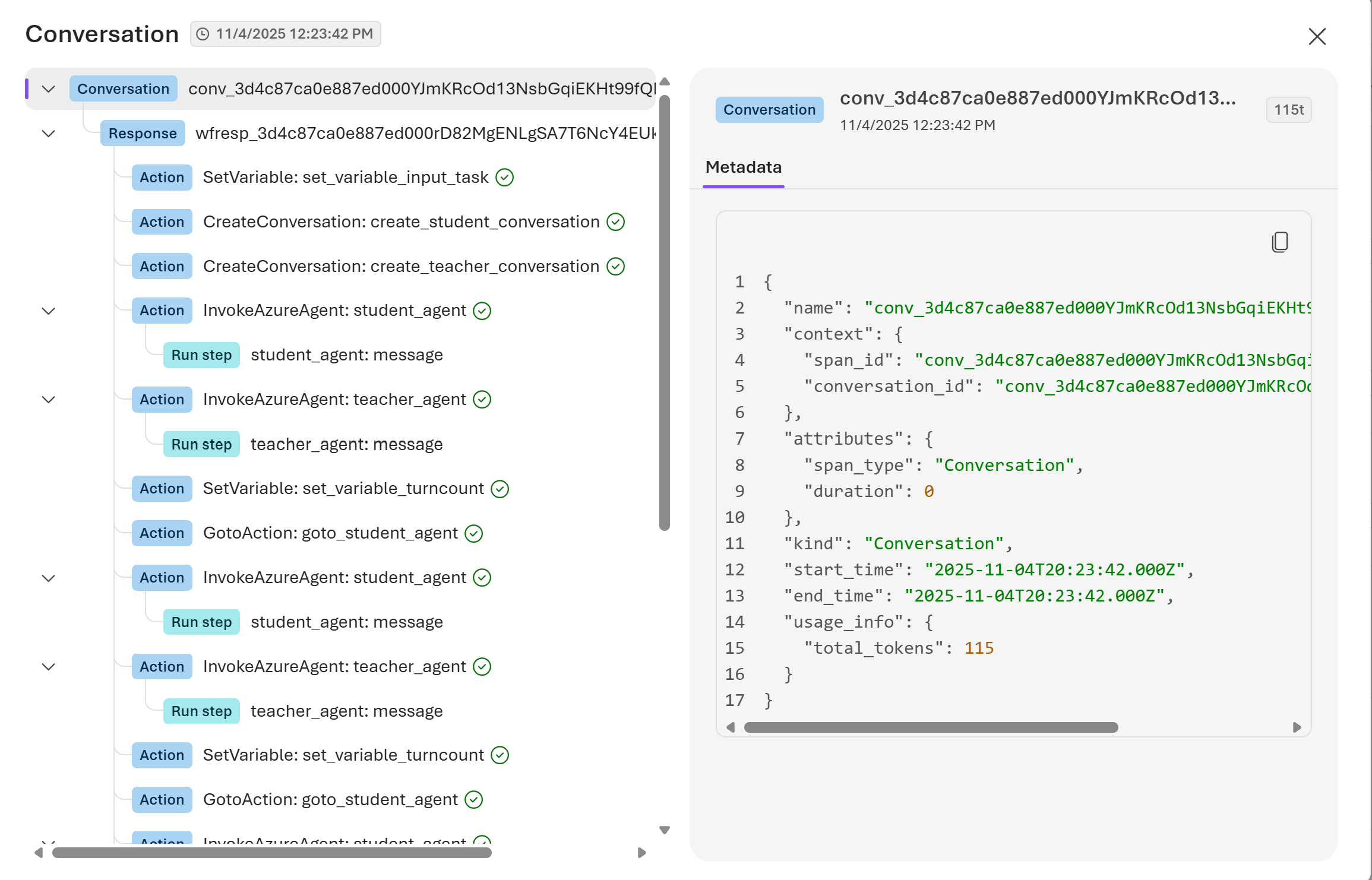
A Conversation is the persistent context of an end-to-end dialogue history between a user and an agent. In the Foundry portal, you can view Conversation results for your agent run out of the box along with traces on the Traces page. You can search for a known Conversation ID, search by a Response ID, or search by a Trace ID that maps to this conversation. Then, select Conversation ID to review the conversation:- Conversation history details
- Response information and tokens in a run
- Ordered actions, run steps, and tool calls
- Inputs and outputs between a user and an agent
Verify tracing works
- Confirm your project is connected to Application Insights. If needed, follow the steps in Connect Application Insights to your Foundry project.
- Run your agent or workflow at least once (for example, by using the portal or your app).
- In your Foundry project, open the Traces view and confirm a new trace appears. When tracing is working correctly, you see a list of recent traces with timestamps, durations, and status indicators. Select a trace to view its span details.
Security and privacy
Tracing can capture sensitive information (for example, user inputs, model outputs, and tool arguments and results). Use these practices to reduce risk:- Don’t store secrets, credentials, or tokens in prompts, tool arguments, or span attributes.
- Redact or minimize personal data and other sensitive content before it appears in telemetry.
- Treat trace data as production telemetry and apply the same access controls and retention policies you use for logs and metrics.
Data retention and cost
Foundry stores traces in the Application Insights resource connected to your project. Data retention and billing follow your Application Insights and Log Analytics configuration.Troubleshooting
| Issue | Cause | Resolution |
|---|---|---|
| You don’t see any traces in the Foundry portal | Tracing isn’t connected, there is no recent traffic, or ingestion is delayed | Confirm the Application Insights connection, generate new agent traffic, and refresh after a few minutes. |
| You see authorization errors when you query or view telemetry | Missing RBAC permissions on Application Insights or Log Analytics | Confirm access in Access control (IAM) for the connected resources. For log queries, assign the Log Analytics Reader role. |
| Client-side traces don’t appear | Instrumentation isn’t installed or configured | Recheck your package installation and follow the SDK guidance linked in Client-side traces with the Microsoft Foundry SDK (Python). |
| Sensitive content appears in traces | Prompts, tool arguments, or outputs contain sensitive data | Redact sensitive data before it enters telemetry and follow the guidance in Security and privacy. |