What is Microsoft Agent 365?
Microsoft Agent 365 (A365) is Microsoft’s IT admin control plane for AI agents. It helps you:- Apply identity, security, governance, and lifecycle management controls to AI agents.
- Manage AI agents at scale, regardless of where they’re built or acquired.
Agent 365 core capabilities
Agent 365 is built on five core capabilities:- Registry: Provides a complete inventory of agents all in the organization, including agents built in Microsoft Foundry and Copilot Studio, agents registered by administrators, and shadow agents discovered in the tenant.
- Access control: Brings agents under management and limits access to only the resources they need by using Microsoft Entra–based controls and risk-based Conditional Access policies.
- Visualization: Enables organizations to explore connections between agents, people, and data, and to monitor agent behavior and performance in real time.
- Interoperability: Equips agents with access to Microsoft 365 apps and organizational data so they can participate in real workflows. Agents can also be connected to Work IQ to apply organizational context and knowledge.
- Security: Protects agents from threats and vulnerabilities by integrating with Microsoft’s security stack. It also helps protect data agents create or use from oversharing, leaks, and risky behavior.
How does Foundry integrate with Agent 365?
The long-term goal is for all published Foundry agents and agents registered in the Foundry control plane to automatically appear in the Agent 365 registry. This capability isn’t available today, but the integration is in progress. Previously published Foundry agents are also planned for backfill into Agent 365. There’s also a specific use case in which Foundry hosted agents can be published as digital workers to Agent 365. This experience currently has no UI and must be completed by using a code sample. The rest of this article walks through that process.Prerequisites
- Enrollment in the Frontier preview program.
- An Azure subscription where you can create resources.
- The required permissions:
- Owner role on the Azure subscription
- Azure AI User or Cognitive Services User role at subscription or resource group scope
- A tenant admin role that can approve agent requests in the Microsoft 365 admin center
- Use a region that supports hosted agents. For the current supported regions, see Hosted agents in Microsoft Foundry.
- Azure CLI
- Azure Developer CLI
- Docker
- .NET 9.0 SDK
What the sample creates
The sample provisions Azure resources and publishes a hosted agent end-to-end. Specifically:- Creates or updates Azure resources required to run the sample.
- Creates an agent version and publishes it as an agent application.
- Submits a digital worker request that requires admin approval in the Microsoft 365 admin center.
Run the code sample
Follow the steps in the FoundryA365 sample README on GitHub. At a high level, you typically:- Clone the
foundry-samplesrepository. - Change to the
samples/csharp/FoundryA365directory. - Run the Azure Developer CLI (
azd) workflow described in the README (for example, sign in, create resources, and deploy). - Wait for provisioning, container build, and deployment to complete. The first run can take longer.
Depending on your tenant settings, you might need to sign in with more Azure CLI scopes before provisioning (for example, for Foundry, Microsoft Graph, and Azure Resource Manager). Follow the exact commands in the sample README.
azd commands finish without errors), you have a published agent application and a digital worker request ready for approval in the Microsoft 365 admin center. Once approved by an admin, you should see the agent in the Agent 365 registry. You might not see anything to approve yet until you complete the approval steps in the README.
Validate
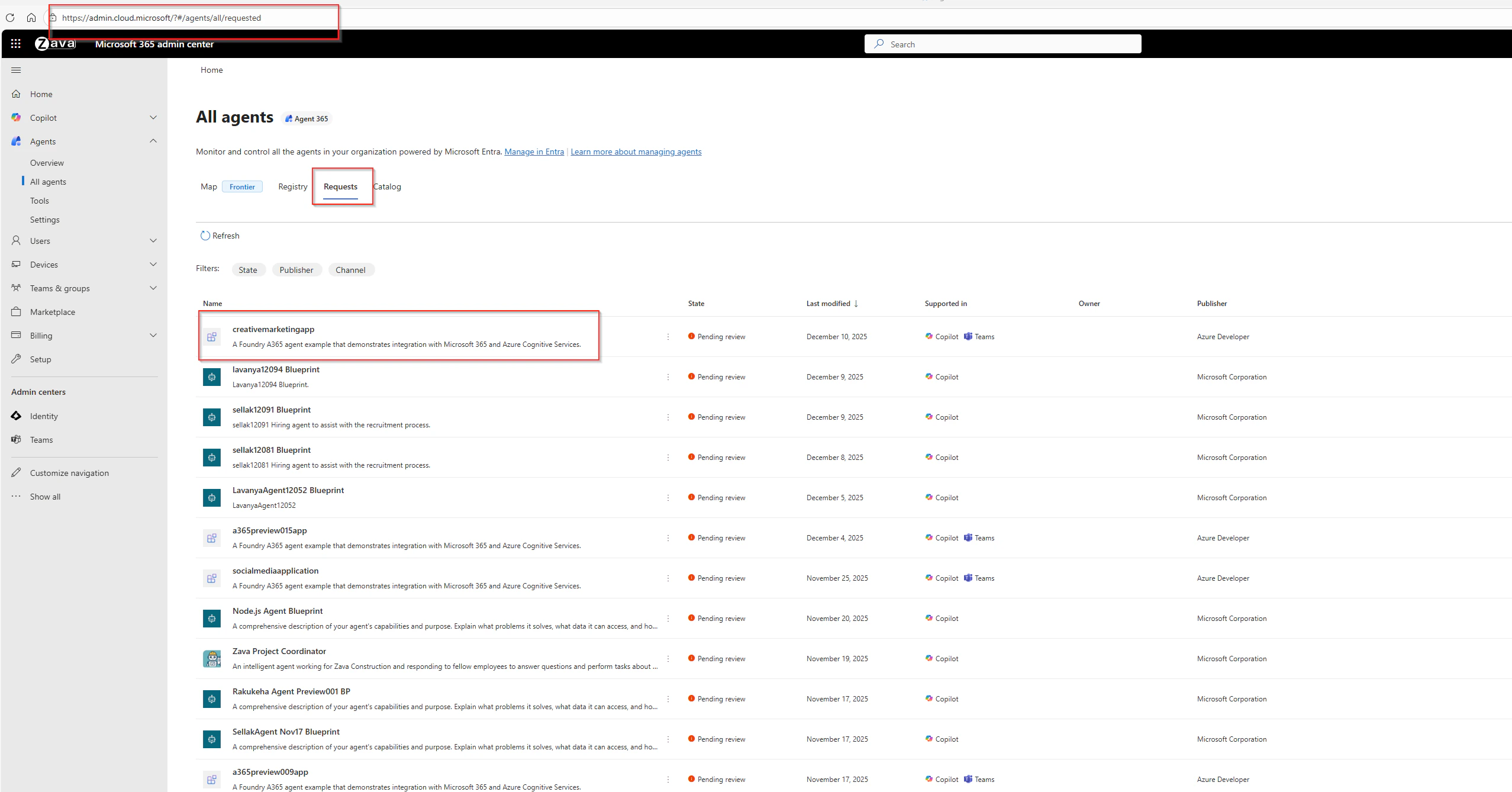
- Approve the agent blueprint request in the Microsoft 365 admin center. You can review approval requests at: https://admin.cloud.microsoft/?#/agents/all/requested
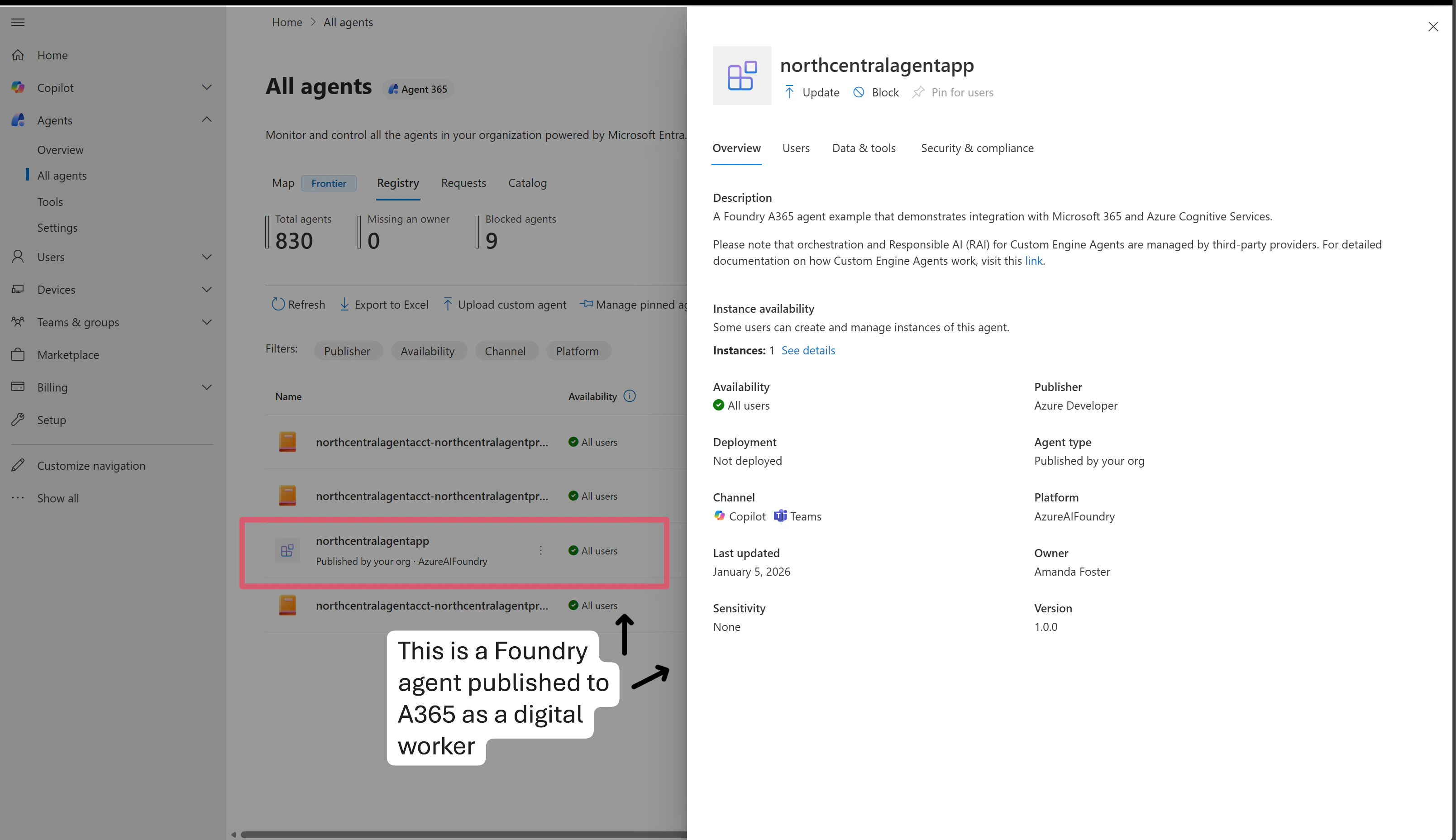
- Once approved, verify your agent shows up in the Agent 365 agent registry.
- Configure Teams integration in the Teams Developer Portal:
- Go to the Teams Developer Portal and locate your approved agent blueprint.
- If you don’t see your blueprint, copy the blueprint ID from
azd env get-values. Then open any blueprint and replace the blueprint ID in the browser URL with your blueprint ID.
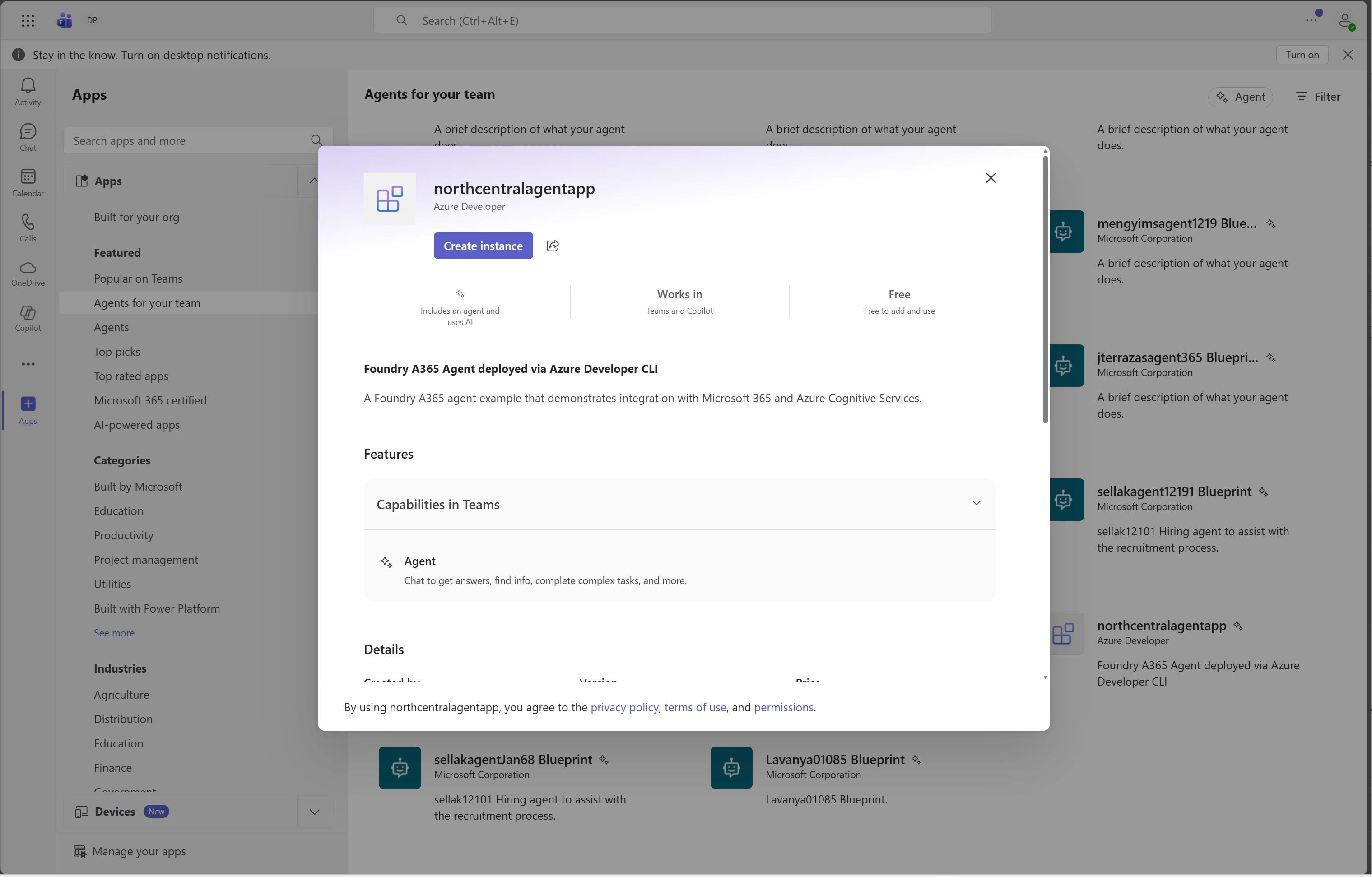
- In Microsoft Teams, verify that you can find the agent and create an instance:
- Go to Apps.
- Go to Agents for your team.
- Find your agent and create an instance.
Troubleshooting
| Issue | Cause | Resolution |
|---|---|---|
azd provision fails before resource creation starts | Missing permissions | Confirm you have Owner on the subscription and Azure AI User (or Cognitive Services User) at subscription or resource group scope. |
azd provision fails with a region or hosted-agent availability message | Wrong region | Create all resources for this sample in a region that hosted agents are supported in. |
| Container build or push fails | Docker isn’t running | Start Docker, and then run azd provision --verbose again. |
| You can’t find the agent to approve | Approval step not completed or you don’t have the required tenant permissions | Verify tenant admin permissions and confirm the deployment completed successfully. |
| You can’t find your blueprint in the Teams Developer Portal list | Portal only shows the first 100 blueprints | Open any blueprint and replace the blueprint ID in the URL with your blueprint ID from azd env get-values. |