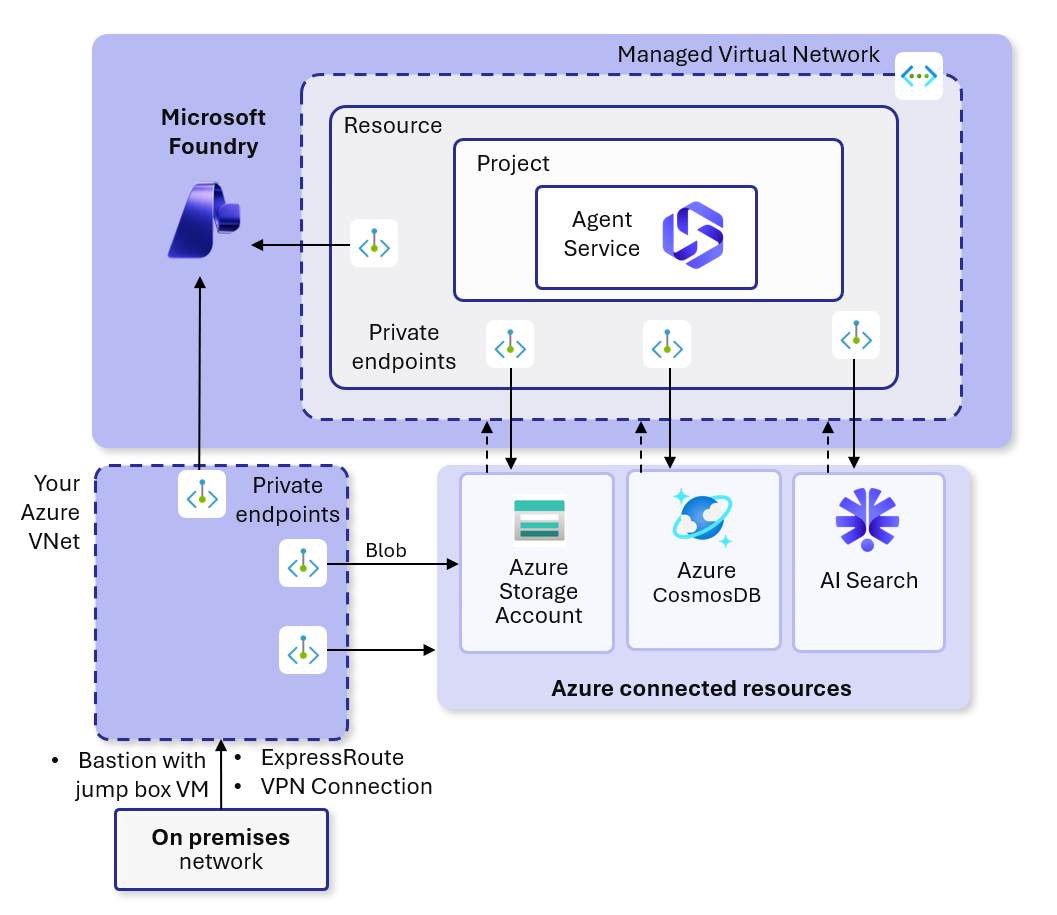
This article explains how to set up a managed virtual network for your Foundry resource. Managed virtual network streamlines and automates network isolation for your Foundry resource by provisioning a Microsoft‑managed virtual network that secures the Agents service underlying compute within your Foundry projects. When enabled, Agents outbound network traffic is secured by this managed network boundary, and the isolation mode you choose governs all the traffic. You can create the required private endpoints to dependent Azure services and apply the necessary network rules, giving you a secure default without requiring you to build or maintain your own virtual network. This managed network restricts what your Agents can access, helping prevent data exfiltration while still allowing connectivity to approved Azure resources.
Managed virtual network now supports Prompt and Hosted Agent services with the new Responses API and in the new Foundry Portal. The current supported regions for managed virtual network with the new Agent service and new Foundry portal are the following: East US, East US2, Japan East, France Central, UAE North, Brazil South, Spain Central, Germany West Central, Italy North, South Central US, Australia East, Sweden Central, Canada East, South Africa North, West US, West US 3, South India, and UK South. Additional region support to follow soon.
Before continuing, consider the limitations of the offering and review the prerequisites.
Understand isolation modes
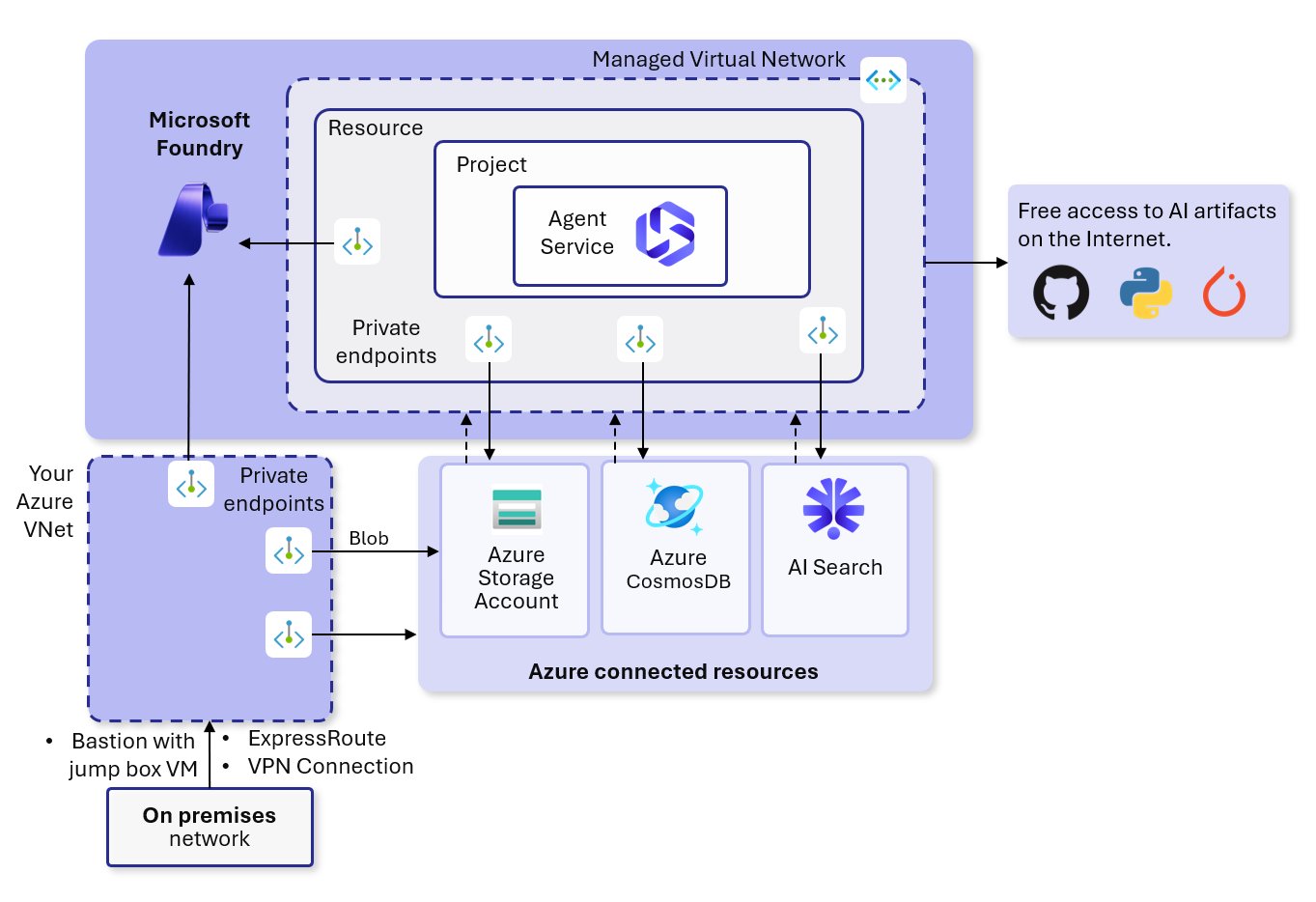
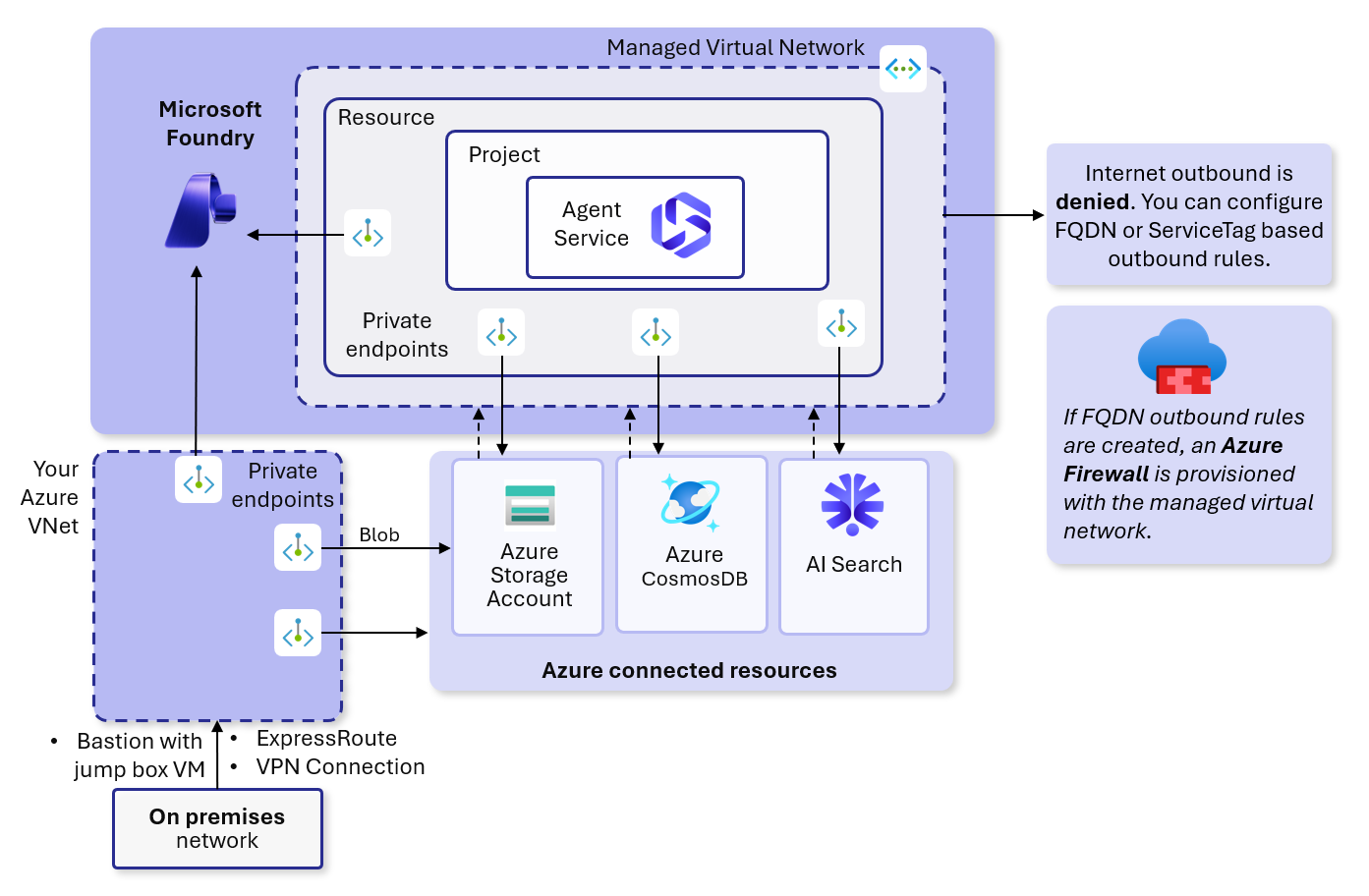
When you enable managed virtual network isolation, you create a managed virtual network for the Foundry account, created in the Microsoft tenant. Any new Agent you build in your projects automatically uses the managed virtual network for outbound traffic. The managed virtual network can use private endpoints for Azure resources that your Agents use, such as Azure Storage, Azure Cosmos DB, and Azure AI Search.
The diagrams in this article represent logical connectivity only. Managed private endpoints in a Foundry managed virtual network do not create customer-visible network interfaces (NICs). Unlike standard VNet private endpoints that create a NIC with a private IP in your subnet, managed private endpoints are fully managed by Microsoft and abstracted from the customer’s virtual network resources. You will not see these endpoints or associated NICs in your subscription.
| Outbound mode | Description | Scenarios |
|---|
| Allow internet outbound | Allows all outbound traffic to the internet. | Unrestricted outbound access is acceptable; broad connectivity required. |
| Allow only approved outbound | Restricts outbound using service tags, private endpoints, and optional FQDN rules (ports 80, 443) enforced via Azure Firewall. | Minimize data exfiltration risk; require curated list of destinations. |
| Disabled | Managed virtual network isolation not enabled, unless custom virtual network is used. | Need public outbound or plan to supply your own virtual network. |
allow internet outbound mode.
The following architecture diagram shows a managed network in allow only approved outbound mode.
After you configure a managed virtual network Foundry to allow internet outbound, you can’t reconfigure the resource to disabled. Similarly, after you configure a managed virtual network resource to allow only approved outbound, you can’t reconfigure the resource to allow internet outbound.
Prerequisites
Before following the steps in this article, make sure you have the following prerequisites:
- An Azure subscription. If you don’t have an Azure subscription, create a free account before you begin.
- Azure CLI installed to version 2.86.0. Required to create outbound rules from the managed network.
- The
Microsoft.Network, Microsoft.KeyVault, Microsoft.CognitiveServices, Microsoft.Storage, Microsoft.Search, and Microsoft.ContainerService resource providers registered for your Azure subscription. For more information, see Register resource provider.
- Permissions to deploy a managed network resource.
Foundry Account Owner on the Foundry resource scope is needed to create a Foundry account and project. Owner or Role Based Access Administrator is needed to assign RBAC to the required resources. Foundry User on project scope is required to create and build Agents.
The Foundry RBAC roles were recently renamed. Foundry User, Foundry Owner, Foundry Account Owner, and Foundry Project Manager were previously named Azure AI User, Azure AI Owner, Azure AI Account Owner, and Azure AI Project Manager. You might still see the previous names in some places while the rename rolls out. The role IDs and core permissions are unchanged by the rename.
- Sufficient quota for all resources in your target Azure region. If no parameters are passed in, this template creates a Foundry resource, Foundry project, Azure Cosmos DB for NoSQL, Azure AI Search, and Azure Storage account.
Limitations
Consider the following limitations before enabling managed network isolation for your Foundry resource.
- You can deploy a managed network Foundry resource in three ways.
- Bicep template in the folder 18-managed-virtual-network in foundry-samples
- Terraform template in the folder 18-managed-virtual-network in foundry-samples
az rest and Azure CLI commands az cognitiveservices. More on Azure CLI support in this article below.- There is no Azure Portal UI support to create the managed network yet. Support is coming soon.
- Once your Foundry resource is created, ensure you have assigned the Foundry resource’s managed identity the built-in role of
Azure AI Enterprise Network Connection Approver (role ID: b556d68e-0be0-4f35-a333-ad7ee1ce17ea) to ensure the required private endpoint to the Foundry resource is created and approved.
- You can’t disable managed virtual network isolation after enabling it. There’s no upgrade path from custom virtual network set-up to managed virtual network. A Foundry resource redeployment is required. Deleting your Foundry resource deletes the managed virtual network.
- Support for managed virtual network is only in the following regions: East US, East US2, Japan East, France Central, UAE North, Brazil South, Spain Central, Germany West Central, Italy North, South Central US, Australia East, Sweden Central, Canada East, South Africa North, West US, West US 3, South India, and UK South. Additional region support to follow soon.
- If you require private access to on-premises resources for your Foundry resource, use Application Gateway to configure on-premises access. The same set-up with a private endpoint to Application Gateway and setting up backend pools is supported. Both L4 and L7 traffic are now supported with the Application Gateway in GA.
- If you create FQDN outbound rules when the managed virtual network is in Allow Only Approved Outbound mode, a managed Azure Firewall is created which comes with associated Firewall costs. For more on pricing, see Pricing. The FQDN outbound rules only support ports 80 and 443.
- You can’t bring your own Azure Firewall to the managed virtual network. A managed firewall is automatically created for your Foundry account when you use Allow Only Approved Outbound mode.
- You can’t reuse the same managed firewall for multiple Foundry accounts. Each Foundry account creates its own managed firewall when you use Allow Only Approved Outbound mode.
- If you create new projects within your Foundry resource that has managed virtual network enabled, you will need to recreate the project capability host as well to ensure the project is using the BYO resources and the managed network. More instructions are in the README for managed network set-up in foundry-samples repository.
Deploy managed virtual network isolation mode
To get started deploying a managed virtual network Foundry resource, follow the steps below.
Azure CLI
Bicep / Terraform
Step 1: Create the AI Services account with network injections
The account must be created with customSubDomainName, allowProjectManagement, and networkInjections set at creation time. These properties cannot be added after the account is created.You must use az rest commands for account creation with network injections as the Azure CLI does not yet support creating a Foundry resource with network injection.
az rest --method PUT \
  --url "https://management.azure.com/subscriptions/{subscription-id}/resourceGroups/{resource-group}/providers/Microsoft.CognitiveServices/accounts/{account-name}?api-version=2026-03-01" \
  --body '{
    "location": "{region}",
    "kind": "AIServices",
    "sku": { "name": "S0" },
    "identity": { "type": "SystemAssigned" },
    "properties": {
      "allowProjectManagement": true,
      "customSubDomainName": "{account-name}",
      "networkInjections": [
        {
          "scenario": "agent",
          "subnetArmId": "",
          "useMicrosoftManagedNetwork": true
        }
      ],
      "disableLocalAuth": false
    }
  }' \
  --headers "Content-Type=application/json"
provisioningState to reach Succeeded before proceeding:az rest --method GET \
--url "https://management.azure.com/subscriptions/{subscription-id}/resourceGroups/{resource-group}/providers/Microsoft.CognitiveServices/accounts/{account-name}?api-version=2026-03-01" \
--query "properties.provisioningState" -o tsv
Step 2: Get the managed identity principal ID
Retrieve the system-assigned managed identity principal ID from the account:az cognitiveservices account show \
--resource-group {resource-group} \
--name {account-name} \
--query identity.principalId -o tsv
Step 3: Assign the Network Connection Approver role
Assign the Azure AI Enterprise Network Connection Approver role (role ID: b556d68e-0be0-4f35-a333-ad7ee1ce17ea) to the Foundry account’s managed identity. This allows managed network private endpoints to be auto-approved.az role assignment create \
--assignee-object-id {principal-id} \
--assignee-principal-type ServicePrincipal \
--role "b556d68e-0be0-4f35-a333-ad7ee1ce17ea" \
--scope /subscriptions/{subscription-id}/resourceGroups/{resource-group}
If your target resources (Storage, Cosmos DB, AI Search) are in a different resource group, scope the role assignment to that resource group or to the subscription.
Step 4: Create the managed network
Create the managed network child resource on the account. This establishes the network isolation mode and provisions the network infrastructure.To create a managed network with Allow Internet Outbound:az cognitiveservices account managed-network create \
--resource-group {resource-group} \
--name {account-name} \
--managed-network allow_internet_outbound
az cognitiveservices account managed-network create \
  --resource-group {resource-group} \
  --name {account-name} \
  --managed-network allow_only_approved_outbound \
  --firewall-sku Standard
You can deploy using either the Bicep or Terraform templates in the foundry-samples repository:For Bicep:
- Clone or download the
foundry-samples repository.
- Open the
managed-network.bicep template in the folder modules-network-secured.
- Set the isolation mode parameter
IsolationMode depending on your selected isolation mode: AllowInternetOutbound or AllowOnlyApprovedOutbound.
- In the README.md file, select the Deploy to Azure button. This action opens the template in the Azure portal for a quick deploy.
- Complete all of your parameters before deploying such as region, resource group, virtual network name, and others. If you’re bringing your own Cosmos DB, Storage, or Search, ensure the resource IDs are included as well.
- Finally, deploy the template. Template deployment should take roughly 30 minutes.
For Terraform:
- Clone or download the
foundry-samples repository.
- Navigate to the
infrastructure/infrastructure-setup-terraform/18-managed-virtual-network folder.
- Configure the required variables for your environment (region, resource group, isolation mode, and any existing resource IDs).
- Run
terraform init, terraform plan, and terraform apply to deploy.
Verify managed virtual network deployment
After the deployment completes, verify that the managed virtual network is configured correctly.
-
Confirm the Foundry resource exists and the managed network is enabled:
az cognitiveservices account managed-network show \
  --resource-group {resource-group} \
  --name {account-name}
isolationMode set to your chosen mode (AllowInternetOutbound or AllowOnlyApprovedOutbound).
-
List all outbound rules and their status:
az cognitiveservices account managed-network outbound-rule list \
  --resource-group {resource-group} \
  --name {account-name}
-
Show a specific outbound rule:
az cognitiveservices account managed-network outbound-rule show \
  --resource-group {resource-group} \
  --name {account-name} \
  --rule {rule-name}
-
Test Agent connectivity by creating and running a basic Agent in your Foundry project. If the Agent completes successfully, the managed network is functioning correctly.
-
Confirm the Foundry resource exists and the managed network is enabled:
az rest --method GET \
  --url "https://management.azure.com/subscriptions/{subscription-id}/resourceGroups/{resource-group}/providers/Microsoft.CognitiveServices/accounts/{account-name}/managedNetworks/default?api-version=2026-03-01" \
  --query "properties.managedNetwork"
isolationMode set to your chosen mode (AllowInternetOutbound or AllowOnlyApprovedOutbound).
-
List the managed private endpoints to confirm they were created:
az rest --method GET \
  --url "https://management.azure.com/subscriptions/{subscription-id}/resourceGroups/{resource-group}/providers/Microsoft.CognitiveServices/accounts/{account-name}/managedNetworks/default/outboundRules?api-version=2026-03-01" \
  --query "value[].{name:name, type:properties.type, status:properties.status}"
-
Test Agent connectivity by creating and running a basic Agent in your Foundry project. If the Agent completes successfully, the managed network is functioning correctly.
Manage outbound rules
After deployment, you can add, update, list, and remove outbound rules to control which destinations your managed network can reach. The following outbound rule types are supported:
| Type | Description | Example destination |
|---|
fqdn | Allows outbound traffic to a fully qualified domain name. | "*.openai.azure.com" |
privateendpoint | Allows outbound traffic through a private endpoint rule. | Private endpoint configuration JSON |
servicetag | Allows outbound traffic to an Azure service tag, protocol, and port range. | '{"serviceTag":"Storage","protocol":"TCP","portRanges":"443"}' |
Create or update an FQDN outbound rule
Use an FQDN rule to allow traffic to a domain name or wildcard domain.az cognitiveservices account managed-network outbound-rule set \
--resource-group {resource-group} \
--name {account-name} \
--rule {rule-name} \
--type fqdn \
--destination "*.openai.azure.com"
Create or update a service tag outbound rule
Use a service tag rule to allow traffic to an Azure service tag over a specific protocol and port range.az cognitiveservices account managed-network outbound-rule set \
--resource-group {resource-group} \
--name {account-name} \
--rule {rule-name} \
--type servicetag \
--destination '{"serviceTag":"Storage","protocol":"TCP","portRanges":"443"}'
Create or update a private endpoint outbound rule
Use a private endpoint rule to allow traffic through a private endpoint to an Azure resource.az cognitiveservices account managed-network outbound-rule set \
--resource-group {resource-group} \
--name {account-name} \
--rule {rule-name} \
--type privateendpoint \
--destination '{"serviceResourceId":"/subscriptions/{subscription-id}/resourceGroups/{resource-group}/providers/Microsoft.Storage/storageAccounts/{storage-name}","subresourceTarget":"blob"}'
blob for Azure Storage, searchService for Azure AI Search, Sql for Azure Cosmos DB, and vault for Azure Key Vault.List outbound rules
az cognitiveservices account managed-network outbound-rule list \
  --resource-group {resource-group} \
  --name {account-name}
Show an outbound rule
az cognitiveservices account managed-network outbound-rule show \
  --resource-group {resource-group} \
  --name {account-name} \
  --rule {rule-name}
Bulk create or update outbound rules
Use bulk-set to create or update multiple outbound rules from a YAML or JSON file.az cognitiveservices account managed-network outbound-rule bulk-set \
--resource-group {resource-group} \
--name {account-name} \
--file rules.yaml
Remove an outbound rule
az cognitiveservices account managed-network outbound-rule remove \
  --resource-group {resource-group} \
  --name {account-name} \
  --rule {rule-name}
To update outbound rules using ARM REST API, use the az rest command. The following example creates a private endpoint outbound rule to an Azure Cosmos DB resource:az rest --method PUT \
--url "https://management.azure.com/subscriptions/{subscription-id}/resourceGroups/{resource-group}/providers/Microsoft.CognitiveServices/accounts/{account-name}/managedNetworks/default/outboundRules/{rule-name}?api-version=2026-03-01" \
--body '{
"properties": {
"type": "PrivateEndpoint",
"destination": {
"serviceResourceId": "/subscriptions/{subscription-id}/resourceGroups/{resource-group}/providers/Microsoft.DocumentDB/databaseAccounts/{cosmosdb-account-name}",
"subresourceTarget": "Sql",
"sparkEnabled": false
}
}
}'
serviceResourceId and subresourceTarget values accordingly. Common subresource targets include blob for Azure Storage, searchService for Azure AI Search, and vault for Azure Key Vault.For more information, follow the instructions in the outbound rules CLI file in the foundry-samples repository. Select Azure Firewall version
For the managed virtual network, an Azure Firewall is provisioned automatically when you add an outbound FQDN rule in Allow only approved outbound mode.
The default SKU is Standard for the Firewall. You can select the Basic SKU instead for reduced cost if advanced features aren’t required. For more on pricing, see Pricing. Once you select a firewall SKU at deployment, you can’t change it after deployment. Because this is a managed firewall, the firewall isn’t in your tenant or in your control. The only setting you can control is the firewall SKU.
Private endpoints
When you enable a managed virtual network, you can create managed private endpoints so Agents can securely reach required Azure resources without using the public internet. These private endpoints provide an isolated, private IP–based connection from the managed network to services such as Storage, AI Search, and other dependencies used in your Foundry projects. Unlike customer-managed virtual networks, managed private endpoints in Foundry do not expose a network interface or subnet configuration to the customer. The private IP–based connectivity is fully managed by Microsoft and is not represented as a NIC in the customer’s subscription.
The following resources support private endpoints from the managed network. You must use the CLI to create private endpoints.
- Microsoft Foundry (AI Services)
- Azure Application Gateway (connects to your on-premises resources by using L4 or L7 traffic)
- Azure API Management (supports only the Classic tier without VNet injection and the Standard V2 tier with virtual network integration)
- Azure AI Search
- Azure Container Registry
- Azure Cosmos DB
- Azure Data Factory
- Azure Database for MariaDB
- Azure Database for MySQL
- Azure Database for PostgreSQL Single Server
- Azure Database for PostgreSQL Flexible Server
- Azure Databricks
- Azure Event Hubs
- Azure Key Vault
- Azure Machine Learning
- Azure Cache for Redis
- Azure SQL Server
- Azure Storage
- Azure Application Insights (via Azure Monitor Private Link Scope)
When you create a managed private endpoint from the Foundry managed virtual network to a customer‑owned target resource, the Foundry resource’s managed identity must have the correct permissions on that target resource to create and approve private endpoint connections. This requirement ensures that Foundry is explicitly authorized to establish a secure, private link to the resource.
To simplify this requirement, assign the Azure AI Enterprise Network Connection Approver role (role ID: b556d68e-0be0-4f35-a333-ad7ee1ce17ea) to the Foundry account’s managed identity. This role includes the necessary permissions for most commonly used Azure services and typically provides sufficient access for Foundry to create and approve private endpoints on your behalf. Once you approve the connection, Foundry fully manages the private endpoint and requires no additional customer configuration.
Required outbound rules
In Allow Only Approved Outbound mode of the managed virtual network, a few required outbound rules are created for features like the Agent service. it includes the following:
- Private endpoint to your Cosmos DB resource
- Private endpoint to your Storage account
- Private endpoint to your AI Search resource
- ServiceTag to AzureActiveDirectory
- ServiceTag to AzureMachineLearning (for the Evaluations Catalogue)
Outbound rules per scenario
If you deploy Foundry with managed virtual network in Allow Only Approved Outbound mode, you may need to add the following outbound FQDN rules to ensure egress traffic is allowed. Below is the list of trusted Fully Qualified Domain Names (FQDNs) to create outbound rules for depending on the scenario or feature in Foundry.
| Scenario | FQDNs | Description |
|---|
| Agents | *.identity.azure.net, login.microsoftonline.com, *.login.microsoftonline.com, *.login.microsoft.com, mcr.microsoft.com or AAD Service Tag | Required for the Azure Container App delegation for Agent service. Includes Microsoft Container Registry for container image pulls. |
| Evaluations & Traces with an Application Insights resource | settings.sdk.monitor.azure.com, *.livediagnostics.monitor.azure.com, *.in.applicationinsights.azure.com | Used for the evaluators catalogue and for sending results to the linked Application Insights resource. |
| Finetuning | raw.githubusercontent.com | Used for finetuning, when a user picks a curated sample dataset in the Foundry portal. |
Pricing
The Foundry managed virtual network feature is free. However, you’re charged for the following resources that the managed virtual network uses:
-
Azure Private Link - The solution relies on Azure Private Link for private endpoints that secure communications between the managed virtual network and Azure resources. For more information on pricing, see Azure Private Link pricing.
-
FQDN outbound rules - You implement FQDN outbound rules by using Azure Firewall. If you use outbound FQDN rules, you add charges for Azure Firewall to your billing. A standard version of Azure Firewall is used by default. You can select the Basic version. The firewall isn’t created until you add an outbound FQDN rule.
For more on Azure pricing, see Private Link Pricing and Azure Firewall Pricing.
Compare managed and custom (BYO) network
Select the right outbound network isolation mode for you depending on your networking needs and limitations in your enterprise.
| Aspect | Managed network | Custom (BYO) network |
|---|
| Benefits | Microsoft handles subnet range, IP selection, delegation. | Full control: bring custom firewall, set user-defined routes, network peering, delegate subnet. |
| Limitations | Can’t bring your own firewall for allow only approved outbound. Requires Application Gateway for secure on-premises (L7 and L4 traffic support by Application Gateway). No logging of outbound traffic support yet. | More complex setup such as subnet delegation to Azure Container Apps. Requires correct CapHost creation. Requires private Class A, B, and C, not public or CGNAT IP address ranges allowed. Requires minimum /27 subnet for Agent delegation. |
Clean up resources
To clean up your managed virtual network Foundry resource, delete the Foundry resource. This action deletes the managed virtual network as well.
Troubleshooting
- Failure creating CapHost
- Delete the faulty CapHost resource and redeploy the template.
- FQDN rule not enforced
- Confirm the firewall SKU is provisioned and verify ports are limited to 80 or 443.
- Private endpoint conflicts
- Remove any service endpoint configuration and use private endpoint only.
Related content