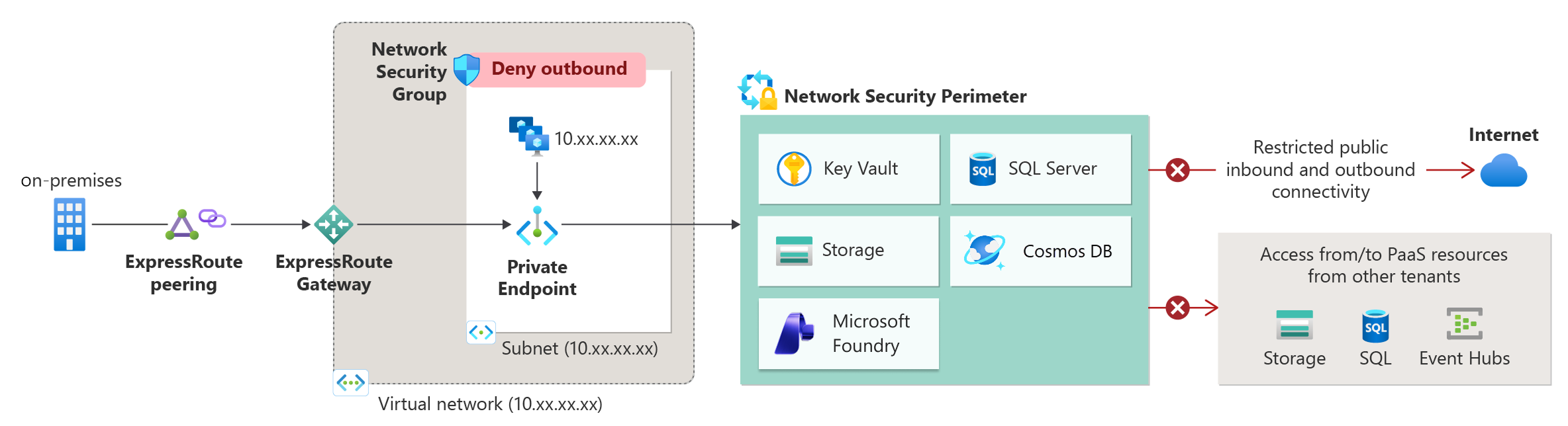
- Enforce inbound and outbound access rules instead of broad public exposure.
- Reduce data exfiltration risk by containing traffic within a logical boundary.
- Centrally log network access decisions across associated resources.
Network security perimeter support for Microsoft Foundry is in public preview under supplemental terms of use. Review the limitations and considerations before you start.
Prerequisites
- An Azure subscription where you can create and manage network security perimeter resources. At minimum, use an account with the Owner, Contributor, or Network Contributor role (or a custom role with equivalent permissions).
- A Foundry resource.
- A network security perimeter (NSP) and profile.
- If you use Azure CLI automation, Azure CLI 2.75.0 or later.
- If you want to query access logs, a Log Analytics workspace.
Verify your setup (Azure CLI)
Run this command to verify that thensp Azure CLI extension is available and that you can query NSP metadata.
Microsoft.CognitiveServices/accounts in the output to confirm that Foundry resources support NSP association. If you see an authentication error, sign in by using az login and try again.
Reference: az network perimeter associable-resource-type list
Associate your Foundry resource
Associate in the portal
- Open the Azure portal and go to your Network security perimeter resource.
- Select Associated resources (or Resources depending on the UI iteration) > Add / Associate.
- Choose the target profile, pick your Foundry resource, set access mode (start with Learning), and confirm.
Associate with Azure CLI
Choose an access mode
Start in Learning mode to observe potential denies. Switch to Enforced mode once you define the required inbound and outbound rules. For more details, see NSP access modes.Understand publicNetworkAccess interaction
- Learning mode:
publicNetworkAccessstill governs exposure while you assess logs. - Enforced mode: NSP rules take precedence;
publicNetworkAccessis effectively overridden by allowed inbound rules.
Change access mode
In the portal, locate the association entry for your Foundry resource and choose Change access mode. For automation, useaz network perimeter association update.
Reference: az network perimeter association update
Enable logging
Configure diagnostic settings on the NSP resource to sendallLogs to Log Analytics, Storage, or Event Hubs.
For detailed steps, see Diagnostic logs for Network Security Perimeter.
When your Foundry resource is inside a network security perimeter in Enforced mode, diagnostic logs to customer-owned destinations (Log Analytics workspace, Storage account, or Event Hub) are only filtered by NSP rules when the request uses Microsoft Entra ID (AAD) authentication. Requests authenticated with API keys don’t carry the NSP perimeter claim, so log traffic to those destinations isn’t blocked by NSP. To ensure full NSP compliance for diagnostic logging, use Entra ID authentication.
Interpret logs
Query theNspAccessLogs table in your Log Analytics workspace to validate allow and deny decisions. Use the logs to finalize required sources or destinations before enforcing.
For examples of log fields you can filter on, such as MatchedRule or Profile, see Add an Azure OpenAI service to a network security perimeter.
Define access rules
Within the profile, choose:- Inbound rules: IP ranges or subscription (managed identity) sources.
- Outbound rules: FQDN destinations needed beyond co-located perimeter resources.
- A walkthrough of configuring inbound and outbound rules using Azure OpenAI NSP (which applies to Foundry data‑plane scenarios).
- Azure CLI reference (access rules): az network perimeter profile access-rule
Inbound rules
Choose IP range (CIDR) or subscription scope. Prefer subscription and managed identity for internal service‑to‑service traffic. Use IP range only when identity‑based access isn’t feasible.Outbound rules
List only required FQDNs (principle of least privilege). Keep dependent Azure services in the same NSP to minimize outbound allow entries. Common FQDNs for Foundry outbound rules include:*.openai.azure.com— model endpoints*.blob.core.windows.net— storage*.search.windows.net— search indexes
Confirm the exact FQDNs required for your scenario. The list depends on which Foundry features and dependent services you use.
Validate before enforcement
- Stay in Learning mode initially; review access logs for denies affecting required traffic.
- Add or refine inbound and outbound rules.
- Switch to Enforced mode.
- Open Microsoft Foundry and perform a model deployment or chat test. Success indicates required traffic is permitted.
- If blocked, revert to Learning mode or add rules and retry.
Troubleshooting
- If the portal experience doesn’t show your Foundry resource as associable, confirm that Foundry is supported for NSP association in your region and review the supported resource types: Network security perimeter concepts.
- If you don’t see logs after enabling diagnostics, confirm that you selected
allLogsand that your destination is supported: Diagnostic logs for Network Security Perimeter. - If Learning mode looks correct but Enforced mode blocks access, return to Learning mode and add the minimum inbound and outbound rules needed for your scenario: Azure OpenAI NSP guidance.
- If your managed identity can’t reach co-located resources, verify that both resources are in the same NSP and that role assignments are correct.
- If logs don’t appear immediately after you enable diagnostics, allow up to 15 minutes for diagnostic data to propagate to your Log Analytics workspace.
Review limitations and considerations
- NSP governs data-plane traffic. Control-plane (management) operations might still succeed unless separately restricted.
- Use a managed identity (system or user-assigned) with appropriate role assignments for any data source access (for example Azure Blob Storage used for batch inputs/outputs).
- Co-locate dependent services (Azure OpenAI, Azure Storage, Azure AI Search, and so on) in the same NSP when you need mutual access with minimal outbound allow rules.
- Diagnostic log export to customer-owned destinations (Log Analytics, Storage, Event Hub) respects NSP rules only when using Microsoft Entra ID authentication. API key-authenticated requests bypass NSP log filtering. Switch to Entra ID auth for full perimeter coverage of logging traffic.
View and manage your configuration
Use REST or CLI to audit and reconcile:- REST reference (perimeter core): Network security perimeter REST API
- (Example) Profile and association operations (CLI): Azure CLI network perimeter commands
2024-10-01 or the latest version shown in the REST reference when scripting. Always confirm the current API version in the reference before scripting.