Prerequisites
You need:- A GitHub account with access to GitHub Models.
- An Azure subscription with a valid payment method. If you don’t have an Azure subscription, create a paid Azure account to begin. Alternatively, you can wait until you’re ready to deploy your model to production, at which point you’ll be prompted to create or update your Azure account to a standard account.
- Foundry Models from partners and community require access to Azure Marketplace. Ensure you have the permissions required to subscribe to model offerings. Foundry Models sold directly by Azure don’t have this requirement.
Upgrade to Foundry Models
The rate limits for the playground and free API usage help you experiment with models and develop your AI application. When you’re ready to bring your application to production, use a key and endpoint from a paid Azure account. You don’t need to change anything else in your code.GitHub Models are free with rate limits. After you upgrade to Foundry Models, usage is billed to your Azure subscription based on the deployment type you choose.
- Go to GitHub Models and select a model to land on its playground. This article uses Mistral Medium 3 (25.05).
- Type in some prompts or use some of the suggested prompts to interact with the model in the playground.
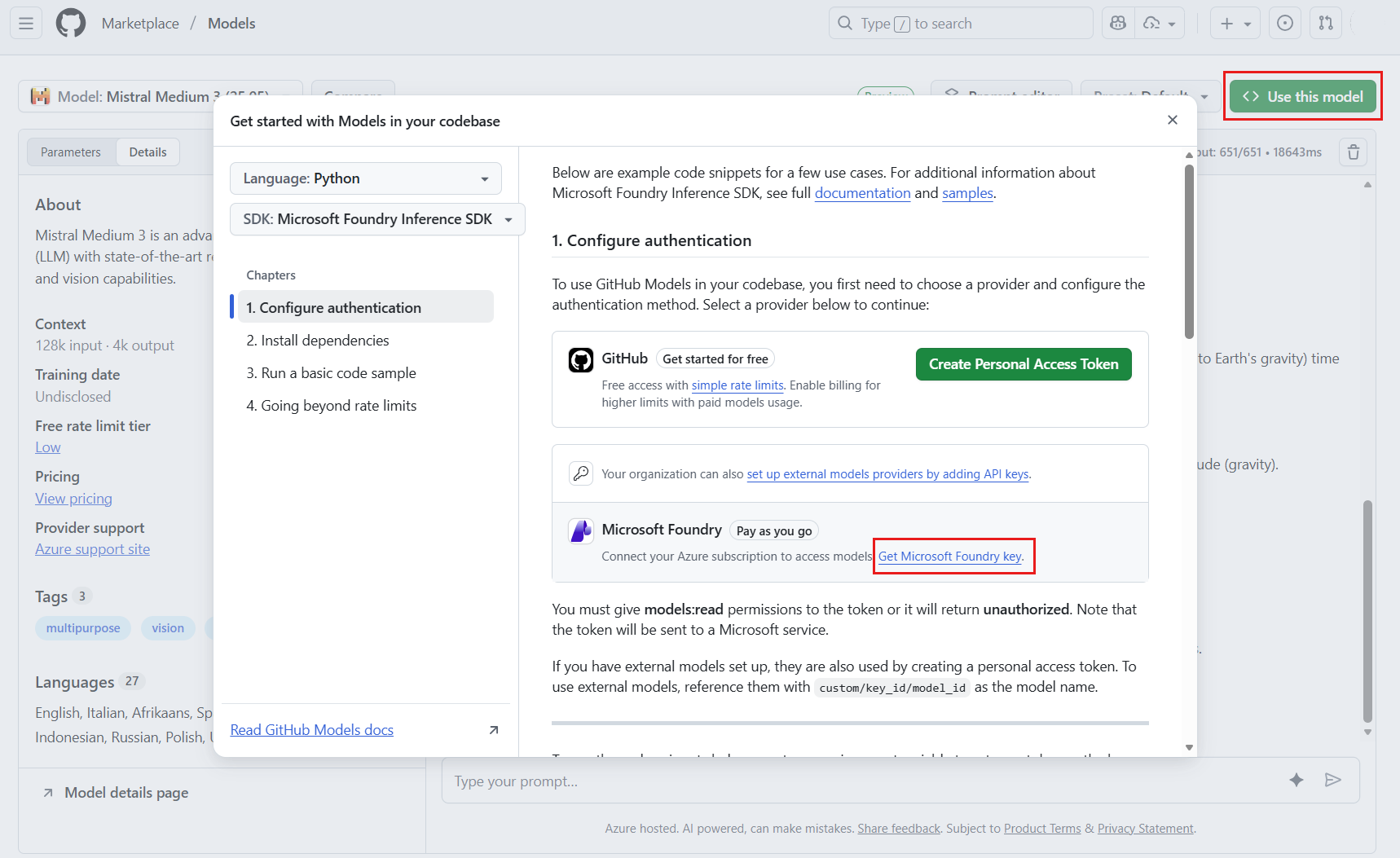
- Select Use this model from the playground. This action opens up a window to “Get started with Models in your codebase”.
- In the “Configure authentication” step, select Get Microsoft Foundry key from the “Azure AI” section.
-
If you’re already signed in to your Azure account, skip this step. However, if you don’t have an Azure account or you’re not signed in to your account, follow these steps:
- If you don’t have an Azure account, select Create my account and follow the steps to create one.
- Alternatively, if you have an Azure account, select Sign back in. If your existing account is a free account, you first have to upgrade to a standard plan.
- Return to the model’s playground and select Get Microsoft Foundry key again.
- Sign in to your Azure account.
- You’re taken to Foundry > GitHub and land on the home page in a Foundry project.
- Follow the steps in Deploy a model to deploy the model of your choice, test it in the Playground, and inference the deployed model with code.
- Verify the deployment works by sending a test prompt in the Playground. If you receive a response, your model is ready to use from code.
Unlike GitHub Models where all the models are already configured, the Foundry Tools resource allows you to control which models are available in your endpoint and under which configuration. Add as many models as you plan to use before indicating them in the
model parameter. Learn how to add more models to your resource.Explore additional features
Foundry Models supports features that aren’t available in GitHub Models:- Model catalog — Browse, compare, and evaluate models from Azure, partners, and the open-source community.
- Keyless authentication — Use Microsoft Entra ID for token-based authentication without managing API keys.
- Content filtering — Configure content safety filters for your deployments.
- Rate limiting — Set custom rate limits for specific models in your resource.
- Deployment types — Choose from multiple deployment SKUs such as pay-per-token, provisioned, and batch.
Troubleshoot common issues
| Issue | Resolution |
|---|---|
| Model not available in your region | Check the model’s region availability on its model catalog page and choose a supported region. |
| Authentication error after key swap | Verify you copied the correct key from the Foundry portal. Select Project settings > Keys and endpoints to view your keys. |
| Rate limit errors after upgrade | Foundry Models rate limits depend on your deployment type. Scale up or choose a higher-throughput deployment. |