- Large-Scale Data Processing: Quickly analyze extensive datasets in parallel.
- Content Generation: Create large volumes of text, such as product descriptions or articles.
- Document Review and Summarization: Automate the review and summarization of lengthy documents.
- Customer Support Automation: Handle numerous queries simultaneously for faster responses.
- Data Extraction and Analysis: Extract and analyze information from vast amounts of unstructured data.
- Natural Language Processing (NLP) Tasks: Perform tasks like sentiment analysis or translation on large datasets.
- Marketing and Personalization: Generate personalized content and recommendations at scale.
We aim to process batch requests within 24 hours; we don’t expire the jobs that take longer. You can cancel the job anytime. When you cancel the job, any remaining work is canceled and any already completed work is returned. You’ll be charged for any completed work.Data stored at rest remains in the designated Azure geography, while data may be processed for inferencing in any Azure OpenAI location. Learn more about data residency.
Batch support
- Global Batch
- Data Zone Batch
Global batch model availability
| Region | gpt-5.1, 2025-11-13 | gpt-5, 2025-08-07 | o3, 2025-04-16 | o4-mini, 2025-04-16 | gpt-4.1, 2025-04-14 | gpt-4.1-nano, 2025-04-14 | gpt-4.1-mini, 2025-04-14 | o3-mini, 2025-01-31 | gpt-4o, 2024-05-13 | gpt-4o, 2024-08-06 | gpt-4o, 2024-11-20 | gpt-4o-mini, 2024-07-18 |
|---|---|---|---|---|---|---|---|---|---|---|---|---|
| australiaeast | ✅ | ✅ | ✅ | ✅ | ✅ | ✅ | ✅ | ✅ | ✅ | ✅ | ✅ | ✅ |
| brazilsouth | ✅ | ✅ | ✅ | ✅ | ✅ | ✅ | ✅ | ✅ | ✅ | ✅ | ✅ | ✅ |
| canadaeast | ✅ | ✅ | ✅ | ✅ | ✅ | ✅ | ✅ | ✅ | ✅ | ✅ | ✅ | ✅ |
| centralus | ✅ | ✅ | ✅ | ✅ | ✅ | ✅ | ✅ | ✅ | ✅ | ✅ | ✅ | ✅ |
| eastus | ✅ | ✅ | ✅ | ✅ | ✅ | ✅ | ✅ | ✅ | ✅ | ✅ | ✅ | ✅ |
| eastus2 | ✅ | ✅ | ✅ | ✅ | ✅ | ✅ | ✅ | ✅ | ✅ | ✅ | ✅ | ✅ |
| francecentral | ✅ | ✅ | ✅ | ✅ | ✅ | ✅ | ✅ | ✅ | ✅ | ✅ | ✅ | ✅ |
| germanywestcentral | ✅ | ✅ | ✅ | ✅ | ✅ | ✅ | ✅ | ✅ | ✅ | ✅ | ✅ | ✅ |
| japaneast | ✅ | ✅ | ✅ | ✅ | ✅ | ✅ | ✅ | ✅ | ✅ | ✅ | ✅ | ✅ |
| koreacentral | ✅ | ✅ | ✅ | ✅ | ✅ | ✅ | ✅ | ✅ | ✅ | ✅ | ✅ | ✅ |
| northcentralus | ✅ | ✅ | ✅ | ✅ | ✅ | ✅ | ✅ | ✅ | ✅ | ✅ | ✅ | ✅ |
| norwayeast | ✅ | ✅ | ✅ | ✅ | ✅ | ✅ | ✅ | ✅ | ✅ | ✅ | ✅ | ✅ |
| polandcentral | ✅ | ✅ | ✅ | ✅ | ✅ | ✅ | ✅ | ✅ | ✅ | ✅ | ✅ | ✅ |
| southafricanorth | ✅ | ✅ | ✅ | ✅ | ✅ | ✅ | ✅ | ✅ | ✅ | ✅ | ✅ | ✅ |
| southcentralus | ✅ | ✅ | ✅ | ✅ | ✅ | ✅ | ✅ | ✅ | ✅ | ✅ | ✅ | ✅ |
| southindia | ✅ | ✅ | ✅ | ✅ | ✅ | ✅ | ✅ | ✅ | ✅ | ✅ | ✅ | ✅ |
| swedencentral | ✅ | ✅ | ✅ | ✅ | ✅ | ✅ | ✅ | ✅ | ✅ | ✅ | ✅ | ✅ |
| switzerlandnorth | ✅ | ✅ | ✅ | ✅ | ✅ | ✅ | ✅ | ✅ | ✅ | ✅ | ✅ | ✅ |
| uksouth | ✅ | ✅ | ✅ | ✅ | ✅ | ✅ | ✅ | ✅ | ✅ | ✅ | ✅ | ✅ |
| westeurope | ✅ | ✅ | ✅ | ✅ | ✅ | ✅ | ✅ | ✅ | ✅ | ✅ | ✅ | ✅ |
| westus | ✅ | ✅ | ✅ | ✅ | ✅ | ✅ | ✅ | ✅ | ✅ | ✅ | ✅ | ✅ |
| westus3 | ✅ | ✅ | ✅ | ✅ | ✅ | ✅ | ✅ | ✅ | ✅ | ✅ | ✅ | ✅ |
gpt-5 and o3. For more information, see the reasoning models guide.While Global Batch supports older API versions, some models require newer API versions. For example,
o3-mini isn’t supported with 2024-10-21 since it was released after this date. To access newer models with Global Batch, use the v1 API.Feature support
The following aren’t currently supported:- Integration with the Assistants API.
- Integration with Azure OpenAI On Your Data feature.
Batch deployment
In the Microsoft Foundry portal the batch deployment types appear as
Global-Batch and Data Zone Batch. To learn more about Azure OpenAI deployment types, see the deployment types guide.Prerequisites
- An Azure subscription - Create one for free.
- A resource with a model of the deployment type
GlobalBatchorDataZoneBatchdeployed.
Preparing your batch file
Like fine-tuning, batch uses files in JSON lines (.jsonl) format. Below are some example files with different types of supported content:
Input format
Responses API
- Standard input
- Base64 encoded image
- Image url
- Structured outputs
Chat completions API
- Standard input
- Base64 encoded image
- Image url
- Structured outputs
custom_id is required to allow you to identify which individual batch request corresponds to a given response. Responses won’t be returned in identical order to the order defined in the .jsonl batch file.
model attribute should be set to match the name of the Global Batch deployment you wish to target for inference responses.
The
model attribute must be set to match the name of the Global Batch deployment you wish to target for inference responses. The same Global Batch model deployment name must be present on each line of the batch file. If you want to target a different deployment you must do so in a separate batch file/job.For the best performance we recommend submitting large files for batch processing, rather than a large number of small files with only a few lines in each file.Create input file
For this article, we’ll create a file namedtest.jsonl and will copy the contents from standard input code block above to the file. You’ll need to modify and add your global batch deployment name to each line of the file.
Create batch job
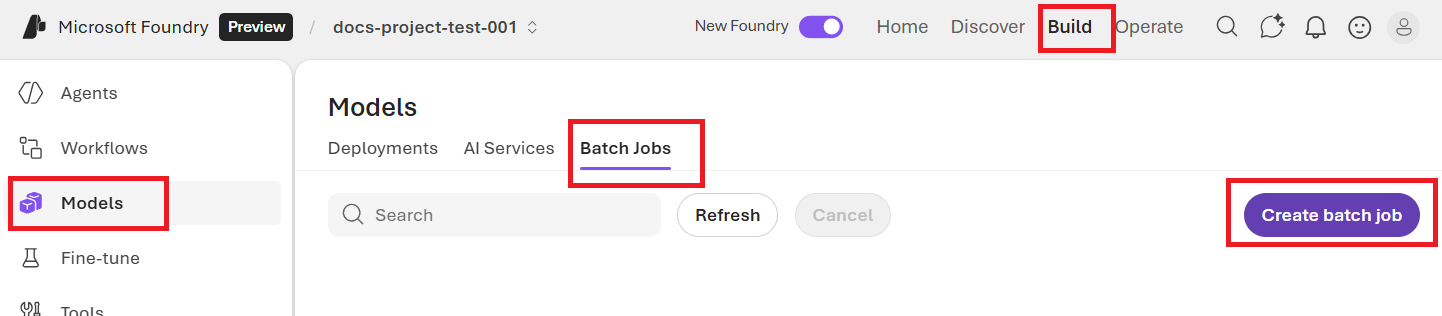
Once your input file is prepared, you first need to upload the file to then be able to initiate a batch job. File upload can be done both programmatically or via the Microsoft Foundry portal. This example demonstrates uploading a file directly to your Azure OpenAI resource. Alternatively, you can configure Azure Blob Storage for Azure OpenAI Batch.- Sign in to Microsoft Foundry. Make sure the New Foundry toggle is on. These steps refer to Foundry (new).

- In the upper-right select Build
- From the left-hand pane select Models
- Select Batch Jobs > create a batch job
Track batch job progress
Once your job is created, you can monitor the job’s progress by selecting the Job ID for the most recently created job. By default you will be taken to the status page for your most recently created batch job. You can track job status for your job in the right-hand pane:Retrieve batch job output file
Once your job has completed or reached a terminal state, it will generate an error file and an output file which can be downloaded for review by selecting the respective button with the downward arrow icon.Cancel batch
Cancels an in-progress batch. The batch will be in statuscancelling for up to 10 minutes, before changing to cancelled, where it will have partial results (if any) available in the output file.
Prerequisites
- An Azure subscription - Create one for free.
- Python 3.8 or later version
- The following Python library:
openai - Jupyter Notebooks
- An Azure OpenAI resource with a model of the deployment type
Global-Batchdeployed. You can refer to the resource creation and model deployment guide for help with this process.
Preparing your batch file
Like fine-tuning, global batch uses files in JSON lines (.jsonl) format. Below are some example files with different types of supported content:
Input format
Responses API
- Standard input
- Base64 encoded image
- Image url
- Structured outputs
Chat completions API
- Standard input
- Base64 encoded image
- Image url
- Structured outputs
custom_id is required to allow you to identify which individual batch request corresponds to a given response. Responses won’t be returned in identical order to the order defined in the .jsonl batch file.
model attribute should be set to match the name of the Global Batch deployment you wish to target for inference responses.
The
model attribute must be set to match the name of the Global Batch deployment you wish to target for inference responses. The same Global Batch model deployment name must be present on each line of the batch file. If you want to target a different deployment you must do so in a separate batch file/job.For the best performance we recommend submitting large files for batch processing, rather than a large number of small files with only a few lines in each file.Create input file
For this article we’ll create a file namedtest.jsonl and will copy the contents from standard input code block above to the file. You’ll need to modify and add your global batch deployment name to each line of the file. Save this file in the same directory that you’re executing your Jupyter Notebook.
Upload batch file
Once your input file is prepared, you first need to upload the file to then be able to initiate a batch job. File upload can be done both programmatically or via the Microsoft Foundry portal. This example demonstrates uploading a file directly to your Azure OpenAI resource. Alternatively, you can configure Azure Blob Storage for Azure OpenAI Batch.extra_body={"expires_after":{"seconds": 1209600, "anchor": "created_at"}} you’re setting our upload file to expire in 14 days. There’s a max limit of 500 input batch files per resource when no expiration is set. By setting a value for expiration the number of input batch files per resource is increased to 10,000 files per resource. To remove batch input file limits use Batch with Azure Blob Storage.
Output:
Create batch job
Once your file has uploaded successfully you can submit the file for batch processing.Currently the completion window must be set to
24h. If you set any other value than 24h your job will fail. Jobs taking longer than 24 hours will continue to execute until canceled.Track batch job progress
Once you have created batch job successfully you can monitor its progress either in the Studio or programmatically. When checking batch job progress we recommend waiting at least 60 seconds in between each status call.| Status | Description |
|---|---|
validating | The input file is being validated before the batch processing can begin. |
failed | The input file has failed the validation process. |
in_progress | The input file was successfully validated and the batch is currently running. |
finalizing | The batch has completed and the results are being prepared. |
completed | The batch has been completed and the results are ready. |
expired | The batch wasn’t able to be completed within the 24-hour time window. |
cancelling | The batch is being cancelled (This may take up to 10 minutes to go into effect.) |
cancelled | the batch was cancelled. |
error_file_id and a separate output_file_id. Use the error_file_id to assist in debugging any issues that occur with your batch job.
Retrieve batch job output file
Chat completions
Responses API
Additional batch commands
Cancel batch
Cancels an in-progress batch. The batch will be in statuscancelling for up to 10 minutes, before changing to cancelled, where it will have partial results (if any) available in the output file.
List batch
List batch jobs for a particular Azure OpenAI resource.List batch (Preview)
Use the REST API to list all batch jobs with additional sorting/filtering options. In the examples below we’re providing thegenerate_time_filter function to make constructing the filter easier. If you don’t wish to use this function the format of the filter string would look like created_at gt 1728860560 and status eq 'Completed'.
Queueing batch jobs
If your batch jobs are so large that you’re hitting the enqueued token limit even after maxing out the quota for your deployment, certain regions now support a new fail fast feature that allows you to queue multiple batch jobs with exponential backoff. Once one large batch job completes and your enqueued token quota is once again available, the next batch job can be created and kicked off automatically. Old behavior:- Large Batch job/s already running and using all available tokens for your deployment.
- New batch job submitted.
- New batch job goes into validation phase which can last up to a few minutes.
- Token count for new job is checked against currently available quota.
- New batch job fails with error reporting token limit exceeded.
- Large Batch job/s already running and using all available tokens for your deployment
- New batch job submitted
- Approximate token count of new job immediately compared against currently available batch quota job fails fast allowing you to more easily handle retries programmatically.
Region support
The following regions support the new fail fast behavior:- australiaeast
- eastus
- germanywestcentral
- italynorth
- northcentralus
- polandcentral
- swedencentral
- switzerlandnorth
- eastus2
- westus
max_retries or alter this example further.
Prerequisites
- An Azure subscription - Create one for free.
- An Azure OpenAI resource with a model of the deployment type
Global-Batchdeployed. You can refer to the resource creation and model deployment guide for help with this process.
Preparing your batch file
Like fine-tuning, global batch uses files in JSON lines (.jsonl) format. Below are some example files with different types of supported content:
Input format
Responses API
- Standard input
- Base64 encoded image
- Image url
- Structured outputs
Chat completions API
- Standard input
- Base64 encoded image
- Image url
- Structured outputs
custom_id is required to allow you to identify which individual batch request corresponds to a given response. Responses won’t be returned in identical order to the order defined in the .jsonl batch file.
model attribute should be set to match the name of the Global Batch deployment you wish to target for inference responses.
The
model attribute must be set to match the name of the Global Batch deployment you wish to target for inference responses. The same Global Batch model deployment name must be present on each line of the batch file. If you want to target a different deployment you must do so in a separate batch file/job.For the best performance we recommend submitting large files for batch processing, rather than a large number of small files with only a few lines in each file.Create input file
For this article we’ll create a file namedtest.jsonl and will copy the contents from standard input code block above to the file. You’ll need to modify and add your global batch deployment name to each line of the file.
Upload batch file
Once your input file is prepared, you first need to upload the file to then be able to initiate a batch job. File upload can be done both programmatically or via the Microsoft Foundry portal. This example demonstrates uploading a file directly to your Azure OpenAI resource. Alternatively, you can configure Azure Blob Storage for Azure OpenAI Batch."expires_after.seconds=1209600" and "expires_after.anchor=created_at" parameters you’re setting your upload file to expire in 14 days. There’s a max limit of 500 batch input files per resource when no expiration is set. By setting a value for expiration the number of batch files per resource is increased to 10,000 files per resource. You can set to a number between 1209600-2592000. This is equivalent to 14-30 days. To remove batch input file limits use Batch with Azure Blob Storage.
Output:
Track file upload status
Depending on the size of your upload file it might take some time before it’s fully uploaded and processed. To check on your file upload status run:Create batch job
Once your file has uploaded successfully you can submit the file for batch processing."output_expires_after":{"seconds": 1209600}, and "anchor": "created_at" so that your output files expire in 14 days.
Currently the completion window must be set to
24h. If you set any other value than 24h your job will fail. Jobs taking longer than 24 hours will continue to execute until canceled.Track batch job progress
Once you have created batch job successfully you can monitor its progress either in the Studio or programmatically. When checking batch job progress we recommend waiting at least 60 seconds in between each status call.| Status | Description |
|---|---|
validating | The input file is being validated before the batch processing can begin. |
failed | The input file has failed the validation process. |
in_progress | The input file was successfully validated and the batch is currently running. |
finalizing | The batch has completed and the results are being prepared. |
completed | The batch has been completed and the results are ready. |
expired | The batch wasn’t able to be completed within the 24-hour time window. |
cancelling | The batch is being cancelled (This can take up to 10 minutes to go into effect.) |
cancelled | the batch was cancelled. |
Retrieve batch job output file
Additional batch commands
Cancel batch
Cancels an in-progress batch. The batch will be in statuscancelling for up to 10 minutes, before changing to cancelled, where it will have partial results (if any) available in the output file.
List batch
List existing batch jobs for a given Azure OpenAI resource.has_more to indicate when there are more results to iterate through.
List batch (Preview)
Use the REST API to list all batch jobs with additional sorting/filtering options.URL rejected: Malformed input to a URL function spaces are replaced with %20.
Batch limits
| Limit name | Limit value |
|---|---|
| Maximum Batch input files - (no expiration) | 500 |
| Maximum Batch input files - (expiration set) | 10,000 |
| Maximum input file size | 200 MB |
| Maximum input file size - Bring your own storage (BYOS) | 1 GB |
| Maximum requests per file | 100,000 |
Batch file limits don’t apply to output files (for example,
result.jsonl, and error.jsonl). To remove batch input file limits, use Batch with Azure Blob Storage.Batch quota
The table shows the batch quota limit. Quota values for global batch are represented in terms of enqueued tokens. When you submit a file for batch processing, the number of tokens in the file is counted. Until the batch job reaches a terminal state, those tokens count against your total enqueued token limit.Global batch
| Model | Enterprise and MCA-E | Default | Monthly credit card-based subscriptions | MSDN subscriptions | Azure for Students, free trials |
|---|---|---|---|---|---|
gpt-4.1 | 5B | 200M | 50M | 90K | N/A |
gpt-4.1 mini | 15B | 1B | 50M | 90K | N/A |
gpt-4.1-nano | 15B | 1B | 50M | 90K | N/A |
gpt-4o | 5B | 200M | 50M | 90K | N/A |
gpt-4o-mini | 15B | 1B | 50M | 90K | N/A |
gpt-4-turbo | 300M | 80M | 40M | 90K | N/A |
gpt-4 | 150M | 30M | 5M | 100K | N/A |
o3-mini | 15B | 1B | 50M | 90K | N/A |
o4-mini | 15B | 1B | 50M | 90K | N/A |
gpt-5 | 5B | 200M | 50M | 90K | N/A |
gpt-5.1 | 5B | 200M | 50M | 90K | N/A |
Data zone batch
| Model | Enterprise and MCA-E | Default | Monthly credit card-based subscriptions | MSDN subscriptions | Azure for Students, free trials |
|---|---|---|---|---|---|
gpt-4.1 | 500M | 30M | 30M | 90K | N/A |
gpt-4.1-mini | 1.5B | 100M | 50M | 90K | N/A |
gpt-4o | 500M | 30M | 30M | 90K | N/A |
gpt-4o-mini | 1.5B | 100M | 50M | 90K | N/A |
o3-mini | 1.5B | 100M | 50M | 90K | N/A |
gpt-5 | 5B | 200M | 50M | 90K | N/A |
gpt-5.1 | 5B | 200M | 50M | 90K | N/A |
Batch object
| Property | Type | Definition |
|---|---|---|
id | string | The identifier of the batch. |
object | string | batch |
endpoint | string | The API endpoint used by the batch |
errors | object | Error information for the batch, if any. |
input_file_id | string | The ID of the input file for the batch |
completion_window | string | The time frame within which the batch should be processed |
status | string | The current status of the batch. Possible values: validating, failed, in_progress, finalizing, completed, expired, cancelling, cancelled. |
output_file_id | string | The ID of the file containing the outputs of successfully executed requests. |
error_file_id | string | The ID of the file containing the outputs of requests with errors. |
created_at | integer | A timestamp when this batch was created (in Unix epoch seconds). |
in_progress_at | integer | A timestamp when this batch started progressing (in Unix epoch seconds). |
expires_at | integer | A timestamp when this batch will expire (in Unix epoch seconds). |
finalizing_at | integer | A timestamp when this batch started finalizing (in Unix epoch seconds). |
completed_at | integer | A timestamp when this batch completed (in Unix epoch seconds). |
failed_at | integer | A timestamp when this batch failed (in Unix epoch seconds). |
expired_at | integer | A timestamp when this batch expired (in Unix epoch seconds). |
cancelling_at | integer | A timestamp when this batch started cancelling (in Unix epoch seconds). |
cancelled_at | integer | A timestamp when this batch was cancelled (in Unix epoch seconds). |
request_counts | object | Object structure:total integer The total number of requests in the batch. completed integer The number of requests in the batch that have been completed successfully. failed integer The number of requests in the batch that have failed. |
metadata | map | A set of key-value pairs that can be attached to the batch. This property can be useful for storing additional information about the batch in a structured format. |
Frequently asked questions (FAQ)
Can images be used with the batch API?
This capability is limited to certain multimodal models. Images can be provided as input either via image url or a base64 encoded representation of the image.Can I use the batch API with fine-tuned models?
This is currently not supported.Can I use the batch API for embeddings models?
This is currently not supported.Does content filtering work with Global Batch deployment?
Yes. Similar to other deployment types, you can create content filters and associate them with the Global Batch deployment type.Can I request additional quota?
Yes, from the quota page in the Foundry portal. Default quota allocation can be found in the quota and limits article.What happens if the API doesn’t complete my request within the 24 hour time frame?
We aim to process these requests within 24 hours; we don’t expire the jobs that take longer. You can cancel the job anytime. When you cancel the job, any remaining work is canceled and any already completed work is returned. You’ll be charged for any completed work.How many requests can I queue using batch?
There’s no fixed limit on the number of requests you can batch, however, it will depend on your enqueued token quota. Your enqueued token quota includes the maximum number of input tokens you can enqueue at one time. Once your batch request is completed, your batch rate limit is reset, as your input tokens are cleared. The limit depends on the number of global requests in the queue. If the Batch API queue processes your batches quickly, your batch rate limit is reset more quickly.Troubleshooting
A job is successful whenstatus is completed. Successful jobs will still generate an error_file_id, but it will be associated with an empty file with zero bytes.
When a job failure occurs, you’ll find details about the failure in the errors property:
Error codes
| Error code | Definition |
|---|---|
invalid_json_line | A line (or multiple) in your input file wasn’t able to be parsed as valid json. Please ensure no typos, proper opening and closing brackets, and quotes as per JSON standard, and resubmit the request. |
too_many_tasks | The number of requests in the input file exceeds the maximum allowed value of 100,000. Please ensure your total requests are under 100,000 and resubmit the job. |
url_mismatch | Either a row in your input file has a URL that doesn’t match the rest of the rows, or the URL specified in the input file doesn’t match the expected endpoint URL. Please ensure all request URLs are the same, and that they match the endpoint URL associated with your Azure OpenAI deployment. |
model_not_found | The Azure OpenAI model deployment name that was specified in the model property of the input file wasn’t found.Please ensure this name points to a valid Azure OpenAI model deployment. |
duplicate_custom_id | The custom ID for this request is a duplicate of the custom ID in another request. |
empty_file | The input file is empty. Please ensure the batch contains at least one request. |
model_mismatch | The Azure OpenAI model deployment name that was specified in the model property of this request in the input file doesn’t match the rest of the file.Please ensure that all requests in the batch point to the same Azure OpenAI in Foundry Models model deployment in the model property of the request. |
invalid_request | The schema of the input line is invalid or the deployment SKU is invalid. Please ensure the properties of the request in your input file match the expected input properties, and that the Azure OpenAI deployment SKU is globalbatch for batch API requests. |
input_modified | Blob input has been modified after the batch job has been submitted. |
input_no_permissions | It’s not possible to access the input blob. Please check permissions and network access between the Azure OpenAI account and Azure Storage account. |
Known issues
-
Resources deployed with Azure CLI won’t work out-of-box with Azure OpenAI global batch. This is due to an issue where resources deployed using this method have endpoint subdomains that don’t follow the
https://your-resource-name.openai.azure.compattern. A workaround for this issue is to deploy a new Azure OpenAI resource using one of the other common deployment methods which will properly handle the subdomain setup as part of the deployment process. -
UTF-8-BOM encoded
jsonlfiles aren’t supported. JSON lines files should be encoded using UTF-8. Use of Byte-Order-Mark (BOM) encoded files isn’t officially supported by the JSON RFC spec, and Azure OpenAI will currently treat BOM encoded files as invalid. A UTF-8-BOM encoded file will currently return the generic error message: “Validation failed: A valid model deployment name couldn’t be extracted from the input file. Please ensure that each row in the input file has a valid deployment name specified in the ‘model’ field, and that the deployment name is consistent across all rows.” - When using your own storage for batch input data, once the batch job is submitted, if the input blob is modified the scoring job will be failed by the service.
See also
- Learn more about Azure OpenAI deployment types
- Learn more about Azure OpenAI quotas and limits