Prerequisites
- A Foundry project with Agent Service enabled. For setup instructions, see Quickstart: Get started with Agent Service.
- An Azure subscription and permissions to create resources. At minimum, you typically need the Contributor role on the target resource group.
- Python version 3.11 or higher installed on your local development machine.
- Azure Functions Core Tools version 4.0.7030 or higher.
- Azure Developer CLI installed for deployment automation.
- For local development and debugging:
- Visual Studio Code
- Azure Functions extension for Visual Studio Code
- An Azure API Center resource (optional, required only for organizational tool catalog registration).
Agent Service connects only to publicly accessible MCP server endpoints.
Understand the request flow
The high-level flow looks like this:- You deploy an MCP server (this article uses Azure Functions) that exposes one or more MCP tools.
- You optionally register the server in Azure API Center so it shows up in an organizational tool catalog.
- In Foundry portal, you connect the MCP server to Agent Service.
- When an agent needs a tool, Agent Service calls your MCP server endpoint.
- Your MCP server validates the request, calls your internal API, and returns the tool result.
Build an MCP server by using Azure Functions
Azure Functions is a serverless compute service that provides scale-to-zero capability, burst scaling, and enterprise features including identity-based access and virtual networking. The lightweight programming model makes it straightforward to build MCP servers so you can focus on implementing your business logic rather than infrastructure management.- Open a terminal or command prompt and navigate to the folder where you want to create your project.
-
Run the
azd initcommand to initialize the project from this sample MCP server template: -
Review the sample code structure. The template includes:
- Function definitions for MCP endpoints.
- Configuration for authentication and authorization.
- Deployment scripts for Azure.
- Customize the MCP server functions to expose your specific APIs and services. Modify the function code to implement the tools and capabilities your agents need.
-
Test your MCP server locally by using the Azure Functions Core Tools:
-
Deploy your MCP server to Azure by using the Azure Developer CLI:
Follow the prompts to select your Azure subscription and resource group.
-
After deployment completes, save the following information for later steps:
- Remote MCP server endpoint:
https://{function_app_name}.azurewebsites.net/runtime/webhooks/mcp - Authentication information: For access key authentication, note the
mcp_extensionsystem key in the Azure portal.
- Remote MCP server endpoint:
Secure your MCP server endpoint
Before you share your MCP server with others, define and apply a security baseline:- Require authentication. Avoid anonymous access unless your scenario explicitly needs it.
- Treat credentials as secrets. Don’t hard-code keys in code or check them into source control. Store secrets in a secure store such as Azure Key Vault.
- Implement least privilege for downstream calls. If your MCP server calls internal APIs, scope permissions to only what the exposed tools need.
- Log and monitor tool calls. Use Azure Functions logging to trace requests and troubleshoot failures.
Register your MCP server in the organizational tool catalog
When you register your MCP server in Azure API Center, you create a private organizational tool catalog. This step is optional but recommended for sharing MCP servers across your organization with consistent governance and discoverability. To register your MCP server:- Sign in to the Azure portal and go to your Azure API Center resource.
- In the left navigation pane, expand Inventory and select Assets.
- Select Register an asset and choose MCP server.
- Provide the required information about your MCP server.
- Configure environments and deployments following the tutorial: Add environments and deployments for APIs in Azure API Center.
- Configure authentication for your MCP server (optional): In the left navigation pane of your API Center resource, select Governance > Authorization.
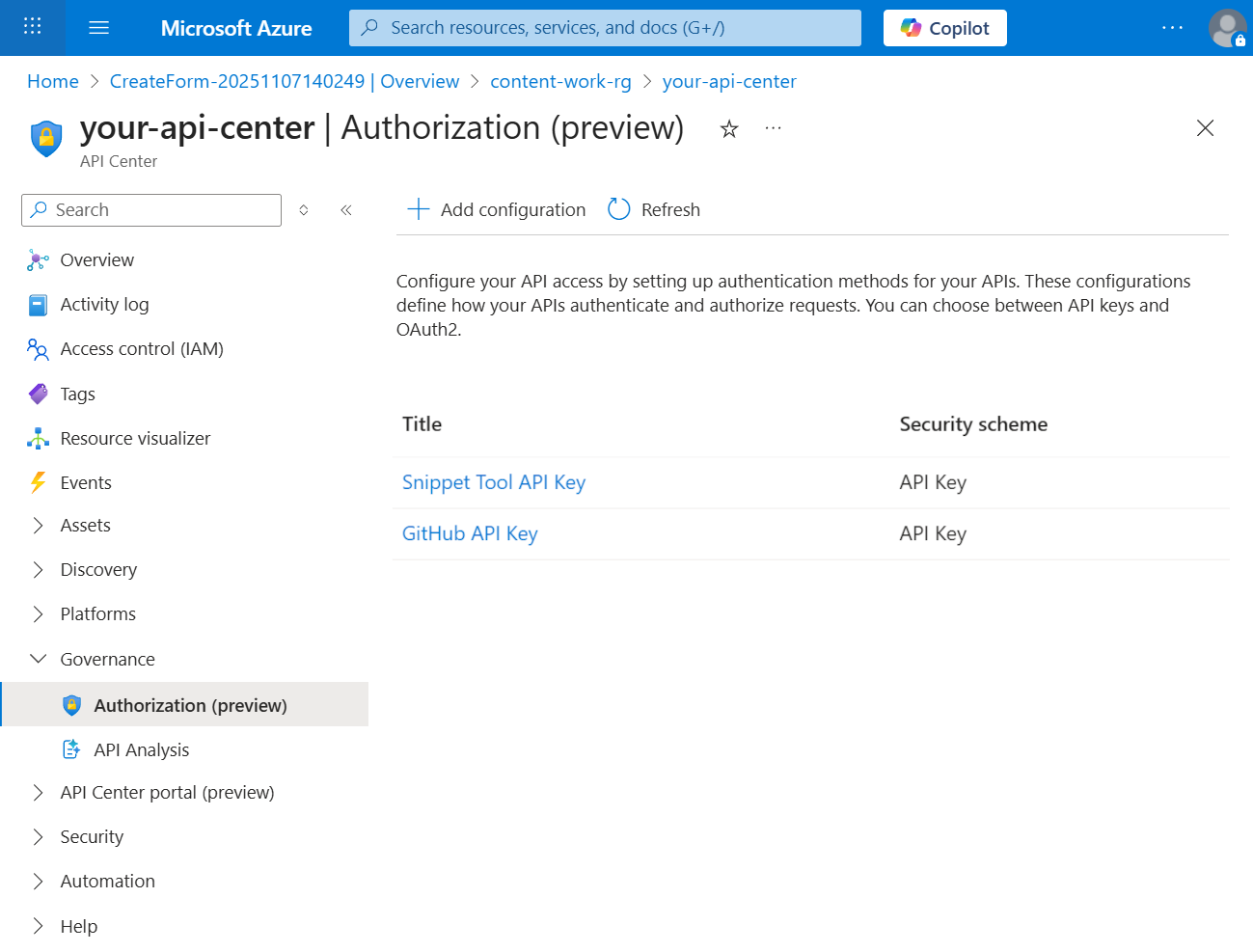
- Select Add configuration.
-
Choose the security scheme that matches your MCP server requirements:
- API Key: Developers provide the API key during tool configuration in Foundry
- OAuth: Configure OAuth 2.0 authentication parameters
- HTTP: Configure bearer token authorization
- Provide the required authentication details for your selected scheme.
If you choose API Key authentication, the key you store in Azure Key Vault isn’t automatically used in Foundry. Developers must provide the API key when configuring the MCP server connection.
- Configure access management (optional): a. Go to your registered MCP server in API Center. b. Select Details > Versions > Manage Access (preview). c. Configure which users or groups can access this MCP server through the organizational catalog.
Connect the MCP server to Agent Service
You can connect your MCP server to Agent Service through the organizational tool catalog (if you registered it) or as a custom MCP tool.Connect using the organizational tool catalog
If you registered your MCP server in Azure API Center, users with appropriate access can discover and configure it:- In Foundry portal, go to your project.
- Go to Build > Tools or open Agent Builder.
- Browse the organizational tool catalog to find your registered MCP server.
- Follow the configuration guidance displayed in the tool catalog to add the server to your agent.
Connect using a custom MCP tool
If you don’t register your MCP server in the organizational catalog, add it directly as a custom tool:- In Foundry portal, go to your project.
- Go to Build > Tools or open Agent Builder.
- Select Add tool > Custom > Model Context Protocol.
-
Enter your MCP server details:
- Name: Unique name for your remote MCP server
- Remote MCP Server endpoint: Enter your remote MCP server endpoint URL (for example,
https://{function_app_name}.azurewebsites.net/runtime/webhooks/mcp) - Authentication: Select the authentication method. For Key-based authentication, provide the following credential:
- Credential:
"x-functions-key": "{mcp_extension_system_key}"
- Credential:
- Select Connect to register the custom MCP tool.
Verify the MCP server works end to end
After you deploy and connect the server, verify that the server is discoverable and that an agent can successfully invoke a tool.- In Foundry portal, confirm the MCP server appears in your project tool list.
- Create an agent (or open an existing agent) and add the MCP server tool.
- Run a prompt that should require one of your MCP tools.
- If approval is enabled, review the tool name and arguments, then approve the call.
- Confirm the tool call succeeds. If the tool call fails, open the Function App logs in Azure portal to confirm the MCP endpoint was invoked and to diagnose errors.
Troubleshooting
Here are some common issues you might encounter when building and connecting your MCP server:- MCP server connection fails: Confirm the server URL is publicly reachable and uses the MCP webhook path (
/runtime/webhooks/mcp). Check the Function App logs in Azure portal for errors. - Authentication errors (401/403): Verify you’re using the correct key or token for the authentication method you selected. Rotate keys that might have been exposed, and update any saved credentials.
- Tool discovery problems: If you registered the server in Azure API Center, confirm the API is published and you have access to it. If you added a custom tool, confirm the endpoint URL is correct.
- Tool call succeeds but an internal API fails: Review your MCP server logs to confirm what request was sent to the downstream API. Verify the MCP server identity or API credentials have the required permissions.
Clean up resources
When you’re done, delete Azure resources created by the template to avoid ongoing charges.-
In your MCP server project folder, run:
- If you registered the server in Azure API Center, remove the API entry if you no longer need it.
Related content
- MCP server authentication
- Get started with Foundry MCP Server (preview) using Visual Studio Code
- Foundry MCP Server best practices and security guidance
- Explore available tools and example prompts for Foundry MCP Server (preview)
- Add environments and deployments in Azure API Center
- Azure Functions Python developer guide