Quickstart: Set up your first Foundry resource
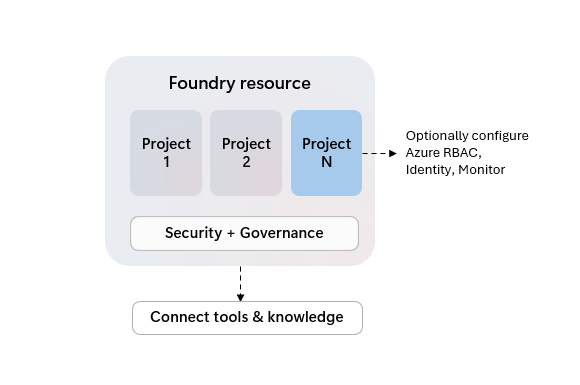
In this quickstart, you create a Microsoft Foundry resource and verify access. Learn how to create and manage a Foundry resource. It’s the primary Azure resource type for building, deploying, and managing generative AI models and applications including agents in Azure. An Azure resource is required to use and manage services in Azure. It defines the scope for configuring access, security such as networking, billing, and monitoring. Foundry resource is the next version and renaming of former “Foundry Tools”. It provides the application environment for hosting your agents, model deployments, evaluations, and more. A Foundry resource can organize the work for multiple use cases, and is typically shared between a team of developers that work on use cases in a similar business or data domain. Projects act as folders to group related work.
Only the default project is available in the Foundry (new) portal. Use the Foundry (classic) portal to interact with all other projects on a Foundry resource.
Create your first resource
To create your first resource, with basic Azure settings, follow the below steps using either Azure portal, Azure CLI, or PowerShell.Prerequisites
- A valid Azure subscription - Create one for free.
- Azure RBAC role to create resources. You need one of the following roles assigned on your Azure subscription or resource group:
- Contributor
- Owner
- Custom role with
Microsoft.CognitiveServices/accounts/writepermission
Create a new Microsoft Foundry resource
If your organization requires customized Azure configurations like alternative names, security controls or cost tags, you might need to use the Azure portal or template options to comply with your organization’s Azure Policy compliance. The Foundry resource is listed under Foundry > Foundry in the Azure portal. The API kind is AIServices. Look for the logo as shown here:
- Select this Foundry resource link: https://portal.azure.com/#create/Microsoft.CognitiveServicesAIFoundry
-
On the Create page, provide the following information:
Project details Description Subscription Select one of your available Azure subscriptions. Resource group The Azure resource group that will contain your Foundry resource. You can create a new group or add it to a preexisting group. Region The location of your Foundry Tool instance. Different locations may introduce latency, but have no impact on the runtime availability of your resource. Name A descriptive name for your Foundry resource. For example, MyAIServicesResource. - Configure other settings for your resource as needed, read and accept the conditions (as applicable), and then select Review + create.
Clean up resources
If you want to clean up and remove a Foundry resource, you can delete the resource or resource group. Deleting the resource group also deletes any other resources contained in the group.- In the Azure portal, expand the menu on the left side to open the menu of services, and choose Resource Groups to display the list of your resource groups.
- Locate the resource group containing the resource to be deleted.
- If you want to delete the entire resource group, select the resource group name. On the next page, Select Delete resource group, and confirm.
- If you want to delete only the Foundry resource, select the resource group to see all the resources within it. On the next page, select the resource that you want to delete, select the ellipsis menu for that row, and select Delete.
Prerequisites
- A valid Azure subscription - Create one for free.
- The Azure CLI version 2.0 or later.
- Azure RBAC role to create resources. You need one of the following roles assigned on your Azure subscription or resource group:
- Contributor
- Owner
- Custom role with
Microsoft.CognitiveServices/accounts/writepermission
Install the Azure CLI and sign in
Install the Azure CLI. To sign into your local installation of the CLI, run the az login command:Create a new resource group
Before you create a Foundry resource, you must have an Azure resource group to contain the resource. When you create a new resource, you can either create a new resource group, or use an existing one. This article shows how to create a new resource group. To create a resource, you’ll need one of the Azure locations available for your subscription. You can retrieve a list of available locations with the az account list-locations command. Most Foundry Tools can be accessed from several locations. Choose the one closest to you, or see which locations are available for the service.- Remember your Azure location, as you will need it when calling the Microsoft Foundry resources.
- The availability of some Foundry Tools can vary by region. For more information, see Azure products by region.
westus2 with one of the Azure locations available for your subscription.
Create a Foundry resource
To create and subscribe to a new Foundry resource, use the az cognitiveservices account create command. This command adds a new billable resource to the resource group you created earlier. When you create your new resource, you’ll need to know the kind of service you want to use, along with its pricing tier (or SKU) and an Azure location.Azure provides more than one resource kinds for Foundry Tools. Be sure to create one with the
kind of AIServices.foundry-multi-service-resource with the command below.
Get current quota usage for your resource
Use the az cognitiveservices account list-usage command to get the usage for your resource.Clean up resources
If you want to clean up and remove a Foundry resource, you can delete it or the resource group. Deleting the resource group also deletes any other resources contained in the group. To remove the resource group and its associated resources, use theaz group delete command.
Prerequisites
- A valid Azure subscription - Create one for free.
- Azure PowerShell version 5.0 or later.
- Azure RBAC role to create resources. You need one of the following roles assigned on your Azure subscription or resource group:
- Contributor
- Owner
- Custom role with
Microsoft.CognitiveServices/accounts/writepermission
Install Azure PowerShell and sign in
Install Azure PowerShell. To sign in, run the Connect-AzAccount command:Create a new Microsoft Foundry resource group
Before you create a Foundry resource, you must have an Azure resource group to contain the resource. When you create a new resource, you can either create a new resource group, or use an existing one. This article shows how to create a new resource group. To create a resource, you’ll need one of the Azure locations available for your subscription. You can retrieve a list of available locations with the Get-AzLocation command. Most Foundry Tools can be accessed from several locations. Choose the one closest to you, or see which locations are available for the service.- Remember your Azure location, as you will need it when calling the Foundry resources.
- The availability of some Foundry Tools can vary by region. For more information, see Azure products by region.
westus2 with one of the Azure locations available for your subscription.
Create a Foundry resource
To create and subscribe to a new Foundry resource, use the New-AzCognitiveServicesAccount command. This command adds a new billable resource to the resource group you created earlier. When you create your new resource, you’ll need to know the “kind” of service you want to use, along with its pricing tier (or SKU) and an Azure location:Azure provides more than one resource kinds for Foundry Tools. Be sure to create one with the
Type (kind) of AIServices.foundry-multi-service-resource with the command below.
Get current quota usage for your resource
Use the Get-AzCognitiveServicesAccountUsage command to get the usage for your resource.Clean up resources
If you want to clean up and remove a Foundry resource, you can delete it or the resource group. Deleting the resource group also deletes any other resources contained in the group. To remove the resource group and its associated resources, use the Remove-AzResourceGroup command.Access your resource
With your first resource created, you can access it via Foundry portal for UX prototyping, Foundry SDK for development, or via Azure portal for administrative management.Verify your setup
You can verify that your resource is set up correctly by using the Azure AI Projects SDK to connect and list projects. This minimal example confirms authentication and access.Successfully connected. Found X projects. where X is the number of projects in your resource.
References:
Grant or obtain developer permissions
Azure Role Based Access Control (RBAC) differentiates permissions between management and development actions. To build with Foundry, your user account must be assigned developer permissions (“data actions”). You can either use one of the built-in RBAC roles, or use a custom RBAC role. Built-in Azure RBAC developer roles for Foundry include:| Role | Description |
|---|---|
| Azure AI Project Manager | Grants development permissions, and project management permissions. Can invite other users to collaborate on a project as ‘Azure AI User’. |
| Azure AI User | Grants development permissions. |
| Azure AI Account Owner | Grants full access to manage AI projects and accounts. Can invite other users to collaborate on a project as ‘Azure AI User’. |
| Azure AI Owner | Grants full access to managed AI projects and accounts and build and develop with projects. |
The Azure AI Owner role will be available to assign in the Azure and Foundry portal soon.
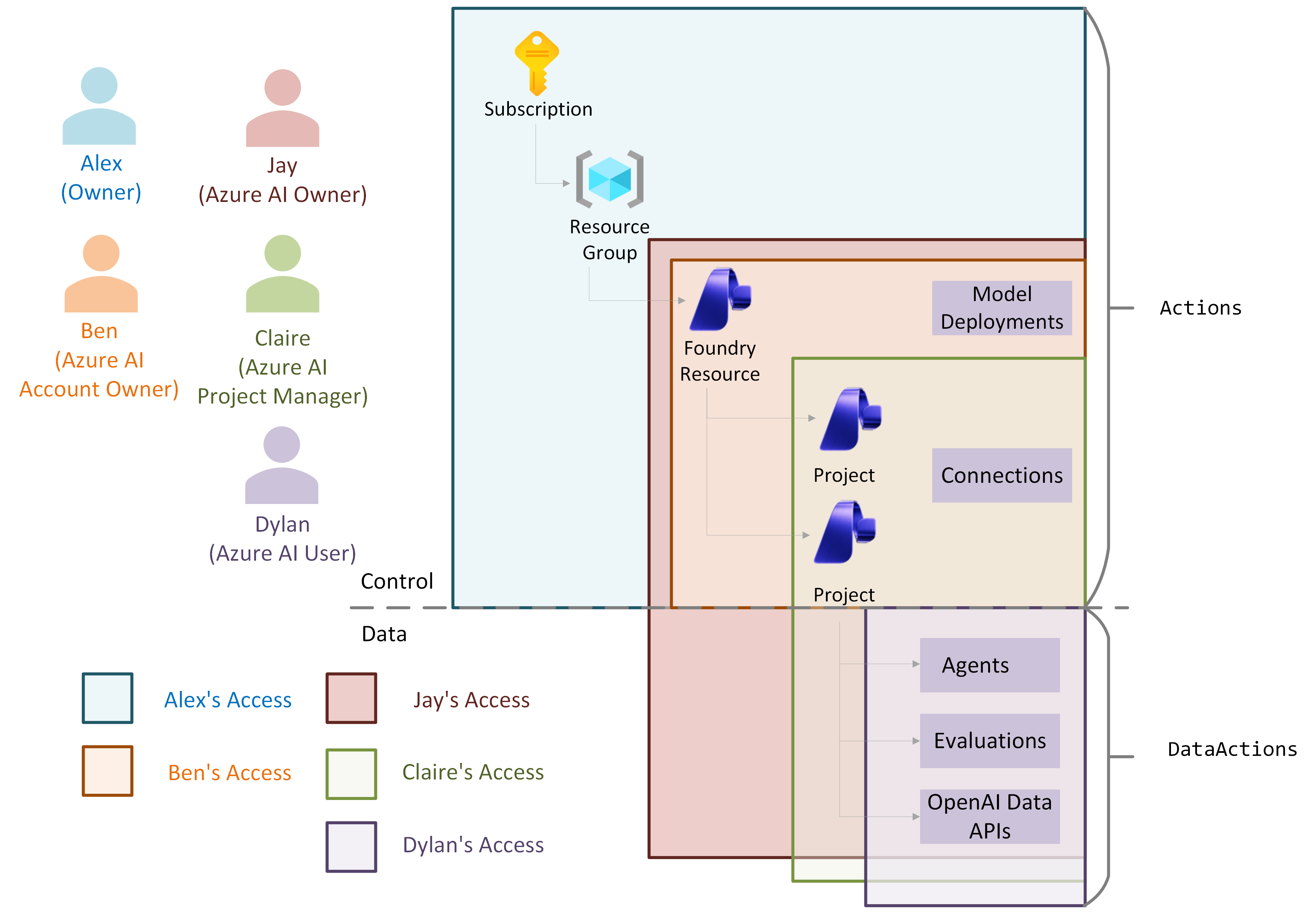
Azure Owner and Contributor roles do only include management permissions, and not development permissions. Development permissions are required to build with all capabilities in Foundry.
Start building in your first project
With permissions set up, you’re now ready to start building Foundry. In Foundry portal open or create your first project. Projects organize your agent and model customization work in Foundry, and you can create multiple under the same resource. Explore some of the services that come bundled with your resource:| Service | Description |
|---|---|
| Combine the power of generative AI models with tools that allow agents to access and interact with real-world data sources. | |
| Performs model inference for flagship models in the Foundry model catalog. | |
| Perform a wide variety of natural language tasks. | |
| A Foundry Tool that detects unwanted contents. | |
| Turn documents into intelligent data-driven solutions. | |
| Build apps with industry-leading natural language understanding capabilities. | |
| Speech to text, text to speech, translation, and speaker recognition. | |
| Use AI-powered translation technology to translate more than 100 in-use, at-risk, and endangered languages and dialects. |
Next steps
- Create a project to organize your work.
- Connect tools to build more rich applications.
- Learn about access control in Foundry to invite others to your working environment.
- Secure your resource using private networking