Items marked (preview) in this article are currently in public preview. This preview is provided without a service-level agreement, and we don’t recommend it for production workloads. Certain features might not be supported or might have constrained capabilities. For more information, see Supplemental Terms of Use for Microsoft Azure Previews.
Prerequisites
- An Azure subscription. Create one for free.
- A Microsoft Foundry resource.
- At least one deployed model in your Foundry resource.
Highlights of the Foundry playgrounds experience
Highlights of the Foundry playgrounds experience include:- AgentOps support for evaluations and tracing in the Agents playground.
- Open in VS Code for Chat and Agents playground. This feature saves you time by automatically importing your endpoint and key from Foundry to VS Code for multilingual code samples.
- Images playground 2.0 for models such as gpt-image-1, Stable Diffusion 3.5 Large, and FLUX.1-Kontext-pro models.
- Video playground for Azure OpenAI Sora-2.
Summary of playground capabilities
| Playground | Best for | Key capabilities |
|---|---|---|
| Model playground | Prompt engineering, model comparison, parameter tuning | Compare up to three models, system prompts, tools (web search, file search, code interpreter), safety guardrails, code export |
| Agents playground | Multi-turn agent prototyping with tools and knowledge | Tool configuration, knowledge sources, memory, tracing, evaluation |
| Video playground (preview)1 | Generative video workflows | This is one of the modalities of the Model and Agents playgrounds Text-to-video, prompt iteration, grid comparison, multilingual code samples |
| Images playground2 | Image generation and editing | This is one of the modalities of the Model and Agents playgrounds Text-to-image, inpainting, model comparison, multilingual code samples |
Why use playgrounds before production
Modern development involves working across multiple systems—APIs, services, SDKs, and data models—often before you’re ready to fully commit to a framework, write tests, or spin up infrastructure. As the complexity of software ecosystems increases, the need for safe, lightweight environments to validate ideas becomes critical. The playgrounds are built to meet this need. The Foundry playgrounds provide ready-to-use environments with all the necessary tools and features preinstalled, so you don’t need to set up projects, manage dependencies, or solve compatibility issues. The playgrounds can accelerate developer velocity by validating API behavior, going quicker to code, reducing cost of experimentation and time to ship, accelerating integration, optimizing prompts, and more. Playgrounds also provide clarity quickly when you have questions, by providing answers in seconds—rather than hours—and allowing you to test and validate ideas before you commit to building at scale. For example, the playgrounds are ideal for quickly answering questions like:- What’s the minimal prompt I need to get the output I want?
- Will this logic work before I write a full integration?
- How does latency or token usage change with different configurations?
- What model provides the best price-to-performance ratio before I evolve it into an agent?
Open in VS Code capability
The Model playground and Agents playground let you work in VS Code by using the Open in VS Code for the Web button. You can find this button from the Code tab in the chat pane of the model playground. Available on the multilingual sample code samples, Open in VS Code for the Web automatically imports your code sample, API endpoint, and key to a VS Code workspace in an/azure environment. This functionality makes it easy to work in the VS Code IDE from the Foundry portal.
To use the Open in VS Code for the Web functionality from the model playground:
- Deploy a model and open its playground.
- Select the Code tab in the chat pane.
- Select your preferred programming language from the language tabs.
- Select Open in VS Code for the Web to open VS Code in a new browser tab.
- You’re redirected to a VS Code for the Web environment where your code sample, API endpoint, and key are already imported from the Foundry playground.
- Browse the
INSTRUCTIONS.mdfile for guidance on running your model. - View your code sample and relevant dependencies in the generated files.
Agents playground
The agents playground lets you explore, prototype, and test agents without running any code. From this page, you can quickly iterate and experiment with new ideas.When you use the Agents playground to experiment with a model, Foundry presents you with the relevant playground for that model. For example, when you use an image generation model like gpt-image-1, you’re presented with the images playground. For a video model like Sora-2, Foundry opens up a video playground.
- Configure agent instructions and persona.
- Attach tools such as code interpreter, file search, and web search.
- Add knowledge sources to ground agent responses.
- Test multi-turn conversations with the agent.
- View tracing and evaluation data for agent responses through AgentOps.
- Save and iterate on agent configurations before deploying.
Evaluations in the agents playground are enabled by default for all Foundry projects and are included in consumption-based billing. To turn off playground evaluations, select metrics in the upper right of the agents playground and unselect all evaluators.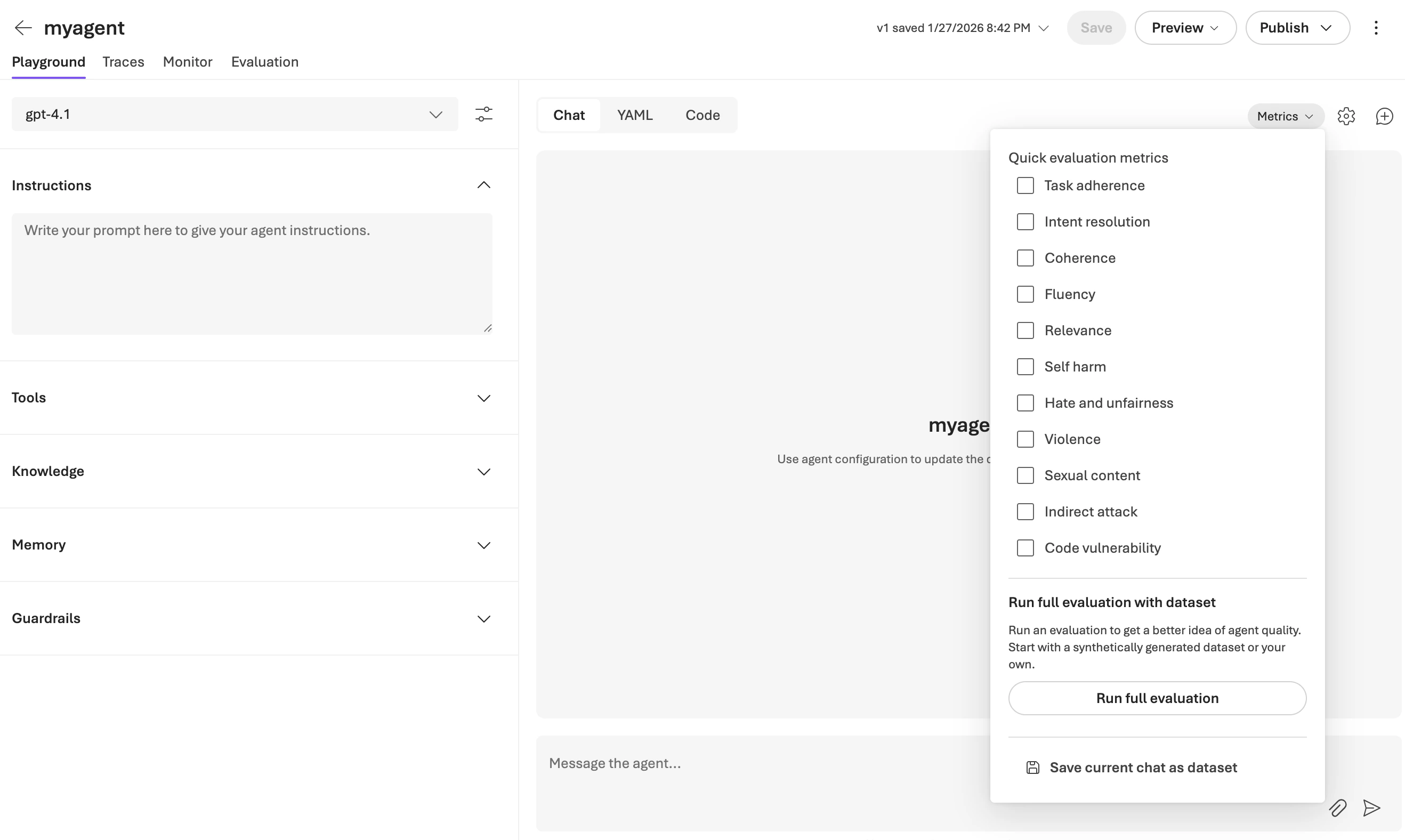
Model playground
When you deploy a model in the Microsoft Foundry portal, you immediately land on its playground. The model playground is an interactive experience designed for developers to test and experiment with the latest models from providers like Azure OpenAI, DeepSeek, xAI, and Meta. The playground gives you full control over model behavior, safety, and deployment so that you can tune system prompts, compare model outputs in real time, or integrate tools like web search and code execution.When you use the Model playground to experiment with a model, Foundry presents you with the relevant playground for that model. For example, when you use an image generation model like gpt-image-1, you’re presented with the images playground. For a video model like Sora-2, Foundry opens up a video playground.
Benefits of using the model playground
- Full-stack experimentation and control: Configure parameters (such as temperature, top_p, max_tokens), inject system prompts, and enable advanced tools like web search, file search, and code interpreter, all within a single environment. This setup allows you to precisely tune model behavior and rapidly iterate on prompt engineering, grounding, and RAG workflows, upgrading your model into an agent.
- Built-in safety and governance: Assign or create guardrails to protect against jailbreaks, indirect prompt injections, and unsafe outputs. This integrated safety layer ensures you can validate compliance and responsible AI behaviors in a controlled, testable sandbox, without needing to wire external moderation logic.
- Comparative and deployable by design: Compare up to three models in parallel with synced input/output to benchmark response quality. Export multilingual code samples, grab endpoints and keys, and open in VS Code for immediate integration, bridging experimentation to production in one streamlined developer workflow.
Compare models
Compare mode enables developers to run controlled, parallel evaluations across up to three models simultaneously, using a synchronized input stream. Each model receives the exact same prompt context, system message, and parameter configuration, ensuring consistent test conditions for output benchmarking. Responses stream in real time, allowing developers to measure and visualize differences in latency, token throughput, and response fidelity side-by-side. To use compare mode from the playground of a deployed model:- Select Compare models in the upper-right corner.
- Select up to two more models from existing or new deployments. Chat windows for the selected models open up side-by-side in the playground with synced prompt bars and setup. You can switch off sync from the Setup pane for each model, if needed.
- Enter your prompt in any of the prompt bars and see the prompt simultaneously appear in the others.
- Submit the prompt to see the output from each model simultaneously and compare the quality of the responses.
- Switch to the Code tab in the chat pane of each model to see multilingual code samples.
- For your preferred model, select either Open in VS Code for the Web from the code tab to continue development work or Save as agent to continue prototyping in the agent playground.
Generate and interpret code
With code interpreter, you can extend model capabilities beyond text generation by enabling in-line code execution within the playground. When activated, supported models can write, run, and debug code directly in a secure, sandboxed environment. This environment is ideal for performing calculations, data transformations, plotting visualizations, or validating logic. To use code interpreter from the playground of a deployed model:- Expand the Tools section in the deployed model’s playground.
- Select Add > Code interpreter, and attach your code files for the code interpreter.
- Use the playground to ask questions, interpret, or streamline your code. For example, “How should I make the attached code files more efficient?”
What to validate when experimenting in the model playground
When you use the model playground to plan your production workload, explore and validate the following attributes:-
Prompt Engineering
- What system prompt structure produces the best output quality for your use case?
- How do few-shot examples affect response consistency and accuracy?
-
Parameter Sensitivity
- How does changing temperature, top_p, and max_tokens affect response quality?
- What’s the optimal configuration for your latency and cost requirements?
-
Tool Integration
- Does web search grounding improve factual accuracy for your domain?
- How does code interpreter handle your specific data transformation needs?
-
Safety Configuration
- Do your guardrails block adversarial prompts while allowing legitimate use cases?
- What content safety thresholds work best for your production requirements?
-
Model Comparison
- Which model provides the best price-to-performance ratio for your use case?
- What are the latency and token usage differences across comparable models?
-
Code Export Readiness
- Do the generated code samples run correctly in your local environment?
- Are the API patterns compatible with your existing codebase?
Video playground
The video playground (preview) is your rapid iteration environment for exploring, refining, and validating generative video workflows. It’s designed for developers who need to go from idea to prototype with precision, control, and speed. The playground gives you a low-friction interface to test prompt structures, assess motion fidelity, evaluate model consistency across frames, and compare outputs across models—without writing boilerplate or wasting compute cycles.The video playground is one of the modalities of the Model playground and Agent playground in Foundry. When you use the playground to experiment with a video model like Sora-2, Foundry opens up the video playground.
Videos you generate are retained for 24 hours due to data privacy. Download videos to your local computer for longer retention.
- Select Build from the upper-right navigation.
- Select Models from the left pane.
- Select a video generation model, such as sora-2 from your list of deployed models. If you don’t have a deployment already, select Deploy base model from the top right side of the page and deploy the
sora-2model. - Enter your text prompt. For models that support image-to-video generation, upload an image attachment to the prompt bar.
- Adjust generation controls such as aspect ratio and duration to understand model responsiveness and constraints.
- Visually observe outputs in the grid view across prompt tweaks or parameter changes.
- Select View Code to access multilingual code samples for production integration.
What to validate when experimenting in video playground
When you use the video playground to plan your production workload, explore and validate the following attributes:-
Prompt-to-Motion Translation
- Does the video model interpret your prompt in a way that makes logical and temporal sense?
- Is motion coherent with the described action or scene?
-
Frame Consistency
- Do characters, objects, and styles remain consistent across frames?
- Are there visual artifacts, jitter, or unnatural transitions?
-
Scene Control
- How well can you control scene composition, subject behavior, or camera angles?
- Can you guide scene transitions or background environments?
-
Length and Timing
- How do different prompt structures affect video length and pacing?
- Does the video feel too fast, too slow, or too short?
-
Multimodal Input Integration
- What happens when you provide a reference image, pose data, or audio input?
- Can you generate video with lip-sync to a given voiceover?
-
Post-Processing Needs
- What level of raw fidelity can you expect before you need editing tools?
- Do you need to upscale, stabilize, or retouch the video before using it in production?
-
Latency and Performance
- How long does it take to generate video for different prompt types or resolutions?
- What’s the cost-performance tradeoff of generating 5-second versus 15-second clips?
Images playground
The images playground is ideal for developers who build image generation flows. This playground is a full-featured, controlled environment for high-fidelity experiments designed for model-specific APIs to generate and edit images.The images playground is one of the modalities of the Model playground and Agent playground in Foundry. When you use the playground to experiment with an image-generation model, Foundry opens up the images playground. For example, for gpt-image-1, you’re presented with the images playground.
- gpt-image-1 and dall-e-3 from Azure OpenAI.
- Stable Diffusion 3.5 Large, Stable Image Core, Stable Image Ultra from Stability AI.
- FLUX.1-Kontext-pro and FLUX-1.1-pro from Black Forest Labs.
- Select Build from the upper-right navigation.
- Select Models from the left pane.
- Select an image generation model, such as gpt-image-1 from your list of deployed models. If you don’t have a deployment already, select Deploy base model from the top right side of the page and deploy the
gpt-image-1model. - Enter your text prompt. For models that support image-to-image generation, upload an image attachment to the prompt bar.
- Adjust generation controls such as number of variations and aspect ratio to understand model responsiveness and constraints.
- Visually observe outputs in the grid view across prompt tweaks or parameter changes.
- Use inpainting to transform parts of your image. Inpainting with text transformation is available for gpt-image-1. Use text prompts to specify the change.
- Select View Code to access multilingual code samples for production integration.
What to validate when experimenting in images playground
By using the images playground, you can explore and validate the following aspects as you plan your production workload:-
Prompt Effectiveness
- What kind of visual output does this prompt generate for my enterprise use case?
- How specific or abstract can my language be and still get good results?
- Does the model understand style references like “surrealist” or “cyberpunk” accurately?
-
Stylistic Consistency
- How do I maintain the same character, style, or theme across multiple images?
- Can I iterate on variations of the same base prompt with minimal drift?
-
Parameter Tuning
- What’s the effect of changing model parameters like guidance scale, seed, steps, and others?
- How can I balance creativity versus prompt fidelity?
-
Model Comparison
- How do results differ between models, such as SDXL versus DALL·E?
- Which model performs better for realistic faces versus artistic compositions?
-
Composition Control
- What happens when I use spatial constraints like bounding boxes or inpainting masks?
- Can I guide the model toward specific layouts or focal points?
-
Input Variation
- How do slight changes in prompt wording or structure impact results?
- What’s the best way to prompt for symmetry, specific camera angles, or emotions?
-
Integration Readiness
- Will this image meet the constraints of my product’s UI, including aspect ratio, resolution, and content safety?
- Does the output conform to brand guidelines or customer expectations?
Troubleshooting
| Issue | Resolution |
|---|---|
| Content safety warning on generation | Refine your prompt to avoid flagged content. Review Azure AI Content Safety policies. |
| Model not available in deployment list | Check model regional availability for your Foundry resource region. |
| Quota exceeded error | Review your subscription quota and request increases through the Azure portal. |
| Compare mode doesn’t show Tools section | Close comparison models first. Tools are only available in single-model playground view. |
| Video generation retained for limited time | Videos are retained for 24 hours. Download videos to your local computer for longer retention. |