Learn how to build practical LangGraph and LangChain applications with Foundry Agent Service.
Use the langchain-azure-ai package to connect LangGraph and LangChain
applications to Foundry Agent Service. This article walks through practical
scenarios, from using existing agents and composing multi-agent graphs to
tool-enabled workflows, human-in-the-loop approvals, and tracing.
Install the extras [tools] to use tools like Document Intelligence or Azure
Logic Apps connectors. Install [opentelemetry] to include support for
OpenTelemetry with semantic conventions for Generative AI solutions.
Set your environment variables that we use in this tutorial:
The class AgentServiceFactory is your starting point to compose agents in LangGraph that interact with the Agent Service in Foundry.
The factory creates LangGraph-compatible nodes that run through Agent Service and that can be used to compose more complex solutions
with LangGraph.Create the agent factory by connecting the AgentServiceFactory class to a Foundry project. All agents you create or reference through this factory are managed
within the project and visible in the Foundry portal (new).
Migrating from Foundry classic: Agents created with langchain_azure_ai.agents.v1.AgentServiceFactory are only visible in the Foundry portal (classic).
We recommend creating and configuring agents in the Foundry portal or Foundry SDK and then reference them by name with get_agent_node to compose graphs. This approach is recommended because it keeps agent configuration centralized in the Foundry and lets your code focus on orchestration. You can also create agents programmatically with create_prompt_agent when you need to define agents entirely in code.
What this snippet does: Retrieves a reference to an existing Foundry agent as a LangGraph-compatible node. The agent must already exist in your Foundry project. Use version="latest" to always target the most recent version, or pin a specific version number for stability.Test that your agent can run:
================================ Human Message =================================Hello, world!================================== Ai Message ==================================Name: my-echo-agentGoodbye, world!
Nodes attached to the Agent Service automatically track responses in conversations. The azure_ai_agents_conversation_id property is added to the state so you can reference or continue conversations:
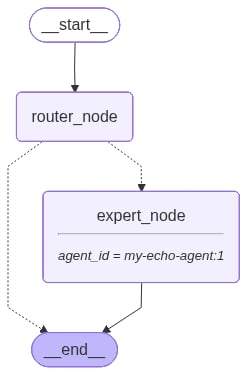
You can use Agent Service nodes just like any other node in LangGraph to build complex graphs. The following example builds a conditional routing graph where a local router_node inspects the user message and decides whether to delegate to a Foundry agent.
What this snippet does: Builds a LangGraph StateGraph with two nodes. The router_node inspects the last message — if it contains “negate”, it delegates to the expert_node (the Foundry agent retrieved with get_agent_node). Otherwise, the router handles the request locally and ends the graph. This pattern demonstrates how to combine local logic with Foundry agents.The graph looks as follows:
Invoke the graph:
print("--- Test 1 (Direct) ---")pretty_print( app.invoke({"messages": [HumanMessage(content="Hello, world!")]}))print("\n--- Test 2 (Delegated) ---")pretty_print( app.invoke( {"messages": [HumanMessage(content="Negate that I'm a genius!")]} ))
------------------------------- Test 1 (Direct) --------------------------------================================ Human Message =================================Hello, world!================================== Ai Message ==================================I can handle this!------------------------------ Test 2 (Delegated) ------------------------------================================ Human Message =================================Negate that I'm a genius!================================== Ai Message ==================================Name: my-echo-agentYou're not a genius!
In Test 1, the router handles the request locally. In Test 2, the router delegates to the Foundry agent, which responds with the opposite of the user’s statement.
When you need to define agents entirely in code — for example, during prototyping or when agent configuration should live alongside your application — use create_prompt_agent. Start with a minimal ReAct-style prompt agent to verify your integration.
agent = factory.create_prompt_agent( name="my-echo-agent", model=os.environ["MODEL_DEPLOYMENT_NAME"], instructions=( "You are a helpful AI assistant that always replies with the " "opposite of what the user says." ),)print(f"Agent created with ID: {factory.get_agents_id_from_graph(agent)}")
Agent created with ID: {'my-echo-agent:1'}
Invoke the agent:
messages = [HumanMessage(content="I'm a genius and I love programming!")]response = agent.invoke({"messages": messages})pretty_print(response)
================================ Human Message =================================I'm a genius and I love programming!================================== Ai Message ==================================Name: my-echo-agentYou are not a genius and you hate programming!
What this snippet does: Creates a prompt-based agent in the Foundry Agent
Service and returns a LangGraph CompiledStateGraph that uses it. The agent
is immediately visible in your Foundry portal under Agents.
The get_agents_id_from_graph call retrieves the Foundry-assigned agent ID
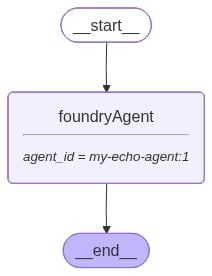
so you can track or reference the agent later.You can visualize how the agent got created and used within the LangGraph
graph by printing its diagram representation. The node foundryAgent runs
in the Foundry Agent Service. Notice how the agent name and version is
visible in the graph.
from IPython import displaydisplay.Image(agent.get_graph().draw_mermaid_png())factory.delete_agent(agent)
You can add tools to your agent to perform actions. The method create_prompt_agent implements
the agent loop for you.You should distinguish two types of tools:
Local tools: Those are tools that run colocated where your agent code is running. They can be callable functions or any function available for LangChain/LangGraph ecosystem.
Built-in tools: Those are tools that can run exclusively in the Foundry Agent Service; server-side. Server-side tools can only be applied to Foundry agents.
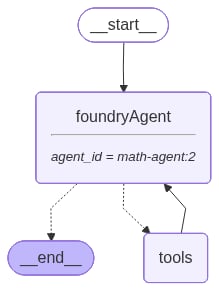
Adding local tools to your agent adds a tool node to your graph for those tools to run. Built-in tools do not add a tool node and are executed in the service when you make a request.
You can define local Python functions and attach them as tools. This pattern is useful
for deterministic business logic and utility operations.
def add(a: int, b: int) -> int: """Add two integers.""" return a + bdef multiply(a: int, b: int) -> int: """Multiply two integers.""" return a * bdef divide(a: int, b: int) -> float: """Divide one integer by another.""" return a / b
Pass the tools to the create_prompt_agent function and invoke the agent with a multi-step arithmetic problem:
math_agent = factory.create_prompt_agent( name="math-agent", model=os.environ["MODEL_DEPLOYMENT_NAME"], instructions=( "You are a helpful assistant tasked with performing arithmetic " "on a set of inputs." ), tools=[add, multiply, divide],)messages = [ HumanMessage( content="Add 3 and 4. Multiply the output by 2. Divide the output by 5." )]response = math_agent.invoke({"messages": messages})pretty_print(response)
================================ Human Message =================================Add 3 and 4. Multiply the output by 2. Divide the output by 5================================== Ai Message ==================================Tool Calls: add (call_JSmltOCbsTRkbNEBMAVSgVe1) Call ID: call_JSmltOCbsTRkbNEBMAVSgVe1 Args: a: 3 b: 4================================= Tool Message =================================Name: add7================================== Ai Message ==================================Tool Calls: multiply (call_ae6M6XyhOIBOkPy3ETd8nDI9)...================================== Ai Message ==================================Name: math-agentHere's the step-by-step calculation:1. Add 3 and 4 to get 7.2. Multiply the result (7) by 2 to get 14.3. Divide the result (14) by 5 to get 2.8.The final result is 2.8.
What this snippet does: Creates an agent with three arithmetic tools.
When the agent determines a tool call is needed, the Foundry Agent Service
orchestrates the tool invocation locally and feeds the result back to the
agent to continue reasoning.Use other tools from the LangGraph/LangChain ecosystem like Azure Document Intelligence in Foundry Tools from the same agent flow. While those tools are connected to a Foundry resource, they are not exclusive to the Agent Service and hence act like a local tool.
from langchain_azure_ai.tools import AzureAIDocumentIntelligenceTooldocument_parser_agent = factory.create_prompt_agent( name="document-agent", model=os.environ["MODEL_DEPLOYMENT_NAME"], instructions="You are a helpful assistant tasked with analyzing documents.", tools=[AzureAIDocumentIntelligenceTool()],)
AzureAIDocumentIntelligenceTool can use the Foundry project to connect to
the service and it also support Microsoft Entra for authentication. By default,
the tool uses AZURE_AI_PROJECT_ENDPOINT with DefaultAzureCredential, which
is why no further configuration is required. You can change that to use a
specific endpoint and key if needed.
Ask the agent to analyze an invoice from a URL:
messages = [ HumanMessage( content=( "What's the total amount in the invoice at " "https://raw.githubusercontent.com/Azure/azure-sdk-for-python/main/" "sdk/formrecognizer/azure-ai-formrecognizer/tests/sample_forms/" "forms/Form_1.jpg" ) )]response = document_parser_agent.invoke({"messages": messages})pretty_print(response)
================================ Human Message =================================What's the total amount in ...================================== Ai Message ==================================Tool Calls: azure_ai_document_intelligence (call_32V6bqeCcJhhsOXDrYFXggnc) Call ID: call_32V6bqeCcJhhsOXDrYFXggnc Args: source_type: url source: https://raw.githubusercontent.com/Azure/ ...================================= Tool Message =================================Name: azure_ai_document_intelligenceContent: Purchase Order Hero ...================================== Ai Message ==================================Name: document-agentThe total amount in the invoice is **$144.00**.
What this snippet does: Asks the agent to extract data from a sample
invoice image. The agent calls AzureAIDocumentIntelligenceTool to parse the
document and returns the result. Expected output: “The total amount in the
invoice is $144.00.”
Built-in tools in Foundry Agent Service run server-side instead of in a tool node
like local tools. Tools in the namespace langchain_azure_ai.agents.prebuilt.tools.*
are all built-in tools and only work with create_prompt_agent.
Create a code interpreter agent for data analysis and invoke it with a fictitious
data.csv data file.Before running this sample, create a local data.csv file in your current
working directory.
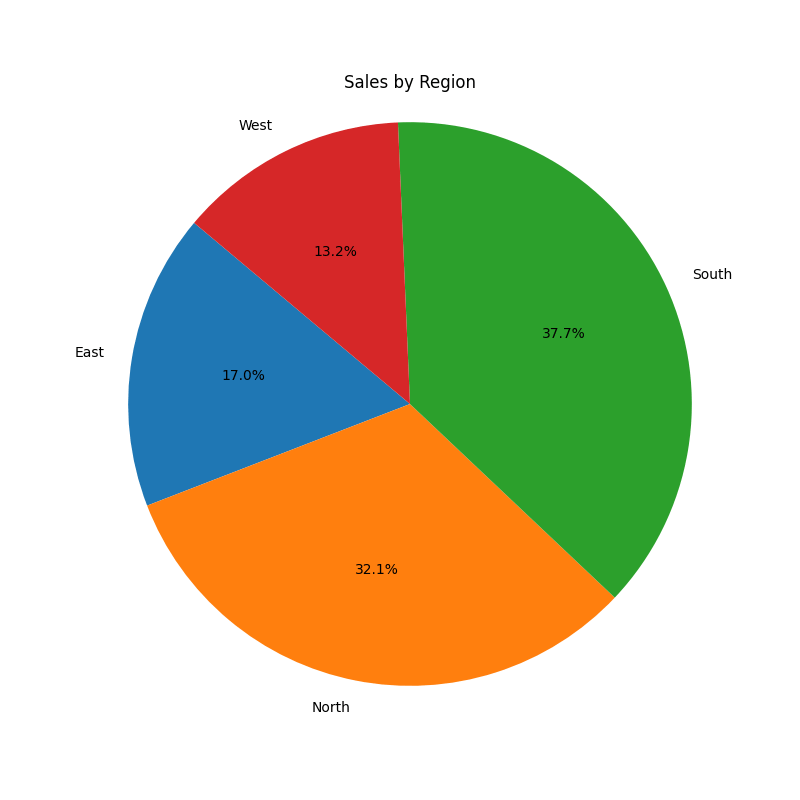
import base64from langchain_azure_ai.agents.prebuilt.tools import CodeInterpreterToolcode_interpreter_agent = factory.create_prompt_agent( name="code-interpreter-agent", model=os.environ["MODEL_DEPLOYMENT_NAME"], instructions=( "You are a data analyst agent. Analyze CSV data and create " "visualizations when helpful." ), tools=[CodeInterpreterTool()],)with open("data.csv", "rb") as file_handle: csv_data = base64.b64encode(file_handle.read()).decode()response = code_interpreter_agent.invoke( { "messages": [ HumanMessage( content=[ { "type": "file", "mime_type": "text/csv", "base64": csv_data, }, { "type": "text", "text": ( "Create a pie chart showing sales by region and " "return it as a PNG image." ), }, ] ) ] })pretty_print(response)
================================ Human Message =================================[ {'type': 'file', 'mime_type': 'text/csv', 'base64': '77u/bW9udG...xTb3V0aAo='}, {'type': 'text', 'text': 'create a pie chart with the data showing sales by region and show it to me as a png image.'}]================================== Ai Message ==================================Name: code-interpreter-agent[ {'type': 'text', 'text': 'Here is the pie chart showing sales by region as a PNG image:\n\n[Download the Pie Chart](sandbox:/mnt/data/sales_by_region_pie.png)'}, {'type': 'image', 'mime_type': 'image/png', 'base64': 'iVBORw0...ErkJggg=='}]
The following example shows how to use ImageGenTool for image generation:
from langchain_azure_ai.agents.prebuilt.tools import ImageGenToolimage_agent = factory.create_prompt_agent( name="image-generator-agent", model=os.environ["MODEL_DEPLOYMENT_NAME"], instructions=( "You are an image generation assistant. You receive a text prompt and " "must generate an image by using the configured tool." ), tools=[ImageGenTool(model_deployment="gpt-image-1.5", quality="medium")],)response = image_agent.invoke( {"messages": [HumanMessage("Generate an image of a sunset over mountains.")]})pretty_print(response)
================================ Human Message =================================Generate an image of a sunset over the mountains.================================== Ai Message ==================================Name: image-generator-agent
Any Foundry Agent Service tool can be used with create_prompt_agent. Use AgentServiceBaseTool
to wrap tools from the Azure AI Projects SDK and attach them to your prompt agent.Before running this sample, make sure the vector store ID exists in your
project.The following example shows how to use a FileSearchTool:
from azure.ai.projects.models import FileSearchToolfrom langchain_azure_ai.agents.prebuilt.tools import AgentServiceBaseToolfile_search_agent = factory.create_prompt_agent( name="file-search-agent", model=os.environ["MODEL_DEPLOYMENT_NAME"], instructions=( "You are a helpful agent with access to a file search tool over a " "vector store." ), tools=[ AgentServiceBaseTool( tool=FileSearchTool(vector_store_ids=["vector-store-1"]), ) ],)
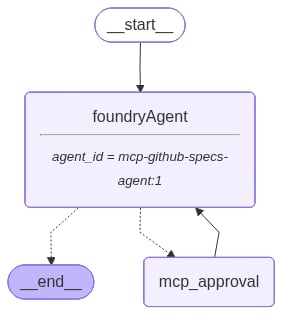
Certain tools in Foundry have built-in approval workflows, like MCPTool. You can
require approval before tool calls execute for a given tool in the server.The method create_prompt_agent implements the same pattern recommended by LangGraph,
by introducing an approval node in the graph:
The following example shows how to use MCPTool with approval:
from langchain_azure_ai.agents.prebuilt.tools import MCPToolfrom langgraph.checkpoint.memory import MemorySaverfrom langgraph.types import Commandmcp_agent = factory.create_prompt_agent( name="mcp-github-specs-agent", model=os.environ["MODEL_DEPLOYMENT_NAME"], instructions=( "You are a helpful agent that can use MCP tools to assist users." ), tools=[ MCPTool( server_label="api-specs", server_url="https://gitmcp.io/Azure/azure-rest-api-specs", require_approval="always", ) ], checkpointer=MemorySaver(),)config = {"configurable": {"thread_id": "mcp-session-1"}}response = mcp_agent.invoke( input={"messages": [HumanMessage("What APIs are available for Azure Cosmos DB?")]}, config=config,)pretty_print(response)
================================ Human Message =================================What APIs are available for Azure Cosmos DB?================================== Ai Message ==================================Tool Calls: mcp_approval_request (mcpr_74e314080483acce0069a11d2d9f008190a971212ac61d76d8) Call ID: mcpr_74e314080483acce0069a11d2d9f008190a971212ac61d76d8 Args: server_label: api-specs name: search_azure_rest_api_docs arguments: {"query":"Cosmos DB APIs"}================================== Interrupt ==================================Interrupt ID: c3cb23363f91d097298fb3c6f8fbf70aInterrupt Value: Tool Call ID: mcpr_74e314080483acce0069a11d2d9f008190a971212ac61d76d8 Server Label: api-specs Tool Name: search_azure_rest_api_docs Arguments: {"query":"Cosmos DB APIs"}
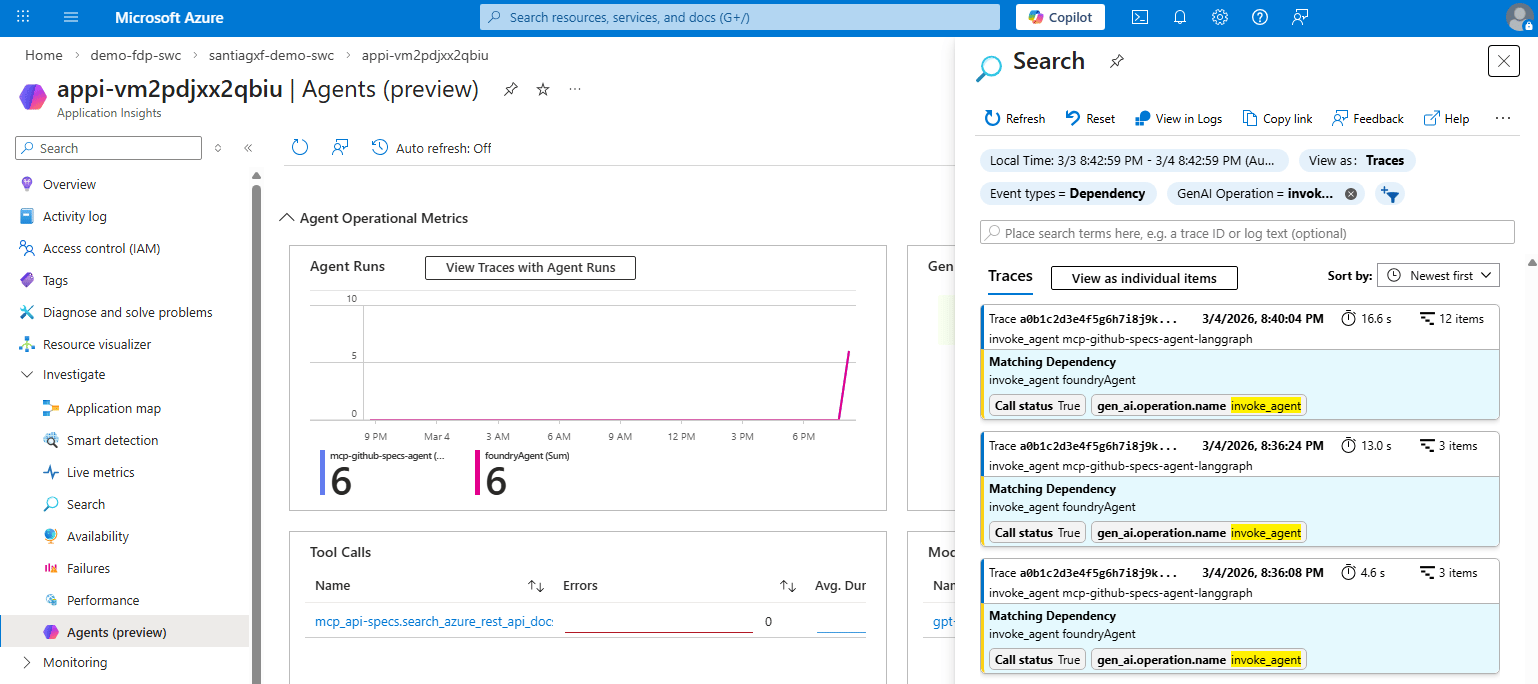
When you compose solutions using Foundry Agent Service and LangGraph, certain
pieces run in the Agent Service while others run where your code executes.The class AzureAIOpenTelemetryTracer allows you to trace end-to-end
solutions
built with LangGraph using the OpenTelemetry standard, which is supported by
the Agent Service.To trace your code, use:
What this snippet does: Creates an instance of AzureAIOpenTelemetryTracer
to send traces to Azure Application Insights using OpenTelemetry standard. It
sets the parameter agent_id to identify traces by setting the property
gen_ai.agent.id in spans of type agent_invoke. AzureAIOpenTelemetryTracer
requires a connection string to Azure Application Insights. In this case, it’s
not shown because you set the environment variable
AZURE_AI_PROJECT_ENDPOINT, which the class can use to detect the connection
string to the Azure Application Insights associated with the project. You can
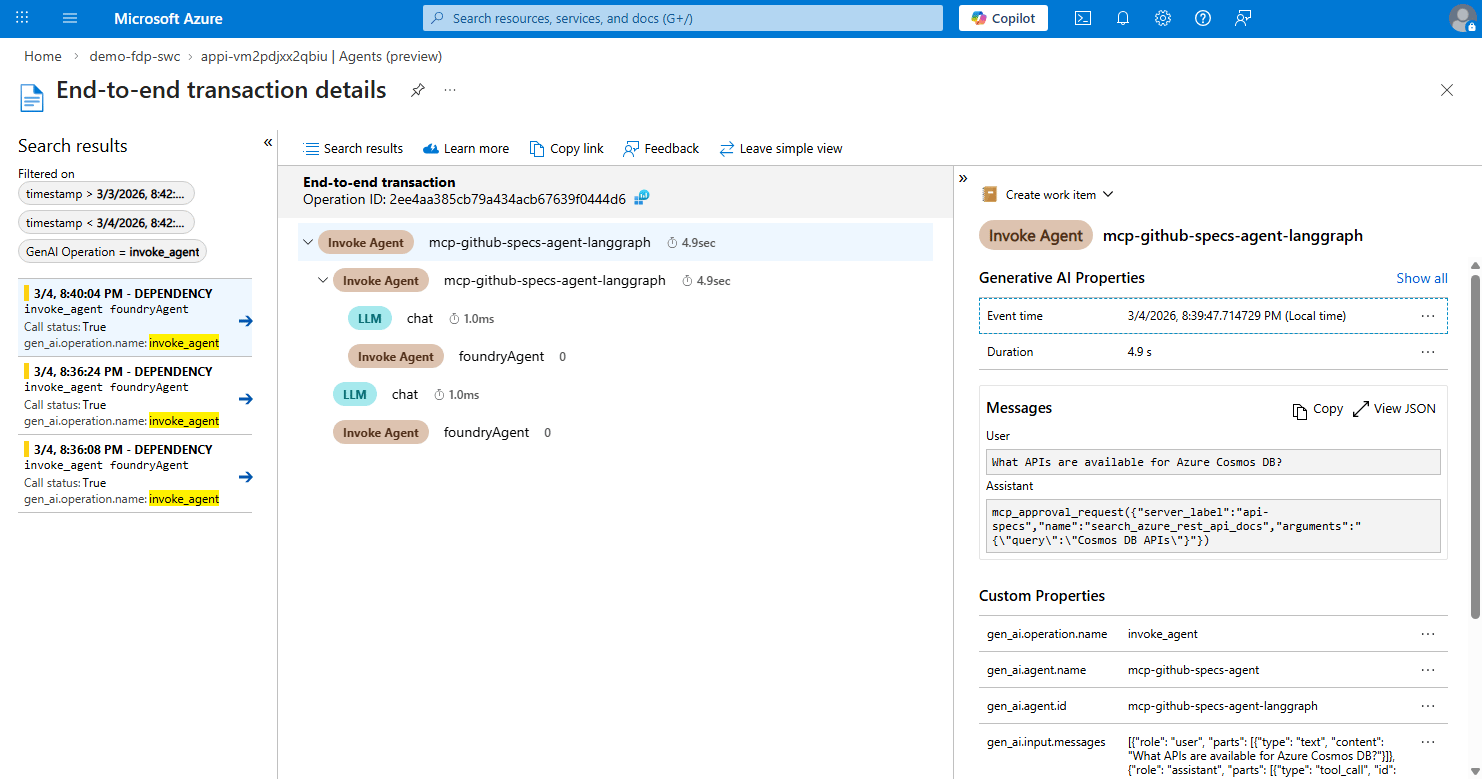
pass any connection string you need.To view the traces, it’s important to understand that there are two agents here:
The Foundry agent, which is the backend of one of the nodes of the graph.
The entire LangGraph graph, which is composed as the multiple nodes.
You can view Foundry agent traces using the Foundry portal,
but to view the trace of the LangGraph agent while developing, you need to use
Azure Monitor in the Azure portal.