anonymous, API key, and managed identity. For help choosing an authentication method, see Choose an authentication method.
Usage support
The following table shows SDK and setup support.| Microsoft Foundry support | Python SDK | C# SDK | JavaScript SDK | Java SDK | REST API | Basic agent setup | Standard agent setup |
|---|---|---|---|---|---|---|---|
| ✔️ | ✔️ | ✔️ | ✔️ | ✔️ | ✔️ | ✔️ | ✔️ |
For Java, use the
com.azure:azure-ai-agents package for OpenAPI agent tools. The com.azure:azure-ai-projects package doesn’t currently expose OpenAPI agent tool types.Prerequisites
Before you begin, make sure you have:- An Azure subscription with the right permissions.
- Azure RBAC role: Contributor or Owner on the Foundry project.
- A Foundry project created with an endpoint configured.
- An AI model deployed in your project.
- A basic or standard agent environment.
- SDK installed for your preferred language:
- Python:
azure-ai-projects - C#:
Azure.AI.Extensions.OpenAI - TypeScript/JavaScript:
@azure/ai-projects - Java:
com.azure:azure-ai-agents
- Python:
Environment variables
| Variable | Description |
|---|---|
FOUNDRY_PROJECT_ENDPOINT | Your Foundry project endpoint URL (not the external OpenAPI service endpoint). |
FOUNDRY_MODEL_DEPLOYMENT_NAME | Your deployed model name. |
OPENAPI_PROJECT_CONNECTION_NAME | (For API key auth) Your project connection name for the OpenAPI service. |
- OpenAPI 3.0 or 3.1 specification file that meets these requirements:
- Each function must have an
operationId(required for the OpenAPI tool). operationIdshould only contain letters,-, and_.- Use descriptive names to help models efficiently decide which function to use.
- Supported request body content types:
application/json,application/json-patch+json
- Each function must have an
- For managed identity authentication: Reader role or higher on target service resources.
- For API key/token authentication: a project connection configured with your API key or token. See Add a new connection to your project.
The
FOUNDRY_PROJECT_ENDPOINT value refers to your Microsoft Foundry project endpoint, not the external OpenAPI service endpoint. You can find this endpoint in the Microsoft Foundry portal under your project’s Overview page. This endpoint is required to authenticate the agent service and is separate from any OpenAPI endpoints defined in your specification file.Understand limitations
- Your OpenAPI spec must include
operationIdfor each operation, andoperationIdcan include only letters,-, and_. - Supported request body content types:
application/json,application/json-patch+json. - For API key authentication, use one API key security scheme per OpenAPI tool. If you need multiple security schemes, create multiple OpenAPI tools.
Code example
- You need the latest SDK package. The .NET SDK is currently in preview. See the quickstart for details.
- If you use API key for authentication, your connection ID should be in the format of
/subscriptions/{{subscriptionID}}/resourceGroups/{{resourceGroupName}}/providers/Microsoft.CognitiveServices/accounts/{{foundryAccountName}}/projects/{{foundryProjectName}}/connections/{{foundryConnectionName}}.
For API key authentication to work, your OpenAPI specification file must include:
- A
securitySchemessection with your API key configuration, such as the header name and parameter name. - A
securitysection that references the security scheme. - A project connection configured with the matching key name and value.
Authorization and value set to Bearer <token> (replace <token> with your actual token). The word Bearer followed by a space must be included in the value. For details, see Set up a Bearer token connection.Security and data considerations
When you connect an agent to an OpenAPI tool, the agent can send request parameters derived from user input to the target API.- Use project connections for secrets (API keys and tokens). Avoid putting secrets in an OpenAPI spec file or source code.
- Review what data the API receives and what it returns before you use the tool in production.
- Use least-privilege access. For managed identity, assign only the roles the target service requires.
Authenticate with API key
By using API key authentication, you can authenticate your OpenAPI spec by using various methods such as an API key or Bearer token. You can use only one API key security schema per OpenAPI spec. If you need multiple security schemas, create multiple OpenAPI spec tools.-
Update your OpenAPI spec security schemas. It has a
securitySchemessection and one scheme of typeapiKey. For example:You usually only need to update thenamefield, which corresponds to the name ofkeyin the connection. If the security schemes include multiple schemes, keep only one of them. -
Update your OpenAPI spec to include a
securitysection: - Remove any parameter in the OpenAPI spec that needs API key, because API key is stored and passed through a connection, as described later in this article.
- Create a connection to store your API key.
- Go to the Foundry portal and open your project.
- Create or select a connection that stores the secret. See Add a new connection to your project.
If you regenerate the API key at a later date, you need to update the connection with the new key.
- Enter the following information
-
key:
namefield of your security scheme. In this example, it should bex-api-key - value: YOUR_API_KEY
-
key:
- After you create a connection, you can use it through the SDK or REST API. Use the tabs at the top of this article to see code examples.
Set up a Bearer token connection
You can use token-based authentication (for example, a Bearer token) with the sameproject_connection auth type used for API keys. The key difference is how you configure both the OpenAPI spec and the project connection.
Your OpenAPI spec will look like this:
-
Update your OpenAPI spec
securitySchemesto useAuthorizationas the header name: -
Add a
securitysection that references the scheme: -
Create a Custom keys connection in your Foundry project:
- Go to the Foundry portal and open your project.
- Create or select a connection that stores the secret. See Add a new connection to your project.
- Enter the following values:
- key:
Authorization(must match thenamefield in yoursecuritySchemes) - value:
Bearer <token>(replace<token>with your actual token)
- key:
The value must include the word
Bearer followed by a space before the token. For example: Bearer eyJhbGciOiJSUzI1NiIs.... If you omit Bearer , the API receives a raw token without the required authorization scheme prefix, and the request fails.- After you create the connection, use it with the
project_connectionauth type in your code, the same way you would for API key authentication. The connection ID uses the same format:/subscriptions/{{subscriptionID}}/resourceGroups/{{resourceGroupName}}/providers/Microsoft.CognitiveServices/accounts/{{foundryAccountName}}/projects/{{foundryProjectName}}/connections/{{foundryConnectionName}}.
Authenticate by using managed identity (Microsoft Entra ID)
Microsoft Entra ID is a cloud-based identity and access management service that your employees can use to access external resources. By using Microsoft Entra ID, you can add extra security to your APIs without needing to use API keys. When you set up managed identity authentication, the agent authenticates through the Foundry tool it uses.Managed identity authentication only works when the target service accepts Microsoft Entra ID tokens. If the target API uses a custom authentication scheme that doesn’t support Microsoft Entra ID, use API key or Bearer token authentication instead.
Understand the audience URI
The audience (sometimes called resource identifier or Application ID URI) tells Microsoft Entra ID which service or API the token is intended to access. The audience value must match what the target service expects, or authentication fails with a 401 error.The audience is not your Foundry project endpoint. It’s the resource identifier of the target service that your OpenAPI tool calls.
| Target service | Audience URI |
|---|---|
| Azure Storage | https://storage.azure.com |
| Azure Key Vault | https://vault.azure.net |
| Azure AI Search | https://search.azure.com |
| Azure Logic Apps | https://logic.azure.com |
| Azure API Management (management plane) | https://management.azure.com |
| API protected by a Microsoft Entra app registration (including APIM with OAuth) | The Application ID URI from your app registration (for example, api://<client-id>) |
Find and verify your audience
Use the following steps to determine and verify the correct audience value:- For Azure services: Check the service’s documentation for its Microsoft Entra ID resource identifier. Most Azure services list the audience URI in their authentication documentation.
- For APIs protected by a Microsoft Entra app registration: In the Azure portal, go to Microsoft Entra ID > App registrations > select your app > Expose an API. The Application ID URI at the top of the page is your audience value.
- To verify a token’s audience: Decode the access token at https://jwt.ms and check the
audclaim. Theaudvalue must match the audience your target service expects.
Set up managed identity authentication
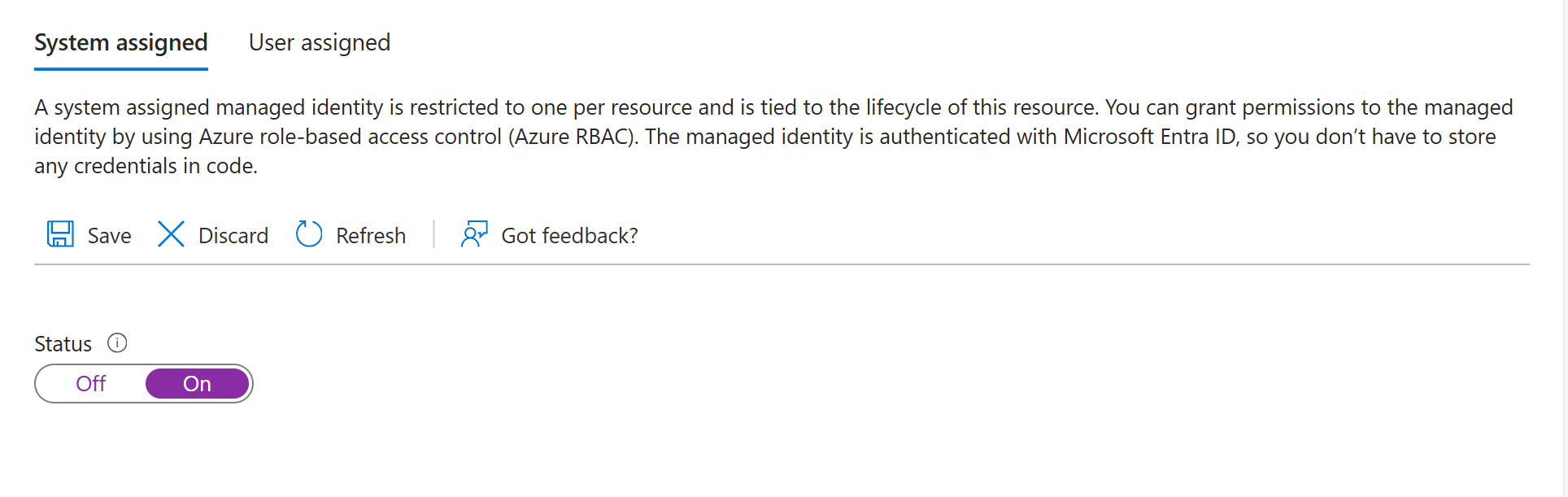
To set up authentication by using Managed Identity:- Make sure your Foundry resource has system assigned managed identity enabled.
- Create a resource for the service you want to connect to through OpenAPI spec.
- Assign proper access to the resource.
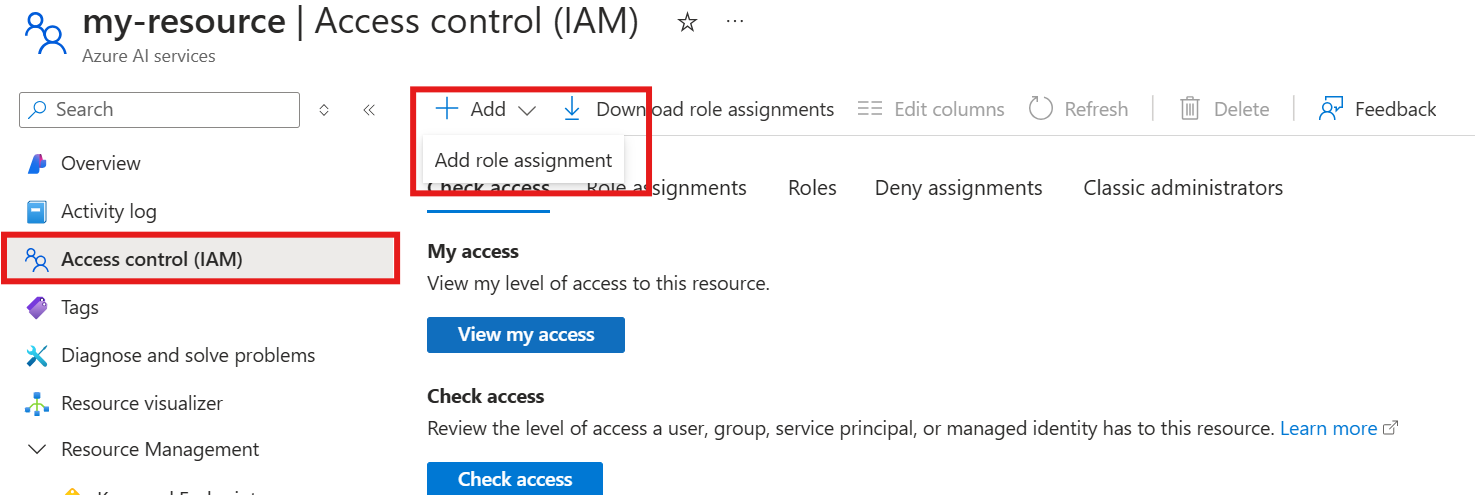
- Select Access Control for your resource.
- Select Add and then add role assignment at the top of the screen.
- Select the proper role assignment needed, usually it requires at least the READER role. Then select Next.
- Select Managed identity and then select select members.
- In the managed identity dropdown menu, search for Foundry Account and then select the Foundry account of your agent.
- Select Finish.
- When you finish the setup, you can continue by using the tool through the Foundry portal, SDK, or REST API. Use the tabs at the top of this article to see code samples.
Troubleshoot common errors
| Symptom | Likely cause | Resolution |
|---|---|---|
| API key isn’t included in requests. | OpenAPI spec missing securitySchemes or security sections. | Verify your OpenAPI spec includes both components.securitySchemes and a top-level security section. Ensure the scheme name matches the key name in your project connection. |
| Agent doesn’t call the OpenAPI tool. | Tool choice not set or operationId not descriptive. | Use tool_choice="required" to force tool invocation. Ensure operationId values are descriptive so the model can choose the right operation. |
| Authentication fails for managed identity. | Managed identity not enabled or missing role assignment. | Enable system-assigned managed identity on your Foundry resource. Assign the required role (Reader or higher) on the target service. |
| Managed identity returns 401 even though the role is assigned. | Audience URI doesn’t match what the target service expects. | Verify the audience URI matches the target service’s resource identifier. For Azure services, check the service documentation. For Microsoft Entra-protected APIs, use the Application ID URI from your app registration. Decode the token at https://jwt.ms and confirm the aud claim matches. See Understand the audience URI. |
| Managed identity token rejected by target API. | Target service doesn’t accept Microsoft Entra ID tokens. | Confirm the target service supports Microsoft Entra ID authentication. If it doesn’t, use API key or Bearer token authentication instead. |
| Request fails with 400 Bad Request. | OpenAPI spec doesn’t match actual API. | Validate your OpenAPI spec against the actual API. Check parameter names, types, and required fields. |
| Request fails with 401 Unauthorized. | API key or token invalid or expired. | Regenerate the API key/token and update your project connection. Verify the connection ID is correct. |
| Tool returns unexpected response format. | Response schema not defined in OpenAPI spec. | Add response schemas to your OpenAPI spec for better model understanding. |
operationId validation error. | Invalid characters in operationId. | Use only letters, -, and _ in operationId values. Remove numbers and special characters. |
| Connection not found error. | Connection name or ID mismatch. | Verify OPENAPI_PROJECT_CONNECTION_NAME matches the connection name in your Foundry project. |
| Bearer token not sent correctly. | Connection value missing Bearer prefix. | Set the connection value to Bearer <token> (with the word Bearer and a space before the token). Verify the OpenAPI spec securitySchemes uses "name": "Authorization". |
Choose an authentication method
The following table helps you choose the right authentication method for your OpenAPI tool:| Authentication method | Best for | Setup complexity |
|---|---|---|
| Anonymous | Public APIs with no authentication | Low |
| API key | Non-Microsoft APIs with key-based access | Medium |
| Managed identity | Azure services and Microsoft Entra ID-protected APIs. Requires the target service to accept Microsoft Entra ID tokens and support Azure RBAC or Microsoft Entra-based access control. | Medium-High |