Ground your Foundry agent’s responses in your proprietary content by connecting it to an Azure AI Search index. The Azure AI Search tool retrieves indexed documents so the Foundry model powering the agent can generate answers with inline citations, enabling accurate, source-backed responses.
If you want to use a private virtual network with the Azure AI Search tool, make sure you use Microsoft Entra project managed identity to authenticate in your Azure AI Search connection. Key-based authentication isn’t supported with private virtual networking.
Usage support
The following table shows SDK and setup support.
| Microsoft Foundry support | Python SDK | C# SDK | JavaScript SDK | Java SDK | REST API | Basic agent setup | Standard agent setup |
|---|
| ✔️ | ✔️ | ✔️ | ✔️ | ✔️ | ✔️ | ✔️ | ✔️ |
Prerequisites
Estimated setup time: 15-30 minutes if you have an existing search index
- A basic or standard agent environment.
- Install the SDK package for your preferred language. See the quickstart for details.
- Python:
pip install "azure-ai-projects>=2.0.0"
- C#: Install the
Azure.AI.Projects NuGet package
- JavaScript/TypeScript:
npm install @azure/ai-projects
- Java: Add the
com.azure:azure-ai-agents:2.0.0 dependency to your pom.xml
- An Azure subscription and Microsoft Foundry project with:
- Project endpoint
- Model deployment name
- Authentication configured (for example,
DefaultAzureCredential)
- An Azure AI Search index configured for vector search with:
- One or more
Edm.String fields that are searchable and retrievable
- One or more
Collection(Edm.Single) vector fields that are searchable
- At least one retrievable text field that contains the content you want the agent to cite
- A retrievable field that contains a source URL (and optionally a title) so citations can include a link
- A connection between your Foundry project and your Azure AI Search service (see Setup).
- For keyless authentication, assign the following Azure role-based access control (RBAC) roles to your project’s managed identity:
- Search Index Data Contributor
- Search Service Contributor
| Azure AI Search tool parameter | Required | Notes |
|---|
project_connection_id | Yes | The resource ID of the project connection to Azure AI Search. |
index_name | Yes | The name of the index in your Azure AI Search resource. |
top_k | No | Defaults to 5. |
query_type | No | Defaults to vector_semantic_hybrid. Supported values: simple, vector, semantic, vector_simple_hybrid, vector_semantic_hybrid. |
filter | No | Applies to all queries the agent makes to the index. |
Code example
- You need the latest SDK package. For more information, see the quickstart.
- If you’re using the REST sample, the connection ID is in the format
/subscriptions/{{subscriptionId}}/resourceGroups/{{resourceGroupName}}/providers/Microsoft.CognitiveServices/accounts/{{foundryAccountName}}/projects/{{foundryProjectName}}/connections/{{connectionName}}.
- If you’re using the Python, C#, or TypeScript sample, you can provide the connection name and retrieve the connection ID with the SDK.
Limitations
Keep these constraints in mind when using the Azure AI Search tool:
- A Foundry resource with basic agent deployments does not support private Azure AI Search resources, nor Azure AI Search with public network access disabled and a private endpoint. To use a private Azure AI Search tool with your agents, deploy the standard agent with virtual network injection.
- Private virtual network access: If you use a private virtual network with the Azure AI Search tool, you must use Microsoft Entra project managed identity (keyless authentication) in your Azure AI Search connection. Key-based authentication isn’t supported with private virtual networking. If you disabled public network access on your Azure AI Search resource, configure the connection to use managed identity instead of an API key.
- The Azure AI Search tool can only target one index.
- Your Azure AI Search resource and your Microsoft Foundry Agent must be in the same tenant.
Verify results
After you run a sample, validate that the agent is grounding responses from your index.
- Ask a question that you know is answered in a specific indexed document.
- Confirm the response includes citations formatted as
[message_idx:search_idx†source].
- If you’re streaming, confirm you see
url_citation annotations in the response with valid URLs.
- Verify the cited content matches your source documents in the search index.
If citations are missing or incorrect, see the Troubleshooting section.
Setup
In this section, you create a connection between the Microsoft Foundry project that contains your agent and the Azure AI Search service that contains your index.
If you already connected your project to your search service, skip this section.
To create the connection, you need your search service endpoint and authentication method. The following steps guide you through gathering these details.
Gather connection details
Before creating a project connection, gather your Azure AI Search service endpoint and authentication credentials.
The project connection requires the endpoint of your search service and either key-based authentication or keyless authentication with Microsoft Entra ID.
For keyless authentication, you must enable role-based access control (RBAC) and assign roles to your project’s managed identity. Although this method involves extra steps, it enhances security by eliminating the need for hard-coded API keys.
Select the tab for your desired authentication method.
Key-based authentication
Keyless authentication
- Sign in to the Azure portal and select your search service.
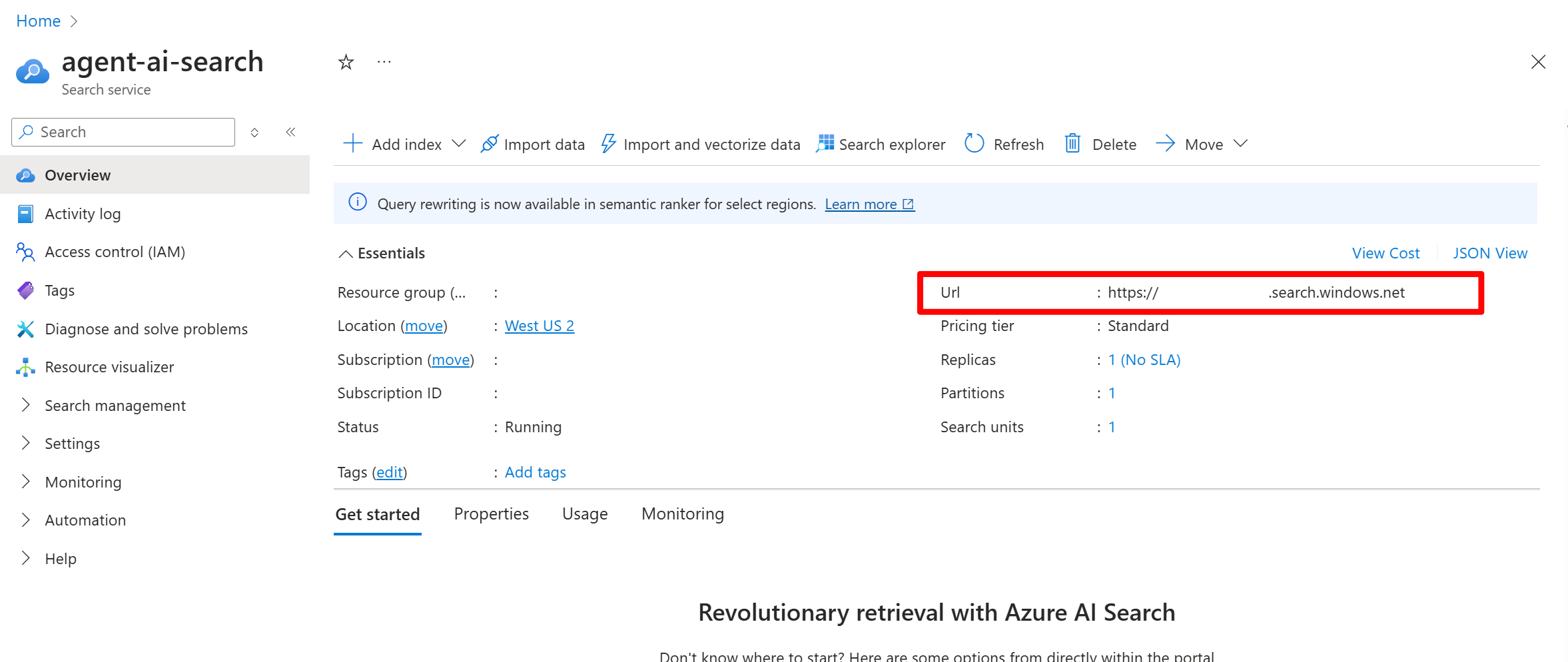
- To get the endpoint:
- From the left pane, select Overview.
- Make a note of the URL, which should look like
https://my-service.search.windows.net.
- To get the API key:
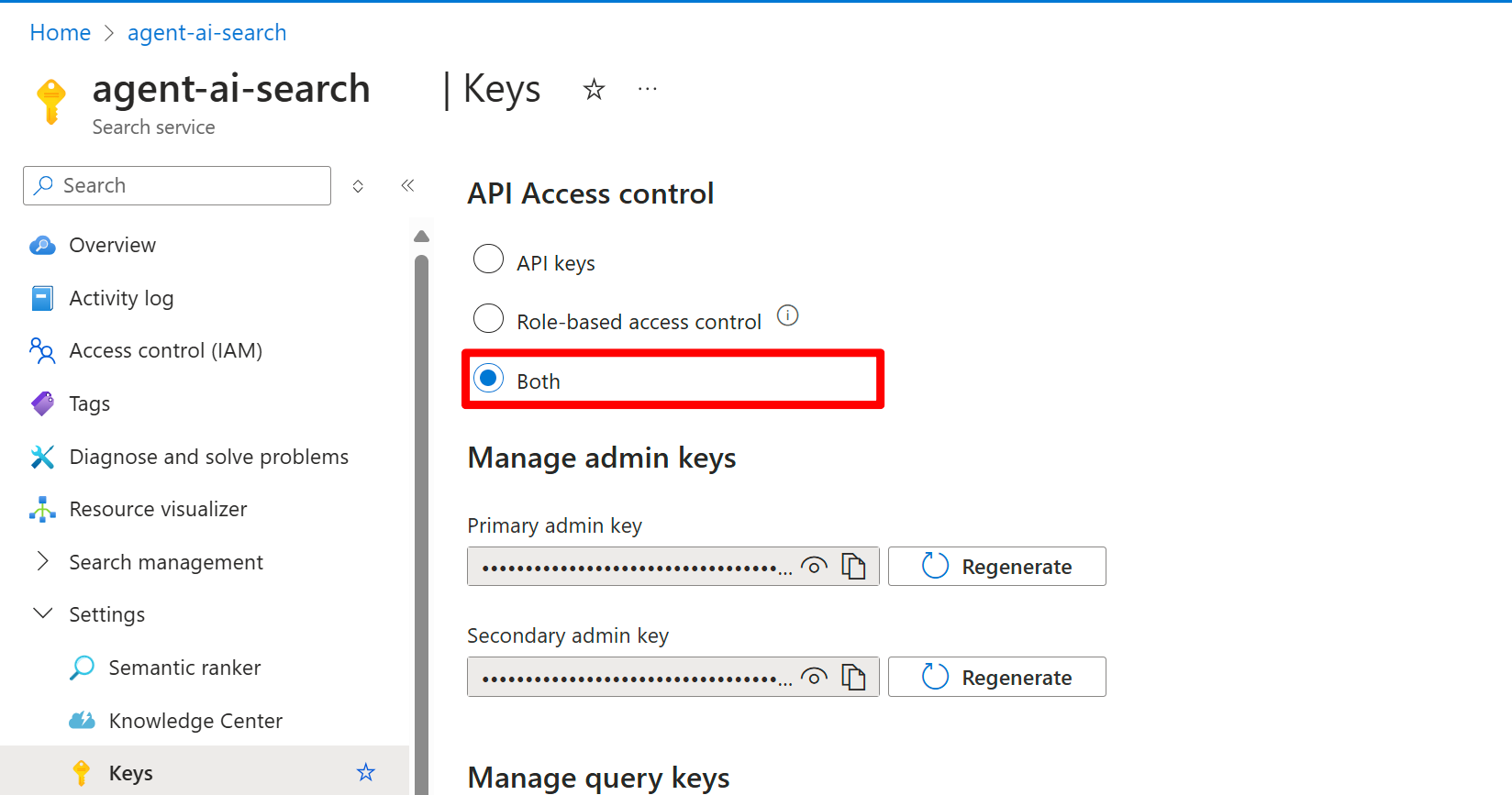
- From the left pane, select Settings > Keys.
- Select Both to enable both key-based and keyless authentication, which is recommended for most scenarios.
- Make a note of one of the keys under Manage admin keys.
- Sign in to the Azure portal and select your search service.
- To get the endpoint:
- From the left pane, select Overview.
- Make a note of the URL, which should look like
https://my-service.search.windows.net.
- To enable RBAC:
- From the left pane, select Settings > Keys.
- Select Both to enable both key-based and keyless authentication, which is recommended for most scenarios.
- To assign the necessary roles:
- From the left pane, select Access control (IAM).
- Select Add > Add role assignment.
- Assign the Search Index Data Contributor role to the managed identity of your project.
- Repeat the role assignment for Search Service Contributor.
Create a project connection
Create the project connection by using the search service details you gathered.
Use one of the following options.
Foundry portal
Azure CLI
Python SDK
REST API
Bicep
- Go to the Foundry portal.
- Open your project, then select Operate > Admin.
- Select your project name in the Manage all projects list.
- Select Add connection.
- Select Azure AI Search from the list of available services.
- Browse for and select your Azure AI Search service, then select the type of Authentication to use.
- Select Add connection.
For more detailed steps, see Add a new connection to your project.Create a JSON connection file and use the az cognitiveservices CLI to create the connection on your Foundry project.For keyless authentication, create a file named connection.json:{
"properties": {
"category": "CognitiveSearch",
"target": "https://{searchServiceName}.search.windows.net",
"authType": "AAD"
}
}
ApiKey as the authType and include the credentials:{
"properties": {
"category": "CognitiveSearch",
"target": "https://{searchServiceName}.search.windows.net",
"authType": "ApiKey",
"credentials": {
"key": "{searchAdminKey}"
}
}
}
Don’t put real keys in source control. Store secrets in a secure store (for example, Azure Key Vault) and inject them at deployment time.
az cognitiveservices account project connection create \
  --resource-group <resource-group> \
  --name <foundry-resource-name> \
  --project-name <project-name> \
  --connection-name <connection-name> \
  --file connection.json
Use the azure-mgmt-cognitiveservices management SDK to create the connection. Install the package:pip install azure-mgmt-cognitiveservices azure-identity
from azure.identity import DefaultAzureCredential
from azure.mgmt.cognitiveservices import CognitiveServicesManagementClient
from azure.mgmt.cognitiveservices.models import (
    ConnectionPropertiesV2BasicResource,
    AADAuthTypeConnectionProperties,
)

# Foundry resource details
SUBSCRIPTION_ID = "<subscription-id>"
RESOURCE_GROUP = "<resource-group>"
FOUNDRY_RESOURCE_NAME = "<foundry-resource-name>"
PROJECT_NAME = "<project-name>"
CONNECTION_NAME = "my-search-connection"
SEARCH_ENDPOINT = "https://my-service.search.windows.net"

# Create the management client
client = CognitiveServicesManagementClient(
    credential=DefaultAzureCredential(),
    subscription_id=SUBSCRIPTION_ID,
)

# Create a keyless Azure AI Search connection
connection = client.project_connections.create(
    resource_group_name=RESOURCE_GROUP,
    account_name=FOUNDRY_RESOURCE_NAME,
    project_name=PROJECT_NAME,
    connection_name=CONNECTION_NAME,
    connection=ConnectionPropertiesV2BasicResource(
        properties=AADAuthTypeConnectionProperties(
            category="CognitiveSearch",
            target=SEARCH_ENDPOINT,
        )
    ),
)
print(f"Connection created: {connection.name}")
Use the Foundry account management REST API to create a project connection. Replace the placeholders with your subscription, resource group, Foundry resource, project, and connection details.First, obtain a bearer token:export MGMT_TOKEN=$(az account get-access-token --resource "https://management.azure.com" --query accessToken -o tsv)
curl -X PUT "https://management.azure.com/subscriptions/{subscriptionId}/resourceGroups/{resourceGroupName}/providers/Microsoft.CognitiveServices/accounts/{foundryResourceName}/projects/{projectName}/connections/{connectionName}?api-version=2025-06-01" \
  -H "Authorization: Bearer $MGMT_TOKEN" \
  -H "Content-Type: application/json" \
  -d '{
    "properties": {
      "category": "CognitiveSearch",
      "target": "https://{searchServiceName}.search.windows.net",
      "authType": "AAD"
    }
  }'
ApiKey as the authType and include the credentials:curl -X PUT "https://management.azure.com/subscriptions/{subscriptionId}/resourceGroups/{resourceGroupName}/providers/Microsoft.CognitiveServices/accounts/{foundryResourceName}/projects/{projectName}/connections/{connectionName}?api-version=2025-06-01" \
-H "Authorization: Bearer $MGMT_TOKEN" \
-H "Content-Type: application/json" \
-d '{
"properties": {
"category": "CognitiveSearch",
"target": "https://{searchServiceName}.search.windows.net",
"authType": "ApiKey",
"credentials": {
"key": "{searchAdminKey}"
}
}
}'
Don’t put real keys in source control. Store secrets in a secure store (for example, Azure Key Vault) and inject them at deployment time.
Use a Bicep template to create an Azure AI Search connection as part of your infrastructure deployment.See the AI Search connection Bicep templates in the foundry-samples repository for complete examples.For more information about deploying connections with Bicep, see Add a new connection to your project. Confirm the connection ID
If you use the REST or TypeScript sample, you need the project connection ID.
Python
from azure.identity import DefaultAzureCredential
from azure.ai.projects import AIProjectClient

# Format: "https://resource_name.ai.azure.com/api/projects/project_name"
PROJECT_ENDPOINT = "your_project_endpoint"
SEARCH_CONNECTION_NAME = "my-search-connection"

project = AIProjectClient(
    endpoint=PROJECT_ENDPOINT,
    credential=DefaultAzureCredential(),
)

connection = project.connections.get(SEARCH_CONNECTION_NAME)
print(connection.id)
// Format: "https://resource_name.ai.azure.com/api/projects/project_name"
var projectEndpoint = "your_project_endpoint";
var searchConnectionName = "my-search-connection";

AIProjectClient projectClient = new(endpoint: new Uri(projectEndpoint), tokenProvider: new DefaultAzureCredential());
AIProjectConnection connection = projectClient.Connections.GetConnection(connectionName: searchConnectionName);
Console.WriteLine(connection.Id);
Troubleshooting
| Issue | Cause | Resolution |
|---|
| ”Workspace not found” when creating a connection | The az ml CLI and azure-ai-ml Python SDK use the Microsoft.MachineLearningServices resource provider, which doesn’t support new Foundry projects (Microsoft.CognitiveServices) | Use az cognitiveservices account project connection create or the azure-mgmt-cognitiveservices Python SDK instead. See Create a project connection. |
| Response has no citations | Agent instructions don’t request citations | Update your agent instructions to explicitly request citations in responses. |
| Response has no citations (streaming) | Annotations not captured | Confirm you receive url_citation annotations when streaming. Check your stream processing logic. |
| Tool can’t access the index (401/403) | Missing RBAC roles (keyless auth) | Assign the Search Index Data Contributor and Search Service Contributor roles to the Foundry project’s managed identity. See Azure RBAC in Foundry. |
| Tool can’t access the index (401/403) | Invalid or disabled API key | Confirm the API key is correct and enabled in the Azure AI Search resource. |
| Tool returns “index not found” | Index name mismatch | Confirm the index name matches the exact index name in your Azure AI Search resource (case-sensitive). |
| Tool returns “index not found” | Wrong connection endpoint | Confirm the project connection points to the Azure AI Search resource that contains the index. |
| Search returns no results | Query doesn’t match indexed content | Verify the index contains the expected data. Use Azure AI Search’s test query feature to validate. |
| Slow search performance | Index not optimized | Review index configuration, consider adding semantic ranking, or optimize the index schema. |
| ”Unable to connect to Azure AI Search Resource. Please ensure the Azure AI Search Connection has the correct endpoint and the search resource has appropriate network settings for the agents setup. Cannot connect to host … [DNS server returned answer with no data]“ | The Azure AI Search connection uses key-based authentication with a private virtual network | Switch the Azure AI Search connection to use Microsoft Entra project managed identity (keyless authentication). Key-based authentication isn’t supported with private virtual networking. See the Limitations section. |
Related content