For purposes of this documentation, BYOM models refers to third-party models that you bring to Foundry and does not include Foundry Models sold by Azure. Foundry Agent Service supports the ability to bring your own model (BYOM). If you use Foundry Agent Service to interact with BYOM models, you do so at your own risk. BYOM models are deemed to be Non-Microsoft Products under the Microsoft Product Terms and are governed by their own license terms.If you use Foundry Agent Service to interact with BYOM models, you are responsible for implementing your own responsible AI mitigations within Foundry Agent Service, such as metaprompt, content filters, or other safety systems.If you use Foundry Agent Service to interact with BYOM models, you are responsible for ensuring that use of the BYOM model complies with your data handling requirements. You are responsible for reviewing all data being shared with BYOM models and understanding third-party practices for retention and location of data. It is your responsibility to manage whether your data will flow outside of your organization’s Azure compliance and geographic boundaries and any related implications when using BYOM models.
- Maintain control over model endpoints behind existing enterprise infrastructure.
- Integrate securely with enterprise gateways by using existing security policies.
- Build agents that use models without exposing them publicly.
- Apply compliance and governance requirements to AI model access.
Prerequisites
- An Azure subscription. Create one for free.
- A Microsoft Foundry project.
- Access credentials for your enterprise AI gateway, such as an API Management subscription key, an API key for another non-Azure AI model gateway, or credentials for an OAuth 2.0 provider using client credentials.
- To manage connections through the command line:
- Azure CLI version 2.67 or later.
- Python 3.10 or later.
- The
azure-ai-projectsSDK package (version 2.0.0 or later). For installation steps, see the quickstart.
Required permissions
You need the following role assignments:| Resource | Required role |
|---|---|
| Foundry project | Foundry User or higher |
| Resource group (for connection deployment) | Contributor |
The Foundry RBAC roles were recently renamed. Foundry User, Foundry Owner, Foundry Account Owner, and Foundry Project Manager were previously named Azure AI User, Azure AI Owner, Azure AI Account Owner, and Azure AI Project Manager. You might still see the previous names in some places while the rename rolls out. The role IDs and core permissions are unchanged by the rename.
Create a prompt agent with the model connection
After creating the connection, create and run a prompt agent that uses models behind your gateway. The key difference from a standard agent is the model deployment name format:<connection-name>/<model-name>.
-
Set the following environment variables:
Variable Value Example FOUNDRY_PROJECT_ENDPOINTYour project endpoint URL https://<your-ai-services-account>.services.ai.azure.com/api/projects/<project-name>FOUNDRY_MODEL_DEPLOYMENT_NAME<connection-name>/<model-name>my-apim-connection/gpt-4o -
Initialize an
AIProjectClientwith your endpoint andDefaultAzureCredential, then callagents.create_version()with aPromptAgentDefinition. Set themodelparameter to theFOUNDRY_MODEL_DEPLOYMENT_NAMEvalue. A successful call returns an agent object with itsid,name, andversionfields populated. -
Get the OpenAI client with
project.get_openai_client(), create a conversation withconversations.create(), and send a request withresponses.create(). Pass the agent reference inextra_bodyas{"agent_reference": {"name": agent.name, "type": "agent_reference"}}. A successful response returns the model’s reply text, confirming the agent is routing through your gateway.
If the response fails with a
model not found error, verify the FOUNDRY_MODEL_DEPLOYMENT_NAME value uses the format <connection-name>/<model-name>.- Clean up by deleting the conversation and agent version when testing is complete.
Verify the deployment
After deploying your agent, confirm that the full pipeline works correctly:- Check connection status — In the Foundry portal, go to Connected resources in your project settings. Verify the connection shows an Active status. If the status is Inactive, check the gateway endpoint URL and credentials.
- Send a test prompt — Use the SDK to create a conversation and send a request as described in the previous section. A successful response returns the model’s reply text, confirming the agent can reach the model through your gateway.
- Review gateway logs — Confirm requests are routed correctly. For API Management, check API Management analytics in the Azure portal. For other gateways, review your gateway’s request logging. You should see incoming requests from the Agent Service endpoint.
Connection type details
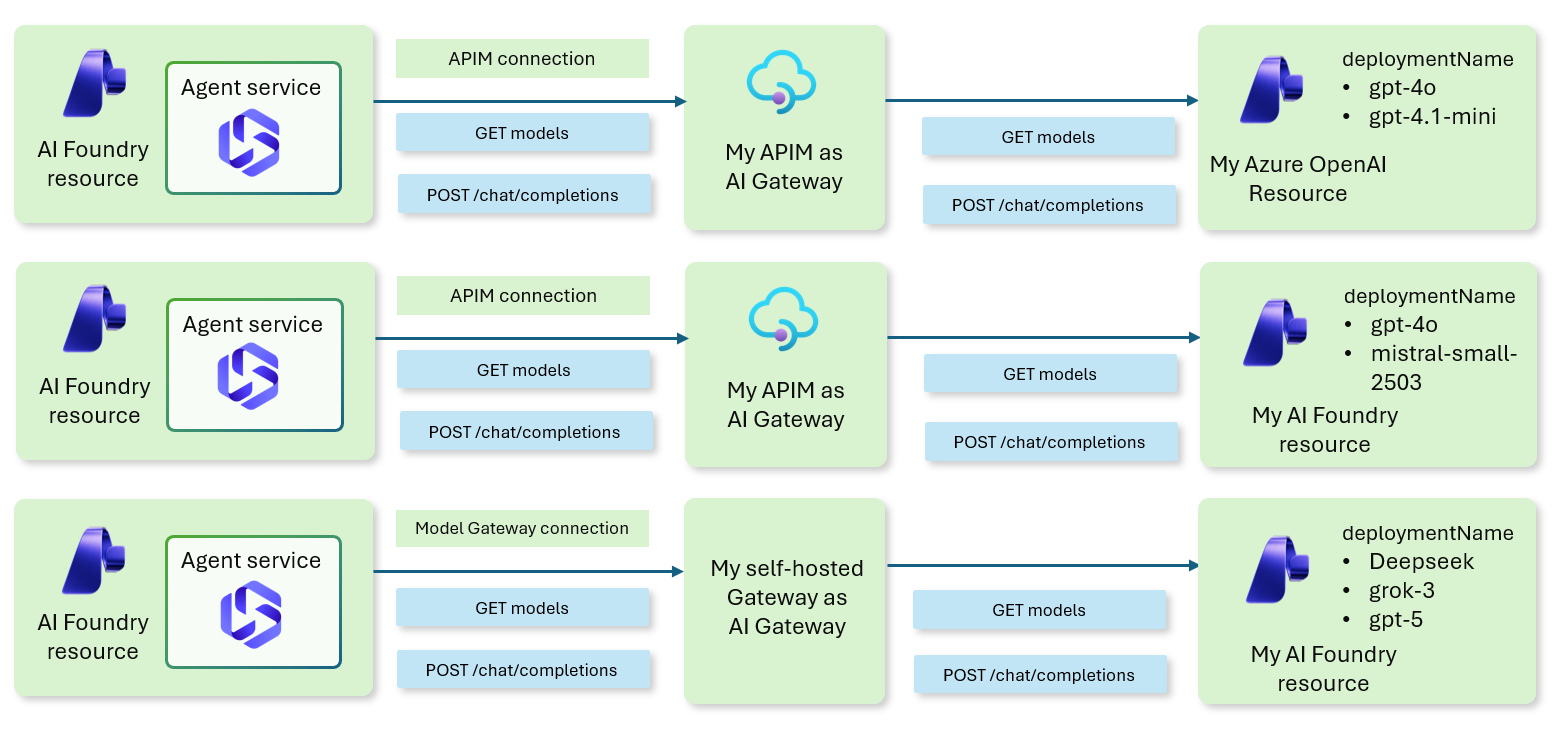
This section provides reference details about each connection type and their configuration options.API Management connection
API Management connections provide intelligent defaults and follow API Management standard conventions:| Setting | Default value |
|---|---|
| List Deployments endpoint | /deployments |
| Get Deployment endpoint | /deployments/{deploymentName} |
| Provider | AzureOpenAI |
- Explicit metadata values (highest priority).
- API Management standard defaults (fallback).
- API Key — Standard subscription key authentication.
- Microsoft Entra ID — Enterprise identity integration.
Model Gateway connection
Model Gateway connections provide a unified interface for connecting to various AI model providers. These connections support both static and dynamic model discovery:- Static discovery — Models are predefined in the connection metadata. Best for fixed deployments and enterprise-approved model lists.
- Dynamic discovery — Models are discovered at runtime using API endpoints. Best for frequently changing deployments and provider-managed catalogs.
Troubleshoot common issues
| Issue | Resolution |
|---|---|
| Connection shows Inactive status | Verify the gateway endpoint URL is reachable and authentication credentials are valid. |
Agent returns model not found error | Confirm the FOUNDRY_MODEL_DEPLOYMENT_NAME value uses the correct format: <connection-name>/<model-name>. |
| Timeout errors from the gateway | Check that your gateway endpoints are accessible from the Agent Service network. For private networks, see the network isolation guidance in the Limitations section. |
| Authentication failures | For API Management, verify your subscription key. For Model Gateway, verify the API key or OAuth 2.0 configuration. |
Supported configurations
- Only prompt agents in the Agent SDK support this feature.
- Supported agent tools: Code Interpreter, Functions, File Search, OpenAPI, Foundry IQ, SharePoint Grounding, Fabric Data Agent, MCP, and Browser Automation.
- Supported networking configurations:
- Public networking is supported for both API Management and self-hosted gateways.
- For full network isolation:
- API Management as your AI gateway: Deploy Foundry and API Management together using this GitHub template.
- Self-hosted gateway: Ensure your gateway endpoints are accessible inside the virtual network used by Agent Service.