- Azure tags hide preview surfaces in the Foundry portal (current and classic portals).
- Custom RBAC roles block specific preview operations at the API level.
Prerequisites
- A Foundry resource and project.
- Permission to add or edit tags at your target scope in Azure. For example, Contributor or Tag Contributor.
- An Azure subscription with permissions to create custom roles at the scope where you want the role to be assignable (for example, the Owner role or the User Access Administrator role).
- Permissions to assign roles at the scope where you assign access (for example, the Role Based Access Control Administrator role or the User Access Administrator role).
- Azure CLI installed and signed in, if you create roles from the command line. For more information, see Install the Azure CLI.
- Access to Azure portal.
Apply the tag
Apply the preview-feature suppression tag at the scope your organization governs.Use the exact tag key and value:
- Tag key:
AZML_DISABLE_PREVIEW_FEATURE - Tag value:
true
- Subscription for organization-wide governance.
- Resource group to cover all resources in a group.
- Foundry resource for granular control.
- Azure CLI
- Azure portal
Replace To find the resource ID for a Foundry resource:
<resource-id> with the full resource ID of your subscription, resource group, or Foundry resource.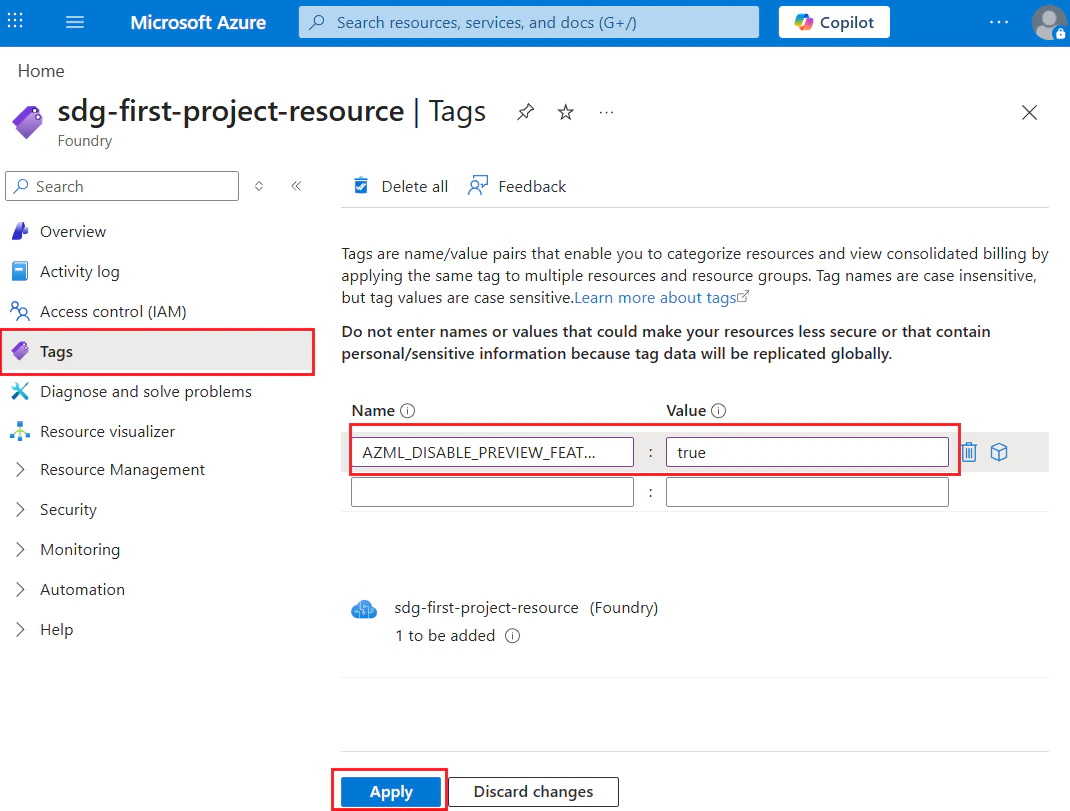
Remove the tag to re-enable preview features
To restore preview features, remove theAZML_DISABLE_PREVIEW_FEATURE tag.
- Azure CLI
- Azure portal
Verify suppression in both portal experiences
After the tag is saved, allow a few minutes for propagation and then verify behavior in both experiences.- Open Microsoft Foundry.
- Open your tagged project.
- Validate that preview-only UI features are hidden.
- In the classic portal, the Preview features tool in the upper-right is disabled.
- In the new portal, you won’t see any PREVIEW labels, as the features in preview will no longer be visible.
- Toggle between new and classic experiences by using New Foundry, and validate the same behavior.
Troubleshoot suppression issues
Use the following table when suppression doesn’t behave as expected.| Symptom | Cause | Resolution |
|---|---|---|
| Preview features still appear after applying the tag. | Tag key or value is incorrect. | Verify the tag key is exactly AZML_DISABLE_PREVIEW_FEATURE and the value is true (case-sensitive). Save the tag again. |
| Tag is applied but only some scopes are suppressed. | Tag is applied at a narrower scope than intended. | Confirm the tag is applied at the intended governance scope (subscription, resource group, or resource). Apply it at a broader scope if needed. |
| Preview features reappear after a few minutes. | Browser session is using a cached state. | Sign out and back in, or clear the browser cache and refresh the Foundry portal. |
| Unable to add or edit the tag. | Your account lacks tag permissions at that scope. | Verify that you have the Contributor or Tag Contributor role at the target scope. |
| Preview features still appear after verifying scope, tag, and permissions. | Possible propagation delay or product bug. | Wait a few minutes for propagation. If the issue persists, file a support request. |
Block preview features with custom RBAC roles
You can block access to specific preview features by creating a custom Azure role that excludes the corresponding permissions, and then assigning that role to users. Because you can’t modify built-in roles, you create a custom role that usesnotDataActions (or notActions for control plane features like Tracing) to exclude the permissions you want to block.
The following table summarizes the preview features you can block and the type of permissions to exclude.
| Preview feature | Resource provider path | Permission type | Exclusion field |
|---|---|---|---|
| Agent Service | Microsoft.CognitiveServices/accounts/AIServices/agents/* | Data action | notDataActions |
| Content Understanding | Microsoft.CognitiveServices/accounts/MultiModalIntelligence/* | Data action | notDataActions |
| Fine-tuning | Microsoft.CognitiveServices/accounts/OpenAI/fine-tunes/* and related paths | Data action | notDataActions |
| Evaluations | Microsoft.CognitiveServices/accounts/AIServices/evaluations/* | Data action | notDataActions |
| Content Safety | Microsoft.CognitiveServices/accounts/ContentSafety/* | Data action | notDataActions |
| Tracing | Microsoft.Insights/* | Control plane action | notActions |
Create a custom role that blocks a preview feature
This section walks through creating a custom role definition and assigning it to a user. The example blocks Agent Service, but you can substitute any data actions from the feature sections in this article.Step 1: Define the role JSON
Create a JSON file namedcustom-role.json with the following content. Replace <subscription-id> with your Azure subscription ID and add the data actions you want to block to notDataActions.
Step 2: Create the role
- Azure CLI
- Azure portal
Step 3: Assign the role
- Azure CLI
- Azure portal
Step 4: Verify the role assignment
Confirm that the custom role excludes the expected permissions.- Azure CLI
- Azure portal
List the role assignments for the user and verify the custom role appears:View the custom role definition to confirm
notDataActions contains the expected data actions:Preview feature data actions
Each of the following sections lists the permissions for a preview feature. Add the data actions you want to block tonotDataActions in your custom role definition, except for Tracing, which uses control plane actions in notActions.
Agent Service
Add these data actions tonotDataActions in your custom role definition:
Microsoft.CognitiveServices/accounts/AIServices/agents/writeMicrosoft.CognitiveServices/accounts/AIServices/agents/readMicrosoft.CognitiveServices/accounts/AIServices/agents/delete
Microsoft.CognitiveServices/accounts/AIServices/agents/*.
Content Understanding
Add these data actions tonotDataActions in your custom role definition:
Microsoft.CognitiveServices/accounts/MultiModalIntelligence/analyzers/readMicrosoft.CognitiveServices/accounts/MultiModalIntelligence/analyzers/writeMicrosoft.CognitiveServices/accounts/MultiModalIntelligence/analyzers/deleteMicrosoft.CognitiveServices/accounts/MultiModalIntelligence/classifiers/readMicrosoft.CognitiveServices/accounts/MultiModalIntelligence/classifiers/writeMicrosoft.CognitiveServices/accounts/MultiModalIntelligence/classifiers/deleteMicrosoft.CognitiveServices/accounts/MultiModalIntelligence/batchAnalysisJobs/*
labelingProjects under the Microsoft.CognitiveServices resource provider to find the available operations, such as:
Microsoft.CognitiveServices/accounts/MultiModalIntelligence/labelingProjects/readMicrosoft.CognitiveServices/accounts/MultiModalIntelligence/labelingProjects/writeMicrosoft.CognitiveServices/accounts/MultiModalIntelligence/labelingProjects/delete
Verify the exact
labelingProjects data actions in the Azure portal, because the available operations might change as the feature evolves.Fine-tuning
Fine-tuning uses several data action paths underMicrosoft.CognitiveServices/accounts/OpenAI/. Add each path you want to block to notDataActions in your custom role definition:
Microsoft.CognitiveServices/accounts/OpenAI/fine-tunes/*Microsoft.CognitiveServices/accounts/OpenAI/files/*Microsoft.CognitiveServices/accounts/OpenAI/uploads/*Microsoft.CognitiveServices/accounts/OpenAI/stored-completions/*Microsoft.CognitiveServices/accounts/OpenAI/evals/*Microsoft.CognitiveServices/accounts/OpenAI/models/*
Microsoft.CognitiveServices/accounts/OpenAI/1p-jobs/*
Each path listed is a separate data action scope. The
fine-tunes/* wildcard matches only operations under fine-tunes/. To fully block fine-tuning, include all the paths listed.Tracing
Tracing uses Azure Monitor, which is a control plane service. The permissions listed in this section are actions, not data actions. Add them to
notActions (not notDataActions) in your custom role definition.notActions in your custom role definition:
Microsoft.Insights/alertRules/readMicrosoft.Insights/diagnosticSettings/readMicrosoft.Insights/logDefinitions/readMicrosoft.Insights/metricdefinitions/readMicrosoft.Insights/metrics/read
Microsoft.Insights read actions, such as a Reader role on the connected Application Insights resource.
Evaluations
Add these data actions tonotDataActions in your custom role definition:
Microsoft.CognitiveServices/accounts/AIServices/evaluations/writeMicrosoft.CognitiveServices/accounts/AIServices/evaluations/readMicrosoft.CognitiveServices/accounts/AIServices/evaluations/delete
Content Safety
Add these data actions tonotDataActions in your custom role definition:
Microsoft.CognitiveServices/accounts/ContentSafety/*
ContentSafety in the Azure portal custom role editor and select the individual data actions you want to exclude.
Troubleshoot RBAC issues
| Symptom | Cause | Resolution |
|---|---|---|
| User can still access a blocked feature. | The role assignment might not have propagated yet, or the user has another role that grants the blocked permission. | Wait a few minutes for propagation. Check all role assignments for the user with az role assignment list --assignee "<user>". Remove any conflicting roles that grant the blocked data actions. |
| Custom role creation fails with “invalid data action.” | The data action path might be misspelled or the resource provider might not be registered. | Verify the data action path in the Azure portal custom role editor. Ensure the Microsoft.CognitiveServices resource provider is registered in your subscription. |
Tracing permissions aren’t blocked after adding to notDataActions. | Tracing uses control plane actions (Microsoft.Insights), not data actions. | Move the Microsoft.Insights entries from notDataActions to notActions in the role definition. |