- Query formulation: The agent identifies information gaps and constructs search queries.
- Search execution: The grounding tool submits queries to search engines and retrieves results.
- Information synthesis: The agent processes search results and integrates findings into responses.
- Source attribution: The agent provides transparency by citing search sources.
- Grounding with Bing Search and Grounding with Bing Custom Search are First Party Consumption Services with terms for online services. They’re governed by the Grounding with Bing terms of use and the Microsoft Privacy Statement.
- The Microsoft Data Protection Addendum doesn’t apply to data sent to Grounding with Bing Search or Grounding with Bing Custom Search. When you use these services, your data flows outside the Azure compliance and Geo boundary. This also means use of these services waives all elevated Government Community Cloud security and compliance commitments, including data sovereignty and screened/citizenship-based support, as applicable.
- Use of Grounding with Bing Search and Grounding with Bing Custom Search incurs costs. See pricing for details.
- See the manage section for information about how Azure admins can manage access to use of Grounding with Bing Search and Grounding with Bing Custom Search.
Start with the web search tool. Learn more about the differences between web search and Grounding with Bing Search (or Grounding with Bing Custom Search) in the web grounding overview.
Not all models support Grounding with Bing Search or Grounding with Bing Custom Search. For a full list of models that support these tools, see Tool support by region and model.
Prerequisites
Before you begin, make sure you have:- An Azure subscription with the right permissions.
- Azure RBAC roles:
- Contributor on the target resource group while you create the Bing resource and retrieve its keys. These roles are provisioning operations. Use Microsoft Entra Privileged Identity Management (PIM) to activate the role just in time, and deactivate it when provisioning is complete. Day-to-day agent developers and users don’t need this role.
- Foundry Project Manager on the Foundry project to create project connections.
- Foundry User on the Foundry project to create and run agents. For more information, see Role-based access control for Microsoft Foundry.
The Foundry RBAC roles were recently renamed. Foundry User, Foundry Owner, Foundry Account Owner, and Foundry Project Manager were previously named Azure AI User, Azure AI Owner, Azure AI Account Owner, and Azure AI Project Manager. You might still see the previous names in some places while the rename rolls out. The role IDs and core permissions are unchanged by the rename.
- A Foundry project created with a configured endpoint.
- An AI model deployed in your project.
- SDK installed for your preferred language:
- Python:
azure-ai-projects - C#:
Azure.AI.Extensions.OpenAI - TypeScript/JavaScript:
@azure/ai-projects - Java:
com.azure:azure-ai-agents:2.0.0
- Python:
- Azure credentials configured for authentication (such as
DefaultAzureCredential).- For REST samples, environment variables set up:
FOUNDRY_PROJECT_ENDPOINT: Your Foundry project endpoint URL.FOUNDRY_MODEL_DEPLOYMENT_NAME: Your deployed model name.AGENT_TOKEN.
- For REST samples, environment variables set up:
- The Grounding with Bing Search tool works in a network-secured Foundry project, but it behaves like a public endpoint. Consider this behavior when you use the tool in a network-secured environment.
Choose a web grounding scenario
Set up a project connection
In this section, you add a project connection for the Bing resource and capture the values used in the samples. SDK samples use the project connection name and resolve the connection ID at runtime. REST samples use the project connection ID. You can use this bicep template to create a basic agent with Grounding with Bing Search tool enabled. If you already have a project connection ID for the Bing resource you want to use, skip this section.- Add the appropriate connection to your project. For step-by-step instructions, see Add a new connection to your project.
- To create a Bing resource and retrieve its keys, activate Contributor on the target resource group just in time through Microsoft Entra PIM. Deactivate the role after provisioning. Day-to-day agent developers and users don’t need this role.
- To find the resource keys, go to your Grounding with Bing resource in the Azure portal > Resource Management > Keys.
- Get the project connection name and ID from the connection details, then set the values as environment variables.
- For SDK samples:
- For Grounding with Bing Search: set
BING_PROJECT_CONNECTION_NAME. - For Grounding with Bing Custom Search: set
BING_CUSTOM_SEARCH_PROJECT_CONNECTION_NAME.
- For Grounding with Bing Search: set
- For REST samples:
- For Grounding with Bing Search: set
BING_PROJECT_CONNECTION_ID. - For Grounding with Bing Custom Search: set
BING_CUSTOM_SEARCH_PROJECT_CONNECTION_ID.
- For Grounding with Bing Search: set
/subscriptions/{{subscriptionID}}/resourceGroups/{{resourceGroupName}}/providers/Microsoft.CognitiveServices/accounts/{{foundryAccountName}}/projects/{{foundryProjectName}}/connections/{{foundryConnectionName}}
Prepare a Bing grounding workflow
Choose one workflow before opening a language tab. Both workflows require a paid Bing resource and a project connection.Ground responses with standard Bing Search
Additional prerequisites: Create a Grounding with Bing Search resource, connect it to your Foundry project, and record the connection name for SDK samples or the connection ID for REST samples. For REST, also setBING_PROJECT_CONNECTION_ID.
Outcome: Your agent can search the broad public web and return a grounded response with source citations.
Restrict grounding with Bing Custom Search
Additional prerequisites: Create a Grounding with Bing Custom Search resource and instance, configure the instance with public domains, connect the resource to your Foundry project, and record the connection name or ID. For REST, also setBING_CUSTOM_SEARCH_PROJECT_CONNECTION_ID and BING_CUSTOM_SEARCH_INSTANCE_NAME.
Outcome: Your agent searches only the public, Bing-indexed domains configured in your custom search instance and returns citations from those domains.
See best practices for information on optimizing tool usage.
Run a Bing grounding example
- You need the latest SDK package. See the quickstart for details.
- For SDK samples, use the project connection name. For REST samples, use the project connection ID in the format
/subscriptions/{{subscriptionID}}/resourceGroups/{{resourceGroupName}}/providers/Microsoft.CognitiveServices/accounts/{{foundryAccountName}}/projects/{{foundryProjectName}}/connections/{{foundryConnectionName}}.
How it works
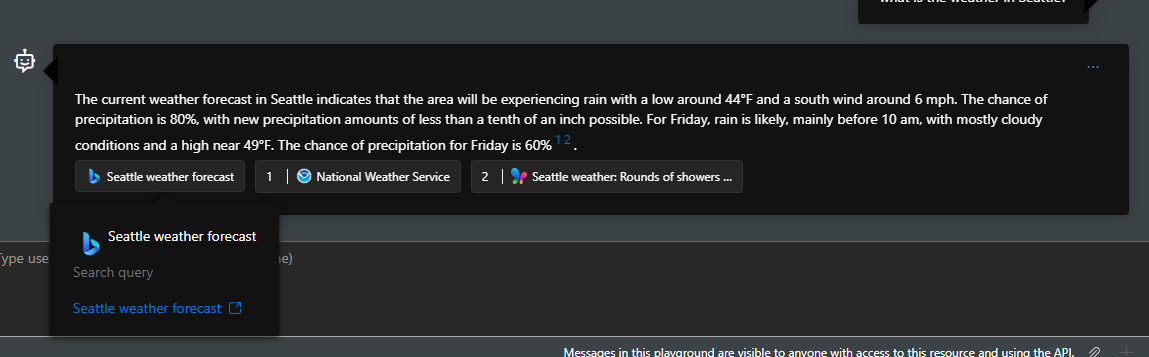
The user query is the message that an end user sends to an agent, such as *“should I take an umbrella with me today? I’m in Seattle.”*Instructions are the system message a developer can provide to share context and provide instructions to the AI model on how to use various tools or behave. When a user sends a query, the customer’s AI model deployment first processes it (using the provided instructions) to later perform a Bing search query (which is visible to developers). Grounding with Bing returns relevant search results to the customer’s model deployment, which then generates the final output.When you use Grounding with Bing Search or Grounding with Bing Custom Search, the only information sent to Bing is the Bing search query, tool parameters, and your resource key. The service doesn’t send any end user-specific information. Your resource key is sent to Bing solely for billing and rate limiting purposes.
How to display search results
According to Grounding with Bing’s terms of use and use and display requirements, you need to display both website URLs and Bing search query URLs in your custom interface. You can find this information in the API response, in thearguments parameter. To render the webpage, replace the endpoint of Bing search query URLs with www.bing.com and your Bing search query URL would look like https://www.bing.com/search?q={search query}.
Grounding with Bing Custom Search configuration
Grounding with Bing Custom Search is a powerful tool that you can use to select a subspace of the web to limit your agent’s grounding knowledge. Here are a few tips to help you take full advantage of this capability:- If you own a public site that you want to include in the search but Bing hasn’t indexed, see the Bing Webmaster Guidelines for details about getting your site indexed. The webmaster documentation also provides details about getting Bing to crawl your site if the index is out of date.
- To create a Bing Custom Search configuration, activate the Contributor role on the Bing Custom Search resource just in time through Microsoft Entra PIM. Deactivate the role after configuration. Day-to-day agent developers and users don’t need this role.
- You can only block certain domains and perform a search against the rest of the web (a competitor’s site, for example).
- Grounding with Bing Custom Search only returns results for domains and webpages that are public and indexed by Bing.
- Domain (for example,
https://www.microsoft.com) - Domain and path (for example,
https://www.microsoft.com/surface) - Webpage (for example,
https://www.microsoft.com/en-us/p/surface-earbuds/8r9cpq146064)
- Domain (for example,
Optional parameters
When you add the Grounding with Bing Search or Grounding with Bing Custom Search tool to your agent, you can pass the following parameters. These parameters will impact the tool output, and the AI model might not fully use all of the outputs. See the code examples for information on API version support and how to pass these parameters.Supported capabilities and known issues
- The Grounding with Bing Search tool is designed to retrieve real-time information from the web, not specific web domains. To retrieve information from specific domains, use the Grounding with Bing Custom Search tool.
- Don’t ask the model to summarize an entire web page.
- Within one run, the AI model evaluates the tool outputs and might decide to invoke the tool again for more information and context. The AI model might also decide which pieces of tool outputs are used to generate the response.
- Foundry Agent Service returns AI model generated responses as output, so end-to-end latency is impacted by model pre-processing and post-processing.
- The Grounding with Bing Search and Grounding with Bing Custom Search tools don’t return the tool output to developers and end users.
- Grounding with Bing Search works from a network-secured Foundry project, but Bing traffic uses public egress and doesn’t traverse or honor VPN or private endpoint routing.
- Use the default citations pattern (the links sent in
annotation) for links from the Grounding with Bing tools. Don’t ask the model to generate citation links.
Troubleshooting
Use this section to resolve common issues when using Grounding with Bing Search tools.Connection ID format errors
Problem: Error message stating invalid connection ID format. Solution: Verify your connection ID matches the required format:{{ and }}) with your actual resource identifiers.
Authentication failures
Problem: “Unauthorized” or “Forbidden” errors when creating agents or running queries. Solution:- Verify you have the required RBAC roles:
- For Bing resource provisioning, activate Contributor on the target resource group just in time through Microsoft Entra PIM. Deactivate it after provisioning. Day-to-day agent developers and users don’t need this role.
- Foundry Project Manager on the Foundry project for creating project connections.
- Foundry User on the Foundry project for creating and running agents.
- Check that your Azure credentials are properly configured:
- For Python/TypeScript:
DefaultAzureCredentialcan authenticate - For REST: Bearer token is valid and not expired
- For Python/TypeScript:
- Run
az loginto refresh your credentials if you’re using Azure CLI
Network connectivity problems
Problem: Grounding with Bing Search requests time out or can’t connect. Solution: Bing traffic uses public egress even when the Foundry project is network secured. Ensure your network and firewall policies allow the required public outbound traffic. Don’t expect VPN or private endpoint routing to carry the Bing request.Custom search returns no results
Problem: Bing Custom Search returns empty results or doesn’t find expected content. Solution:- Verify your custom search instance is properly configured with target domains.
- Ensure the domains you want to search are public and indexed by Bing.
- Check that the configured domains match your search query expectations.
- If your site isn’t indexed, see Bing Webmaster Guidelines for indexing instructions.
- Wait for Bing to crawl recently added or updated content (can take several days).
Missing or invalid configuration values
Problem: Code fails with connection errors or “not found” responses. Solution: Ensure you update all required constants in the code with your actual values:PROJECT_ENDPOINT(Python/TypeScript) orprojectEndpoint(C#/Java): Your Foundry project endpoint URL.- Connection name or ID for your Bing resource.
- For custom search: your custom search instance name.
- For REST API, set environment variables:
FOUNDRY_PROJECT_ENDPOINT,FOUNDRY_MODEL_DEPLOYMENT_NAME,BING_PROJECT_CONNECTION_IDorBING_CUSTOM_SEARCH_PROJECT_CONNECTION_ID, andAGENT_TOKEN.
Agent doesn’t use the grounding tool
Problem: Agent responds without calling the Bing grounding tool. Solution:- Ensure your query requires current information that the model doesn’t know.
- For explicit tool usage, set
tool_choice="required"in your request (Python/TypeScript examples show this). - Verify the tool is properly configured in the agent definition.
- Check agent instructions encourage using available tools for current information.
Instance name not found for Grounding with Bing Custom Search tool
Problem:- Ensure your instance name is in the Grounding with Bing Custom Search resource you are using.
- Double check if your instance name is spelled correctly.
Manage Grounding with Bing Search and Grounding with Bing Custom Search
Admins can use RBAC role assignments to enable or disable the use of Grounding with Bing and Grounding with Bing Custom Search within the subscription or resource group.- To register
Microsoft.Bing, the admin activates Contributor at subscription scope just in time through Microsoft Entra PIM. Subscription scope is required because resource provider registration uses the/register/actionoperation. After registration, the admin deactivates the role. For more information, see Azure resource providers and types. - To create the Grounding with Bing Search or Grounding with Bing Custom Search resource and retrieve its key, the provisioning user activates Contributor on the target resource group just in time through Microsoft Entra PIM. After provisioning, the user deactivates the role.
- To create the Microsoft Foundry connection, assign the provisioning user the Foundry Project Manager role on the Foundry project.
Disable use of Grounding with Bing Search and Grounding with Bing Custom Search
To delete Bing resources, unregister theMicrosoft.Bing resource provider, and create the Azure Policy, an admin needs Owner or Contributor at subscription scope. These roles are required for subscription governance operations. Activate the role just in time through Microsoft Entra PIM, and deactivate it after completing this procedure. Day-to-day agent developers and users don’t need either role.
- The admin deletes all Grounding with Bing Search and Grounding with Bing Custom Search resources in the subscription.
- The admin unregisters the
Microsoft.Bingresource provider in the subscription (you can’t unregister before deleting all resources). For more information, see Azure resource providers and types. - The admin creates an Azure Policy to disallow creation of Grounding with Bing Search and Grounding with Bing Custom Search resources in their subscription, following the sample.
Next steps
- Tool use best practices - Learn optimization strategies for agent tools
- Web search tool - Use web search without configuring Bing tool parameters
- Manage Grounding with Bing in Microsoft Foundry and Azure - Control and disable Grounding with Bing features
- Connect OpenAPI tools to agents - Integrate custom APIs with your agents
- What is Toolbox in Foundry? - Explore all available agent tools in Foundry Agent Service