This feature is currently in public preview. This preview is provided without a service-level agreement, and we don’t recommend it for production workloads. Certain features might not be supported or might have constrained capabilities. For more information, see Supplemental Terms of Use for Microsoft Azure Previews.
Prerequisites
- A Foundry project. For setup guidance, see Create projects in Microsoft Foundry.
- Permissions to discover and configure tools in your Foundry project. For more information, see Role-based access control in Microsoft Foundry.
- An Azure API Center.
The API Center name is the name that developers use to find the catalog in Foundry Tools. Use a descriptive name.
- One or more remote MCP servers that you want to share with your organization. Register them with API Center by following Configure environments and deployments in Azure API Center.
Plan administrator and developer access
Before you create the catalog, decide who manages it and who consumes it.Configure MCP server authentication
If your remote MCP server requires authentication, configure the authentication settings in Azure API Center. This step is optional if your MCP server doesn’t require authentication.- In the Azure portal, go to your API Center resource.
- Select Governance > Authorization.
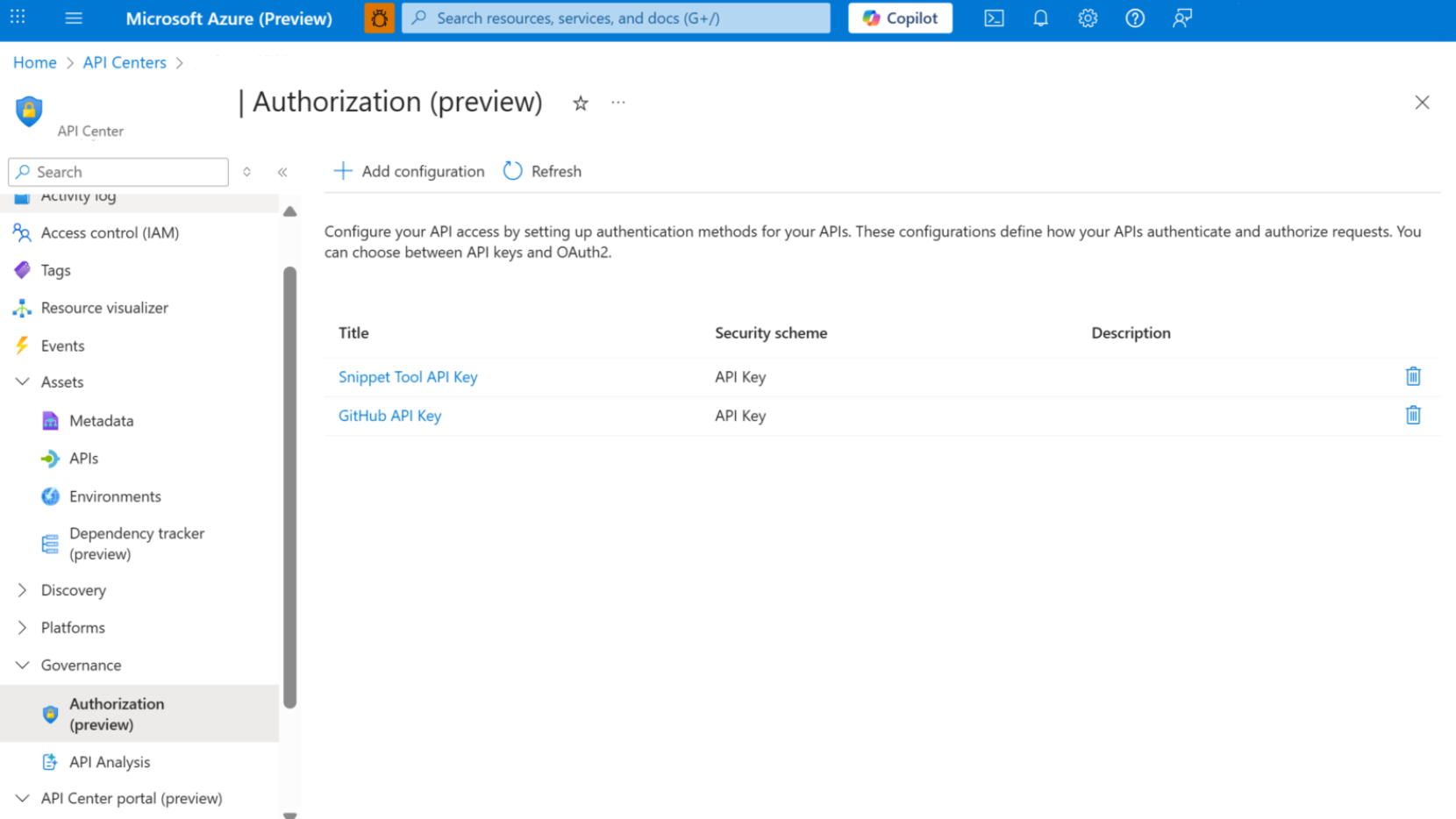
- Select Add configuration.
- Under Security scheme, choose the scheme required by your MCP server (for example, API Key, OAuth, or HTTP bearer token), then provide the required values.
Treat any credentials as secrets. Don’t paste secrets into prompts or source control. For guidance on authentication approaches in Agent Service (including shared and per-user authentication), see MCP server authentication.
- Select the MCP server, then select Details > Versions > Manage access (preview).
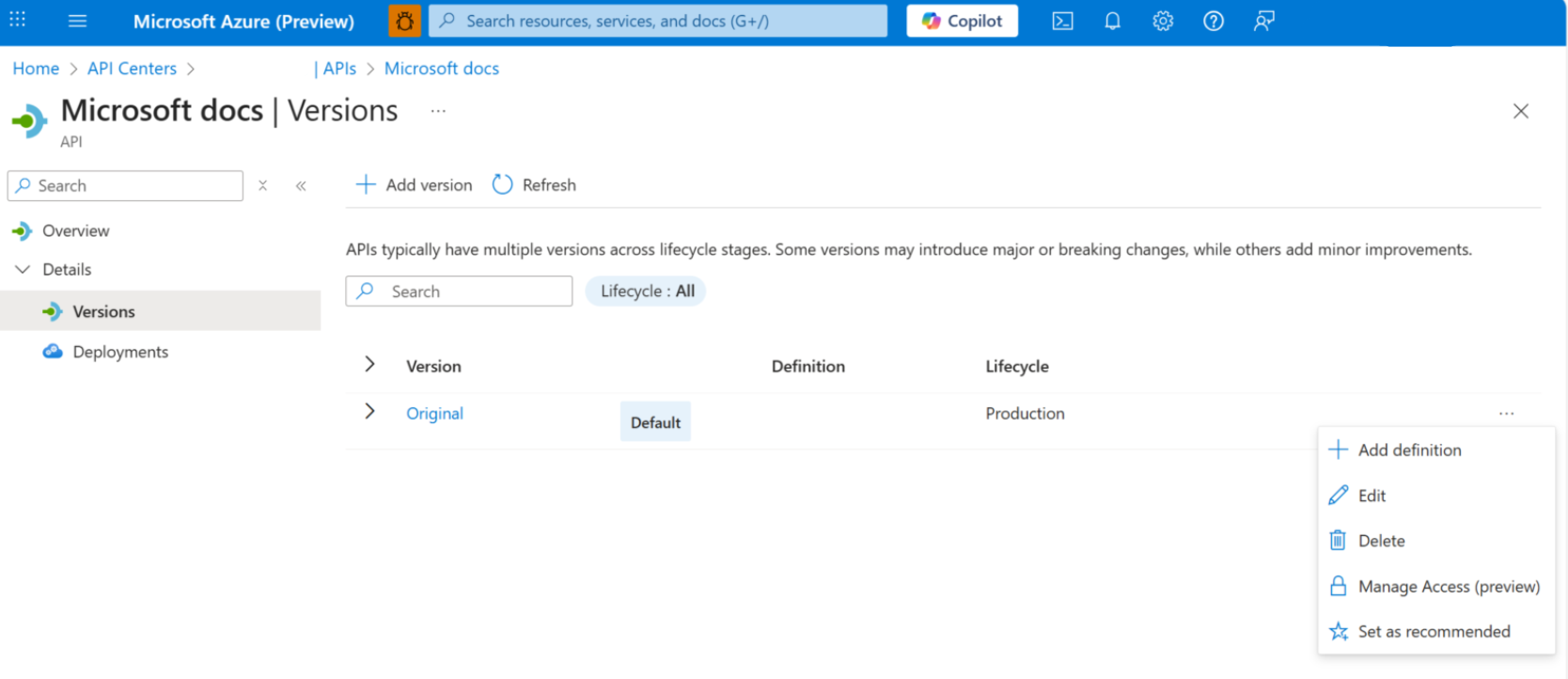
- Select the authorization configuration you created.
Grant developer access to the catalog
Assign Azure RBAC permissions so developers can discover MCP servers from your private tool catalog in Foundry Tools.- Decide whether to grant access to a security group or to individual users.
- Assign at least the Azure API Center Data Reader role (or an equivalent custom role) to those users.
Role assignments can take up to 24 hours to propagate. If developers don’t see the catalog immediately, wait and try again.
Verify catalog discovery in Foundry Tools
After you grant access, confirm that developers can find and use the catalog in the Foundry portal.- In the Foundry portal, open the project that your developers use.
- Go to Build > Tools.
- Use search and filters to find your private tool catalog by the API Center name.
- Select a tool from the catalog and review its setup requirements.