- Choose an authentication method based on your security requirements
- Configure key-based, Microsoft Entra, or OAuth authentication
- Set up and validate your MCP server connection
If you don’t already have an account with the MCP server publisher, create one through the publisher’s website.
Prerequisites
Before you begin, you need:- Access to the Foundry portal and a project. If you don’t have one, see Create projects in Foundry.
- Permissions to create project connections and configure agents. For details, see Role-based access control in the Foundry portal.
- The remote MCP server endpoint URL you want to connect to.
- Credentials for your selected authentication method:
- Key-based authentication: an API key, personal access token (PAT), or other token.
- Microsoft Entra authentication: role assignments for the agent identity or project managed identity on the underlying service.
- OAuth identity passthrough: managed OAuth configuration or an OAuth app registration (custom OAuth).
Choose an authentication method
In general, two authentication scenarios exist:- Shared authentication: Every user of the agent uses the same identity to authenticate to the MCP server. User context doesn’t persist.
- Individual authentication: Each user authenticates with their own account so their user context persists.
Supported authentication methods
Key-based authentication
Use key-based authentication when the MCP server requires an API key, personal access token, or similar credential, and you don’t need to preserve individual user context.People who have access to the project can access an API key stored in a project connection. Store only shared secrets in a project connection. For user-specific access, use OAuth identity passthrough.
- Credential name:
Authorization - Credential value:
Bearer <your-personal-access-token>
- Use least-privilege credentials where possible.
- Rotate tokens regularly.
- Restrict access to projects that contain shared secrets.
Microsoft Entra authentication
Use Microsoft Entra authentication when the MCP server (and its underlying service) supports Microsoft Entra tokens. This method eliminates the need to manage secrets and provides automatic token rotation.Use agent identity authentication
Use agent identity when you want authentication scoped to a specific agent. This approach is ideal when you have multiple agents that need different levels of access to the same MCP server. Use your agent identity to authenticate with MCP servers that support agent identity authentication. If you create your agent by using Agent Service, you automatically assign an agent identity to it. Before publishing, all agents in your Foundry project share the same agent identity. After you publish an agent, the agent gets a unique agent identity. Make sure the agent identity has the required role assignments on the underlying service that powers the MCP server. When the agent invokes the MCP server, Agent Service uses the available agent identity to request an authorization token and passes it to the MCP server.Use project managed identity authentication
Use project managed identity when you want all agents in a project to share the same access level, or when the MCP server requires a managed identity rather than an agent identity. Use your Foundry project’s managed identity to authenticate with MCP servers that support managed identity authentication. Make sure the project managed identity has the required role assignments on the underlying service that powers the MCP server. When the agent invokes the MCP server, Agent Service uses the project’s managed identity to request an authorization token and passes it to the MCP server.OAuth identity passthrough
- To use OAuth identity passthrough, users interacting with your agent need at least the Foundry Agent Consumer role on the project. Prefer this role for least-privilege access. The Foundry User role also works but is intended for developers building agents, not consumers. The user’s Microsoft Entra tenant must match the tenant of your Foundry project. Cross-tenant token exchange isn’t supported.
- We highly recommend you adding
offline_accessas part of scopes to auto refresh the token once expired.
The Foundry RBAC roles were recently renamed. Foundry User, Foundry Owner, Foundry Account Owner, and Foundry Project Manager were previously named Azure AI User, Azure AI Owner, Azure AI Account Owner, and Azure AI Project Manager. You might still see the previous names in some places while the rename rolls out. The role IDs and core permissions are unchanged by the rename.
- With managed OAuth, Microsoft or the MCP server publisher manages the OAuth app.
- With custom OAuth, you bring your own OAuth app registration.
When using managed OAuth with Microsoft Entra, Agent Service restricts tokens scoped to a known Microsoft audience from being sent to custom or third-party MCP servers. If you attempt this, Agent Service returns the error:
Cannot pass Microsoft token to untrusted MCP endpoint.Your custom MCP server must be registered with an audience that you control rather than a known Microsoft audience. Don’t design your MCP server to rely on passthrough of its authentication token to a downstream Microsoft service. To meet this requirement, use custom OAuth with your own Microsoft Entra app registration.If you use custom OAuth, you receive a redirect URL after configuration. Add the redirect URL to your OAuth app so Agent Service can complete the flow.
- Client ID: required
- Client secret: optional (depends on your OAuth app)
- Auth URL: required
- Refresh URL: required (if you don’t have a separate refresh URL, you can use the token URL instead)
- Token URL: required
- Scopes: optional (include
offline_accessto enable automatic token refresh). When you specify multiple scopes, separate them with a single space, not a comma — this follows the OAuth 2.0 spec.
Flow using OAuth identity passthrough
The scope of OAuth is per tool (connection) name per Foundry project. Each new user using a new tool (connection) in a Foundry project is prompted to provide consent.- When a user first tries to use a new tool in a Foundry project, the response output shares the consent link in
response.output_item. You can find the consent link in item typeoauth_consent_request, underconsent_link. Surface this consent link to the user.See an example:
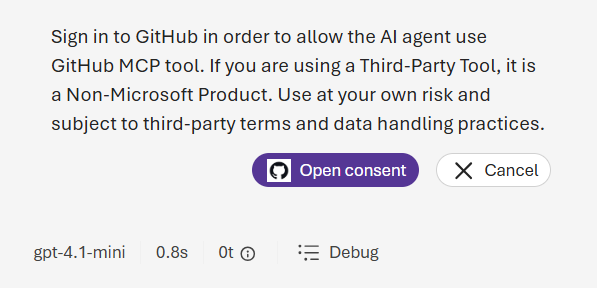
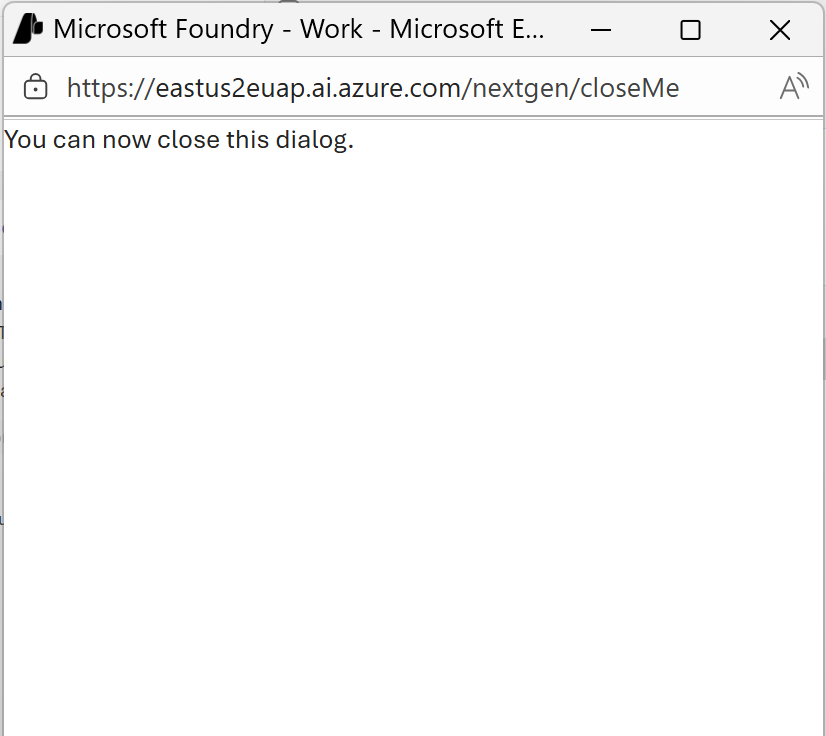
- The user is prompted to sign in and give consent after reviewing the access needed. After giving consent successfully, the user sees a dialog like this example:
-
After the user has closed the dialog, you need to submit another response with the previous response ID
If the user declines consent, the MCP tool call fails and returns an error. Your application should handle this case gracefully and inform the user that the tool requires authorization to function.
Bring your own Microsoft Entra app registration
Agent 365 MCP servers are only available to Frontier tenants.
- Follow the app registration guide to create a Microsoft Entra app and get the client ID and client secret.
-
Grant scoped permissions to your Microsoft Entra app.
For Agent 365 MCP servers, go to Manage > API Permissions and search for Agent 365 Tools. If you can’t find it, search for
ea9ffc3e-8a23-4a7d-836d-234d7c7565c1. Assign the permissions you need and grant admin consent for your tenant. Here are the permissions for each MCP server:- Microsoft Outlook Mail MCP Server (Frontier):
McpServers.Mail.All - Microsoft Outlook Calendar MCP Server (Frontier):
McpServers.Calendar.All - Microsoft Teams MCP Server (Frontier):
McpServers.Teams.All - Microsoft 365 User Profile MCP Server (Frontier):
McpServers.Me.All - Microsoft SharePoint and OneDrive MCP Server (Frontier):
McpServers.OneDriveSharepoint.All - Microsoft SharePoint Lists MCP Server (Frontier):
McpServers.SharepointLists.All - Microsoft Word MCP Server (Frontier):
McpServers.Word.All - Microsoft 365 Copilot (Search) MCP Server (Frontier):
McpServers.CopilotMCP.All - Microsoft 365 Admin Center MCP Server (Frontier):
McpServers.M365Admin.All - Microsoft Dataverse MCP Server (Frontier):
McpServers.Dataverse.All
- Microsoft Outlook Mail MCP Server (Frontier):
-
Go back to Foundry portal and configure your MCP server. Connect a tool, go to Custom, and then select MCP. Provide a name and MCP server endpoint, and then select OAuth Identity Passthrough:
- client ID and client secret
- token URL:
https://login.microsoftonline.com/{tenantId}/oauth2/v2.0/token - auth URL:
https://login.microsoftonline.com/{tenantId}/oauth2/v2.0/authorize - refresh URL:
https://login.microsoftonline.com/{tenantId}/oauth2/v2.0/token - scopes:
ea9ffc3e-8a23-4a7d-836d-234d7c7565c1/{permission above} offline_access(space-separated, per the OAuth 2.0 spec)
- After you complete the configuration, you receive a redirect URL. Add it to your Microsoft Entra app.
Unauthenticated access
Use unauthenticated access only when the MCP server doesn’t require authentication. This method is appropriate for public MCP servers that provide open access to their tools, or for private MCP servers within your virtual network that rely on network-level isolation instead of explicit authentication.Even when authentication isn’t required, ensure you understand the MCP server’s terms of service and rate limits before connecting.
Set up authentication for an MCP server
- Identify the remote MCP server you want to connect to.
- Create or select a project connection that stores the MCP server endpoint, authentication type, and any required credentials. If you connect the MCP server in the Foundry portal, the portal creates the project connection for you.
-
Create or update an agent with an
mcptool with the following information:server_url: The URL of the MCP server. For example,https://api.githubcopilot.com/mcp/.server_label: A unique identifier of this MCP server to the agent. For example,github.require_approval: Optionally determine whether approval is required. Supported values are:always: A developer needs to provide approval for every call. If you don’t provide a value, this value is the default.never: No approval is required.{"never":[<tool_name_1>, <tool_name_2>]}: You provide a list of tools that don’t require approval.{"always":[<tool_name_1>, <tool_name_2>]}: You provide a list of tools that require approval.
project_connection_id: The connection name that stores the MCP server endpoint, authentication selection, and relevant information. If you provide different endpoints in the connection versusserver_url, the endpoint in the connection is used.
- Run the agent.
-
If the model tries to invoke a tool in your MCP server with approval required or the user needs to sign in for OAuth identity passthrough, review the response output:
- Consent link:
oauth_consent_request - Approval request:
mcp_approval_request
- Consent link:
Validate
After you configure authentication, verify the connection works correctly:- Trigger an MCP tool call from your agent by sending a prompt that causes the agent to use one of the MCP server’s tools.
- Confirm the tool call completes successfully. You should see the tool’s output in the agent’s response without authentication errors.
- If you’re using OAuth identity passthrough:
- Confirm a new user receives a consent link (
oauth_consent_requestin the response). - After the user consents, confirm subsequent tool calls succeed without prompting for consent again.
- Test with a different user to verify the per-user consent flow works correctly.
- Confirm a new user receives a consent link (
Troubleshooting
Host a local MCP server
If you developed a custom MCP server or want to use an open-source MCP server that runs locally, you need to host it in the cloud before connecting it to Agent Service. The Agent Service runtime only accepts a remote MCP server endpoint. If you want to add tools from a local MCP server, you need to self-host it on Azure Container Apps or Azure Functions to get a remote MCP server endpoint. The remote endpoint can be either a public endpoint or a private endpoint within your VNet. For private MCP servers, deploy your Container App with internal-only ingress on a dedicated MCP subnet delegated toMicrosoft.App/environments. To get started, use the 19-hybrid-private-resources-agent-setup template. For details about tool support in network-isolated environments, see Agent tools with network isolation.
Consider the following points when attempting to host local MCP servers in the cloud: