Supported models
You don’t need to separately deploy the supported large language models for use with model router, except for the Claude models. To use model router with your Claude models, first deploy them from the model catalog. Model router invokes the deployments if you select them for routing.
Model router version 2025-11-18 (latest)
Deploy a model router model
Model router is packaged as a single Foundry model that you deploy. Start by following the steps in the resource deployment guide. To deploy programmatically without the portal, use the REST API examples in the deployment sections that follow.If your organization uses the built-in Azure Policy for model deployment, make sure the policy’s allowed publishers include
Microsoft (the publisher of model router) and the publisher of each model you deploy for routing (for example, Anthropic for Claude models). Otherwise, the policy blocks the deployment.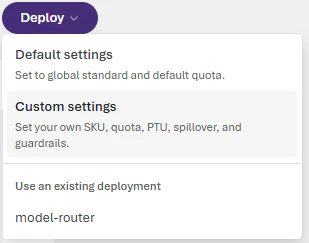
Default deployment
Go to the Microsoft Foundry portal and navigate to the model catalog. Findmodel-router in the Models list and select it. Choose Default settings for the Balanced routing mode and route between all supported models.
Before you run the REST examples, sign in with Azure CLI and save a management-plane bearer token as AZURE_AI_AUTH_TOKEN.
Optional: customize deployment settings
To enable more configuration options, choose Custom settings.Your deployment settings apply to all underlying chat models that model router uses.
- Don’t deploy the underlying chat models separately. Model router works independently of your other deployed models.
- Select a content filter when you deploy the model router model or apply a filter later. The content filter applies to all content passed to and from the model router; don’t set content filters for each underlying chat model.
- Your tokens-per-minute rate limit setting applies to all activity to and from the model router; don’t set rate limits for each underlying chat model.
Optional: change the routing mode
Sign in to Microsoft Foundry. Make sure the New Foundry toggle is on. These steps refer to Foundry (new).
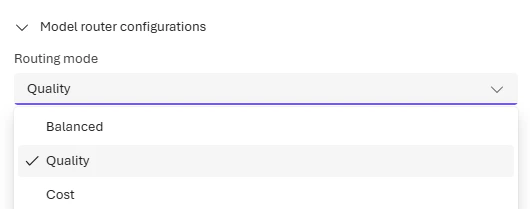
- Balanced (default): Most workloads. Optimizes cost while maintaining quality.
- Quality: Critical tasks like legal review, medical summaries, or complex reasoning.
- Cost: High-volume, budget-sensitive workloads like content classification or simple Q&A.
Changes to the routing mode can take up to five minutes to take effect.
Optional: route to a model subset
Sign in to Microsoft Foundry. Make sure the New Foundry toggle is on. These steps refer to Foundry (new).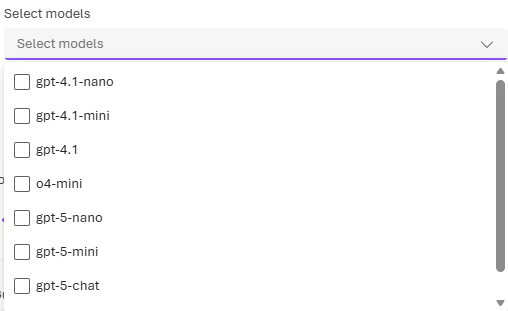
To include models by Anthropic (Claude) in your model router deployment, you need to deploy them yourself to your Foundry resource. See Deploy and use Claude models.
Changes to the model subset can take up to five minutes to take effect.
Configure custom settings with the REST API
Use the following example when you want to set both the routing mode and a model subset in the same deployment request. Add arouting block only when you want to override the default Balanced mode or restrict the routed model set. The following example keeps the combined custom request with both a routing mode and a model subset.
The deployment request body uses
format, name, and version for the model router itself and for each model in the routing subset. Find the correct values for each model in the supported models table in this article.If you include Anthropic Claude models in the
routing.models array, you must first deploy them to the same Foundry account with a matching SKU. Otherwise the request fails with an InvalidResourceProperties error. Deploy Claude models from the Foundry model catalog before you reference them in a model router deployment. See Deploy and use Claude models.Test model router with Foundry Responses and Chat Completions
Call model router the same way you call any OpenAI chat model. Set themodel parameter to the name of your model router deployment. You can use the Microsoft Foundry SDK with the Responses API or the OpenAI SDK with the Chat Completions API, in either Python or JavaScript/TypeScript.
Install the required packages before you run the samples:
- Foundry Responses (Python):
pip install azure-ai-projects>=2.0.0 azure-identity - Foundry Responses (JavaScript/TypeScript):
npm install @azure/ai-projects @azure/identity - Chat Completions (Python):
pip install openai>=1.75.0 - Chat Completions (JavaScript/TypeScript):
npm install openai @azure/identity
- Foundry Responses
- Chat Completions
PythonJavaScript/TypeScript
- Reference: OpenAI Responses API (
responses.create, both languages) - Reference: OpenAI Chat Completions API (
chat.completions.create, both languages) - Reference:
AIProjectClient(Python) - Reference:
AIProjectClient(JavaScript/TypeScript) - Reference:
AzureOpenAI(OpenAI Python SDK) - Reference:
AzureOpenAI(OpenAI JavaScript/TypeScript SDK)
Keep Chat Completions requests on the same model (preview)
The Chat Completions API is stateless, so your application sends the conversation history with each request. By default, model router evaluates each request independently and might select a different underlying model for a later turn. Session affinity lets your application identify related requests and asks model router to try the same eligible model first. Session affinity can improve the opportunity for prompt-cache reuse when consecutive requests have overlapping prompt prefixes. It doesn’t inspect cache state or guarantee a cache hit.Configure session affinity
After your application reads the endpoint, API key, and deployment name, create the client with the preview feature header. Then create an opaque, application-owned session ID that doesn’t contain secrets or personal information:x-ms-session-id request header. When a request contains valid identifiers in both locations, routing_config.session_affinity.session_id takes precedence. A session ID must contain 1 through 256 Unicode code points, including at least one non-whitespace character. Model router ignores an invalid body identifier and tries a valid header identifier. If neither identifier is valid, Chat Completions uses normal routing.
Send related conversation turns
Send the first request, append its response and the next user message to the conversation history, and send the next request with the same session affinity configuration:Verify the affinity decision
Inspectmodel_selection_details.model_router_details.session_affinity to determine how model router applied affinity:
initialize. A later request returns retain when the associated model serves the response. It returns switch when eligibility or fallback causes another model to serve the response. Policy, safety, capability, quota, availability, and fallback requirements take precedence over affinity.
To disable affinity for one request, set routing_config.session_affinity.mode to none. Model router uses normal routing for that request and doesn’t read or update the model association. The response reports mode as none and omits source and decision.
Session affinity is best-effort. An affinity lookup or persistence failure doesn’t fail inference. In that case, model router uses normal routing and omits the complete session_affinity response object. Session affinity doesn’t store conversation content, prevent fallback, or provide adaptive cache-aware switching.
For the response fields and fallback diagnostics, see Monitor model router.
Test model router in the playground
In the Foundry portal, go to your model router deployment on the Models + endpoints page and select it to open the model playground. In the playground, enter messages and see the model’s responses. Each response shows which underlying model the router selected.You can set the
Temperature and Top_P parameters to the values you prefer (see the concepts guide), but note that reasoning models (o-series) don’t support these parameters. If model router selects a reasoning model for your prompt, it ignores the Temperature and Top_P input parameters.The parameters stop, presence_penalty, frequency_penalty, logit_bias, and logprobs are similarly dropped for o-series models but used otherwise.Starting with the
2025-11-18 (latest) version, the reasoning_effort parameter (see the Reasoning models guide) is now supported in model router. If the model router selects a reasoning model for your prompt, it uses your reasoning_effort input value with the underlying model.Connect model router to a Foundry agent
Sign in to Microsoft Foundry. Make sure the New Foundry toggle is on. These steps refer to Foundry (new).For agentic requests, model router can select eligible OpenAI, open-source (OSS), and Anthropic models from your routing pool. Model and tool compatibility determine which models are eligible for each request. For current compatibility, see Tool support by region and model.
Output format
The standard Chat Completions response includes a"model" field that identifies the underlying model that served the request. You can also opt in to preview per-request metadata for routing attempts, status, and reported latency. For details, see Monitor model router.
The following example response was generated by using model router model version 2025-11-18:
Govern model router deployments with Azure Policy
If your organization restricts which models developers can deploy, model router honors the same built-in Foundry model deployment policy that governs standard model deployments. Policy is enforced at deploy time across the Foundry portal, REST API, Azure CLI, and ARM templates. For the IT admin assignment steps and the developer experience, see Govern model router deployments with Azure Policy.Evaluate model router for your workload
Treat your initial deployment as a starting configuration. Before you send production traffic to model router, benchmark it against your current model for response quality, estimated cost, and latency. Use the results to decide whether to retain the configuration, change one routing lever, or keep a direct model deployment for part of the workload. For guidance, see Evaluate model router for your workload.Monitor model router metrics
To inspect the serving model, routing attempts, status, and reported latency for an individual Chat Completions request, see Monitor model router.Monitor performance
Monitor the performance of your model router deployment in Azure Monitor (AzMon) in the Azure portal.- Go to the Monitoring > Metrics page for your Azure OpenAI resource in the Azure portal.
- Filter by the deployment name of your model router model.
- Split the metrics by underlying models if needed.
Monitor costs
You can monitor the costs of model router, which is the sum of the costs incurred by the underlying models.- Visit the Resource Management -> Cost analysis page in the Azure portal.
- If needed, filter by Azure resource.
- Then, filter by deployment name: Filter by “Tag”, select Deployment as the type of the tag, and then select your model router deployment name as the value.
Troubleshoot model router
Common issues
Error codes
For API error codes and troubleshooting, see the Azure OpenAI REST API reference.Resources
The following open-source repositories demonstrate model router in different scenarios. Each repo is on GitHub — learn, fork, and extend to accelerate your learning. Most samples require an existing model router deployment; see Deploy a model router model to get started.These samples are intended for learning and experimentation only and are not production-ready. Before deploying any code derived from these repositories, review it against your organization’s security, compliance, and responsible AI policies. See the Microsoft Responsible AI principles for guidance.
Next steps
- Model router concepts - Learn how routing modes work
- Quotas and limits - Rate limits for model router
- Create an agent - Use model router with Foundry agents