- Create large, diverse datasets when real data is scarce
- Preserve privacy while retaining useful structure
- Generate business‑specific data from your documents or code
- Cut cost vs manual collection
- Generate synthetic data in the Foundry portal.
- Prepare and upload a reference file.
- Configure generation parameters.
- Review and download results.
- Integrate generated data into fine-tuning.
- Apply best practices.
Preview: Functionality, formats, and limits may change. Always validate outputs before production use.
Prerequisites
- An Azure subscription. Create one for free
- A Foundry project. For more information, see create a project with Foundry
- A minimum role assignment of
Foundry Useror optionallyFoundry Project Manageron the Foundry resource. For more information, see Manage access with role-based access control (RBAC)
The Foundry RBAC roles were recently renamed. Foundry User, Foundry Owner, Foundry Account Owner, and Foundry Project Manager were previously named Azure AI User, Azure AI Owner, Azure AI Account Owner, and Azure AI Project Manager. You might still see the previous names in some places while the rename rolls out. The role IDs and core permissions are unchanged by the rename.
- Use one of the supported regions for synthetic data generation:
eastus2,eastus,westus,northcentralus,southcentralus,swedencentral,germanywestcentral,francecentral,uksouth,uaenorth,japaneast,australiaeast
Generate synthetic data for fine-tuning
Foundry provides generators that turn a reference file into task‑ready training data aligned to your fine‑tuning goal.Overview of synthetic data generators
The preview includes two generator types:| Generator | Use case | Configurable parameter |
|---|---|---|
| Simple Q&A | Turn a domain document into fine-tuning question–answer pairs | Question type (Long answer / Short answer): Long answer elicits analytical reasoning in the model response; short answer focuses on factual brevity. |
| Tool use | Simulate multi-turn conversations with tool calls over your API surface | None |
Prepare your reference file
Our generators require a single reference file as the basis for generating new, synthetic examples derived from its content. Supported formats:- Simple Q&A: A PDF, Markdown, or plain text document less than 20MB containing the subject knowledge you want the model to learn from.
- Tool use: A valid 3.0.x or 3.1.x OpenAPI Specification (Swagger) file in JSON less than 20MB that describes the APIs you want the model to learn to call as tools.
Keep formatting clean, avoid noisy boilerplate (for example, navigation menus), and ensure the file directly expresses the target domain or API functionality. Do not include personally identifiable information (PII) or other sensitive data.
Generate synthetic data in the portal
- In the Foundry portal, select Data > Data Generation (preview) from the left menu.
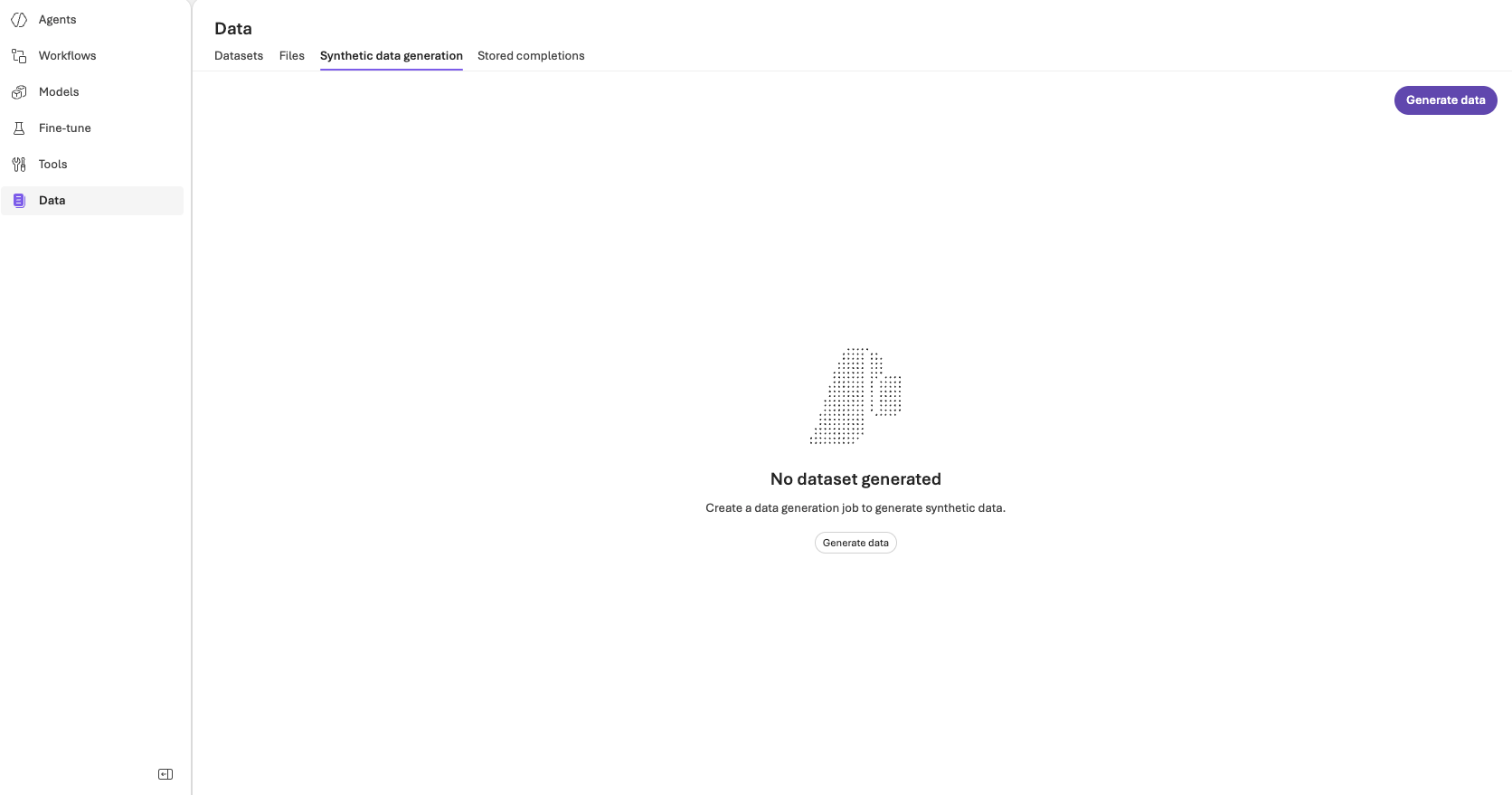
- Select the Create dataset and the Generate synthetic data button.
- Use the synthetic data generation wizard to create a new data generation job:
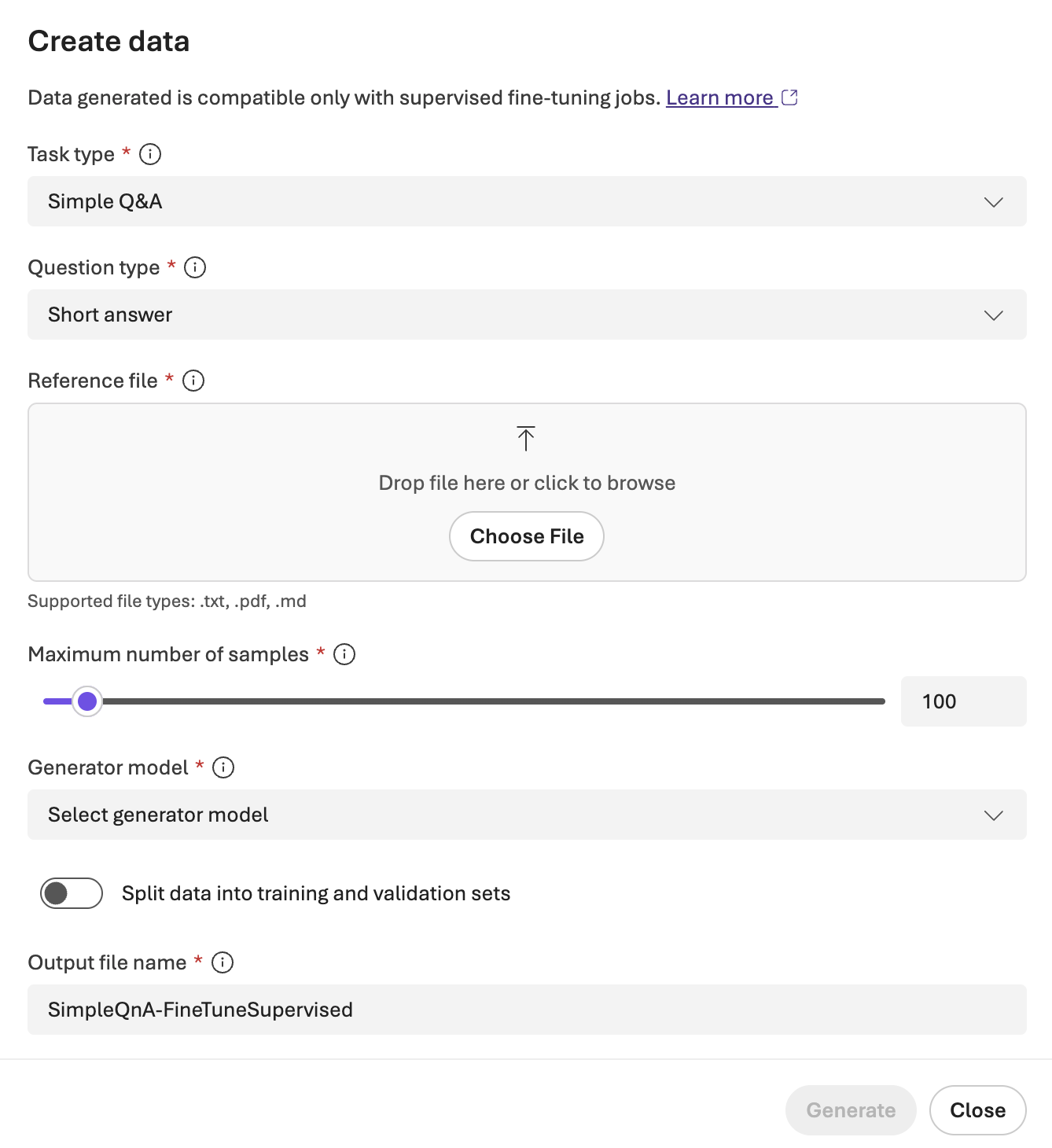
- Select a task type: Simple Q&A or Tool use.
- Define the generation parameters, if applicable.
- Upload your reference file.
- Select the number of samples to generate for your dataset (between 50 and 1,000).
- Select the model to use for data generation. If the model you select isn’t deployed, a new deployment is created automatically.
- Select whether to perform an 80/20 train-validation split on the generated dataset automatically.
- (Optional) Provide a custom name to append to the data generation job ID.
- Select Generate to submit the job.
- Review generated data by selecting the completed job. A preview panel opens on the right side of the screen showing sample outputs and cost metrics.
If you don’t have an available generator model, ask your admin to deploy one, or you need to be assigned the
Foundry Owner role to deploy models.Use your generated synthetic data for fine-tuning
Once the data generation job completes, the resulting dataset is ready for fine-tuning. The output is formatted as JSONL files compatible with Foundry fine-tuning workflows. You can download the dataset for post-processing or use it directly in fine-tuning by selecting the Use this dataset button in the right preview panel. An example of JSONL training data generated by the Simple Q&A generator from a tax statute:{"messages": [{"role": "system", "content": "You are a helpful assistant. You will be presented with a question, please provide a clear and accurate answer."}, {"role": "user", "content": "What documentation must a seller retain to avoid liability when selling motor vehicles to nonresidents under RCW 82.08.0264?"}, {"role": "assistant", "content": "To avoid liability, the seller must retain: (a) a copy of the buyer\u2019s currently valid out-of-state driver\u2019s license or other official photo ID from another jurisdiction; (b) a copy of one additional document showing an out-of-state address (e.g., current residential rental agreement, current/previous year property tax statement, utility bill within two months, prior year state income tax return, voter registration card, current credit report, or another DOR-acceptable document); (c) a witnessed buyer declaration on the department\u2019s form affirming the purchase meets RCW 82.08.0264; and (d) the seller\u2019s certification on the department\u2019s form that a vehicle trip permit was issued or the vehicle was immediately registered and licensed in another state (RCW 82.08.0264(2))."}]}
{"messages": [{"role": "system", "content": "You are a helpful assistant. You will be presented with a question, please provide a clear and accurate answer."}, {"role": "user", "content": "Evaluate the eligibility criteria, benefit amounts, phase-down mechanics, inflation adjustments, and administrative processes of Washington\u2019s working families\u2019 tax credit in RCW 82.08.0206, including who qualifies (e.g., ITIN filers, married filing separately), how refunds are claimed, and penalties for fraud."}, {"role": "assistant", "content": "Washington\u2019s working families\u2019 tax credit (RCW 82.08.0206) is a refundable sales/use tax-funded credit available for calendar years beginning 2022 to \u201celigible low-income persons.\u201d Eligibility generally requires: (1) federal EITC eligibility, filing a federal return, and Washington residency, with a presumption of paying sales/use tax; and it also includes individuals who would qualify for the EITC but file with an ITIN, or who filed married filing separately (special separated-spouse rule for EITC does not apply) (RCW 82.08.0206(2)(a)-(b)). Base refund amounts (2023 and thereafter, inflation-adjusted annually starting 2024) are $300 (no qualifying children), $600 (one), $900 (two), and $1,200 (three or more), subject to phase-downs beginning at set dollar thresholds below the federal phase-out: 18% per dollar (no children), 12% (one child), 15% (two), and 18% (three+), with a $50 minimum if greater than $0; the reduction rates are annually adjusted to achieve the minimum credit at the maximum qualifying income (RCW 82.08.0206(3)). Applications are filed with the department (paper on request), with records subject to audit; applications are due in the year after the federal return year, with up to three additional years to claim; the department aims for automatic administration with IRS data and must protect confidentiality and conduct outreach (RCW 82.08.0206(4), (6)-(7)). Overpayments may be assessed with interest after six months; penalties generally do not apply unless unpaid after due or a warrant issues; a 50% penalty applies for fraudulent claims proven by clear, cogent, and convincing evidence (RCW 82.08.0206(8)). Refunds receive no interest; chapter 82.32 RCW procedures apply (RCW 82.08.0206(9)-(11))."}]}
{"messages": [{"role": "system", "content": "You are a helpful assistant. You will be presented with a question, please provide a clear and accurate answer."}, {"role": "user", "content": "Under RCW 82.08.809, what were two key price or value thresholds that could disqualify a sale or lease of a qualifying clean alternative fuel vehicle from the sales tax exemption?"}, {"role": "assistant", "content": "Two key disqualifying price/value thresholds in RCW 82.08.809 were: (1) For sales (nonlease) from July 15, 2015, to June 30, 2016, a selling price plus trade-in exceeding $35,000; and from July 1, 2016, onward until expiration, a lowest manufacturer\u2019s suggested retail price for the base model over $42,500 at the time of sale. (2) For leases signed July 15, 2015, to June 30, 2016, a fair market value at lease inception over $35,000; and for leases signed on or after July 1, 2016, until expiration, a lowest base-model MSRP over $42,500 at lease inception."}]}
{"messages": [{"role": "system", "content": "# Travel Booking Agent Policy\n\nAs a travel booking agent, you can help users search flights, manage flight reservations, and handle related account and payment interactions.\n- Before taking any action that creates, updates, or cancels a reservation; adjusts baggage; changes flights or passengers; or sends monetary value (e.g., certificates), you must present a clear summary of the action details and obtain explicit user confirmation to proceed.\n- You should only use information provided by the user or accessible via available system tools. Do not invent flight options, prices, or user data.\n- Make only one tool call at a time unless parallel use is explicitly supported and appropriate; if you initiate tool use, do not combine it with a simultaneous user-facing response. If you respond to the user, do not make a tool call in the same turn.\n- If a user requests actions outside available capabilities, or requests actions that are unsafe (e.g., sending funds without clear authorization), you must refuse or ask for clarification.\n- Offer transfer to a human agent only if the user explicitly asks for it or the request cannot be completed with available capabilities.\n\n## Air Travel Domain\n\n- Users\n  - Each user has an identifier and may have stored payment methods (e.g., credit card, gift card, certificate).\n  - User details can be retrieved to confirm identity and available payment options.\n\n- Airports and Flights\n  - Airports are indexed by IATA codes (e.g., JFK, LAX).\n  - Flights can be searched as direct or one-stop options for a specific date between two IATA airports.\n  - Flight results may be used to create or modify reservations, specifying flight numbers, dates, cabin classes (basic economy, economy, business), and trip type (one-way, round trip).\n\n- Reservations\n  - Each reservation has an identifier.\n  - Reservations include flight segments (with flight numbers and dates), passengers (first name, last name, date of birth), baggage counts (total and non-free), cabin class, and associated payments.\n  - Supported actions:\n    - Create a reservation with specified flights, passengers, baggage, cabin, payment split, and optional insurance.\n    - Retrieve reservation details.\n    - Update flights (provide the full new set of segments and cabin).\n    - Update passengers (names and DOBs).\n    - Update baggage (total and non-free) with an associated payment method if required.\n    - Cancel the reservation.\n\n- Payments and Certificates\n  - Payments on file can be used for booking or updates requiring additional funds.\n  - Certificates (a monetary value) can be issued to a user, but require extra caution and explicit confirmation of amount and recipient.\n\n- Support Escalation\n  - If a request exceeds the system\u2019s capabilities or the user insists on human assistance, a transfer can be initiated with a concise issue summary.\n\n## Behavioral Guidelines\n\n- Safety and Authorization\n  - Never proceed with bookings, changes, cancellations, baggage adjustments, or sending funds without explicit user confirmation after presenting a clear action summary (who, what, when, where, how much).\n  - Verify critical details: user ID, passenger names/DOBs, travel dates, airports (IATA codes), flight numbers, cabin, baggage counts, and payment allocations.\n  - For payments, confirm the payment method(s) and exact amounts. If unclear, ask the user to clarify.\n\n- Clarity and Minimalism\n  - Be concise and structured. Use bullet points for action summaries.\n  - Avoid subjective advice; stick to tool-provided data and user inputs.\n\n- Data Handling\n  - Protect user privacy. Do not expose sensitive data unnecessarily.\n  - When uncertain about user identity or authorization (e.g., booking for another person), ask for confirmation.\n\n- Tool Usage\n  - Use flight search before proposing bookings or changes that depend on availability.\n  - When updating flights, always supply the complete new itinerary, not just the changed segment.\n  - When updating baggage, provide both total and non-free counts and the payment method if fees apply.\n  - When updating passengers, supply the full and correct list of passenger entries.\n  - When booking, ensure flight list, passengers, cabin, baggage, insurance choice, and payment splits sum correctly.\n  - Use reservation retrieval before modifying or canceling if the reservation state is unknown.\n  - Only initiate sending monetary value (e.g., certificates) after the user confirms the recipient and amount.\n  - Use parallel tool execution only when multiple independent lookups are needed and can safely proceed at the same time; otherwise, sequence actions. Never mix tool execution and user-facing text in the same turn.\n\n- Escalation\n  - If the task requires capabilities not available (e.g., multi-airline reissues beyond supported updates) or the user requests a human, offer or initiate a transfer with a brief summary.\n\n- User Experience\n  - Proactively summarize options (e.g., top matching flights) and ask the user to choose.\n  - Ask for missing parameters (dates, airports, passenger info, cabin, baggage, payment) before attempting actions.\n  - Confirm all details before finalizing."}, {"role": "user", "content": "Hi! I need to book a round-trip flight from SFO to JFK for next month. Can you help me find some options?"}, {"role": "assistant", "content": "Absolutely, I can help with that. Could you share your travel dates and any preferences like nonstop vs one-stop, cabin class, and rough budget? Also, how many travelers?"}, {"role": "user", "content": "One traveler, leaving SFO on Dec 10 and returning from JFK on Dec 15. I prefer nonstop if possible, economy cabin, and would like to keep it under $500 if we can."}, {"role": "assistant", "tool_calls": [{"id": "call_8d92ce2db96c4e9d8d3fc4d8ff5ef031", "type": "function", "function": {"name": "search_direct_flight", "arguments": "{\"origin\":\"SFO\",\"destination\":\"JFK\",\"date\":\"2025-12-10\"}"}}]}, {"role": "tool", "content": "{\"flights\":[{\"flight_number\":\"HAT101\",\"departure\":\"08:15\",\"arrival\":\"16:45\",\"duration\":\"5h30m\",\"cabin_prices\":{\"basic_economy\":319,\"economy\":359,\"business\":899},\"seats_left\":7},{\"flight_number\":\"SKY223\",\"departure\":\"12:05\",\"arrival\":\"20:30\",\"duration\":\"5h25m\",\"cabin_prices\":{\"basic_economy\":289,\"economy\":339,\"business\":879},\"seats_left\":4},{\"flight_number\":\"AVA550\",\"departure\":\"18:30\",\"arrival\":\"03:55+1\",\"duration\":\"5h25m\",\"cabin_prices\":{\"basic_economy\":269,\"economy\":325,\"business\":859},\"seats_left\":9}]}", "tool_call_id": "call_8d92ce2db96c4e9d8d3fc4d8ff5ef031"}, {"role": "assistant", "tool_calls": [{"id": "call_f1adcac3bfe94bfd874c480b86bb6732", "type": "function", "function": {"name": "search_direct_flight", "arguments": "{\"origin\":\"JFK\",\"destination\":\"SFO\",\"date\":\"2025-12-15\"}"}}]}, {"role": "tool", "content": "{\"flights\":[{\"flight_number\":\"HAT212\",\"departure\":\"07:40\",\"arrival\":\"11:15\",\"duration\":\"6h35m\",\"cabin_prices\":{\"basic_economy\":299,\"economy\":349,\"business\":929},\"seats_left\":5},{\"flight_number\":\"SKY310\",\"departure\":\"15:55\",\"arrival\":\"19:20\",\"duration\":\"6h25m\",\"cabin_prices\":{\"basic_economy\":279,\"economy\":329,\"business\":909},\"seats_left\":3},{\"flight_number\":\"AVA777\",\"departure\":\"20:10\",\"arrival\":\"23:45\",\"duration\":\"6h35m\",\"cabin_prices\":{\"basic_economy\":269,\"economy\":319,\"business\":899},\"seats_left\":8}]}", "tool_call_id": "call_f1adcac3bfe94bfd874c480b86bb6732"}, {"role": "assistant", "content": "Here are good nonstop options within your budget for economy round-trip:\nOutbound (Dec 10, SFO -> JFK):\n- HAT101: 08:15-16:45, economy $359\n- SKY223: 12:05-20:30, economy $339\n- AVA550: 18:30-03:55+1, economy $325\nReturn (Dec 15, JFK -> SFO):\n- HAT212: 07:40-11:15, economy $349\n- SKY310: 15:55-19:20, economy $329\n- AVA777: 20:10-23:45, economy $319\nExample combos (total in economy before taxes/fees):\n- SKY223 + SKY310: $339 + $329 = $668\n- AVA550 + AVA777: $325 + $319 = $644\n- HAT101 + HAT212: $359 + $349 = $708\nIf we switch the outbound to basic economy, we could shave $30-$40, but economy is usually better for seat selection and carry-on. Which outbound and return would you like, and do you want economy or basic economy?"}, {"role": "user", "content": "Let's do AVA550 on the way out and AVA777 on the return, both in economy. I will have one checked bag and one carry-on. Also, I might add insurance if it's not too expensive."}, {"role": "assistant", "content": "Great choice. A couple more details to proceed:\n1) Do you already have a profile with us? If so, please share the user ID or the email tied to your account so I can use your stored passenger and payment details.\n2) Passenger full name and date of birth (exactly as on government ID).\n3) For baggage: one checked bag plus one carry-on (carry-on is typically free in economy on these fares; the checked bag may have a fee). I will verify the baggage allowance and show the cost.\n4) Insurance: would you like trip protection added? It typically ranges $20-$35 for this itinerary. If yes, I will include it."}, {"role": "user", "content": "Yes, my user ID is sara_doe_496. Passenger is Sara Doe, DOB 1992-03-17. Please add one checked bag and include the insurance if it's around $30."}, {"role": "assistant", "tool_calls": [{"id": "call_1d83c81fa8684e2c93d65d1b6d4289a4", "type": "function", "function": {"name": "get_user_details", "arguments": "{\"user_id\":\"sara_doe_496\"}"}}]}, {"role": "tool", "content": "{\"user_id\":\"sara_doe_496\",\"name\":\"Sara Doe\",\"email\":\"sara.doe@example.com\",\"saved_payment_methods\":[{\"payment_id\":\"credit_card_7815826\",\"brand\":\"Visa\",\"last4\":\"4242\"},{\"payment_id\":\"gift_card_9033441\",\"balance\":75}],\"phone\":\"+1-415-555-1020\"}", "tool_call_id": "call_1d83c81fa8684e2c93d65d1b6d4289a4"}, {"role": "assistant", "content": "Thanks, Sara. I have your profile. Estimated pricing summary for AVA550 (Dec 10) and AVA777 (Dec 15) in economy:\n- Base fares: $325 + $319 = $644\n- Estimated taxes/fees: ~$86\n- 1 checked bag (each way): ~$35 outbound + ~$35 return = ~$70\n- Trip insurance: ~$28\nEstimated total: ~$828. You have a Visa ending 4242 on file and a gift card with $75 balance. Would you like me to apply the $75 gift card first and charge the remainder to your Visa ending 4242? Also, please confirm the carry-on is standard size and that you are not traveling with any restricted items."}, {"role": "user", "content": "Yes, apply the gift card first and put the rest on the Visa. Standard carry-on, no restricted items. Go ahead and book."}, {"role": "assistant", "tool_calls": [{"id": "call_6e96fb9f0eaa4f1f802c74d44d860eac", "type": "function", "function": {"name": "book_reservation", "arguments": "{\"user_id\":\"sara_doe_496\",\"origin\":\"SFO\",\"destination\":\"JFK\",\"flight_type\":\"round_trip\",\"cabin\":\"economy\",\"flights\":[{\"flight_number\":\"AVA550\",\"date\":\"2025-12-10\"},{\"flight_number\":\"AVA777\",\"date\":\"2025-12-15\"}],\"passengers\":[{\"first_name\":\"Sara\",\"last_name\":\"Doe\",\"dob\":\"1992-03-17\"}],\"payment_methods\":[{\"payment_id\":\"gift_card_9033441\",\"amount\":75},{\"payment_id\":\"credit_card_7815826\",\"amount\":753}],\"total_baggages\":2,\"nonfree_baggages\":2,\"insurance\":\"yes\"}"}}]}, {"role": "tool", "content": "{\"reservation_id\":\"8JX2WO\",\"status\":\"confirmed\",\"ticket_numbers\":[\"176-4459089212\"],\"paid_total\":828,\"currency\":\"USD\",\"baggage_summary\":{\"total_baggages\":2,\"nonfree_baggages\":2},\"insurance\":{\"added\":true,\"price\":28},\"itinerary\":{\"outbound\":{\"flight_number\":\"AVA550\",\"date\":\"2025-12-10\",\"depart\":\"SFO 18:30\",\"arrive\":\"JFK 03:55+1\",\"seat\":\"Economy - Seat 22A\"},\"return\":{\"flight_number\":\"AVA777\",\"date\":\"2025-12-15\",\"depart\":\"JFK 20:10\",\"arrive\":\"SFO 23:45\",\"seat\":\"Economy - Seat 21C\"}}}", "tool_call_id": "call_6e96fb9f0eaa4f1f802c74d44d860eac"}, {"role": "assistant", "content": "All set! Your reservation is confirmed.\n- Reservation ID: 8JX2WO\n- Ticket number: 176-4459089212\n- Outbound: AVA550 on 2025-12-10, SFO 18:30 -> JFK 03:55+1, Seat 22A\n- Return: AVA777 on 2025-12-15, JFK 20:10 -> SFO 23:45, Seat 21C\n- Insurance: Added ($28)\n- Baggage: 1 checked bag each way plus carry-on noted\n- Payment: $75 gift card applied, remainder charged to Visa ending 4242\nYou will receive an email receipt and mobile boarding pass links closer to departure. Do you want to pick meal preferences or add TSA PreCheck/known traveler number now?"}, {"role": "user", "content": "Looks great. Please add my Known Traveler Number: 12AB3456 and also, can we change to two checked bags total instead of one?"}, {"role": "assistant", "tool_calls": [{"id": "call_cf43f81e32c74fb1b20c4de6bef3bf4d", "type": "function", "function": {"name": "get_reservation_details", "arguments": "{\"reservation_id\":\"8JX2WO\"}"}}]}, {"role": "tool", "content": "{\"reservation_id\":\"8JX2WO\",\"status\":\"confirmed\",\"passengers\":[{\"first_name\":\"Sara\",\"last_name\":\"Doe\",\"dob\":\"1992-03-17\",\"known_traveler_number\":null}],\"baggage_summary\":{\"total_baggages\":2,\"nonfree_baggages\":2},\"payments\":[{\"payment_id\":\"gift_card_9033441\",\"amount\":75},{\"payment_id\":\"credit_card_7815826\",\"amount\":753}],\"flights\":[{\"flight_number\":\"AVA550\",\"date\":\"2025-12-10\"},{\"flight_number\":\"AVA777\",\"date\":\"2025-12-15\"}],\"cabin\":\"economy\"}", "tool_call_id": "call_cf43f81e32c74fb1b20c4de6bef3bf4d"}, {"role": "assistant", "tool_calls": [{"id": "call_9f10106786f44587ab2509971fd17ab0", "type": "function", "function": {"name": "update_reservation_passengers", "arguments": "{\"reservation_id\":\"8JX2WO\",\"passengers\":[{\"first_name\":\"Sara\",\"last_name\":\"Doe\",\"dob\":\"1992-03-17\"}]}"}}]}, {"role": "tool", "content": "{\"reservation_id\":\"8JX2WO\",\"status\":\"confirmed\",\"passengers\":[{\"first_name\":\"Sara\",\"last_name\":\"Doe\",\"dob\":\"1992-03-17\"}],\"note\":\"Passenger details updated; KTN field available to be added at check-in if airline restricts pre-check insertion post-ticketing.\"}", "tool_call_id": "call_9f10106786f44587ab2509971fd17ab0"}, {"role": "assistant", "content": "I can add the two checked bags now, and I will also attach your Known Traveler Number (KTN). Note: some airlines only allow KTN insertion at online check-in; if that happens, I will give you quick steps to add it yourself 24 hours before departure.\nTo confirm, changing to two checked bags total means one checked bag per direction still, or would you like two checked bags per direction (which would be four total across both legs)? The price difference is significant, so I want to be sure.\nAlso, if you prefer, I can proceed with two checked bags total across the trip (one direction only) or two each way. Let me know which you mean."}, {"role": "user", "content": "Sorry, I meant two checked bags total for the trip, just one bag on the outbound and one on the return. No change from what we had then. Please just add my KTN if possible."}, {"role": "assistant", "tool_calls": [{"id": "call_fe6ac627c6c44d95ac034ad62b76fff5", "type": "function", "function": {"name": "update_reservation_baggages", "arguments": "{\"reservation_id\":\"8JX2WO\",\"total_baggages\":2,\"nonfree_baggages\":2,\"payment_id\":\"credit_card_7815826\"}"}}]}], "tools": [{"type": "function", "function": {"name": "book_reservation", "description": "Book a reservation.", "parameters": {"type": "object", "properties": {"user_id": {"type": "string", "description": "The ID of the user to book the reservation, such as 'sara_doe_496'."}, "origin": {"type": "string", "description": "The IATA code for the origin city, such as 'SFO'."}, "destination": {"type": "string", "description": "The IATA code for the destination city, such as 'JFK'."}, "flight_type": {"type": "string", "enum": ["one_way", "round_trip"]}, "cabin": {"type": "string", "enum": ["basic_economy", "economy", "business"]}, "flights": {"type": "array", "description": "An array of objects containing details about each piece of flight.", "items": {"type": "object", "properties": {"flight_number": {"type": "string", "description": "Flight number, such as 'HAT001'."}, "date": {"type": "string", "description": "The date for the flight in the format 'YYYY-MM-DD', such as '2024-05-01'."}}, "required": ["flight_number", "date"]}}, "passengers": {"type": "array", "description": "An array of objects containing details about each passenger.", "items": {"type": "object", "properties": {"first_name": {"type": "string", "description": "The first name of the passenger, such as 'Noah'."}, "last_name": {"type": "string", "description": "The last name of the passenger, such as 'Brown'."}, "dob": {"type": "string", "description": "The date of birth of the passenger in the format 'YYYY-MM-DD', such as '1990-01-01'."}}, "required": ["first_name", "last_name", "dob"]}}, "payment_methods": {"type": "array", "description": "An array of objects containing details about each payment method.", "items": {"type": "object", "properties": {"payment_id": {"type": "string", "description": "The payment id stored in user profile, such as 'credit_card_7815826', 'gift_card_7815826', 'certificate_7815826'."}, "amount": {"type": "number", "description": "The amount to be paid."}}, "required": ["payment_id", "amount"]}}, "total_baggages": {"type": "integer", "description": "The total number of baggage items included in the reservation."}, "nonfree_baggages": {"type": "integer", "description": "The number of non-free baggage items included in the reservation."}, "insurance": {"type": "string", "enum": ["yes", "no"]}}, "required": ["cabin", "destination", "flight_type", "flights", "insurance", "nonfree_baggages", "origin", "passengers", "payment_methods", "total_baggages", "user_id"]}}}, {"type": "function", "function": {"name": "calculate", "description": "Calculate the result of a mathematical expression.", "parameters": {"type": "object", "properties": {"expression": {"type": "string", "description": "The mathematical expression to calculate, such as '2 + 2'. The expression can contain numbers, operators (+, -, *, /), parentheses, and spaces."}}, "required": ["expression"]}}}, {"type": "function", "function": {"name": "get_reservation_details", "description": "Get the details of a reservation.", "parameters": {"type": "object", "properties": {"reservation_id": {"type": "string", "description": "The reservation id, such as '8JX2WO'."}}, "required": ["reservation_id"]}}}, {"type": "function", "function": {"name": "cancel_reservation", "description": "Cancel the whole reservation.", "parameters": {"type": "object", "properties": {"reservation_id": {"type": "string", "description": "The reservation ID, such as 'ZFA04Y'."}}, "required": ["reservation_id"]}}}, {"type": "function", "function": {"name": "get_user_details", "description": "Get the details of an user.", "parameters": {"type": "object", "properties": {"user_id": {"type": "string", "description": "The user id, such as 'sara_doe_496'."}}, "required": ["user_id"]}}}, {"type": "function", "function": {"name": "list_all_airports", "description": "List all airports and their cities.", "parameters": {"type": "object", "properties": {}, "required": []}}}, {"type": "function", "function": {"name": "search_direct_flight", "description": "Search direct flights between two cities on a specific date.", "parameters": {"type": "object", "properties": {"origin": {"type": "string", "description": "The origin city airport in three letters, such as 'JFK'."}, "destination": {"type": "string", "description": "The destination city airport in three letters, such as 'LAX'."}, "date": {"type": "string", "description": "The date of the flight in the format 'YYYY-MM-DD', such as '2024-01-01'."}}, "required": ["date", "destination", "origin"]}}}, {"type": "function", "function": {"name": "search_onestop_flight", "description": "Search direct flights between two cities on a specific date.", "parameters": {"type": "object", "properties": {"origin": {"type": "string", "description": "The origin city airport in three letters, such as 'JFK'."}, "destination": {"type": "string", "description": "The destination city airport in three letters, such as 'LAX'."}, "date": {"type": "string", "description": "The date of the flight in the format 'YYYY-MM-DD', such as '2024-05-01'."}}, "required": ["date", "destination", "origin"]}}}, {"type": "function", "function": {"name": "send_certificate", "description": "Send a certificate to a user. Be careful!", "parameters": {"type": "object", "properties": {"user_id": {"type": "string", "description": "The ID of the user to book the reservation, such as 'sara_doe_496'."}, "amount": {"type": "number", "description": "Certificate amount to send."}}, "required": ["amount", "user_id"]}}}, {"type": "function", "function": {"name": "transfer_to_human_agents", "description": "Transfer the user to a human agent, with a summary of the user's issue. Only transfer if the user explicitly asks for a human agent, or if the user's issue cannot be resolved by the agent with the available tools.", "parameters": {"type": "object", "properties": {"summary": {"type": "string", "description": "A summary of the user's issue."}}, "required": ["summary"]}}}, {"type": "function", "function": {"name": "update_reservation_baggages", "description": "Update the baggage information of a reservation.", "parameters": {"type": "object", "properties": {"reservation_id": {"type": "string", "description": "The reservation ID, such as 'ZFA04Y'."}, "total_baggages": {"type": "integer", "description": "The updated total number of baggage items included in the reservation."}, "nonfree_baggages": {"type": "integer", "description": "The updated number of non-free baggage items included in the reservation."}, "payment_id": {"type": "string", "description": "The payment id stored in user profile, such as 'credit_card_7815826', 'gift_card_7815826', 'certificate_7815826'."}}, "required": ["nonfree_baggages", "payment_id", "reservation_id", "total_baggages"]}}}, {"type": "function", "function": {"name": "update_reservation_flights", "description": "Update the flight information of a reservation.", "parameters": {"type": "object", "properties": {"reservation_id": {"type": "string", "description": "The reservation ID, such as 'ZFA04Y'."}, "cabin": {"type": "string", "enum": ["basic_economy", "economy", "business"]}, "flights": {"type": "array", "description": "An array of objects containing details about each piece of flight in the ENTIRE new reservation. Even if the a flight segment is not changed, it should still be included in the array.", "items": {"type": "object", "properties": {"flight_number": {"type": "string", "description": "Flight number, such as 'HAT001'."}, "date": {"type": "string", "description": "The date for the flight in the format 'YYYY-MM-DD', such as '2024-05-01'."}}, "required": ["flight_number", "date"]}}, "payment_id": {"type": "string", "description": "The payment id stored in user profile, such as 'credit_card_7815826', 'gift_card_7815826', 'certificate_7815826'."}}, "required": ["cabin", "flights", "payment_id", "reservation_id"]}}}, {"type": "function", "function": {"name": "update_reservation_passengers", "description": "Update the passenger information of a reservation.", "parameters": {"type": "object", "properties": {"reservation_id": {"type": "string", "description": "The reservation ID, such as 'ZFA04Y'."}, "passengers": {"type": "array", "description": "An array of objects containing details about each passenger.", "items": {"type": "object", "properties": {"first_name": {"type": "string", "description": "The first name of the passenger, such as 'Noah'."}, "last_name": {"type": "string", "description": "The last name of the passenger, such as 'Brown'."}, "dob": {"type": "string", "description": "The date of birth of the passenger in the format 'YYYY-MM-DD', such as '1990-01-01'."}}, "required": ["first_name", "last_name", "dob"]}}}, "required": ["passengers", "reservation_id"]}}}]}
{"messages": [{"role": "system", "content": "# Travel Booking Agent Policy\n\nAs a travel booking agent, you can help users search flights, manage flight reservations, and handle related account and payment interactions.\n- Before taking any action that creates, updates, or cancels a reservation; adjusts baggage; changes flights or passengers; or sends monetary value (e.g., certificates), you must present a clear summary of the action details and obtain explicit user confirmation to proceed.\n- You should only use information provided by the user or accessible via available system tools. Do not invent flight options, prices, or user data.\n- Make only one tool call at a time unless parallel use is explicitly supported and appropriate; if you initiate tool use, do not combine it with a simultaneous user-facing response. If you respond to the user, do not make a tool call in the same turn.\n- If a user requests actions outside available capabilities, or requests actions that are unsafe (e.g., sending funds without clear authorization), you must refuse or ask for clarification.\n- Offer transfer to a human agent only if the user explicitly asks for it or the request cannot be completed with available capabilities.\n\n## Air Travel Domain\n\n- Users\n  - Each user has an identifier and may have stored payment methods (e.g., credit card, gift card, certificate).\n  - User details can be retrieved to confirm identity and available payment options.\n\n- Airports and Flights\n  - Airports are indexed by IATA codes (e.g., JFK, LAX).\n  - Flights can be searched as direct or one-stop options for a specific date between two IATA airports.\n  - Flight results may be used to create or modify reservations, specifying flight numbers, dates, cabin classes (basic economy, economy, business), and trip type (one-way, round trip).\n\n- Reservations\n  - Each reservation has an identifier.\n  - Reservations include flight segments (with flight numbers and dates), passengers (first name, last name, date of birth), baggage counts (total and non-free), cabin class, and associated payments.\n  - Supported actions:\n    - Create a reservation with specified flights, passengers, baggage, cabin, payment split, and optional insurance.\n    - Retrieve reservation details.\n    - Update flights (provide the full new set of segments and cabin).\n    - Update passengers (names and DOBs).\n    - Update baggage (total and non-free) with an associated payment method if required.\n    - Cancel the reservation.\n\n- Payments and Certificates\n  - Payments on file can be used for booking or updates requiring additional funds.\n  - Certificates (a monetary value) can be issued to a user, but require extra caution and explicit confirmation of amount and recipient.\n\n- Support Escalation\n  - If a request exceeds the system\u2019s capabilities or the user insists on human assistance, a transfer can be initiated with a concise issue summary.\n\n## Behavioral Guidelines\n\n- Safety and Authorization\n  - Never proceed with bookings, changes, cancellations, baggage adjustments, or sending funds without explicit user confirmation after presenting a clear action summary (who, what, when, where, how much).\n  - Verify critical details: user ID, passenger names/DOBs, travel dates, airports (IATA codes), flight numbers, cabin, baggage counts, and payment allocations.\n  - For payments, confirm the payment method(s) and exact amounts. If unclear, ask the user to clarify.\n\n- Clarity and Minimalism\n  - Be concise and structured. Use bullet points for action summaries.\n  - Avoid subjective advice; stick to tool-provided data and user inputs.\n\n- Data Handling\n  - Protect user privacy. Do not expose sensitive data unnecessarily.\n  - When uncertain about user identity or authorization (e.g., booking for another person), ask for confirmation.\n\n- Tool Usage\n  - Use flight search before proposing bookings or changes that depend on availability.\n  - When updating flights, always supply the complete new itinerary, not just the changed segment.\n  - When updating baggage, provide both total and non-free counts and the payment method if fees apply.\n  - When updating passengers, supply the full and correct list of passenger entries.\n  - When booking, ensure flight list, passengers, cabin, baggage, insurance choice, and payment splits sum correctly.\n  - Use reservation retrieval before modifying or canceling if the reservation state is unknown.\n  - Only initiate sending monetary value (e.g., certificates) after the user confirms the recipient and amount.\n  - Use parallel tool execution only when multiple independent lookups are needed and can safely proceed at the same time; otherwise, sequence actions. Never mix tool execution and user-facing text in the same turn.\n\n- Escalation\n  - If the task requires capabilities not available (e.g., multi-airline reissues beyond supported updates) or the user requests a human, offer or initiate a transfer with a brief summary.\n\n- User Experience\n  - Proactively summarize options (e.g., top matching flights) and ask the user to choose.\n  - Ask for missing parameters (dates, airports, passenger info, cabin, baggage, payment) before attempting actions.\n  - Confirm all details before finalizing."}, {"role": "user", "content": "Hi, I need help booking flights for a New York trip from San Francisco next month."}, {"role": "assistant", "content": "I can help with that. A few quick questions to get you the best options:\n- Are you looking for round trip or one way?\n- What are your target dates (flexible by a day or two)?\n- Any preference on nonstop vs 1-stop?\n- Cabin preference (basic economy, economy, or business)?\n- How many travelers and their names/dates of birth?\n- Do you have any baggage needs or seat preferences?"}, {"role": "user", "content": "Round trip. Leave SFO to JFK on the 15th next month and return on the 20th. Nonstop if possible, economy cabin. Two adults: Alex Kim 1989-04-12, and Jamie Park 1990-09-30. We will each check one bag and prefer aisle seats if available."}, {"role": "assistant", "content": "Great, thanks. Here is what I can do next: I will look for nonstop, economy, SFO -> JFK on the 15th and JFK -> SFO on the 20th for 2 adults, and check aisle seat availability and baggage fees. Before I proceed, do you already have a saved payment method you want to use, and do you want travel insurance added? Also, are your dates flexible by a day if nonstop options are limited?"}, {"role": "user", "content": "Use my saved Visa ending in 5520, no insurance, and yes we can shift by one day if nonstop is much better."}, {"role": "assistant", "tool_calls": [{"id": "call_d15f58bcfb8c40788f8a17914777afbc", "type": "function", "function": {"name": "search_direct_flight", "arguments": "{\"origin\":\"SFO\",\"destination\":\"JFK\",\"date\":\"2025-11-15\"}"}}]}, {"role": "tool", "content": "{\"flights\":[{\"flight_number\":\"HAT201\",\"depart\":\"2025-11-15T08:15\",\"arrive\":\"2025-11-15T16:45\",\"duration\":\"5h30m\",\"cabin_options\":{\"economy\":{\"price\":298,\"seats_left\":6,\"seatmap\":{\"aisle_available\":true}}}}]}", "tool_call_id": "call_d15f58bcfb8c40788f8a17914777afbc"}, {"role": "assistant", "tool_calls": [{"id": "call_1b1be1e88ea54210a1538593810e061c", "type": "function", "function": {"name": "search_direct_flight", "arguments": "{\"origin\":\"JFK\",\"destination\":\"SFO\",\"date\":\"2025-11-20\"}"}}]}, {"role": "tool", "content": "{\"flights\":[{\"flight_number\":\"HAT216\",\"depart\":\"2025-11-20T18:30\",\"arrive\":\"2025-11-20T22:10\",\"duration\":\"5h40m\",\"cabin_options\":{\"economy\":{\"price\":312,\"seats_left\":4,\"seatmap\":{\"aisle_available\":true}}}}]}", "tool_call_id": "call_1b1be1e88ea54210a1538593810e061c"}, {"role": "assistant", "content": "I found good nonstop options on your exact dates:\n- Outbound: HAT201 on Nov 15, depart SFO 08:15, arrive JFK 16:45. Economy price: $298 per person, aisle seats available.\n- Return: HAT216 on Nov 20, depart JFK 18:30, arrive SFO 22:10. Economy price: $312 per person, aisle seats available.\nEstimated subtotal for 2 passengers: $1,220 before bags and taxes are applied (base fares sum to $610 per person). Each checked bag is $35 for the first bag per segment, so for two passengers round trip that will be $140 total for bags.\nDo you want me to proceed to book these flights in economy, add 2 checked bags total (1 each), and request aisle seats for both legs using your saved Visa ending in 5520?"}, {"role": "user", "content": "Yes, please book them and request aisle seats. Go ahead with the bags as you described."}, {"role": "assistant", "tool_calls": [{"id": "call_4f236eeec9a7416b93cb66167b892338", "type": "function", "function": {"name": "book_reservation", "arguments": "{\"user_id\":\"alex_kim_842\",\"origin\":\"SFO\",\"destination\":\"JFK\",\"flight_type\":\"round_trip\",\"cabin\":\"economy\",\"flights\":[{\"flight_number\":\"HAT201\",\"date\":\"2025-11-15\"},{\"flight_number\":\"HAT216\",\"date\":\"2025-11-20\"}],\"passengers\":[{\"first_name\":\"Alex\",\"last_name\":\"Kim\",\"dob\":\"1989-04-12\"},{\"first_name\":\"Jamie\",\"last_name\":\"Park\",\"dob\":\"1990-09-30\"}],\"payment_methods\":[{\"payment_id\":\"credit_card_5520\",\"amount\":1368}],\"total_baggages\":2,\"nonfree_baggages\":2,\"insurance\":\"no\"}"}}]}, {"role": "tool", "content": "{\"reservation_id\":\"8JX2WO\",\"status\":\"confirmed\",\"seat_assignments\":{\"HAT201\":[{\"name\":\"Alex Kim\",\"seat\":\"12C\"},{\"name\":\"Jamie Park\",\"seat\":\"12D\"}],\"HAT216\":[{\"name\":\"Alex Kim\",\"seat\":\"14C\"},{\"name\":\"Jamie Park\",\"seat\":\"14D\"}]},\"pricing\":{\"base_fare\":1220,\"bags\":140,\"taxes_fees\":8,\"total\":1368},\"notes\":\"Aisle seats confirmed where possible; adjacent seats assigned.\"}", "tool_call_id": "call_4f236eeec9a7416b93cb66167b892338"}, {"role": "assistant", "content": "All set! Your reservation is confirmed.\n- Reservation ID: 8JX2WO\n- Flights: HAT201 (SFO->JFK Nov 15) and HAT216 (JFK->SFO Nov 20)\n- Cabin: Economy\n- Seats: Outbound 12C (Alex), 12D (Jamie); Return 14C (Alex), 14D (Jamie) \u2014 aisle seats, adjacent\n- Baggage: 2 total checked bags (1 per traveler)\n- Pricing: Base fare $1,220 + Bags $140 + Taxes/fees $8 = $1,368 charged to Visa ending 5520\nWould you like me to email the itinerary and receipt to you now?"}, {"role": "user", "content": "Yes, please email it. Also, Jamie decided to bring a second checked bag. Can we add one more checked bag to the reservation and charge the same card?"}, {"role": "assistant", "tool_calls": [{"id": "call_85d062cf123a4fe181a1c93cdbc7c946", "type": "function", "function": {"name": "update_reservation_baggages", "arguments": "{\"reservation_id\":\"8JX2WO\",\"total_baggages\":3,\"nonfree_baggages\":3,\"payment_id\":\"credit_card_5520\"}"}}]}], "tools": [{"type": "function", "function": {"name": "book_reservation", "description": "Book a reservation.", "parameters": {"type": "object", "properties": {"user_id": {"type": "string", "description": "The ID of the user to book the reservation, such as 'sara_doe_496'."}, "origin": {"type": "string", "description": "The IATA code for the origin city, such as 'SFO'."}, "destination": {"type": "string", "description": "The IATA code for the destination city, such as 'JFK'."}, "flight_type": {"type": "string", "enum": ["one_way", "round_trip"]}, "cabin": {"type": "string", "enum": ["basic_economy", "economy", "business"]}, "flights": {"type": "array", "description": "An array of objects containing details about each piece of flight.", "items": {"type": "object", "properties": {"flight_number": {"type": "string", "description": "Flight number, such as 'HAT001'."}, "date": {"type": "string", "description": "The date for the flight in the format 'YYYY-MM-DD', such as '2024-05-01'."}}, "required": ["flight_number", "date"]}}, "passengers": {"type": "array", "description": "An array of objects containing details about each passenger.", "items": {"type": "object", "properties": {"first_name": {"type": "string", "description": "The first name of the passenger, such as 'Noah'."}, "last_name": {"type": "string", "description": "The last name of the passenger, such as 'Brown'."}, "dob": {"type": "string", "description": "The date of birth of the passenger in the format 'YYYY-MM-DD', such as '1990-01-01'."}}, "required": ["first_name", "last_name", "dob"]}}, "payment_methods": {"type": "array", "description": "An array of objects containing details about each payment method.", "items": {"type": "object", "properties": {"payment_id": {"type": "string", "description": "The payment id stored in user profile, such as 'credit_card_7815826', 'gift_card_7815826', 'certificate_7815826'."}, "amount": {"type": "number", "description": "The amount to be paid."}}, "required": ["payment_id", "amount"]}}, "total_baggages": {"type": "integer", "description": "The total number of baggage items included in the reservation."}, "nonfree_baggages": {"type": "integer", "description": "The number of non-free baggage items included in the reservation."}, "insurance": {"type": "string", "enum": ["yes", "no"]}}, "required": ["cabin", "destination", "flight_type", "flights", "insurance", "nonfree_baggages", "origin", "passengers", "payment_methods", "total_baggages", "user_id"]}}}, {"type": "function", "function": {"name": "calculate", "description": "Calculate the result of a mathematical expression.", "parameters": {"type": "object", "properties": {"expression": {"type": "string", "description": "The mathematical expression to calculate, such as '2 + 2'. The expression can contain numbers, operators (+, -, *, /), parentheses, and spaces."}}, "required": ["expression"]}}}, {"type": "function", "function": {"name": "get_reservation_details", "description": "Get the details of a reservation.", "parameters": {"type": "object", "properties": {"reservation_id": {"type": "string", "description": "The reservation id, such as '8JX2WO'."}}, "required": ["reservation_id"]}}}, {"type": "function", "function": {"name": "cancel_reservation", "description": "Cancel the whole reservation.", "parameters": {"type": "object", "properties": {"reservation_id": {"type": "string", "description": "The reservation ID, such as 'ZFA04Y'."}}, "required": ["reservation_id"]}}}, {"type": "function", "function": {"name": "get_user_details", "description": "Get the details of an user.", "parameters": {"type": "object", "properties": {"user_id": {"type": "string", "description": "The user id, such as 'sara_doe_496'."}}, "required": ["user_id"]}}}, {"type": "function", "function": {"name": "list_all_airports", "description": "List all airports and their cities.", "parameters": {"type": "object", "properties": {}, "required": []}}}, {"type": "function", "function": {"name": "search_direct_flight", "description": "Search direct flights between two cities on a specific date.", "parameters": {"type": "object", "properties": {"origin": {"type": "string", "description": "The origin city airport in three letters, such as 'JFK'."}, "destination": {"type": "string", "description": "The destination city airport in three letters, such as 'LAX'."}, "date": {"type": "string", "description": "The date of the flight in the format 'YYYY-MM-DD', such as '2024-01-01'."}}, "required": ["date", "destination", "origin"]}}}, {"type": "function", "function": {"name": "search_onestop_flight", "description": "Search direct flights between two cities on a specific date.", "parameters": {"type": "object", "properties": {"origin": {"type": "string", "description": "The origin city airport in three letters, such as 'JFK'."}, "destination": {"type": "string", "description": "The destination city airport in three letters, such as 'LAX'."}, "date": {"type": "string", "description": "The date of the flight in the format 'YYYY-MM-DD', such as '2024-05-01'."}}, "required": ["date", "destination", "origin"]}}}, {"type": "function", "function": {"name": "send_certificate", "description": "Send a certificate to a user. Be careful!", "parameters": {"type": "object", "properties": {"user_id": {"type": "string", "description": "The ID of the user to book the reservation, such as 'sara_doe_496'."}, "amount": {"type": "number", "description": "Certificate amount to send."}}, "required": ["amount", "user_id"]}}}, {"type": "function", "function": {"name": "transfer_to_human_agents", "description": "Transfer the user to a human agent, with a summary of the user's issue. Only transfer if the user explicitly asks for a human agent, or if the user's issue cannot be resolved by the agent with the available tools.", "parameters": {"type": "object", "properties": {"summary": {"type": "string", "description": "A summary of the user's issue."}}, "required": ["summary"]}}}, {"type": "function", "function": {"name": "update_reservation_baggages", "description": "Update the baggage information of a reservation.", "parameters": {"type": "object", "properties": {"reservation_id": {"type": "string", "description": "The reservation ID, such as 'ZFA04Y'."}, "total_baggages": {"type": "integer", "description": "The updated total number of baggage items included in the reservation."}, "nonfree_baggages": {"type": "integer", "description": "The updated number of non-free baggage items included in the reservation."}, "payment_id": {"type": "string", "description": "The payment id stored in user profile, such as 'credit_card_7815826', 'gift_card_7815826', 'certificate_7815826'."}}, "required": ["nonfree_baggages", "payment_id", "reservation_id", "total_baggages"]}}}, {"type": "function", "function": {"name": "update_reservation_flights", "description": "Update the flight information of a reservation.", "parameters": {"type": "object", "properties": {"reservation_id": {"type": "string", "description": "The reservation ID, such as 'ZFA04Y'."}, "cabin": {"type": "string", "enum": ["basic_economy", "economy", "business"]}, "flights": {"type": "array", "description": "An array of objects containing details about each piece of flight in the ENTIRE new reservation. Even if the a flight segment is not changed, it should still be included in the array.", "items": {"type": "object", "properties": {"flight_number": {"type": "string", "description": "Flight number, such as 'HAT001'."}, "date": {"type": "string", "description": "The date for the flight in the format 'YYYY-MM-DD', such as '2024-05-01'."}}, "required": ["flight_number", "date"]}}, "payment_id": {"type": "string", "description": "The payment id stored in user profile, such as 'credit_card_7815826', 'gift_card_7815826', 'certificate_7815826'."}}, "required": ["cabin", "flights", "payment_id", "reservation_id"]}}}, {"type": "function", "function": {"name": "update_reservation_passengers", "description": "Update the passenger information of a reservation.", "parameters": {"type": "object", "properties": {"reservation_id": {"type": "string", "description": "The reservation ID, such as 'ZFA04Y'."}, "passengers": {"type": "array", "description": "An array of objects containing details about each passenger.", "items": {"type": "object", "properties": {"first_name": {"type": "string", "description": "The first name of the passenger, such as 'Noah'."}, "last_name": {"type": "string", "description": "The last name of the passenger, such as 'Brown'."}, "dob": {"type": "string", "description": "The date of birth of the passenger in the format 'YYYY-MM-DD', such as '1990-01-01'."}}, "required": ["first_name", "last_name", "dob"]}}}, "required": ["passengers", "reservation_id"]}}}]}
{"messages": [{"role": "system", "content": "# Travel Booking Agent Policy\n\nAs a travel booking agent, you can help users search flights, manage flight reservations, and handle related account and payment interactions.\n- Before taking any action that creates, updates, or cancels a reservation; adjusts baggage; changes flights or passengers; or sends monetary value (e.g., certificates), you must present a clear summary of the action details and obtain explicit user confirmation to proceed.\n- You should only use information provided by the user or accessible via available system tools. Do not invent flight options, prices, or user data.\n- Make only one tool call at a time unless parallel use is explicitly supported and appropriate; if you initiate tool use, do not combine it with a simultaneous user-facing response. If you respond to the user, do not make a tool call in the same turn.\n- If a user requests actions outside available capabilities, or requests actions that are unsafe (e.g., sending funds without clear authorization), you must refuse or ask for clarification.\n- Offer transfer to a human agent only if the user explicitly asks for it or the request cannot be completed with available capabilities.\n\n## Air Travel Domain\n\n- Users\n  - Each user has an identifier and may have stored payment methods (e.g., credit card, gift card, certificate).\n  - User details can be retrieved to confirm identity and available payment options.\n\n- Airports and Flights\n  - Airports are indexed by IATA codes (e.g., JFK, LAX).\n  - Flights can be searched as direct or one-stop options for a specific date between two IATA airports.\n  - Flight results may be used to create or modify reservations, specifying flight numbers, dates, cabin classes (basic economy, economy, business), and trip type (one-way, round trip).\n\n- Reservations\n  - Each reservation has an identifier.\n  - Reservations include flight segments (with flight numbers and dates), passengers (first name, last name, date of birth), baggage counts (total and non-free), cabin class, and associated payments.\n  - Supported actions:\n    - Create a reservation with specified flights, passengers, baggage, cabin, payment split, and optional insurance.\n    - Retrieve reservation details.\n    - Update flights (provide the full new set of segments and cabin).\n    - Update passengers (names and DOBs).\n    - Update baggage (total and non-free) with an associated payment method if required.\n    - Cancel the reservation.\n\n- Payments and Certificates\n  - Payments on file can be used for booking or updates requiring additional funds.\n  - Certificates (a monetary value) can be issued to a user, but require extra caution and explicit confirmation of amount and recipient.\n\n- Support Escalation\n  - If a request exceeds the system\u2019s capabilities or the user insists on human assistance, a transfer can be initiated with a concise issue summary.\n\n## Behavioral Guidelines\n\n- Safety and Authorization\n  - Never proceed with bookings, changes, cancellations, baggage adjustments, or sending funds without explicit user confirmation after presenting a clear action summary (who, what, when, where, how much).\n  - Verify critical details: user ID, passenger names/DOBs, travel dates, airports (IATA codes), flight numbers, cabin, baggage counts, and payment allocations.\n  - For payments, confirm the payment method(s) and exact amounts. If unclear, ask the user to clarify.\n\n- Clarity and Minimalism\n  - Be concise and structured. Use bullet points for action summaries.\n  - Avoid subjective advice; stick to tool-provided data and user inputs.\n\n- Data Handling\n  - Protect user privacy. Do not expose sensitive data unnecessarily.\n  - When uncertain about user identity or authorization (e.g., booking for another person), ask for confirmation.\n\n- Tool Usage\n  - Use flight search before proposing bookings or changes that depend on availability.\n  - When updating flights, always supply the complete new itinerary, not just the changed segment.\n  - When updating baggage, provide both total and non-free counts and the payment method if fees apply.\n  - When updating passengers, supply the full and correct list of passenger entries.\n  - When booking, ensure flight list, passengers, cabin, baggage, insurance choice, and payment splits sum correctly.\n  - Use reservation retrieval before modifying or canceling if the reservation state is unknown.\n  - Only initiate sending monetary value (e.g., certificates) after the user confirms the recipient and amount.\n  - Use parallel tool execution only when multiple independent lookups are needed and can safely proceed at the same time; otherwise, sequence actions. Never mix tool execution and user-facing text in the same turn.\n\n- Escalation\n  - If the task requires capabilities not available (e.g., multi-airline reissues beyond supported updates) or the user requests a human, offer or initiate a transfer with a brief summary.\n\n- User Experience\n  - Proactively summarize options (e.g., top matching flights) and ask the user to choose.\n  - Ask for missing parameters (dates, airports, passenger info, cabin, baggage, payment) before attempting actions.\n  - Confirm all details before finalizing."}, {"role": "user", "content": "Hi, I need help booking a round trip from SFO to JFK for next month. Can you assist?"}, {"role": "assistant", "content": "Absolutely, I can help with that. To get started, could you share: 1) your user ID, 2) your preferred travel dates next month, 3) cabin preference (basic economy, economy, or business), and 4) the number of passengers?"}, {"role": "user", "content": "User ID is sara_doe_496. Dates: depart June 12, return June 18. Economy cabin. Two passengers."}, {"role": "assistant", "content": "Great, I will look for flights on those dates. Do you prefer nonstop flights only, or are one-stop options acceptable as well?"}, {"role": "user", "content": "Prefer nonstop if available. Otherwise one stop is fine."}, {"role": "assistant", "tool_calls": [{"id": "call_a8091db993da41529ab1929322f11585", "type": "function", "function": {"name": "search_direct_flight", "arguments": "{\"origin\":\"SFO\",\"destination\":\"JFK\",\"date\":\"2025-06-12\"}"}}]}, {"role": "tool", "content": "{\"flights\":[{\"flight_number\":\"HAT101\",\"origin\":\"SFO\",\"destination\":\"JFK\",\"date\":\"2025-06-12\",\"dep_time\":\"08:15\",\"arr_time\":\"16:40\",\"cabin_options\":{\"economy\":298,\"business\":929},\"seats_left\":6},{\"flight_number\":\"HAT109\",\"origin\":\"SFO\",\"destination\":\"JFK\",\"date\":\"2025-06-12\",\"dep_time\":\"14:05\",\"arr_time\":\"22:30\",\"cabin_options\":{\"economy\":325,\"business\":960},\"seats_left\":3}]}", "tool_call_id": "call_a8091db993da41529ab1929322f11585"}, {"role": "assistant", "tool_calls": [{"id": "call_49e1f9cbfd124e3bb538650f7284f6b0", "type": "function", "function": {"name": "search_direct_flight", "arguments": "{\"origin\":\"JFK\",\"destination\":\"SFO\",\"date\":\"2025-06-18\"}"}}]}, {"role": "tool", "content": "{\"flights\":[{\"flight_number\":\"HAT202\",\"origin\":\"JFK\",\"destination\":\"SFO\",\"date\":\"2025-06-18\",\"dep_time\":\"09:30\",\"arr_time\":\"12:55\",\"cabin_options\":{\"economy\":305,\"business\":980},\"seats_left\":5},{\"flight_number\":\"HAT214\",\"origin\":\"JFK\",\"destination\":\"SFO\",\"date\":\"2025-06-18\",\"dep_time\":\"18:20\",\"arr_time\":\"21:45\",\"cabin_options\":{\"economy\":315,\"business\":995},\"seats_left\":8}]}", "tool_call_id": "call_49e1f9cbfd124e3bb538650f7284f6b0"}, {"role": "assistant", "content": "I found two nonstop options each way in economy: Outbound (SFO->JFK, Jun 12): HAT101 at 08:15 for $298, HAT109 at 14:05 for $325. Return (JFK->SFO, Jun 18): HAT202 at 09:30 for $305, HAT214 at 18:20 for $315. Which pair would you like to book? Also, please provide passenger names and DOBs, and how you want to pay (you can use a stored payment method ID and amounts)."}, {"role": "user", "content": "Let's do HAT101 outbound and HAT214 return. Passengers: Noah Brown, 1990-01-01; Emma Clark, 1992-07-12. Use my credit_card_7815826 for the full amount. Also add 2 total bags, 1 of which is non-free."}, {"role": "assistant", "tool_calls": [{"id": "call_235abf85d94d46028dcbeec79b1c8db9", "type": "function", "function": {"name": "book_reservation", "arguments": "{\"user_id\":\"sara_doe_496\",\"origin\":\"SFO\",\"destination\":\"JFK\",\"flight_type\":\"round_trip\",\"cabin\":\"economy\",\"flights\":[{\"flight_number\":\"HAT101\",\"date\":\"2025-06-12\"},{\"flight_number\":\"HAT214\",\"date\":\"2025-06-18\"}],\"passengers\":[{\"first_name\":\"Noah\",\"last_name\":\"Brown\",\"dob\":\"1990-01-01\"},{\"first_name\":\"Emma\",\"last_name\":\"Clark\",\"dob\":\"1992-07-12\"}],\"payment_methods\":[{\"payment_id\":\"credit_card_7815826\",\"amount\":613}],\"total_baggages\":2,\"nonfree_baggages\":1,\"insurance\":\"no\"}"}}]}, {"role": "tool", "content": "{\"reservation_id\":\"8JX2WO\",\"status\":\"confirmed\",\"total_paid\":613,\"currency\":\"USD\",\"baggages\":{\"total\":2,\"nonfree\":1},\"flights\":[{\"flight_number\":\"HAT101\",\"date\":\"2025-06-12\",\"cabin\":\"economy\",\"seats\":[\"18C\",\"18D\"]},{\"flight_number\":\"HAT214\",\"date\":\"2025-06-18\",\"cabin\":\"economy\",\"seats\":[\"20A\",\"20B\"]}]}", "tool_call_id": "call_235abf85d94d46028dcbeec79b1c8db9"}, {"role": "assistant", "content": "Your round-trip reservation is confirmed. Reservation ID: 8JX2WO. Total paid: $613 on your saved card. Bags: 2 total (1 non-free). Seats assigned: HAT101 on Jun 12 seats 18C and 18D; HAT214 on Jun 18 seats 20A and 20B. Would you like to add travel insurance or make any changes?"}, {"role": "user", "content": "Looks good. Actually, can I switch Emma Clark's last name to Clark-Wilson? Same DOB. And also can you confirm the details of the reservation for me afterward?"}, {"role": "assistant", "tool_calls": [{"id": "call_d190650a74c142409a588ac28654e3f5", "type": "function", "function": {"name": "update_reservation_passengers", "arguments": "{\"reservation_id\":\"8JX2WO\",\"passengers\":[{\"first_name\":\"Noah\",\"last_name\":\"Brown\",\"dob\":\"1990-01-01\"},{\"first_name\":\"Emma\",\"last_name\":\"Clark-Wilson\",\"dob\":\"1992-07-12\"}]}"}}]}, {"role": "tool", "content": "{\"reservation_id\":\"8JX2WO\",\"status\":\"updated\",\"passengers\":[{\"first_name\":\"Noah\",\"last_name\":\"Brown\",\"dob\":\"1990-01-01\"},{\"first_name\":\"Emma\",\"last_name\":\"Clark-Wilson\",\"dob\":\"1992-07-12\"}]}", "tool_call_id": "call_d190650a74c142409a588ac28654e3f5"}, {"role": "assistant", "tool_calls": [{"id": "call_bb69650fe02b463a9949ee32037bb890", "type": "function", "function": {"name": "get_reservation_details", "arguments": "{\"reservation_id\":\"8JX2WO\"}"}}]}], "tools": [{"type": "function", "function": {"name": "book_reservation", "description": "Book a reservation.", "parameters": {"type": "object", "properties": {"user_id": {"type": "string", "description": "The ID of the user to book the reservation, such as 'sara_doe_496'."}, "origin": {"type": "string", "description": "The IATA code for the origin city, such as 'SFO'."}, "destination": {"type": "string", "description": "The IATA code for the destination city, such as 'JFK'."}, "flight_type": {"type": "string", "enum": ["one_way", "round_trip"]}, "cabin": {"type": "string", "enum": ["basic_economy", "economy", "business"]}, "flights": {"type": "array", "description": "An array of objects containing details about each piece of flight.", "items": {"type": "object", "properties": {"flight_number": {"type": "string", "description": "Flight number, such as 'HAT001'."}, "date": {"type": "string", "description": "The date for the flight in the format 'YYYY-MM-DD', such as '2024-05-01'."}}, "required": ["flight_number", "date"]}}, "passengers": {"type": "array", "description": "An array of objects containing details about each passenger.", "items": {"type": "object", "properties": {"first_name": {"type": "string", "description": "The first name of the passenger, such as 'Noah'."}, "last_name": {"type": "string", "description": "The last name of the passenger, such as 'Brown'."}, "dob": {"type": "string", "description": "The date of birth of the passenger in the format 'YYYY-MM-DD', such as '1990-01-01'."}}, "required": ["first_name", "last_name", "dob"]}}, "payment_methods": {"type": "array", "description": "An array of objects containing details about each payment method.", "items": {"type": "object", "properties": {"payment_id": {"type": "string", "description": "The payment id stored in user profile, such as 'credit_card_7815826', 'gift_card_7815826', 'certificate_7815826'."}, "amount": {"type": "number", "description": "The amount to be paid."}}, "required": ["payment_id", "amount"]}}, "total_baggages": {"type": "integer", "description": "The total number of baggage items included in the reservation."}, "nonfree_baggages": {"type": "integer", "description": "The number of non-free baggage items included in the reservation."}, "insurance": {"type": "string", "enum": ["yes", "no"]}}, "required": ["cabin", "destination", "flight_type", "flights", "insurance", "nonfree_baggages", "origin", "passengers", "payment_methods", "total_baggages", "user_id"]}}}, {"type": "function", "function": {"name": "calculate", "description": "Calculate the result of a mathematical expression.", "parameters": {"type": "object", "properties": {"expression": {"type": "string", "description": "The mathematical expression to calculate, such as '2 + 2'. The expression can contain numbers, operators (+, -, *, /), parentheses, and spaces."}}, "required": ["expression"]}}}, {"type": "function", "function": {"name": "get_reservation_details", "description": "Get the details of a reservation.", "parameters": {"type": "object", "properties": {"reservation_id": {"type": "string", "description": "The reservation id, such as '8JX2WO'."}}, "required": ["reservation_id"]}}}, {"type": "function", "function": {"name": "cancel_reservation", "description": "Cancel the whole reservation.", "parameters": {"type": "object", "properties": {"reservation_id": {"type": "string", "description": "The reservation ID, such as 'ZFA04Y'."}}, "required": ["reservation_id"]}}}, {"type": "function", "function": {"name": "get_user_details", "description": "Get the details of an user.", "parameters": {"type": "object", "properties": {"user_id": {"type": "string", "description": "The user id, such as 'sara_doe_496'."}}, "required": ["user_id"]}}}, {"type": "function", "function": {"name": "list_all_airports", "description": "List all airports and their cities.", "parameters": {"type": "object", "properties": {}, "required": []}}}, {"type": "function", "function": {"name": "search_direct_flight", "description": "Search direct flights between two cities on a specific date.", "parameters": {"type": "object", "properties": {"origin": {"type": "string", "description": "The origin city airport in three letters, such as 'JFK'."}, "destination": {"type": "string", "description": "The destination city airport in three letters, such as 'LAX'."}, "date": {"type": "string", "description": "The date of the flight in the format 'YYYY-MM-DD', such as '2024-01-01'."}}, "required": ["date", "destination", "origin"]}}}, {"type": "function", "function": {"name": "search_onestop_flight", "description": "Search direct flights between two cities on a specific date.", "parameters": {"type": "object", "properties": {"origin": {"type": "string", "description": "The origin city airport in three letters, such as 'JFK'."}, "destination": {"type": "string", "description": "The destination city airport in three letters, such as 'LAX'."}, "date": {"type": "string", "description": "The date of the flight in the format 'YYYY-MM-DD', such as '2024-05-01'."}}, "required": ["date", "destination", "origin"]}}}, {"type": "function", "function": {"name": "send_certificate", "description": "Send a certificate to a user. Be careful!", "parameters": {"type": "object", "properties": {"user_id": {"type": "string", "description": "The ID of the user to book the reservation, such as 'sara_doe_496'."}, "amount": {"type": "number", "description": "Certificate amount to send."}}, "required": ["amount", "user_id"]}}}, {"type": "function", "function": {"name": "transfer_to_human_agents", "description": "Transfer the user to a human agent, with a summary of the user's issue. Only transfer if the user explicitly asks for a human agent, or if the user's issue cannot be resolved by the agent with the available tools.", "parameters": {"type": "object", "properties": {"summary": {"type": "string", "description": "A summary of the user's issue."}}, "required": ["summary"]}}}, {"type": "function", "function": {"name": "update_reservation_baggages", "description": "Update the baggage information of a reservation.", "parameters": {"type": "object", "properties": {"reservation_id": {"type": "string", "description": "The reservation ID, such as 'ZFA04Y'."}, "total_baggages": {"type": "integer", "description": "The updated total number of baggage items included in the reservation."}, "nonfree_baggages": {"type": "integer", "description": "The updated number of non-free baggage items included in the reservation."}, "payment_id": {"type": "string", "description": "The payment id stored in user profile, such as 'credit_card_7815826', 'gift_card_7815826', 'certificate_7815826'."}}, "required": ["nonfree_baggages", "payment_id", "reservation_id", "total_baggages"]}}}, {"type": "function", "function": {"name": "update_reservation_flights", "description": "Update the flight information of a reservation.", "parameters": {"type": "object", "properties": {"reservation_id": {"type": "string", "description": "The reservation ID, such as 'ZFA04Y'."}, "cabin": {"type": "string", "enum": ["basic_economy", "economy", "business"]}, "flights": {"type": "array", "description": "An array of objects containing details about each piece of flight in the ENTIRE new reservation. Even if the a flight segment is not changed, it should still be included in the array.", "items": {"type": "object", "properties": {"flight_number": {"type": "string", "description": "Flight number, such as 'HAT001'."}, "date": {"type": "string", "description": "The date for the flight in the format 'YYYY-MM-DD', such as '2024-05-01'."}}, "required": ["flight_number", "date"]}}, "payment_id": {"type": "string", "description": "The payment id stored in user profile, such as 'credit_card_7815826', 'gift_card_7815826', 'certificate_7815826'."}}, "required": ["cabin", "flights", "payment_id", "reservation_id"]}}}, {"type": "function", "function": {"name": "update_reservation_passengers", "description": "Update the passenger information of a reservation.", "parameters": {"type": "object", "properties": {"reservation_id": {"type": "string", "description": "The reservation ID, such as 'ZFA04Y'."}, "passengers": {"type": "array", "description": "An array of objects containing details about each passenger.", "items": {"type": "object", "properties": {"first_name": {"type": "string", "description": "The first name of the passenger, such as 'Noah'."}, "last_name": {"type": "string", "description": "The last name of the passenger, such as 'Brown'."}, "dob": {"type": "string", "description": "The date of birth of the passenger in the format 'YYYY-MM-DD', such as '1990-01-01'."}}, "required": ["first_name", "last_name", "dob"]}}}, "required": ["passengers", "reservation_id"]}}}]}
Best practices for fine-tuning with synthetic data
Use high-quality reference files
The quality of your reference file directly impacts the quality of the generated synthetic data. Use relevant, well-structured documents or API specifications. Avoid documents with excessive noise, irrelevant information, or poor formatting. For tool use, provide a clear and concise description for each API path and parameter in your API specification. The path description should explain its purpose, and include business policies in the description if needed to help the LLM understand when to use it correctly. Example (note the inclusion of description with business policies for the path and required parameters in the schema):{
"openapi": "3.0.1",
"paths": {
"/cancel_pending_order": {
"post": {
"summary": "Cancel pending order",
"description": "Cancel a pending order.\n\nPreconditions:\n- Order status must be 'pending'. Cancellation not allowed for processed or delivered orders.\n- User confirms order_id and reason: 'no longer needed' or 'ordered by mistake'.\n\nConfirmation & effects:\n- Present summary and obtain explicit 'yes'.\n- On success: status → 'cancelled'; refund issued.\n * Gift card payment → immediate gift card refund.\n * Other payment → refund in 5–7 business days.\n\nPolicy:\n- Authenticate user.\n- Do not invent steps.\n- Single API call.",
"operationId": "cancel_pending_order",
"requestBody": {
"required": true,
"content": {
"application/json": {
"schema": {
"type": "object",
"properties": {
"order_id": {
"type": "string",
"description": "Order id like '#W0000000'. Be careful there is a '#' symbol at the beginning of the order id."
},
"reason": {
"type": "string",
"enum": ["no longer needed", "ordered by mistake"],
"description": "The reason for cancellation, which should be either 'no longer needed' or 'ordered by mistake'."
}
},
"required": ["order_id", "reason"]
}
}
}
},
"responses": {
"200": {
"description": "Order cancelled",
"content": {
"application/json": {
"schema": {
"type": "object",
"properties": {
"order_id": {"type": "string"},
"status": {"type": "string", "example": "cancelled"},
"refund_method": {"type": "string", "example": "gift_card"},
"refund_eta_days": {"type": "integer", "example": 0}
},
"required": ["order_id", "status", "refund_method"]
}
}
}
},
"400": {"description": "Invalid state or reason"},
"401": {"description": "Unauthorized"},
"404": {"description": "Order not found"}
}
}
}
}
}