Start with a response for a single interaction. Add an agent for reusable behavior, a conversation for persisted history, or both. For implementation details, go directly to create an agent, generate responses, or work with conversations and conversation items.
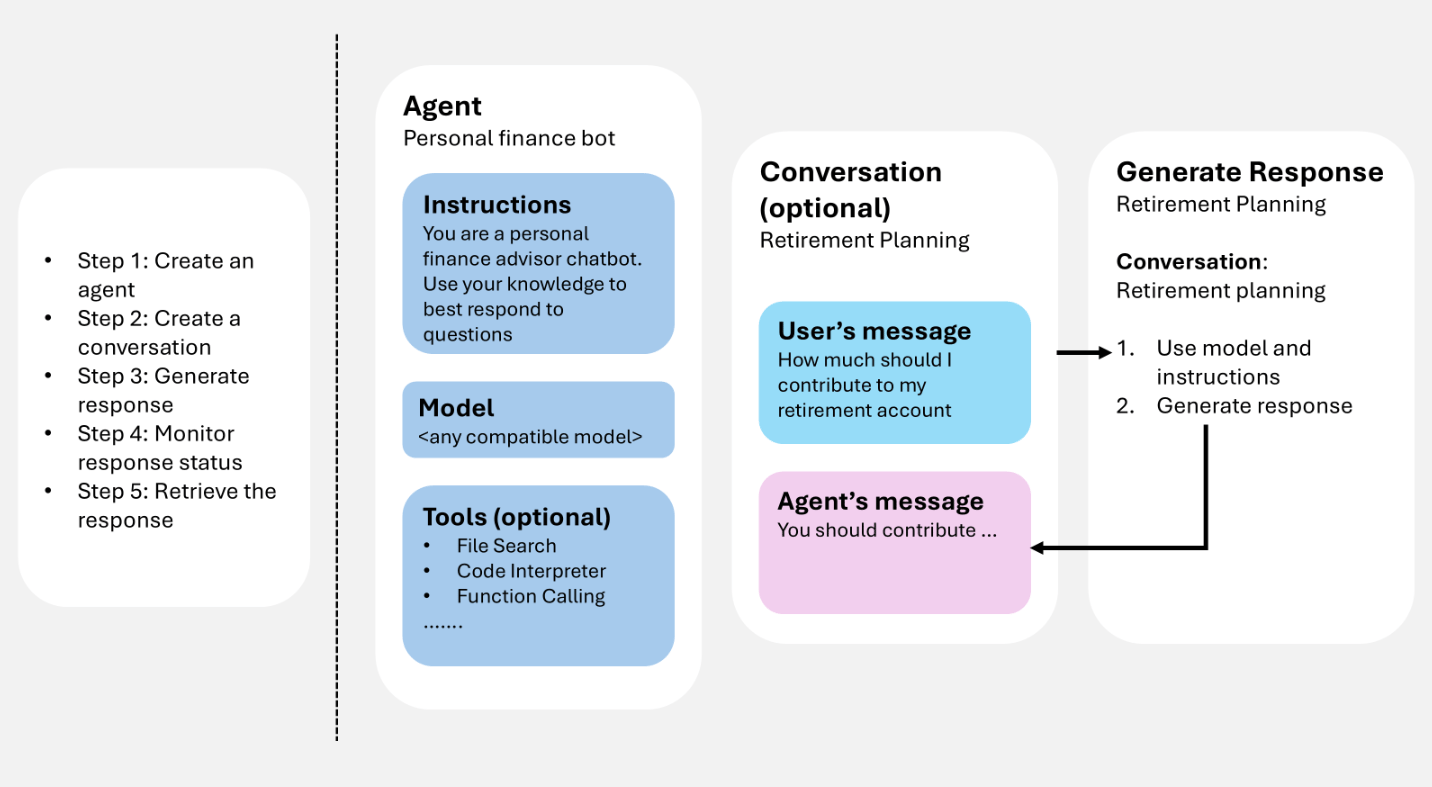
The components work together in a predictable lifecycle. For example, consider a support assistant that answers a follow-up question:
- The application selects an agent that defines the support instructions and tools.
- It creates a conversation and adds the customer’s first question as an input item.
- A response runs the agent against the conversation and appends output items.
- The next response uses the same conversation, so the agent can answer a follow-up question in context.
Prerequisites
To run the samples in this article, you need:- An Azure subscription. Create one for free.
- A Microsoft Foundry project.
- The Foundry Agent Service SDK for your language:
- Python
- C#
- JavaScript
- Java
- REST API
Create an agent
An agent is a persisted orchestration definition that combines AI models, instructions, code, tools, parameters, and optional safety or governance controls. Store agents as named, versioned assets in Microsoft Foundry. During response generation, the agent definition works with interaction history (conversation or previous response) to process and respond to user input. The following example creates a prompt agent with a name, model, and instructions. Use the project client for agent creation and versioning.Agents are now identified using the agent name and agent version. They don’t have a GUID called
AgentID anymore.Create an agent with tools
Tools extend what an agent can do beyond generating text. When you attach tools to an agent, the agent can call external services, run code, search files, and access data sources during response generation—using tools such as web search or function calling. You can attach one or more tools when you create an agent. During response generation, the agent decides whether to call a tool based on the user input and its instructions. The following example creates an agent with a web search tool attached.Generate responses
Response generation invokes the agent. The agent uses its configuration and any provided history (conversation or previous response) to perform tasks by calling models and tools. As part of response generation, the agent appends items to the conversation. You can also generate a response without defining an agent. In this case, you provide all configurations directly in the request and use them only for that response. This approach is useful for simple scenarios with minimal tools. Additionally, you can fork the conversation at the first response ID or second response IDGenerate a response with an agent
The following example generates a response using an agent reference, then sends a follow-up question using the previous response as context.Print tool calls from a response
When an agent uses tools during response generation, the response output contains tool call items alongside the final message. You can iterate overresponse.output to inspect each item and display tool calls—such as web searches, function calls, or file searches—before printing the text response.
Generate a response without storing
By default, the service stores response history server-side, so you can referenceprevious_response_id for multi-turn context. If you set store to false, the service doesn’t persist the response. You must carry forward the conversation context yourself by passing previous output items as input to the next request.
This approach is useful when you need full control over conversation state, want to minimize stored data, or work in a zero-data-retention environment.
Conversations and conversation items
Conversations are durable objects with unique identifiers. After creation, you can reuse them across sessions. Conversations store items, which can include messages, tool calls, tool outputs, and other data.Create a conversation
The following example creates a conversation with an initial user message. Use the OpenAI client (obtained from the project client) for conversations and responses.When to use a conversation
Use a conversation when you want:- Multi-turn continuity: Keep a stable history across turns without rebuilding context yourself.
- Cross-session continuity: Reuse the same conversation for a user who returns later.
- Easier debugging: Inspect what happened over time (for example, tool calls and outputs).
If the conversation exceeds the model’s supported context size, the model will automatically truncate the input context. The conversation itself is not truncated, but only a subset of it is used to generate the response.
Conversation item types
Conversations store items rather than only chat messages. Items capture what happened during response generation so the next turn can reuse that context. Common item types include:- Message items: User or assistant messages.
- Tool call items: Records of tool invocations the agent attempted.
- Tool output items: Outputs returned by tools (for example, retrieval results).
- Output items: The response content you display back to the user.
Add items to a conversation
After you create a conversation, useconversations.items.create() to add subsequent user messages or other items.
Use a conversation with an agent
Combine a conversation with an agent reference to maintain history across multiple turns. The agent processes all items in the conversation and appends its output automatically.Streaming and background responses
For long running operations, you can return results incrementally usingstreaming or run completely asynchronously using background mode. In these cases, you typically monitor the response until it finishes and then consume the final output items.
Stream a response
Streaming returns partial results as they’re generated. This approach is useful for showing output to users in real time.Run an agent in background mode
Background mode runs the agent asynchronously, which is useful for long-running tasks such as complex reasoning or image generation. Setbackground to true and then poll for the response status until it completes.
Attach memory to an agent (preview)
Memory gives agents the ability to retain information across sessions, so they can personalize responses and recall user preferences over time. Without memory, each conversation starts from scratch. Foundry Agent Service provides a managed memory solution (preview) that you configure through memory stores. A memory store defines which types of information the agent should retain. Attach a memory store to your agent, and the agent uses stored memories as additional context during response generation. The following example creates a memory store and attaches it to an agent.Security and data handling
Because conversations and responses can persist user-provided content and tool outputs, treat runtime data like application data:- Avoid storing secrets in prompts or conversation history. Use connections and managed secret stores instead (for example, Set up a Key Vault connection).
- Use least privilege for tool access. When a tool accesses external systems, the agent can potentially read or send data through that tool.
- Be careful with non-Microsoft services. If your agent calls tools backed by non-Microsoft services, some data might flow to those services. For related considerations, see the Toolbox overview.