;
};
export const ZoneContent = ({group, value, options = [], values = [], defaultValue, children}) => {
const optionKey = options.map(option => `${option.id}:${option.title}`).join("|");
const [activePivot, setActivePivot] = useState(defaultValue || values[0]);
const slugify = value => value.toLowerCase().replace(/[^a-z0-9]+/g, "-").replace(/^-|-$/g, "");
const resolvePivot = () => {
if (typeof window === "undefined") return defaultValue || values[0];
const params = new URLSearchParams(window.location.search);
const requested = params.get("pivots");
if (requested) {
const requestedIds = requested.split(",").map(value => value.trim()).filter(Boolean);
const match = requestedIds.find(id => values.includes(id));
if (match) return match;
}
const hash = window.location.hash.replace(/^#/, "");
if (hash) {
const match = options.find(option => option.id === hash || slugify(option.title) === hash);
if (match) return match.id;
}
try {
const stored = window.localStorage.getItem(`foundry-zone-pivot:${group}`);
if (values.includes(stored)) return stored;
} catch {
return defaultValue || values[0];
}
return defaultValue || values[0];
};
useEffect(() => {
setActivePivot(resolvePivot());
}, [group, defaultValue, values.join("|"), optionKey]);
useEffect(() => {
const onPivotChange = event => {
if (event.detail?.group === group && values.includes(event.detail.value)) {
setActivePivot(event.detail.value);
}
};
window.addEventListener("foundry-zone-pivot-change", onPivotChange);
return () => window.removeEventListener("foundry-zone-pivot-change", onPivotChange);
}, [group, values.join("|")]);
if (activePivot !== value) return null;
return <>{children};
};
Foundry models have a knowledge cutoff. They can't access new information beyond a fixed point in time. By using Grounding with Bing Search and Grounding with Bing Custom Search (preview), your agents can incorporate real-time public web data when generating responses. By using these tools, you can ask questions such as "what is the top AI news today".
The grounding process involves several key steps:
1. **Query formulation**: The agent identifies information gaps and constructs search queries.
2. **Search execution**: The grounding tool submits queries to search engines and retrieves results.
3. **Information synthesis**: The agent processes search results and integrates findings into responses.
4. **Source attribution**: The agent provides transparency by citing search sources.
* Grounding with Bing Search and Grounding with Bing Custom Search are [First Party Consumption Services](https://www.microsoft.com/licensing/terms/product/Glossary/EAEAS#:~:text=First-Party%20Consumption%20Services) with [terms for online services](https://www.microsoft.com/licensing/terms/product/ForOnlineServices/EAEAS). They're governed by the [Grounding with Bing terms of use](https://www.microsoft.com/bing/apis/grounding-legal-enterprise) and the [Microsoft Privacy Statement](https://go.microsoft.com/fwlink/?LinkId=521839\&clcid=0x409).
* The Microsoft [Data Protection Addendum](https://aka.ms/dpa) doesn't apply to data sent to Grounding with Bing Search or Grounding with Bing Custom Search. When you use these services, your data flows outside the Azure compliance and Geo boundary. This also means use of these services waives all elevated Government Community Cloud security and compliance commitments, including data sovereignty and screened/citizenship-based support, as applicable.
* Use of Grounding with Bing Search and Grounding with Bing Custom Search incurs costs. See pricing for [details](https://www.microsoft.com/en-us/bing/apis).
* See the [manage section](#manage-grounding-with-bing-search-and-grounding-with-bing-custom-search) for information about how Azure admins can manage access to use of Grounding with Bing Search and Grounding with Bing Custom Search.
Start with the [web search tool](/tools-and-knowledge/web-search). Learn more about the differences between web search and Grounding with Bing Search (or Grounding with Bing Custom Search) in the [web grounding overview](/tools-and-knowledge/web-overview).
### Usage support
The following table shows SDK and setup support.
| Microsoft Foundry support | Python SDK | C# SDK | JavaScript SDK | Java SDK | REST API | Basic agent setup | Standard agent setup |
| ------------------------- | ---------- | ------ | -------------- | -------- | -------- | ----------------- | -------------------- |
| ✔️ | ✔️ | ✔️ | ✔️ | ✔️ | ✔️ | ✔️ | ✔️ |
Not all models support Grounding with Bing Search or Grounding with Bing Custom Search. For a full list of models that support these tools, see [Tool support by region and model](/agents/limits-quotas-regions#tool-support-by-region-and-model).
## Prerequisites
Before you begin, make sure you have:
* An Azure subscription with the right permissions.
* Azure RBAC roles:
* **Contributor** or **Owner** role at the subscription or resource group level to create Bing resources and get resource keys.
* **Foundry Project Manager** role to create project connections in Foundry. For more information, see [Role-based access control for Microsoft Foundry](../../../concepts/rbac-foundry).
> The Foundry RBAC roles were recently renamed. **Foundry User**, **Foundry Owner**, **Foundry Account Owner**, and **Foundry Project Manager** were previously named Azure AI User, Azure AI Owner, Azure AI Account Owner, and Azure AI Project Manager. You might still see the previous names in some places while the rename rolls out. The role IDs and core permissions are unchanged by the rename.
* A Foundry project created with a configured endpoint.
* An AI model deployed in your project.
* SDK installed for your preferred language:
* Python: `azure-ai-projects`
* C#: `Azure.AI.Extensions.OpenAI`
* TypeScript/JavaScript: `@azure/ai-projects`
* Java: `com.azure:azure-ai-agents:2.0.0`
* Azure credentials configured for authentication (such as `DefaultAzureCredential`).
* For REST samples, environment variables set up:
* `FOUNDRY_PROJECT_ENDPOINT`: Your Foundry project endpoint URL.
* `FOUNDRY_MODEL_DEPLOYMENT_NAME`: Your deployed model name.
* `BING_PROJECT_CONNECTION_ID`: Your Grounding with Bing Search project connection ID.
* `BING_CUSTOM_SEARCH_PROJECT_CONNECTION_ID`: Your Grounding with Bing Custom Search project connection ID.
* `BING_CUSTOM_SEARCH_INSTANCE_NAME`: Your custom search instance name.
* `AGENT_TOKEN`.
* A Bing Grounding or Bing Custom Search resource created and connected to your Foundry project. A paid subscription is required to create a Grounding with Bing Search or Grounding with Bing Custom Search resource.
* The Grounding with Bing Search tool works in a network-secured Foundry project, but it behaves like a public endpoint. Consider this behavior when you use the tool in a network-secured environment.
## Setup
In this section, you add a project connection for the Bing resource and capture the values used in the samples. SDK samples use the project connection name and resolve the connection ID at runtime. REST samples use the project connection ID. You can use this [bicep template](https://github.com/microsoft-foundry/foundry-samples/tree/main/infrastructure/infrastructure-setup-bicep/45-basic-agent-bing) to create a basic agent with Grounding with Bing Search tool enabled.
If you already have a project connection ID for the Bing resource you want to use, skip this section.
1. Add the appropriate connection to your project.
For step-by-step instructions, see [Add a new connection to your project](../../../how-to/connections-add).
* You need the **Contributor** or **Owner** role at the subscription or resource group level to create Bing resources and get resource keys.
* To find the resource keys, go to your Grounding with Bing resource in the [Azure portal](https://portal.azure.com) > **Resource Management** > **Keys**.
1. Get the project connection name and ID from the connection details, then set the values as environment variables.
* For SDK samples:
* For Grounding with Bing Search: set `BING_PROJECT_CONNECTION_NAME`.
* For Grounding with Bing Custom Search: set `BING_CUSTOM_SEARCH_PROJECT_CONNECTION_NAME`.
* For REST samples:
* For Grounding with Bing Search: set `BING_PROJECT_CONNECTION_ID`.
* For Grounding with Bing Custom Search: set `BING_CUSTOM_SEARCH_PROJECT_CONNECTION_ID`.
The project connection ID uses the format:
`/subscriptions/{{subscriptionID}}/resourceGroups/{{resourceGroupName}}/providers/Microsoft.CognitiveServices/accounts/{{foundryAccountName}}/projects/{{foundryProjectName}}/connections/{{foundryConnectionName}}`
## Available tools
| Tool | Description | Use case |
| ------------------------------------------- | ------------------------------------------------------------------------------------------------------------------------------------------------------------------------------------------ | ------------------------------------------- |
| Grounding with Bing Search | Gives agents standard access to Bing's search capabilities. | Scenarios requiring broad knowledge access. |
| Grounding with Bing Custom Search (preview) | Allows agents to search within a configurable set of public web domains. You define the parts of the web you want to draw from so users only see relevant results from domains you choose. | Scenarios requiring information management. |
See [best practices](/agents/tool-best-practice) for information on optimizing tool usage.
## Code examples
* You need the latest SDK package. See the [quickstart](/get-started/get-started-code) for details.
* For SDK samples, use the project connection name. For REST samples, use the project connection ID in the format`/subscriptions/{{subscriptionID}}/resourceGroups/{{resourceGroupName}}/providers/Microsoft.CognitiveServices/accounts/{{foundryAccountName}}/projects/{{foundryProjectName}}/connections/{{foundryConnectionName}}`.
The following examples demonstrate how to create an agent with Grounding with Bing Search tools, and how to use the agent to respond to user queries. Select **Prompt Agents** to use the Azure AI Projects SDK to create a server-side prompt agent, or **Hosted Agents** to use the Agent Framework [`FoundryChatClient`](/agents/responses-api) to build an ephemeral, in-process agent.
#### Grounding with Bing Search
```python theme={null}
from azure.identity import DefaultAzureCredential
from azure.ai.projects import AIProjectClient
from azure.ai.projects.models import (
PromptAgentDefinition,
BingGroundingTool,
BingGroundingSearchToolParameters,
BingGroundingSearchConfiguration,
)
# Format: "https://resource_name.ai.azure.com/api/projects/project_name"
PROJECT_ENDPOINT = "your_project_endpoint"
BING_CONNECTION_NAME = "my-bing-connection"
# Create clients to call Foundry API
project = AIProjectClient(
endpoint=PROJECT_ENDPOINT,
credential=DefaultAzureCredential(),
)
openai = project.get_openai_client()
# Get connection ID from connection name
bing_connection = project.connections.get(BING_CONNECTION_NAME)
agent = project.agents.create_version(
agent_name="MyAgent",
definition=PromptAgentDefinition(
model="gpt-4.1-mini",
instructions="You are a helpful assistant.",
tools=[
BingGroundingTool(
bing_grounding=BingGroundingSearchToolParameters(
search_configurations=[
BingGroundingSearchConfiguration(
project_connection_id=bing_connection.id
)
]
)
)
],
),
description="You are a helpful agent.",
)
print(f"Agent created (id: {agent.id}, name: {agent.name}, version: {agent.version})")
stream_response = openai.responses.create(
stream=True,
tool_choice="required",
input="What is today's date and weather in Seattle?",
extra_body={"agent_reference": {"name": agent.name, "type": "agent_reference"}},
)
for event in stream_response:
if event.type == "response.created":
print(f"Follow-up response created with ID: {event.response.id}")
elif event.type == "response.output_text.delta":
print(f"Delta: {event.delta}")
elif event.type == "response.text.done":
print(f"\nFollow-up response done!")
elif event.type == "response.output_item.done":
if event.item.type == "message":
item = event.item
if item.content[-1].type == "output_text":
text_content = item.content[-1]
for annotation in text_content.annotations:
if annotation.type == "url_citation":
print(f"URL Citation: {annotation.url}")
elif event.type == "response.completed":
print(f"\nFollow-up completed!")
print(f"Full response: {event.response.output_text}")
```
### What this code does
This example creates an agent with grounding by using the Bing Search tool that can retrieve real-time information from the web. When you run the code:
1. It creates an `AIProjectClient` and authenticates by using your Azure credentials.
2. Creates an agent with the Bing grounding tool configured by using your Bing connection.
3. Sends a query asking about current date and weather in Seattle.
4. The agent uses the Bing grounding tool to search the web and streams the response.
5. Extracts and displays URL citations from the search results.
### Required inputs
* Update the `PROJECT_ENDPOINT` and `BING_CONNECTION_NAME` constants in the code with your values.
* Azure credentials configured for `DefaultAzureCredential`.
### Expected output
```console theme={null}
Agent created (id: asst_abc123, name: MyAgent, version: 1)
Follow-up response created with ID: resp_xyz789
Delta: Today
Delta: 's date
Delta: is December 12, 2025...
Follow-up response done!
URL Citation: https://www.weather.gov/seattle/
Follow-up completed!
Full response: Today's date is December 12, 2025, and the weather in Seattle is...
```
This sample uses [`FoundryChatClient`](/agents/responses-api) from the Microsoft Agent Framework and calls `get_bing_grounding_tool()` to attach Bing grounding via a project connection. Install the package with `pip install agent-framework-foundry aiohttp`, set the `FOUNDRY_PROJECT_ENDPOINT` and `FOUNDRY_MODEL` environment variables, and sign in with `az login`.
```python theme={null}
import asyncio
import os
from agent_framework import Agent
from agent_framework.foundry import FoundryChatClient
from azure.ai.projects import AIProjectClient
from azure.identity import AzureCliCredential
BING_CONNECTION_NAME = "my-bing-connection"
async def main() -> None:
credential = AzureCliCredential()
# Resolve the project connection ID from the connection name
# (same pattern as the Prompt Agents tab).
project = AIProjectClient(
endpoint=os.environ["FOUNDRY_PROJECT_ENDPOINT"],
credential=credential,
)
connection_id = project.connections.get(BING_CONNECTION_NAME).id
agent = Agent(
# Reads FOUNDRY_PROJECT_ENDPOINT and FOUNDRY_MODEL from the environment.
client=FoundryChatClient(credential=credential),
instructions="You are a helpful assistant that can search the web with Bing.",
tools=[
FoundryChatClient.get_bing_grounding_tool(
connection_id=connection_id,
market="en-US",
count=10,
freshness="Day",
)
],
)
result = await agent.run("What is today's date and weather in Seattle?")
print(f"Agent: {result.text}")
# Print URL citation annotations from the response.
for message in result.messages:
for content in message.contents:
for annotation in getattr(content, "annotations", None) or []:
url = getattr(annotation, "url", None)
if url:
print(f"URL Citation: {url}")
if __name__ == "__main__":
asyncio.run(main())
```
### Expected output
The agent uses Bing grounding to search the web for current date and Seattle weather, then prints the final response text followed by URL citations parsed from the response annotations.
```console theme={null}
Agent: Today's date is December 12, 2025, and the weather in Seattle is...
URL Citation: https://www.weather.gov/seattle/
```
For Bing Custom Search, use `FoundryChatClient.get_bing_custom_search_tool(connection_id=..., instance_name=..., market=..., count=...)` with the same agent pattern. For more, see the [Foundry provider samples](https://github.com/microsoft/agent-framework/tree/main/python/samples/02-agents/providers/foundry).
### Grounding with Bing Custom Search (preview)
```python theme={null}
from azure.identity import DefaultAzureCredential
from azure.ai.projects import AIProjectClient
from azure.ai.projects.models import (
PromptAgentDefinition,
BingCustomSearchPreviewTool,
BingCustomSearchToolParameters,
BingCustomSearchConfiguration,
)
# Format: "https://resource_name.ai.azure.com/api/projects/project_name"
PROJECT_ENDPOINT = "your_project_endpoint"
CUSTOM_SEARCH_CONNECTION_NAME = "my-custom-search-connection"
CUSTOM_SEARCH_INSTANCE_NAME = "my-custom-search-instance"
# Create clients to call Foundry API
project = AIProjectClient(
endpoint=PROJECT_ENDPOINT,
credential=DefaultAzureCredential(),
)
openai = project.get_openai_client()
# Get connection ID from connection name
bing_custom_connection = project.connections.get(CUSTOM_SEARCH_CONNECTION_NAME)
bing_custom_search_tool = BingCustomSearchPreviewTool(
bing_custom_search_preview=BingCustomSearchToolParameters(
search_configurations=[
BingCustomSearchConfiguration(
project_connection_id=bing_custom_connection.id,
instance_name=CUSTOM_SEARCH_INSTANCE_NAME,
)
]
)
)
agent = project.agents.create_version(
agent_name="MyAgent",
definition=PromptAgentDefinition(
model="gpt-4.1-mini",
instructions="""You are a helpful agent that can use Bing Custom Search tools to assist users.
Use the available Bing Custom Search tools to answer questions and perform tasks.""",
tools=[bing_custom_search_tool],
),
)
print(f"Agent created (id: {agent.id}, name: {agent.name}, version: {agent.version})")
user_input = input(
"Enter your question for the Bing Custom Search agent " "(e.g., 'Tell me more about foundry agent service'): \n"
)
# Send initial request that will trigger the Bing Custom Search tool
stream_response = openai.responses.create(
stream=True,
input=user_input,
extra_body={"agent_reference": {"name": agent.name, "type": "agent_reference"}},
)
for event in stream_response:
if event.type == "response.created":
print(f"Follow-up response created with ID: {event.response.id}")
elif event.type == "response.output_text.delta":
print(f"Delta: {event.delta}")
elif event.type == "response.text.done":
print(f"\nFollow-up response done!")
elif event.type == "response.output_item.done":
if event.item.type == "message":
item = event.item
if item.content[-1].type == "output_text":
text_content = item.content[-1]
for annotation in text_content.annotations:
if annotation.type == "url_citation":
print(
f"URL Citation: {annotation.url}, "
f"Start index: {annotation.start_index}, "
f"End index: {annotation.end_index}"
)
elif event.type == "response.completed":
print(f"\nFollow-up completed!")
print(f"Full response: {event.response.output_text}")
```
**What this code does**
This example creates an agent with Grounding with Bing Custom Search tool that searches within a configurable set of public web domains. When you run the code:
1. It creates an `AIProjectClient` and authenticates by using your Azure credentials.
2. Creates an agent with the Bing Custom Search tool configured by using your custom search instance.
3. Prompts for user input asking about specific topics within your configured domains.
4. The agent uses the Bing Custom Search tool to search only your specified domains and streams the response.
5. Extracts and displays URL citations with start and end positions from the custom search results.
**Required inputs**
* Update the `PROJECT_ENDPOINT`, `CUSTOM_SEARCH_CONNECTION_NAME`, and `CUSTOM_SEARCH_INSTANCE_NAME` constants in the code with your values.
* Azure credentials configured for `DefaultAzureCredential`.
* User input at runtime.
**Expected output**
```console theme={null}
Agent created (id: asst_abc123, name: MyAgent, version: 1)
Enter your question for the Bing Custom Search agent (e.g., 'Tell me more about foundry agent service'):
Tell me more about foundry agent service
Follow-up response created with ID: resp_xyz789
Delta: Microsoft
Delta: Foundry
Delta: Agent Service...
Follow-up response done!
URL Citation: https://learn.microsoft.com/azure/ai-foundry/agents, Start index: 45, End index: 120
Follow-up completed!
Full response: Microsoft Foundry Agent Service enables you to build...
```
The following C# examples demonstrate how to create an agent with Grounding with Bing Search tool, and how to use the agent to respond to user queries. These examples use synchronous calls for simplicity. For asynchronous examples, see the [agent tools C# samples](https://aka.ms/azsdk/Azure.AI.Extensions.OpenAI/net/samples).
To enable your Agent to use Bing search API, use `BingGroundingTool`. Select **Prompt Agents** to use the Azure AI Projects SDK to create a server-side prompt agent, or **Hosted Agents** to use the Microsoft Agent Framework to build an ephemeral, in-process agent.
#### Grounding with Bing Search
```csharp theme={null}
// Format: "https://resource_name.ai.azure.com/api/projects/project_name"
var projectEndpoint = "your_project_endpoint";
var bingConnectionName = "my-bing-connection";
// Create project client to call Foundry API
AIProjectClient projectClient = new(
endpoint: new Uri(projectEndpoint),
tokenProvider: new DefaultAzureCredential());
// Get connection ID from connection name
AIProjectConnection bingConnection = projectClient.Connections.GetConnection(connectionName: bingConnectionName);
// Create the agent version with Bing grounding tool
BingGroundingTool bingGroundingAgentTool = new(new BingGroundingSearchToolOptions(
searchConfigurations: [new BingGroundingSearchConfiguration(projectConnectionId: bingConnection.Id)]
)
);
DeclarativeAgentDefinition agentDefinition = new(model: "gpt-4.1-mini")
{
Instructions = "You are a helpful agent.",
Tools = { bingGroundingAgentTool, }
};
AgentVersion agentVersion = projectClient.AgentAdministrationClient.CreateAgentVersion(
agentName: "myAgent",
options: new(agentDefinition));
// Output the agent version info
ProjectResponsesClient responseClient = projectClient.ProjectOpenAIClient.GetProjectResponsesClientForAgent(agentVersion.Name);
ResponseResult response = responseClient.CreateResponse("How does wikipedia explain Euler's Identity?");
// Extract and format URL citation annotations
string citation = "";
foreach (ResponseItem item in response.OutputItems)
{
if (item is MessageResponseItem messageItem)
{
foreach (ResponseContentPart content in messageItem.Content)
{
foreach (ResponseMessageAnnotation annotation in content.OutputTextAnnotations)
{
if (annotation is UriCitationMessageAnnotation uriAnnotation)
{
citation = $" [{uriAnnotation.Title}]({uriAnnotation.Uri})";
}
}
}
}
}
// Validate and print the response
Assert.That(response.Status, Is.EqualTo(ResponseStatus.Completed));
Console.WriteLine($"{response.GetOutputText()}{citation}");
// Clean up resources by deleting the agent version
projectClient.AgentAdministrationClient.DeleteAgentVersion(agentName: agentVersion.Name, agentVersion: agentVersion.Version);
```
### What this code does
This example creates an agent that uses the Grounding with Bing Search tool and demonstrates synchronous response handling. When you run the code:
1. It creates an AIProjectClient by using your project endpoint.
2. Retrieves the Bing connection configuration from your project.
3. Creates an agent with the Bing grounding tool configured.
4. Sends a query asking how Wikipedia explains Euler's Identity.
5. The agent uses the Bing grounding tool to search and returns formatted results with URL citations.
6. Cleans up by deleting the agent version.
### Required inputs
* Update the `projectEndpoint` and `bingConnectionName` constants in the code with your values.
* Azure credentials configured for `DefaultAzureCredential`.
### Expected output
```console theme={null}
Euler's identity is considered one of the most elegant equations in mathematics... [Euler's identity - Wikipedia](https://en.wikipedia.org/wiki/Euler%27s_identity)
```
This sample uses the Microsoft Agent Framework and calls `AsAIAgent(...)` on `AIProjectClient` together with `FoundryAITool.CreateBingGroundingTool(...)` from `Microsoft.Agents.AI.Foundry`. Install the `Microsoft.Agents.AI.Foundry` and `Azure.AI.Projects` packages, set the `AZURE_AI_PROJECT_ENDPOINT` and `AZURE_AI_MODEL_DEPLOYMENT_NAME` environment variables, and sign in with `az login`.
```csharp theme={null}
using Azure.AI.Projects;
using Azure.AI.Projects.Agents;
using Azure.Identity;
using Microsoft.Agents.AI;
using Microsoft.Agents.AI.Foundry;
using Microsoft.Extensions.AI;
string endpoint = Environment.GetEnvironmentVariable("AZURE_AI_PROJECT_ENDPOINT")
?? throw new InvalidOperationException("AZURE_AI_PROJECT_ENDPOINT is not set.");
string deploymentName = Environment.GetEnvironmentVariable("AZURE_AI_MODEL_DEPLOYMENT_NAME") ?? "gpt-5-mini";
string bingConnectionName = "my-bing-connection";
const string AgentInstructions = "You are a helpful agent that can use Bing search to answer questions.";
AIProjectClient aiProjectClient = new(new Uri(endpoint), new DefaultAzureCredential());
// Resolve the project connection ID from the connection name
// (same pattern as the Prompt Agents tab).
AIProjectConnection bingConnection = aiProjectClient.Connections.GetConnection(connectionName: bingConnectionName);
BingGroundingSearchToolOptions bingGroundingOptions = new(
searchConfigurations: [new BingGroundingSearchConfiguration(projectConnectionId: bingConnection.Id)]);
AIAgent agent = aiProjectClient.AsAIAgent(deploymentName,
instructions: AgentInstructions,
name: "BingGroundingAgent",
tools: [FoundryAITool.CreateBingGroundingTool(bingGroundingOptions)]);
AgentResponse response = await agent.RunAsync("How does wikipedia explain Euler's Identity?");
Console.WriteLine($"Response: {response.Text}");
// Print URL citation annotations from the response.
foreach (AIAnnotation annotation in response.Messages.SelectMany(m => m.Contents).SelectMany(c => c.Annotations ?? []))
{
if (annotation.RawRepresentation is UriCitationMessageAnnotation uriAnnotation)
{
Console.WriteLine($"URL Citation: [{uriAnnotation.Title}]({uriAnnotation.Uri})");
}
}
```
### Expected output
The agent uses Bing grounding to search the web and answer the question, then prints the final response text followed by URL citations extracted from the response annotations.
```console theme={null}
Response: Euler's identity is considered one of the most elegant equations in mathematics...
URL Citation: [Euler's identity - Wikipedia](https://en.wikipedia.org/wiki/Euler%27s_identity)
```
For Bing Custom Search, use `FoundryAITool.CreateBingCustomSearchTool(...)` with a `BingCustomSearchToolOptions` instance. For the full sample, see [Agent\_Step18\_BingCustomSearch](https://github.com/microsoft/agent-framework/tree/main/dotnet/samples/02-agents/AgentProviders/foundry/Agent_Step18_BingCustomSearch).
## Grounding with Bing in streaming scenarios
```csharp theme={null}
// Format: "https://resource_name.ai.azure.com/api/projects/project_name"
var projectEndpoint = "your_project_endpoint";
var bingConnectionName = "my-bing-connection";
// Create project client to call Foundry API
AIProjectClient projectClient = new(
endpoint: new Uri(projectEndpoint),
tokenProvider: new DefaultAzureCredential());
// Get connection ID from connection name
AIProjectConnection bingConnection = projectClient.Connections.GetConnection(connectionName: bingConnectionName);
// Create the agent version with Bing grounding tool
BingGroundingTool bingGroundingAgentTool = new(new BingGroundingSearchToolOptions(
searchConfigurations: [new BingGroundingSearchConfiguration(projectConnectionId: bingConnection.Id)]
)
);
DeclarativeAgentDefinition agentDefinition = new(model: "gpt-4.1-mini")
{
Instructions = "You are a helpful agent.",
Tools = { bingGroundingAgentTool }
};
AgentVersion agentVersion = projectClient.AgentAdministrationClient.CreateAgentVersion(
agentName: "myAgent",
options: new(agentDefinition));
// Stream the response from the agent version
ProjectResponsesClient responseClient = projectClient.ProjectOpenAIClient.GetProjectResponsesClientForAgent(agentVersion.Name);
string annotation = "";
string text = "";
// Parse the streaming response and output the results
foreach (StreamingResponseUpdate streamResponse in responseClient.CreateResponseStreaming("How does wikipedia explain Euler's Identity?"))
{
if (streamResponse is StreamingResponseCreatedUpdate createUpdate)
{
Console.WriteLine($"Stream response created with ID: {createUpdate.Response.Id}");
}
else if (streamResponse is StreamingResponseOutputTextDeltaUpdate textDelta)
{
Console.WriteLine($"Delta: {textDelta.Delta}");
}
else if (streamResponse is StreamingResponseOutputTextDoneUpdate textDoneUpdate)
{
text = textDoneUpdate.Text;
}
else if (streamResponse is StreamingResponseOutputItemDoneUpdate itemDoneUpdate)
{
if (annotation.Length == 0)
{
// Extract and format URL citation annotations
if (itemDoneUpdate.Item is MessageResponseItem messageItem)
{
foreach (ResponseContentPart content in messageItem.Content)
{
foreach (ResponseMessageAnnotation messageAnnotation in content.OutputTextAnnotations)
{
if (messageAnnotation is UriCitationMessageAnnotation uriAnnotation)
{
annotation = $" [{uriAnnotation.Title}]({uriAnnotation.Uri})";
}
}
}
}
}
}
else if (streamResponse is StreamingResponseErrorUpdate errorUpdate)
{
throw new InvalidOperationException($"The stream has failed: {errorUpdate.Message}");
}
}
Console.WriteLine($"{text}{annotation}");
// Clean up resources by deleting the agent version
projectClient.AgentAdministrationClient.DeleteAgentVersion(agentName: agentVersion.Name, agentVersion: agentVersion.Version);
```
### What this code does
This example creates an agent with grounding by using the Bing Search tool and demonstrates streaming response handling. When you run the code:
1. It creates an AIProjectClient by using your project endpoint.
2. Retrieves the Bing connection configuration from your project.
3. Creates an agent with the Bing grounding tool configured.
4. Sends a query asking how Wikipedia explains Euler's Identity.
5. The agent uses the Bing grounding tool and streams the response in real-time.
6. Processes streaming events including delta text updates and citation extraction.
7. Cleans up by deleting the agent version.
### Required inputs
* Update the `projectEndpoint` and `bingConnectionName` constants in the code with your values.
* Azure credentials configured for `DefaultAzureCredential`.
### Expected output
```console theme={null}
Stream response created with ID: resp_xyz789
Delta: Euler
Delta: 's
Delta: Identity
Delta: is one of the most...
Euler's Identity is one of the most elegant equations in mathematics... [Euler's identity - Wikipedia](https://en.wikipedia.org/wiki/Euler%27s_identity)
```
The following REST API examples demonstrate how to use Grounding with Bing Search and Grounding with Bing Custom Search (preview) tools to respond to user queries.
### Grounding with Bing Search
### Authentication setup
Before running REST API calls, configure authentication:
1. Set environment variables:
* `FOUNDRY_PROJECT_ENDPOINT`: Your Foundry project endpoint URL.
* `FOUNDRY_MODEL_DEPLOYMENT_NAME`: Your deployed model name.
* `BING_PROJECT_CONNECTION_ID`: Your Grounding with Bing Search project connection ID.
2. Obtain a bearer token:
```bash theme={null}
export AGENT_TOKEN=$(az account get-access-token --scope "https://ai.azure.com/.default" --query accessToken -o tsv)
```
```bash theme={null}
curl --request POST \
--url "$FOUNDRY_PROJECT_ENDPOINT/openai/v1/responses" \
-H "Authorization: Bearer $AGENT_TOKEN" \
-H "Content-Type: application/json" \
-d '{
"model": "'$FOUNDRY_MODEL_DEPLOYMENT_NAME'",
"input": "How does Wikipedia explain Euler\u0027s identity?",
"tool_choice": "required",
"tools": [
{
"type": "bing_grounding",
"bing_grounding": {
"search_configurations": [
{
"project_connection_id": "'$BING_PROJECT_CONNECTION_ID'",
"count": 7,
"market": "en-US",
"set_lang": "en",
"freshness": "7d"
}
]
}
}
]
}'
```
### What this code does
This REST API request creates a response using Grounding with Bing Search. The request:
1. Sends a POST request to the Foundry responses endpoint.
2. Includes the model deployment and user input in the request body.
3. Configures the Bing grounding tool with search parameters (count, market, language, freshness).
4. Returns a response with web search results and citations.
### Required inputs
* Environment variables: `FOUNDRY_PROJECT_ENDPOINT`, `AGENT_TOKEN`, `FOUNDRY_MODEL_DEPLOYMENT_NAME`, `BING_PROJECT_CONNECTION_ID`.
* Valid bearer token with appropriate permissions.
### Expected output
JSON response with:
* `id`: Response identifier
* `output_text`: Generated text with grounded information
* `citations`: Array of URL citations used to generate the response
### Grounding with Bing Custom Search (preview)
```bash theme={null}
curl --request POST \
--url "$FOUNDRY_PROJECT_ENDPOINT/openai/v1/responses" \
-H "Authorization: Bearer $AGENT_TOKEN" \
-H "Content-Type: application/json" \
-d '{
"model": "'$FOUNDRY_MODEL_DEPLOYMENT_NAME'",
"input": "How does Wikipedia explain Euler\u0027s identity?",
"tool_choice": "required",
"tools": [
{
"type": "bing_custom_search_preview",
"bing_custom_search_preview": {
"search_configurations": [
{
"project_connection_id": "'$BING_CUSTOM_SEARCH_PROJECT_CONNECTION_ID'",
"instance_name": "'$BING_CUSTOM_SEARCH_INSTANCE_NAME'",
"count": 7,
"market": "en-US",
"set_lang": "en",
"freshness": "7d"
}
]
}
}
]
}'
```
### What this code does
This REST API request creates a response using Grounding with Bing Custom Search. The request:
1. Sends a POST request to the Foundry responses endpoint.
2. Includes the model deployment and user input in the request body.
3. Configures the Bing Custom Search tool with your instance name and search parameters.
4. Returns a response with custom search results limited to your configured domains.
### Required inputs
* Environment variables: `FOUNDRY_PROJECT_ENDPOINT`, `AGENT_TOKEN`, `FOUNDRY_MODEL_DEPLOYMENT_NAME`, `BING_CUSTOM_SEARCH_PROJECT_CONNECTION_ID`, `BING_CUSTOM_SEARCH_INSTANCE_NAME`
* Valid bearer token with appropriate permissions.
* Bing Custom Search instance already configured with target domains
### Expected output
JSON response with:
* `id`: Response identifier
* `output_text`: Generated text with information from your custom domain set
* `citations`: Array of URL citations from your configured domains
The following TypeScript examples demonstrate how to create an agent with Grounding with Bing Search and Grounding with Bing Custom Search (preview) tools, and how to use the agent to respond to user queries. For JavaScript examples, see the [agent tools JavaScript samples](https://github.com/Azure/azure-sdk-for-js/tree/main/sdk/ai/ai-projects/samples/v2-beta/javascript/agents/tools) in the Azure SDK for JavaScript repository on GitHub.
#### Grounding with Bing Search
```typescript theme={null}
import { DefaultAzureCredential } from "@azure/identity";
import { AIProjectClient } from "@azure/ai-projects";
// Format: "https://resource_name.ai.azure.com/api/projects/project_name"
const PROJECT_ENDPOINT = "your_project_endpoint";
const BING_CONNECTION_NAME = "my-bing-connection";
export async function main(): Promise {
// Create clients to call Foundry API
const project = new AIProjectClient(PROJECT_ENDPOINT, new DefaultAzureCredential());
const openai = project.getOpenAIClient();
// Get connection ID from connection name
const bingConnection = await project.connections.get(BING_CONNECTION_NAME);
const agent = await project.agents.createVersion("MyBingGroundingAgent", {
kind: "prompt",
model: "gpt-4.1-mini",
instructions: "You are a helpful assistant.",
tools: [
{
type: "bing_grounding",
bing_grounding: {
search_configurations: [
{
project_connection_id: bingConnection.id,
},
],
},
},
],
});
console.log(`Agent created (id: ${agent.id}, name: ${agent.name}, version: ${agent.version})`);
// Send request that requires current information from the web
const streamResponse = await openai.responses.create(
{
input: "What is today's date and weather in Seattle?",
stream: true,
},
{
body: {
agent: { name: agent.name, type: "agent_reference" },
tool_choice: "required",
},
},
);
// Process the streaming response
for await (const event of streamResponse) {
if (event.type === "response.created") {
console.log(`Follow-up response created with ID: ${event.response.id}`);
} else if (event.type === "response.output_text.delta") {
process.stdout.write(event.delta);
} else if (event.type === "response.output_text.done") {
console.log("\n\nFollow-up response done!");
} else if (event.type === "response.output_item.done") {
if (event.item.type === "message") {
const item = event.item;
if (item.content && item.content.length > 0) {
const lastContent = item.content[item.content.length - 1];
if (lastContent.type === "output_text" && lastContent.annotations) {
for (const annotation of lastContent.annotations) {
if (annotation.type === "url_citation") {
console.log(
`URL Citation: ${annotation.url}, Start index: ${annotation.start_index}, End index: ${annotation.end_index}`,
);
}
}
}
}
}
} else if (event.type === "response.completed") {
console.log("\nFollow-up completed!");
}
}
// Clean up resources by deleting the agent version
// This prevents accumulation of unused resources in your project
console.log("\nCleaning up resources...");
await project.agents.deleteVersion(agent.name, agent.version);
console.log("Agent deleted");
console.log("\nBing grounding agent sample completed!");
}
main().catch((err) => {
console.error("The sample encountered an error:", err);
});
```
**What this code does**
This example creates an agent with grounding by using the Bing Search tool that can retrieve real-time information from the web. When you run the code:
1. It creates an `AIProjectClient` and authenticates by using your Azure credentials.
2. Creates an agent with the Bing grounding tool configured by using your Bing connection.
3. Sends a query asking about current date and weather in Seattle with tool choice set to "required".
4. The agent uses the Bing grounding tool to search the web and streams the response.
5. Processes streaming events and extracts URL citations with their positions in the text.
6. Cleans up by deleting the agent version.
**Required inputs**
* Update the `PROJECT_ENDPOINT` and `BING_CONNECTION_NAME` constants in the code with your values.
* Azure credentials configured for `DefaultAzureCredential`.
**Expected output**
```console theme={null}
Agent created (id: asst_abc123, name: MyBingGroundingAgent, version: 1)
Follow-up response created with ID: resp_xyz789
Today's date is December 12, 2025, and the weather in Seattle...
Follow-up response done!
URL Citation: https://www.weather.gov/seattle/, Start index: 45, End index: 120
Follow-up completed!
Cleaning up resources...
Agent deleted
Bing grounding agent sample completed!
```
### Grounding with Bing Custom Search (preview)
```typescript theme={null}
import { DefaultAzureCredential } from "@azure/identity";
import { AIProjectClient } from "@azure/ai-projects";
import * as readline from "readline";
// Format: "https://resource_name.ai.azure.com/api/projects/project_name"
const PROJECT_ENDPOINT = "your_project_endpoint";
const CUSTOM_SEARCH_CONNECTION_NAME = "my-custom-search-connection";
const CUSTOM_SEARCH_INSTANCE_NAME = "my-custom-search-instance";
export async function main(): Promise {
// Create clients to call Foundry API
const project = new AIProjectClient(PROJECT_ENDPOINT, new DefaultAzureCredential());
const openai = project.getOpenAIClient();
// Get connection ID from connection name
const bingCustomConnection = await project.connections.get(CUSTOM_SEARCH_CONNECTION_NAME);
const agent = await project.agents.createVersion("MyAgent", {
kind: "prompt",
model: "gpt-4.1-mini",
instructions:
"You are a helpful agent that can use Bing Custom Search tools to assist users. Use the available Bing Custom Search tools to answer questions and perform tasks.",
tools: [
{
type: "bing_custom_search_preview",
bing_custom_search_preview: {
search_configurations: [
{
project_connection_id: bingCustomConnection.id,
instance_name: CUSTOM_SEARCH_INSTANCE_NAME,
},
],
},
},
],
});
console.log(`Agent created (id: ${agent.id}, name: ${agent.name}, version: ${agent.version})`);
// Prompt user for input
const rl = readline.createInterface({
input: process.stdin,
output: process.stdout,
});
const userInput = await new Promise((resolve) => {
rl.question(
"Enter your question for the Bing Custom Search agent (e.g., 'Tell me more about foundry agent service'): \n",
(answer) => {
rl.close();
resolve(answer);
},
);
});
// Send initial request that will trigger the Bing Custom Search tool
const streamResponse = await openai.responses.create(
{
input: userInput,
stream: true,
},
{
body: {
agent: { name: agent.name, type: "agent_reference" },
},
},
);
// Process the streaming response
for await (const event of streamResponse) {
if (event.type === "response.created") {
console.log(`Follow-up response created with ID: ${event.response.id}`);
} else if (event.type === "response.output_text.delta") {
process.stdout.write(event.delta);
} else if (event.type === "response.output_text.done") {
console.log("\n\nFollow-up response done!");
} else if (event.type === "response.output_item.done") {
if (event.item.type === "message") {
const item = event.item;
if (item.content && item.content.length > 0) {
const lastContent = item.content[item.content.length - 1];
if (lastContent.type === "output_text" && lastContent.annotations) {
for (const annotation of lastContent.annotations) {
if (annotation.type === "url_citation") {
console.log(
`URL Citation: ${annotation.url}, Start index: ${annotation.start_index}, End index: ${annotation.end_index}`,
);
}
}
}
}
}
} else if (event.type === "response.completed") {
console.log("\nFollow-up completed!");
}
}
// Clean up resources by deleting the agent version
// This prevents accumulation of unused resources in your project
console.log("\nCleaning up resources...");
await project.agents.deleteVersion(agent.name, agent.version);
console.log("Agent deleted");
console.log("\nBing Custom Search agent sample completed!");
}
main().catch((err) => {
console.error("The sample encountered an error:", err);
});
```
**What this code does**
This example creates an agent with Grounding with Bing Custom Search tool that searches within your configured domains. When you run the code:
1. It creates an `AIProjectClient` and authenticates by using your Azure credentials.
2. Creates an agent with the Bing Custom Search tool configured by using your custom search instance.
3. Prompts for user input at runtime through the command line.
4. The agent uses the Bing Custom Search tool to search only your specified domains and streams the response.
5. Processes streaming events and extracts URL citations with their positions in the text.
6. Cleans up by deleting the agent version.
**Required inputs**
* Update the `PROJECT_ENDPOINT`, `CUSTOM_SEARCH_CONNECTION_NAME`, and `CUSTOM_SEARCH_INSTANCE_NAME` constants in the code with your values.
* Azure credentials configured for `DefaultAzureCredential`.
* User input provided at runtime via console.
**Expected output**
```console theme={null}
Agent created (id: asst_abc123, name: MyAgent, version: 1)
Enter your question for the Bing Custom Search agent (e.g., 'Tell me more about foundry agent service'):
Tell me more about foundry agent service
Follow-up response created with ID: resp_xyz789
Microsoft Foundry Agent Service enables you to build...
Follow-up response done!
URL Citation: https://learn.microsoft.com/azure/ai-foundry/agents, Start index: 0, End index: 89
Follow-up completed!
Cleaning up resources...
Agent deleted
Bing Custom Search agent sample completed!
```
## Use Bing grounding in a Java agent
Add the dependency to your `pom.xml`:
```xml theme={null}
com.azureazure-ai-agents2.2.0
```
### Create an agent with Bing grounding
```java theme={null}
import com.azure.ai.agents.AgentsClient;
import com.azure.ai.agents.AgentsClientBuilder;
import com.azure.ai.agents.ResponsesClient;
import com.azure.ai.agents.models.*;
import com.azure.identity.DefaultAzureCredentialBuilder;
import com.openai.models.responses.Response;
import com.openai.models.responses.ResponseCreateParams;
import java.util.Arrays;
import java.util.Collections;
public class BingGroundingExample {
public static void main(String[] args) {
// Format: "https://resource_name.ai.azure.com/api/projects/project_name"
String projectEndpoint = "your_project_endpoint";
String bingConnectionId = "my-bing-connection-id";
AgentsClientBuilder builder = new AgentsClientBuilder()
.credential(new DefaultAzureCredentialBuilder().build())
.endpoint(projectEndpoint);
AgentsClient agentsClient = builder.buildAgentsClient();
ResponsesClient responsesClient = builder.buildResponsesClient();
// Create Bing grounding tool with connection configuration
BingGroundingTool bingTool = new BingGroundingTool(
new BingGroundingSearchToolParameters(Arrays.asList(
new BingGroundingSearchConfiguration(bingConnectionId)
))
);
// Create agent with Bing grounding tool
PromptAgentDefinition agentDefinition = new PromptAgentDefinition("gpt-4.1-mini")
.setInstructions("You are a helpful assistant. Use Bing to find up-to-date information.")
.setTools(Collections.singletonList(bingTool));
AgentVersionDetails agent = agentsClient.createAgentVersion("bing-grounding-agent", agentDefinition);
System.out.printf("Agent created: %s (version %s)%n", agent.getName(), agent.getVersion());
// Create a response
AgentReference agentReference = new AgentReference(agent.getName())
.setVersion(agent.getVersion());
Response response = responsesClient.createAzureResponse(
new AzureCreateResponseOptions().setAgentReference(agentReference),
ResponseCreateParams.builder()
.input("What are the latest developments in AI?"));
System.out.println("Response: " + response.output());
// Clean up
agentsClient.deleteAgentVersion(agent.getName(), agent.getVersion());
}
}
```
## How it works
The user query is the message that an end user sends to an agent, such as \*"should I take an umbrella with me today? I'm in Seattle."\*Instructions are the system message a developer can provide to share context and provide instructions to the AI model on how to use various tools or behave.
When a user sends a query, the customer's AI model deployment first processes it (using the provided instructions) to later perform a Bing search query (which is [visible to developers](#how-to-display-search-results)).
Grounding with Bing returns relevant search results to the customer's model deployment, which then generates the final output.
When you use Grounding with Bing Search or Grounding with Bing Custom Search, the only information sent to Bing is the Bing search query, tool parameters, and your resource key. The service doesn't send any end user-specific information. Your resource key is sent to Bing solely for billing and rate limiting purposes.
Authorization happens between the Grounding with Bing Search or Grounding with Bing Custom Search service and Foundry Agent Service. Any Bing search query that the service generates and sends to Bing for the purposes of grounding is transferred, along with the resource key, outside of the Azure compliance boundary to the Grounding with Bing Search service. Grounding with Bing Search is subject to Bing's terms and doesn't have the same compliance standards and certifications as the Agent Service, as described in the [Terms of Use](https://www.microsoft.com/bing/apis/grounding-legal-enterprise). You're responsible for assessing whether the use of Grounding with Bing Search or Grounding with Bing Custom Search in your agent meets your needs and requirements.
Transactions with your Grounding with Bing resource are counted by the number of tool calls per run. You can see how many tool calls are made from the run step.
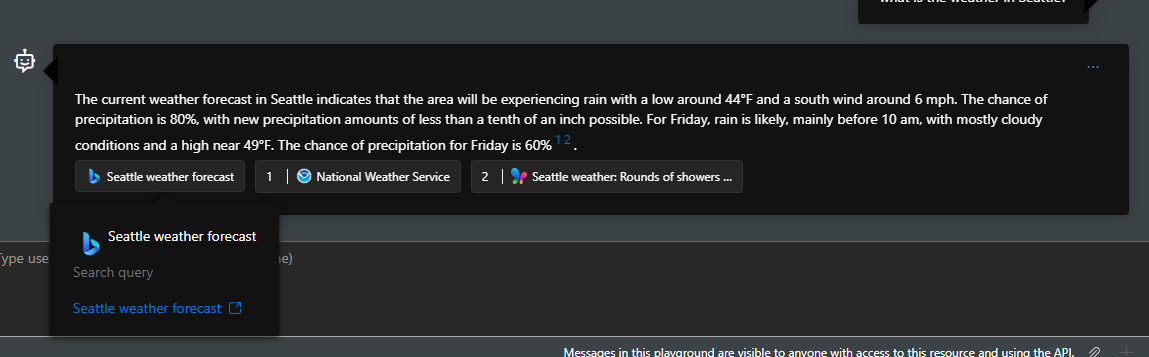
Developers and end users don't have access to raw content returned from Grounding with Bing Search. The model response, however, includes citations with links to the websites used to generate the response, and a link to the Bing query used for the search. You can retrieve the **model response** by accessing the data in the conversation that was created. These two *references* must be retained and displayed in the exact form provided by Microsoft, as per Grounding with Bing Search's [Use and Display Requirements](https://www.microsoft.com/bing/apis/grounding-legal-enterprise#use-and-display-requirements). See the [how to display Grounding with Bing Search results](#how-to-display-search-results) section for details.
## How to display search results
According to Grounding with Bing's [terms of use and use and display requirements](https://www.microsoft.com/bing/apis/grounding-legal-enterprise#use-and-display-requirements#use-and-display-requirements), you need to display both website URLs and Bing search query URLs in your custom interface. You can find this information in the API response, in the `arguments` parameter. To render the webpage, replace the endpoint of Bing search query URLs with `www.bing.com` and your Bing search query URL would look like `https://www.bing.com/search?q={search query}`.
## Grounding with Bing Custom Search configuration
Grounding with Bing Custom Search is a powerful tool that you can use to select a subspace of the web to limit your agent’s grounding knowledge. Here are a few tips to help you take full advantage of this capability:
* If you own a public site that you want to include in the search but Bing hasn't indexed, see the [Bing Webmaster Guidelines](https://www.bing.com/webmasters/help/webmasters-guidelines-30fba23a) for details about getting your site indexed. The webmaster documentation also provides details about getting Bing to crawl your site if the index is out of date.
* You need at least the contributor role for the Bing Custom Search resource to create a configuration.
* You can only block certain domains and perform a search against the rest of the web (a competitor's site, for example).
* Grounding with Bing Custom Search only returns results for domains and webpages that are public and indexed by Bing.
* Domain (for example, `https://www.microsoft.com`)
* Domain and path (for example, `https://www.microsoft.com/surface`)
* Webpage (for example, `https://www.microsoft.com/en-us/p/surface-earbuds/8r9cpq146064`)
## Optional parameters
When you add the Grounding with Bing Search or Grounding with Bing Custom Search tool to your agent, you can pass the following parameters. These parameters will impact the tool output, and the AI model might not fully use all of the outputs. See the code examples for information on API version support and how to pass these parameters.
| Name | Value | Type | Required |
| ----------- | -------------------------------------------------------------------------------------------------------------------------------------------------------------------------------------------------------------------------------------------------------------------------------------------------------------------------------------------------------------------------------------------------------------------------------------------------------------------------------------------------------------------------------------------------------------------------------------------------------------------------------------------------------------------------------------------------------------------------------------------------------------------------------------------------------------------------------------------------------------------------------------------------------------------------------------------------------------------------------------------------------------------------------------------------------------------------------------------------------------------------------------------------------------------------------------------------------------------------------------------------------------------------------------------------------------------------------------- | --------------- | -------- |
| `count` | The number of search results to return in the response. The default is 5 and the maximum value is 50. The actual number delivered may be less than requested. It is possible for multiple pages to include some overlap in results. This parameter affects only web page results. It's possible that AI model might not use all search results returned by Bing. | `UnsignedShort` | No |
| `freshness` | Filter search results by the following case-insensitive age values: **Day**: Return webpages that Bing discovered within the last 24 hours. **Week**: Return webpages that Bing discovered within the last 7 days. **Month**: Return webpages that Bing discovered within the last 30 days. To get articles discovered by Bing during a specific timeframe, specify a date range in the form: `YYYY-MM-DD..YYYY-MM-DD`. For example, `freshness=2019-02-01..2019-05-30`. To limit the results to a single date, set this parameter to a specific date. For example, `freshness=2019-02-04`. | String | No |
| `market` | The market where the results come from. Typically, `mkt` is the country/region where the user is making the request from. However, it could be a different country/region if the user is not located in a country/region where Bing delivers results. The market must be in the form: `-`. For example, `en-US`. The string is case insensitive. For a list of possible market values, see [Market codes](/bing/search-apis/bing-web-search/reference/market-codes). If known, you are encouraged to always specify the market. Specifying the market helps Bing route the request and return an appropriate and optimal response. If you specify a market that is not listed in Market codes, Bing uses a best fit market code based on an internal mapping that is subject to change. | String | No |
| `set_lang` | The language to use for user interface strings. You may specify the language using either a 2-letter or 4-letter code. Using 4-letter codes is preferred. For a list of supported language codes, see [Bing supported languages](/bing/search-apis/bing-web-search/reference/market-codes#bing-supported-language-codes). Bing loads the localized strings if `setlang` contains a valid 2-letter neutral culture code (`fr`) or a valid 4-letter specific culture code (`fr-ca`). For example, for `fr-ca`, Bing loads the `fr` neutral culture code strings. If `setlang` is not valid (for example, `zh`) or Bing doesn’t support the language (for example, `af`, `af-na`), Bing defaults to `en` (English). To specify the 2-letter code, set this parameter to an ISO 639-1 language code. To specify the 4-letter code, use the form `-` where `` is an ISO 639-1 language code (neutral culture) and `` is an ISO 3166 country/region (specific culture) code. For example, use `en-US` for United States English. Although optional, you should always specify the language. Typically, you set `setLang` to the same language specified by `mkt` unless the user wants the user interface strings displayed in a different language. | String | No |
## Supported capabilities and known issues
* The Grounding with Bing Search tool is designed to retrieve real-time information from the web, not specific web domains. To retrieve information from specific domains, use the Grounding with Bing Custom Search tool.
* Don't ask the model to **summarize** an entire web page.
* Within one run, the AI model evaluates the tool outputs and might decide to invoke the tool again for more information and context. The AI model might also decide which pieces of tool outputs are used to generate the response.
* Foundry Agent Service returns **AI model generated responses** as output, so end-to-end latency is impacted by model pre-processing and post-processing.
* The Grounding with Bing Search and Grounding with Bing Custom Search tools don't return the tool output to developers and end users.
* Grounding with Bing Search and Grounding with Bing Custom Search only work with agents that aren't using VPN or private endpoints. The agent must have normal network access.
* Use the default citations pattern (the links sent in `annotation`) for links from the Grounding with Bing tools. Don't ask the model to generate citation links.
## Troubleshooting
Use this section to resolve common issues when using Grounding with Bing Search tools.
### Connection ID format errors
**Problem**: Error message stating invalid connection ID format.
**Solution**: Verify your connection ID matches the required format:
```text theme={null}
/subscriptions/{{subscriptionID}}/resourceGroups/{{resourceGroupName}}/providers/Microsoft.CognitiveServices/accounts/{{foundryAccountName}}/projects/{{foundryProjectName}}/connections/{{foundryConnectionName}}
```
Replace all placeholder values (including `{{` and `}}`) with your actual resource identifiers.
### Authentication failures
**Problem**: "Unauthorized" or "Forbidden" errors when creating agents or running queries.
**Solution**:
1. Verify you have the required RBAC roles:
* **Contributor** or **Owner** role for creating Bing resources
* **Foundry Project Manager** role for creating project connections
2. Check that your Azure credentials are properly configured:
* For Python/TypeScript: `DefaultAzureCredential` can authenticate
* For REST: Bearer token is valid and not expired
3. Run `az login` to refresh your credentials if you're using Azure CLI
### Network connectivity problems
**Problem**: Grounding with Bing Search requests time out or can't connect.
**Solution**: Grounding with Bing Search and Grounding with Bing Custom Search don't work with VPN or Private Endpoints. Ensure:
* Your network has normal internet access.
* You're not using a VPN connection.
* Private Endpoints aren't configured for the agent service.
* Firewall rules allow outbound connections to Bing services.
### Custom search returns no results
**Problem**: Bing Custom Search returns empty results or doesn't find expected content.
**Solution**:
* Verify your custom search instance is properly configured with target domains.
* Ensure the domains you want to search are public and indexed by Bing.
* Check that the configured domains match your search query expectations.
* If your site isn't indexed, see [Bing Webmaster Guidelines](https://www.bing.com/webmasters/help/webmasters-guidelines-30fba23a) for indexing instructions.
* Wait for Bing to crawl recently added or updated content (can take several days).
### Missing or invalid configuration values
**Problem**: Code fails with connection errors or "not found" responses.
**Solution**: Ensure you update all required constants in the code with your actual values:
* `PROJECT_ENDPOINT` (Python/TypeScript) or `projectEndpoint` (C#/Java): Your Foundry project endpoint URL.
* Connection name or ID for your Bing resource.
* For custom search: your custom search instance name.
* For REST API, set environment variables: `FOUNDRY_PROJECT_ENDPOINT`, `FOUNDRY_MODEL_DEPLOYMENT_NAME`, `BING_PROJECT_CONNECTION_ID` or `BING_CUSTOM_SEARCH_PROJECT_CONNECTION_ID`, and `AGENT_TOKEN`.
### Agent doesn't use the grounding tool
**Problem**: Agent responds without calling the Bing grounding tool.
**Solution**:
* Ensure your query requires current information that the model doesn't know.
* For explicit tool usage, set `tool_choice="required"` in your request (Python/TypeScript examples show this).
* Verify the tool is properly configured in the agent definition.
* Check agent instructions encourage using available tools for current information.
### Instance name not found for Grounding with Bing Custom Search tool
**Problem**:
```json theme={null}
{"error": "Tool_User_Error", "message": "[bing_search] Failed to call Get Custom Search Instance with status 404: {\"error\":{\"code\":\"ResourceNotFound\",\"message\":\"Instance or Customer not found\",\"target\":\"instanceName or customerId\"}}."}
```
**Solution**:
* Ensure your instance name is in the Grounding with Bing Custom Search resource you are using.
* Double check if your instance name is spelled correctly.
## Manage Grounding with Bing Search and Grounding with Bing Custom Search
Admins can use RBAC role assignments to enable or disable the use of Grounding with Bing and Grounding with Bing Custom Search within the subscription or resource group.
1. The admin registers `Microsoft.Bing` in the Azure subscription. The admin needs permissions to perform the `/register/action` operation for the resource provider. The Contributor and Owner roles include this permission. For more information about how to register, see [Azure resource providers and types](https://learn.microsoft.com/azure/azure-resource-manager/management/resource-providers-and-types).
2. After the admin registers `Microsoft.Bing`, users with permissions can create, delete, or retrieve the resource key for a Grounding with Bing and/or Grounding with Bing Custom Search resource. These users need the **Contributor** or **Owner** role at the subscription or resource group level.
3. After creating a Grounding with Bing and/or Grounding with Bing Custom Search resource, users with permissions can create a Microsoft Foundry connection to connect to the resource and use it as a tool in Foundry Agent Service. These users need at least the **Foundry Project Manager** role.
### Disable use of Grounding with Bing Search and Grounding with Bing Custom Search
1. The admin needs the **Owner** or **Contributor** role in the subscription.
2. The admin deletes all Grounding with Bing Search and Grounding with Bing Custom Search resources in the subscription.
3. The admin unregisters the `Microsoft.Bing` resource provider in the subscription (you can't unregister before deleting all resources). For more information, see [Azure resource providers and types](https://learn.microsoft.com/azure/azure-resource-manager/management/resource-providers-and-types).
4. The admin creates an Azure Policy to disallow creation of Grounding with Bing Search and Grounding with Bing Custom Search resources in their subscription, following the [sample](https://github.com/microsoft-foundry/foundry-samples/blob/main/infrastructure/infrastructure-setup-bicep/05-custom-policy-definitions/deny-disallowed-connections.json).
## Next steps
* [Tool use best practices](/agents/tool-best-practice) - Learn optimization strategies for agent tools
* [Web search tool](/tools-and-knowledge/web-search) - Use web search without configuring Bing tool parameters
* [Manage Grounding with Bing in Microsoft Foundry and Azure](../manage-grounding-with-bing) - Control and disable Grounding with Bing features
* [Connect OpenAPI tools to agents](/tools-and-knowledge/openapi) - Integrate custom APIs with your agents
* [Discover tools in the Foundry Tools (preview)](/get-started/tool-catalog) - Explore all available agent tools in Foundry Agent Service
 ## Grounding with Bing Custom Search configuration
Grounding with Bing Custom Search is a powerful tool that you can use to select a subspace of the web to limit your agent’s grounding knowledge. Here are a few tips to help you take full advantage of this capability:
* If you own a public site that you want to include in the search but Bing hasn't indexed, see the [Bing Webmaster Guidelines](https://www.bing.com/webmasters/help/webmasters-guidelines-30fba23a) for details about getting your site indexed. The webmaster documentation also provides details about getting Bing to crawl your site if the index is out of date.
* You need at least the contributor role for the Bing Custom Search resource to create a configuration.
* You can only block certain domains and perform a search against the rest of the web (a competitor's site, for example).
* Grounding with Bing Custom Search only returns results for domains and webpages that are public and indexed by Bing.
* Domain (for example, `https://www.microsoft.com`)
* Domain and path (for example, `https://www.microsoft.com/surface`)
* Webpage (for example, `https://www.microsoft.com/en-us/p/surface-earbuds/8r9cpq146064`)
## Optional parameters
When you add the Grounding with Bing Search or Grounding with Bing Custom Search tool to your agent, you can pass the following parameters. These parameters will impact the tool output, and the AI model might not fully use all of the outputs. See the code examples for information on API version support and how to pass these parameters.
| Name | Value | Type | Required |
| ----------- | -------------------------------------------------------------------------------------------------------------------------------------------------------------------------------------------------------------------------------------------------------------------------------------------------------------------------------------------------------------------------------------------------------------------------------------------------------------------------------------------------------------------------------------------------------------------------------------------------------------------------------------------------------------------------------------------------------------------------------------------------------------------------------------------------------------------------------------------------------------------------------------------------------------------------------------------------------------------------------------------------------------------------------------------------------------------------------------------------------------------------------------------------------------------------------------------------------------------------------------------------------------------------------------------------------------------------------------- | --------------- | -------- |
| `count` | The number of search results to return in the response. The default is 5 and the maximum value is 50. The actual number delivered may be less than requested. It is possible for multiple pages to include some overlap in results. This parameter affects only web page results. It's possible that AI model might not use all search results returned by Bing. | `UnsignedShort` | No |
| `freshness` | Filter search results by the following case-insensitive age values:
## Grounding with Bing Custom Search configuration
Grounding with Bing Custom Search is a powerful tool that you can use to select a subspace of the web to limit your agent’s grounding knowledge. Here are a few tips to help you take full advantage of this capability:
* If you own a public site that you want to include in the search but Bing hasn't indexed, see the [Bing Webmaster Guidelines](https://www.bing.com/webmasters/help/webmasters-guidelines-30fba23a) for details about getting your site indexed. The webmaster documentation also provides details about getting Bing to crawl your site if the index is out of date.
* You need at least the contributor role for the Bing Custom Search resource to create a configuration.
* You can only block certain domains and perform a search against the rest of the web (a competitor's site, for example).
* Grounding with Bing Custom Search only returns results for domains and webpages that are public and indexed by Bing.
* Domain (for example, `https://www.microsoft.com`)
* Domain and path (for example, `https://www.microsoft.com/surface`)
* Webpage (for example, `https://www.microsoft.com/en-us/p/surface-earbuds/8r9cpq146064`)
## Optional parameters
When you add the Grounding with Bing Search or Grounding with Bing Custom Search tool to your agent, you can pass the following parameters. These parameters will impact the tool output, and the AI model might not fully use all of the outputs. See the code examples for information on API version support and how to pass these parameters.
| Name | Value | Type | Required |
| ----------- | -------------------------------------------------------------------------------------------------------------------------------------------------------------------------------------------------------------------------------------------------------------------------------------------------------------------------------------------------------------------------------------------------------------------------------------------------------------------------------------------------------------------------------------------------------------------------------------------------------------------------------------------------------------------------------------------------------------------------------------------------------------------------------------------------------------------------------------------------------------------------------------------------------------------------------------------------------------------------------------------------------------------------------------------------------------------------------------------------------------------------------------------------------------------------------------------------------------------------------------------------------------------------------------------------------------------------------------- | --------------- | -------- |
| `count` | The number of search results to return in the response. The default is 5 and the maximum value is 50. The actual number delivered may be less than requested. It is possible for multiple pages to include some overlap in results. This parameter affects only web page results. It's possible that AI model might not use all search results returned by Bing. | `UnsignedShort` | No |
| `freshness` | Filter search results by the following case-insensitive age values: