> ## Documentation Index
> Fetch the complete documentation index at: https://hobbyist-e43fa225.mintlify.site/llms.txt
> Use this file to discover all available pages before exploring further.

# Connect OpenAPI tools to Microsoft Foundry agents

> Connect OpenAPI 3.0 and 3.1 tools to Microsoft Foundry agents using API key, managed identity, or anonymous authentication to integrate external APIs.

export const ZonePivot = ({group, options = [], defaultValue, label = "Choose an experience"}) => {
  const values = options.map(option => option.id);
  const optionKey = options.map(option => `${option.id}:${option.title}`).join("|");
  const [activePivot, setActivePivot] = useState(defaultValue || values[0]);
  const slugify = value => value.toLowerCase().replace(/[^a-z0-9]+/g, "-").replace(/^-|-$/g, "");
  const resolvePivot = () => {
    if (typeof window === "undefined") return defaultValue || values[0];
    const params = new URLSearchParams(window.location.search);
    const requested = params.get("pivots");
    if (requested) {
      const requestedIds = requested.split(",").map(value => value.trim()).filter(Boolean);
      const match = requestedIds.find(id => values.includes(id));
      if (match) return match;
    }
    const hash = window.location.hash.replace(/^#/, "");
    if (hash) {
      const match = options.find(option => option.id === hash || slugify(option.title) === hash);
      if (match) return match.id;
    }
    try {
      const stored = window.localStorage.getItem(`foundry-zone-pivot:${group}`);
      if (values.includes(stored)) return stored;
    } catch {
      return defaultValue || values[0];
    }
    return defaultValue || values[0];
  };
  const publishPivotChange = value => {
    if (typeof window === "undefined") return;
    window.dispatchEvent(new CustomEvent("foundry-zone-pivot-change", {
      detail: {
        group,
        value
      }
    }));
  };
  const syncTableOfContents = () => {
    if (typeof window === "undefined") return;
    window.requestAnimationFrame(() => {
      const toc = document.getElementById("table-of-contents-content");
      if (!toc) return;
      const links = Array.from(toc.querySelectorAll('a[href^="#"]'));
      for (const link of links) {
        const item = link.closest("li");
        const rawId = link.getAttribute("href")?.slice(1);
        if (!item || !rawId) continue;
        let id = rawId;
        try {
          id = decodeURIComponent(rawId);
        } catch {}
        item.style.display = document.getElementById(id) ? "" : "none";
      }
    });
  };
  useEffect(() => {
    const resolvedPivot = resolvePivot();
    setActivePivot(resolvedPivot);
    publishPivotChange(resolvedPivot);
    window.setTimeout(syncTableOfContents, 0);
  }, [group, defaultValue, values.join("|"), optionKey]);
  const selectPivot = value => {
    setActivePivot(value);
    if (typeof window !== "undefined") {
      try {
        window.localStorage.setItem(`foundry-zone-pivot:${group}`, value);
      } catch {}
      const url = new URL(window.location.href);
      const current = url.searchParams.get("pivots");
      const preserved = current ? current.split(",").map(id => id.trim()).filter(id => id && !values.includes(id)) : [];
      url.searchParams.set("pivots", [...preserved, value].join(","));
      window.history.replaceState(null, "", `${url.pathname}${url.search}${url.hash}`);
    }
    publishPivotChange(value);
    window.setTimeout(syncTableOfContents, 0);
  };
  if (options.length < 2) return null;
  return <div className="not-prose my-6 border-b border-slate-200 pb-3 dark:border-slate-800">
      <div className="mb-2 text-xs font-semibold uppercase tracking-wide text-slate-500 dark:text-slate-400">
        {label}
      </div>
      <div className="flex flex-wrap gap-2" role="tablist" aria-label={label}>
        {options.map(option => {
    const selected = option.id === activePivot;
    return <button key={option.id} type="button" role="tab" aria-selected={selected} onClick={() => selectPivot(option.id)} className={`rounded-md border px-3 py-1.5 text-sm font-medium transition ${selected ? "border-slate-900 bg-slate-900 text-white shadow-sm dark:border-slate-100 dark:bg-slate-100 dark:text-slate-950" : "border-slate-200 bg-white text-slate-700 hover:border-slate-400 hover:text-slate-950 dark:border-slate-700 dark:bg-slate-950 dark:text-slate-200 dark:hover:border-slate-500"}`}>
              {option.title}
            </button>;
  })}
      </div>
    </div>;
};

export const ZoneContent = ({group, value, options = [], values = [], defaultValue, children}) => {
  const optionKey = options.map(option => `${option.id}:${option.title}`).join("|");
  const [activePivot, setActivePivot] = useState(defaultValue || values[0]);
  const slugify = value => value.toLowerCase().replace(/[^a-z0-9]+/g, "-").replace(/^-|-$/g, "");
  const resolvePivot = () => {
    if (typeof window === "undefined") return defaultValue || values[0];
    const params = new URLSearchParams(window.location.search);
    const requested = params.get("pivots");
    if (requested) {
      const requestedIds = requested.split(",").map(value => value.trim()).filter(Boolean);
      const match = requestedIds.find(id => values.includes(id));
      if (match) return match;
    }
    const hash = window.location.hash.replace(/^#/, "");
    if (hash) {
      const match = options.find(option => option.id === hash || slugify(option.title) === hash);
      if (match) return match.id;
    }
    try {
      const stored = window.localStorage.getItem(`foundry-zone-pivot:${group}`);
      if (values.includes(stored)) return stored;
    } catch {
      return defaultValue || values[0];
    }
    return defaultValue || values[0];
  };
  useEffect(() => {
    setActivePivot(resolvePivot());
  }, [group, defaultValue, values.join("|"), optionKey]);
  useEffect(() => {
    const onPivotChange = event => {
      if (event.detail?.group === group && values.includes(event.detail.value)) {
        setActivePivot(event.detail.value);
      }
    };
    window.addEventListener("foundry-zone-pivot-change", onPivotChange);
    return () => window.removeEventListener("foundry-zone-pivot-change", onPivotChange);
  }, [group, values.join("|")]);
  if (activePivot !== value) return null;
  return <>{children}</>;
};

Connect your Microsoft Foundry agents to external APIs using OpenAPI 3.0 and 3.1 specifications. The Foundry model powering your agent can call external services, retrieve real-time data, and extend its capabilities beyond built-in functions.

[OpenAPI specifications](https://spec.openapis.org/oas/latest.html) define a standard way to describe HTTP APIs so you can integrate existing services with your agents. Microsoft Foundry supports three authentication methods: `anonymous`, `API key`, and `managed identity`. For help choosing an authentication method, see [Choose an authentication method](#choose-an-authentication-method).

<Tip>
  Consider adding this tool using a [toolbox](https://learn.microsoft.com/azure/foundry/agents/how-to/tools/toolbox). By using a toolbox, you are able to reuse the tool across agents and runtimes, as well as centralizing credential management, versioning, and policy enforcement through a managed MCP endpoint. See the [toolbox quickstart](https://learn.microsoft.com/azure/foundry/agents/quickstarts/quickstart-toolbox-agent).
</Tip>

## Prerequisites

Before you begin, make sure you have:

* An Azure subscription with the right permissions.
* **Foundry User** role on the Foundry project to create and run agents.

<Info />

> The Foundry RBAC roles were recently renamed. **Foundry User**, **Foundry Owner**, **Foundry Account Owner**, and **Foundry Project Manager** were previously named Azure AI User, Azure AI Owner, Azure AI Account Owner, and Azure AI Project Manager. You might still see the previous names in some places while the rename rolls out. The role IDs and core permissions are unchanged by the rename.

* **Foundry Project Manager** role on the Foundry project if you create a project connection for API key or token authentication.
* A Foundry project created with an endpoint configured.
* An AI model deployed in your project. Confirm that both the model and project region support OpenAPI tools in [Tool support by region and model](/agents/limits-quotas-regions#tool-support-by-region-and-model).
* A [basic or standard agent environment](../../../agents/environment-setup).
* SDK installed for your preferred language:
  * Python: `pip install azure-ai-projects jsonref`
  * C#: `Azure.AI.Extensions.OpenAI`
  * TypeScript/JavaScript: `@azure/ai-projects`
  * Java: `com.azure:azure-ai-agents`

### Environment variables

| Variable                          | Description                                                                    |
| --------------------------------- | ------------------------------------------------------------------------------ |
| `FOUNDRY_PROJECT_ENDPOINT`        | Your Foundry project endpoint URL (not the external OpenAPI service endpoint). |
| `FOUNDRY_MODEL_DEPLOYMENT_NAME`   | Your deployed model name.                                                      |
| `OPENAPI_PROJECT_CONNECTION_NAME` | (For API key auth) Your project connection name for the OpenAPI service.       |

* OpenAPI 3.0 or 3.1 specification file that meets these requirements:
  * Each function must have an `operationId` (required for the OpenAPI tool).
  * `operationId` should only contain letters, `-`, and `_`.
  * Use descriptive names to help models efficiently decide which function to use.
  * Supported request body content types: `application/json`, `application/json-patch+json`
* For managed identity authentication: the least-privileged target-service role that permits the required API operations, assigned to the Foundry project's managed identity at the target resource scope.
* For API key/token authentication: a project connection configured with your API key or token. See [Add a new connection to your project](../../../how-to/connections-add).

<Note>
  The `FOUNDRY_PROJECT_ENDPOINT` value refers to your Microsoft Foundry project endpoint, not the external OpenAPI service endpoint. You can find this endpoint in the Microsoft Foundry portal under your project’s Overview page. This endpoint is required to authenticate the agent service and is separate from any OpenAPI endpoints defined in your specification file.
</Note>

## Usage support

The following table shows SDK and setup support.

| Microsoft Foundry support | Python SDK | C# SDK | JavaScript SDK | Java SDK | REST API | Basic agent setup | Standard agent setup |
| ------------------------- | ---------- | ------ | -------------- | -------- | -------- | ----------------- | -------------------- |
| ✔️                        | ✔️         | ✔️     | ✔️             | ✔️       | ✔️       | ✔️                | ✔️                   |

<Note>
  For Java, use the `com.azure:azure-ai-agents` package for OpenAPI agent tools. The `com.azure:azure-ai-projects` package doesn't currently expose OpenAPI agent tool types.
</Note>

## Run the anonymous first-success flow

Start with the anonymous weather API to verify that your agent can load an OpenAPI specification and call an operation. This path doesn't require an external API credential or a Foundry project connection.

1. Install the SDK package for your selected language from [Prerequisites](#prerequisites).
2. Download [`weather_openapi.json`](https://github.com/Azure/azure-sdk-for-net/blob/main/sdk/ai/Azure.AI.Agents.Persistent/tests/Samples/weather_openapi.json), and save it to the `assets` path used by the sample.
3. Set your Foundry project endpoint and model deployment values.
4. Run the anonymous sample in your selected language section.
5. Confirm that the response contains current weather for Seattle, and then delete the agent version created by the sample.

After the anonymous call succeeds, configure the authentication required by your target API. Keep [API key authentication](#authenticate-with-api-key), [bearer-token authentication](#set-up-a-bearer-token-connection), and [managed identity authentication](#authenticate-by-using-managed-identity-microsoft-entra-id) as separate variants.

## Understand limitations

* Your OpenAPI spec must include `operationId` for each operation, and `operationId` can include only letters, `-`, and `_`.
* Supported request body content types: `application/json`, `application/json-patch+json`.
* For API key authentication, use one API key security scheme per OpenAPI tool. If you need multiple security schemes, create multiple OpenAPI tools.
* Rotate API keys and bearer tokens regularly and immediately after suspected exposure. Update the project connection when credentials change; don't place credentials in the OpenAPI specification or source code.

## Add OpenAPI tools to a toolbox

Use this pattern to expose any REST API described by an OpenAPI spec. Choose the `auth.type` that matches your API's security model.

<Info>
  When you use managed identity auth, assign only the least-privileged RBAC role that permits the required API operations to your **Foundry project's** managed identity on the target service. For example, assign **Reader** on the target Azure resource only when the API needs read-only Azure Resource Manager access. Without the required assignment, the agent receives a `401 Unauthorized` response when calling the API. For full setup steps, see [Authenticate by using managed identity](/toolboxes/openapi#authenticate-by-using-managed-identity-microsoft-entra-id).
</Info>

<ZonePivot group="csharp__python__rest__typescript" options={[{"id": "rest", "title": "REST"}, {"id": "python", "title": "Python"}, {"id": "csharp", "title": "C#"}, {"id": "typescript", "title": "TypeScript"}]} defaultValue="rest" />

<ZoneContent group="csharp__python__rest__typescript" value="rest" options={[{"id": "rest", "title": "REST"}, {"id": "python", "title": "Python"}, {"id": "csharp", "title": "C#"}, {"id": "typescript", "title": "TypeScript"}]} values={["rest", "python", "csharp", "typescript"]} defaultValue="rest">
  **Anonymous auth:**

  ```json theme={null}
  {
    "description": "REST API via OpenAPI spec",
    "tools": [
      {
        "type": "openapi",
        "openapi": {
          "name": "my-api",
          "spec": { "<paste OpenAPI spec object here>" },
          "auth": {
            "type": "anonymous"
          }
        }
      }
    ]
  }
  ```

  **Project connection auth:**

  Use this pattern when the API requires a key or token stored in a Foundry project connection.

  ```json theme={null}
  {
    "description": "REST API with connection-based auth",
    "tools": [
      {
        "type": "openapi",
        "openapi": {
          "name": "my-api",
          "spec": { "<paste OpenAPI spec object here>" },
          "auth": {
            "type": "connection",
            "security_scheme": {
              "project_connection_id": "<CONNECTION_NAME>"
            }
          }
        }
      }
    ]
  }
  ```

  **Managed identity auth:**

  Use this pattern when the target API authenticates via Microsoft Entra ID. The Foundry project's managed identity calls the API on behalf of the agent. Make sure the managed identity has the required RBAC role on the target service before using this pattern.

  ```json theme={null}
  {
    "description": "REST API with managed identity auth",
    "tools": [
      {
        "type": "openapi",
        "openapi": {
          "name": "my-api",
          "spec": { "<paste OpenAPI spec object here>" },
          "auth": {
            "type": "managed_identity",
            "security_scheme": {
              "audience": "<TARGET_SERVICE_AUDIENCE>"
            }
          }
        }
      }
    ]
  }
  ```
</ZoneContent>

<ZoneContent group="csharp__python__rest__typescript" value="python" options={[{"id": "rest", "title": "REST"}, {"id": "python", "title": "Python"}, {"id": "csharp", "title": "C#"}, {"id": "typescript", "title": "TypeScript"}]} values={["rest", "python", "csharp", "typescript"]} defaultValue="rest">
  ```python theme={null}
  from azure.ai.projects.models import OpenAPITool

  tools = [
      OpenAPITool(
          name="my-api",
          spec={"<paste OpenAPI spec object here>"},
          auth={"type": "anonymous"},
      )
  ]
  ```
</ZoneContent>

<ZoneContent group="csharp__python__rest__typescript" value="csharp" options={[{"id": "rest", "title": "REST"}, {"id": "python", "title": "Python"}, {"id": "csharp", "title": "C#"}, {"id": "typescript", "title": "TypeScript"}]} values={["rest", "python", "csharp", "typescript"]} defaultValue="rest">
  ```csharp theme={null}
  BinaryData specBytes = BinaryData.FromString("<OpenAPI spec JSON>");
  ProjectsAgentTool tool = new OpenAPITool(
      new OpenApiFunctionDefinition(
          name: "my-api",
          spec: specBytes,
          openApiAuthentication: new OpenApiAnonymousAuthDetails()
      )
  );

  ToolboxVersion toolboxVersion = await toolboxClient.CreateToolboxVersionAsync(
      toolboxName: "my-toolbox",
      tools: [tool],
      description: "REST API via OpenAPI spec"
  );
  ```
</ZoneContent>

<ZoneContent group="csharp__python__rest__typescript" value="typescript" options={[{"id": "rest", "title": "REST"}, {"id": "python", "title": "Python"}, {"id": "csharp", "title": "C#"}, {"id": "typescript", "title": "TypeScript"}]} values={["rest", "python", "csharp", "typescript"]} defaultValue="rest">
  ```javascript theme={null}
  const tools = [
    {
      type: "openapi",
      openapi: {
        name: "my-api",
        spec: { /* paste OpenAPI spec object here */ },
        auth: {
          type: "anonymous",
        },
      },
    },
  ];
  ```
</ZoneContent>

### Create an OpenAPI toolbox with the Azure Developer CLI

OpenAPI tools embed the spec directly under `tools:`. Connection-based auth (`connection_auth`) references a project connection; anonymous OpenAPI tools need no connection.

**Step 1. (Optional) Create the auth connection**

Skip this step for anonymous OpenAPI tools.

```bash theme={null}
# API-key auth (passed by the platform on every call)
# Set OPENAPI_AUTHORIZATION_HEADER in your shell without committing its value.
azd ai connection create my-api-conn \
  --kind remote-tool \
  --target https://api.example.com \
  --auth-type custom-keys \
  --custom-key "Authorization=$OPENAPI_AUTHORIZATION_HEADER"
```

OpenAPI tools also accept `--auth-type oauth2` connections. For the full set of `azd ai connection create` flags, see [Toolbox MCP authentication and configuration](/toolboxes/model-context-protocol#toolbox-mcp-authentication-and-configuration).

**Step 2. Define the toolbox**

The OpenAPI spec is inline under `tools[].openapi.spec`.

```yaml theme={null}
# my-toolbox.yaml
description: OpenAPI toolbox
tools:
  - type: openapi
    name: my-api
    openapi:
      name: my-api
      spec:
        openapi: "3.0.1"
        info:
          title: "My API"
          version: "1.0"
        servers:
          - url: https://api.example.com/v1
        paths:
          /search:
            get:
              operationId: search
              parameters:
                - name: query
                  in: query
                  required: true
                  schema:
                    type: string
              responses:
                "200":
                  description: OK
      auth:
        type: connection_auth
        connection_id: my-api-conn
```

For anonymous APIs, replace the `auth:` block with:

```yaml theme={null}
      auth:
        type: anonymous
        security_scheme:
          type: anonymous
```

**Step 3. Create the toolbox**

```bash theme={null}
azd ai toolbox create my-toolbox --from-file my-toolbox.yaml
```

## Before you run the code samples

* Download the maintained [`tripadvisor_openapi.json`](https://github.com/Azure/azure-sdk-for-python/blob/main/sdk/ai/azure-ai-projects/samples/agents/assets/tripadvisor_openapi.json) specification and save it to the `assets` path used by your language sample.

<Note>
  - You need the latest SDK package. The .NET SDK is currently in preview. See the [quickstart](/get-started/get-started-code) for details.
  - If you use API key for authentication, your connection ID should be in the format of `/subscriptions/{{subscriptionID}}/resourceGroups/{{resourceGroupName}}/providers/Microsoft.CognitiveServices/accounts/{{foundryAccountName}}/projects/{{foundryProjectName}}/connections/{{foundryConnectionName}}`.
</Note>

<Info>
  **For API key authentication to work**, your OpenAPI specification file must include:

  1. A `securitySchemes` section with your API key configuration, such as the header name and parameter name.
  2. A `security` section that references the security scheme.
  3. A project connection configured with the matching key name and value.

  Without these configurations, the API key isn't included in requests. For detailed setup instructions, see the [Authenticate with API key](#authenticate-with-api-key) section.

  You can also use token-based authentication (for example, a Bearer token) by storing the token in a project connection. For Bearer token auth, create a **Custom keys** connection with key set to `Authorization` and value set to `Bearer <token>` (replace `<token>` with your actual token). The word `Bearer` followed by a space must be included in the value. For details, see [Set up a Bearer token connection](#set-up-a-bearer-token-connection).
</Info>

<ZonePivot group="csharp__java__python__rest__typescript" options={[{"id": "python", "title": "Python"}, {"id": "csharp", "title": "C#"}, {"id": "java", "title": "Java"}, {"id": "rest", "title": "REST"}, {"id": "typescript", "title": "TypeScript"}]} defaultValue="python" />

<ZoneContent group="csharp__java__python__rest__typescript" value="python" options={[{"id": "python", "title": "Python"}, {"id": "csharp", "title": "C#"}, {"id": "java", "title": "Java"}, {"id": "rest", "title": "REST"}, {"id": "typescript", "title": "TypeScript"}]} values={["python", "csharp", "java", "rest", "typescript"]} defaultValue="python">
  ## Sample of using Agents with OpenAPI tool

  This example demonstrates how to use services described by an [OpenAPI specification](https://spec.openapis.org/oas/latest.html) by using an agent. It uses the [wttr.in](https://wttr.in/:help) service to get weather and its specification file [weather\_openapi.json](https://github.com/Azure/azure-sdk-for-net/blob/main/sdk/ai/Azure.AI.Agents.Persistent/tests/Samples/weather_openapi.json). Select **Prompt Agents** to use the Azure AI Projects SDK to create a server-side prompt agent, or **Hosted Agents** to use the Microsoft Agent Framework to build an ephemeral, in-process agent.

  ### Prompt agents

  ```python theme={null}
  import os
  import jsonref
  from typing import Any, cast
  from azure.identity import DefaultAzureCredential
  from azure.ai.projects import AIProjectClient
  from azure.ai.projects.models import (
      PromptAgentDefinition,
      OpenApiTool,
      OpenApiFunctionDefinition,
      OpenApiAnonymousAuthDetails,
  )

  # Format: "https://resource_name.ai.azure.com/api/projects/project_name"
  PROJECT_ENDPOINT = "your_project_endpoint"

  # Create clients to call Foundry API
  project = AIProjectClient(
      endpoint=PROJECT_ENDPOINT,
      credential=DefaultAzureCredential(),
  )
  openai = project.get_openai_client()

  weather_asset_file_path = os.path.abspath(
      os.path.join(os.path.dirname(__file__), "../assets/weather_openapi.json")
  )

  with open(weather_asset_file_path, "r") as f:
      openapi_weather = cast(dict[str, Any], jsonref.loads(f.read()))

  # Initialize agent OpenAPI tool using the read in OpenAPI spec
  weather_tool = OpenApiTool(
      openapi=OpenApiFunctionDefinition(
          name="get_weather",
          spec=openapi_weather,
          description="Retrieve weather information for a location.",
          auth=OpenApiAnonymousAuthDetails(),
      )
  )

  agent = project.agents.create_version(
      agent_name="MyAgent",
      definition=PromptAgentDefinition(
          model="gpt-4.1-mini",
          instructions="You are a helpful assistant.",
          tools=[weather_tool],
      ),
  )
  response = openai.responses.create(
      input="What's the weather in Seattle?",
      extra_body={"agent_reference": {"name": agent.name, "type": "agent_reference"}},
  )
  print(response.output_text)

  # Clean up resources
  project.agents.delete_version(agent_name=agent.name, agent_version=agent.version)
  ```

  This example creates a prompt agent with an OpenAPI tool that calls the wttr.in weather API using anonymous authentication. The tool is attached directly to the agent definition. When you run the code:

  1. It loads the weather OpenAPI specification from a local JSON file.
  2. Creates a prompt agent with the weather tool configured for anonymous access.
  3. Sends a query asking about Seattle's weather.
  4. The agent uses the OpenAPI tool to call the weather API and returns formatted results.
  5. Cleans up by deleting the agent version.

  ### Hosted agents

  This sample uses [`FoundryChatClient`](/agents/responses-api) from the Microsoft Agent Framework and connects to the toolbox MCP endpoint by using `FoundryToolbox`. Install compatible package versions with `pip install "agent-framework-foundry==1.10.4" "azure-ai-projects>=2.3.0,<2.4.0" azure-identity jsonref`, set the `FOUNDRY_PROJECT_ENDPOINT` environment variable, and sign in with `az login`. `OpenApiToolboxTool` is the toolbox-specific model; use `OpenApiTool` only when attaching the tool directly to a prompt agent.

  ```python theme={null}
  import asyncio
  import os
  import jsonref
  from typing import Any, cast

  from agent_framework import Agent
  from agent_framework.foundry import FoundryChatClient, FoundryToolbox
  from azure.identity import AzureCliCredential
  from azure.ai.projects import AIProjectClient
  from azure.ai.projects.models import (
      OpenApiToolboxTool,
      OpenApiFunctionDefinition,
      OpenApiAnonymousAuthDetails,
  )

  PROJECT_ENDPOINT = "https://<account>.services.ai.azure.com/api/projects/<project>"

  async def main() -> None:
      credential = AzureCliCredential()

      # 1. Create the OpenAPI tool and add it to a toolbox. Using a toolbox is the
      #    recommended way to give agents tools: curate tools once and reuse the
      #    toolbox across agents. See /azure/foundry/agents/concepts/toolbox-overview
      project = AIProjectClient(endpoint=PROJECT_ENDPOINT, credential=credential)

      weather_asset_file_path = os.path.abspath(
          os.path.join(os.path.dirname(__file__), "../assets/weather_openapi.json")
      )
      with open(weather_asset_file_path, "r") as f:
          openapi_weather = cast(dict[str, Any], jsonref.loads(f.read()))

      weather_tool = OpenApiToolboxTool(
          openapi=OpenApiFunctionDefinition(
              name="get_weather",
              spec=openapi_weather,
              description="Retrieve weather information for a location.",
              auth=OpenApiAnonymousAuthDetails(),
          )
      )

      toolbox = project.toolboxes.create_version(
          name="openapi-toolbox",
          description="Toolbox with the OpenAPI weather tool",
          tools=[weather_tool],
      )

      # 2. The toolbox exposes an MCP-compatible endpoint.
      TOOLBOX_MCP_URL = (
          f"{PROJECT_ENDPOINT}/toolboxes/{toolbox.name}"
          f"/versions/{toolbox.version}/mcp?api-version=v1"
      )

      # 3. Attach the toolbox to the hosted agent as an MCP tool.
  , timeout=120.0)
      toolbox_tool = FoundryToolbox(credential, url=TOOLBOX_MCP_URL)

  agent = Agent(
          client=FoundryChatClient(credential=credential),
          instructions="You are a helpful assistant. Use the OpenAPI weather tool to answer questions.",
          tools=[toolbox_tool],
      )

      result = await agent.run("What's the weather in Seattle?")
      print(f"Agent: {result.text}")

  if __name__ == "__main__":
      asyncio.run(main())
  ```

  ### Expected output

  ```console theme={null}
  Agent: The weather in Seattle is currently cloudy with a temperature of 52°F (11°C)...
  ```

  ***
</ZoneContent>

<ZoneContent group="csharp__java__python__rest__typescript" value="csharp" options={[{"id": "python", "title": "Python"}, {"id": "csharp", "title": "C#"}, {"id": "java", "title": "Java"}, {"id": "rest", "title": "REST"}, {"id": "typescript", "title": "TypeScript"}]} values={["python", "csharp", "java", "rest", "typescript"]} defaultValue="python">
  ## Sample of using Agents with OpenAPI tool

  This example demonstrates how to use services described by an [OpenAPI specification](https://spec.openapis.org/oas/latest.html) by using an agent. It uses the [wttr.in](https://wttr.in/:help) service to get weather and its specification file [weather\_openapi.json](https://github.com/Azure/azure-sdk-for-net/blob/main/sdk/ai/Azure.AI.Agents.Persistent/tests/Samples/weather_openapi.json). Select **Prompt Agents** to use the Azure AI Projects SDK to create a server-side prompt agent, or **Hosted Agents** to use the Microsoft Agent Framework to build an ephemeral, in-process agent.

  ### Prompt agents

  This example uses synchronous methods of the Azure AI Projects client library. For an example that uses asynchronous methods, see the [sample](https://github.com/Azure/azure-sdk-for-net/blob/main/sdk/ai/Azure.AI.Extensions.OpenAI/samples/Sample21_OpenAPI.md) in the Azure SDK for .NET repository on GitHub.

  ```csharp theme={null}
  using System;
  using System.IO;
  using System.Runtime.CompilerServices;
  using Azure.AI.Projects;
  using Azure.AI.Extensions.OpenAI;
  using Azure.Identity;

  class OpenAPIDemo
  {
      // Utility method to get the OpenAPI specification file from the Assets folder.
      private static string GetFile([CallerFilePath] string pth = "")
      {
          var dirName = Path.GetDirectoryName(pth) ?? "";
          return Path.Combine(dirName, "Assets", "weather_openapi.json");
      }

      public static void Main()
      {
          // Format: "https://resource_name.ai.azure.com/api/projects/project_name"
          var projectEndpoint = "your_project_endpoint";

          // Create project client to call Foundry API
          AIProjectClient projectClient = new(
              endpoint: new Uri(projectEndpoint),
              tokenProvider: new DefaultAzureCredential());

          // Create an Agent with `OpenAPIAgentTool` and anonymous authentication.
          string filePath = GetFile();
          OpenAPIFunctionDefinition toolDefinition = new(
              name: "get_weather",
              spec: BinaryData.FromBytes(File.ReadAllBytes(filePath)),
              auth: new OpenAPIAnonymousAuthenticationDetails()
          );
          toolDefinition.Description = "Retrieve weather information for a location.";
          OpenAPITool openapiTool = new(toolDefinition);

          // Create the agent definition and the agent version.
          DeclarativeAgentDefinition agentDefinition = new(model: "gpt-4.1-mini")
          {
              Instructions = "You are a helpful assistant.",
              Tools = { openapiTool }
          };
          AgentVersion agentVersion = projectClient.AgentAdministrationClient.CreateAgentVersion(
              agentName: "myAgent",
              options: new(agentDefinition));

          // Create a response object and ask the question about the weather in Seattle, WA.
          ProjectResponsesClient responseClient = projectClient.ProjectOpenAIClient.GetProjectResponsesClientForAgent(agentVersion.Name);
          ResponseResult response = responseClient.CreateResponse(
                  userInputText: "Use the OpenAPI tool to print out, what is the weather in Seattle, WA today."
              );
          Console.WriteLine(response.GetOutputText());

          // Finally, delete all the resources created in this sample.
          projectClient.AgentAdministrationClient.DeleteAgentVersion(agentName: agentVersion.Name, agentVersion: agentVersion.Version);
      }
  }
  ```

  ### What this code does

  This C# example creates an agent with an OpenAPI tool that retrieves weather information from wttr.in by using anonymous authentication. When you run the code:

  1. It reads the weather OpenAPI specification from a local JSON file.
  2. Creates an agent with the weather tool configured.
  3. Sends a request asking about Seattle's weather using the OpenAPI tool.
  4. The agent calls the weather API and returns the results.
  5. Cleans up by deleting the agent.

  ### Required inputs

  * Inline string value: `projectEndpoint` (your Foundry project endpoint)
  * Local file: `Assets/weather_openapi.json` (OpenAPI specification)

  ### Expected output

  ```console theme={null}
  The weather in Seattle, WA today is cloudy with temperatures around 52°F...
  ```

  ### Common errors

  * `FileNotFoundException`: OpenAPI specification file not found in Assets folder
  * `UnauthorizedAccessException`: Invalid credentials or insufficient RBAC permissions
  * **API key not injected**: Verify your OpenAPI spec includes both `securitySchemes` (in `components`) and `security` sections with matching scheme names

  ### Hosted agents

  This sample creates the OpenAPI toolbox with the Azure AI Projects SDK, and then uses the Microsoft Agent Framework `AddFoundryToolboxes` integration to make the tool available to the hosted agent. Install the Agent Framework packages, set the `AZURE_AI_PROJECT_ENDPOINT` project endpoint and `AZURE_AI_MODEL_DEPLOYMENT_NAME` environment variables, and sign in with `az login`.

  ```csharp theme={null}
  using System.IO;
  using System.Runtime.CompilerServices;
  using Azure.AI.AgentServer.Responses;
  using Azure.AI.AgentServer.Responses.Models;
  using Azure.AI.OpenAI;
  using Azure.AI.Projects;
  using Azure.AI.Extensions.OpenAI;
  using Azure.Identity;
  using Microsoft.Agents.AI;
  using Microsoft.Agents.AI.Foundry.Hosting;
  using Microsoft.Extensions.DependencyInjection;
  using OpenAI.Chat;

  string GetFile([CallerFilePath] string pth = "")
  {
      var dirName = Path.GetDirectoryName(pth) ?? "";
      return Path.Combine(dirName, "Assets", "weather_openapi.json");
  }

  string projectEndpoint = Environment.GetEnvironmentVariable("AZURE_AI_PROJECT_ENDPOINT")
      ?? "https://<account>.services.ai.azure.com/api/projects/<project>";
  string deploymentName = Environment.GetEnvironmentVariable("AZURE_AI_MODEL_DEPLOYMENT_NAME") ?? "gpt-5-mini";

  var openAiEndpoint = new Uri(projectEndpoint).GetLeftPart(UriPartial.Authority);
  DefaultAzureCredential credential = new();

  // 1. Create the OpenAPI tool and add it to a toolbox. Using a toolbox is the
  //    recommended way to give agents tools. See /azure/foundry/agents/concepts/toolbox-overview
  AIProjectClient projectClient = new(endpoint: new Uri(projectEndpoint), tokenProvider: credential);
  string filePath = GetFile();
  OpenAPIFunctionDefinition toolDefinition = new(
      name: "get_weather",
      spec: BinaryData.FromBytes(File.ReadAllBytes(filePath)),
      auth: new OpenAPIAnonymousAuthenticationDetails()
  );
  toolDefinition.Description = "Retrieve weather information for a location.";
  ProjectsAgentTool openapiTool = new OpenAPITool(toolDefinition);
  ToolboxVersion toolboxVersion = projectClient.AgentAdministrationClient
      .GetAgentToolboxes().CreateToolboxVersion(
          toolboxName: "openapi-toolbox",
          tools: [openapiTool],
          description: "Toolbox with the OpenAPI weather tool");

  // Create the hosted agent and register the toolbox integration.
  AIAgent agent = projectClient.AsAIAgent(
      model: deploymentName,
      instructions: "You are a helpful assistant with access to the toolbox tools.",
      name: "hosted-toolbox-agent");

  var builder = WebApplication.CreateBuilder(args);
  builder.Services.AddFoundryResponses(agent);
  builder.Services.AddFoundryToolboxes(credential, toolboxVersion.Name);

  var app = builder.Build();
  app.MapFoundryResponses();
  app.Run();
  ```

  ### Expected output

  The agent calls the weather API through the OpenAPI tool and returns the current conditions for the requested location:

  ```console theme={null}
  The current weather in Seattle is <temperature> with <conditions>.
  ```

  For the full sample including authenticated API patterns, see [Agent\_Step17\_OpenAPITools](https://github.com/microsoft/agent-framework/tree/main/dotnet/samples/02-agents/AgentProviders/foundry/Agent_Step17_OpenAPITools).

  ***

  ## Sample of using Agents with OpenAPI tool on Web service, requiring authentication

  In this example, you add an authenticated OpenAPI tool to a toolbox, attach the toolbox as an MCP tool, and use the agent in a scenario that requires authentication. You use the TripAdvisor specification.

  The TripAdvisor service requires key-based authentication. To create a connection, open Microsoft Foundry, select **Manage** in the upper-right navigation, select **Project details**, and then select the **Connected resources** tab. Finally, create new connection of **Custom keys** type. Name it `tripadvisor` and add a key value pair. Add key named `key` and enter a value with your TripAdvisor key.

  ```csharp theme={null}
  class OpenAPIConnectedDemo
  {
      // Utility method to get the OpenAPI specification file from the Assets folder.
      private static string GetFile([CallerFilePath] string pth = "")
      {
          var dirName = Path.GetDirectoryName(pth) ?? "";
          return Path.Combine(dirName, "Assets", "tripadvisor_openapi.json");
      }

      public static void Main()
      {
          // Format: "https://resource_name.ai.azure.com/api/projects/project_name"
          var projectEndpoint = "your_project_endpoint";

          // Create project client to call Foundry API
          AIProjectClient projectClient = new(
              endpoint: new Uri(projectEndpoint),
              tokenProvider: new DefaultAzureCredential());

          // Create an OpenAPI tool with authentication by project connection security scheme.
          string filePath = GetFile();
          AIProjectConnection tripadvisorConnection = projectClient.Connections.GetConnection("tripadvisor");
          OpenAPIFunctionDefinition toolDefinition = new(
              name: "tripadvisor",
              spec: BinaryData.FromBytes(File.ReadAllBytes(filePath)),
              auth: new OpenAPIProjectConnectionAuthenticationDetails(new OpenAPIProjectConnectionSecurityScheme(
                  projectConnectionId: tripadvisorConnection.Id
              ))
          );
          toolDefinition.Description = "Trip Advisor API to get travel information.";
          ProjectsAgentTool openapiTool = new OpenAPITool(toolDefinition);

          // 1. Add the authenticated OpenAPI tool to a toolbox. Using a toolbox is the
          //    recommended way to give agents tools. See /azure/foundry/agents/concepts/toolbox-overview
          AgentToolboxes toolboxClient = projectClient.AgentAdministrationClient.GetAgentToolboxes();

          ToolboxVersion toolboxVersion = projectClient.AgentAdministrationClient
              .GetAgentToolboxes().CreateToolboxVersion(
                  toolboxName: "openapi-toolbox",
                  tools: [openapiTool],
                  description: "Toolbox with the authenticated TripAdvisor OpenAPI tool");

          // 2. The toolbox exposes an MCP-compatible endpoint.
          var toolboxMcpUrl = new Uri(
              $"{projectEndpoint}/toolboxes/{toolboxVersion.Name}" +
              $"/versions/{toolboxVersion.Version}/mcp?api-version=v1");

          // 3. Create a remote-tool project connection that points at the toolbox endpoint.
          //    Use a user Entra token so the caller's identity is passed through
          //    (audience https://ai.azure.com). Create the connection once, for example
          //    with the Azure Developer CLI:
          //
          //    azd ai connection create openapi-toolbox-conn \
          //      --kind remote-tool \
          //      --target "<toolboxMcpUrl>" \
          //      --auth-type user-entra-token \
          //      --audience https://ai.azure.com
          var toolboxConnectionName = "openapi-toolbox-conn";

          // 4. Attach the toolbox to a prompt agent as an MCP tool.
          McpTool toolboxTool = ResponseTool.CreateMcpTool(
              serverLabel: "toolbox",
              serverUri: toolboxMcpUrl,
              toolCallApprovalPolicy: new McpToolCallApprovalPolicy(
                  GlobalMcpToolCallApprovalPolicy.NeverRequireApproval));
          toolboxTool.ProjectConnectionId = toolboxConnectionName;

          // Create the agent definition and the agent version.
          DeclarativeAgentDefinition agentDefinition = new(model: "gpt-4.1-mini")
          {
              Instructions = "You are a helpful assistant.",
              Tools = { toolboxTool }
          };
          AgentVersion agentVersion = projectClient.AgentAdministrationClient.CreateAgentVersion(
              agentName: "myAgent",
              options: new(agentDefinition));

          // Create a response object and ask the question about the hotels in France.
          // Test the Web service access before you run production scenarios.
          // It can be done by setting:
          // ToolChoice = ResponseToolChoice.CreateRequiredChoice()`
          // in the ResponseCreationOptions. This setting will
          // force Agent to use tool and will trigger the error if it is not accessible.
          ProjectResponsesClient responseClient = projectClient.ProjectOpenAIClient.GetProjectResponsesClientForAgent(agentVersion.Name);
          CreateResponseOptions responseOptions = new()
          {
              ToolChoice = ResponseToolChoice.CreateRequiredChoice(),
              InputItems =
              {
                  ResponseItem.CreateUserMessageItem("Recommend me 5 top hotels in paris, France."),
              }
          };
          ResponseResult response = responseClient.CreateResponse(
              options: responseOptions
          );
          Console.WriteLine(response.GetOutputText());

          // Finally, delete all the resources we have created in this sample.
          projectClient.AgentAdministrationClient.DeleteAgentVersion(agentName: agentVersion.Name, agentVersion: agentVersion.Version);
      }
  }
  ```

  ### What this code does

  This C# example demonstrates using an OpenAPI tool with API key authentication through a toolbox and project connection. When you run the code:

  1. It loads the TripAdvisor OpenAPI specification from a local file.
  2. Retrieves the `tripadvisor` project connection containing your API key.
  3. Creates a toolbox version containing the TripAdvisor tool configured to use the connection for authentication.
  4. Attaches the toolbox to the agent as an MCP tool.
  5. Sends a request for hotel recommendations in Paris.
  6. The agent calls the TripAdvisor API using your stored API key and returns results.
  7. Cleans up by deleting the agent.

  ### Required inputs

  * Inline string value: `projectEndpoint` (your Foundry project endpoint)
  * Local file: `Assets/tripadvisor_openapi.json`
  * Project connection: `tripadvisor` with valid API key configured

  ### Expected output

  ```console theme={null}
  Here are 5 top hotels in Paris, France:
  1. Hotel Name - Rating: 4.5/5, Location: ...
  2. Hotel Name - Rating: 4.4/5, Location: ...
  ...
  ```

  ### Common errors

  * `ConnectionNotFoundException`: No project connection named `tripadvisor` found.
  * `AuthenticationException`: Invalid API key in project connection, or missing/incorrect `securitySchemes` configuration in OpenAPI spec.
  * Tool not used: Verify `ToolChoice = ResponseToolChoice.CreateRequiredChoice()` forces tool usage.
  * **API key not passed to API**: Ensure the OpenAPI spec has proper `securitySchemes` and `security` sections configured.
</ZoneContent>

<ZoneContent group="csharp__java__python__rest__typescript" value="java" options={[{"id": "python", "title": "Python"}, {"id": "csharp", "title": "C#"}, {"id": "java", "title": "Java"}, {"id": "rest", "title": "REST"}, {"id": "typescript", "title": "TypeScript"}]} values={["python", "csharp", "java", "rest", "typescript"]} defaultValue="python">
  ## Create a Java agent with OpenAPI tool capabilities

  This Java setup can reference MCP tools, but the Java SDK doesn't yet expose a toolbox creation API.

  <Tip>
    **Recommended:** For most agents, add the OpenAPI tool through a [toolbox](/get-started/toolbox-overview) and attach the toolbox to your agent as an MCP tool. Create the toolbox by using the Python, REST API, C#, or TypeScript example, or the [Foundry portal](/toolboxes/toolbox), and then reference its MCP endpoint from your Java agent as an `McpTool`.
  </Tip>
</ZoneContent>

<ZoneContent group="csharp__java__python__rest__typescript" value="rest" options={[{"id": "python", "title": "Python"}, {"id": "csharp", "title": "C#"}, {"id": "java", "title": "Java"}, {"id": "rest", "title": "REST"}, {"id": "typescript", "title": "TypeScript"}]} values={["python", "csharp", "java", "rest", "typescript"]} defaultValue="python">
  The following examples show how to call an OpenAPI tool by using the REST API.

  Get an access token:

  ```bash theme={null}
  AGENT_TOKEN=$(az account get-access-token --scope https://ai.azure.com/.default --query accessToken -o tsv)
  ```

  ### Anonymous authentication

  Add OpenAPI tools through a toolbox, and then attach the toolbox to your agent as an MCP tool. For more information, see [What is a toolbox?](/get-started/toolbox-overview)

  1. Create a toolbox that contains the OpenAPI weather tool:

  ```bash theme={null}
  curl --request POST \
    --url "$FOUNDRY_PROJECT_ENDPOINT/toolboxes/openapi-toolbox/versions?api-version=v1" \
    -H "Authorization: Bearer $AGENT_TOKEN" \
    -H "Content-Type: application/json" \
    --data '{
      "description": "Toolbox with the OpenAPI weather tool",
      "tools": [
        {
          "type": "openapi",
          "openapi": {
            "name": "weather",
            "description": "Tool to get weather data",
            "auth": { "type": "anonymous" },
            "spec": {
              "openapi": "3.1.0",
              "info": {
                "title": "get weather data",
                "description": "Retrieves current weather data for a location.",
                "version": "v1.0.0"
              },
              "servers": [{ "url": "https://wttr.in" }],
              "paths": {
                "/{location}": {
                  "get": {
                    "description": "Get weather information for a specific location",
                    "operationId": "GetCurrentWeather",
                    "parameters": [
                      {
                        "name": "location",
                        "in": "path",
                        "description": "City or location to retrieve the weather for",
                        "required": true,
                        "schema": { "type": "string" }
                      },
                      {
                        "name": "format",
                        "in": "query",
                        "description": "Format in which to return data. Always use 3.",
                        "required": true,
                        "schema": { "type": "integer", "default": 3 }
                      }
                    ],
                    "responses": {
                      "200": {
                        "description": "Successful response",
                        "content": {
                          "text/plain": {
                            "schema": { "type": "string" }
                          }
                        }
                      },
                      "404": { "description": "Location not found" }
                    }
                  }
                }
              }
            }
          }
        }
      ]
    }'
  ```

  The toolbox exposes an MCP-compatible endpoint at `$FOUNDRY_PROJECT_ENDPOINT/toolboxes/openapi-toolbox/versions/<version>/mcp?api-version=v1`, where `<version>` is the version returned by the previous call.

  1. Create a remote-tool project connection that points at the toolbox endpoint, using a user Entra token so the caller's identity is passed through (audience `https://ai.azure.com`).

  ```bash theme={null}
  azd ai connection create openapi-toolbox-conn \
    --kind remote-tool \
    --target "$FOUNDRY_PROJECT_ENDPOINT/toolboxes/openapi-toolbox/versions/<version>/mcp?api-version=v1" \
    --auth-type user-entra-token \
    --audience https://ai.azure.com
  ```

  1. Create a response that uses the toolbox by attaching it as an MCP tool.

  ```bash theme={null}
  curl --request POST \
    --url "$FOUNDRY_PROJECT_ENDPOINT/openai/v1/responses" \
    --header "Authorization: Bearer $AGENT_TOKEN" \
    --header "Content-Type: application/json" \
    --data '{
      "model": "'$FOUNDRY_MODEL_DEPLOYMENT_NAME'",
      "input": "Use the OpenAPI tool to get the weather in Seattle, WA today.",
      "tool_choice": "required",
      "tools": [
        {
          "type": "mcp",
          "server_label": "toolbox",
          "server_url": "'$FOUNDRY_PROJECT_ENDPOINT'/toolboxes/openapi-toolbox/versions/<version>/mcp?api-version=v1",
          "require_approval": "never",
          "project_connection_id": "openapi-toolbox-conn"
        }
      ]
    }'
  ```

  ### API key authentication (project connection)

  Use this variant only after the anonymous flow succeeds. Configure the project connection and the OpenAPI `securitySchemes` entry as described in [Authenticate with API key](#authenticate-with-api-key).

  ```bash theme={null}
  curl --request POST \
    --url "$FOUNDRY_PROJECT_ENDPOINT/openai/v1/responses" \
    --header "Authorization: Bearer $AGENT_TOKEN" \
    --header "Content-Type: application/json" \
    --data '{
      "model": "'$FOUNDRY_MODEL_DEPLOYMENT_NAME'",
      "input": "Use the OpenAPI tool to get the weather in Seattle, WA today.",
      "tools": [
        {
          "type": "openapi",
          "openapi": {
            "name": "weather",
            "description": "Tool to get weather data",
            "auth": {
              "type": "project_connection",
              "security_scheme": {
                "project_connection_id": "'$WEATHER_APP_PROJECT_CONNECTION_ID'"
              }
            },
            "spec": {
              "openapi": "3.1.0",
              "info": {
                "title": "get weather data",
                "description": "Retrieves current weather data for a location.",
                "version": "v1.0.0"
              },
              "servers": [{ "url": "https://wttr.in" }],
              "paths": {
                "/{location}": {
                  "get": {
                    "description": "Get weather information for a specific location",
                    "operationId": "GetCurrentWeather",
                    "parameters": [
                      {
                        "name": "location",
                        "in": "path",
                        "description": "City or location to retrieve the weather for",
                        "required": true,
                        "schema": { "type": "string" }
                      },
                      {
                        "name": "format",
                        "in": "query",
                        "description": "Format in which to return data. Always use 3.",
                        "required": true,
                        "schema": { "type": "integer", "default": 3 }
                      }
                    ],
                    "responses": {
                      "200": {
                        "description": "Successful response",
                        "content": {
                          "text/plain": {
                            "schema": { "type": "string" }
                          }
                        }
                      },
                      "404": { "description": "Location not found" }
                    }
                  }
                }
              },
              "components": {
                "securitySchemes": {
                  "apiKeyHeader": {
                    "type": "apiKey",
                    "name": "x-api-key",
                    "in": "header"
                  }
                }
              },
              "security": [
                { "apiKeyHeader": [] }
              ]
            }
          }
        }
      ]
    }'
  ```

  For a bearer-token API, keep the same `project_connection` request shape, but use a connection configured as described in [Set up a Bearer token connection](#set-up-a-bearer-token-connection). The connection value must start with `Bearer` followed by a space.

  ### Managed identity authentication

  ```bash theme={null}
  curl --request POST \
    --url "$FOUNDRY_PROJECT_ENDPOINT/openai/v1/responses" \
    --header "Authorization: Bearer $AGENT_TOKEN" \
    --header "Content-Type: application/json" \
    --data '{
      "model": "'$FOUNDRY_MODEL_DEPLOYMENT_NAME'",
      "input": "Use the OpenAPI tool to get the weather in Seattle, WA today.",
      "tools": [
        {
          "type": "openapi",
          "openapi": {
            "name": "weather",
            "description": "Tool to get weather data",
            "auth": {
              "type": "managed_identity",
              "security_scheme": {
                "audience": "'$MANAGED_IDENTITY_AUDIENCE'"
              }
            },
            "spec": {
              "openapi": "3.1.0",
              "info": {
                "title": "get weather data",
                "description": "Retrieves current weather data for a location.",
                "version": "v1.0.0"
              },
              "servers": [{ "url": "https://wttr.in" }],
              "paths": {
                "/{location}": {
                  "get": {
                    "description": "Get weather information for a specific location",
                    "operationId": "GetCurrentWeather",
                    "parameters": [
                      {
                        "name": "location",
                        "in": "path",
                        "description": "City or location to retrieve the weather for",
                        "required": true,
                        "schema": { "type": "string" }
                      },
                      {
                        "name": "format",
                        "in": "query",
                        "description": "Format in which to return data. Always use 3.",
                        "required": true,
                        "schema": { "type": "integer", "default": 3 }
                      }
                    ],
                    "responses": {
                      "200": {
                        "description": "Successful response",
                        "content": {
                          "text/plain": {
                            "schema": { "type": "string" }
                          }
                        }
                      },
                      "404": { "description": "Location not found" }
                    }
                  }
                }
              }
            }
          }
        }
      ]
    }'
  ```

  ### What this code does

  This REST API example shows how to call an OpenAPI tool with different authentication methods. The request:

  1. For anonymous authentication, creates a toolbox containing the OpenAPI tool definition and weather API specification.
  2. Creates a response that attaches the toolbox as an MCP tool and asks about Seattle's weather.
  3. Shows additional direct REST tool definitions for API key via project connection and managed identity authentication.
  4. The agent uses the tool to call the weather API and returns formatted results.

  ### Required inputs

  * Environment variables: `FOUNDRY_PROJECT_ENDPOINT`, `AGENT_TOKEN`, `FOUNDRY_MODEL_DEPLOYMENT_NAME`.
  * For API key auth: `WEATHER_APP_PROJECT_CONNECTION_ID`.
  * For managed identity auth: `MANAGED_IDENTITY_AUDIENCE`.
  * Inline OpenAPI specification in request body.

  ### Expected output

  ```json theme={null}
  {
    "id": "resp_abc123",
    "object": "response",
    "output": [
      {
        "type": "message",
        "content": [
          {
            "type": "text",
            "text": "The weather in Seattle, WA today is cloudy with a temperature of 52°F (11°C)..."
          }
        ]
      }
    ]
  }
  ```

  ### Common errors

  * `401 Unauthorized`: Invalid or missing `AGENT_TOKEN`, or API key not injected because `securitySchemes` and `security` are missing in your OpenAPI spec
  * `404 Not Found`: Incorrect endpoint or model deployment name
  * `400 Bad Request`: Malformed OpenAPI specification or invalid auth configuration
  * **API key not sent with request**: Verify the `components.securitySchemes` section in your OpenAPI spec is properly configured (not empty) and matches your project connection key name
</ZoneContent>

<ZoneContent group="csharp__java__python__rest__typescript" value="typescript" options={[{"id": "python", "title": "Python"}, {"id": "csharp", "title": "C#"}, {"id": "java", "title": "Java"}, {"id": "rest", "title": "REST"}, {"id": "typescript", "title": "TypeScript"}]} values={["python", "csharp", "java", "rest", "typescript"]} defaultValue="python">
  ## Create an agent with OpenAPI tool capabilities

  The following TypeScript code example demonstrates how to create an AI agent with OpenAPI tool capabilities by adding the OpenAPI tool to a toolbox and attaching the toolbox as an MCP tool. The agent can call external APIs defined by OpenAPI specifications. For a JavaScript version of this example, see the [sample](https://github.com/Azure/azure-sdk-for-js/blob/main/sdk/ai/ai-projects/samples/v2/javascript/agents/tools/agentOpenApi.js) in the Azure SDK for JavaScript repository on GitHub.

  ```typescript theme={null}
  import { DefaultAzureCredential } from "@azure/identity";
  import {
    AIProjectClient,
    OpenApiTool,
    OpenApiFunctionDefinition,
    OpenApiAnonymousAuthDetails,
  } from "@azure/ai-projects";
  import * as fs from "fs";
  import * as path from "path";

  // Format: "https://resource_name.ai.azure.com/api/projects/project_name"
  const PROJECT_ENDPOINT = "your_project_endpoint";
  const weatherSpecPath = path.resolve(__dirname, "../assets", "weather_openapi.json");

  function loadOpenApiSpec(specPath: string): unknown {
    if (!fs.existsSync(specPath)) {
      throw new Error(`OpenAPI specification not found at: ${specPath}`);
    }

    try {
      const data = fs.readFileSync(specPath, "utf-8");
      return JSON.parse(data);
    } catch (error) {
      throw new Error(`Failed to read or parse OpenAPI specification at ${specPath}: ${error}`);
    }
  }

  function createWeatherTool(spec: unknown): OpenApiTool {
    const auth: OpenApiAnonymousAuthDetails = { type: "anonymous" };
    const definition: OpenApiFunctionDefinition = {
      name: "get_weather",
      description: "Retrieve weather information for a location using wttr.in",
      spec,
      auth,
    };

    return {
      type: "openapi",
      openapi: definition,
    };
  }

  export async function main(): Promise<void> {
    const weatherSpec = loadOpenApiSpec(weatherSpecPath);

    // Create clients to call Foundry API
    const project = new AIProjectClient(PROJECT_ENDPOINT, new DefaultAzureCredential());
    const openai = project.getOpenAIClient();

    const weatherTool = createWeatherTool(weatherSpec);

    console.log("Creating a toolbox with the OpenAPI weather tool...");

    // 1. Add the OpenAPI tool to a toolbox. Using a toolbox is the recommended
    //    way to give agents tools. See /azure/foundry/agents/concepts/toolbox-overview
    const toolbox = await project.toolboxes.createVersion(
      "openapi-toolbox",
      [weatherTool],
      { description: "Toolbox with the OpenAPI weather tool" },
    );

    // 2. The toolbox exposes an MCP-compatible endpoint.
    const toolboxMcpUrl =
      `${PROJECT_ENDPOINT}/toolboxes/${toolbox.name}` +
      `/versions/${toolbox.version}/mcp?api-version=v1`;

    // 3. Create a remote-tool project connection that points at the toolbox endpoint.
    //    Use a user Entra token so the caller's identity is passed through
    //    (audience https://ai.azure.com). Create the connection once, for example
    //    with the Azure Developer CLI:
    //
    //    azd ai connection create openapi-toolbox-conn \
    //      --kind remote-tool \
    //      --target "<toolboxMcpUrl>" \
    //      --auth-type user-entra-token \
    //      --audience https://ai.azure.com
    const toolboxConnectionName = "openapi-toolbox-conn";

    // 4. Attach the toolbox to a prompt agent as an MCP tool.
    const agent = await project.agents.createVersion("MyOpenApiAgent", {
      kind: "prompt",
      model: "gpt-4.1-mini",
      instructions:
        "You are a helpful assistant that can call external APIs defined by OpenAPI specs to answer user questions.",
      tools: [
        {
          type: "mcp",
          server_label: "toolbox",
          server_url: toolboxMcpUrl,
          require_approval: "never",
          project_connection_id: toolboxConnectionName,
        },
      ],
    });

    // Send a request and stream the response
    const streamResponse = await openai.responses.create(
      {
        input:
          "What's the weather in Seattle and how should I plan my outfit for the day based on the forecast?",
        stream: true,
      },
      {
        body: {
          agent_reference: { name: agent.name, type: "agent_reference" },
          tool_choice: "required",
        },
      },
    );

    // Process the streaming response
    for await (const event of streamResponse) {
      if (event.type === "response.output_text.delta") {
        process.stdout.write(event.delta);
      } else if (event.type === "response.output_text.done") {
        console.log("\n");
      }
    }

    // Clean up resources
    await project.agents.deleteVersion(agent.name, agent.version);
  }

  main().catch((err) => {
    console.error("The sample encountered an error:", err);
  });
  ```

  ### What this code does

  This TypeScript example creates an agent with an OpenAPI tool for weather data by using anonymous authentication. When you run the code:

  1. It loads the weather OpenAPI specification from a local JSON file.
  2. Creates a toolbox version containing the weather tool.
  3. Attaches the toolbox to the agent as an MCP tool, then sends a streaming request asking about Seattle's weather and outfit planning.
  4. Processes the streaming response and displays deltas as they arrive.
  5. It forces tool usage by using `tool_choice: "required"` to ensure the API is called.
  6. Cleans up by deleting the agent.

  ## Required inputs

  * Inline string value: `PROJECT_ENDPOINT` (your Foundry project endpoint)
  * Local file: `../assets/weather_openapi.json` (OpenAPI specification)

  ### Expected output

  ```console theme={null}
  Loading OpenAPI specifications from assets directory...
  Creating agent with OpenAPI tool...
  Agent created (id: asst_abc123, name: MyOpenApiAgent, version: 1)

  Sending request to OpenAPI-enabled agent with streaming...
  Follow-up response created with ID: resp_xyz789
  The weather in Seattle is currently...
  Tool call completed: get_weather

  Follow-up completed!

  Cleaning up resources...
  Agent deleted

  OpenAPI agent sample completed!
  ```

  ### Common errors

  * `Error: OpenAPI specification not found`: File path incorrect or file missing
  * `AuthenticationError`: Invalid Azure credentials
  * **API key not working**: If switching from anonymous to API key auth, ensure your OpenAPI spec has `securitySchemes` and `security` properly configured

  ## Create an agent that uses OpenAPI tools authenticated with a project connection

  The following TypeScript code example demonstrates how to create an AI agent that uses OpenAPI tools authenticated through a project connection. The agent loads the TripAdvisor OpenAPI specification from local assets and can invoke the API through the configured project connection. For a JavaScript version of this example, see the [sample](https://github.com/Azure/azure-sdk-for-js/blob/main/sdk/ai/ai-projects/samples/v2/javascript/agents/tools/agentOpenApiConnectionAuth.js) in the Azure SDK for JavaScript repository on GitHub.

  ```typescript theme={null}
  import { DefaultAzureCredential } from "@azure/identity";
  import {
    AIProjectClient,
    OpenApiTool,
    OpenApiFunctionDefinition,
    OpenApiProjectConnectionAuthDetails,
  } from "@azure/ai-projects";
  import * as fs from "fs";
  import * as path from "path";

  // Format: "https://resource_name.ai.azure.com/api/projects/project_name"
  const PROJECT_ENDPOINT = "your_project_endpoint";
  const TRIPADVISOR_CONNECTION_ID = "your-tripadvisor-connection-id";
  const tripAdvisorSpecPath = path.resolve(__dirname, "../assets", "tripadvisor_openapi.json");

  function loadOpenApiSpec(specPath: string): unknown {
    if (!fs.existsSync(specPath)) {
      throw new Error(`OpenAPI specification not found at: ${specPath}`);
    }

    try {
      const data = fs.readFileSync(specPath, "utf-8");
      return JSON.parse(data);
    } catch (error) {
      throw new Error(`Failed to read or parse OpenAPI specification at ${specPath}: ${error}`);
    }
  }

  function createTripAdvisorTool(spec: unknown): OpenApiTool {
    const auth: OpenApiProjectConnectionAuthDetails = {
      type: "project_connection",
      security_scheme: {
        project_connection_id: TRIPADVISOR_CONNECTION_ID,
      },
    };

    const definition: OpenApiFunctionDefinition = {
      name: "get_tripadvisor_location_details",
      description:
        "Fetch TripAdvisor location details, reviews, or photos using the Content API via project connection auth.",
      spec,
      auth,
    };

    return {
      type: "openapi",
      openapi: definition,
    };
  }

  export async function main(): Promise<void> {
    const tripAdvisorSpec = loadOpenApiSpec(tripAdvisorSpecPath);

    // Create clients to call Foundry API
    const project = new AIProjectClient(PROJECT_ENDPOINT, new DefaultAzureCredential());
    const openai = project.getOpenAIClient();

    // Create an agent with the OpenAPI project-connection tool
    const agent = await project.agents.createVersion("MyOpenApiConnectionAgent", {
      kind: "prompt",
      model: "gpt-4.1-mini",
      instructions:
        "You are a travel assistant that consults the TripAdvisor Content API via project connection to answer user questions about locations.",
      tools: [createTripAdvisorTool(tripAdvisorSpec)],
    });

    // Send a request and stream the response
    const streamResponse = await openai.responses.create(
      {
        input:
          "Provide a quick overview of the TripAdvisor location 293919 including its name, rating, and review count.",
        stream: true,
      },
      {
        body: {
          agent_reference: { name: agent.name, type: "agent_reference" },
          tool_choice: "required",
        },
      },
    );

    // Process the streaming response
    for await (const event of streamResponse) {
      if (event.type === "response.output_text.delta") {
        process.stdout.write(event.delta);
      } else if (event.type === "response.output_text.done") {
        console.log("\n");
      }
    }

    // Clean up resources
    await project.agents.deleteVersion(agent.name, agent.version);
  }

  main().catch((err) => {
    console.error("The sample encountered an error:", err);
  });
  ```

  ### What this code does

  This TypeScript example demonstrates using an OpenAPI tool with API key authentication through a project connection. When you run the code:

  1. It loads the TripAdvisor OpenAPI specification from a local file.
  2. It configures authentication by using the `TRIPADVISOR_CONNECTION_ID` constant.
  3. It creates an agent with the TripAdvisor tool that uses the project connection for API key authentication.
  4. It sends a streaming request for TripAdvisor location details.
  5. It forces tool usage by using `tool_choice: "required"` to ensure the API is called.
  6. It processes and displays the streaming response.
  7. It cleans up by deleting the agent.

  ### Required inputs

  * Inline string values: `PROJECT_ENDPOINT`, `TRIPADVISOR_CONNECTION_ID`
  * Local file: `../assets/tripadvisor_openapi.json`
  * Project connection configured with TripAdvisor API key

  ### Expected output

  ```console theme={null}
  Loading TripAdvisor OpenAPI specification from assets directory...
  Creating agent with OpenAPI project-connection tool...
  Agent created (id: asst_abc123, name: MyOpenApiConnectionAgent, version: 1)

  Sending request to TripAdvisor OpenAPI agent with streaming...
  Follow-up response created with ID: resp_xyz789
  Location 293919 is the Eiffel Tower in Paris, France. It has a rating of 4.5 stars with over 140,000 reviews...
  Tool call completed: get_tripadvisor_location_details

  Follow-up completed!

  Cleaning up resources...
  Agent deleted

  TripAdvisor OpenAPI agent sample completed!
  ```

  ### Common errors

  * `Error: OpenAPI specification not found`: Check the file path.
  * Connection not found: Verify `TRIPADVISOR_CONNECTION_ID` is correct and connection exists.
  * `AuthenticationException`: Invalid API key in project connection.
  * **API key not injected in requests**: Your OpenAPI spec must include proper `securitySchemes` (under `components`) and `security` sections. The key name in `securitySchemes` must match the key in your project connection.
  * `Content type is not supported`: Currently, only these two request body content types are supported: `application/json` and `application/json-patch+json`. Response content types aren't restricted.
</ZoneContent>

## Security and data considerations

When you connect an agent to an OpenAPI tool, the agent can send request parameters derived from user input to the target API.

* Use project connections for secrets (API keys and tokens). Avoid putting secrets in an OpenAPI spec file or source code.
* Review what data the API receives and what it returns before you use the tool in production.
* Use least-privilege access. For managed identity, assign only the roles the target service requires.

## Authenticate with API key

Use this variant for an API that expects a key in a header or query parameter. You can use only one API key security scheme per OpenAPI tool. If the API requires multiple security schemes, create multiple OpenAPI tools.

1. Update your OpenAPI spec security schemas. It has a `securitySchemes` section and one scheme of type `apiKey`. For example:

   ```json theme={null}
    "securitySchemes": {
        "apiKeyHeader": {
                "type": "apiKey",
                "name": "x-api-key",
                "in": "header"
            }
    }
   ```

   You usually only need to update the `name` field, which corresponds to the name of `key` in the connection. If the security schemes include multiple schemes, keep only one of them.

2. Update your OpenAPI spec to include a `security` section:

   ```json theme={null}
   "security": [
        {  
        "apiKeyHeader": []  
        }  
    ]
   ```

3. Remove any parameter in the OpenAPI spec that needs API key, because API key is stored and passed through a connection, as described later in this article.

4. Create a connection to store your API key.

5. Go to the [Foundry portal](https://ai.azure.com/nextgen?cid=learnDocs) and open your project.

6. Create or select a connection that stores the secret. See [Add a new connection to your project](../../../how-to/connections-add).

<Note>
  If you regenerate the API key at a later date, you need to update the connection with the new key.
</Note>

1. Enter the following information
   * key: `name` field of your security scheme. In this example, it should be `x-api-key`

     ```json theme={null}
            "securitySchemes": {
               "apiKeyHeader": {
                         "type": "apiKey",
                         "name": "x-api-key",
                         "in": "header"
                     }
             }
     ```

   * value: YOUR\_API\_KEY
2. After you create a connection, you can use it through the SDK or REST API. Use the tabs at the top of this article to see code examples.

## Set up a Bearer token connection

Use this variant for an API that expects a bearer token in the `Authorization` header. It uses the same `project_connection` auth type as API-key authentication, but the OpenAPI security scheme and connection values differ.

Your OpenAPI spec will look like this:

```yaml theme={null}
  BearerAuth:
    type: http
    scheme: bearer
    bearerFormat: JWT
```

You need to:

1. Update your OpenAPI spec `securitySchemes` to use `Authorization` as the header name:

   ```json theme={null}
   "securitySchemes": {
       "bearerAuth": {
           "type": "apiKey",
           "name": "Authorization",
           "in": "header"
       }
   }
   ```

2. Add a `security` section that references the scheme:

   ```json theme={null}
   "security": [
       {
           "bearerAuth": []
       }
   ]
   ```

3. Create a **Custom keys** connection in your Foundry project:
   1. Go to the [Foundry portal](https://ai.azure.com/nextgen?cid=learnDocs) and open your project.
   2. Create or select a connection that stores the secret. See [Add a new connection to your project](../../../how-to/connections-add).
   3. Enter the following values:
      * **key**: `Authorization` (must match the `name` field in your `securitySchemes`)
      * **value**: `Bearer <token>` (replace `<token>` with your actual token)

<Info />

> The value must include the word `Bearer` followed by a space before the token. For example: `Bearer eyJhbGciOiJSUzI1NiIs...`. If you omit the `Bearer` prefix and following space, the API receives a raw token without the required authorization scheme prefix, and the request fails.

1. After you create the connection, use it with the `project_connection` auth type in your code, the same way you would for API key authentication. The connection ID uses the same format: `/subscriptions/{{subscriptionID}}/resourceGroups/{{resourceGroupName}}/providers/Microsoft.CognitiveServices/accounts/{{foundryAccountName}}/projects/{{foundryProjectName}}/connections/{{foundryConnectionName}}`.

## Authenticate by using managed identity (Microsoft Entra ID)

[Microsoft Entra ID](/entra/fundamentals/what-is-entra) is a cloud-based identity and access management service that your employees can use to access external resources. By using Microsoft Entra ID, you can add extra security to your APIs without needing to use API keys. When you set up managed identity authentication, the agent authenticates through the Foundry tool it uses.

<Info>
  Managed identity authentication only works when the target service accepts Microsoft Entra ID tokens. If the target API uses a custom authentication scheme that doesn't support Microsoft Entra ID, use [API key](#authenticate-with-api-key) or [Bearer token](#set-up-a-bearer-token-connection) authentication instead.
</Info>

### Understand the audience URI

The **audience** (sometimes called *resource identifier* or *Application ID URI*) tells Microsoft Entra ID which service or API the token is intended to access. The audience value must match what the target service expects, or authentication fails with a 401 error.

<Note>
  The audience is **not** your Foundry project endpoint. It's the resource identifier of the target service that your OpenAPI tool calls.
</Note>

The following table lists audience URIs for common Azure services:

| Target service                                                                  | Audience URI                                                                             |
| ------------------------------------------------------------------------------- | ---------------------------------------------------------------------------------------- |
| Azure Storage                                                                   | `https://storage.azure.com`                                                              |
| Azure Key Vault                                                                 | `https://vault.azure.net`                                                                |
| Azure AI Search                                                                 | `https://search.azure.com`                                                               |
| Azure Logic Apps                                                                | `https://logic.azure.com`                                                                |
| Azure API Management (management plane)                                         | `https://management.azure.com`                                                           |
| API protected by a Microsoft Entra app registration (including APIM with OAuth) | The **Application ID URI** from your app registration (for example, `api://<client-id>`) |

<Tip>
  If you use Azure API Management to protect a custom API with an OAuth 2.0 validation policy, the audience is the **Application ID URI** from the app registration that protects the API — not `https://management.azure.com`. The management plane audience only applies to Azure Resource Manager operations on the APIM resource itself.
</Tip>

For more information about how agents authenticate with Microsoft Entra ID, see [Agent identity and authentication](/agents/agent-identity).

### Find and verify your audience

Use the following steps to determine and verify the correct audience value:

* **For Azure services**: Check the service's documentation for its Microsoft Entra ID resource identifier. Most Azure services list the audience URI in their authentication documentation.
* **For APIs protected by a Microsoft Entra app registration**: In the Azure portal, go to **Microsoft Entra ID** > **App registrations** > select your app > **Expose an API**. The **Application ID URI** at the top of the page is your audience value.
* **To verify a token's audience**: Decode the access token at [https://jwt.ms](https://jwt.ms) and check the `aud` claim. The `aud` value must match the audience your target service expects.

### Set up managed identity authentication

To set up authentication by using Managed Identity:

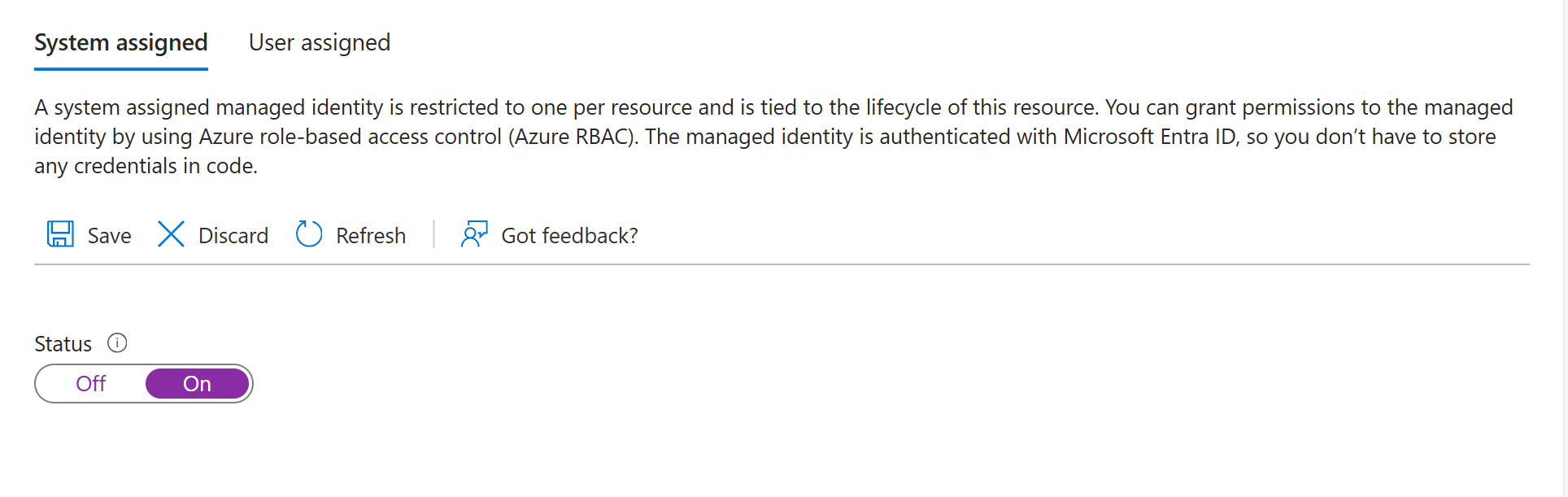
1. Make sure your Foundry resource has system assigned managed identity enabled.

<Frame>
  <img src="https://mintcdn.com/hobbyist-e43fa225/gMKfkLB_8QZbKDLM/images/managed-identity-portal.png?fit=max&auto=format&n=gMKfkLB_8QZbKDLM&q=85&s=a9aaf7117427971990e5bab82a2cb6c7" alt="Screenshot of the Azure portal showing system-assigned managed identity settings." width="1928" height="611" data-path="images/managed-identity-portal.png" />
</Frame>

1. Create a resource for the service you want to connect to through OpenAPI spec.
2. Assign proper access to the resource.
   1. Select **Access Control** for your resource.
   2. Select **Add** and then **add role assignment** at the top of the screen.
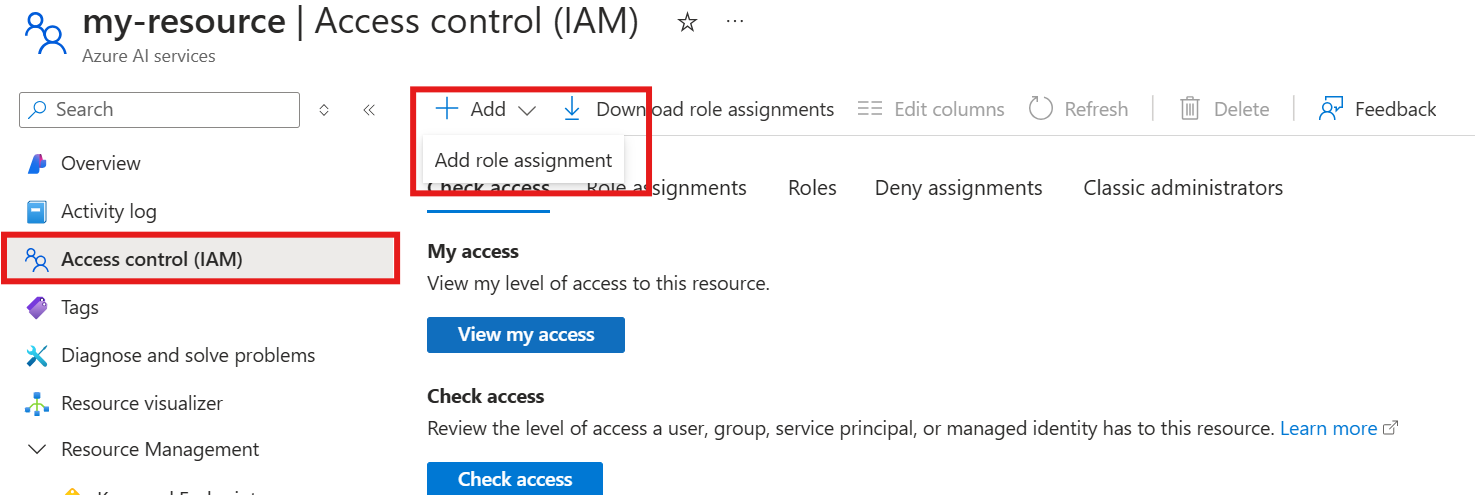
<Frame>
  <img src="https://mintcdn.com/hobbyist-e43fa225/WX8XgSmhY9UDYJ7u/images/role-assignment-portal.png?fit=max&auto=format&n=WX8XgSmhY9UDYJ7u&q=85&s=54b224bd5f94e79b3e18644f556531a9" alt="Screenshot of the Azure portal showing the Add role assignment action." width="1475" height="495" data-path="images/role-assignment-portal.png" />
</Frame>

1. Select the least-privileged data-plane or application role that grants the operations in your OpenAPI specification. Azure Resource Manager **Reader** access alone doesn't grant data-plane access. Then select **Next**.
2. Select **Managed identity** and then select **select members**.
3. In the managed identity dropdown menu, search for **Foundry Account** and then select the Foundry account of your agent.
4. Select **Finish**.
5. When you finish the setup, you can continue by using the tool through the Foundry portal, SDK, or REST API. Use the tabs at the top of this article to see code samples.

## Troubleshoot common errors

| Symptom                                                        | Likely cause                                                         | Resolution                                                                                                                                                                                                                                                                                                                                                                           |
| -------------------------------------------------------------- | -------------------------------------------------------------------- | ------------------------------------------------------------------------------------------------------------------------------------------------------------------------------------------------------------------------------------------------------------------------------------------------------------------------------------------------------------------------------------ |
| API key isn't included in requests.                            | OpenAPI spec missing `securitySchemes` or `security` sections.       | Verify your OpenAPI spec includes both `components.securitySchemes` and a top-level `security` section. Ensure the scheme `name` matches the key name in your project connection.                                                                                                                                                                                                    |
| Agent doesn't call the OpenAPI tool.                           | Tool choice not set or `operationId` not descriptive.                | Use `tool_choice="required"` to force tool invocation. Ensure `operationId` values are descriptive so the model can choose the right operation.                                                                                                                                                                                                                                      |
| Authentication fails for managed identity.                     | Managed identity not enabled or missing role assignment.             | Enable system-assigned managed identity on your Foundry resource. Assign the target service's least-privileged data-plane or application role for the operations in your OpenAPI specification.                                                                                                                                                                                      |
| Managed identity returns 401 even though the role is assigned. | Audience URI doesn't match what the target service expects.          | Verify the audience URI matches the target service's resource identifier. For Azure services, check the service documentation. For Microsoft Entra-protected APIs, use the Application ID URI from your app registration. Decode the token at [https://jwt.ms](https://jwt.ms) and confirm the `aud` claim matches. See [Understand the audience URI](#understand-the-audience-uri). |
| Managed identity token rejected by target API.                 | Target service doesn't accept Microsoft Entra ID tokens.             | Confirm the target service supports Microsoft Entra ID authentication. If it doesn't, use API key or Bearer token authentication instead.                                                                                                                                                                                                                                            |
| Request fails with 400 Bad Request.                            | OpenAPI spec doesn't match actual API.                               | Validate your OpenAPI spec against the actual API. Check parameter names, types, and required fields.                                                                                                                                                                                                                                                                                |
| Request fails with 401 Unauthorized.                           | API key or token invalid or expired.                                 | Regenerate the API key/token and update your project connection. Verify the connection ID is correct.                                                                                                                                                                                                                                                                                |
| Tool returns unexpected response format.                       | Response schema not defined in OpenAPI spec.                         | Add response schemas to your OpenAPI spec for better model understanding.                                                                                                                                                                                                                                                                                                            |
| `operationId` validation error.                                | Invalid characters in `operationId`.                                 | Use only letters, `-`, and `_` in `operationId` values. Remove numbers and special characters.                                                                                                                                                                                                                                                                                       |
| Connection not found error.                                    | Connection name or ID mismatch.                                      | Verify `OPENAPI_PROJECT_CONNECTION_NAME` matches the connection name in your Foundry project.                                                                                                                                                                                                                                                                                        |
| Bearer token not sent correctly.                               | Connection value is missing the `Bearer` prefix and following space. | Set the connection value to `Bearer <token>` (with the word `Bearer` and a space before the token). Verify the OpenAPI spec `securitySchemes` uses `"name": "Authorization"`.                                                                                                                                                                                                        |

## Choose an authentication method

The following table helps you choose the right authentication method for your OpenAPI tool:

| Authentication method | Best for                                                                                                                                                                              | Setup complexity |
| --------------------- | ------------------------------------------------------------------------------------------------------------------------------------------------------------------------------------- | ---------------- |
| Anonymous             | Public APIs with no authentication                                                                                                                                                    | Low              |
| API key               | Non-Microsoft APIs with key-based access                                                                                                                                              | Medium           |
| Managed identity      | Azure services and Microsoft Entra ID-protected APIs. Requires the target service to accept Microsoft Entra ID tokens and support Azure RBAC or Microsoft Entra-based access control. | Medium-High      |

## Related content

* [Add a new connection to your project](../../../how-to/connections-add)
* [Set up your environment for Foundry Agent Service](../../../agents/environment-setup)
* [Agent identity and authentication](/agents/agent-identity)
* [Expose an API and configure scopes (Microsoft Entra ID)](/entra/identity-platform/quickstart-configure-app-expose-web-apis)
* [Microsoft Foundry REST API reference](https://ai.azure.com/api-reference)
