> ## Documentation Index
> Fetch the complete documentation index at: https://hobbyist-e43fa225.mintlify.site/llms.txt
> Use this file to discover all available pages before exploring further.
# Configure Microsoft Entra authentication for Foundry Agent trace ingestion (preview)
> Learn how to use Microsoft Entra authentication for Foundry Agent trace ingestion to Application Insights with managed identities and RBAC.
Items marked (preview) in this article are currently in public preview. This preview is provided without a service-level agreement, and we don't recommend it for production workloads. Certain features might not be supported or might have constrained capabilities. For more information, see [Supplemental Terms of Use for Microsoft Azure Previews](https://azure.microsoft.com/support/legal/preview-supplemental-terms/).
Use Microsoft Entra authentication for trace ingestion when your agents send telemetry to the Application Insights resource connected to your Foundry project. This approach replaces key-based ingestion with identity-based access control.
This article applies to Foundry agents that send traces to the Application Insights resource connected to your Foundry project.
## Prerequisites
* A [Foundry project](../../how-to/create-projects).
* An [Azure Monitor Application Insights resource](https://learn.microsoft.com/azure/azure-monitor/app/app-insights-overview) to store traces (create a new one or connect an existing one).
* Access to the Application Insights resource connected to your project.
* Permission to assign Azure roles on the connected Application Insights resource, such as **User Access Administrator** at minimum. See [prerequisites for assigning roles via the Azure portal](https://learn.microsoft.com/azure/role-based-access-control/role-assignments-portal#prerequisites).
* [Local authentication disabled](https://learn.microsoft.com/azure/azure-monitor/app/azure-ad-authentication) on the connected Application Insights resource to enforce Microsoft Entra ID-only ingestion.
* To view traces in Foundry, the [Log Analytics Reader role](https://learn.microsoft.com/azure/azure-monitor/logs/manage-access) on the connected Application Insights resource. If the underlying Log Analytics tables are [protected](https://learn.microsoft.com/azure/azure-monitor/logs/protected-tables-configure), also assign [Privileged Monitoring Data Reader](https://learn.microsoft.com/azure/azure-monitor/logs/manage-access).
## Connect Application Insights to your Foundry project
Foundry stores traces in [Application Insights](https://learn.microsoft.com/azure/azure-monitor/app/app-insights-overview) by using [OpenTelemetry semantic conventions](https://opentelemetry.io/docs/specs/semconv/gen-ai/).
### Update an existing connection
If your project already has a connection to Application Insights and you want to convert it to use Microsoft Entra authentication, follow these steps. If you don't have an existing connection, skip to [Create a new connection](#create-a-new-connection).
1. Select **Manage** in the upper-right navigation, and then select **Project details**.
2. Select the existing Application Insights connection, and then select **Edit authentication**.
 1. Select **Project managed identity**, and then select **Save**.
 ### Create a new connection
1. Sign in to [Microsoft Foundry](https://ai.azure.com/?cid=learnDocs). Make sure the **New Foundry** toggle is on. These steps refer to **Foundry (new)**.
### Create a new connection
1. Sign in to [Microsoft Foundry](https://ai.azure.com/?cid=learnDocs). Make sure the **New Foundry** toggle is on. These steps refer to **Foundry (new)**.
 1. Open your Foundry project.
2. In the left navigation, select **Agents**.
3. At the top, select **Traces**.
4. On the right, select **Connect** to create or connect an Application Insights resource.
1. Open your Foundry project.
2. In the left navigation, select **Agents**.
3. At the top, select **Traces**.
4. On the right, select **Connect** to create or connect an Application Insights resource.
 * To connect an existing resource, select the resource, and then select **Connect**.
* To create a new resource, select **Create new**, and then complete the wizard.
6. In the connection creation experience, set **Auth type** to **Project Managed Identity**.
* To connect an existing resource, select the resource, and then select **Connect**.
* To create a new resource, select **Create new**, and then complete the wizard.
6. In the connection creation experience, set **Auth type** to **Project Managed Identity**.
 7. Complete the wizard and select **Create**.
A confirmation message appears when the connection succeeds.
### Use the project details connection path
If you don't see the message bar or **Connect** button, use this alternative way to enable Azure Monitor Application Insights.
1. Select **Manage** in the upper-right navigation, and then select **Project details**.
7. Complete the wizard and select **Create**.
A confirmation message appears when the connection succeeds.
### Use the project details connection path
If you don't see the message bar or **Connect** button, use this alternative way to enable Azure Monitor Application Insights.
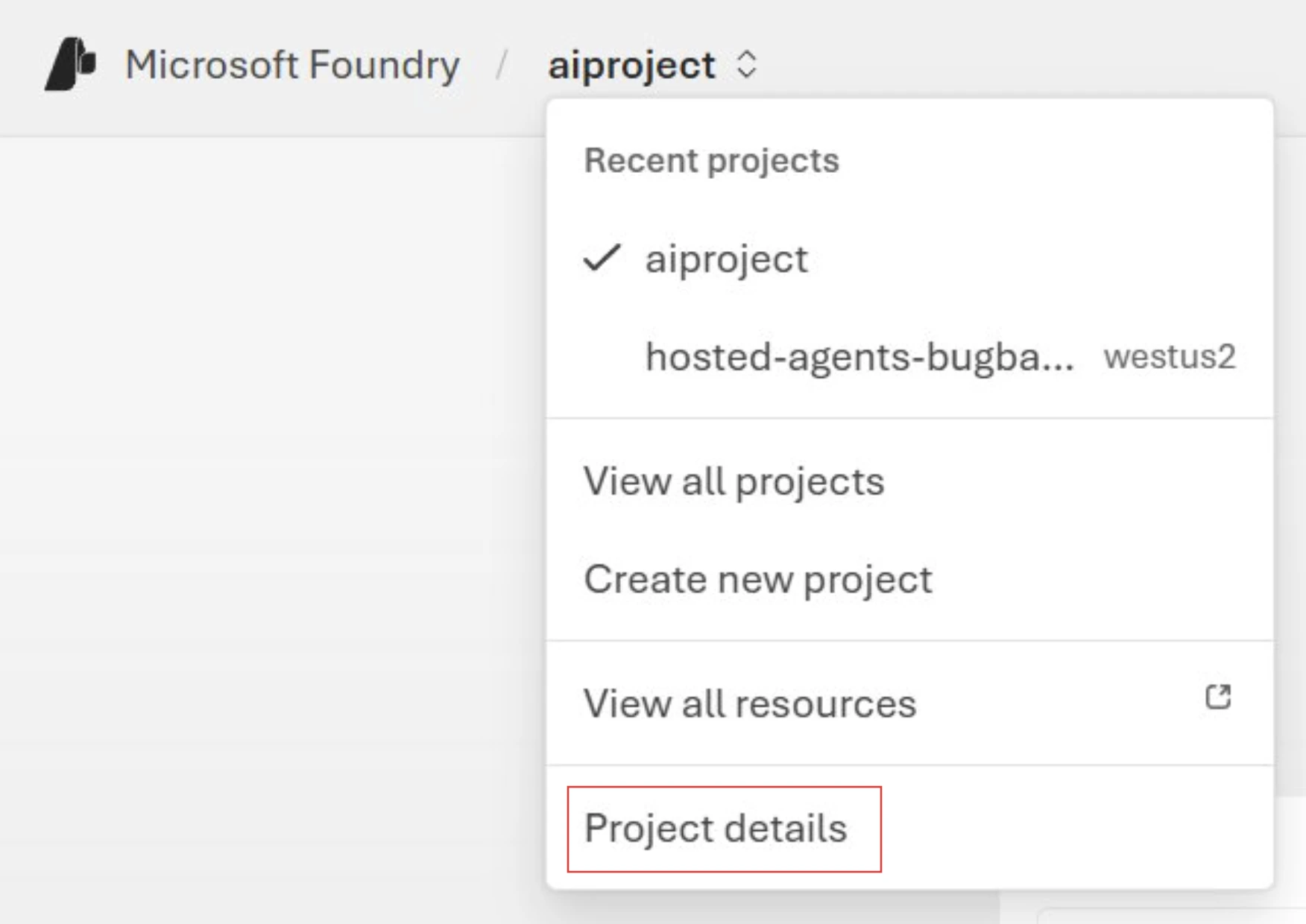
1. Select **Manage** in the upper-right navigation, and then select **Project details**.
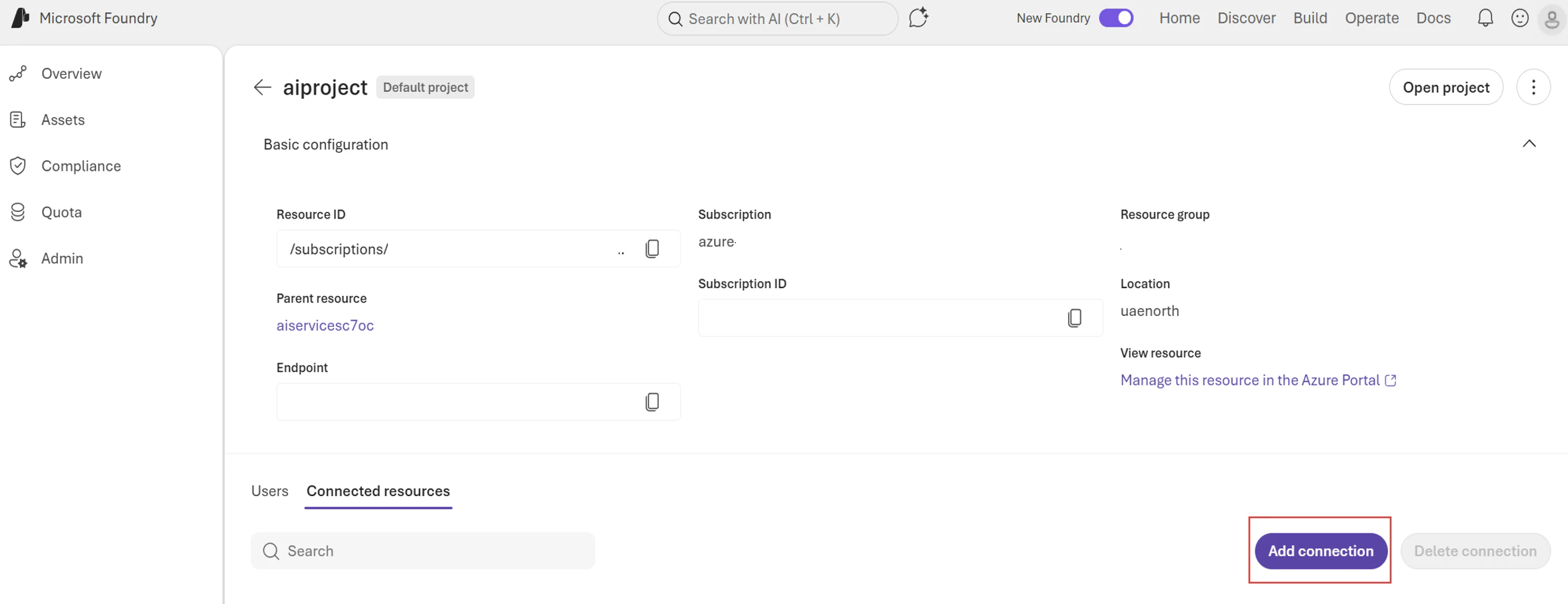
 1. Select the **Connected resources** tab, and then select **Add connection**.
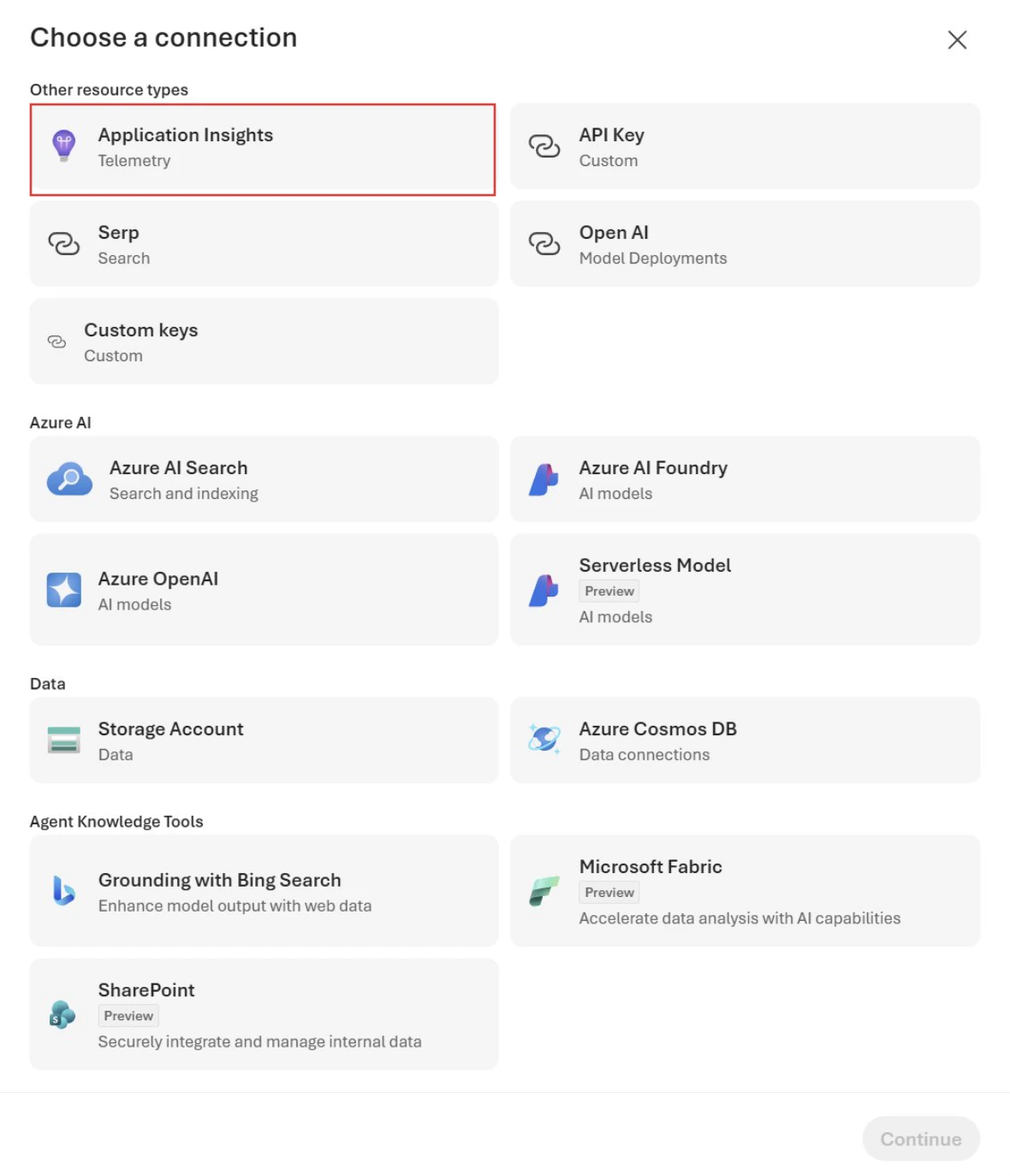
 1. In **Choose a connection**, select **Application Insights**.
 4. Before you select **Connect**, in the connection creation experience, set **Auth type** to **Project Managed Identity**.
 After you connect the resource, your project is ready for Entra-authenticated trace ingestion. Foundry uses project Managed Identity to ingest traces to connected Application Insights.
When you create the connection from the Foundry portal with **Auth type** set to **Project managed identity**, the Foundry portal assigns the **Monitoring Metrics Publisher** role to the Foundry project managed identity.
## Set up Entra authentication for hosted agent traces
For hosted agents, in addition to setting up the connection by using **Project Managed Identity**, you also need to grant the **Agent Identity** permission on the connected Application Insights resource.
This permission is required because hosted agent traces can come from two identities:
* **Foundry Agent Service** emits server-side traces by using project managed identity.
* **Agent** emits traces from code that runs in the hosted agent sandbox by using **Agent Identity**.
To assign the **Monitoring Metrics Publisher** role to the agent identity, use the Foundry portal or Azure CLI.
1. In the Azure portal, open the Application Insights resource connected to your Foundry project.
2. Select **Access control (IAM)**.
3. Select **Add** > **Add role assignment**.
4. Select **Monitoring Metrics Publisher**, and then select **Next**.
5. In **Members**, select the Agent Identity of hosted agent.
6. Select **Review + assign**.
For detailed portal guidance, see [Assign Azure roles using the Azure portal](https://learn.microsoft.com/azure/role-based-access-control/role-assignments-portal).
Use this option to create the same role assignment by using Azure CLI.
1. Sign in by using Azure CLI:
```bash theme={null}
az login
```
2. Run the following command to assign **Monitoring Metrics Publisher** role:
```bash theme={null}
az role assignment create \
--assignee-object-id "$AGENT_IDENTITY_OBJECT_ID" \
--assignee-principal-type ServicePrincipal \
--role "Monitoring Metrics Publisher" \
--scope "$APP_INSIGHTS_RESOURCE_ID"
```
Set these environment variables before running the command:
* `APP_INSIGHTS_RESOURCE_ID`: Full resource ID of the connected Application Insights resource.
* `AGENT_IDENTITY_OBJECT_ID`: Microsoft Entra object ID of the Agent Identity.
Reference: [`az login`](https://learn.microsoft.com/cli/azure/reference-index#az-login), [`az role assignment create`](https://learn.microsoft.com/cli/azure/role/assignment#az-role-assignment-create)
## Troubleshoot common ingestion problems
| Issue | Likely cause | Resolution |
| ------------------------------------------------------------------------------------------------------------------------------------------------------------------------------------------------------------------------------------------------------------------------- | ------------------------------------------------------------------------------------------------------------------------------------------------------------------------------------------------- | ------------------------------------------------------------------------------------------------------------------------------------------------------------------------------------------------------------------------------------------------------------------------------------------------------------------------------------------------------------- |
| `Error creating connection: Multiple connection with same category (AppInsights) created, we only allow to have 1 connection for category` | A trace connection to Application Insights is already configured for the project | [Update the existing connection](#update-an-existing-connection) instead of creating a new one. |
| `azure.monitor.opentelemetry.exporter.export._base: Retryable server side error: Operation returned an invalid status 'Forbidden'. Your application might be configured with a token credential, but your Application Insights resource might be configured incorrectly.` | Application Insights isn't configured for Microsoft Entra ID authentication, or the ingestion identity is missing **Monitoring Metrics Publisher** on the connected Application Insights resource | [Disable local authentication](https://learn.microsoft.com/azure/azure-monitor/app/azure-ad-authentication) on the connected Application Insights resource to enforce Microsoft Entra ID-only ingestion, then assign **Monitoring Metrics Publisher** to the identity that sends telemetry (for example, **Project managed identity** or **Agent Identity**). |
| Traces from agent code don't show up | Agent code uses an identity that doesn't have permission to ingest telemetry, or sends data to a different Application Insights resource | [Assign **Monitoring Metrics Publisher** to the Agent Identity](#set-up-entra-authentication-for-hosted-agent-traces) on the connected Application Insights resource, and verify your runtime points to that same resource. |
| Connection is created, but traces still don't show up | Ingestion role assignment or connection settings aren't fully applied yet | [Verify the authentication type](#update-an-existing-connection) is set to **Project managed identity**, confirm role assignments for the required identity, and wait 2-5 minutes before checking the **Traces** page again. |
## Related content
* [Set up tracing in Microsoft Foundry](/observability/trace-agent-setup)
* [Configure tracing for AI agent frameworks](/observability/trace-agent-framework)
* [Agent tracing overview](/observability/trace-agent-concept)
* [Microsoft Entra authentication for Application Insights](https://learn.microsoft.com/azure/azure-monitor/app/azure-ad-authentication)
After you connect the resource, your project is ready for Entra-authenticated trace ingestion. Foundry uses project Managed Identity to ingest traces to connected Application Insights.
When you create the connection from the Foundry portal with **Auth type** set to **Project managed identity**, the Foundry portal assigns the **Monitoring Metrics Publisher** role to the Foundry project managed identity.
## Set up Entra authentication for hosted agent traces
For hosted agents, in addition to setting up the connection by using **Project Managed Identity**, you also need to grant the **Agent Identity** permission on the connected Application Insights resource.
This permission is required because hosted agent traces can come from two identities:
* **Foundry Agent Service** emits server-side traces by using project managed identity.
* **Agent** emits traces from code that runs in the hosted agent sandbox by using **Agent Identity**.
To assign the **Monitoring Metrics Publisher** role to the agent identity, use the Foundry portal or Azure CLI.
1. In the Azure portal, open the Application Insights resource connected to your Foundry project.
2. Select **Access control (IAM)**.
3. Select **Add** > **Add role assignment**.
4. Select **Monitoring Metrics Publisher**, and then select **Next**.
5. In **Members**, select the Agent Identity of hosted agent.
6. Select **Review + assign**.
For detailed portal guidance, see [Assign Azure roles using the Azure portal](https://learn.microsoft.com/azure/role-based-access-control/role-assignments-portal).
Use this option to create the same role assignment by using Azure CLI.
1. Sign in by using Azure CLI:
```bash theme={null}
az login
```
2. Run the following command to assign **Monitoring Metrics Publisher** role:
```bash theme={null}
az role assignment create \
--assignee-object-id "$AGENT_IDENTITY_OBJECT_ID" \
--assignee-principal-type ServicePrincipal \
--role "Monitoring Metrics Publisher" \
--scope "$APP_INSIGHTS_RESOURCE_ID"
```
Set these environment variables before running the command:
* `APP_INSIGHTS_RESOURCE_ID`: Full resource ID of the connected Application Insights resource.
* `AGENT_IDENTITY_OBJECT_ID`: Microsoft Entra object ID of the Agent Identity.
Reference: [`az login`](https://learn.microsoft.com/cli/azure/reference-index#az-login), [`az role assignment create`](https://learn.microsoft.com/cli/azure/role/assignment#az-role-assignment-create)
## Troubleshoot common ingestion problems
| Issue | Likely cause | Resolution |
| ------------------------------------------------------------------------------------------------------------------------------------------------------------------------------------------------------------------------------------------------------------------------- | ------------------------------------------------------------------------------------------------------------------------------------------------------------------------------------------------- | ------------------------------------------------------------------------------------------------------------------------------------------------------------------------------------------------------------------------------------------------------------------------------------------------------------------------------------------------------------- |
| `Error creating connection: Multiple connection with same category (AppInsights) created, we only allow to have 1 connection for category` | A trace connection to Application Insights is already configured for the project | [Update the existing connection](#update-an-existing-connection) instead of creating a new one. |
| `azure.monitor.opentelemetry.exporter.export._base: Retryable server side error: Operation returned an invalid status 'Forbidden'. Your application might be configured with a token credential, but your Application Insights resource might be configured incorrectly.` | Application Insights isn't configured for Microsoft Entra ID authentication, or the ingestion identity is missing **Monitoring Metrics Publisher** on the connected Application Insights resource | [Disable local authentication](https://learn.microsoft.com/azure/azure-monitor/app/azure-ad-authentication) on the connected Application Insights resource to enforce Microsoft Entra ID-only ingestion, then assign **Monitoring Metrics Publisher** to the identity that sends telemetry (for example, **Project managed identity** or **Agent Identity**). |
| Traces from agent code don't show up | Agent code uses an identity that doesn't have permission to ingest telemetry, or sends data to a different Application Insights resource | [Assign **Monitoring Metrics Publisher** to the Agent Identity](#set-up-entra-authentication-for-hosted-agent-traces) on the connected Application Insights resource, and verify your runtime points to that same resource. |
| Connection is created, but traces still don't show up | Ingestion role assignment or connection settings aren't fully applied yet | [Verify the authentication type](#update-an-existing-connection) is set to **Project managed identity**, confirm role assignments for the required identity, and wait 2-5 minutes before checking the **Traces** page again. |
## Related content
* [Set up tracing in Microsoft Foundry](/observability/trace-agent-setup)
* [Configure tracing for AI agent frameworks](/observability/trace-agent-framework)
* [Agent tracing overview](/observability/trace-agent-concept)
* [Microsoft Entra authentication for Application Insights](https://learn.microsoft.com/azure/azure-monitor/app/azure-ad-authentication)