> ## Documentation Index
> Fetch the complete documentation index at: https://hobbyist-e43fa225.mintlify.site/llms.txt
> Use this file to discover all available pages before exploring further.
# Monitor agents with the Agent Monitoring Dashboard
> Learn how to monitor operational metrics, token usage, latency, and evaluation results for AI agents in Microsoft Foundry by using the Agent Monitoring Dashboard and Application Insights.
Items marked (preview) in this article are currently in public preview. This preview is provided without a service-level agreement, and we don't recommend it for production workloads. Certain features might not be supported or might have constrained capabilities. For more information, see [Supplemental Terms of Use for Microsoft Azure Previews](https://azure.microsoft.com/support/legal/preview-supplemental-terms/).
Use the Agent Monitoring Dashboard in Microsoft Foundry to track operational metrics and evaluation results for your agents. This dashboard helps you understand token usage, latency, success rates, and evaluation outcomes for production traffic.
This article covers two approaches: viewing metrics in the Foundry portal and setting up continuous evaluation programmatically with the Python SDK.
## Prerequisites
* A [Foundry project](../../how-to/create-projects) with at least one [agent](../../agents/overview).
* An [Application Insights resource](https://learn.microsoft.com/azure/azure-monitor/app/app-insights-overview) connected to your project.
* Python 3.9 or later (required for Python SDK steps).
* Azure role-based access control (RBAC) access to the Application Insights resource. For log-based views, you also need access to the associated Log Analytics workspace. To verify access, open the Application Insights resource in the Azure portal, select **Access control (IAM)**, and confirm your account has an appropriate role. For log access, assign the [Log Analytics Reader role](https://learn.microsoft.com/azure/azure-monitor/logs/manage-access). If those Log Analytics tables are [protected](https://learn.microsoft.com/azure/azure-monitor/logs/protected-tables-configure) (protection level set to **Protected**), also assign the [Privileged Monitoring Data Reader role](https://learn.microsoft.com/azure/azure-monitor/logs/manage-access) to read that data.
## Connect Application Insights
The Agent Monitoring Dashboard reads telemetry from the Application Insights resource connected to your Foundry project. If you haven't connected Application Insights yet, follow the tracing setup steps and then return to this article.
* [How to set up tracing in Microsoft Foundry](/observability/trace-agent-setup)
## View agent metrics (preview)
To view metrics for an agent in the Foundry portal:
1. Sign in to [Microsoft Foundry](https://ai.azure.com/?cid=learnDocs). Make sure the **New Foundry** toggle is on. These steps refer to **Foundry (new)**.
 2. In the top navigation, select **Build**, then select the agent you want to view data for.
3. Select the **Monitor** tab to view operational, evaluation, and red-teaming data for your agent.
2. In the top navigation, select **Build**, then select the agent you want to view data for.
3. Select the **Monitor** tab to view operational, evaluation, and red-teaming data for your agent.
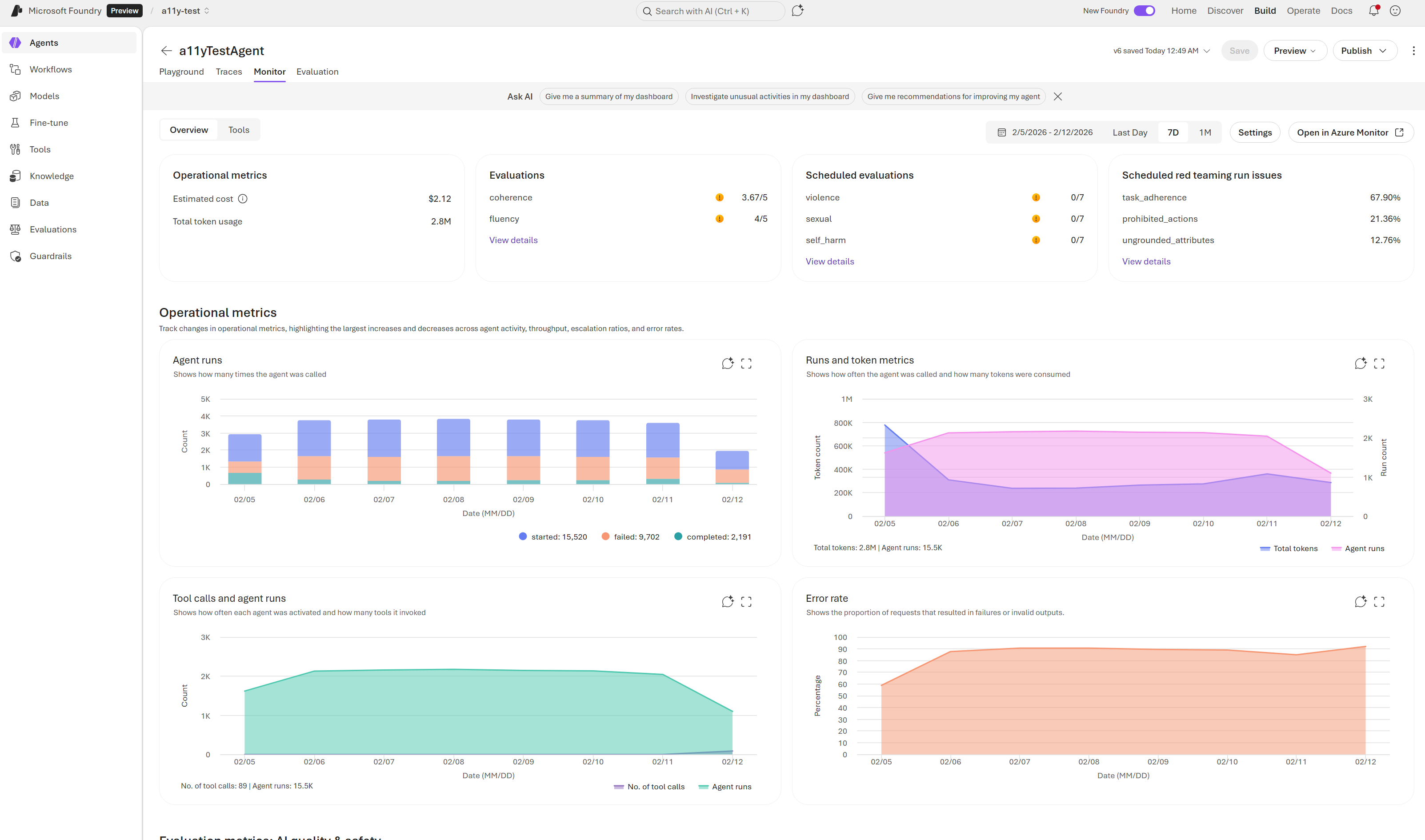 The dashboard is designed for quick insights and deep analysis of your agent's performance. It consists of two main areas:
* Summary cards at the top for high-level metrics.
* Charts and graphs below for granular details. These visualizations reflect data for the selected time range.
## Understand the dashboard metrics
Use these definitions to interpret the dashboard:
* **Token usage**: Token counts for agent traffic in the selected time range. High token usage might indicate verbose prompts or responses that could benefit from optimization.
* **Latency**: Response time for agent runs. Latency above 10 seconds might indicate model throttling, complex tool calls, or network issues.
* **Run success rate**: The percentage of runs that complete successfully. A rate below 95% warrants investigation into failed runs.
* **Evaluation metrics**: Scores produced by evaluators that run on sampled agent outputs. Scores vary by evaluator; review individual evaluator documentation for interpretation guidance.
* **Red teaming results**: Outcomes from scheduled red team scans, if enabled. Failed scans indicate potential security risks that require remediation.
Monitoring data is stored in the connected Application Insights resource. Retention and billing follow your Application Insights configuration.
## Configure settings
Use the Monitor settings panel to configure telemetry, evaluations, and security checks for your agents. These settings control which charts the dashboard shows and which evaluations run.
The dashboard is designed for quick insights and deep analysis of your agent's performance. It consists of two main areas:
* Summary cards at the top for high-level metrics.
* Charts and graphs below for granular details. These visualizations reflect data for the selected time range.
## Understand the dashboard metrics
Use these definitions to interpret the dashboard:
* **Token usage**: Token counts for agent traffic in the selected time range. High token usage might indicate verbose prompts or responses that could benefit from optimization.
* **Latency**: Response time for agent runs. Latency above 10 seconds might indicate model throttling, complex tool calls, or network issues.
* **Run success rate**: The percentage of runs that complete successfully. A rate below 95% warrants investigation into failed runs.
* **Evaluation metrics**: Scores produced by evaluators that run on sampled agent outputs. Scores vary by evaluator; review individual evaluator documentation for interpretation guidance.
* **Red teaming results**: Outcomes from scheduled red team scans, if enabled. Failed scans indicate potential security risks that require remediation.
Monitoring data is stored in the connected Application Insights resource. Retention and billing follow your Application Insights configuration.
## Configure settings
Use the Monitor settings panel to configure telemetry, evaluations, and security checks for your agents. These settings control which charts the dashboard shows and which evaluations run.
 To access Monitor settings, select the gear icon on the **Monitor** tab. The following table describes each monitoring feature:
| Setting | Purpose | Configuration Options |
| ----------------------------------- | ---------------------------------------------------------------------------------- | ---------------------------------------------------------------------------------- |
| **Continuous evaluation** | Runs evaluations on sampled agent responses. | Enable or disable
To access Monitor settings, select the gear icon on the **Monitor** tab. The following table describes each monitoring feature:
| Setting | Purpose | Configuration Options |
| ----------------------------------- | ---------------------------------------------------------------------------------- | ---------------------------------------------------------------------------------- |
| **Continuous evaluation** | Runs evaluations on sampled agent responses. | Enable or disable
Add evaluators
Set the sample rate |
| **Scheduled evaluations (preview)** | Runs evaluations on a schedule to validate performance against benchmarks. | Enable or disable
Select an evaluation template and run
Set a schedule |
| **Red team scans (preview)** | Runs adversarial tests to detect risks such as data leakage or prohibited actions. | Enable or disable
Select an evaluation template and run
Set a schedule |
| **Alerts (preview)** | Detects performance anomalies, evaluation failures, and security risks. | Configure alerts for latency, token usage, evaluation scores, or red team findings |
## Set up continuous evaluation
Use the Python or .NET SDK to set up continuous evaluation rules for agent responses.
This section requires Python 3.9 or later.
```bash theme={null}
pip install "azure-ai-projects>=2.0.0" python-dotenv
```
```bash theme={null}
dotnet add package Azure.AI.Projects
dotnet add package Azure.AI.Projects.Agents
dotnet add package Azure.AI.Extensions.OpenAI
dotnet add package Azure.Identity
```
Set these environment variables with your own values:
* `AZURE_AI_PROJECT_ENDPOINT`: The Foundry project endpoint, as found on the project overview page in the Foundry portal.
* `AZURE_AI_AGENT_NAME`: The name of the agent to use for evaluation.
* `AZURE_AI_MODEL_DEPLOYMENT_NAME`: The deployment name of the model.
### Assign permissions for continuous evaluation
To enable continuous evaluation rules, assign the project managed identity the **Foundry User** role.
The Foundry RBAC roles were recently renamed. **Foundry User**, **Foundry Owner**, **Foundry Account Owner**, and **Foundry Project Manager** were previously named Azure AI User, Azure AI Owner, Azure AI Account Owner, and Azure AI Project Manager. You might still see the previous names in some places while the rename rolls out. The role IDs and core permissions are unchanged by the rename.
1. In the Azure portal, open the resource for your Foundry project.
2. Select **Access control (IAM)**, and then select **Add**.
3. Create a role assignment for **Foundry User**.
4. For the member, select your Foundry project's managed identity.
### Create an agent
```python theme={null}
import os
from dotenv import load_dotenv
from azure.identity import DefaultAzureCredential
from azure.ai.projects import AIProjectClient
from azure.ai.projects.models import (
PromptAgentDefinition,
)
load_dotenv()
endpoint = os.environ["AZURE_AI_PROJECT_ENDPOINT"]
with (
DefaultAzureCredential() as credential,
AIProjectClient(endpoint=endpoint, credential=credential) as project_client,
project_client.get_openai_client() as openai_client,
):
agent = project_client.agents.create_version(
agent_name=os.environ["AZURE_AI_AGENT_NAME"],
definition=PromptAgentDefinition(
model=os.environ["AZURE_AI_MODEL_DEPLOYMENT_NAME"],
instructions="You are a helpful assistant that answers general questions",
),
)
print(f"Agent created (id: {agent.id}, name: {agent.name}, version: {agent.version})")
```
References: [AIProjectClient](https://learn.microsoft.com/python/api/azure-ai-projects/azure.ai.projects.aiprojectclient), [DefaultAzureCredential](https://learn.microsoft.com/python/api/azure-identity/azure.identity.defaultazurecredential)
```csharp theme={null}
using Azure.AI.Projects;
using Azure.AI.Projects.Agents;
using Azure.AI.Extensions.OpenAI;
using Azure.Identity;
using OpenAI.Evals;
var endpoint = Environment.GetEnvironmentVariable("AZURE_AI_PROJECT_ENDPOINT")
?? throw new InvalidOperationException("AZURE_AI_PROJECT_ENDPOINT environment variable is not set.");
AIProjectClient projectClient = new(new Uri(endpoint), new DefaultAzureCredential());
#pragma warning disable OPENAI001 // Suppress experimental API warning for EvaluationClient (preview)
EvaluationClient evaluationClient = projectClient.ProjectOpenAIClient.GetEvaluationClient();
#pragma warning restore OPENAI001
PromptAgentDefinition agentDefinition = new(
model: Environment.GetEnvironmentVariable("AZURE_AI_MODEL_DEPLOYMENT_NAME"))
{
Instructions = "You are a helpful assistant that answers general questions",
};
AgentVersion agentVersion = await projectClient.AgentAdministrationClient.CreateAgentVersionAsync(
agentName: Environment.GetEnvironmentVariable("AZURE_AI_AGENT_NAME"),
options: new(agentDefinition));
Console.WriteLine(
$"Agent created (id: {agentVersion.Id}, name: {agentVersion.Name}," +
$" version: {agentVersion.Version})");
```
References: [AIProjectClient](https://learn.microsoft.com/dotnet/api/azure.ai.projects.aiprojectclient), [DefaultAzureCredential](https://learn.microsoft.com/dotnet/api/azure.identity.defaultazurecredential)
### Create a continuous evaluation rule
Define the evaluation and the rule that runs when a response completes. To learn more about supported evaluators, see [Built in evaluators](../../concepts/built-in-evaluators).
```python theme={null}
from azure.ai.projects.models import (
EvaluationRule,
ContinuousEvaluationRuleAction,
EvaluationRuleFilter,
EvaluationRuleEventType,
)
data_source_config = {"type": "azure_ai_source", "scenario": "responses"}
testing_criteria = [
{"type": "azure_ai_evaluator", "name": "violence_detection", "evaluator_name": "builtin.violence"}
]
eval_object = openai_client.evals.create(
name="Continuous Evaluation",
data_source_config=data_source_config, # type: ignore
testing_criteria=testing_criteria, # type: ignore
)
print(f"Evaluation created (id: {eval_object.id}, name: {eval_object.name})")
continuous_eval_rule = project_client.evaluation_rules.create_or_update(
id="my-continuous-eval-rule",
evaluation_rule=EvaluationRule(
display_name="My Continuous Eval Rule",
description="An eval rule that runs on agent response completions",
action=ContinuousEvaluationRuleAction(eval_id=eval_object.id, max_hourly_runs=100),
event_type=EvaluationRuleEventType.RESPONSE_COMPLETED,
filter=EvaluationRuleFilter(agent_name=agent.name),
enabled=True,
),
)
print(
f"Continuous Evaluation Rule created (id: {continuous_eval_rule.id}, name: {continuous_eval_rule.display_name})"
)
```
References: [EvaluationRuleEventType](https://learn.microsoft.com/python/api/azure-ai-projects/azure.ai.projects.models.evaluationruleeventtype), [EvaluationRule](https://learn.microsoft.com/python/api/azure-ai-projects/azure.ai.projects.models.evaluationrule)
```csharp theme={null}
using System.ClientModel;
using System.Text.Json;
using Azure.AI.Projects;
// Build the evaluation configuration
BinaryData evaluationConfig = BinaryData.FromObjectAsJson(new
{
name = "Continuous Evaluation",
data_source_config = new { type = "azure_ai_source", scenario = "responses" },
testing_criteria = new[]
{
new
{
type = "azure_ai_evaluator",
name = "violence_detection",
evaluator_name = "builtin.violence",
},
}
});
// Create the evaluation object
using BinaryContent evaluationContent = BinaryContent.Create(evaluationConfig);
ClientResult evaluationResult = await evaluationClient.CreateEvaluationAsync(evaluationContent);
using JsonDocument evalDoc = JsonDocument.Parse(
evaluationResult.GetRawResponse().Content);
string evaluationId = evalDoc.RootElement.GetProperty("id").GetString()!;
string evaluationName = evalDoc.RootElement.GetProperty("name").GetString()!;
Console.WriteLine($"Evaluation created (id: {evaluationId}, name: {evaluationName})");
// Create the continuous evaluation rule
ContinuousEvaluationRuleAction continuousAction = new(evaluationId)
{
MaxHourlyRuns = 100,
};
EvaluationRule continuousRule = new(
action: continuousAction,
eventType: EvaluationRuleEventType.ResponseCompleted,
enabled: true)
{
Filter = new EvaluationRuleFilter(agentName: agentVersion.Name),
DisplayName = "My Continuous Eval Rule",
Description = "An eval rule that runs on agent response completions",
};
EvaluationRule continuousEvalRule = await projectClient.EvaluationRules.CreateOrUpdateAsync(
id: "my-continuous-eval-rule",
evaluationRule: continuousRule);
Console.WriteLine(
$"Continuous Evaluation Rule created" +
$" (id: {continuousEvalRule.Id}, name: {continuousEvalRule.DisplayName})");
```
References: [EvaluationRuleEventType](https://learn.microsoft.com/dotnet/api/azure.ai.projects.evaluation.evaluationruleeventtype), [EvaluationRule](https://learn.microsoft.com/dotnet/api/azure.ai.projects.evaluation.evaluationrule)
## Verify continuous evaluation results
1. Generate agent traffic (for example, run your app or test the agent in the portal).
2. In the Foundry portal, open the agent and select **Monitor**.
3. Review evaluation-related charts for the selected time range.
If the setup is successful, the evaluation-related charts display scores for your selected time range, and the evaluation runs list shows entries with status **Completed**.
You can also list recent evaluation runs and open the report URL:
```python Python theme={null}
eval_run_list = openai_client.evals.runs.list(
eval_id=eval_object.id,
order="desc",
limit=10,
)
if len(eval_run_list.data) > 0 and eval_run_list.data[0].report_url:
print(f"Report URL: {eval_run_list.data[0].report_url}")
```
```csharp C# theme={null}
using System.Text.Json;
using System.ClientModel;
// List recent evaluation runs using a protocol method
ClientResult runsResult = await evaluationClient.GetEvaluationRunsAsync(
evaluationId, null, null, null, null, new());
using JsonDocument runsDoc = JsonDocument.Parse(
runsResult.GetRawResponse().Content);
var runs = runsDoc.RootElement.GetProperty("data");
if (runs.GetArrayLength() > 0)
{
var firstRun = runs[0];
if (firstRun.TryGetProperty("report_url", out JsonElement reportUrlElement))
{
Console.WriteLine($"Report URL: {reportUrlElement.GetString()}");
}
}
```
## Use custom evaluators for continuous evaluations
In addition to first-party evaluators, you can bring your own evaluators for continuous evaluations. To set up custom evaluators, follow the steps in [Custom evaluators (preview)](../../concepts/evaluation-evaluators/custom-evaluators).
To add custom evaluators to continuous evaluations:
1. From the **Monitor** tab, select **Settings**.
2. Select the **Continuous evaluation** tab.
3. Select **Add evaluator(s)**.
4. Choose the custom evaluators you want to include.
## Full sample code
To view the full sample code, see:
* [Continuous evaluation sample (Python)](https://github.com/Azure/azure-sdk-for-python/blob/main/sdk/ai/azure-ai-projects/samples/evaluations/sample_continuous_evaluation_rule.py).
* [Scheduled evaluation and Schedule AI red teaming evaluation sample (Python)](https://github.com/Azure/azure-sdk-for-python/blob/main/sdk/ai/azure-ai-projects/samples/evaluations/sample_scheduled_evaluations.py).
## Troubleshooting
| Issue | Cause | Resolution |
| ------------------------------------------ | ----------------------------------------------------------------- | ---------------------------------------------------------------------------------------------------------------------------------------------------------------------------------------------------------------------------------------------------------------------------------------------------------------------------------------------------------------------------------------------------------------------------------------- |
| Dashboard charts are empty | No recent traffic, time range excludes data, or ingestion delay | Generate new agent traffic, expand the time range, and refresh after a few minutes. |
| You see authorization errors | Missing RBAC permissions on Application Insights or Log Analytics | Confirm access in **Access control (IAM)** for the connected resources. For log access, assign the [Log Analytics Reader role](https://learn.microsoft.com/azure/azure-monitor/logs/manage-access). If the tables are [protected](https://learn.microsoft.com/azure/azure-monitor/logs/protected-tables-configure), also assign [Privileged Monitoring Data Reader](https://learn.microsoft.com/azure/azure-monitor/logs/manage-access). |
| Continuous evaluation results don't appear | Continuous evaluation isn't enabled or rule creation failed | Confirm that your rule is enabled and that agent traffic is flowing. If you use the Python SDK setup, confirm the project managed identity has the **Foundry User** role. |
| Evaluation runs are skipped | Hourly run limit reached | Increase `max_hourly_runs` in the evaluation rule configuration or wait for the next hour. The default limit is 100 runs per hour. |
## Monitor and set up continuous evaluation for custom agents
Foundry can serve as a centralized location for your agent monitoring, even for agents not running on the platform. Within Foundry control plane, you can onboard agents running elsewhere via AI Gateway. You can then instrument your agent to send traces to the same Application Insights instance as your Foundry project. This setup enables continuous evaluations and tracking of metrics like error rate for agents not running in Foundry.
## Set up monitoring for your custom agents
1. Onboard your custom agent to Foundry using the instructions in [Register and manage custom agents](../../control-plane/register-custom-agent).
2. Instrument your agent to comply with the [semantic conventions for generative AI solutions in the OpenTelemetry standard](https://opentelemetry.io/docs/specs/semconv/gen-ai/).
3. Configure your agent to send telemetry to the same Application Insights instance as your Foundry project to enable continuous evaluation features.
4. In Foundry Control Plane, go to the **Asset** page and select your agent.
5. Select the **Monitor** tab to view your metrics and charts.
6. Set up continuous evaluations using the methods outlined in [Configure settings](#configure-settings).
## Related content
* [Agent tracing overview](/observability/trace-agent-concept)
* [Run AI Red Teaming Agent in the cloud](../../how-to/develop/run-ai-red-teaming-cloud)
* [Set up tracing in Microsoft Foundry](/observability/trace-agent-setup)
* [Tracing integrations](/observability/trace-agent-framework)