;
};
export const ZoneContent = ({group, value, options = [], values = [], defaultValue, children}) => {
const optionKey = options.map(option => `${option.id}:${option.title}`).join("|");
const [activePivot, setActivePivot] = useState(defaultValue || values[0]);
const slugify = value => value.toLowerCase().replace(/[^a-z0-9]+/g, "-").replace(/^-|-$/g, "");
const resolvePivot = () => {
if (typeof window === "undefined") return defaultValue || values[0];
const params = new URLSearchParams(window.location.search);
const requested = params.get("pivots");
if (requested) {
const requestedIds = requested.split(",").map(value => value.trim()).filter(Boolean);
const match = requestedIds.find(id => values.includes(id));
if (match) return match;
}
const hash = window.location.hash.replace(/^#/, "");
if (hash) {
const match = options.find(option => option.id === hash || slugify(option.title) === hash);
if (match) return match.id;
}
try {
const stored = window.localStorage.getItem(`foundry-zone-pivot:${group}`);
if (values.includes(stored)) return stored;
} catch {
return defaultValue || values[0];
}
return defaultValue || values[0];
};
useEffect(() => {
setActivePivot(resolvePivot());
}, [group, defaultValue, values.join("|"), optionKey]);
useEffect(() => {
const onPivotChange = event => {
if (event.detail?.group === group && values.includes(event.detail.value)) {
setActivePivot(event.detail.value);
}
};
window.addEventListener("foundry-zone-pivot-change", onPivotChange);
return () => window.removeEventListener("foundry-zone-pivot-change", onPivotChange);
}, [group, values.join("|")]);
if (activePivot !== value) return null;
return <>{children};
};
[Reference documentation](https://learn.microsoft.com/rest/api/aiservices/videotranslation/operation-groups) | [Samples](https://github.com/Azure-Samples/cognitive-services-speech-sdk/tree/master/samples/video-translation)
In this article, you learn how to use video translation with Azure Speech in Foundry Tools in the [Microsoft Foundry portal](https://ai.azure.com/?cid=learnDocs).
Try out video translation in the [Microsoft Foundry portal](https://ai.azure.com/?cid=learnDocs) before using the API. Use the video translation REST API to integrate video translation into your applications. For more information about the API, see [Video translation REST API](https://learn.microsoft.com/rest/api/aiservices/videotranslation/translation-operations/create-translation).
## Prerequisites
* An Azure subscription. If you don't have an Azure subscription, create a free account before you begin.
* a Foundry resource for Speech [in a supported region](../../../regions). If you don't have a Speech resource, create one in the [Azure portal](https://portal.azure.com/).
* An [Azure Blob Storage](https://learn.microsoft.com/azure/storage/blobs/storage-blobs-overview) account.
* You need a video file in .mp4 format, less than 5 GB, and shorter than 4 hours. For testing purposes, you can use the sample video file provided by Microsoft at [https://ai.azure.com/speechassetscache/ttsvoice/VideoTranslation/PublicDoc/SampleData/es-ES-TryOutOriginal.mp4](https://ai.azure.com/speechassetscache/ttsvoice/VideoTranslation/PublicDoc/SampleData/es-ES-TryOutOriginal.mp4).
* Make sure video translation supports your [source and target language](../../../language-support).
## Try video translation
To try out the video translation demo, follow these steps:
1. Go to the [model catalog in Microsoft Foundry portal](https://ai.azure.com/explore/models).
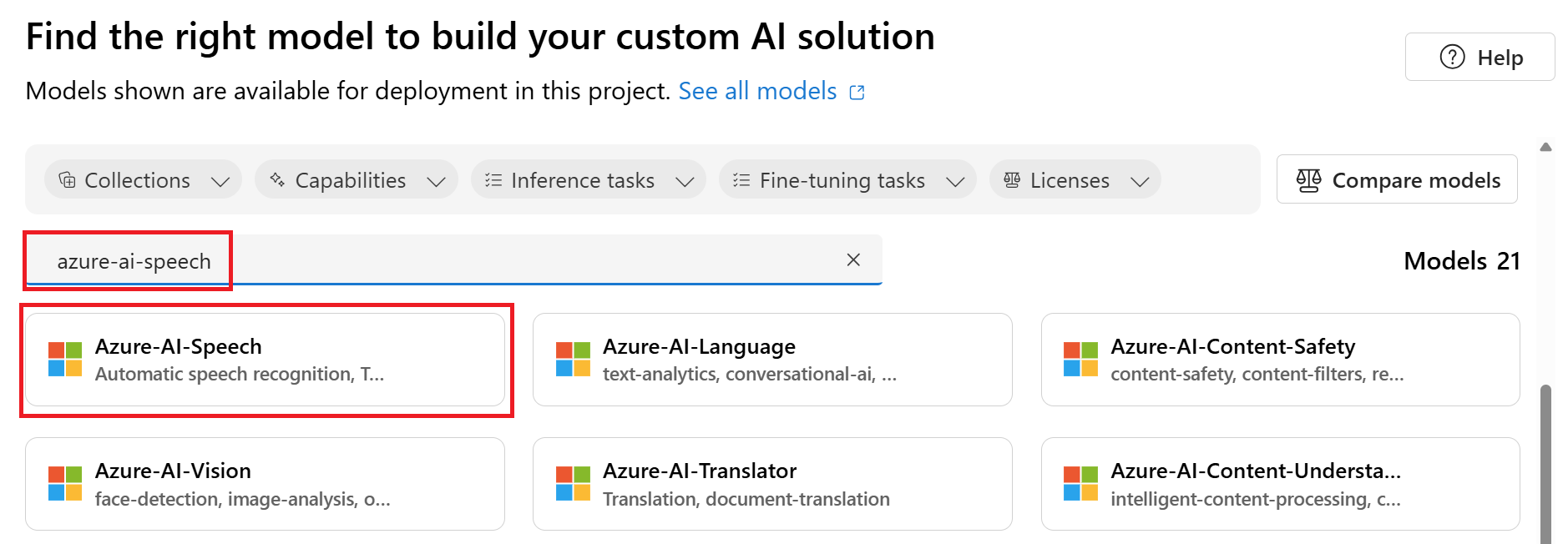
2. Enter and search for "Azure-AI-Speech" in the catalog search box.
1. Select **Azure-AI-Speech** and you're taken to the **Azure-AI-Speech** try out page.
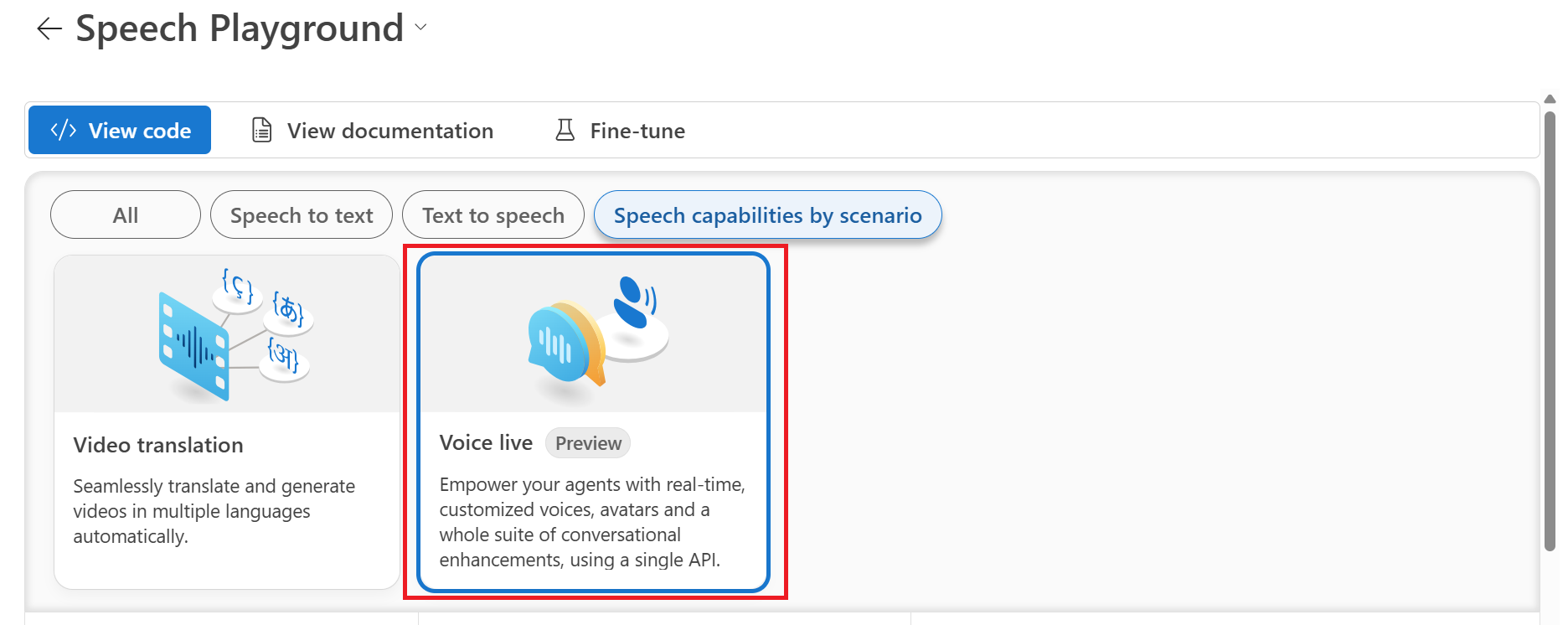
2. Select **Speech capabilities by scenario** > **Video translation**.
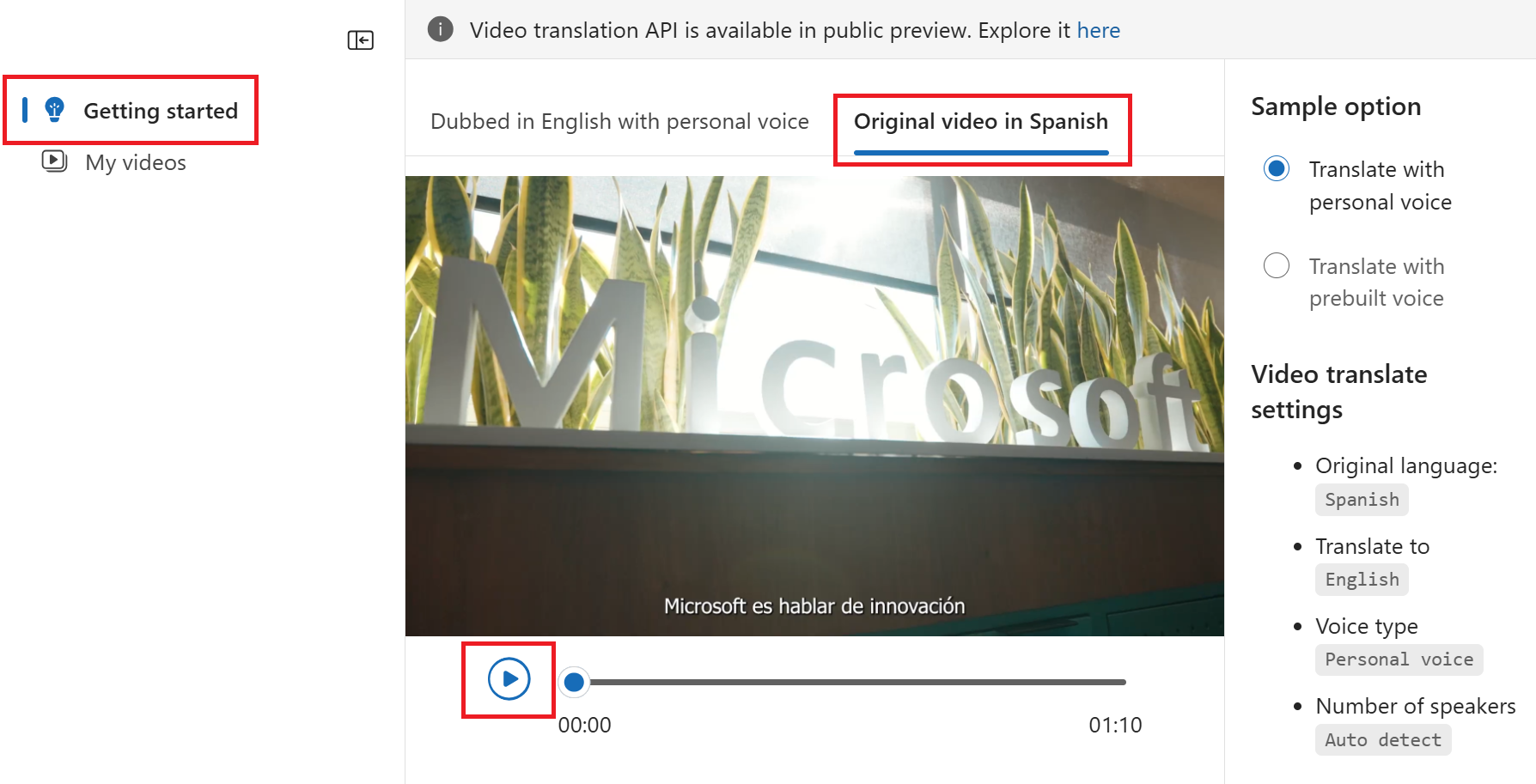
1. Under the **Sample option** to the right, select personal or standard voice.
2. Select the **Play** button to hear the translated audio. Select the original video tab to play the original audio.
The voice type options are:
* **Standard voice**: The service automatically selects the most suitable standard voice by matching the speaker's voice in the video with standard voices.
* **Personal voice**: Use the personal voice that matches the voice of the speakers in the video.
To use personal voice via the API, you need to apply for [access](https://aka.ms/customneural).
## Create a video translation project
To create a video translation project, follow these steps:
1. Go to the [model catalog in Microsoft Foundry portal](https://ai.azure.com/explore/models).
2. Enter and search for "Azure-AI-Speech" in the catalog search box.
1. Select **Azure-AI-Speech** and you're taken to the **Azure-AI-Speech** try out page.
2. Select **Speech capabilities by scenario** > **Video translation**.
1. Select **Go to Speech playground**.
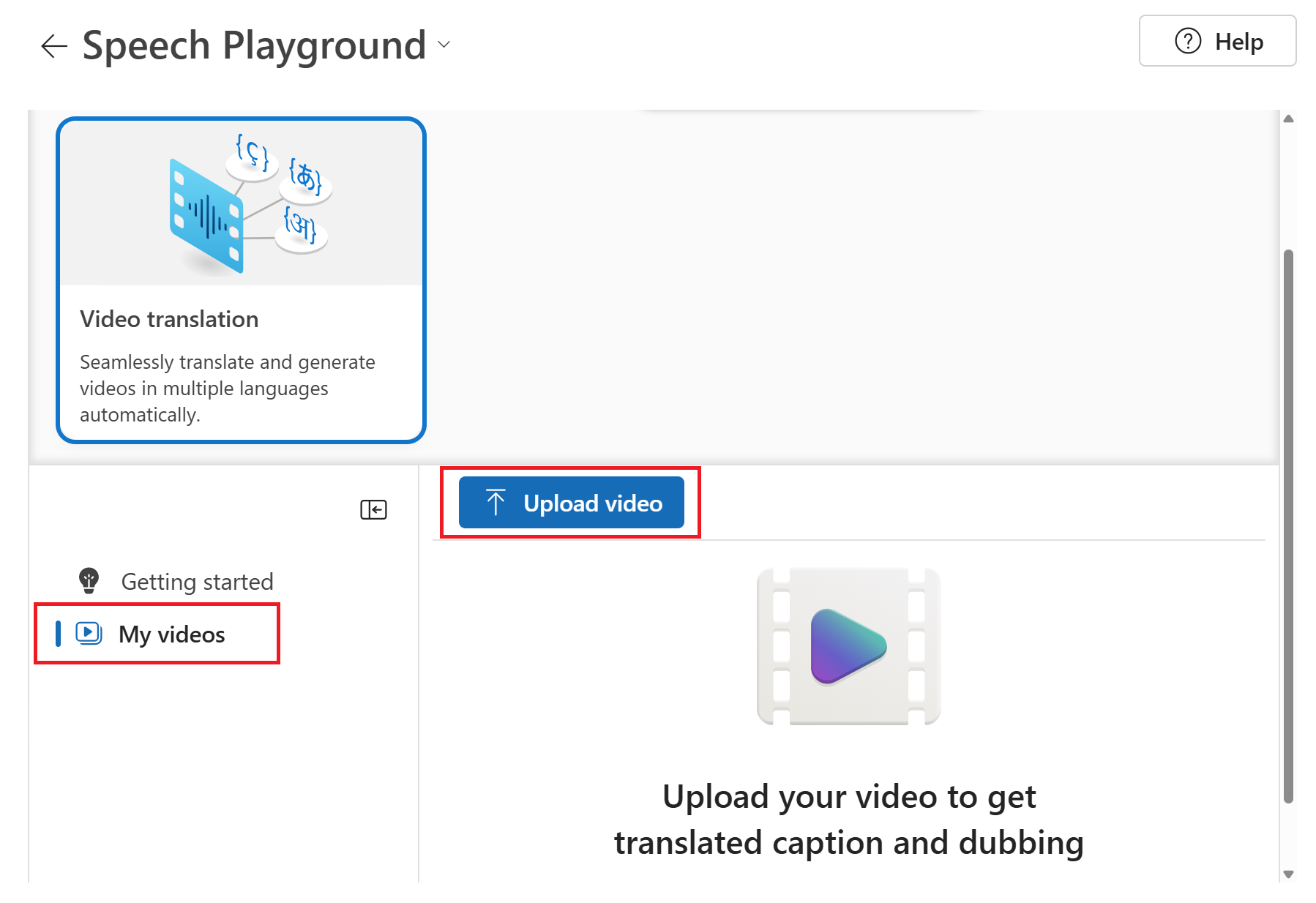
2. Select **My videos** > **Upload video**.
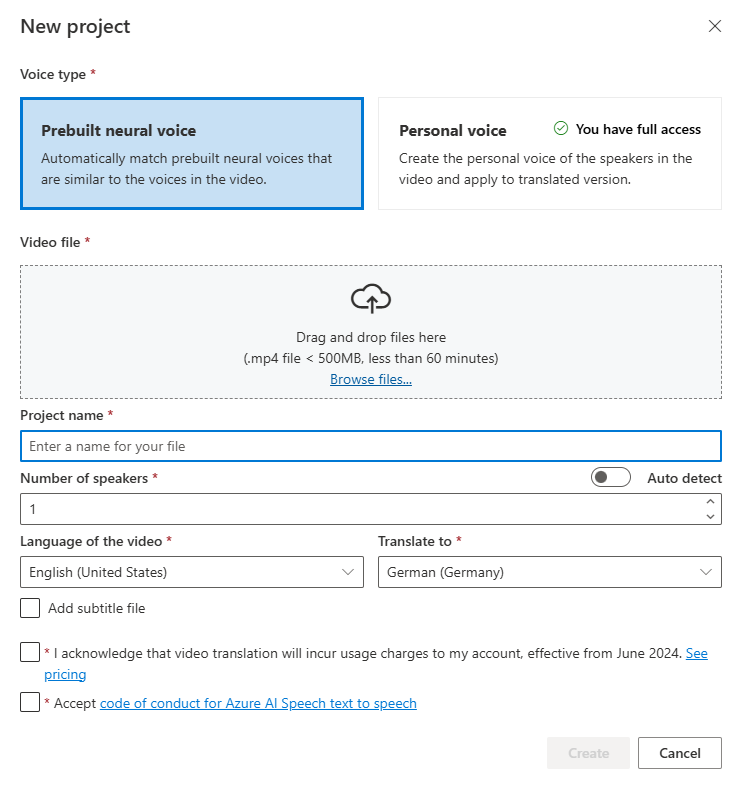
1. On the **Upload video** page, select a **Voice type**.
The voice type options are:
* **Standard voice**: The service automatically selects the most suitable standard voice by matching the speaker's voice in the video with standard voices.
* **Personal voice**: Use the personal voice that matches the voice of the speakers in the video.
To use personal voice, you need to apply for [access](https://aka.ms/customneural).
1. Upload your video file by dragging and dropping the video file or selecting the file manually. The video must be in .mp4 format, less than 5 GB, and shorter than 4 hours.
2. Provide the **Number of speakers**, **Language of the video**, and **Translate to** language.
3. Select the boxes to acknowledge the pricing information and code of conduct.
4. Select **Next: Advanced settings** if you want to adjust the advanced settings.
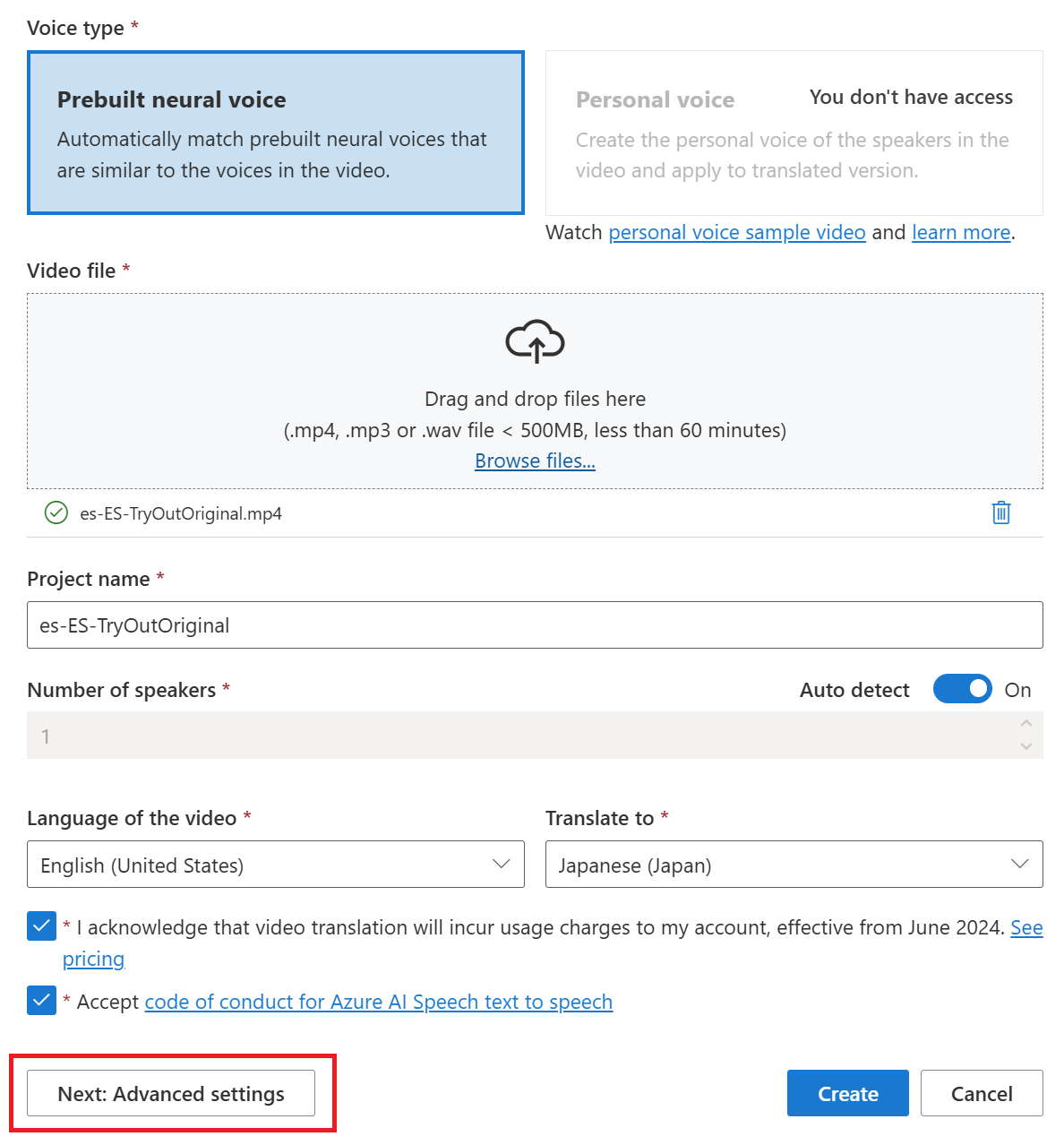
1. Optionally, you can adjust the following settings:
* **Lexicon file**: This option allows you to add custom words or phrases that the system should recognize and pronounce correctly. You can create a lexicon file in the [audio content creation tool in the Speech Studio](https://aka.ms/speechstudio) and select it here.
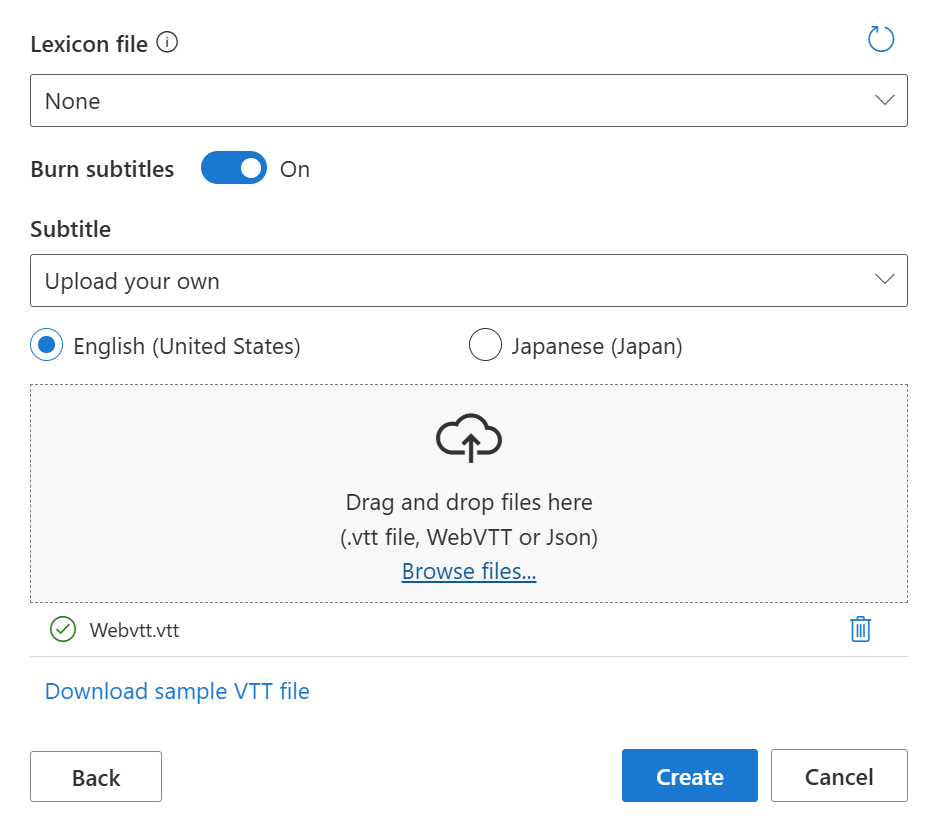
* **Burn subtitles**: This option allows you to add subtitles to the video. The subtitle file can be in WebVTT or JSON format. You can download a sample WebVTT file for your reference by selecting **Download sample VTT file**.
If you want to use your own subtitle files, select **Subtitle** > **Upload your own**. You can choose to upload either the source subtitle file or the target subtitle file.
* Automatic subtitles: Results in both source and target language subtitles.
* Upload source language subtitles: Results in both source and target language subtitles.
* Upload target language subtitles: Results in only target language subtitles.
1. Select **Create**.
Once the upload to Azure Blob Storage is complete, you can check the processing status on the project tab.
After the project is created, you can select the project to review detailed settings and make adjustments according to your preferences.
## Check and adjust voice settings
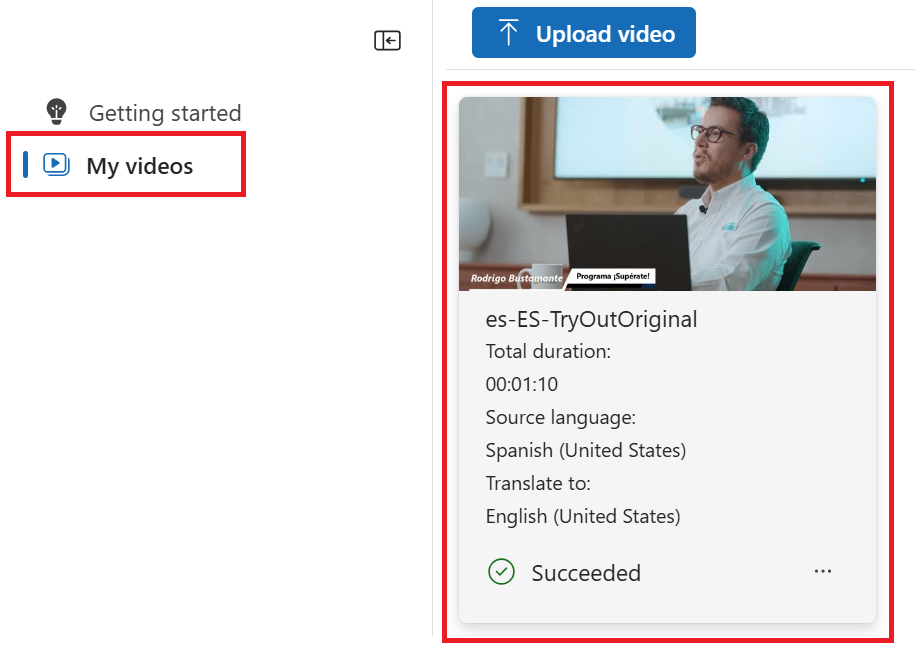
Select **My videos** and you should see a video labeled with **Succeeded** status.
Select the video to see the **Translated** and **Original** tabs under **Video**. You can compare the original and translated videos by selecting the corresponding tab. The translated video is generated automatically, and you can play it to check the translation quality.
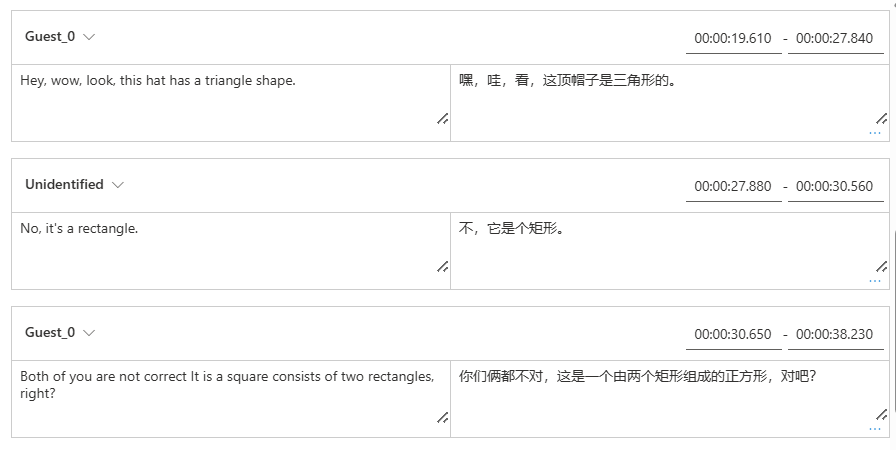
To the right side of the video, you can view both the original script and the translated script. Hovering over each part of the original script triggers the video to automatically jump to the corresponding segment of the original video, while hovering over each part of the translated script triggers the video to jump to the corresponding translated segment.
You can make multiple changes to the video, including adjusting the voice settings, adding or removing segments, and changing the time frame of the scripts. You're only charged after you select **Apply changes** to apply your changes. You can select **Save** to save work in progress without incurring any charges.
If you encounter segments with an "unidentified" voice name, it might be because the system couldn't accurately detect the voice, especially in situations where speaker voices overlap. In such cases, it's advisable to manually change the voice name.
## Translate to another language
You can keep the current translation project and translate the original video into another language.
1. Select **My videos** and then select the tile for your video translation.
2. Select **+ New language**.
3. On the new **Translate to new language** page that appears, choose a new translation language and voice type. Once the video is translated, a new project is automatically created.
## Related content
* [Video translation overview](../../../video-translation-overview)
The video translation REST API facilitates seamless video translation integration into your applications. It supports uploading, managing, and refining video translations, with multiple iterations for continuous improvement. In this article, you learn how to utilize video translation through the REST API.
## Prerequisites
* An Azure subscription. If you don't have an Azure subscription, create a free account before you begin.
* a Foundry resource for Speech [in a supported region](../../../regions). If you don't have a Speech resource, create one in the [Azure portal](https://portal.azure.com/).
* An [Azure Blob Storage](https://learn.microsoft.com/azure/storage/blobs/storage-blobs-overview) account.
* You need a video file in .mp4 format, less than 5 GB, and shorter than 4 hours. For testing purposes, you can use the sample video file provided by Microsoft at [https://ai.azure.com/speechassetscache/ttsvoice/VideoTranslation/PublicDoc/SampleData/es-ES-TryOutOriginal.mp4](https://ai.azure.com/speechassetscache/ttsvoice/VideoTranslation/PublicDoc/SampleData/es-ES-TryOutOriginal.mp4).
* Make sure video translation supports your [source and target language](../../../language-support).
Before you start, see the [video translation overview](../../../video-translation-overview#how-it-works) to understand the end-to-end process of video translation.
## Workflow
Here are the steps to get a translated video using the REST API:
1. [Create a translation object](#step-1-create-a-translation). Check the status of the operation periodically until it reaches `Succeeded` or `Failed`.
2. [Create an iteration](#step-2-create-an-iteration) to start the translation process. Check the status of the iteration operation periodically until it reaches `Succeeded` or `Failed`.
3. [Download](#step-3-download-the-translated-video-and-subtitles) the translated video and subtitles.
4. Optionally, [create additional iterations](#step-4-create-additional-iterations-optional) to improve the translation quality.
## Step 1: Create a translation
Creating a translation as described in this section doesn't initiate the translation process. You can start translating the video by [creating an iteration](#step-2-create-an-iteration). Translations and iterations created through the REST API aren't synchronized to the portal, and vice versa.
To create a video translation, you need to construct an HTTP PUT request path and body according to the following instructions:
* Specify `displayName`: The display name of the translation. This is a user-friendly name that helps you identify the translation.
* Specify `description`: A brief description of the translation. This is optional but can be helpful for documentation purposes.
* Specify the `sourceLocale`: The language of the original video. This is the language spoken in the video file.
* Specify the `targetLocale`: The language you want to translate the video into. This is the target language for the translation.
* Specify `voiceKind`: The type of voice you want to use for the translation. You can choose between `PlatformVoice` and `PersonalVoice`. For `PlatformVoice`, the system automatically selects the most suitable standard voice by matching the speaker's voice in the video with standard voices. For `PersonalVoice`, the system offers a model that generates high-quality voice replication in a few seconds.
To use personal voice, you need to apply for [access](https://aka.ms/customneural).
* Specify `speakerCount`: The number of speakers in the video. This is an optional parameter, and you can set it to 1 if you're unsure.
* Specify `subtitleMaxCharCountPerSegment`: The maximum number of characters allowed per subtitle segment. This is an optional parameter, and you can set it to 30 if you're unsure.
* Specify `exportSubtitleInVideo`: A boolean value indicating whether to export subtitles in the video. This is an optional parameter, and you can set it to `true` if you want to include subtitles in the video.
* Specify the `videoFileUrl`: The URL of the video file you want to translate. The video must be in .mp4 format, less than 5 GB, and shorter than 4 hours. You can upload the video to Azure Blob Storage and use the Blob URL. For testing purposes, you can use the sample video file provided by Microsoft at [https://ai.azure.com/speechassetscache/ttsvoice/VideoTranslation/PublicDoc/SampleData/es-ES-TryOutOriginal.mp4](https://ai.azure.com/speechassetscache/ttsvoice/VideoTranslation/PublicDoc/SampleData/es-ES-TryOutOriginal.mp4).
For authentication and authorization, you need to include the following headers and path IDs in your request:
* Set the `Operation-Id` header: The `Operation-Id` must be unique for each operation, such as creating each iteration. Replace `Your-Operation-Id` with a unique ID for this operation.
* Replace `Your-Translation-Id` in the path. The translation ID must be unique among all translations for the Speech resource. Replace `Your-Translation-Id` with a translation ID of your choice. You use this ID to refer to the translation in subsequent API calls.
* Replace `YourSpeechResourceKey` with your Speech resource key and replace `YourSpeechResourceRegion` with your Speech resource region.
```azurecli-interactive theme={null}
curl -v -X PUT -H "Ocp-Apim-Subscription-Key: YourSpeechResourceKey" -H "Operation-Id: Your-Operation-Id-1" -H "Content-Type: application/json" -d '{
"displayName": "My translation object",
"description": "My translation object for video translation iterations",
"input": {
"sourceLocale": "es-ES",
"targetLocale": "en-US",
"voiceKind": "PlatformVoice",
"speakerCount": 1,
"subtitleMaxCharCountPerSegment": 50,
"exportSubtitleInVideo": false,
"enableLipSync": false,
"videoFileUrl": "https://ai.azure.com/speechassetscache/ttsvoice/VideoTranslation/PublicDoc/SampleData/es-ES-TryOutOriginal.mp4"
}
}' "https://YourSpeechResourceRegion.api.cognitive.microsoft.com/videotranslation/translations/Your-Translation-Id?api-version=2025-05-20"
```
If you try to use an existing translation ID with different settings, the API will return an error. The translation ID must be unique for each translation. You can make changes to an existing translation by [creating an iteration](#step-2-create-an-iteration).
You should receive a response body in the following format:
```json theme={null}
{
"input": {
"sourceLocale": "es-ES",
"targetLocale": "en-US",
"voiceKind": "PlatformVoice",
"speakerCount": 1,
"subtitleMaxCharCountPerSegment": 50,
"exportSubtitleInVideo": false,
"enableLipSync": false
},
"status": "NotStarted",
"lastActionDateTime": "2025-03-06T19:13:35.669Z",
"id": "Your-Translation-Id",
"displayName": "My translation object",
"description": "My translation object for video translation iterations",
"createdDateTime": "2025-03-06T19:13:35.669Z"
}
```
You can use the operation ID that you specified and use the [Get operation by operation ID](#get-operation-by-operation-id) API periodically until the returned status is `Succeeded` or `Failed`. This operation allows you to monitor the progress of your creating the iteration process. The status property should progress from `NotStarted` to `Running`, and finally to `Succeeded` or `Failed`.
## Step 2: Create an iteration
To start translating your video or update an iteration for an existing translation, you need to construct an HTTP PUT request path and body according to the following instructions:
* Set the required input: Include details like `speakerCount`, `subtitleMaxCharCountPerSegment`,`exportSubtitleInVideo`, or `webvttFile`. No subtitles are embedded in the output video by default. When creating an iteration, if you already specified the optional parameters `speakerCount`, `subtitleMaxCharCountPerSegment`, and `exportSubtitleInVideo` during the creation of translation, you don’t need to specify them again. The values inherit from translation settings. Once these parameters are defined when creating an iteration, the new values override the original settings.
* Optionally, you can specify a WebVTT file with subtitles for your original video. The `webvttFile` input parameter isn't required when creating the first iteration. However, [starting from the second iteration](#step-4-create-additional-iterations-optional), you must specify the `webvttFile` parameter in the iteration process.
For authentication and authorization, you need to include the following headers and path IDs in your request:
* Set the `Operation-Id` header: The `Operation-Id` must be unique for each operation, such as creating each iteration. Replace `Your-Operation-Id` with a unique ID for this operation.
* Replace `Your-Translation-Id` in the path. Use the same translation ID that you specified when you [created the translation](#step-1-create-a-translation). The translation ID remains unchanged.
* Specify a new `iterationId` in the path. The iteration ID must be unique for each operation. Replace `Your-Iteration-Id-1` with an iteration ID of your choice.
* Replace `YourSpeechResourceKey` with your Speech resource key and replace `YourSpeechResourceRegion` with your Speech resource region.
```azurecli-interactive theme={null}
curl -v -X PUT -H "Ocp-Apim-Subscription-Key: YourSpeechResourceKey" \
-H "Operation-Id: Your-Operation-Id" \
-H "Content-Type: application/json" \
-d '{
"input": {
"subtitleMaxCharCountPerSegment": 30,
"exportSubtitleInVideo": true
}
}' "https://YourSpeechResourceRegion.api.cognitive.microsoft.com/videotranslation/translations/Your-Translation-Id/iterations/Your-Iteration-Id-1?api-version=2025-05-20"
```
You should receive a response body in the following format:
```json theme={null}
{
"input": {
"subtitleMaxCharCountPerSegment": 30,
"exportSubtitleInVideo": true
},
"status": "NotStarted",
"lastActionDateTime": "2025-03-06T19:15:38.722Z",
"id": "Your-Iteration-Id",
"createdDateTime": "2025-03-06T19:15:38.722Z"
}
```
You can use the operation ID that you specified and use the [Get operation by operation ID](#get-operation-by-operation-id) API periodically until the returned status is `Succeeded` or `Failed`. This operation allows you to monitor the progress of your creating the iteration process. The status property should progress from `NotStarted` to `Running`, and finally to `Succeeded` or `Failed`.
## Step 3: Download the translated video and subtitles
You can download the translated video and subtitles once the iteration status is `Succeeded`. The translated video and subtitles are available in the response body of the [Get an iteration by iteration ID](https://learn.microsoft.com/rest/api/aiservices/videotranslation/iteration-operations/get-iteration) API.
To retrieve details of a specific iteration by its ID, use the HTTP GET request. Replace `YourSpeechResourceKey` with your Speech resource key, `YourSpeechResourceRegion` with your Speech resource region, `Your-Translation-Id` with the translation ID you want to check, and `Your-Iteration-Id` with the iteration ID you want to check.
```azurecli-interactive theme={null}
curl -v -X GET -H "Ocp-Apim-Subscription-Key: YourSpeechResourceKey" "https://YourSpeechResourceRegion.api.cognitive.microsoft.com/videotranslation/translations/Your-Translation-Id/iterations/Your-Iteration-Id?api-version=2025-05-20"
```
You should receive a response body in the following format:
```json theme={null}
{
"input": {
"speakerCount": 1,
"subtitleMaxCharCountPerSegment": 30,
"exportSubtitleInVideo": true
},
"result": {
"translatedVideoFileUrl": "https://cvoiceprodeus.blob.core.windows.net/YourTranslatedVideoFileUrl",
"sourceLocaleSubtitleWebvttFileUrl": "https://cvoiceprodeus.blob.core.windows.net/YourSourceLocaleSubtitleWebvttFileUrl",
"targetLocaleSubtitleWebvttFileUrl": "https://cvoiceprodeus.blob.core.windows.net/YourTargetLocaleSubtitleWebvttFileUrl",
"metadataJsonWebvttFileUrl": "https://cvoiceprodeus.blob.core.windows.net/YourMetadataJsonWebvttFileUrl",
},
"status": "Succeeded",
"lastActionDateTime": "2025-03-06T19:17:06.270Z",
"id": "Your-Iteration-Id-7",
"createdDateTime": "2025-03-06T19:15:38.723Z"
}
```
### Download from the result URLs
The response body contains the following URLs for downloading the translated video and subtitles:
* `translatedVideoFileUrl`: The URL of the translated video file. You can download the translated video from this URL.
* `sourceLocaleSubtitleWebvttFileUrl`: The URL of the WebVTT file for the source locale. You can download the WebVTT file from this URL.
* `targetLocaleSubtitleWebvttFileUrl`: The URL of the WebVTT file for the target locale. You can download the WebVTT file from this URL.
* `metadataJsonWebvttFileUrl`: The URL of the metadata JSON WebVTT file. You can download the metadata JSON WebVTT file from this URL.
Here are examples of the formats for the subtitle files:
sourceLocaleSubtitleWebvttFileUrl
```vtt theme={null}
WEBVTT
00:00:00.320 --> 00:00:03.880
Microsoft ha estado 25 años comprometido con El Salvador.
00:00:03.960 --> 00:00:08.440
Microsoft es hablar de innovación y es hablar del presente y futuro del Salvador.
00:00:09.080 --> 00:00:15.840
Son 25 años y contando los que como marca Microsoft ha logrado cumplir con cada 1 de sus objetivos en El País.
00:00:16.040 --> 00:00:23.400
Nos apoyamos muchísimo en su liderazgo, en su tecnología de punta y en su innovación continua.
00:00:23.800 --> 00:00:29.760
Microsoft le permite a Nico ser parte de un ecosistema tecnológico a nivel mundial más que un aliado para nosotros,
00:00:29.760 --> 00:00:33.880
más que un socio, realmente es un amigo, un amigo estratégico,
00:00:34.840 --> 00:00:39.800
incondicional, teniendo en cuenta y como principal razón de ser nuestra misión y visión,
00:00:40.080 --> 00:00:45.400
permitiendo que los salvadoreños puedan percatarse de su potencial. 25 años de experiencia.
00:00:45.680 --> 00:00:50.480
25 años impulsando, innovando y mejorando en cada una de nuestras facetas.
00:00:50.880 --> 00:00:58.080
Nuestra misión sigue intacta, empoderar a todas las personas y organizaciones del planeta a lograr más felices.
00:00:58.080 --> 00:01:01.240
25, Microsoft felices. 25, El Salvador.
00:01:01.480 --> 00:01:05.920
Juntos seguiremos innovando y progresando un mejor bienestar con tecnología.
```
```vtt theme={null}
WEBVTT
00:00:00.320 --> 00:00:02.131
Microsoft has been committed
00:00:02.131 --> 00:00:03.880
to El Salvador for 25 years.
00:00:03.960 --> 00:00:05.093
Microsoft represents
00:00:05.093 --> 00:00:06.604
innovation and embodies the
00:00:06.604 --> 00:00:07.954
present and future of El
00:00:07.954 --> 00:00:08.440
Salvador.
00:00:09.080 --> 00:00:10.277
For 25 years and
00:00:10.277 --> 00:00:10.910
counting,
00:00:10.910 --> 00:00:11.967
Microsoft has
00:00:11.967 --> 00:00:13.727
successfully met each of
00:00:13.727 --> 00:00:15.276
its objectives in the
00:00:15.276 --> 00:00:15.840
country.
00:00:16.040 --> 00:00:18.130
We greatly rely on their
00:00:18.130 --> 00:00:19.050
leadership,
00:00:19.050 --> 00:00:21.141
cutting-edge technology,
00:00:21.141 --> 00:00:23.400
and continuous innovation.
00:00:23.800 --> 00:00:25.305
Microsoft allows Nico to
00:00:25.305 --> 00:00:26.509
be part of a global
00:00:26.509 --> 00:00:27.953
technological ecosystem,
00:00:27.953 --> 00:00:29.398
more than just an ally
00:00:29.398 --> 00:00:29.760
to us,
00:00:29.760 --> 00:00:31.089
more than a partner,
00:00:31.089 --> 00:00:32.085
it is truly a
00:00:32.085 --> 00:00:32.550
friend,
00:00:32.550 --> 00:00:33.880
a strategic friend,
00:00:34.840 --> 00:00:35.741
unconditional,
00:00:35.741 --> 00:00:37.287
considering and as the
00:00:37.287 --> 00:00:38.576
main reason for our
00:00:38.576 --> 00:00:39.800
mission and vision,
00:00:40.080 --> 00:00:41.278
allowing Salvadorans to
00:00:41.278 --> 00:00:42.477
realize their potential.
00:00:42.477 --> 00:00:43.676
25 years of experience.
00:00:43.676 --> 00:00:45.400
25 years of experience.
00:00:45.680 --> 00:00:46.916
25 years driving,
00:00:46.916 --> 00:00:47.789
innovating,
00:00:47.789 --> 00:00:49.461
and improving in each
00:00:49.461 --> 00:00:50.480
of our facets.
00:00:50.880 --> 00:00:52.663
Our mission remains intact,
00:00:52.663 --> 00:00:54.314
to empower every person
00:00:54.314 --> 00:00:55.900
and organization on the
00:00:55.900 --> 00:00:57.419
planet to achieve more
00:00:57.419 --> 00:00:58.080
happiness.
00:00:58.080 --> 00:00:59.835
25, Microsoft happy.
00:00:59.835 --> 00:01:01.240
25, El Salvador.
00:01:01.480 --> 00:01:02.005
Together,
00:01:02.005 --> 00:01:03.349
we'll keep innovating
00:01:03.349 --> 00:01:04.810
and advancing well-being
00:01:04.810 --> 00:01:05.920
through technology.
```
```vtt theme={null}
WEBVTT
00:00:00.320 --> 00:00:03.880
{
"globalMetadata": {
"speakers": {
"Speaker0": {
"defaultSsmlProperties": {
"voiceName": "en-US-GuyNeural",
"voiceKind": "PlatformVoice"
}
}
}
},
"id": "c0dd296f-3eac-4d4d-ac35-ff3eaf655612",
"gender": "Male",
"speakerId": "Speaker0",
"ssmlProperties": {},
"sourceLocaleText": "Microsoft ha estado 25 años comprometido con El Salvador.",
"translatedText": "Microsoft has been committed to El Salvador for 25 years."
}
00:00:03.960 --> 00:00:08.440
{
"id": "3f2736ab-8675-4b00-8fd0-7d71513e54ea",
"gender": "Male",
"speakerId": "Speaker0",
"ssmlProperties": {},
"sourceLocaleText": "Microsoft es hablar de innovación y es hablar del presente y futuro del Salvador.",
"translatedText": "Microsoft represents innovation and embodies the present and future of El Salvador."
}
00:00:09.080 --> 00:00:15.840
{
"id": "de57314f-82d9-46ab-be6e-6bb3d22edde8",
"gender": "Male",
"speakerId": "Speaker0",
"ssmlProperties": {},
"sourceLocaleText": "Son 25 años y contando los que como marca Microsoft ha logrado cumplir con cada 1 de sus objetivos en El País.",
"translatedText": "For 25 years and counting, Microsoft has successfully met each of its objectives in the country."
}
00:00:16.040 --> 00:00:23.400
{
"id": "904bd2b0-a9ca-4873-891e-5ca036b8aeb6",
"gender": "Male",
"speakerId": "Speaker0",
"ssmlProperties": {},
"sourceLocaleText": "Nos apoyamos muchísimo en su liderazgo, en su tecnología de punta y en su innovación continua.",
"translatedText": "We greatly rely on their leadership, cutting-edge technology, and continuous innovation."
}
00:00:23.800 --> 00:00:29.760
{
"id": "ca75dd6b-dea3-423b-ad76-49fd9babab3f",
"gender": "Female",
"speakerId": "Speaker0",
"ssmlProperties": {},
"sourceLocaleText": "Microsoft le permite a Nico ser parte de un ecosistema tecnológico a nivel mundial más que un aliado para nosotros,",
"translatedText": "Microsoft allows Nico to be part of a global technological ecosystem, more than just an ally to us,"
}
00:00:29.760 --> 00:00:33.880
{
"id": "8a84e168-b09b-40ea-99ee-a95510e7a000",
"gender": "Male",
"speakerId": "Speaker0",
"ssmlProperties": {},
"sourceLocaleText": "más que un socio, realmente es un amigo, un amigo estratégico,",
"translatedText": "more than a partner, it is truly a friend, a strategic friend,"
}
00:00:34.840 --> 00:00:39.800
{
"id": "4f5b981f-e3dd-4363-8111-41b6d3c5eca0",
"gender": "Male",
"speakerId": "Speaker0",
"ssmlProperties": {},
"sourceLocaleText": "incondicional, teniendo en cuenta y como principal razón de ser nuestra misión y visión,",
"translatedText": "unconditional, considering and as the main reason for our mission and vision,"
}
00:00:40.080 --> 00:00:45.400
{
"id": "2cbd8228-04e1-4206-bcc1-a42f28b1e68e",
"gender": "Male",
"speakerId": "Speaker0",
"ssmlProperties": {},
"sourceLocaleText": "permitiendo que los salvadoreños puedan percatarse de su potencial. 25 años de experiencia.",
"translatedText": "allowing Salvadorans to realize their potential. 25 years of experience."
}
00:00:45.680 --> 00:00:50.480
{
"id": "97964bc1-3ebc-4274-913f-7c61a6587597",
"gender": "Male",
"speakerId": "Speaker0",
"ssmlProperties": {},
"sourceLocaleText": "25 años impulsando, innovando y mejorando en cada una de nuestras facetas.",
"translatedText": "25 years driving, innovating, and improving in each of our facets."
}
00:00:50.880 --> 00:00:58.080
{
"id": "df5790b9-d36e-4a04-a95e-05c45ed00100",
"gender": "Male",
"speakerId": "Speaker0",
"ssmlProperties": {},
"sourceLocaleText": "Nuestra misión sigue intacta, empoderar a todas las personas y organizaciones del planeta a lograr más felices.",
"translatedText": "Our mission remains intact, to empower every person and organization on the planet to achieve more happiness."
}
00:00:58.080 --> 00:01:01.240
{
"id": "df452fc1-7541-4283-9c3c-56a10918b3e0",
"gender": "Male",
"speakerId": "Speaker0",
"ssmlProperties": {},
"sourceLocaleText": "25, Microsoft felices. 25, El Salvador.",
"translatedText": "25, Microsoft happy. 25, El Salvador."
}
00:01:01.480 --> 00:01:05.920
{
"id": "2145d270-6703-4eef-b836-8be9a3c42f8c",
"gender": "Male",
"speakerId": "Speaker0",
"ssmlProperties": {},
"sourceLocaleText": "Juntos seguiremos innovando y progresando un mejor bienestar con tecnología.",
"translatedText": "Together, we'll keep innovating and advancing well-being through technology."
}
```
### WebVTT with JSON properties
The WebVTT file with JSON properties contains metadata about the translation process. Each subtitle segment includes properties that provide additional information about the translation. Here's a breakdown of the properties:
* `globalMetadata`: This section contains metadata about the speakers in the video. The "speakers" property is an object that contains information about each speaker. Each speaker is identified by a unique ID (e.g., "Speaker0"). The "defaultSsmlProperties" property contains the default SSML properties for the speaker's voice.
* `id`: This is a unique identifier for each subtitle segment. It helps to identify the specific segment of text in the WebVTT file.
* `speakerId`: This property indicates the ID of the speaker for the corresponding subtitle segment. It should match the speaker ID defined in the "globalMetadata" section.
* `ssmlProperties`: This section contains properties related to the speaker's voice. It can include properties like "voiceName" and "voiceKind". The "voiceName" is the name of the voice used for synthesis, and the "voiceKind" indicates whether it's a platform voice or a personal voice.
* `sourceLocaleText`: This property contains the original text in the source language. If you only make changes to `sourceLocaleText`, the system will translate the updated `sourceLocaleText` and use the new translation for synthesis. If you make changes to both `sourceLocaleText` and `translatedText`, the system will ignore the changes to `sourceLocaleText` and use the updated `translatedText` for synthesis.
* `translatedText`: This property contains the translated text in the target language. It represents the text that will be synthesized in the translated video. If you only make changes to `translatedText`, the system will use the updated translatedText for synthesis.
## Step 4: Create additional iterations (optional)
You can create additional iterations to improve the translation quality. The process is similar to creating the first iteration.
The `webvttFile` parameter isn't required when creating the first iteration. However, starting from the second iteration, you must specify the `webvttFile` parameter in the iteration process. You need to download the webvtt file, make necessary edits, and then upload it to your Azure Blob storage. You need to specify the Blob URL.
To start translating your video or update an iteration for an existing translation, you need to construct an HTTP PUT request path and body according to the following instructions:
* Specify the required `webvttFile` input parameter. The `webvttFile` parameter is required starting from the second iteration. You need to [download the most recent webvtt file](#download-from-the-result-urls), make the desired edits, and then upload it to your Azure Blob storage. You need to specify the Blob URL. The subtitle file can be in WebVTT or JSON format.
* Optionally, you can specify new settings for the new iteration, such as `speakerCount`, `subtitleMaxCharCountPerSegment`, and `exportSubtitleInVideo`.
For authentication and authorization, you need to include the following headers and path IDs in your request:
* Set the `Operation-Id` header: The `Operation-Id` must be unique for each operation, such as creating each iteration. Replace `Your-Operation-Id` with a unique ID for this operation.
* Replace `Your-Translation-Id` in the path. Use the same translation ID that you specified when you [created the translation](#step-1-create-a-translation). The translation ID remains unchanged.
* Specify a new `iterationId` in the path. The iteration ID must be unique for each operation. Replace `Your-Iteration-Id-2` with an iteration ID of your choice.
* Replace `YourSpeechResourceKey` with your Speech resource key and replace `YourSpeechResourceRegion` with your Speech resource region.
```azurecli-interactive theme={null}
curl -v -X PUT -H "Ocp-Apim-Subscription-Key: YourSpeechResourceKey" \
-H "Operation-Id: Your-Operation-Id" \
-H "Content-Type: application/json" \
-d '{
"input": {
"webvttFile": {
"url": "https://YourBlobStorageUrl/YourWebVTTFile.vtt"
}
}
}' "https://YourSpeechResourceRegion.api.cognitive.microsoft.com/videotranslation/translations/Your-Translation-Id/iterations/Your-Iteration-Id-2?api-version=2025-05-20"
```
You should receive a response body in the following format:
```json theme={null}
{
"input": {
"webvttFile": {
"url": "https://YourBlobStorageUrl/YourWebVTTFile.vtt"
}
},
"status": "NotStarted",
"lastActionDateTime": "2025-03-06T19:15:38.722Z",
"id": "Your-Iteration-Id-2",
"createdDateTime": "2025-03-06T19:15:38.722Z"
}
```
You can use the operation ID that you specified and use the [Get operation by operation ID](#get-operation-by-operation-id) API periodically until the returned status is `Succeeded` or `Failed`. This operation allows you to monitor the progress of your creating the iteration process. The status property should progress from `NotStarted` to `Running`, and finally to `Succeeded` or `Failed`.
## Get operation by operation ID
Check the status of an operation using its operation ID. The operation ID is unique for each operation, so you can track each operation separately. The operation ID is valid until the translation is deleted.
* Specify the same `Operation-Id` that you used when creating the translation. In the example, `Your-Operation-Id-1` is used. Replace `Your-Operation-Id-1` with an operation ID of your choice.
* Replace `YourSpeechResourceKey` with your Speech resource key and replace `YourSpeechResourceRegion` with your Speech resource region.
```azurecli-interactive theme={null}
curl -v -X GET -H "Ocp-Apim-Subscription-Key: YourSpeechResourceKey" "https://YourSpeechResourceRegion.api.cognitive.microsoft.com/videotranslation/operations/Your-Operation-Id-1?api-version=2025-05-20"
```
You should receive a response body in the following format:
```json theme={null}
{
"id": "Your-Operation-Id-1",
"status": "Running"
}
```
## Delete a translation by translation ID
Remove a specific translation identified by `translationId`. This operation also removes all iterations associated with this translation.
Replace `YourSpeechResourceKey` with your Speech resource key, `YourSpeechResourceRegion` with your Speech resource region, and `Your-Translation-Id` with the translation ID you want to delete. If not deleted manually, the service retains the translation history for up to 31 days.
```azurecli-interactive theme={null}
curl -v -X DELETE -H "Ocp-Apim-Subscription-Key: YourSpeechResourceKey" "https://YourSpeechResourceRegion.api.cognitive.microsoft.com/videotranslation/translations/Your-Translation-Id?api-version=2025-05-20"
```
The response headers include `HTTP/1.1 204 No Content` if the delete request was successful.
## REST API operations
You can use the following REST API operations for video translation:
| Operation | Method | REST API call |
| ---------------------------------------------------------------------------------------------------------------------------------------------------- | -------- | -------------------------------------------------------- |
| [Create a translation](https://learn.microsoft.com/rest/api/aiservices/videotranslation/translation-operations/create-translation) | `PUT` | `/translations/{translationId}` |
| [List translations](https://learn.microsoft.com/rest/api/aiservices/videotranslation/translation-operations/list-translation) | `GET` | `/translations` |
| [Get a translation by translation ID](https://learn.microsoft.com/rest/api/aiservices/videotranslation/translation-operations/get-translation) | `GET` | `/translations/{translationId}` |
| [Create an iteration](https://learn.microsoft.com/rest/api/aiservices/videotranslation/iteration-operations/create-iteration) | `PUT` | `/translations/{translationId}/iterations/{iterationId}` |
| [List iterations](https://learn.microsoft.com/rest/api/aiservices/videotranslation/iteration-operations/list-iteration) | `GET` | `/translations/{translationId}/iterations` |
| [Get an iteration by iteration ID](https://learn.microsoft.com/rest/api/aiservices/videotranslation/iteration-operations/get-iteration) | `GET` | `/translations/{translationId}/iterations/{iterationId}` |
| [Get operation by operation ID](https://learn.microsoft.com/rest/api/aiservices/videotranslation/operation-operations/get-operation) | `GET` | `/operations/{operationId}` |
| [Delete a translation by translation ID](https://learn.microsoft.com/rest/api/aiservices/videotranslation/translation-operations/delete-translation) | `DELETE` | `/translations/{translationId}` |
For code samples, see [GitHub](https://github.com/Azure-Samples/cognitive-services-speech-sdk/tree/master/samples/video-translation/csharp).
This section provides examples for other video translation API calls that aren't described in detail previously.
### List translations
To list all video translations that are uploaded and processed in your resource account, make an HTTP GET request as shown in the following example. Replace `YourSpeechResourceKey` with your Speech resource key and replace `YourSpeechResourceRegion` with your Speech resource region.
```azurecli-interactive theme={null}
curl -v -X GET -H "Ocp-Apim-Subscription-Key: YourSpeechResourceKey" "https://YourSpeechResourceRegion.api.cognitive.microsoft.com/videotranslation/translations?api-version=2025-05-20"
```
### Get a translation by translation ID
This operation retrieves detailed information about a specific translation, identified by its unique `translationId`. Replace `YourSpeechResourceKey` with your Speech resource key, `YourSpeechResourceRegion` with your Speech resource region, and `Your-Translation-Id` with the translation ID you want to check.
```azurecli-interactive theme={null}
curl -v -X GET -H "Ocp-Apim-Subscription-Key: YourSpeechResourceKey" "https://YourSpeechResourceRegion.api.cognitive.microsoft.com/videotranslation/translations/Your-Translation-Id?api-version=2025-05-20"
```
### List iterations
List all iterations for a specific translation. This request lists all iterations without detailed information. Replace `YourSpeechResourceKey` with your Speech resource key, `YourSpeechResourceRegion` with your Speech resource region, and `Your-Translation-Id` with the translation ID you want to check.
```azurecli-interactive theme={null}
curl -v -X GET -H "Ocp-Apim-Subscription-Key: YourSpeechResourceKey" "https://YourSpeechResourceRegion.api.cognitive.microsoft.com/videotranslation/translations/Your-Translation-Id/iterations?api-version=2025-05-20"
```
## HTTP status codes
The section details the HTTP response codes and messages from the video translation REST API.
### HTTP 200 OK
HTTP 200 OK indicates that the request was successful.
### HTTP 204 error
An HTTP 204 error indicates that the request was successful, but the resource doesn't exist. For example:
* You tried to get or delete a translation that doesn't exist.
* You successfully deleted a translation.
### HTTP 400 error
Here are examples that can result in the 400 error:
* The source or target locale you specified isn't among the [supported locales](../../../language-support).
* You tried to use a *F0* Speech resource, but the region only supports the *Standard* Speech resource pricing tier.
### HTTP 500 error
HTTP 500 Internal Server Error indicates that the request failed. The response body contains the error message.
## Related content
* [Video translation overview](../../../video-translation-overview)
In this article, you learn how to use video translation with Azure Speech in Foundry Tools in the [Speech Studio](https://aka.ms/speechstudio).
## Prerequisites
* An Azure subscription. If you don't have an Azure subscription, create a free account before you begin.
* A Speech resource [in a supported region](../../../regions). If you don't have a Speech resource, create one in the [Azure portal](https://portal.azure.com/).
* An [Azure Blob Storage](https://learn.microsoft.com/azure/storage/blobs/storage-blobs-overview) account.
* You need a video file in .mp4 format, less than 5 GB, and shorter than 4 hours. For testing purposes, you can use the sample video file provided by Microsoft at [https://ai.azure.com/speechassetscache/ttsvoice/VideoTranslation/PublicDoc/SampleData/es-ES-TryOutOriginal.mp4](https://ai.azure.com/speechassetscache/ttsvoice/VideoTranslation/PublicDoc/SampleData/es-ES-TryOutOriginal.mp4).
* Make sure video translation supports your [source and target language](../../../language-support).
## Create a video translation project
To create a video translation project, follow these steps:
1. Sign in to the [Speech Studio](https://aka.ms/speechstudio).
2. Select the subscription and Speech resource to work with.
3. Select **Video translation**.
4. On the **Create and Manage Projects** page, select **Create a project**.
5. On the **New project** page, select a **Voice type**.
The voice type options are:
* **Standard voice**: The service automatically selects the most suitable standard voice by matching the speaker's voice in the video with standard voices.
* **Personal voice**: Use the personal voice that matches the voice of the speakers in the video.
To use personal voice, you need to apply for [access](https://aka.ms/customneural).
1. Upload your video file by dragging and dropping the video file or selecting the file manually. The video must be in .mp4 format, less than 5 GB, and shorter than 4 hours.
2. Provide the **Project name**, **Number of speakers**, **Language of the video**, and **Translate to** language.
3. Select the boxes to acknowledge the pricing information and code of conduct.
4. Select **Next: Advanced settings** if you want to adjust the advanced settings.
1. Optionally, you can adjust the following settings:
* **Lexicon file**: This option allows you to add custom words or phrases that the system should recognize and pronounce correctly. You can create a lexicon file in the [audio content creation tool in the Speech Studio](https://aka.ms/speechstudio) and select it here.
* **Burn subtitles**: This option allows you to add subtitles to the video. The subtitle file can be in WebVTT or JSON format. You can download a sample WebVTT file for your reference by selecting **Download sample VTT file**.
If you want to use your own subtitle files, select **Subtitle** > **Upload your own**. You can choose to upload either the source subtitle file or the target subtitle file.
* Automatic subtitles: Results in both source and target language subtitles.
* Upload source language subtitles: Results in both source and target language subtitles.
* Upload target language subtitles: Results in only target language subtitles.
1. Select **Create**.
Once the upload to Azure Blob Storage is complete, you can check the processing status on the project tab.
After the project is created, you can select the project to review detailed settings and make adjustments according to your preferences.
## Check and adjust voice settings
On the project details page, you can see the **Translated** and **Original** tabs under **Video**. You can compare the original and translated videos by selecting the corresponding tab. The translated video is generated automatically, and you can play it to check the translation quality.
To the right side of the video, you can view both the original script and the translated script. Hovering over each part of the original script triggers the video to automatically jump to the corresponding segment of the original video, while hovering over each part of the translated script triggers the video to jump to the corresponding translated segment.
You can also add or remove segments as needed. When you want to add a segment, ensure that the new segment timestamp doesn't overlap with the previous and next segment, and the segment end time should be larger than the start time. The correct format of timestamp should be `hh:mm:ss.ms`. Otherwise, you can't apply the changes.
You can adjust the time frame of the scripts directly using the audio waveform below the video. The adjustments will be applied after you select **Apply changes**.
If you encounter segments with an "unidentified" voice name, it might be because the system couldn't accurately detect the voice, especially in situations where speaker voices overlap. In such cases, it's advisable to manually change the voice name.
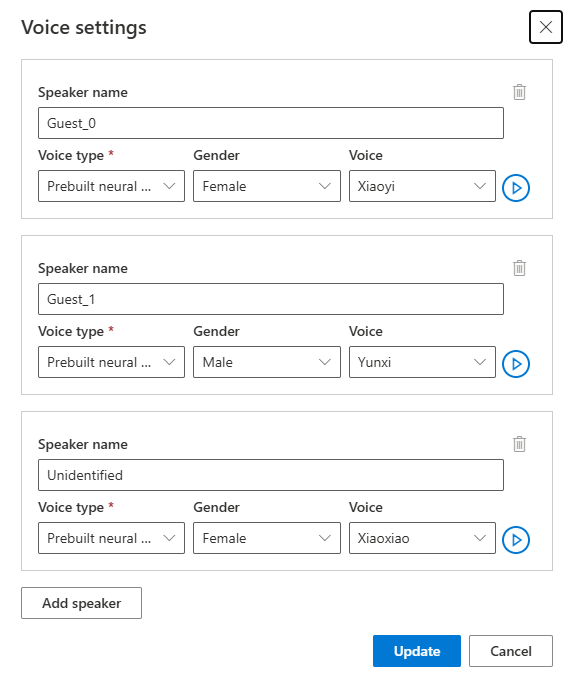
If you want to adjust the voice, select **Voice settings** to make some changes. On the **Voice settings** page, you can adjust the voice type, gender, and the voice. Select the voice sample on the right of **Voice** to determine your voice selection. If you find there's missing voice, you can add the new voice name by selecting **Add speaker**. After changing the settings, select **Update**.
You can make multiple changes to the video, including adjusting the voice settings, adding or removing segments, and changing the time frame of the scripts. You're only charged after you select **Apply changes** to apply your changes. You can select **Save** to save work in progress without incurring any charges.
## Translate to another language
You can keep the current translation project and translate the original video into another language.
1. Open your project.
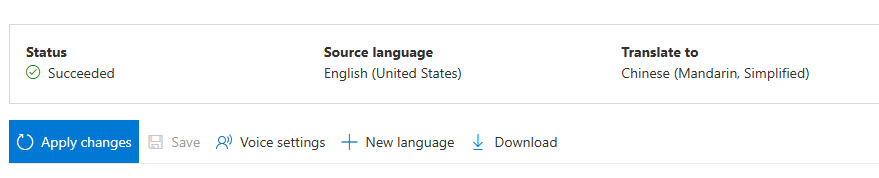
2. Select **+ New language**.
3. On the new **Translate** page that appears, choose a new translated language and voice type. Once the video is translated, a new project is automatically created.
## Related content
* [Video translation overview](../../../video-translation-overview)
 1. Select **Azure-AI-Speech** and you're taken to the **Azure-AI-Speech** try out page.
2. Select **Speech capabilities by scenario** > **Video translation**.
1. Select **Azure-AI-Speech** and you're taken to the **Azure-AI-Speech** try out page.
2. Select **Speech capabilities by scenario** > **Video translation**.
 1. Under the **Sample option** to the right, select personal or standard voice.
2. Select the **Play** button to hear the translated audio. Select the original video tab to play the original audio.
1. Under the **Sample option** to the right, select personal or standard voice.
2. Select the **Play** button to hear the translated audio. Select the original video tab to play the original audio.
 The voice type options are:
* **Standard voice**: The service automatically selects the most suitable standard voice by matching the speaker's voice in the video with standard voices.
* **Personal voice**: Use the personal voice that matches the voice of the speakers in the video.
The voice type options are:
* **Standard voice**: The service automatically selects the most suitable standard voice by matching the speaker's voice in the video with standard voices.
* **Personal voice**: Use the personal voice that matches the voice of the speakers in the video.
 1. On the **Upload video** page, select a **Voice type**.
 The voice type options are:
* **Standard voice**: The service automatically selects the most suitable standard voice by matching the speaker's voice in the video with standard voices.
* **Personal voice**: Use the personal voice that matches the voice of the speakers in the video.
The voice type options are:
* **Standard voice**: The service automatically selects the most suitable standard voice by matching the speaker's voice in the video with standard voices.
* **Personal voice**: Use the personal voice that matches the voice of the speakers in the video.
 1. Optionally, you can adjust the following settings:
* **Lexicon file**: This option allows you to add custom words or phrases that the system should recognize and pronounce correctly. You can create a lexicon file in the [audio content creation tool in the Speech Studio](https://aka.ms/speechstudio) and select it here.
* **Burn subtitles**: This option allows you to add subtitles to the video. The subtitle file can be in WebVTT or JSON format. You can download a sample WebVTT file for your reference by selecting **Download sample VTT file**.
1. Optionally, you can adjust the following settings:
* **Lexicon file**: This option allows you to add custom words or phrases that the system should recognize and pronounce correctly. You can create a lexicon file in the [audio content creation tool in the Speech Studio](https://aka.ms/speechstudio) and select it here.
* **Burn subtitles**: This option allows you to add subtitles to the video. The subtitle file can be in WebVTT or JSON format. You can download a sample WebVTT file for your reference by selecting **Download sample VTT file**.
 If you want to use your own subtitle files, select **Subtitle** > **Upload your own**. You can choose to upload either the source subtitle file or the target subtitle file.
* Automatic subtitles: Results in both source and target language subtitles.
* Upload source language subtitles: Results in both source and target language subtitles.
* Upload target language subtitles: Results in only target language subtitles.
1. Select **Create**.
Once the upload to Azure Blob Storage is complete, you can check the processing status on the project tab.
After the project is created, you can select the project to review detailed settings and make adjustments according to your preferences.
## Check and adjust voice settings
Select **My videos** and you should see a video labeled with **Succeeded** status.
If you want to use your own subtitle files, select **Subtitle** > **Upload your own**. You can choose to upload either the source subtitle file or the target subtitle file.
* Automatic subtitles: Results in both source and target language subtitles.
* Upload source language subtitles: Results in both source and target language subtitles.
* Upload target language subtitles: Results in only target language subtitles.
1. Select **Create**.
Once the upload to Azure Blob Storage is complete, you can check the processing status on the project tab.
After the project is created, you can select the project to review detailed settings and make adjustments according to your preferences.
## Check and adjust voice settings
Select **My videos** and you should see a video labeled with **Succeeded** status.
 Select the video to see the **Translated** and **Original** tabs under **Video**. You can compare the original and translated videos by selecting the corresponding tab. The translated video is generated automatically, and you can play it to check the translation quality.
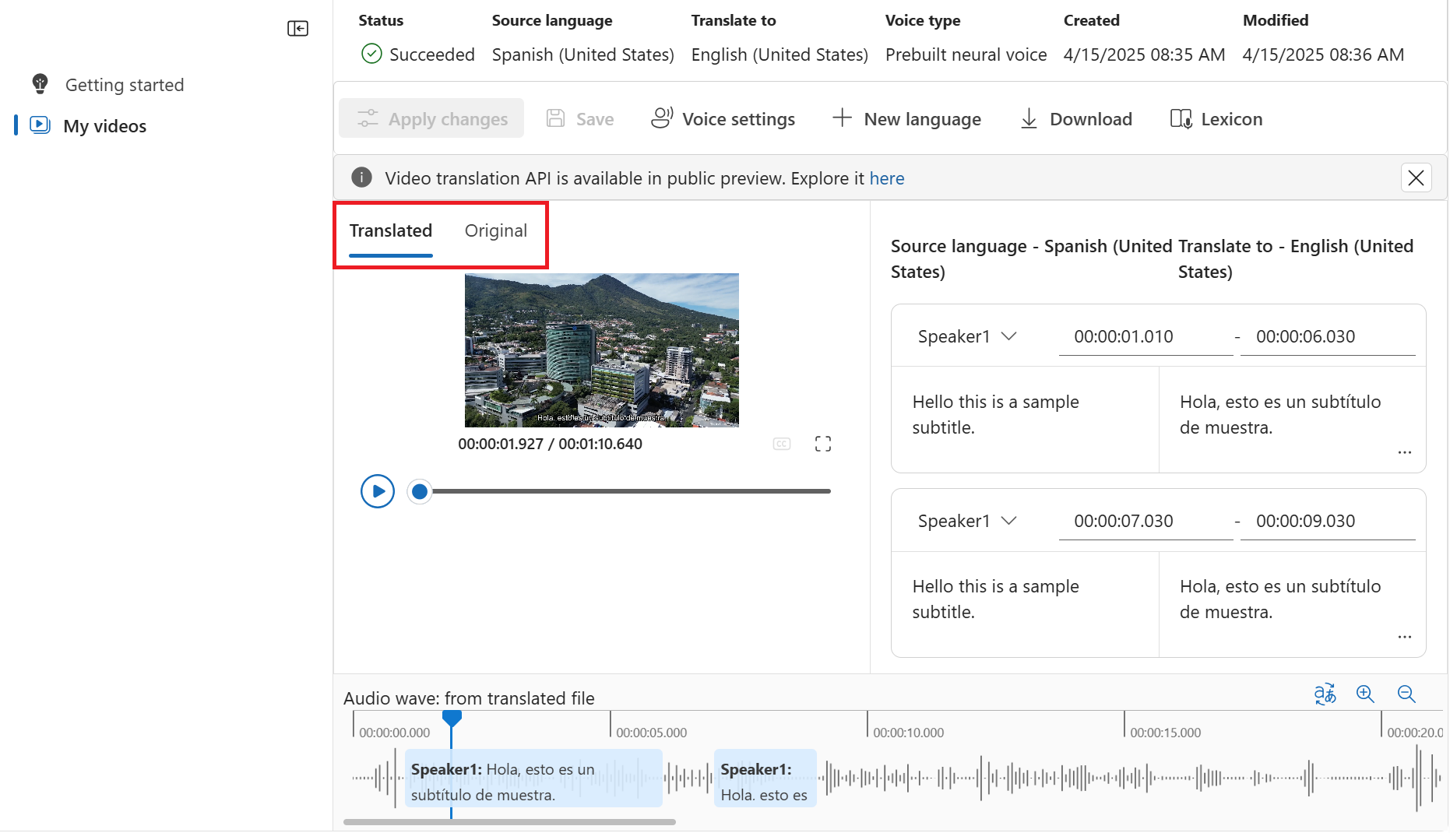 To the right side of the video, you can view both the original script and the translated script. Hovering over each part of the original script triggers the video to automatically jump to the corresponding segment of the original video, while hovering over each part of the translated script triggers the video to jump to the corresponding translated segment.
You can make multiple changes to the video, including adjusting the voice settings, adding or removing segments, and changing the time frame of the scripts. You're only charged after you select **Apply changes** to apply your changes. You can select **Save** to save work in progress without incurring any charges.
If you encounter segments with an "unidentified" voice name, it might be because the system couldn't accurately detect the voice, especially in situations where speaker voices overlap. In such cases, it's advisable to manually change the voice name.
To the right side of the video, you can view both the original script and the translated script. Hovering over each part of the original script triggers the video to automatically jump to the corresponding segment of the original video, while hovering over each part of the translated script triggers the video to jump to the corresponding translated segment.
You can make multiple changes to the video, including adjusting the voice settings, adding or removing segments, and changing the time frame of the scripts. You're only charged after you select **Apply changes** to apply your changes. You can select **Save** to save work in progress without incurring any charges.
If you encounter segments with an "unidentified" voice name, it might be because the system couldn't accurately detect the voice, especially in situations where speaker voices overlap. In such cases, it's advisable to manually change the voice name.
 ## Translate to another language
You can keep the current translation project and translate the original video into another language.
1. Select **My videos** and then select the tile for your video translation.
2. Select **+ New language**.
3. On the new **Translate to new language** page that appears, choose a new translation language and voice type. Once the video is translated, a new project is automatically created.
## Related content
* [Video translation overview](../../../video-translation-overview)
## Translate to another language
You can keep the current translation project and translate the original video into another language.
1. Select **My videos** and then select the tile for your video translation.
2. Select **+ New language**.
3. On the new **Translate to new language** page that appears, choose a new translation language and voice type. Once the video is translated, a new project is automatically created.
## Related content
* [Video translation overview](../../../video-translation-overview)
 You can make multiple changes to the video, including adjusting the voice settings, adding or removing segments, and changing the time frame of the scripts. You're only charged after you select **Apply changes** to apply your changes. You can select **Save** to save work in progress without incurring any charges.
 ## Translate to another language
You can keep the current translation project and translate the original video into another language.
1. Open your project.
2. Select **+ New language**.
3. On the new **Translate** page that appears, choose a new translated language and voice type. Once the video is translated, a new project is automatically created.
## Related content
* [Video translation overview](../../../video-translation-overview)
## Translate to another language
You can keep the current translation project and translate the original video into another language.
1. Open your project.
2. Select **+ New language**.
3. On the new **Translate** page that appears, choose a new translated language and voice type. Once the video is translated, a new project is automatically created.
## Related content
* [Video translation overview](../../../video-translation-overview)