> ## Documentation Index
> Fetch the complete documentation index at: https://hobbyist-e43fa225.mintlify.site/llms.txt
> Use this file to discover all available pages before exploring further.
# Manage traffic with spillover for provisioned deployments
> Learn how to configure spillover for provisioned deployments of Azure OpenAI models to automatically route overflow requests to a standard deployment and reduce disruptions during traffic bursts.
**Currently viewing:**  **New Foundry portal version** - [Switch to version for the classic Foundry portal](https://learn.microsoft.com/en-us/azure/foundry-classic/openai/how-to/spillover-traffic-management)
Spillover manages traffic fluctuations on provisioned deployments by automatically routing overage requests to a corresponding standard deployment. When your provisioned deployment is fully utilized and returns non-200 responses (such as a `429` when PTUs are exhausted), spillover redirects those requests to the standard deployment, helping you reduce disruptions during traffic bursts. This optional capability can be configured for all requests on a deployment or managed on a per-request basis.
## Prerequisites
* An Azure subscription. [Create one for free](https://azure.microsoft.com/pricing/purchase-options/azure-account?cid=msft_learncognitive-services).
* A provisioned managed deployment and a standard deployment in the same Foundry resource.
* Azure CLI installed for REST API examples, or access to the Foundry portal.
* The `AZURE_OPENAI_ENDPOINT` environment variable set to your Azure OpenAI endpoint URL.
* **Cognitive Services Contributor** role or higher on the Foundry resource to create or modify deployments.
## Enable spillover for all requests on a provisioned deployment
1. Sign in to [Microsoft Foundry](https://ai.azure.com/?cid=learnDocs). Make sure the **New Foundry** toggle is on. These steps refer to **Foundry (new)**.
**New Foundry portal version** - [Switch to version for the classic Foundry portal](https://learn.microsoft.com/en-us/azure/foundry-classic/openai/how-to/spillover-traffic-management)
Spillover manages traffic fluctuations on provisioned deployments by automatically routing overage requests to a corresponding standard deployment. When your provisioned deployment is fully utilized and returns non-200 responses (such as a `429` when PTUs are exhausted), spillover redirects those requests to the standard deployment, helping you reduce disruptions during traffic bursts. This optional capability can be configured for all requests on a deployment or managed on a per-request basis.
## Prerequisites
* An Azure subscription. [Create one for free](https://azure.microsoft.com/pricing/purchase-options/azure-account?cid=msft_learncognitive-services).
* A provisioned managed deployment and a standard deployment in the same Foundry resource.
* Azure CLI installed for REST API examples, or access to the Foundry portal.
* The `AZURE_OPENAI_ENDPOINT` environment variable set to your Azure OpenAI endpoint URL.
* **Cognitive Services Contributor** role or higher on the Foundry resource to create or modify deployments.
## Enable spillover for all requests on a provisioned deployment
1. Sign in to [Microsoft Foundry](https://ai.azure.com/?cid=learnDocs). Make sure the **New Foundry** toggle is on. These steps refer to **Foundry (new)**.
 1. Select the subscription and the resource in the region where you have quota.
2. Select **Discover** in the upper-right navigation, then **Models** in the left pane.
3. Select the **Collections** filter and filter by **Direct from Azure** to see models sold directly by Azure. A selection of these models support the provisioned throughput deployment option.
4. Select the model you want to deploy to open its model card.
5. Select **Deploy** > **Custom settings** to configure your deployment. The **Deployment type** dropdown menu lists provisioned deployment types that are available for the selected model.
To enable spillover, your account must have at least one active pay-as-you-go deployment that matches the model and version of your current provisioned deployment.
1. Set the **Deployment type** to one of the provisioned options, for example **Global Provisioned Throughput**.
2. Select **Traffic spillover** to enable spillover for your provisioned deployment.
To enable spillover for all requests on a provisioned deployment, set the deployment property `spilloverDeploymentName` to the standard deployment target for spillover requests. This property can be set during the creation of a new provisioned deployment or added to an existing provisioned deployment. The `spilloverDeploymentName` property must be set to the name of a standard deployment within the same Azure OpenAI resource as your provisioned deployment.
```bash theme={null}
curl -X PUT https://management.azure.com/subscriptions/00000000-0000-0000-0000-000000000000/resourceGroups/resource-group-temp/providers/Microsoft.CognitiveServices/accounts/docs-openai-test-001/deployments/spillover-ptu-deployment?api-version=2024-10-01 \
-H "Content-Type: application/json" \
-H 'Authorization: Bearer YOUR_AUTH_TOKEN' \
-d '{"sku":{"name":"GlobalProvisionedManaged","capacity":100},"properties": {"spilloverDeploymentName": "spillover-standard-deployment", "model":{"format": "OpenAI","name": "gpt-4o-mini","version": "2024-07-18"}}}'
```
A successful request returns HTTP status `200` or `201` with a JSON response containing the deployment details.
**Reference:** [Deployments - Create Or Update](https://learn.microsoft.com/rest/api/aiservices/accountmanagement/deployments/create-or-update)
## Enable spillover for select inference requests
To selectively enable spillover on a per-request basis, set the `x-ms-spillover-deployment` inference request header to the standard deployment target for spillover requests. If the `x-ms-spillover-deployment` header isn't set on a given request, spillover isn't initiated in the event of a non-200 response. The use or omission of this header provides the flexibility to control when spillover should or should not be initiated for a given workload or scenario.
```bash theme={null}
curl $AZURE_OPENAI_ENDPOINT/openai/deployments/spillover-ptu-deployment/chat/completions?api-version=2024-10-21 \
-H "Content-Type: application/json" \
-H "x-ms-spillover-deployment: spillover-standard-deployment" \
-H 'Authorization: Bearer YOUR_AUTH_TOKEN' \
-d '{"messages":[{"role": "system", "content": "You are a helpful assistant."},{"role": "user", "content": "Does Azure OpenAI support customer managed keys?"},{"role": "assistant", "content": "Yes, customer managed keys are supported by Azure OpenAI."},{"role": "user", "content": "Do other Azure services support this too?"}]}'
```
A successful request returns HTTP status `200` with the chat completion response. If spillover occurs, the response includes the `x-ms-spillover-from-deployment` header.
**Reference:** [Create chat completion](https://learn.microsoft.com/rest/api/microsoft-foundry/azureopenai/chat)
If the spillover capability is enabled for the deployment using the `spilloverDeploymentName` property and also enabled at the request level using the `x-ms-spillover-deployment` header, the system defaults to the setting of the deployment property. If you want to ensure that spillover is only enabled on a per-request basis, don't set the `spilloverDeploymentName` property on the provisioned deployment and only rely on the `x-ms-spillover-deployment` header on a per-request basis.
## Identify spillover requests
The following HTTP response headers indicate that a specific request spilled over:
* `x-ms-spillover-from-deployment`: Contains the PTU deployment name. The presence of this header indicates that the request is a spillover request.
* `x-ms-deployment-name`: Contains the name of the deployment that serves the request. If the request spills over, the deployment name is the name of the standard deployment.
* `x-ms-spillover-error` is returned on any request that spills over, and it contains the response code from the provisioned deployment that triggered the spillover (for example 429, 500, or 503). It is present whether or not the spillover attempt ultimately succeeds.
For a request that spills over, if the standard deployment also fails to serve it, the standard deployment's response (including status code and body) is returned to the caller. The `x-ms-spillover-from-deployment` and `x-ms-spillover-error` headers are still present, so the caller can distinguish a spillover failure from a direct standard-deployment failure.
## Monitor spillover usage
Spillover relies on a combination of provisioned and standard deployments to manage traffic overages, so monitoring can be conducted at the deployment level for each deployment. To view how many requests were processed on the primary provisioned deployment versus the spillover standard deployment, apply the splitting feature in Azure Monitor metrics to view the requests processed by each deployment and their respective status codes. Similarly, use the splitting feature to view how many tokens were processed on the primary provisioned deployment versus the spillover standard deployment for a given time period.
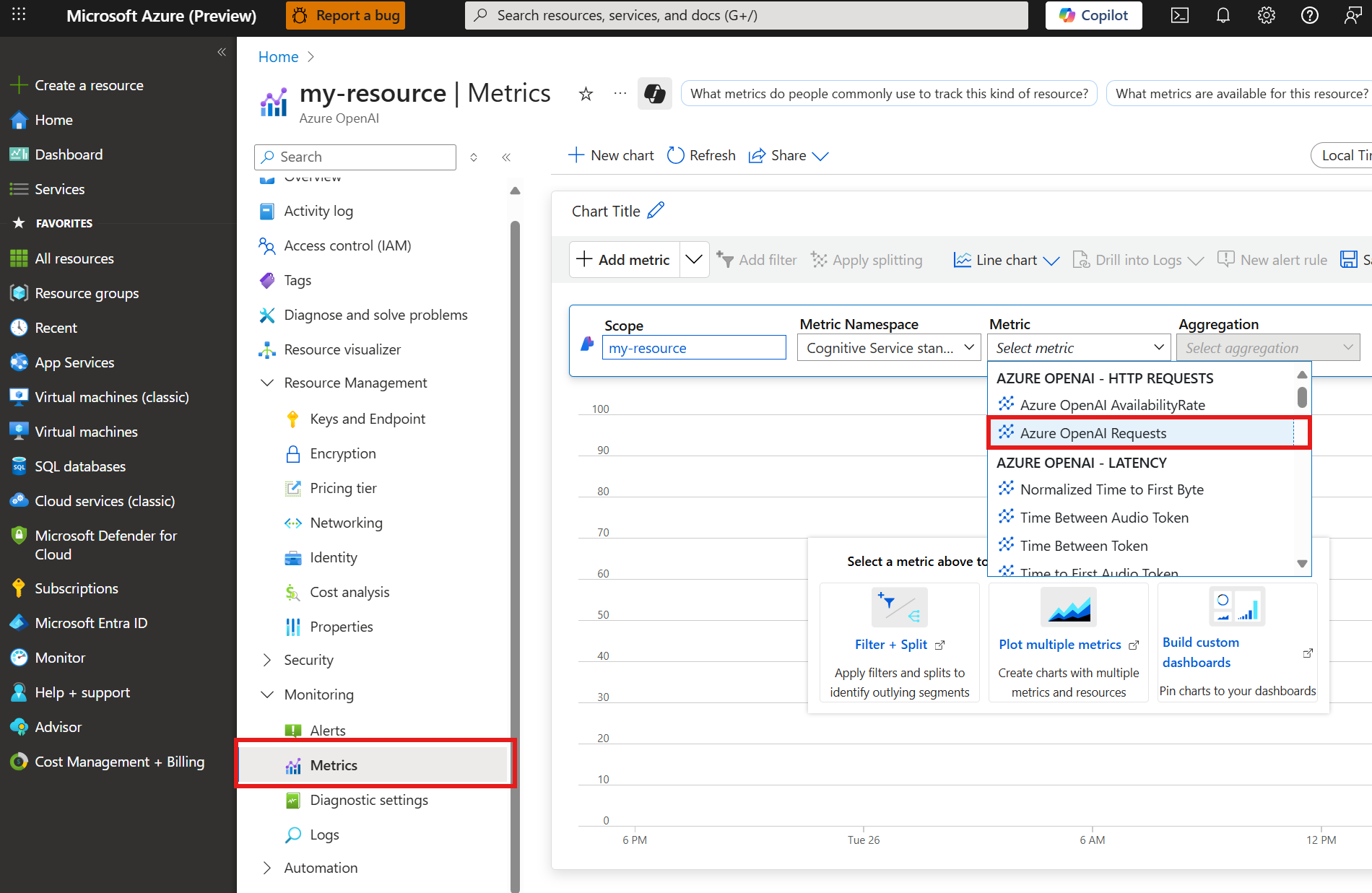
The following Azure Monitor metrics chart provides an example of the split of requests between the primary provisioned deployment and the spillover standard deployment when spillover is initiated. To create a chart, navigate to your resource in the [Azure portal](https://portal.azure.com).
1. Select **Monitoring** > **Metrics** from the left navigation menu.
2. Add the `Azure OpenAI Requests` metric.
1. Select the subscription and the resource in the region where you have quota.
2. Select **Discover** in the upper-right navigation, then **Models** in the left pane.
3. Select the **Collections** filter and filter by **Direct from Azure** to see models sold directly by Azure. A selection of these models support the provisioned throughput deployment option.
4. Select the model you want to deploy to open its model card.
5. Select **Deploy** > **Custom settings** to configure your deployment. The **Deployment type** dropdown menu lists provisioned deployment types that are available for the selected model.
To enable spillover, your account must have at least one active pay-as-you-go deployment that matches the model and version of your current provisioned deployment.
1. Set the **Deployment type** to one of the provisioned options, for example **Global Provisioned Throughput**.
2. Select **Traffic spillover** to enable spillover for your provisioned deployment.
To enable spillover for all requests on a provisioned deployment, set the deployment property `spilloverDeploymentName` to the standard deployment target for spillover requests. This property can be set during the creation of a new provisioned deployment or added to an existing provisioned deployment. The `spilloverDeploymentName` property must be set to the name of a standard deployment within the same Azure OpenAI resource as your provisioned deployment.
```bash theme={null}
curl -X PUT https://management.azure.com/subscriptions/00000000-0000-0000-0000-000000000000/resourceGroups/resource-group-temp/providers/Microsoft.CognitiveServices/accounts/docs-openai-test-001/deployments/spillover-ptu-deployment?api-version=2024-10-01 \
-H "Content-Type: application/json" \
-H 'Authorization: Bearer YOUR_AUTH_TOKEN' \
-d '{"sku":{"name":"GlobalProvisionedManaged","capacity":100},"properties": {"spilloverDeploymentName": "spillover-standard-deployment", "model":{"format": "OpenAI","name": "gpt-4o-mini","version": "2024-07-18"}}}'
```
A successful request returns HTTP status `200` or `201` with a JSON response containing the deployment details.
**Reference:** [Deployments - Create Or Update](https://learn.microsoft.com/rest/api/aiservices/accountmanagement/deployments/create-or-update)
## Enable spillover for select inference requests
To selectively enable spillover on a per-request basis, set the `x-ms-spillover-deployment` inference request header to the standard deployment target for spillover requests. If the `x-ms-spillover-deployment` header isn't set on a given request, spillover isn't initiated in the event of a non-200 response. The use or omission of this header provides the flexibility to control when spillover should or should not be initiated for a given workload or scenario.
```bash theme={null}
curl $AZURE_OPENAI_ENDPOINT/openai/deployments/spillover-ptu-deployment/chat/completions?api-version=2024-10-21 \
-H "Content-Type: application/json" \
-H "x-ms-spillover-deployment: spillover-standard-deployment" \
-H 'Authorization: Bearer YOUR_AUTH_TOKEN' \
-d '{"messages":[{"role": "system", "content": "You are a helpful assistant."},{"role": "user", "content": "Does Azure OpenAI support customer managed keys?"},{"role": "assistant", "content": "Yes, customer managed keys are supported by Azure OpenAI."},{"role": "user", "content": "Do other Azure services support this too?"}]}'
```
A successful request returns HTTP status `200` with the chat completion response. If spillover occurs, the response includes the `x-ms-spillover-from-deployment` header.
**Reference:** [Create chat completion](https://learn.microsoft.com/rest/api/microsoft-foundry/azureopenai/chat)
If the spillover capability is enabled for the deployment using the `spilloverDeploymentName` property and also enabled at the request level using the `x-ms-spillover-deployment` header, the system defaults to the setting of the deployment property. If you want to ensure that spillover is only enabled on a per-request basis, don't set the `spilloverDeploymentName` property on the provisioned deployment and only rely on the `x-ms-spillover-deployment` header on a per-request basis.
## Identify spillover requests
The following HTTP response headers indicate that a specific request spilled over:
* `x-ms-spillover-from-deployment`: Contains the PTU deployment name. The presence of this header indicates that the request is a spillover request.
* `x-ms-deployment-name`: Contains the name of the deployment that serves the request. If the request spills over, the deployment name is the name of the standard deployment.
* `x-ms-spillover-error` is returned on any request that spills over, and it contains the response code from the provisioned deployment that triggered the spillover (for example 429, 500, or 503). It is present whether or not the spillover attempt ultimately succeeds.
For a request that spills over, if the standard deployment also fails to serve it, the standard deployment's response (including status code and body) is returned to the caller. The `x-ms-spillover-from-deployment` and `x-ms-spillover-error` headers are still present, so the caller can distinguish a spillover failure from a direct standard-deployment failure.
## Monitor spillover usage
Spillover relies on a combination of provisioned and standard deployments to manage traffic overages, so monitoring can be conducted at the deployment level for each deployment. To view how many requests were processed on the primary provisioned deployment versus the spillover standard deployment, apply the splitting feature in Azure Monitor metrics to view the requests processed by each deployment and their respective status codes. Similarly, use the splitting feature to view how many tokens were processed on the primary provisioned deployment versus the spillover standard deployment for a given time period.
The following Azure Monitor metrics chart provides an example of the split of requests between the primary provisioned deployment and the spillover standard deployment when spillover is initiated. To create a chart, navigate to your resource in the [Azure portal](https://portal.azure.com).
1. Select **Monitoring** > **Metrics** from the left navigation menu.
2. Add the `Azure OpenAI Requests` metric.
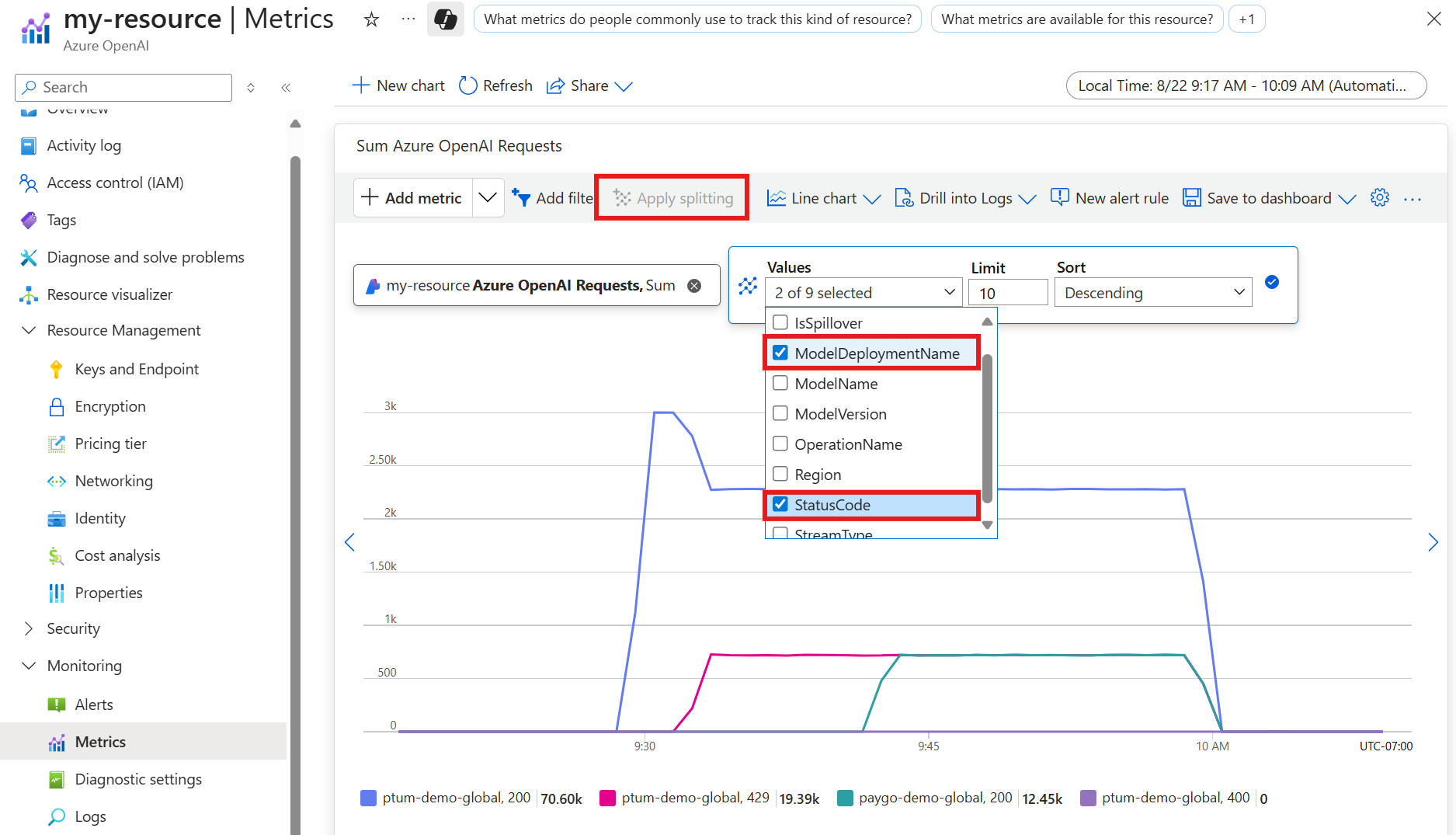
 1. Select **Apply splitting** and apply the `ModelDeploymentName` split and `StatusCode` splits to the `Azure OpenAI Requests` metric. This shows a chart with the `200` (success) and `400` (error code) generated for your resource. The count for the error code is currently zero in the chart.
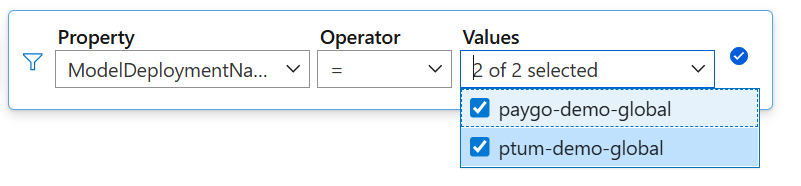
 1. Select **Add filter**. In the filter box, set the **Property** to `ModelDeploymentName` and set the **Values** to the model deployments you want to view.
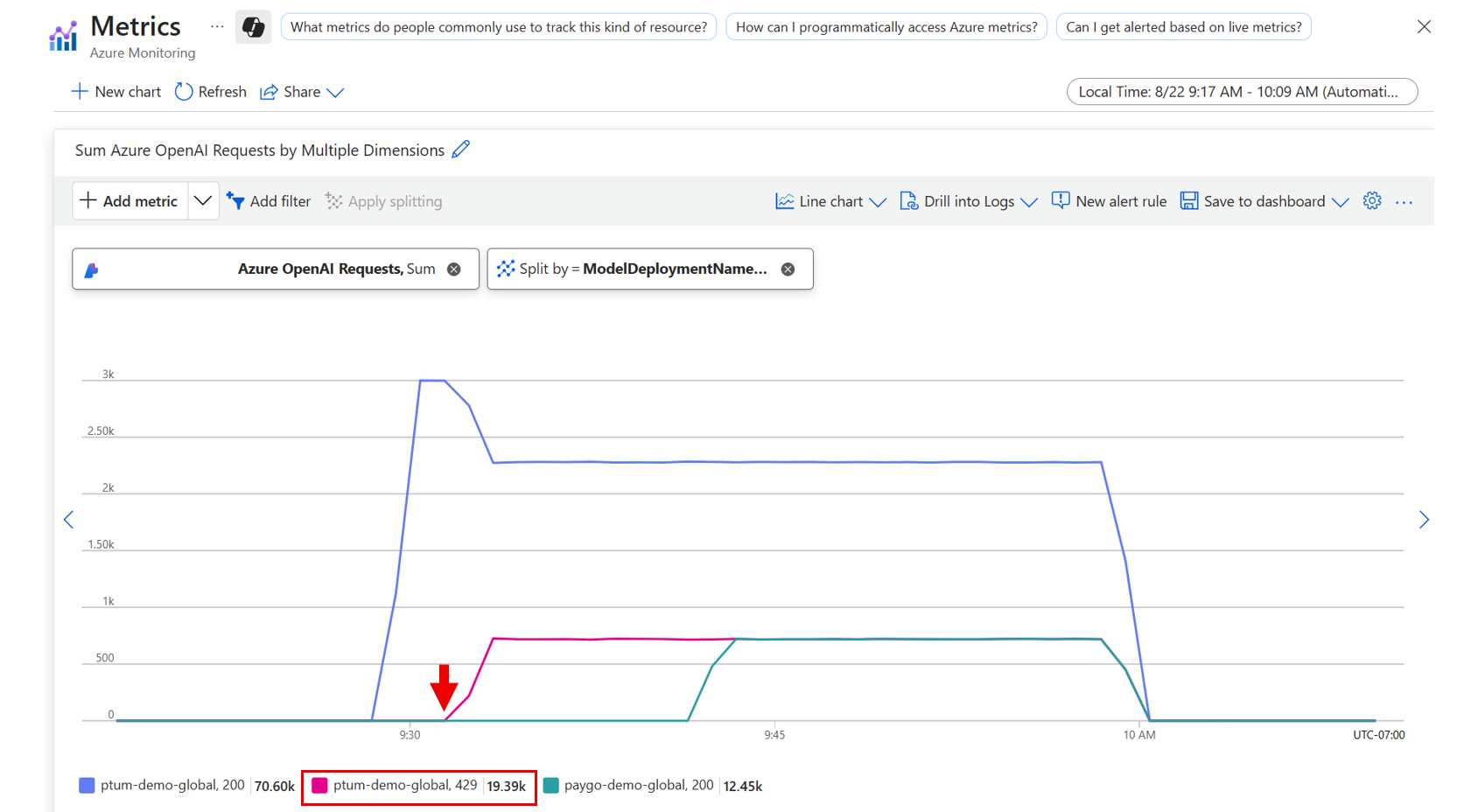
 Each request that the provisioned deployment cannot serve (returning `429`, `500`, or `503`) is immediately redirected to the pay-as-you-go deployment used for spillover, where it is processed and counted as a `200` response (**gpt-4.1, 200 = 954**). The provisioned deployment line (**gpt-4.1-ptum, 200 = 46**) reflects only requests it served directly, since spilled-over requests are not counted as `429`s on the provisioned deployment. To distinguish spillover traffic from direct traffic on the standard deployment, apply the `IsSpillover` split, as shown in the next section.
 ### View spillover metrics
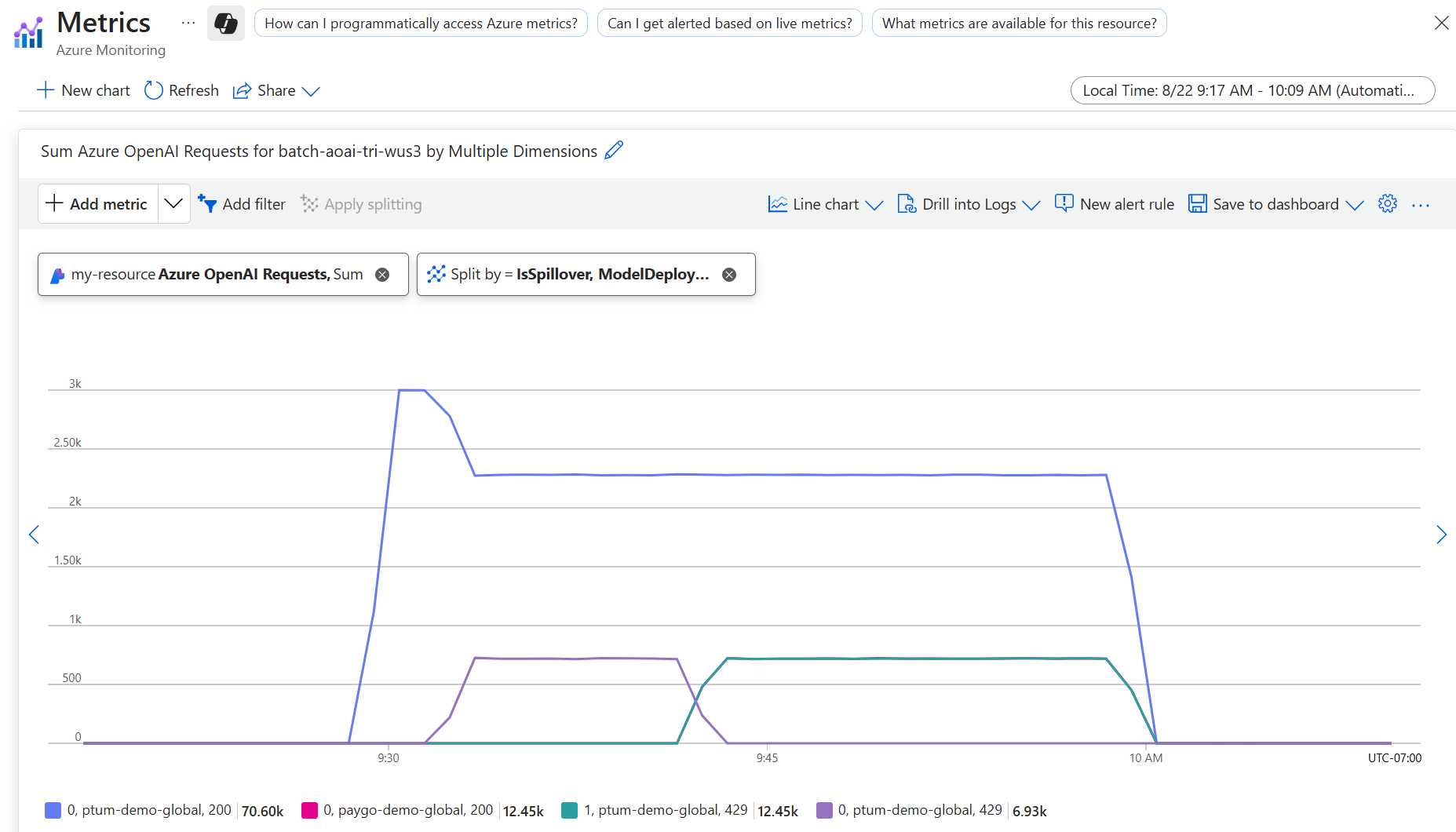
Applying the `IsSpillover` split lets you view which requests on your standard deployment arrived via spillover from a provisioned deployment. Spilled-over requests appear as records on the standard deployment with `IsSpillover = True` and their final status code (typically `200`). They are not double-counted as `429`s on the provisioned deployment.
In the following chart, the spilled-over request appears as **IsSpillover=True, gpt-4.1, 200 = 954** on the standard deployment only. The provisioned deployment has no `IsSpillover=True` record.
### View spillover metrics
Applying the `IsSpillover` split lets you view which requests on your standard deployment arrived via spillover from a provisioned deployment. Spilled-over requests appear as records on the standard deployment with `IsSpillover = True` and their final status code (typically `200`). They are not double-counted as `429`s on the provisioned deployment.
In the following chart, the spilled-over request appears as **IsSpillover=True, gpt-4.1, 200 = 954** on the standard deployment only. The provisioned deployment has no `IsSpillover=True` record.
 ## When to enable spillover
To maximize the utilization of your provisioned deployment, enable spillover for all global and data zone provisioned deployments. With spillover, bursts or fluctuations in traffic can be automatically managed by the service. This capability reduces the risk of experiencing disruptions when a provisioned deployment is fully utilized. Alternatively, spillover is configurable per-request to provide flexibility across different scenarios and workloads. Spillover also works with the [Foundry Agent Service](/agents/overview).
## When spillover comes into effect
When you enable spillover for a deployment or configure it for a given inference request, spillover initiates when a specific non-`200` response code is received as a result of one of these scenarios:
* Provisioned throughput units (PTU) are completely used, which results in a `429` response code.
* You send a long context token request, which results in a `400` error code. For example, when you use `gpt 4.1` series models, PTU supports only context lengths less than 128K and returns HTTP 400.
* Server errors occur when processing your request, which results in error code `500` or `503`.
When a request results in one of these non-`200` response codes, Azure OpenAI automatically sends the request from your provisioned deployment to your standard deployment to be processed.
Even if a subset of requests is routed to the standard deployment, the service prioritizes sending requests to the provisioned deployment before sending any overage requests to the standard deployment. This prioritization might incur additional latency.
## Spillover cost
Because spillover uses a combination of provisioned and standard deployments to manage traffic fluctuations, billing for spillover involves two components:
* For any requests processed by your provisioned deployment, only the hourly provisioned deployment cost applies. No additional costs are incurred for these requests.
* For any requests routed to your standard deployment, the request is billed at the associated input token, cached token, and output token rates for the specified model version and deployment type.
## Related content
* [What is provisioned throughput?](/models/provisioned-throughput)
* [Get started with provisioned deployments](/models/provisioned-get-started)
* [Onboarding to provisioned throughput](/models/provisioned-throughput-billing)
## When to enable spillover
To maximize the utilization of your provisioned deployment, enable spillover for all global and data zone provisioned deployments. With spillover, bursts or fluctuations in traffic can be automatically managed by the service. This capability reduces the risk of experiencing disruptions when a provisioned deployment is fully utilized. Alternatively, spillover is configurable per-request to provide flexibility across different scenarios and workloads. Spillover also works with the [Foundry Agent Service](/agents/overview).
## When spillover comes into effect
When you enable spillover for a deployment or configure it for a given inference request, spillover initiates when a specific non-`200` response code is received as a result of one of these scenarios:
* Provisioned throughput units (PTU) are completely used, which results in a `429` response code.
* You send a long context token request, which results in a `400` error code. For example, when you use `gpt 4.1` series models, PTU supports only context lengths less than 128K and returns HTTP 400.
* Server errors occur when processing your request, which results in error code `500` or `503`.
When a request results in one of these non-`200` response codes, Azure OpenAI automatically sends the request from your provisioned deployment to your standard deployment to be processed.
Even if a subset of requests is routed to the standard deployment, the service prioritizes sending requests to the provisioned deployment before sending any overage requests to the standard deployment. This prioritization might incur additional latency.
## Spillover cost
Because spillover uses a combination of provisioned and standard deployments to manage traffic fluctuations, billing for spillover involves two components:
* For any requests processed by your provisioned deployment, only the hourly provisioned deployment cost applies. No additional costs are incurred for these requests.
* For any requests routed to your standard deployment, the request is billed at the associated input token, cached token, and output token rates for the specified model version and deployment type.
## Related content
* [What is provisioned throughput?](/models/provisioned-throughput)
* [Get started with provisioned deployments](/models/provisioned-get-started)
* [Onboarding to provisioned throughput](/models/provisioned-throughput-billing)