;
};
export const ZoneContent = ({group, value, options = [], values = [], defaultValue, children}) => {
const optionKey = options.map(option => `${option.id}:${option.title}`).join("|");
const [activePivot, setActivePivot] = useState(defaultValue || values[0]);
const slugify = value => value.toLowerCase().replace(/[^a-z0-9]+/g, "-").replace(/^-|-$/g, "");
const resolvePivot = () => {
if (typeof window === "undefined") return defaultValue || values[0];
const params = new URLSearchParams(window.location.search);
const requested = params.get("pivots");
if (requested) {
const requestedIds = requested.split(",").map(value => value.trim()).filter(Boolean);
const match = requestedIds.find(id => values.includes(id));
if (match) return match;
}
const hash = window.location.hash.replace(/^#/, "");
if (hash) {
const match = options.find(option => option.id === hash || slugify(option.title) === hash);
if (match) return match.id;
}
try {
const stored = window.localStorage.getItem(`foundry-zone-pivot:${group}`);
if (values.includes(stored)) return stored;
} catch {
return defaultValue || values[0];
}
return defaultValue || values[0];
};
useEffect(() => {
setActivePivot(resolvePivot());
}, [group, defaultValue, values.join("|"), optionKey]);
useEffect(() => {
const onPivotChange = event => {
if (event.detail?.group === group && values.includes(event.detail.value)) {
setActivePivot(event.detail.value);
}
};
window.addEventListener("foundry-zone-pivot-change", onPivotChange);
return () => window.removeEventListener("foundry-zone-pivot-change", onPivotChange);
}, [group, values.join("|")]);
if (activePivot !== value) return null;
return <>{children};
};
Azure OpenAI GPT Realtime API for speech and audio is part of the GPT-4o model family that supports low-latency, "speech in, speech out" conversational interactions.
You can use the Realtime API via WebRTC, SIP, or WebSocket to send audio input to the model and receive audio responses in real time.
Follow the instructions in this article to get started with the Realtime API via WebSockets. Use the Realtime API via WebSockets in server-to-server scenarios where low latency isn't a requirement.
In most cases, use the [Realtime API via WebRTC](/models/realtime-audio-webrtc) for real-time audio streaming in client-side applications such as a web application or mobile app. WebRTC is designed for low-latency, real-time audio streaming and is the best choice for most scenarios.
Use the following table to help you choose the right protocol for your scenario:
| Protocol | Best for | Latency | Complexity |
| ------------- | ---------------------------------- | ---------------------- | ---------- |
| **WebRTC** | Client-side apps (web, mobile) | Lowest (\~50-100ms) | Higher |
| **WebSocket** | Server-to-server, batch processing | Moderate (\~100-300ms) | Lower |
| **SIP** | Telephony integration | Varies | Highest |
## Prerequisites
Before you can use GPT real-time audio, you need:
* An Azure subscription. [Create one for free](https://azure.microsoft.com/pricing/purchase-options/azure-account?cid=msft_learn).
* A Microsoft Foundry resource. Create the resource in one of the [supported regions](#supported-models). For setup steps, see [Create a Microsoft Foundry resource](https://learn.microsoft.com/azure/ai-services/multi-service-resource).
* A deployment of a GPT realtime model in a supported region as described in the [supported models](#supported-models) section in this article.
* In the Foundry portal, load your project. Select **Build** in the upper-right menu, then select the **Models** tab on the left pane, and select **Deploy a base model**. Search for the model you want, and select **Deploy** on the model page.
* **Required libraries**:
* Python: `pip install websockets azure-identity`
* JavaScript/Node.js: `npm install ws @azure/identity`
## Voice-agent quickstart
Follow the instructions in this section to get started with a voice-agent
session via the Realtime API over WebSockets. Use this quickstart for
conversation-style speech-to-speech experiences where your app sends input,
receives model responses, and can invoke tools. Use the transcription and
translation sections later in this article for those dedicated session types.
### Language-specific prerequisites
* Node.js LTS or ESM support.
### Microsoft Entra ID prerequisites
For the recommended keyless authentication with Microsoft Entra ID, you need to:
* Install the [Azure CLI](https://learn.microsoft.com/cli/azure/install-azure-cli) used for keyless authentication with Microsoft Entra ID.
* Assign the `Cognitive Services OpenAI User` role to your user account. You can assign roles in the Azure portal under **Access control (IAM)** > **Add role assignment**.
## Deploy a model for real-time audio
To deploy the `gpt-realtime` model in the Microsoft Foundry portal:
1. Go to the [Foundry portal](https://ai.azure.com/?cid=learnDocs) and create or select your project.
2. Select your model deployments:
1. For Azure OpenAI resource, select **Deployments** from **Shared resources** section in the left pane.
2. For Foundry resource, select **Models + endpoints** from under **My assets** in the left pane.
3. Select **+ Deploy model** > **Deploy base model** to open the deployment window.
4. Search for and select the `gpt-realtime` model and then select **Confirm**.
5. Review the deployment details and select **Deploy**.
6. Follow the wizard to finish deploying the model.
Now that you have a deployment of the `gpt-realtime` model, you can interact with it in the Foundry portal **Audio** playground or Realtime API.
## Set up
1. Create a new folder `realtime-audio-quickstart-js` and go to the quickstart folder with the following command:
```bash theme={null}
mkdir realtime-audio-quickstart-js && cd realtime-audio-quickstart-js
```
2. Create the `package.json` with the following command:
```bash theme={null}
npm init -y
```
3. Update the `type` to `module` in `package.json` with the following command:
```bash theme={null}
npm pkg set type=module
```
4. Install the OpenAI client library for JavaScript with:
```bash theme={null}
npm install openai
```
5. Install the `ws` package, which is required for WebSocket support:
```bash theme={null}
npm install ws
```
6. For the **recommended** keyless authentication with Microsoft Entra ID, install the `@azure/identity` package with:
```bash theme={null}
npm install @azure/identity
```
## Retrieve resource information
You need to retrieve the following information to authenticate your application with your Azure OpenAI resource:
| Variable name | Value |
| ------------------------------ | --------------------------------------------------------------------------------------------------------------------------------------------------------------------------------------------------------- |
| `AZURE_OPENAI_ENDPOINT` | This value can be found in the **Keys and Endpoint** section when examining your resource from the Azure portal. |
| `AZURE_OPENAI_DEPLOYMENT_NAME` | This value will correspond to the custom name you chose for your deployment when you deployed a model. This value can be found under **Resource Management** > **Model Deployments** in the Azure portal. |
Learn more about [keyless authentication](https://learn.microsoft.com/azure/ai-services/authentication) and [setting environment variables](https://learn.microsoft.com/azure/ai-services/cognitive-services-environment-variables).
| Variable name | Value |
| ------------------------------ | --------------------------------------------------------------------------------------------------------------------------------------------------------------------------------------------------------- |
| `AZURE_OPENAI_ENDPOINT` | This value can be found in the **Keys and Endpoint** section when examining your resource from the Azure portal. |
| `AZURE_OPENAI_API_KEY` | This value can be found in the **Keys and Endpoint** section when examining your resource from the Azure portal. You can use either `KEY1` or `KEY2`. |
| `AZURE_OPENAI_DEPLOYMENT_NAME` | This value will correspond to the custom name you chose for your deployment when you deployed a model. This value can be found under **Resource Management** > **Model Deployments** in the Azure portal. |
Learn more about [finding API keys](https://learn.microsoft.com/azure/ai-services/cognitive-services-environment-variables) and [setting environment variables](https://learn.microsoft.com/azure/ai-services/cognitive-services-environment-variables).
To use the recommended keyless authentication with the SDK, make sure that the `AZURE_OPENAI_API_KEY` environment variable isn't set.
## Send text, receive audio response
1. Create the `index.js` file with the following code:
```javascript theme={null}
import OpenAI from 'openai';
import { OpenAIRealtimeWS } from 'openai/realtime/ws';
import { DefaultAzureCredential, getBearerTokenProvider } from '@azure/identity';
import { OpenAIRealtimeError } from 'openai/realtime/internal-base';
let isCreated = false;
let isConfigured = false;
let responseDone = false;
// Set this to false, if you want to continue receiving events after an error is received.
const throwOnError = true;
async function main() {
// The endpoint of your Azure OpenAI resource is required. You can set it in the AZURE_OPENAI_ENDPOINT
// environment variable or replace the default value below.
// You can find it in the Microsoft Foundry portal in the Overview page of your Azure OpenAI resource.
// Example: https://{your-resource}.openai.azure.com
const endpoint = process.env.AZURE_OPENAI_ENDPOINT || 'AZURE_OPENAI_ENDPOINT';
const baseUrl = endpoint.replace(/\/$/, "") + '/openai/v1';
// The deployment name of your Azure OpenAI model is required. You can set it in the AZURE_OPENAI_DEPLOYMENT_NAME
// environment variable or replace the default value below.
// You can find it in the Foundry portal in the "Models + endpoints" page of your Azure OpenAI resource.
// Example: gpt-realtime
const deploymentName = process.env.AZURE_OPENAI_DEPLOYMENT_NAME || 'gpt-realtime';
// Keyless authentication
const credential = new DefaultAzureCredential();
const scope = 'https://ai.azure.com/.default';
const azureADTokenProvider = getBearerTokenProvider(credential, scope);
const token = await azureADTokenProvider();
// The APIs are compatible with the OpenAI client library.
// You can use the OpenAI client library to access the Azure OpenAI APIs.
// Make sure to set the baseURL and apiKey to use the Azure OpenAI endpoint and token.
const openAIClient = new OpenAI({
baseURL: baseUrl,
apiKey: token,
});
const realtimeClient = await OpenAIRealtimeWS.create(openAIClient, {
model: deploymentName
});
realtimeClient.on('error', (receivedError) => receiveError(receivedError));
realtimeClient.on('session.created', (receivedEvent) => receiveEvent(receivedEvent));
realtimeClient.on('session.updated', (receivedEvent) => receiveEvent(receivedEvent));
realtimeClient.on('response.output_audio.delta', (receivedEvent) => receiveEvent(receivedEvent));
realtimeClient.on('response.output_audio_transcript.delta', (receivedEvent) => receiveEvent(receivedEvent));
realtimeClient.on('response.done', (receivedEvent) => receiveEvent(receivedEvent));
console.log('Waiting for events...');
while (!isCreated) {
console.log('Waiting for session.created event...');
await new Promise((resolve) => setTimeout(resolve, 100));
}
// After the session is created, configure it to enable audio input and output.
const sessionConfig = {
'type': 'realtime',
'instructions': 'You are a helpful assistant. You respond by voice and text.',
'output_modalities': ['audio'],
'audio': {
'input': {
'transcription': {
'model': 'whisper-1'
},
'format': {
'type': 'audio/pcm',
'rate': 24000,
},
'turn_detection': {
'type': 'server_vad',
'threshold': 0.5,
'prefix_padding_ms': 300,
'silence_duration_ms': 200,
'create_response': true
}
},
'output': {
'voice': 'alloy',
'format': {
'type': 'audio/pcm',
'rate': 24000,
}
}
}
};
realtimeClient.send({
'type': 'session.update',
'session': sessionConfig
});
while (!isConfigured) {
console.log('Waiting for session.updated event...');
await new Promise((resolve) => setTimeout(resolve, 100));
}
// After the session is configured, data can be sent to the session.
realtimeClient.send({
'type': 'conversation.item.create',
'item': {
'type': 'message',
'role': 'user',
'content': [{
type: 'input_text',
text: 'Please assist the user.'
}
]
}
});
realtimeClient.send({
type: 'response.create'
});
// While waiting for the session to finish, the events can be handled in the event handlers.
// In this example, we just wait for the first response.done event.
while (!responseDone) {
console.log('Waiting for response.done event...');
await new Promise((resolve) => setTimeout(resolve, 100));
}
console.log('The sample completed successfully.');
realtimeClient.close();
}
function receiveError(err) {
if (err instanceof OpenAIRealtimeError) {
console.error('Received an error event.');
console.error(`Message: ${err.cause.message}`);
console.error(`Stack: ${err.cause.stack}`);
}
if (throwOnError) {
throw err;
}
}
function receiveEvent(event) {
console.log(`Received an event: ${event.type}`);
switch (event.type) {
case 'session.created':
console.log(`Session ID: ${event.session.id}`);
isCreated = true;
break;
case 'session.updated':
console.log(`Session ID: ${event.session.id}`);
isConfigured = true;
break;
case 'response.output_audio_transcript.delta':
console.log(`Transcript delta: ${event.delta}`);
break;
case 'response.output_audio.delta':
let audioBuffer = Buffer.from(event.delta, 'base64');
console.log(`Audio delta length: ${audioBuffer.length} bytes`);
break;
case 'response.done':
console.log(`Response ID: ${event.response.id}`);
console.log(`The final response is: ${event.response.output[0].content[0].transcript}`);
responseDone = true;
break;
default:
console.warn(`Unhandled event type: ${event.type}`);
}
}
main().catch((err) => {
console.error('The sample encountered an error:', err);
});
export {
main
};
```
2. Sign in to Azure with the following command:
```bash theme={null}
az login
```
3. Run the JavaScript file.
```bash theme={null}
node index.js
```
1. Create the `index.js` file with the following code:
```javascript theme={null}
import OpenAI from 'openai';
import { OpenAIRealtimeWS } from 'openai/realtime/ws';
import { OpenAIRealtimeError } from 'openai/realtime/internal-base';
let isCreated = false;
let isConfigured = false;
let responseDone = false;
// Set this to false, if you want to continue receiving events after an error is received.
const throwOnError = true;
async function main() {
// The endpoint of your Azure OpenAI resource is required. You can set it in the AZURE_OPENAI_ENDPOINT
// environment variable or replace the default value below.
// You can find it in the Foundry portal in the Overview page of your Azure OpenAI resource.
// Example: https://{your-resource}.openai.azure.com
const endpoint = process.env.AZURE_OPENAI_ENDPOINT || 'AZURE_OPENAI_ENDPOINT';
const baseUrl = endpoint.replace(/\/$/, "") + '/openai/v1';
// The deployment name of your Azure OpenAI model is required. You can set it in the AZURE_OPENAI_DEPLOYMENT_NAME
// environment variable or replace the default value below.
// You can find it in the Foundry portal in the "Models + endpoints" page of your Azure OpenAI resource.
// Example: gpt-realtime
const deploymentName = process.env.AZURE_OPENAI_DEPLOYMENT_NAME || 'gpt-realtime';
// API Key of your Azure OpenAI resource is required. You can set it in the AZURE_OPENAI_API_KEY
// environment variable or replace the default value below.
// You can find it in the Foundry portal in the Overview page of your Azure OpenAI resource.
const token = process.env.AZURE_OPENAI_API_KEY || '';
// The APIs are compatible with the OpenAI client library.
// You can use the OpenAI client library to access the Azure OpenAI APIs.
// Make sure to set the baseURL and apiKey to use the Azure OpenAI endpoint and token.
const openAIClient = new OpenAI({
baseURL: baseUrl,
apiKey: token,
});
// Due to the current SDK limitation we need to explicitly
// pass API key as Header
const realtimeClient = await OpenAIRealtimeWS.create(
openAIClient, {
model: deploymentName,
options: {
headers: {
"api-key": token
}
}
});
realtimeClient.on('error', (receivedError) => receiveError(receivedError));
realtimeClient.on('session.created', (receivedEvent) => receiveEvent(receivedEvent));
realtimeClient.on('session.updated', (receivedEvent) => receiveEvent(receivedEvent));
realtimeClient.on('response.output_audio.delta', (receivedEvent) => receiveEvent(receivedEvent));
realtimeClient.on('response.output_audio_transcript.delta', (receivedEvent) => receiveEvent(receivedEvent));
realtimeClient.on('response.done', (receivedEvent) => receiveEvent(receivedEvent));
console.log('Waiting for events...');
while (!isCreated) {
console.log('Waiting for session.created event...');
await new Promise((resolve) => setTimeout(resolve, 100));
}
// After the session is created, configure it to enable audio input and output.
const sessionConfig = {
'type': 'realtime',
'instructions': 'You are a helpful assistant. You respond by voice and text.',
'output_modalities': ['audio'],
'audio': {
'input': {
'transcription': {
'model': 'whisper-1'
},
'format': {
'type': 'audio/pcm',
'rate': 24000,
},
'turn_detection': {
'type': 'server_vad',
'threshold': 0.5,
'prefix_padding_ms': 300,
'silence_duration_ms': 200,
'create_response': true
}
},
'output': {
'voice': 'alloy',
'format': {
'type': 'audio/pcm',
'rate': 24000,
}
}
}
};
realtimeClient.send({
'type': 'session.update',
'session': sessionConfig
});
while (!isConfigured) {
console.log('Waiting for session.updated event...');
await new Promise((resolve) => setTimeout(resolve, 100));
}
// After the session is configured, data can be sent to the session.
realtimeClient.send({
'type': 'conversation.item.create',
'item': {
'type': 'message',
'role': 'user',
'content': [{
type: 'input_text',
text: 'Please assist the user.'
}
]
}
});
realtimeClient.send({
type: 'response.create'
});
// While waiting for the session to finish, the events can be handled in the event handlers.
// In this example, we just wait for the first response.done event.
while (!responseDone) {
console.log('Waiting for response.done event...');
await new Promise((resolve) => setTimeout(resolve, 100));
}
console.log('The sample completed successfully.');
realtimeClient.close();
}
function receiveError(err) {
if (err instanceof OpenAIRealtimeError) {
console.error('Received an error event.');
console.error(`Message: ${err.cause.message}`);
console.error(`Stack: ${err.cause.stack}`);
}
if (throwOnError) {
throw err;
}
}
function receiveEvent(event) {
console.log(`Received an event: ${event.type}`);
switch (event.type) {
case 'session.created':
console.log(`Session ID: ${event.session.id}`);
isCreated = true;
break;
case 'session.updated':
console.log(`Session ID: ${event.session.id}`);
isConfigured = true;
break;
case 'response.output_audio_transcript.delta':
console.log(`Transcript delta: ${event.delta}`);
break;
case 'response.output_audio.delta':
let audioBuffer = Buffer.from(event.delta, 'base64');
console.log(`Audio delta length: ${audioBuffer.length} bytes`);
break;
case 'response.done':
console.log(`Response ID: ${event.response.id}`);
console.log(`The final response is: ${event.response.output[0].content[0].transcript}`);
responseDone = true;
break;
default:
console.warn(`Unhandled event type: ${event.type}`);
}
}
main().catch((err) => {
console.error('The sample encountered an error:', err);
});
export {
main
};
```
2. Run the JavaScript file.
```bash theme={null}
node index.js
```
Wait a few moments to get the response.
## Output
The script gets a response from the model and prints the transcript and audio data received.
The output will look similar to the following:
```console theme={null}
Waiting for events...
Waiting for session.created event...
Received an event: session.created
Session ID: sess_CQx8YO3vKxD9FaPxrbQ9R
Waiting for session.updated event...
Received an event: session.updated
Session ID: sess_CQx8YO3vKxD9FaPxrbQ9R
Waiting for response.done event...
Waiting for response.done event...
Waiting for response.done event...
Received an event: response.output_audio_transcript.delta
Transcript delta: Sure
Received an event: response.output_audio_transcript.delta
Transcript delta: ,
Received an event: response.output_audio_transcript.delta
Transcript delta: I
Waiting for response.done event...
Waiting for response.done event...
Received an event: response.output_audio.delta
Audio delta length: 4800 bytes
Received an event: response.output_audio.delta
Audio delta length: 7200 bytes
Waiting for response.done event...
Received an event: response.output_audio.delta
Audio delta length: 12000 bytes
Received an event: response.output_audio_transcript.delta
Transcript delta: 'm
Received an event: response.output_audio_transcript.delta
Transcript delta: here
Received an event: response.output_audio_transcript.delta
Transcript delta: to
Received an event: response.output_audio_transcript.delta
Transcript delta: help
Received an event: response.output_audio_transcript.delta
Transcript delta: .
Received an event: response.output_audio.delta
Audio delta length: 12000 bytes
Waiting for response.done event...
Received an event: response.output_audio.delta
Audio delta length: 12000 bytes
Received an event: response.output_audio_transcript.delta
Transcript delta: What
Received an event: response.output_audio_transcript.delta
Transcript delta: do
Received an event: response.output_audio_transcript.delta
Transcript delta: you
Waiting for response.done event...
Received an event: response.output_audio.delta
Audio delta length: 12000 bytes
Received an event: response.output_audio.delta
Audio delta length: 12000 bytes
Received an event: response.output_audio.delta
Audio delta length: 12000 bytes
Received an event: response.output_audio_transcript.delta
Transcript delta: need
Received an event: response.output_audio_transcript.delta
Transcript delta: assistance
Received an event: response.output_audio_transcript.delta
Transcript delta: with
Received an event: response.output_audio_transcript.delta
Transcript delta: ?
Waiting for response.done event...
Received an event: response.output_audio.delta
Audio delta length: 12000 bytes
Received an event: response.output_audio.delta
Audio delta length: 12000 bytes
Waiting for response.done event...
Received an event: response.output_audio.delta
Audio delta length: 12000 bytes
Received an event: response.output_audio.delta
Audio delta length: 12000 bytes
Waiting for response.done event...
Received an event: response.output_audio.delta
Audio delta length: 12000 bytes
Received an event: response.output_audio.delta
Audio delta length: 28800 bytes
Received an event: response.done
Response ID: resp_CQx8YwQCszDqSUXRutxP9
The final response is: Sure, I'm here to help. What do you need assistance with?
The sample completed successfully.
```
## Send audio, receive audio response
The Realtime API's primary use case is "speech in, speech out" voice conversations. This section shows how to send audio input from a file and receive audio output.
To run this sample, you need an audio file in **PCM16 format at 24kHz mono**. You can convert an existing audio file using FFmpeg:
```bash theme={null}
ffmpeg -i input.wav -ar 24000 -ac 1 -f s16le input.pcm
```
1. Create the `audio-in-audio-out.js` file with the following code:
```javascript theme={null}
import OpenAI from 'openai';
import { OpenAIRealtimeWS } from 'openai/realtime/ws';
import { DefaultAzureCredential, getBearerTokenProvider } from '@azure/identity';
import fs from 'fs';
async function main() {
const endpoint = process.env.AZURE_OPENAI_ENDPOINT || 'AZURE_OPENAI_ENDPOINT';
const baseUrl = endpoint.replace(/\/$/, "") + '/openai/v1';
const deploymentName = process.env.AZURE_OPENAI_DEPLOYMENT_NAME || 'gpt-realtime';
// Keyless authentication
const credential = new DefaultAzureCredential();
const scope = 'https://ai.azure.com/.default';
const azureADTokenProvider = getBearerTokenProvider(credential, scope);
const token = await azureADTokenProvider();
const openAIClient = new OpenAI({
baseURL: baseUrl,
apiKey: token,
});
const inputAudioFile = 'input.pcm';
const outputAudioFile = 'output.pcm';
let outputAudio = Buffer.alloc(0);
let isConfigured = false;
let responseDone = false;
const realtimeClient = await OpenAIRealtimeWS.create(openAIClient, {
model: deploymentName
});
realtimeClient.on('session.updated', () => {
console.log('Session configured for audio input/output.');
isConfigured = true;
});
realtimeClient.on('response.audio.delta', (event) => {
const audioChunk = Buffer.from(event.delta, 'base64');
outputAudio = Buffer.concat([outputAudio, audioChunk]);
});
realtimeClient.on('response.audio_transcript.delta', (event) => {
process.stdout.write(event.delta);
});
realtimeClient.on('conversation.item.input_audio_transcription.completed', (event) => {
console.log(`\n[User said]: ${event.transcript}`);
});
realtimeClient.on('response.done', () => {
responseDone = true;
});
realtimeClient.on('error', (err) => {
console.error('Error:', err);
});
// Wait for session to be created
await new Promise(resolve => setTimeout(resolve, 500));
// Configure session for audio
realtimeClient.send({
type: 'session.update',
session: {
instructions: 'You are a helpful assistant. Respond conversationally.',
input_audio_format: 'pcm16',
output_audio_format: 'pcm16',
input_audio_transcription: { model: 'whisper-1' },
turn_detection: {
type: 'server_vad',
threshold: 0.5,
prefix_padding_ms: 300,
silence_duration_ms: 500,
create_response: true,
},
voice: 'alloy',
}
});
while (!isConfigured) {
await new Promise(resolve => setTimeout(resolve, 100));
}
// Read and send audio file in chunks
console.log(`Reading audio from ${inputAudioFile}...`);
const audioData = fs.readFileSync(inputAudioFile);
const chunkSize = 4800; // 100ms of audio at 24kHz, 16-bit
for (let i = 0; i < audioData.length; i += chunkSize) {
const chunk = audioData.slice(i, i + chunkSize);
realtimeClient.send({
type: 'input_audio_buffer.append',
audio: chunk.toString('base64')
});
await new Promise(resolve => setTimeout(resolve, 50));
}
console.log('Audio sent. Waiting for response...');
// Commit the audio buffer
realtimeClient.send({ type: 'input_audio_buffer.commit' });
// Wait for response to complete
while (!responseDone) {
await new Promise(resolve => setTimeout(resolve, 100));
}
// Save output audio
if (outputAudio.length > 0) {
fs.writeFileSync(outputAudioFile, outputAudio);
console.log(`\n\nSaved ${outputAudio.length} bytes of audio to ${outputAudioFile}`);
console.log('Play with: ffplay -f s16le -ar 24000 -ac 1 output.pcm');
}
realtimeClient.close();
}
main().catch(console.error);
```
2. Sign in to Azure:
```bash theme={null}
az login
```
3. Run the JavaScript file:
```bash theme={null}
node audio-in-audio-out.js
```
1. Create the `audio-in-audio-out.js` file with the following code:
```javascript theme={null}
import OpenAI from 'openai';
import { OpenAIRealtimeWS } from 'openai/realtime/ws';
import fs from 'fs';
async function main() {
const endpoint = process.env.AZURE_OPENAI_ENDPOINT || 'AZURE_OPENAI_ENDPOINT';
const baseUrl = endpoint.replace(/\/$/, "") + '/openai/v1';
const deploymentName = process.env.AZURE_OPENAI_DEPLOYMENT_NAME || 'gpt-realtime';
const token = process.env.AZURE_OPENAI_API_KEY || '';
const openAIClient = new OpenAI({
baseURL: baseUrl,
apiKey: token,
});
const inputAudioFile = 'input.pcm';
const outputAudioFile = 'output.pcm';
let outputAudio = Buffer.alloc(0);
let isConfigured = false;
let responseDone = false;
const realtimeClient = await OpenAIRealtimeWS.create(openAIClient, {
model: deploymentName,
options: {
headers: { "api-key": token }
}
});
realtimeClient.on('session.updated', () => {
console.log('Session configured for audio input/output.');
isConfigured = true;
});
realtimeClient.on('response.audio.delta', (event) => {
const audioChunk = Buffer.from(event.delta, 'base64');
outputAudio = Buffer.concat([outputAudio, audioChunk]);
});
realtimeClient.on('response.audio_transcript.delta', (event) => {
process.stdout.write(event.delta);
});
realtimeClient.on('conversation.item.input_audio_transcription.completed', (event) => {
console.log(`\n[User said]: ${event.transcript}`);
});
realtimeClient.on('response.done', () => {
responseDone = true;
});
realtimeClient.on('error', (err) => {
console.error('Error:', err);
});
// Wait for session to be created
await new Promise(resolve => setTimeout(resolve, 500));
// Configure session for audio
realtimeClient.send({
type: 'session.update',
session: {
instructions: 'You are a helpful assistant. Respond conversationally.',
input_audio_format: 'pcm16',
output_audio_format: 'pcm16',
input_audio_transcription: { model: 'whisper-1' },
turn_detection: {
type: 'server_vad',
threshold: 0.5,
prefix_padding_ms: 300,
silence_duration_ms: 500,
create_response: true,
},
voice: 'alloy',
}
});
while (!isConfigured) {
await new Promise(resolve => setTimeout(resolve, 100));
}
// Read and send audio file in chunks
console.log(`Reading audio from ${inputAudioFile}...`);
const audioData = fs.readFileSync(inputAudioFile);
const chunkSize = 4800; // 100ms of audio at 24kHz, 16-bit
for (let i = 0; i < audioData.length; i += chunkSize) {
const chunk = audioData.slice(i, i + chunkSize);
realtimeClient.send({
type: 'input_audio_buffer.append',
audio: chunk.toString('base64')
});
await new Promise(resolve => setTimeout(resolve, 50));
}
console.log('Audio sent. Waiting for response...');
// Commit the audio buffer
realtimeClient.send({ type: 'input_audio_buffer.commit' });
// Wait for response to complete
while (!responseDone) {
await new Promise(resolve => setTimeout(resolve, 100));
}
// Save output audio
if (outputAudio.length > 0) {
fs.writeFileSync(outputAudioFile, outputAudio);
console.log(`\n\nSaved ${outputAudio.length} bytes of audio to ${outputAudioFile}`);
console.log('Play with: ffplay -f s16le -ar 24000 -ac 1 output.pcm');
}
realtimeClient.close();
}
main().catch(console.error);
```
2. Run the JavaScript file:
```bash theme={null}
node audio-in-audio-out.js
```
The script transcribes your audio input, generates a response, and saves the audio output to `output.pcm`. You can play the output audio with FFplay or convert it to another format with FFmpeg.
### Language-specific prerequisites
* Python 3.8 or later version. We recommend using Python 3.10 or later, but having at least Python 3.8 is required. If you don't have a suitable version of Python installed, you can follow the instructions in the [VS Code Python Tutorial](https://code.visualstudio.com/docs/python/python-tutorial#_install-a-python-interpreter) for the easiest way of installing Python on your operating system.
### Microsoft Entra ID prerequisites
For the recommended keyless authentication with Microsoft Entra ID, you need to:
* Install the [Azure CLI](https://learn.microsoft.com/cli/azure/install-azure-cli) used for keyless authentication with Microsoft Entra ID.
* Assign the `Cognitive Services OpenAI User` role to your user account. You can assign roles in the Azure portal under **Access control (IAM)** > **Add role assignment**.
## Deploy a model for real-time audio
To deploy the `gpt-realtime` model in the Microsoft Foundry portal:
1. Go to the [Foundry portal](https://ai.azure.com/?cid=learnDocs) and create or select your project.
2. Select your model deployments:
1. For Azure OpenAI resource, select **Deployments** from **Shared resources** section in the left pane.
2. For Foundry resource, select **Models + endpoints** from under **My assets** in the left pane.
3. Select **+ Deploy model** > **Deploy base model** to open the deployment window.
4. Search for and select the `gpt-realtime` model and then select **Confirm**.
5. Review the deployment details and select **Deploy**.
6. Follow the wizard to finish deploying the model.
Now that you have a deployment of the `gpt-realtime` model, you can interact with it in the Foundry portal **Audio** playground or Realtime API.
## Set up
1. Create a new folder `realtime-audio-quickstart-py` and go to the quickstart folder with the following command:
```bash theme={null}
mkdir realtime-audio-quickstart-py && cd realtime-audio-quickstart-py
```
2. Create a virtual environment. If you already have Python 3.10 or higher installed, you can create a virtual environment using the following commands:
# [Windows](#tab/windows)
```shell theme={null}
py -3 -m venv .venv
.venv\scripts\activate
```
# [Linux](#tab/linux)
```bash theme={null}
python3 -m venv .venv
source .venv/bin/activate
```
# [macOS](#tab/macos)
```bash theme={null}
python3 -m venv .venv
source .venv/bin/activate
```
***
Activating the Python environment means that when you run `python` or `pip` from the command line, you then use the Python interpreter contained in the `.venv` folder of your application. You can use the `deactivate` command to exit the python virtual environment, and can later reactivate it when needed.
We recommend that you create and activate a new Python environment to use to install the packages you need for this tutorial. Don't install packages into your global python installation. You should always use a virtual or conda environment when installing python packages, otherwise you can break your global installation of Python.
1. Install the OpenAI Python client library with:
```shell theme={null}
pip install openai[realtime]
```
This library is maintained by OpenAI. Refer to the [release history](https://github.com/openai/openai-python/releases) to track the latest updates to the library.
1. For the **recommended** keyless authentication with Microsoft Entra ID, install the `azure-identity` package with:
```shell theme={null}
pip install azure-identity
```
## Retrieve resource information
You need to retrieve the following information to authenticate your application with your Azure OpenAI resource:
| Variable name | Value |
| ------------------------------ | --------------------------------------------------------------------------------------------------------------------------------------------------------------------------------------------------------- |
| `AZURE_OPENAI_ENDPOINT` | This value can be found in the **Keys and Endpoint** section when examining your resource from the Azure portal. |
| `AZURE_OPENAI_DEPLOYMENT_NAME` | This value will correspond to the custom name you chose for your deployment when you deployed a model. This value can be found under **Resource Management** > **Model Deployments** in the Azure portal. |
Learn more about [keyless authentication](https://learn.microsoft.com/azure/ai-services/authentication) and [setting environment variables](https://learn.microsoft.com/azure/ai-services/cognitive-services-environment-variables).
| Variable name | Value |
| ------------------------------ | --------------------------------------------------------------------------------------------------------------------------------------------------------------------------------------------------------- |
| `AZURE_OPENAI_ENDPOINT` | This value can be found in the **Keys and Endpoint** section when examining your resource from the Azure portal. |
| `AZURE_OPENAI_API_KEY` | This value can be found in the **Keys and Endpoint** section when examining your resource from the Azure portal. You can use either `KEY1` or `KEY2`. |
| `AZURE_OPENAI_DEPLOYMENT_NAME` | This value will correspond to the custom name you chose for your deployment when you deployed a model. This value can be found under **Resource Management** > **Model Deployments** in the Azure portal. |
Learn more about [finding API keys](https://learn.microsoft.com/azure/ai-services/cognitive-services-environment-variables) and [setting environment variables](https://learn.microsoft.com/azure/ai-services/cognitive-services-environment-variables).
To use the recommended keyless authentication with the SDK, make sure that the `AZURE_OPENAI_API_KEY` environment variable isn't set.
## Send text, receive audio response
1. Create the `text-in-audio-out.py` file with the following code:
```python theme={null}
import os
import base64
import asyncio
from openai import AsyncOpenAI
from azure.identity import DefaultAzureCredential, get_bearer_token_provider
async def main() -> None:
"""
When prompted for user input, type a message and hit enter to send it to the model.
Enter "q" to quit the conversation.
"""
credential = DefaultAzureCredential()
token_provider = get_bearer_token_provider(credential, "https://ai.azure.com/.default")
token = token_provider()
# The endpoint of your Azure OpenAI resource is required. You can set it in the AZURE_OPENAI_ENDPOINT
# environment variable.
# You can find it in the Microsoft Foundry portal in the Overview page of your Azure OpenAI resource.
# Example: https://{your-resource}.openai.azure.com
endpoint = os.environ["AZURE_OPENAI_ENDPOINT"]
# The deployment name of the model you want to use is required. You can set it in the AZURE_OPENAI_DEPLOYMENT_NAME
# environment variable.
# You can find it in the Foundry portal in the "Models + endpoints" page of your Azure OpenAI resource.
# Example: gpt-realtime
deployment_name = os.environ["AZURE_OPENAI_DEPLOYMENT_NAME"]
base_url = endpoint.replace("https://", "wss://").rstrip("/") + "/openai/v1"
# The APIs are compatible with the OpenAI client library.
# You can use the OpenAI client library to access the Azure OpenAI APIs.
# Make sure to set the baseURL and apiKey to use the Azure OpenAI endpoint and token.
client = AsyncOpenAI(
websocket_base_url=base_url,
api_key=token
)
async with client.realtime.connect(
model=deployment_name,
) as connection:
# after the connection is created, configure the session.
await connection.session.update(session={
"type": "realtime",
"instructions": "You are a helpful assistant. You respond by voice and text.",
"output_modalities": ["audio"],
"audio": {
"input": {
"transcription": {
"model": "whisper-1",
},
"format": {
"type": "audio/pcm",
"rate": 24000,
},
"turn_detection": {
"type": "server_vad",
"threshold": 0.5,
"prefix_padding_ms": 300,
"silence_duration_ms": 200,
"create_response": True,
}
},
"output": {
"voice": "alloy",
"format": {
"type": "audio/pcm",
"rate": 24000,
}
}
}
})
# After the session is configured, data can be sent to the session.
while True:
user_input = input("Enter a message: ")
if user_input == "q":
print("Stopping the conversation.")
break
await connection.conversation.item.create(
item={
"type": "message",
"role": "user",
"content": [{"type": "input_text", "text": user_input}],
}
)
await connection.response.create()
async for event in connection:
if event.type == "response.output_text.delta":
print(event.delta, flush=True, end="")
elif event.type == "session.created":
print(f"Session ID: {event.session.id}")
elif event.type == "response.output_audio.delta":
audio_data = base64.b64decode(event.delta)
print(f"Received {len(audio_data)} bytes of audio data.")
elif event.type == "response.output_audio_transcript.delta":
print(f"Received text delta: {event.delta}")
elif event.type == "response.output_text.done":
print()
elif event.type == "error":
print("Received an error event.")
print(f"Error code: {event.error.code}")
print(f"Error Event ID: {event.error.event_id}")
print(f"Error message: {event.error.message}")
elif event.type == "response.done":
break
print("Conversation ended.")
credential.close()
asyncio.run(main())
```
2. Sign in to Azure with the following command:
```shell theme={null}
az login
```
3. Run the Python file.
```shell theme={null}
python text-in-audio-out.py
```
4. When prompted for user input, type a message and hit enter to send it to the model. Enter "q" to quit the conversation.
1. Create the `text-in-audio-out.py` file with the following code:
```python theme={null}
import os
import base64
import asyncio
from openai import AsyncOpenAI
async def main() -> None:
"""
When prompted for user input, type a message and hit enter to send it to the model.
Enter "q" to quit the conversation.
"""
# The endpoint of your Azure OpenAI resource is required. You can set it in the AZURE_OPENAI_ENDPOINT
# environment variable.
# You can find it in the Foundry portal in the Overview page of your Azure OpenAI resource.
# Example: https://{your-resource}.openai.azure.com
endpoint = os.environ["AZURE_OPENAI_ENDPOINT"]
base_url = endpoint.replace("https://", "wss://").rstrip("/") + "/openai/v1"
# The deployment name of the model you want to use is required. You can set it in the AZURE_OPENAI_DEPLOYMENT_NAME
# environment variable.
# You can find it in the Foundry portal in the "Models + endpoints" page of your Azure OpenAI resource.
# Example: gpt-realtime
deployment_name = os.environ["AZURE_OPENAI_DEPLOYMENT_NAME"]
# API Key of your Azure OpenAI resource is required. You can set it in the AZURE_OPENAI_API_KEY
# environment variable.
# You can find it in the Foundry portal in the Overview page of your Azure OpenAI resource.
token=os.environ["AZURE_OPENAI_API_KEY"]
# The APIs are compatible with the OpenAI client library.
# You can use the OpenAI client library to access the Azure OpenAI APIs.
# Make sure to set the baseURL and apiKey to use the Azure OpenAI endpoint and token.
client = AsyncOpenAI(
websocket_base_url=base_url,
api_key=token
)
async with client.realtime.connect(
model=deployment_name,
) as connection:
# after the connection is created, configure the session.
await connection.session.update(session={
"type": "realtime",
"instructions": "You are a helpful assistant. You respond by voice and text.",
"output_modalities": ["audio"],
"audio": {
"input": {
"transcription": {
"model": "whisper-1",
},
"format": {
"type": "audio/pcm",
"rate": 24000,
},
"turn_detection": {
"type": "server_vad",
"threshold": 0.5,
"prefix_padding_ms": 300,
"silence_duration_ms": 200,
"create_response": True,
}
},
"output": {
"voice": "alloy",
"format": {
"type": "audio/pcm",
"rate": 24000,
}
}
}
})
# After the session is configured, data can be sent to the session.
while True:
user_input = input("Enter a message: ")
if user_input == "q":
print("Stopping the conversation.")
break
await connection.conversation.item.create(
item={
"type": "message",
"role": "user",
"content": [{"type": "input_text", "text": user_input}],
}
)
await connection.response.create()
async for event in connection:
if event.type == "response.output_text.delta":
print(event.delta, flush=True, end="")
elif event.type == "session.created":
print(f"Session ID: {event.session.id}")
elif event.type == "response.output_audio.delta":
audio_data = base64.b64decode(event.delta)
print(f"Received {len(audio_data)} bytes of audio data.")
elif event.type == "response.output_audio_transcript.delta":
print(f"Received text delta: {event.delta}")
elif event.type == "response.output_text.done":
print()
elif event.type == "error":
print("Received an error event.")
print(f"Error code: {event.error.code}")
print(f"Error Event ID: {event.error.event_id}")
print(f"Error message: {event.error.message}")
elif event.type == "response.done":
break
print("Conversation ended.")
asyncio.run(main())
```
2. Run the Python file.
```shell theme={null}
python text-in-audio-out.py
```
3. When prompted for user input, type a message and hit enter to send it to the model. Enter "q" to quit the conversation.
Wait a few moments to get the response.
## Output
The script gets a response from the model and prints the transcript and audio data received.
The output looks similar to the following:
```console theme={null}
Enter a message: How are you today?
Session ID: sess_CgAuonaqdlSNNDTdqBagI
Received text delta: I'm
Received text delta: doing
Received text delta: well
Received text delta: ,
Received 4800 bytes of audio data.
Received 7200 bytes of audio data.
Received 12000 bytes of audio data.
Received text delta: thank
Received text delta: you
Received text delta: for
Received text delta: asking
Received text delta: !
Received 12000 bytes of audio data.
Received 12000 bytes of audio data.
Received text delta: How
Received 12000 bytes of audio data.
Received 12000 bytes of audio data.
Received 12000 bytes of audio data.
Received text delta: about
Received text delta: you
Received text delta: —
Received text delta: how
Received text delta: are
Received text delta: you
Received text delta: feeling
Received text delta: today
Received text delta: ?
Received 12000 bytes of audio data.
Received 12000 bytes of audio data.
Received 12000 bytes of audio data.
Received 12000 bytes of audio data.
Received 12000 bytes of audio data.
Received 12000 bytes of audio data.
Received 12000 bytes of audio data.
Received 12000 bytes of audio data.
Received 12000 bytes of audio data.
Received 12000 bytes of audio data.
Received 12000 bytes of audio data.
Received 24000 bytes of audio data.
Enter a message: q
Stopping the conversation.
Conversation ended.
```
## Send audio, receive audio response
The Realtime API's primary use case is "speech in, speech out" voice conversations. This section shows how to send audio input from a file and receive audio output.
To run this sample, you need an audio file in **PCM16 format at 24kHz mono**. You can convert an existing audio file using FFmpeg:
```shell theme={null}
ffmpeg -i input.wav -ar 24000 -ac 1 -f s16le input.pcm
```
1. Create the `audio-in-audio-out.py` file with the following code:
```python theme={null}
import os
import base64
import asyncio
from openai import AsyncOpenAI
from azure.identity import DefaultAzureCredential, get_bearer_token_provider
async def main() -> None:
"""
Send audio from a file to the Realtime API and receive an audio response.
The input file should be in PCM16 format at 24kHz mono.
"""
credential = DefaultAzureCredential()
token_provider = get_bearer_token_provider(
credential, "https://ai.azure.com/.default"
)
token = token_provider()
endpoint = os.environ["AZURE_OPENAI_ENDPOINT"]
deployment_name = os.environ["AZURE_OPENAI_DEPLOYMENT_NAME"]
base_url = endpoint.replace("https://", "wss://").rstrip("/") + "/openai/v1"
# Path to your input audio file (PCM16, 24kHz, mono)
input_audio_file = "input.pcm"
output_audio_file = "output.pcm"
client = AsyncOpenAI(websocket_base_url=base_url, api_key=token)
async with client.realtime.connect(model=deployment_name) as connection:
# Configure the session for audio input and output
await connection.session.update(
session={
"type": "realtime",
"instructions": "You are a helpful assistant. Respond conversationally.",
"output_modalities": ["audio"],
"audio": {
"input": {
"transcription": {"model": "whisper-1"},
"format": {
"type": "audio/pcm",
"rate": 24000,
},
"turn_detection": {
"type": "server_vad",
"threshold": 0.5,
"prefix_padding_ms": 300,
"silence_duration_ms": 500,
"create_response": True,
"interrupt_response": False,
},
},
"output": {
"voice": "alloy",
"format": {
"type": "audio/pcm",
"rate": 24000,
},
},
},
}
)
# Read and send audio file in chunks
print(f"Reading audio from {input_audio_file}...")
with open(input_audio_file, "rb") as f:
audio_data = f.read()
# Send audio in chunks (the Realtime API expects base64-encoded audio)
chunk_size = 4800 # 100ms of audio at 24kHz, 16-bit
audio_data += b"\x00" * chunk_size * 10 # 1 second of silence
for i in range(0, len(audio_data), chunk_size):
chunk = audio_data[i : i + chunk_size]
await connection.input_audio_buffer.append(audio=base64.b64encode(chunk).decode())
# Small delay to simulate real-time streaming
await asyncio.sleep(0.1)
print("Audio sent. Waiting for response...")
# Collect audio response
output_audio = bytearray()
transcript = ""
async for event in connection:
if event.type == "response.output_audio.delta":
audio_chunk = base64.b64decode(event.delta)
output_audio.extend(audio_chunk)
elif event.type == "response.output_audio_transcript.delta":
transcript += event.delta
print(event.delta, end="", flush=True)
elif event.type == "conversation.item.input_audio_transcription.completed":
print(f"\n[User said]: {event.transcript}")
elif event.type == "error":
raise RuntimeError(f"Realtime API error: {event.error.message}")
elif event.type == "response.done":
break
# Save output audio
if output_audio:
with open(output_audio_file, "wb") as f:
f.write(output_audio)
print(f"\n\nSaved {len(output_audio)} bytes of audio to {output_audio_file}")
print("Play with: ffplay -nodisp -autoexit -hide_banner -f s16le -sample_rate 24000 -ch_layout mono output.pcm")
credential.close()
asyncio.run(main())
```
2. Sign in to Azure:
```shell theme={null}
az login
```
3. Run the Python file:
```shell theme={null}
python audio-in-audio-out.py
```
1. Create the `audio-in-audio-out.py` file with the following code:
```python theme={null}
import os
import base64
import asyncio
from openai import AsyncOpenAI
async def main() -> None:
"""
Send audio from a file to the Realtime API and receive an audio response.
The input file should be in PCM16 format at 24kHz mono.
"""
endpoint = os.environ["AZURE_OPENAI_ENDPOINT"]
deployment_name = os.environ["AZURE_OPENAI_DEPLOYMENT_NAME"]
token = os.environ["AZURE_OPENAI_API_KEY"]
base_url = endpoint.replace("https://", "wss://").rstrip("/") + "/openai/v1"
# Path to your input audio file (PCM16, 24kHz, mono)
input_audio_file = "input.pcm"
output_audio_file = "output.pcm"
client = AsyncOpenAI(websocket_base_url=base_url, api_key=token)
async with client.realtime.connect(model=deployment_name) as connection:
# Configure the session for audio input and output
await connection.session.update(
session={
"type": "realtime",
"instructions": "You are a helpful assistant. Respond conversationally.",
"output_modalities": ["audio"],
"audio": {
"input": {
"transcription": {"model": "whisper-1"},
"format": {
"type": "audio/pcm",
"rate": 24000,
},
"turn_detection": {
"type": "server_vad",
"threshold": 0.5,
"prefix_padding_ms": 300,
"silence_duration_ms": 500,
"create_response": True,
"interrupt_response": False,
},
},
"output": {
"voice": "alloy",
"format": {
"type": "audio/pcm",
"rate": 24000,
},
},
},
}
)
# Read and send audio file in chunks
print(f"Reading audio from {input_audio_file}...")
with open(input_audio_file, "rb") as f:
audio_data = f.read()
# Send audio in chunks (the Realtime API expects base64-encoded audio)
chunk_size = 4800 # 100ms of audio at 24kHz, 16-bit
audio_data += b"\x00" * chunk_size * 10 # 1 second of silence
for i in range(0, len(audio_data), chunk_size):
chunk = audio_data[i : i + chunk_size]
await connection.input_audio_buffer.append(audio=base64.b64encode(chunk).decode())
# Small delay to simulate real-time streaming
await asyncio.sleep(0.1)
print("Audio sent. Waiting for response...")
# Collect audio response
output_audio = bytearray()
transcript = ""
async for event in connection:
if event.type == "response.output_audio.delta":
audio_chunk = base64.b64decode(event.delta)
output_audio.extend(audio_chunk)
elif event.type == "response.output_audio_transcript.delta":
transcript += event.delta
print(event.delta, end="", flush=True)
elif event.type == "conversation.item.input_audio_transcription.completed":
print(f"\n[User said]: {event.transcript}")
elif event.type == "error":
raise RuntimeError(f"Realtime API error: {event.error.message}")
elif event.type == "response.done":
break
# Save output audio
if output_audio:
with open(output_audio_file, "wb") as f:
f.write(output_audio)
print(f"\n\nSaved {len(output_audio)} bytes of audio to {output_audio_file}")
print("Play with: ffplay -nodisp -autoexit -hide_banner -f s16le -sample_rate 24000 -ch_layout mono output.pcm")
asyncio.run(main())
```
2. Run the Python file:
```shell theme={null}
python audio-in-audio-out.py
```
The script transcribes your audio input, generates a response, and saves the audio output to `output.pcm`. You can play the output audio with FFplay or convert it to another format with FFmpeg.
### Language-specific prerequisites
* Node.js LTS or ESM support.
* [TypeScript](https://www.typescriptlang.org/download/) installed globally.
### Microsoft Entra ID prerequisites
For the recommended keyless authentication with Microsoft Entra ID, you need to:
* Install the [Azure CLI](https://learn.microsoft.com/cli/azure/install-azure-cli) used for keyless authentication with Microsoft Entra ID.
* Assign the `Cognitive Services OpenAI User` role to your user account. You can assign roles in the Azure portal under **Access control (IAM)** > **Add role assignment**.
## Deploy a model for real-time audio
To deploy the `gpt-realtime` model in the Microsoft Foundry portal:
1. Go to the [Foundry portal](https://ai.azure.com/?cid=learnDocs) and create or select your project.
2. Select your model deployments:
1. For Azure OpenAI resource, select **Deployments** from **Shared resources** section in the left pane.
2. For Foundry resource, select **Models + endpoints** from under **My assets** in the left pane.
3. Select **+ Deploy model** > **Deploy base model** to open the deployment window.
4. Search for and select the `gpt-realtime` model and then select **Confirm**.
5. Review the deployment details and select **Deploy**.
6. Follow the wizard to finish deploying the model.
Now that you have a deployment of the `gpt-realtime` model, you can interact with it in the Foundry portal **Audio** playground or Realtime API.
## Set up
1. Create a new folder `realtime-audio-quickstart-ts` and go to the quickstart folder with the following command:
```bash theme={null}
mkdir realtime-audio-quickstart-ts && cd realtime-audio-quickstart-ts
```
2. Create the `package.json` with the following command:
```bash theme={null}
npm init -y
```
3. Update the `package.json` to ECMAScript with the following command:
```bash theme={null}
npm pkg set type=module
```
4. Install the OpenAI client library for JavaScript with:
```bash theme={null}
npm install openai
```
5. Install the dependent packages used by the OpenAI client library for JavaScript with:
```bash theme={null}
npm install ws
```
6. For the **recommended** keyless authentication with Microsoft Entra ID, install the `@azure/identity` package with:
```bash theme={null}
npm install @azure/identity
```
## Retrieve resource information
You need to retrieve the following information to authenticate your application with your Azure OpenAI resource:
| Variable name | Value |
| ------------------------------ | --------------------------------------------------------------------------------------------------------------------------------------------------------------------------------------------------------- |
| `AZURE_OPENAI_ENDPOINT` | This value can be found in the **Keys and Endpoint** section when examining your resource from the Azure portal. |
| `AZURE_OPENAI_DEPLOYMENT_NAME` | This value will correspond to the custom name you chose for your deployment when you deployed a model. This value can be found under **Resource Management** > **Model Deployments** in the Azure portal. |
Learn more about [keyless authentication](https://learn.microsoft.com/azure/ai-services/authentication) and [setting environment variables](https://learn.microsoft.com/azure/ai-services/cognitive-services-environment-variables).
| Variable name | Value |
| ------------------------------ | --------------------------------------------------------------------------------------------------------------------------------------------------------------------------------------------------------- |
| `AZURE_OPENAI_ENDPOINT` | This value can be found in the **Keys and Endpoint** section when examining your resource from the Azure portal. |
| `AZURE_OPENAI_API_KEY` | This value can be found in the **Keys and Endpoint** section when examining your resource from the Azure portal. You can use either `KEY1` or `KEY2`. |
| `AZURE_OPENAI_DEPLOYMENT_NAME` | This value will correspond to the custom name you chose for your deployment when you deployed a model. This value can be found under **Resource Management** > **Model Deployments** in the Azure portal. |
Learn more about [finding API keys](https://learn.microsoft.com/azure/ai-services/cognitive-services-environment-variables) and [setting environment variables](https://learn.microsoft.com/azure/ai-services/cognitive-services-environment-variables).
To use the recommended keyless authentication with the SDK, make sure that the `AZURE_OPENAI_API_KEY` environment variable isn't set.
## Send text, receive audio response
1. Create the `index.ts` file with the following code:
```typescript theme={null}
import OpenAI from 'openai';
import { OpenAIRealtimeWS } from 'openai/realtime/ws';
import { OpenAIRealtimeError } from 'openai/realtime/internal-base';
import { DefaultAzureCredential, getBearerTokenProvider } from "@azure/identity";
import { RealtimeSessionCreateRequest } from 'openai/resources/realtime/realtime';
let isCreated = false;
let isConfigured = false;
let responseDone = false;
// Set this to false, if you want to continue receiving events after an error is received.
const throwOnError = true;
async function main(): Promise {
// The endpoint of your Azure OpenAI resource is required. You can set it in the AZURE_OPENAI_ENDPOINT
// environment variable or replace the default value below.
// You can find it in the Microsoft Foundry portal in the Overview page of your Azure OpenAI resource.
// Example: https://{your-resource}.openai.azure.com
const endpoint = process.env.AZURE_OPENAI_ENDPOINT || 'AZURE_OPENAI_ENDPOINT';
const baseUrl = endpoint.replace(/\/$/, "") + '/openai/v1';
// The deployment name of your Azure OpenAI model is required. You can set it in the AZURE_OPENAI_DEPLOYMENT_NAME
// environment variable or replace the default value below.
// You can find it in the Foundry portal in the "Models + endpoints" page of your Azure OpenAI resource.
// Example: gpt-realtime
const deploymentName = process.env.AZURE_OPENAI_DEPLOYMENT_NAME || 'gpt-realtime';
// Keyless authentication
const credential = new DefaultAzureCredential();
const scope = "https://ai.azure.com/.default";
const azureADTokenProvider = getBearerTokenProvider(credential, scope);
const token = await azureADTokenProvider();
// The APIs are compatible with the OpenAI client library.
// You can use the OpenAI client library to access the Azure OpenAI APIs.
// Make sure to set the baseURL and apiKey to use the Azure OpenAI endpoint and token.
const openAIClient = new OpenAI({
baseURL: baseUrl,
apiKey: token,
});
const realtimeClient = await OpenAIRealtimeWS.create(openAIClient, { model: deploymentName });
realtimeClient.on('error', (receivedError) => receiveError(receivedError));
realtimeClient.on('session.created', (receivedEvent) => receiveEvent(receivedEvent));
realtimeClient.on('session.updated', (receivedEvent) => receiveEvent(receivedEvent));
realtimeClient.on('response.output_audio.delta', (receivedEvent) => receiveEvent(receivedEvent));
realtimeClient.on('response.output_audio_transcript.delta', (receivedEvent) => receiveEvent(receivedEvent));
realtimeClient.on('response.done', (receivedEvent) => receiveEvent(receivedEvent));
console.log('Waiting for events...');
while (!isCreated) {
console.log('Waiting for session.created event...');
await new Promise((resolve) => setTimeout(resolve, 100));
}
// After the session is created, configure it to enable audio input and output.
const sessionConfig: RealtimeSessionCreateRequest = {
'type': 'realtime',
'instructions': 'You are a helpful assistant. You respond by voice and text.',
'output_modalities': ['audio'],
'audio': {
'input': {
'transcription': {
'model': 'whisper-1'
},
'format': {
'type': 'audio/pcm',
'rate': 24000,
},
'turn_detection': {
'type': 'server_vad',
'threshold': 0.5,
'prefix_padding_ms': 300,
'silence_duration_ms': 200,
'create_response': true
}
},
'output': {
'voice': 'alloy',
'format': {
'type': 'audio/pcm',
'rate': 24000,
}
}
}
};
realtimeClient.send({ 'type': 'session.update', 'session': sessionConfig });
while (!isConfigured) {
console.log('Waiting for session.updated event...');
await new Promise((resolve) => setTimeout(resolve, 100));
}
// After the session is configured, data can be sent to the session.
realtimeClient.send({
'type': 'conversation.item.create',
'item': {
'type': 'message',
'role': 'user',
'content': [{ type: 'input_text', text: 'Please assist the user.' }]
}
});
realtimeClient.send({ type: 'response.create' });
// While waiting for the session to finish, the events can be handled in the event handlers.
// In this example, we just wait for the first response.done event.
while (!responseDone) {
console.log('Waiting for response.done event...');
await new Promise((resolve) => setTimeout(resolve, 100));
}
console.log('The sample completed successfully.');
realtimeClient.close();
}
function receiveError(errorEvent: OpenAIRealtimeError): void {
if (errorEvent instanceof OpenAIRealtimeError) {
console.error('Received an error event.');
console.error(`Message: ${errorEvent.message}`);
console.error(`Stack: ${errorEvent.stack}`); errorEvent
}
if (throwOnError) {
throw errorEvent;
}
}
function receiveEvent(event: any): void {
console.log(`Received an event: ${event.type}`);
switch (event.type) {
case 'session.created':
console.log(`Session ID: ${event.session.id}`);
isCreated = true;
break;
case 'session.updated':
console.log(`Session ID: ${event.session.id}`);
isConfigured = true;
break;
case 'response.output_audio_transcript.delta':
console.log(`Transcript delta: ${event.delta}`);
break;
case 'response.output_audio.delta':
let audioBuffer = Buffer.from(event.delta, 'base64');
console.log(`Audio delta length: ${audioBuffer.length} bytes`);
break;
case 'response.done':
console.log(`Response ID: ${event.response.id}`);
console.log(`The final response is: ${event.response.output[0].content[0].transcript}`);
responseDone = true;
break;
default:
console.warn(`Unhandled event type: ${event.type}`);
}
}
main().catch((err) => {
console.error("The sample encountered an error:", err);
});
export { main };
```
2. Create the `tsconfig.json` file to transpile the TypeScript code and copy the following code for ECMAScript.
```json theme={null}
{
"compilerOptions": {
"module": "NodeNext",
"target": "ES2022", // Supports top-level await
"moduleResolution": "NodeNext",
"skipLibCheck": true, // Avoid type errors from node_modules
"strict": true // Enable strict type-checking options
},
"include": ["*.ts"]
}
```
3. Install type definitions for Node
```bash theme={null}
npm i --save-dev @types/node
```
4. Transpile from TypeScript to JavaScript.
```bash theme={null}
tsc
```
5. Sign in to Azure with the following command:
```bash theme={null}
az login
```
6. Run the code with the following command:
```bash theme={null}
node index.js
```
1. Create the `index.ts` file with the following code:
```typescript theme={null}
import OpenAI from 'openai';
import { OpenAIRealtimeWS } from 'openai/realtime/ws';
import { OpenAIRealtimeError } from 'openai/realtime/internal-base';
import { RealtimeSessionCreateRequest } from 'openai/resources/realtime/realtime';
let isCreated = false;
let isConfigured = false;
let responseDone = false;
// Set this to false, if you want to continue receiving events after an error is received.
const throwOnError = true;
async function main(): Promise {
// The endpoint of your Azure OpenAI resource is required. You can set it in the AZURE_OPENAI_ENDPOINT
// environment variable or replace the default value below.
// You can find it in the Foundry portal in the Overview page of your Azure OpenAI resource.
// Example: https://{your-resource}.openai.azure.com
const endpoint = process.env.AZURE_OPENAI_ENDPOINT || 'AZURE_OPENAI_ENDPOINT';
const baseUrl = endpoint.replace(/\/$/, "") + '/openai/v1';
// The deployment name of your Azure OpenAI model is required. You can set it in the AZURE_OPENAI_DEPLOYMENT_NAME
// environment variable or replace the default value below.
// You can find it in the Foundry portal in the "Models + endpoints" page of your Azure OpenAI resource.
// Example: gpt-realtime
const deploymentName = process.env.AZURE_OPENAI_DEPLOYMENT_NAME || 'gpt-realtime';
// API Key of your Azure OpenAI resource is required. You can set it in the AZURE_OPENAI_API_KEY
// environment variable or replace the default value below.
// You can find it in the Foundry portal in the Overview page of your Azure OpenAI resource.
const token = process.env.AZURE_OPENAI_API_KEY || '';
// The APIs are compatible with the OpenAI client library.
// You can use the OpenAI client library to access the Azure OpenAI APIs.
// Make sure to set the baseURL and apiKey to use the Azure OpenAI endpoint and token.
const openAIClient = new OpenAI({
baseURL: baseUrl,
apiKey: token,
});
// Due to the current SDK limitation we need to explicitly
// pass API key as Header
const realtimeClient = await OpenAIRealtimeWS.create(
openAIClient, {
model: deploymentName,
options: {
headers: {
"api-key": token
}
}
});
realtimeClient.on('error', (receivedError) => receiveError(receivedError));
realtimeClient.on('session.created', (receivedEvent) => receiveEvent(receivedEvent));
realtimeClient.on('session.updated', (receivedEvent) => receiveEvent(receivedEvent));
realtimeClient.on('response.output_audio.delta', (receivedEvent) => receiveEvent(receivedEvent));
realtimeClient.on('response.output_audio_transcript.delta', (receivedEvent) => receiveEvent(receivedEvent));
realtimeClient.on('response.done', (receivedEvent) => receiveEvent(receivedEvent));
console.log('Waiting for events...');
while (!isCreated) {
console.log('Waiting for session.created event...');
await new Promise((resolve) => setTimeout(resolve, 100));
}
// After the session is created, configure it to enable audio input and output.
const sessionConfig: RealtimeSessionCreateRequest = {
'type': 'realtime',
'instructions': 'You are a helpful assistant. You respond by voice and text.',
'output_modalities': ['audio'],
'audio': {
'input': {
'transcription': {
'model': 'whisper-1'
},
'format': {
'type': 'audio/pcm',
'rate': 24000,
},
'turn_detection': {
'type': 'server_vad',
'threshold': 0.5,
'prefix_padding_ms': 300,
'silence_duration_ms': 200,
'create_response': true
}
},
'output': {
'voice': 'alloy',
'format': {
'type': 'audio/pcm',
'rate': 24000,
}
}
}
};
realtimeClient.send({
'type': 'session.update',
'session': sessionConfig
});
while (!isConfigured) {
console.log('Waiting for session.updated event...');
await new Promise((resolve) => setTimeout(resolve, 100));
}
// After the session is configured, data can be sent to the session.
realtimeClient.send({
'type': 'conversation.item.create',
'item': {
'type': 'message',
'role': 'user',
'content': [{
type: 'input_text',
text: 'Please assist the user.'
}
]
}
});
realtimeClient.send({
type: 'response.create'
});
// While waiting for the session to finish, the events can be handled in the event handlers.
// In this example, we just wait for the first response.done event.
while (!responseDone) {
console.log('Waiting for response.done event...');
await new Promise((resolve) => setTimeout(resolve, 100));
}
console.log('The sample completed successfully.');
realtimeClient.close();
}
function receiveError(errorEvent: OpenAIRealtimeError): void {
if (errorEvent instanceof OpenAIRealtimeError) {
console.error('Received an error event.');
console.error(`Message: ${errorEvent.message}`);
console.error(`Stack: ${errorEvent.stack}`);
errorEvent
}
if (throwOnError) {
throw errorEvent;
}
}
function receiveEvent(event: any): void {
console.log(`Received an event: ${event.type}`);
switch (event.type) {
case 'session.created':
console.log(`Session ID: ${event.session.id}`);
isCreated = true;
break;
case 'session.updated':
console.log(`Session ID: ${event.session.id}`);
isConfigured = true;
break;
case 'response.output_audio_transcript.delta':
console.log(`Transcript delta: ${event.delta}`);
break;
case 'response.output_audio.delta':
let audioBuffer = Buffer.from(event.delta, 'base64');
console.log(`Audio delta length: ${audioBuffer.length} bytes`);
break;
case 'response.done':
console.log(`Response ID: ${event.response.id}`);
console.log(`The final response is: ${event.response.output[0].content[0].transcript}`);
responseDone = true;
break;
default:
console.warn(`Unhandled event type: ${event.type}`);
}
}
main().catch((err) => {
console.error("The sample encountered an error:", err);
});
export {
main
};
```
2. Create the `tsconfig.json` file to transpile the TypeScript code and copy the following code for ECMAScript.
```json theme={null}
{
"compilerOptions": {
"module": "NodeNext",
"target": "ES2022", // Supports top-level await
"moduleResolution": "NodeNext",
"skipLibCheck": true, // Avoid type errors from node_modules
"strict": true // Enable strict type-checking options
},
"include": ["*.ts"]
}
```
3. Install type definitions for Node
```bash theme={null}
npm i --save-dev @types/node
```
4. Transpile from TypeScript to JavaScript.
```bash theme={null}
tsc
```
5. Run the code with the following command:
```bash theme={null}
node index.js
```
Wait a few moments to get the response.
## Output
The script gets a response from the model and prints the transcript and audio data received.
The output will look similar to the following:
```console theme={null}
Waiting for events...
Waiting for session.created event...
Waiting for session.created event...
Waiting for session.created event...
Waiting for session.created event...
Waiting for session.created event...
Waiting for session.created event...
Waiting for session.created event...
Waiting for session.created event...
Waiting for session.created event...
Waiting for session.created event...
Received an event: session.created
Session ID: sess_CWQkREiv3jlU3gk48bm0a
Waiting for session.updated event...
Waiting for session.updated event...
Received an event: session.updated
Session ID: sess_CWQkREiv3jlU3gk48bm0a
Waiting for response.done event...
Waiting for response.done event...
Waiting for response.done event...
Waiting for response.done event...
Waiting for response.done event...
Received an event: response.output_audio_transcript.delta
Transcript delta: Sure
Received an event: response.output_audio_transcript.delta
Transcript delta: ,
Received an event: response.output_audio_transcript.delta
Transcript delta: I'm
Received an event: response.output_audio_transcript.delta
Transcript delta: here
Waiting for response.done event...
Received an event: response.output_audio.delta
Audio delta length: 4800 bytes
Waiting for response.done event...
Received an event: response.output_audio.delta
Audio delta length: 7200 bytes
Waiting for response.done event...
Received an event: response.output_audio.delta
Audio delta length: 12000 bytes
Received an event: response.output_audio_transcript.delta
Transcript delta: to
Received an event: response.output_audio_transcript.delta
Transcript delta: help
Received an event: response.output_audio_transcript.delta
Transcript delta: .
Waiting for response.done event...
Received an event: response.output_audio.delta
Audio delta length: 12000 bytes
Received an event: response.output_audio.delta
Audio delta length: 12000 bytes
Received an event: response.output_audio_transcript.delta
Transcript delta: What
Received an event: response.output_audio_transcript.delta
Transcript delta: would
Received an event: response.output_audio_transcript.delta
Transcript delta: you
Received an event: response.output_audio_transcript.delta
Transcript delta: like
Waiting for response.done event...
Received an event: response.output_audio.delta
Audio delta length: 12000 bytes
Received an event: response.output_audio.delta
Audio delta length: 12000 bytes
Received an event: response.output_audio.delta
Audio delta length: 12000 bytes
Received an event: response.output_audio_transcript.delta
Transcript delta: to
Received an event: response.output_audio_transcript.delta
Transcript delta: do
Received an event: response.output_audio_transcript.delta
Transcript delta: or
Received an event: response.output_audio_transcript.delta
Transcript delta: know
Received an event: response.output_audio_transcript.delta
Transcript delta: about
Received an event: response.output_audio_transcript.delta
Transcript delta: ?
Waiting for response.done event...
Received an event: response.output_audio.delta
Audio delta length: 12000 bytes
Received an event: response.output_audio.delta
Audio delta length: 12000 bytes
Received an event: response.output_audio.delta
Audio delta length: 12000 bytes
Waiting for response.done event...
Received an event: response.output_audio.delta
Audio delta length: 12000 bytes
Received an event: response.output_audio.delta
Audio delta length: 12000 bytes
Waiting for response.done event...
Received an event: response.output_audio.delta
Audio delta length: 12000 bytes
Received an event: response.output_audio.delta
Audio delta length: 12000 bytes
Received an event: response.output_audio.delta
Audio delta length: 24000 bytes
Received an event: response.done
Response ID: resp_CWQkRBrCcCjtHgIEapA92
The final response is: Sure, I'm here to help. What would you like to do or know about?
The sample completed successfully.
```
## Deploy a model for real-time audio
To deploy the `gpt-realtime` model in the Microsoft Foundry portal:
1. Go to the [Foundry portal](https://ai.azure.com/?cid=learnDocs) and create or select your project.
2. Select your model deployments:
1. For Azure OpenAI resource, select **Deployments** from **Shared resources** section in the left pane.
2. For Foundry resource, select **Models + endpoints** from under **My assets** in the left pane.
3. Select **+ Deploy model** > **Deploy base model** to open the deployment window.
4. Search for and select the `gpt-realtime` model and then select **Confirm**.
5. Review the deployment details and select **Deploy**.
6. Follow the wizard to finish deploying the model.
Now that you have a deployment of the `gpt-realtime` model, you can interact with it in the Foundry portal **Audio** playground or Realtime API.
## Use the GPT real-time audio
To chat with your deployed `gpt-realtime` model in the [Microsoft Foundry](https://ai.azure.com/?cid=learnDocs) **Real-time audio** playground, follow these steps:
1. Go to the [Foundry portal](https://ai.azure.com/?cid=learnDocs) and select your project that has your deployed `gpt-realtime` model.
2. Select **Playgrounds** from the left pane.
3. Select **Audio playground** > **Try the Audio playground**.
The **Chat playground** doesn't support the `gpt-realtime` model. Use the **Audio playground** as described in this section.
1. Select your deployed `gpt-realtime` model from the **Deployment** dropdown.
2. Optionally, you can edit contents in the **Give the model instructions and context** text box. Give the model instructions about how it should behave and any context it should reference when generating a response. You can describe the assistant's personality, tell it what it should and shouldn't answer, and tell it how to format responses.
3. Optionally, change settings such as threshold, prefix padding, and silence duration.
4. Select **Start listening** to start the session. You can speak into the microphone to start a chat.
5. You can interrupt the chat at any time by speaking. You can end the chat by selecting the **Stop listening** button.
## Deploy a model for real-time audio
To deploy the `gpt-realtime` model in the Microsoft Foundry portal:
1. Go to the [Foundry portal](https://ai.azure.com/?cid=learnDocs) and create or select your project.
2. Select your model deployments:
1. For Azure OpenAI resource, select **Deployments** from **Shared resources** section in the left pane.
2. For Foundry resource, select **Models + endpoints** from under **My assets** in the left pane.
3. Select **+ Deploy model** > **Deploy base model** to open the deployment window.
4. Search for and select the `gpt-realtime` model and then select **Confirm**.
5. Review the deployment details and select **Deploy**.
6. Follow the wizard to finish deploying the model.
Now that you have a deployment of the `gpt-realtime` model, you can interact with it in the Foundry portal **Audio** playground or Realtime API.
### Microsoft Entra ID
Currently Microsoft Entra ID authentication isn't supported for .NET scenario. You need to use API Key authentication.
## Retrieve resource information
You need to retrieve the following information to authenticate your application with your Azure OpenAI resource:
| Variable name | Value |
| ------------------------------ | ----------------------------------------------------------------------------------------------------------------------------------------------------------------------------------------------------- |
| `AZURE_OPENAI_ENDPOINT` | This value can be found in the **Keys and Endpoint** section when examining your resource from the Azure portal. |
| `AZURE_OPENAI_API_KEY` | This value can be found in the **Keys and Endpoint** section when examining your resource from the Azure portal. You can use either `KEY1` or `KEY2`. |
| `AZURE_OPENAI_DEPLOYMENT_NAME` | This value corresponds to the custom name you chose for your deployment when you deployed a model. This value can be found under **Resource Management** > **Model Deployments** in the Azure portal. |
Learn more about [finding API keys](https://learn.microsoft.com/azure/ai-services/cognitive-services-environment-variables) and [setting environment variables](https://learn.microsoft.com/azure/ai-services/cognitive-services-environment-variables).
## Set up Visual Studio project
1. Create new Visual Studio project. In Visual Studio interface select File -> New -> Project...
2. Select *Console App C#* project type.
3. Use `RealtimeAudioQuickstartCSharp` as *Project name*.
4. Select .NET Framework to use and finish creating the project.
5. In *Solution Explorer* window right-click project name (`RealtimeAudioQuickstartCSharp`) and select Add -> New Folder.
6. Rename the created folder to `Properties`.
7. Right-click `Properties` and select Add -> New Item...
8. Use `launchSettings.json` as new item file name.
9. Replace the contents of `launchSettings.json` file with the following code. Use actual parameters of your resource for environment variable values:
```json theme={null}
{
"profiles": {
"RealtimeAudioQuickstartCSharp": {
"commandName": "Project",
"environmentVariables": {
"AZURE_OPENAI_ENDPOINT": "https://.openai.azure.com/",
"AZURE_OPENAI_DEPLOYMENT_NAME": "gpt-realtime",
"AZURE_OPENAI_API_KEY": ""
}
}
}
}
```
10. Right-click *Dependencies* and select Manage NuGet Packages...
11. Select *Browse* tab and search for `openai`.
12. Download OpenAI NuGet Package and add it to your solution. Make sure, that OpenAI library version is 2.9.1 or later.
## Send text, receive audio response
1. Replace the contents of `Program.cs` with this code:
```csharp theme={null}
#pragma warning disable OPENAI002
#pragma warning disable SCME0001
using System.ClientModel;
using OpenAI.Realtime;
static string GetRequiredEnvironmentVariable(string name)
{
string? value = Environment.GetEnvironmentVariable(name);
return !string.IsNullOrWhiteSpace(value)
? value
: throw new InvalidOperationException($"Environment variable '{name}' is required.");
}
static Uri BuildRealtimeEndpointUri(string endpoint)
{
string normalized = endpoint.TrimEnd('/');
if (!normalized.EndsWith("/openai/v1", StringComparison.OrdinalIgnoreCase))
{
normalized = $"{normalized}/openai/v1";
}
return new Uri(normalized, UriKind.Absolute);
}
string endpoint = GetRequiredEnvironmentVariable("AZURE_OPENAI_ENDPOINT");
string deploymentName = GetRequiredEnvironmentVariable("AZURE_OPENAI_DEPLOYMENT_NAME");
string apiKey = GetRequiredEnvironmentVariable("AZURE_OPENAI_API_KEY");
RealtimeClient client = new(new ApiKeyCredential(apiKey), new RealtimeClientOptions
{
Endpoint = BuildRealtimeEndpointUri(endpoint),
});
using RealtimeSessionClient sessionClient = await client.StartConversationSessionAsync(model: deploymentName);
RealtimeConversationSessionOptions sessionOptions = new()
{
Instructions = "You are a helpful assistant. You respond by voice and text.",
AudioOptions = new()
{
InputAudioOptions = new()
{
AudioTranscriptionOptions = new()
{
Model = "whisper-1",
},
TurnDetection = new RealtimeServerVadTurnDetection(),
},
OutputAudioOptions = new()
{
Voice = RealtimeVoice.Alloy,
},
},
};
await sessionClient.ConfigureConversationSessionAsync(sessionOptions);
while (true)
{
Console.Write("Enter a message: ");
string? userInput = Console.ReadLine();
if (string.Equals(userInput, "q", StringComparison.OrdinalIgnoreCase))
{
Console.WriteLine("Stopping the conversation.");
break;
}
if (string.IsNullOrWhiteSpace(userInput))
{
continue;
}
await sessionClient.AddItemAsync(RealtimeItem.CreateUserMessageItem(userInput));
await sessionClient.StartResponseAsync();
bool responseDone = false;
await foreach (RealtimeServerUpdate update in sessionClient.ReceiveUpdatesAsync())
{
switch (update)
{
case RealtimeServerUpdateSessionCreated sessionCreatedUpdate:
Console.WriteLine($"Session ID: {sessionCreatedUpdate.Session.Patch.GetString("$.id"u8)}");
break;
case RealtimeServerUpdateResponseOutputTextDelta textDeltaUpdate:
Console.Write(textDeltaUpdate.Delta);
break;
case RealtimeServerUpdateResponseOutputAudioDelta audioDeltaUpdate:
Console.WriteLine($"Received {audioDeltaUpdate.Delta.Length} bytes of audio data.");
break;
case RealtimeServerUpdateResponseOutputAudioTranscriptDelta transcriptDeltaUpdate:
Console.WriteLine($"Received text delta: {transcriptDeltaUpdate.Delta}");
break;
case RealtimeServerUpdateResponseOutputTextDone:
Console.WriteLine();
break;
case RealtimeServerUpdateError errorUpdate:
Console.WriteLine("Received an error event.");
Console.WriteLine($"Error code: {errorUpdate.Error.Code}");
Console.WriteLine($"Error Event ID: {errorUpdate.Error.EventId}");
Console.WriteLine($"Error message: {errorUpdate.Error.Message}");
responseDone = true;
break;
case RealtimeServerUpdateResponseDone:
responseDone = true;
break;
}
if (responseDone)
{
break;
}
}
}
Console.WriteLine("Conversation ended.");
#pragma warning restore OPENAI002
#pragma warning restore SCME0001
```
2. Build the solution.
3. To run the built `RealtimeAudioQuickstartCSharp.exe` you need to create the following environment variables with the values, corresponding to your resource:
* `AZURE_OPENAI_ENDPOINT`
* `AZURE_OPENAI_DEPLOYMENT_NAME`
* `AZURE_OPENAI_API_KEY`
4. Alternatively if you built your solution in *Debug* configuration you might either use *Start Debugging* command in Visual Studio user interface (F5 key) or `dotnet run` command. In both cases the system uses configuration parameters defined in `launchSettings.json` file. To use `dotnet run` command:
* Open Windows command prompt, go the folder containing `RealtimeAudioQuickstartCSharp.csproj` file and execute `dotnet run` command.
5. When prompted for user input, type a message and hit enter to send it to the model. Enter "q" to quit the conversation. Wait a few moments to get the response.
## Output
The client program gets a response from the model and prints the transcript and audio data received.
The output looks similar to the following:
```console theme={null}
Enter a message: How are you?
Session ID: sess_DKexmpK2z10zLGGEC2eGV
Received text delta: I'm
Received text delta: doing
Received text delta: well
Received text delta: ,
Received 4800 bytes of audio data.
Received 7200 bytes of audio data.
Received 12000 bytes of audio data.
Received text delta: thank
Received text delta: you
Received text delta: for
Received text delta: asking
Received text delta: !
Received 12000 bytes of audio data.
Received 12000 bytes of audio data.
Received text delta: How
Received text delta: about
Received 12000 bytes of audio data.
Received 12000 bytes of audio data.
Received 12000 bytes of audio data.
Received text delta: you
Received text delta: ?
Received text delta: How
Received text delta: 's
Received text delta: your
Received text delta: day
Received text delta: going
Received text delta: ?
Received 12000 bytes of audio data.
Received 12000 bytes of audio data.
Received 12000 bytes of audio data.
Received 12000 bytes of audio data.
Received 12000 bytes of audio data.
Received 12000 bytes of audio data.
Received 12000 bytes of audio data.
Received 12000 bytes of audio data.
Received 28800 bytes of audio data.
Enter a message: q
Stopping the conversation.
Conversation ended.
```
## Supported models
The GPT real-time models are available for global deployments in the [East US 2 and Sweden Central regions](/models/models-sold-directly-by-azure-region-availability).
* `gpt-4o-mini-realtime-preview` (`2024-12-17`)
* `gpt-4o-realtime-preview` (`2024-12-17`)
* `gpt-realtime` (`2025-08-28`)
* `gpt-realtime-mini` (`2025-10-06`)
* `gpt-realtime-mini` (`2025-12-15`)
* `gpt-realtime-1.5` (`2026-02-23`)
* `gpt-realtime-2` (`2026-05-07`)
* `gpt-realtime-translate` (`2026-05-06`)
* `gpt-realtime-whisper` (`2026-05-06`)
For more information about supported models, see the [models and versions documentation](/models/models-sold-directly-by-azure#audio-models).
## Connection and authentication
The Realtime API (via `/realtime`) is built on [the WebSockets API](https://developer.mozilla.org/en-US/docs/Web/API/WebSockets_API) to facilitate fully asynchronous streaming communication between the end user and model.
The Realtime API is accessed via a secure WebSocket connection to the `/realtime` endpoint of your Azure OpenAI resource.
You can construct a full request URI by concatenating:
* The secure WebSocket (`wss://`) protocol.
* Your Azure OpenAI resource endpoint hostname, for example, `my-aoai-resource.openai.azure.com`
* The API path: `openai/v1/realtime` for GA, or `openai/realtime` for preview.
* A `model` query string parameter with the name of your `gpt-realtime`, `gpt-realtime-1.5`, or `gpt-realtime-mini` model deployment.
* **(Preview version only)** An `api-version` query string parameter for a supported API version such as `2025-04-01-preview` and a `deployment` query parameter instead of `model`.
The following example is a well-constructed `/realtime` request URI:
```http GA version theme={null}
wss://my-eastus2-openai-resource.openai.azure.com/openai/v1/realtime?model=gpt-realtime-deployment-name
```
```http Preview version theme={null}
wss://my-eastus2-openai-resource.openai.azure.com/openai/realtime?api-version=2025-04-01-preview&deployment=gpt-4o-mini-realtime-preview-deployment-name
```
The GA API uses the `/openai/v1/realtime` path with `model=` as the query parameter. The preview API uses `/openai/realtime` with `api-version=` and `deployment=` parameters. Using the wrong path or mixing GA/preview formats results in a 404 error.
To authenticate:
* **Microsoft Entra** (recommended): Use token-based authentication with the `/realtime` API for an Azure OpenAI resource with managed identity enabled. Apply a retrieved authentication token using a `Bearer` token with the `Authorization` header.
* **API key**: An `api-key` can be provided in one of two ways:
* Using an `api-key` connection header on the pre-handshake connection. This option isn't available in a browser environment.
* Using an `api-key` query string parameter on the request URI. Query string parameters are encrypted when using HTTPS/WSS.
## Transcribe audio in real-time
The following examples show how to stream microphone audio to the `gpt-realtime-whisper` model for real-time transcription.
### Prerequisites for Python
Install required packages:
```bash theme={null}
pip install websockets sounddevice azure-identity
```
Set environment variables:
```bash API key theme={null}
export AZURE_OPENAI_ENDPOINT=https://.openai.azure.com
export AZURE_OPENAI_API_KEY=
export AZURE_OPENAI_DEPLOYMENT_NAME=
```
```bash Microsoft Entra theme={null}
export AZURE_OPENAI_ENDPOINT=https://.openai.azure.com
export AZURE_OPENAI_DEPLOYMENT_NAME=
```
```bash Microsoft Entra theme={null}
az login
```
### Transcription example
```python API key theme={null}
import asyncio
import base64
import json
import os
import signal
from urllib.parse import urlencode
import sounddevice as sd
import websockets
# Configuration
LANGUAGE = "" # Optional: language hint like "en"
TRANSCRIPTION_DELAY = "medium" # Supported values: minimal, low, medium, high, xhigh
SAMPLE_RATE = 24000
CHANNELS = 1
DTYPE = "int16"
BLOCK_MS = 100
COMMIT_SECONDS = 3
def azure_realtime_url() -> str:
"""Construct WebSocket URL for transcription."""
endpoint = os.environ["AZURE_OPENAI_ENDPOINT"].strip().rstrip("/")
if endpoint.lower().startswith("https://"):
endpoint = "wss://" + endpoint[8:]
endpoint_complete = f"{endpoint}/openai/v1/realtime?intent=transcription"
return endpoint_complete
def session_update_message(language: str) -> str:
"""Create session configuration message."""
deployment = os.environ["AZURE_OPENAI_DEPLOYMENT_NAME"].strip()
transcription = {"model": deployment}
if TRANSCRIPTION_DELAY.strip():
transcription["delay"] = TRANSCRIPTION_DELAY.strip()
if language.strip():
transcription["language"] = language.strip()
return json.dumps({
"type": "session.update",
"session": {
"type": "transcription",
"audio": {
"input": {
"format": {
"type": "audio/pcm",
"rate": SAMPLE_RATE,
},
"turn_detection": None,
"transcription": transcription,
},
},
},
})
async def transcribe_audio() -> None:
"""Stream microphone audio and transcribe in real-time."""
headers = {"api-key": os.environ["AZURE_OPENAI_API_KEY"].strip()}
url = azure_realtime_url()
stop = asyncio.Event()
async def microphone_sender(ws):
"""Send microphone audio to WebSocket."""
loop = asyncio.get_running_loop()
queue = asyncio.Queue(maxsize=20)
def enqueue_audio(audio_bytes: bytes) -> None:
try:
queue.put_nowait(audio_bytes)
except asyncio.QueueFull:
pass
def on_audio(indata, frames, time, status):
if status:
print(f"Microphone warning: {status}")
audio_bytes = bytes(indata)
loop.call_soon_threadsafe(enqueue_audio, audio_bytes)
blocksize = int(SAMPLE_RATE * BLOCK_MS / 1000)
print(f"Starting transcription. Press Ctrl+C to stop.\n")
with sd.RawInputStream(
samplerate=SAMPLE_RATE,
blocksize=blocksize,
channels=CHANNELS,
dtype=DTYPE,
callback=on_audio,
):
append_count = 0
commit_count = 0
chunks_since_commit = 0
chunks_per_commit = max(1, int(COMMIT_SECONDS * 1000 / BLOCK_MS))
while not stop.is_set():
chunk = await queue.get()
if stop.is_set():
break
append_count += 1
await ws.send(json.dumps({
"type": "input_audio_buffer.append",
"event_id": f"append_{append_count}",
"audio": base64.b64encode(chunk).decode("ascii"),
}))
chunks_since_commit += 1
if chunks_since_commit >= chunks_per_commit:
commit_count += 1
await ws.send(json.dumps({
"type": "input_audio_buffer.commit",
"event_id": f"commit_{commit_count}",
}))
chunks_since_commit = 0
async def transcription_receiver(ws):
"""Receive and print transcription results."""
try:
async for raw_message in ws:
if stop.is_set():
break
event = json.loads(raw_message)
event_type = event.get("type")
if event_type in {
"conversation.item.input_audio_transcription.completed",
"response.text.done",
}:
text = event.get("text") or event.get("transcript")
if text:
print(text, flush=True)
elif event_type == "conversation.item.input_audio_transcription.failed":
print(f"Transcription failed: {event.get('error', event)}")
except asyncio.CancelledError:
pass
async with websockets.connect(url, additional_headers=headers) as ws:
# Configure session
await ws.send(session_update_message(LANGUAGE))
async for raw_message in ws:
event = json.loads(raw_message)
if event.get("type") == "session.updated":
print("Transcription session configured.")
break
# Start sender and receiver tasks
sender = asyncio.create_task(microphone_sender(ws))
receiver = asyncio.create_task(transcription_receiver(ws))
try:
await asyncio.sleep(3600) # Run for 1 hour or until Ctrl+C
except KeyboardInterrupt:
print("\nStopping transcription.")
finally:
stop.set()
sender.cancel()
receiver.cancel()
await asyncio.gather(sender, receiver, return_exceptions=True)
if __name__ == "__main__":
try:
asyncio.run(transcribe_audio())
except KeyboardInterrupt:
pass
```
```python Microsoft Entra theme={null}
import asyncio
import base64
import json
import logging
import os
import signal
import sounddevice as sd
import websockets
from azure.identity import DefaultAzureCredential
# Configuration
LANGUAGE = ""
TRANSCRIPTION_DELAY = "medium"
SAMPLE_RATE = 24000
CHANNELS = 1
DTYPE = "int16"
BLOCK_MS = 100
AZURE_OPENAI_SCOPE = "https://ai.azure.com/.default"
def azure_realtime_url() -> str:
"""Construct WebSocket URL for transcription."""
endpoint = os.environ["AZURE_OPENAI_ENDPOINT"].strip().rstrip("/")
if endpoint.lower().startswith("https://"):
endpoint = "wss://" + endpoint[8:]
endpoint_complete = f"{endpoint}/openai/v1/realtime?intent=transcription"
return endpoint_complete
def get_auth_headers() -> dict:
"""Get authorization headers using Microsoft Entra."""
credential = DefaultAzureCredential()
token = credential.get_token(AZURE_OPENAI_SCOPE)
return {"Authorization": f"Bearer {token.token}"}
def session_update_message(language: str) -> str:
"""Create session configuration message."""
deployment = os.environ["AZURE_OPENAI_DEPLOYMENT_NAME"].strip()
transcription = {"model": deployment}
if TRANSCRIPTION_DELAY.strip():
transcription["delay"] = TRANSCRIPTION_DELAY.strip()
if language.strip():
transcription["language"] = language.strip()
return json.dumps({
"type": "session.update",
"session": {
"type": "transcription",
"audio": {
"input": {
"format": {
"type": "audio/pcm",
"rate": SAMPLE_RATE,
},
"turn_detection": None,
"transcription": transcription,
},
},
},
})
async def transcribe_audio() -> None:
"""Stream microphone audio and transcribe in real-time."""
headers = get_auth_headers()
url = azure_realtime_url()
stop = asyncio.Event()
async def microphone_sender(ws):
"""Send microphone audio to WebSocket."""
loop = asyncio.get_running_loop()
queue = asyncio.Queue(maxsize=20)
def enqueue_audio(audio_bytes: bytes) -> None:
try:
queue.put_nowait(audio_bytes)
except asyncio.QueueFull:
pass
def on_audio(indata, frames, time, status):
if status:
print(f"Microphone warning: {status}")
audio_bytes = bytes(indata)
loop.call_soon_threadsafe(enqueue_audio, audio_bytes)
blocksize = int(SAMPLE_RATE * BLOCK_MS / 1000)
print(f"Starting transcription. Press Ctrl+C to stop.\n")
with sd.RawInputStream(
samplerate=SAMPLE_RATE,
blocksize=blocksize,
channels=CHANNELS,
dtype=DTYPE,
callback=on_audio,
):
append_count = 0
commit_count = 0
chunks_since_commit = 0
chunks_per_commit = 3
while not stop.is_set():
chunk = await queue.get()
if stop.is_set():
break
append_count += 1
await ws.send(json.dumps({
"type": "input_audio_buffer.append",
"event_id": f"append_{append_count}",
"audio": base64.b64encode(chunk).decode("ascii"),
}))
chunks_since_commit += 1
if chunks_since_commit >= chunks_per_commit:
commit_count += 1
await ws.send(json.dumps({
"type": "input_audio_buffer.commit",
"event_id": f"commit_{commit_count}",
}))
chunks_since_commit = 0
async def transcription_receiver(ws):
"""Receive and print transcription results."""
try:
async for raw_message in ws:
if stop.is_set():
break
event = json.loads(raw_message)
event_type = event.get("type")
if event_type in {
"conversation.item.input_audio_transcription.completed",
"response.text.done",
}:
text = event.get("text") or event.get("transcript")
if text:
print(text, flush=True)
elif event_type == "conversation.item.input_audio_transcription.failed":
print(f"Transcription failed: {event.get('error', event)}")
except asyncio.CancelledError:
pass
async with websockets.connect(url, additional_headers=headers) as ws:
# Configure session
await ws.send(session_update_message(LANGUAGE))
async for raw_message in ws:
event = json.loads(raw_message)
if event.get("type") == "session.updated":
print("Transcription session configured.")
break
# Start sender and receiver tasks
sender = asyncio.create_task(microphone_sender(ws))
receiver = asyncio.create_task(transcription_receiver(ws))
try:
await asyncio.sleep(3600)
except KeyboardInterrupt:
print("\nStopping transcription.")
finally:
stop.set()
sender.cancel()
receiver.cancel()
await asyncio.gather(sender, receiver, return_exceptions=True)
if __name__ == "__main__":
try:
asyncio.run(transcribe_audio())
except KeyboardInterrupt:
pass
```
## Translate audio in real time
The following examples show how to stream microphone audio to the `gpt-realtime-translate` model for real-time translation. Translation sessions use the `/openai/v1/realtime/translations` endpoint with the `model` query parameter.
### Translation example
```python API key theme={null}
import asyncio
import base64
import json
import os
import sounddevice as sd
import websockets
# Configuration
TARGET_LANGUAGE = "de" # German - set to desired target language
SAMPLE_RATE = 24_000
CHANNELS = 1
DTYPE = "int16"
BLOCK_MS = 100
def azure_realtime_url() -> str:
"""Construct WebSocket URL for translation."""
endpoint = os.environ["AZURE_OPENAI_ENDPOINT"].strip().rstrip("/")
if endpoint.lower().startswith("https://"):
endpoint = "wss://" + endpoint[8:]
deployment = os.environ["AZURE_OPENAI_DEPLOYMENT_NAME"].strip()
endpoint_complete = f"{endpoint}/openai/v1/realtime/translations?model={deployment}"
return endpoint_complete
def session_update_message(target_language: str) -> str:
"""Create session configuration message for translation."""
return json.dumps({
"type": "session.update",
"session": {
"audio": {
"output": {
"language": target_language,
},
},
},
})
async def translate_audio() -> None:
"""Stream microphone audio and translate in real-time."""
headers = {"api-key": os.environ["AZURE_OPENAI_API_KEY"].strip()}
url = azure_realtime_url()
stop = asyncio.Event()
async def microphone_sender(ws):
"""Send microphone audio to WebSocket."""
loop = asyncio.get_running_loop()
queue = asyncio.Queue(maxsize=20)
def enqueue_audio(audio_bytes: bytes) -> None:
try:
queue.put_nowait(audio_bytes)
except asyncio.QueueFull:
pass
def on_audio(indata, frames, time, status):
if status:
print(f"Microphone warning: {status}")
audio_bytes = bytes(indata)
loop.call_soon_threadsafe(enqueue_audio, audio_bytes)
blocksize = int(SAMPLE_RATE * BLOCK_MS / 1000)
print(f"Starting translation to {TARGET_LANGUAGE}. Press Ctrl+C to stop.\n")
with sd.RawInputStream(
samplerate=SAMPLE_RATE,
blocksize=blocksize,
channels=CHANNELS,
dtype=DTYPE,
callback=on_audio,
):
while not stop.is_set():
chunk = await queue.get()
if stop.is_set():
break
await ws.send(json.dumps({
"type": "session.input_audio_buffer.append",
"audio": base64.b64encode(chunk).decode("ascii"),
}))
async def translation_receiver(ws):
"""Receive and print translation results."""
try:
async for raw_message in ws:
if stop.is_set():
break
event = json.loads(raw_message)
event_type = event.get("type")
# Print translation deltas and final translations
if event_type == "response.text.delta":
text = event.get("text", "")
if text:
print(text, end="", flush=True)
elif event_type == "response.text.done":
print() # Newline after translation completes
except asyncio.CancelledError:
pass
async with websockets.connect(url, additional_headers=headers) as ws:
# Configure session
await ws.send(session_update_message(TARGET_LANGUAGE))
async for raw_message in ws:
event = json.loads(raw_message)
if event.get("type") == "session.updated":
print("Translation session configured.")
break
# Start sender and receiver tasks
sender = asyncio.create_task(microphone_sender(ws))
receiver = asyncio.create_task(translation_receiver(ws))
try:
await asyncio.sleep(3600)
except KeyboardInterrupt:
print("\nStopping translation.")
finally:
stop.set()
sender.cancel()
receiver.cancel()
await asyncio.gather(sender, receiver, return_exceptions=True)
if __name__ == "__main__":
try:
asyncio.run(translate_audio())
except KeyboardInterrupt:
pass
```
```python Microsoft Entra theme={null}
import asyncio
import base64
import json
import os
import sounddevice as sd
import websockets
from azure.identity import DefaultAzureCredential
# Configuration
TARGET_LANGUAGE = "de" # German - set to desired target language
SAMPLE_RATE = 24_000
CHANNELS = 1
DTYPE = "int16"
BLOCK_MS = 100
AZURE_OPENAI_SCOPE = "https://ai.azure.com/.default"
def azure_realtime_url() -> str:
"""Construct WebSocket URL for translation."""
endpoint = os.environ["AZURE_OPENAI_ENDPOINT"].strip().rstrip("/")
if endpoint.lower().startswith("https://"):
endpoint = "wss://" + endpoint[8:]
deployment = os.environ["AZURE_OPENAI_DEPLOYMENT_NAME"].strip()
endpoint_complete = f"{endpoint}/openai/v1/realtime/translations?model={deployment}"
return endpoint_complete
def get_auth_headers() -> dict:
"""Get authorization headers using Microsoft Entra."""
credential = DefaultAzureCredential()
token = credential.get_token(AZURE_OPENAI_SCOPE)
return {"Authorization": f"Bearer {token.token}"}
def session_update_message(target_language: str) -> str:
"""Create session configuration message for translation."""
return json.dumps({
"type": "session.update",
"session": {
"audio": {
"output": {
"language": target_language,
},
},
},
})
async def translate_audio() -> None:
"""Stream microphone audio and translate in real-time."""
headers = get_auth_headers()
url = azure_realtime_url()
stop = asyncio.Event()
async def microphone_sender(ws):
"""Send microphone audio to WebSocket."""
loop = asyncio.get_running_loop()
queue = asyncio.Queue(maxsize=20)
def enqueue_audio(audio_bytes: bytes) -> None:
try:
queue.put_nowait(audio_bytes)
except asyncio.QueueFull:
pass
def on_audio(indata, frames, time, status):
if status:
print(f"Microphone warning: {status}")
audio_bytes = bytes(indata)
loop.call_soon_threadsafe(enqueue_audio, audio_bytes)
blocksize = int(SAMPLE_RATE * BLOCK_MS / 1000)
print(f"Starting translation to {TARGET_LANGUAGE}. Press Ctrl+C to stop.\n")
with sd.RawInputStream(
samplerate=SAMPLE_RATE,
blocksize=blocksize,
channels=CHANNELS,
dtype=DTYPE,
callback=on_audio,
):
while not stop.is_set():
chunk = await queue.get()
if stop.is_set():
break
await ws.send(json.dumps({
"type": "session.input_audio_buffer.append",
"audio": base64.b64encode(chunk).decode("ascii"),
}))
async def translation_receiver(ws):
"""Receive and print translation results."""
try:
async for raw_message in ws:
if stop.is_set():
break
event = json.loads(raw_message)
event_type = event.get("type")
# Print translation deltas and final translations
if event_type == "response.text.delta":
text = event.get("text", "")
if text:
print(text, end="", flush=True)
elif event_type == "response.text.done":
print() # Newline after translation completes
except asyncio.CancelledError:
pass
async with websockets.connect(url, additional_headers=headers) as ws:
# Configure session
await ws.send(session_update_message(TARGET_LANGUAGE))
async for raw_message in ws:
event = json.loads(raw_message)
if event.get("type") == "session.updated":
print("Translation session configured.")
break
# Start sender and receiver tasks
sender = asyncio.create_task(microphone_sender(ws))
receiver = asyncio.create_task(translation_receiver(ws))
try:
await asyncio.sleep(3600)
except KeyboardInterrupt:
print("\nStopping translation.")
finally:
stop.set()
sender.cancel()
receiver.cancel()
await asyncio.gather(sender, receiver, return_exceptions=True)
if __name__ == "__main__":
try:
asyncio.run(translate_audio())
except KeyboardInterrupt:
pass
```
## Realtime API via WebSockets architecture
Once the WebSocket connection session to `/realtime` is established and authenticated, the functional interaction takes place via events for sending and receiving WebSocket messages. These events each take the form of a JSON object.
Events can be sent and received in parallel and applications should generally handle them both concurrently and asynchronously.
* A client-side caller establishes a connection to `/realtime`, which starts a new [`session`](../realtime-audio-reference).
* A `session` automatically creates a default `conversation`. Multiple concurrent conversations aren't supported.
* The `conversation` accumulates input signals until a `response` is started, either via a direct event by the caller or automatically by voice activity detection (VAD).
* Each `response` consists of one or more `items`, which can encapsulate messages, function calls, and other information.
* Each message `item` has `content_part`, allowing multiple modalities (text and audio) to be represented across a single item.
* The `session` manages configuration of caller input handling (for example, user audio) and common output generation handling.
* Each caller-initiated [`response.create`](../realtime-audio-reference) can override some of the output [`response`](../realtime-audio-reference) behavior, if desired.
* Server-created `item` and the `content_part` in messages can be populated asynchronously and in parallel. For example, receiving audio, text, and function information concurrently in a round robin fashion.
## Try the quickstart
After completing the preceding steps, follow the instructions in the [Realtime API quickstart](/models/realtime-audio-websockets#voice-agent-quickstart) to get started with the Realtime API via WebSockets.
## Related content
* Try the [real-time audio quickstart](/models/realtime-audio-websockets#voice-agent-quickstart).
* See the [Realtime API reference](../realtime-audio-reference)
* Learn more about Azure OpenAI [quotas and limits](/models/quotas-limits)
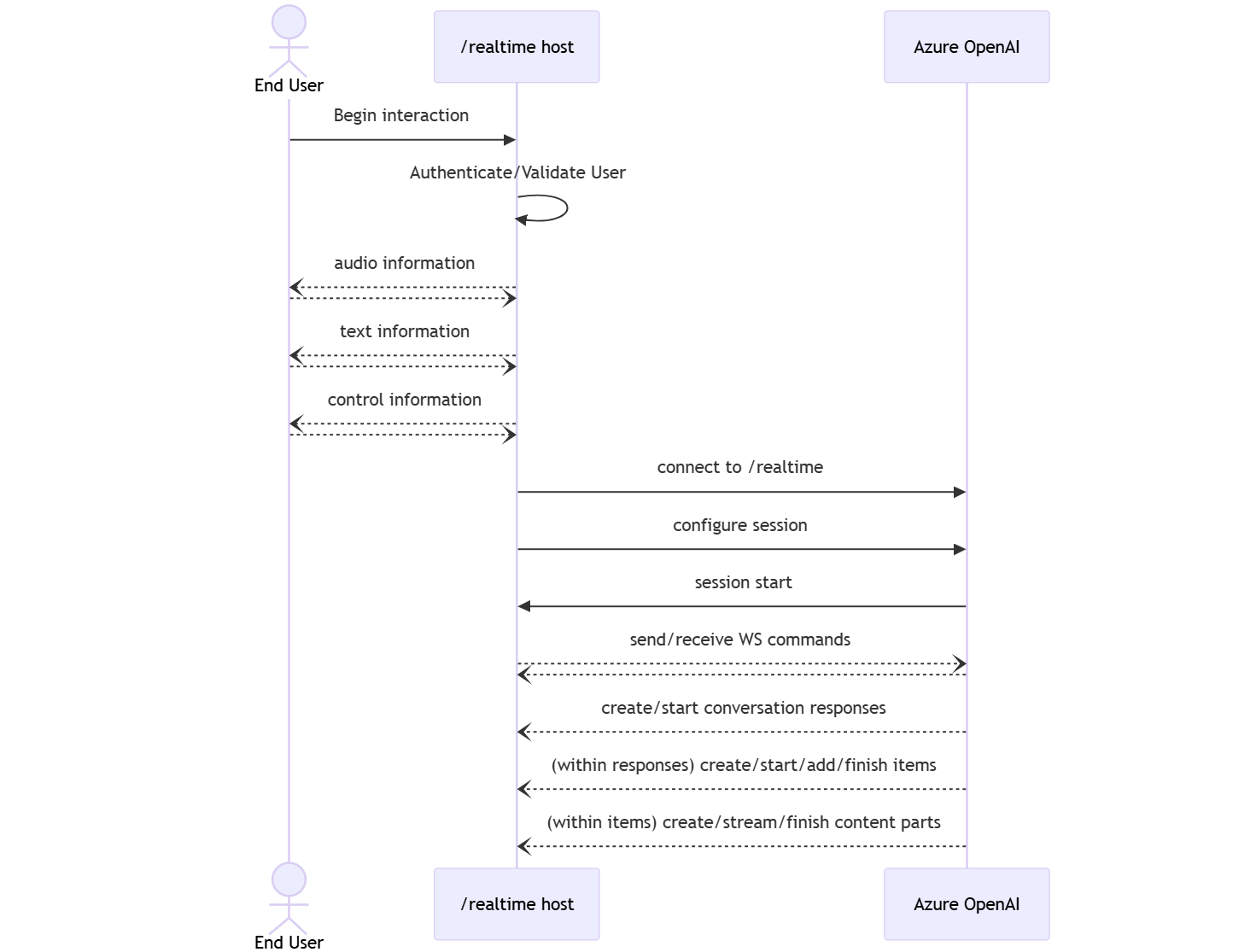 Events can be sent and received in parallel and applications should generally handle them both concurrently and asynchronously.
* A client-side caller establishes a connection to `/realtime`, which starts a new [`session`](../realtime-audio-reference).
* A `session` automatically creates a default `conversation`. Multiple concurrent conversations aren't supported.
* The `conversation` accumulates input signals until a `response` is started, either via a direct event by the caller or automatically by voice activity detection (VAD).
* Each `response` consists of one or more `items`, which can encapsulate messages, function calls, and other information.
* Each message `item` has `content_part`, allowing multiple modalities (text and audio) to be represented across a single item.
* The `session` manages configuration of caller input handling (for example, user audio) and common output generation handling.
* Each caller-initiated [`response.create`](../realtime-audio-reference) can override some of the output [`response`](../realtime-audio-reference) behavior, if desired.
* Server-created `item` and the `content_part` in messages can be populated asynchronously and in parallel. For example, receiving audio, text, and function information concurrently in a round robin fashion.
## Try the quickstart
After completing the preceding steps, follow the instructions in the [Realtime API quickstart](/models/realtime-audio-websockets#voice-agent-quickstart) to get started with the Realtime API via WebSockets.
## Related content
* Try the [real-time audio quickstart](/models/realtime-audio-websockets#voice-agent-quickstart).
* See the [Realtime API reference](../realtime-audio-reference)
* Learn more about Azure OpenAI [quotas and limits](/models/quotas-limits)
Events can be sent and received in parallel and applications should generally handle them both concurrently and asynchronously.
* A client-side caller establishes a connection to `/realtime`, which starts a new [`session`](../realtime-audio-reference).
* A `session` automatically creates a default `conversation`. Multiple concurrent conversations aren't supported.
* The `conversation` accumulates input signals until a `response` is started, either via a direct event by the caller or automatically by voice activity detection (VAD).
* Each `response` consists of one or more `items`, which can encapsulate messages, function calls, and other information.
* Each message `item` has `content_part`, allowing multiple modalities (text and audio) to be represented across a single item.
* The `session` manages configuration of caller input handling (for example, user audio) and common output generation handling.
* Each caller-initiated [`response.create`](../realtime-audio-reference) can override some of the output [`response`](../realtime-audio-reference) behavior, if desired.
* Server-created `item` and the `content_part` in messages can be populated asynchronously and in parallel. For example, receiving audio, text, and function information concurrently in a round robin fashion.
## Try the quickstart
After completing the preceding steps, follow the instructions in the [Realtime API quickstart](/models/realtime-audio-websockets#voice-agent-quickstart) to get started with the Realtime API via WebSockets.
## Related content
* Try the [real-time audio quickstart](/models/realtime-audio-websockets#voice-agent-quickstart).
* See the [Realtime API reference](../realtime-audio-reference)
* Learn more about Azure OpenAI [quotas and limits](/models/quotas-limits)