;
};
export const ZoneContent = ({group, value, options = [], values = [], defaultValue, children}) => {
const optionKey = options.map(option => `${option.id}:${option.title}`).join("|");
const [activePivot, setActivePivot] = useState(defaultValue || values[0]);
const slugify = value => value.toLowerCase().replace(/[^a-z0-9]+/g, "-").replace(/^-|-$/g, "");
const resolvePivot = () => {
if (typeof window === "undefined") return defaultValue || values[0];
const params = new URLSearchParams(window.location.search);
const requested = params.get("pivots");
if (requested) {
const requestedIds = requested.split(",").map(value => value.trim()).filter(Boolean);
const match = requestedIds.find(id => values.includes(id));
if (match) return match;
}
const hash = window.location.hash.replace(/^#/, "");
if (hash) {
const match = options.find(option => option.id === hash || slugify(option.title) === hash);
if (match) return match.id;
}
try {
const stored = window.localStorage.getItem(`foundry-zone-pivot:${group}`);
if (values.includes(stored)) return stored;
} catch {
return defaultValue || values[0];
}
return defaultValue || values[0];
};
useEffect(() => {
setActivePivot(resolvePivot());
}, [group, defaultValue, values.join("|"), optionKey]);
useEffect(() => {
const onPivotChange = event => {
if (event.detail?.group === group && values.includes(event.detail.value)) {
setActivePivot(event.detail.value);
}
};
window.addEventListener("foundry-zone-pivot-change", onPivotChange);
return () => window.removeEventListener("foundry-zone-pivot-change", onPivotChange);
}, [group, values.join("|")]);
if (activePivot !== value) return null;
return <>{children};
};
The batch synthesis API for text to speech avatar lets you synthesize text asynchronously into a talking avatar as a video file. Publishers and video content platforms can use this API to create avatar video content in a batch. That approach can be suitable for different use cases like training materials, presentations, or advertisements.
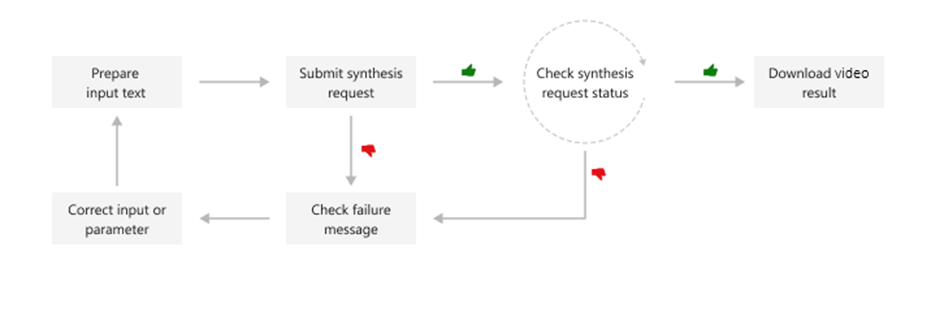
The synthetic avatar video will be generated asynchronously after the system receives text input. The generated video output can be downloaded in batch mode synthesis. You submit text for synthesis, poll for the synthesis status, and download the video output when the status shows success. The text input formats must be plain text or Speech Synthesis Markup Language (SSML) text.
This diagram provides a high-level overview of the workflow.
Try out the text to speech avatar feature in [Microsoft Foundry](https://ai.azure.com/?cid=learnDocs).
## Prerequisites
* An Azure subscription.
* A Foundry project. If you need to create a project, see [Create a Microsoft Foundry project](https://learn.microsoft.com/en-us/azure/ai-foundry/how-to/create-projects).
## Try text to speech avatar
Try text to speech in the Foundry portal by following these steps:
1. Go to [Microsoft Foundry](https://ai.azure.com/?cid=learnDocs).
2. Select **Build** from the top right menu.
3. Select **Models** on the left pane.
4. The **AI Services** tab shows the Azure AI models that can be used out of the box in the Foundry portal. Select **Azure Speech - Text to Speech Avatar** to open the Text to Speech Avatar playground.
5. Choose a prebuilt avatar from the grid, and select a voice from the **Voice** dropdown menu.
6. Enter your sample text in the text box on the right.
7. Select **Play** to hear the synthetic voice read your text.
8. Switch to the **Generated video** tab to see the video output of the avatar speaking your text with natural face movement and gestures.
9. Switch to the **Code** tab to get the sample code for using the text to speech avatar feature in your application.
## Other Foundry (new) features
The following Speech features are available in the Foundry (new) portal:
* [Speech MCP server](https://learn.microsoft.com/azure/ai-foundry/agents/how-to/tools/azure-ai-speech)
* [Speech to text quickstart](https://learn.microsoft.com/azure/ai-services/speech-service/get-started-speech-to-text)
* [Text to speech quickstart](https://learn.microsoft.com/azure/ai-services/speech-service/get-started-text-to-speech)
* [Text to speech avatar quickstart](https://learn.microsoft.com/azure/ai-services/speech-service/text-to-speech-avatar/batch-synthesis-avatar)
* [Voice live quickstart](https://learn.microsoft.com/azure/ai-services/speech-service/voice-live-quickstart)
To run batch synthesis, you can use the following REST API operations.
| Operation | Method | REST API call |
| ----------------------------------------------------------- | ------ | ----------------------------------------------------------- |
| [Create batch synthesis](#create-a-batch-synthesis-request) | PUT | avatar/batchsyntheses/\{SynthesisId}?api-version=2024-08-01 |
| [Get batch synthesis](#get-batch-synthesis) | GET | avatar/batchsyntheses/\{SynthesisId}?api-version=2024-08-01 |
| [List batch synthesis](#list-batch-synthesis) | GET | avatar/batchsyntheses/?api-version=2024-08-01 |
| [Delete batch synthesis](#delete-batch-synthesis) | DELETE | avatar/batchsyntheses/\{SynthesisId}?api-version=2024-08-01 |
You can refer to the code samples on [GitHub](https://github.com/Azure-Samples/cognitive-services-speech-sdk/tree/master/samples/batch-avatar).
## Create a batch synthesis request
Some properties in JSON format are required when you create a new batch synthesis job. Other properties are optional. The [batch synthesis response](#get-batch-synthesis) includes other properties to provide information about the synthesis status and results. For example, the `outputs.result` property has the location from [where you can download a video file](#get-batch-synthesis-results-file) containing the avatar video. From `outputs.summary`, you can get the summary and debug details.
To submit a batch synthesis request, construct the HTTP POST request body following these instructions:
* Set the required `inputKind` property.
* If the `inputKind` property is set to `PlainText`, you must also set the `voice` property in the `synthesisConfig`. In the following example, the `inputKind` is set to `SSML`, so the `speechSynthesis` isn't set.
* Set the required `SynthesisId` property. Choose a unique `SynthesisId` for the same speech resource. The `SynthesisId` can be a string of 3 to 64 characters, including letters, numbers, '-', or '\_', with the condition that it must start and end with a letter or number.
* Set the required `talkingAvatarCharacter` and `talkingAvatarStyle` properties. You can find supported avatar characters and styles [here](https://learn.microsoft.com/azure/ai-services/speech-service/text-to-speech-avatar/standard-avatars).
* Optionally, you can set the `videoFormat`, `backgroundColor`, and other properties. For more information, see [batch synthesis properties](https://learn.microsoft.com/azure/ai-services/speech-service/text-to-speech-avatar/batch-synthesis-avatar-properties).
The maximum JSON payload size accepted is 500 kilobytes.
Each Speech resource can have up to 200 batch synthesis jobs running concurrently.
The maximum length for the output video is currently 20 minutes, with potential increases in the future.
To make an HTTP PUT request, use the URI format shown in the following example. Replace `YourSpeechKey` with your Speech resource key, `YourSpeechRegion` with your Speech resource region, and set the request body properties as described previously.
```azurecli-interactive theme={null}
curl -v -X PUT -H "Ocp-Apim-Subscription-Key: YourSpeechKey" -H "Content-Type: application/json" -d '{
"inputKind": "SSML",
"inputs": [
{
"content": "The rainbow has seven colors."
}
],
"avatarConfig": {
"talkingAvatarCharacter": "lisa",
"talkingAvatarStyle": "graceful-sitting"
}
}' "https://YourSpeechRegion.api.cognitive.microsoft.com/avatar/batchsyntheses/my-job-01?api-version=2024-08-01"
```
You should receive a response body in the following format:
```json theme={null}
{
"id": "my-job-01",
"internalId": "5a25b929-1358-4e81-a036-33000e788c46",
"status": "NotStarted",
"createdDateTime": "2024-03-06T07:34:08.9487009Z",
"lastActionDateTime": "2024-03-06T07:34:08.9487012Z",
"inputKind": "SSML",
"customVoices": {},
"properties": {
"timeToLiveInHours": 744,
},
"avatarConfig": {
"talkingAvatarCharacter": "lisa",
"talkingAvatarStyle": "graceful-sitting",
"videoFormat": "Mp4",
"videoCodec": "hevc",
"subtitleType": "soft_embedded",
"bitrateKbps": 2000,
"customized": false
}
}
```
The `status` property should progress from `NotStarted` status to `Running` and finally to `Succeeded` or `Failed`. You can periodically call the [GET batch synthesis API](#get-batch-synthesis) until the returned status is `Succeeded` or `Failed`.
## Get batch synthesis
To get the status of a batch synthesis job, make an HTTP GET request using the URI as shown in the following example.
Replace `YourSynthesisId` with your batch synthesis ID, `YourSpeechKey` with your Speech resource key, and `YourSpeechRegion` with your Speech resource region.
```azurecli-interactive theme={null}
curl -v -X GET "https://YourSpeechRegion.api.cognitive.microsoft.com/avatar/batchsyntheses/YourSynthesisId?api-version=2024-08-01" -H "Ocp-Apim-Subscription-Key: YourSpeechKey"
```
You should receive a response body in the following format:
```json theme={null}
{
"id": "my-job-01",
"internalId": "5a25b929-1358-4e81-a036-33000e788c46",
"status": "Succeeded",
"createdDateTime": "2024-03-06T07:34:08.9487009Z",
"lastActionDateTime": "2024-03-06T07:34:12.5698769",
"inputKind": "SSML",
"customVoices": {},
"properties": {
"timeToLiveInHours": 744,
"sizeInBytes": 344460,
"durationInMilliseconds": 2520,
"succeededCount": 1,
"failedCount": 0,
"billingDetails": {
"neuralCharacters": 29,
"talkingAvatarDurationSeconds": 2
}
},
"avatarConfig": {
"talkingAvatarCharacter": "lisa",
"talkingAvatarStyle": "graceful-sitting",
"videoFormat": "Mp4",
"videoCodec": "hevc",
"subtitleType": "soft_embedded",
"bitrateKbps": 2000,
"customized": false
},
"outputs": {
"result": "https://stttssvcprodusw2.blob.core.windows.net/batchsynthesis-output/xxxxx/xxxxx/0001.mp4?SAS_Token",
"summary": "https://stttssvcprodusw2.blob.core.windows.net/batchsynthesis-output/xxxxx/xxxxx/summary.json?SAS_Token"
}
}
```
From the `outputs.result` field, you can download a video file containing the avatar video. The `outputs.summary` field lets you download the summary and debug details. For more information on batch synthesis results, see [batch synthesis results](#get-batch-synthesis-results-file).
## List batch synthesis
To list all batch synthesis jobs for your Speech resource, make an HTTP GET request using the URI as shown in the following example.
Replace `YourSpeechKey` with your Speech resource key and `YourSpeechRegion` with your Speech resource region. Optionally, you can set the `skip` and `top` (page size) query parameters in the URL. The default value for `skip` is 0, and the default value for `maxpagesize` is 100.
```azurecli-interactive theme={null}
curl -v -X GET "https://YourSpeechRegion.api.cognitive.microsoft.com/avatar/batchsyntheses?skip=0&maxpagesize=2&api-version=2024-08-01" -H "Ocp-Apim-Subscription-Key: YourSpeechKey"
```
You receive a response body in the following format:
```json theme={null}
{
"value": [
{
"id": "my-job-02",
"internalId": "14c25fcf-3cb6-4f46-8810-ecad06d956df",
"status": "Succeeded",
"createdDateTime": "2024-03-06T07:52:23.9054709Z",
"lastActionDateTime": "2024-03-06T07:52:29.3416944",
"inputKind": "SSML",
"customVoices": {},
"properties": {
"timeToLiveInHours": 744,
"sizeInBytes": 502676,
"durationInMilliseconds": 2950,
"succeededCount": 1,
"failedCount": 0,
"billingDetails": {
"neuralCharacters": 32,
"talkingAvatarDurationSeconds": 2
}
},
"avatarConfig": {
"talkingAvatarCharacter": "lisa",
"talkingAvatarStyle": "casual-sitting",
"videoFormat": "Mp4",
"videoCodec": "h264",
"subtitleType": "soft_embedded",
"bitrateKbps": 2000,
"customized": false
},
"outputs": {
"result": "https://stttssvcprodusw2.blob.core.windows.net/batchsynthesis-output/xxxxx/xxxxx/0001.mp4?SAS_Token",
"summary": "https://stttssvcprodusw2.blob.core.windows.net/batchsynthesis-output/xxxxx/xxxxx/summary.json?SAS_Token"
}
},
{
"id": "my-job-01",
"internalId": "5a25b929-1358-4e81-a036-33000e788c46",
"status": "Succeeded",
"createdDateTime": "2024-03-06T07:34:08.9487009Z",
"lastActionDateTime": "2024-03-06T07:34:12.5698769",
"inputKind": "SSML",
"customVoices": {},
"properties": {
"timeToLiveInHours": 744,
"sizeInBytes": 344460,
"durationInMilliseconds": 2520,
"succeededCount": 1,
"failedCount": 0,
"billingDetails": {
"neuralCharacters": 29,
"talkingAvatarDurationSeconds": 2
}
},
"avatarConfig": {
"talkingAvatarCharacter": "lisa",
"talkingAvatarStyle": "graceful-sitting",
"videoFormat": "Mp4",
"videoCodec": "hevc",
"subtitleType": "soft_embedded",
"bitrateKbps": 2000,
"customized": false
},
"outputs": {
"result": "https://stttssvcprodusw2.blob.core.windows.net/batchsynthesis-output/xxxxx/xxxxx/0001.mp4?SAS_Token",
"summary": "https://stttssvcprodusw2.blob.core.windows.net/batchsynthesis-output/xxxxx/xxxxx/summary.json?SAS_Token"
}
}
],
"nextLink": "https://YourSpeechRegion.api.cognitive.microsoft.com/avatar/batchsyntheses/?api-version=2024-08-01&skip=2&maxpagesize=2"
}
```
From `outputs.result`, you can download a video file containing the avatar video. From `outputs.summary`, you can get the summary and debug details. For more information, see [batch synthesis results](#get-batch-synthesis-results-file).
The `value` property in the JSON response lists your synthesis requests. The list is paginated, with a maximum page size of 100. The `nextLink` property is provided as needed to get the next page of the paginated list.
## Get batch synthesis results file
Once you get a batch synthesis job with `status` of "Succeeded", you can download the video output results. Use the URL from the `outputs.result` property of the [get batch synthesis](#get-batch-synthesis) response.
To get the batch synthesis results file, make an HTTP GET request using the URI as shown in the following example. Replace `YourOutputsResultUrl` with the URL from the `outputs.result` property of the [get batch synthesis](#get-batch-synthesis) response. Replace `YourSpeechKey` with your Speech resource key.
```azurecli-interactive theme={null}
curl -v -X GET "YourOutputsResultUrl" -H "Ocp-Apim-Subscription-Key: YourSpeechKey" > output.mp4
```
To get the batch synthesis summary file, make an HTTP GET request using the URI as shown in the following example. Replace `YourOutputsResultUrl` with the URL from the `outputs.summary` property of the [get batch synthesis](#get-batch-synthesis) response. Replace `YourSpeechKey` with your Speech resource key.
```azurecli-interactive theme={null}
curl -v -X GET "YourOutputsSummaryUrl" -H "Ocp-Apim-Subscription-Key: YourSpeechKey" > summary.json
```
The summary file has the synthesis results for each text input. Here's an example summary.json file:
```json theme={null}
{
"jobID": "5a25b929-1358-4e81-a036-33000e788c46",
"status": "Succeeded",
"results": [
{
"texts": [
"The rainbow has seven colors."
],
"status": "Succeeded",
"videoFileName": "244a87c294b94ddeb3dbaccee8ffa7eb/5a25b929-1358-4e81-a036-33000e788c46/0001.mp4",
"TalkingAvatarCharacter": "lisa",
"TalkingAvatarStyle": "graceful-sitting"
}
]
}
```
## Delete batch synthesis
After you get the audio output results and no longer need the batch synthesis job history, you can delete it. The Speech service keeps each synthesis history for up to 31 days or the duration specified by the request's `timeToLiveInHours` property, whichever comes sooner. The date and time of automatic deletion for synthesis jobs with a status of "Succeeded" or "Failed" is calculated as the sum of the `lastActionDateTime` and `timeToLive` properties.
To delete a batch synthesis job, make an HTTP DELETE request using the following URI format. Replace `YourSynthesisId` with your batch synthesis ID, `YourSpeechKey` with your Speech resource key, and `YourSpeechRegion` with your Speech resource region.
```azurecli-interactive theme={null}
curl -v -X DELETE "https://YourSpeechRegion.api.cognitive.microsoft.com/avatar/batchsyntheses/YourSynthesisId?api-version=2024-08-01" -H "Ocp-Apim-Subscription-Key: YourSpeechKey"
```
The response headers include `HTTP/1.1 204 No Content` if the delete request was successful.
## Next steps
* [Batch synthesis properties](./batch-synthesis-avatar-properties)
* [Use batch synthesis for text to speech avatar](/models/batch-synthesis-avatar)
* [What is text to speech avatar](what-is-text-to-speech-avatar)