> ## Documentation Index
> Fetch the complete documentation index at: https://hobbyist-e43fa225.mintlify.site/llms.txt
> Use this file to discover all available pages before exploring further.
# Get started using Foundry MCP Server with Visual Studio Code
> Connect to Foundry MCP Server from Visual Studio Code, authenticate with Entra ID, and run your first prompts against Foundry services.
Foundry MCP Server (preview) is a cloud-hosted implementation of the Model Context Protocol (MCP) that gives your agents secure tool access to Foundry services. It exposes curated tools that let your agents perform read and write operations against Foundry services without calling backend APIs directly. You don't need to deploy infrastructure — the server provides a secure, scalable endpoint with built-in authentication through Microsoft Entra ID.
Use an MCP-compliant client such as Visual Studio Code to connect to the public endpoint, authenticate with Entra ID, and let LLMs access the tools. After you connect, you can build agents that invoke these tools with natural language prompts.
In this article, you learn how to:
* Connect to Foundry MCP Server with GitHub Copilot in Visual Studio Code
* Run prompts to test Foundry MCP Server tools and interact with Azure resources
This guide takes about 5 minutes to complete.
This feature is currently in public preview. This preview is provided without a service-level agreement, and we don't recommend it for production workloads. Certain features might not be supported or might have constrained capabilities. For more information, see [Supplemental Terms of Use for Microsoft Azure Previews](https://azure.microsoft.com/support/legal/preview-supplemental-terms/).
## Prerequisites
* Azure account with an active subscription. If you don't have one, [create a free Azure account](https://azure.microsoft.com/pricing/purchase-options/azure-account?cid=msft_learn).
* A Foundry project. If you don't have a project, create one with the [Microsoft Foundry SDK Quickstart](https://learn.microsoft.com/azure/ai-foundry/quickstarts/get-started-code).
* [Visual Studio Code](https://code.visualstudio.com/download) (version 1.99 or later).
* A [GitHub Copilot](https://github.com/features/copilot) subscription (Individual, Business, or Enterprise).
* [GitHub Copilot](https://marketplace.visualstudio.com/items?itemName=GitHub.copilot) Visual Studio Code extension.
* Contributor or higher role on the Foundry project you want to access.
## Install and start Foundry MCP Server
Select an option to install Foundry MCP Server in Visual Studio Code.
Install Foundry MCP Server in your user profile so it's available to all workspaces in Visual Studio Code.
1. Open the **Command Palette** (Ctrl+Shift+P).
2. Search for **MCP: Add Server**.
3. Select the **HTTP (HTTP or Server-Sent Events)** option.
4. Enter `https://mcp.ai.azure.com` as the URL.
5. Enter a friendly name such as *foundry-mcp-remote*, then press Enter. Visual Studio Code adds the following server entry under your user profile:
```json theme={null}
{
"servers": {
"foundry-mcp-remote": {
"type": "http",
"url": "https://mcp.ai.azure.com"
}
}
}
```
6. Open the **Command Palette** (Ctrl+Shift+P).
7. Search for and select **MCP: List Servers**.
8. Select Foundry MCP Server you added and choose **Start Server**.
9. A green indicator appears next to the server name in **MCP: List Servers**, confirming the connection is active.
10. When prompted, sign in to Azure so the MCP server can interact with services in your subscription.
11. Open GitHub Copilot and select **Agent Mode**.
12. Select the tools icon, search for *Foundry* to filter the list, and confirm the server appears.
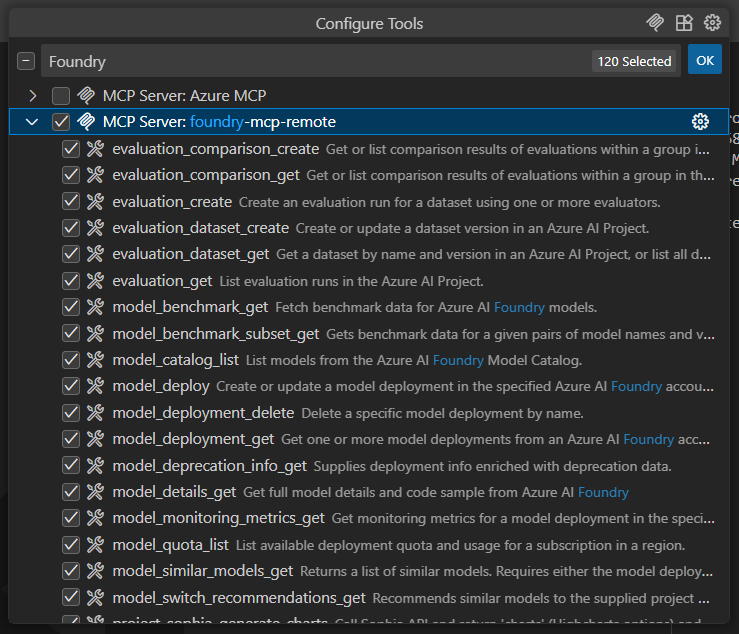 Learn more about Agent Mode in the [Visual Studio Code documentation](https://code.visualstudio.com/docs/copilot/chat/chat-agent-mode).
Install Foundry MCP Server for a specific workspace to scope it to that folder:
1. Open an empty folder or an existing project folder in Visual Studio Code.
2. In the folder root, create a `.vscode` folder if it doesn't exist.
3. Inside the `.vscode` folder, create a file named `mcp.json`, and add the following JSON.
```json theme={null}
{
"servers": {
"foundry-mcp-remote": {
"type": "http",
"url": "https://mcp.ai.azure.com"
}
}
}
```
4. Save your changes to `mcp.json`.
5. Select the **Start** button above the new server entry.
6. A green indicator appears next to the server name, confirming the connection is active.
7. When prompted, sign in so the MCP server can interact with services in your subscription.
8. Open GitHub Copilot and select Agent Mode.
9. Select the tools icon, search for *Foundry* to filter the results, and confirm the server appears.
To learn more about Agent Mode, visit the [Visual Studio Code documentation](https://code.visualstudio.com/docs/copilot/chat/chat-agent-mode).
## Use prompts to test Foundry MCP Server
1. Open the GitHub Copilot chat panel and confirm **Agent Mode** is selected.
2. Enter a prompt that uses Foundry MCP Server tools—for example *Tell me about the latest models on Foundry*.
3. Copilot requests permission to run the required Foundry MCP Server operation. Select **Continue** or use the arrow to choose a more specific behavior:
* **Current session** always runs the operation in the current GitHub Copilot Agent Mode session.
* **Current workspace** always runs the command for the current Visual Studio Code workspace.
* **Always allow** sets the operation to always run for any GitHub Copilot Agent Mode session or any Visual Studio Code workspace.
Learn more about Agent Mode in the [Visual Studio Code documentation](https://code.visualstudio.com/docs/copilot/chat/chat-agent-mode).
Install Foundry MCP Server for a specific workspace to scope it to that folder:
1. Open an empty folder or an existing project folder in Visual Studio Code.
2. In the folder root, create a `.vscode` folder if it doesn't exist.
3. Inside the `.vscode` folder, create a file named `mcp.json`, and add the following JSON.
```json theme={null}
{
"servers": {
"foundry-mcp-remote": {
"type": "http",
"url": "https://mcp.ai.azure.com"
}
}
}
```
4. Save your changes to `mcp.json`.
5. Select the **Start** button above the new server entry.
6. A green indicator appears next to the server name, confirming the connection is active.
7. When prompted, sign in so the MCP server can interact with services in your subscription.
8. Open GitHub Copilot and select Agent Mode.
9. Select the tools icon, search for *Foundry* to filter the results, and confirm the server appears.
To learn more about Agent Mode, visit the [Visual Studio Code documentation](https://code.visualstudio.com/docs/copilot/chat/chat-agent-mode).
## Use prompts to test Foundry MCP Server
1. Open the GitHub Copilot chat panel and confirm **Agent Mode** is selected.
2. Enter a prompt that uses Foundry MCP Server tools—for example *Tell me about the latest models on Foundry*.
3. Copilot requests permission to run the required Foundry MCP Server operation. Select **Continue** or use the arrow to choose a more specific behavior:
* **Current session** always runs the operation in the current GitHub Copilot Agent Mode session.
* **Current workspace** always runs the command for the current Visual Studio Code workspace.
* **Always allow** sets the operation to always run for any GitHub Copilot Agent Mode session or any Visual Studio Code workspace.
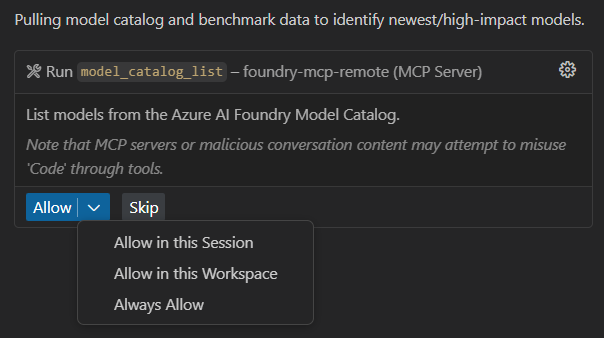 The response resembles the following shortened output. Your actual results vary based on current model availability.
```text theme={null}
Latest / Notable Foundry Models (Preview Snapshot)
1. Frontier & Reasoning Models
gpt-4o (2024-11-20) – Flagship multimodal model; strong multi-turn coherence.
o3 (2025-04-16) – Balanced reasoning with good accuracy/quality trade-off.
o4-mini (2025-04-16) – Strong quality with better latency than o3.
Phi-4 – Microsoft small frontier open model; competitive quality at lower cost.
// Further output omitted
```
1. Explore and test Foundry MCP Server operations with other prompts, such as:
```text theme={null}
What tools can I use from Foundry MCP Server (preview)?
Tell me about the latest models on Foundry
Show me details about the GPT-4o model on Foundry
```
## Troubleshooting
| Issue | Resolution |
| ---------------------------------------- | ------------------------------------------------------------------------------------------------------------------------------------------------------------------------------------------------ |
| Server doesn't start | Verify you entered the URL `https://mcp.ai.azure.com` correctly. Open the **Command Palette** and run **MCP: List Servers** to check server status. |
| Authentication prompt doesn't appear | Make sure the GitHub Copilot extension is installed and you're signed in to Visual Studio Code with a Microsoft account that has access to your Azure subscription. |
| Foundry tools don't appear in Agent Mode | Confirm the server is running (green indicator in **MCP: List Servers**). Check that you selected **Agent Mode** in the Copilot chat panel, then select the tools icon and search for *Foundry*. |
| "Access denied" or permission errors | Verify you have Contributor or higher role on the Foundry project. The server uses On-Behalf-Of flow with your Entra ID credentials. |
## Clean up resources
To remove the server configuration:
* **User profile**: Open the **Command Palette**, run **MCP: List Servers**, select the Foundry server, and choose **Remove Server**.
* **Workspace**: Delete the server entry from the `.vscode/mcp.json` file in your project folder.
## Related content
* [Foundry MCP Server security and best practices](/developer-tools-and-integrations/security-best-practices)
* [Foundry MCP Server tools and example prompts](/developer-tools-and-integrations/available-tools)
* [Microsoft MCP server certification overview](/microsoft-copilot-studio/mcp-certification)
The response resembles the following shortened output. Your actual results vary based on current model availability.
```text theme={null}
Latest / Notable Foundry Models (Preview Snapshot)
1. Frontier & Reasoning Models
gpt-4o (2024-11-20) – Flagship multimodal model; strong multi-turn coherence.
o3 (2025-04-16) – Balanced reasoning with good accuracy/quality trade-off.
o4-mini (2025-04-16) – Strong quality with better latency than o3.
Phi-4 – Microsoft small frontier open model; competitive quality at lower cost.
// Further output omitted
```
1. Explore and test Foundry MCP Server operations with other prompts, such as:
```text theme={null}
What tools can I use from Foundry MCP Server (preview)?
Tell me about the latest models on Foundry
Show me details about the GPT-4o model on Foundry
```
## Troubleshooting
| Issue | Resolution |
| ---------------------------------------- | ------------------------------------------------------------------------------------------------------------------------------------------------------------------------------------------------ |
| Server doesn't start | Verify you entered the URL `https://mcp.ai.azure.com` correctly. Open the **Command Palette** and run **MCP: List Servers** to check server status. |
| Authentication prompt doesn't appear | Make sure the GitHub Copilot extension is installed and you're signed in to Visual Studio Code with a Microsoft account that has access to your Azure subscription. |
| Foundry tools don't appear in Agent Mode | Confirm the server is running (green indicator in **MCP: List Servers**). Check that you selected **Agent Mode** in the Copilot chat panel, then select the tools icon and search for *Foundry*. |
| "Access denied" or permission errors | Verify you have Contributor or higher role on the Foundry project. The server uses On-Behalf-Of flow with your Entra ID credentials. |
## Clean up resources
To remove the server configuration:
* **User profile**: Open the **Command Palette**, run **MCP: List Servers**, select the Foundry server, and choose **Remove Server**.
* **Workspace**: Delete the server entry from the `.vscode/mcp.json` file in your project folder.
## Related content
* [Foundry MCP Server security and best practices](/developer-tools-and-integrations/security-best-practices)
* [Foundry MCP Server tools and example prompts](/developer-tools-and-integrations/available-tools)
* [Microsoft MCP server certification overview](/microsoft-copilot-studio/mcp-certification)