;
};
export const ZoneContent = ({group, value, options = [], values = [], defaultValue, children}) => {
const optionKey = options.map(option => `${option.id}:${option.title}`).join("|");
const [activePivot, setActivePivot] = useState(defaultValue || values[0]);
const slugify = value => value.toLowerCase().replace(/[^a-z0-9]+/g, "-").replace(/^-|-$/g, "");
const resolvePivot = () => {
if (typeof window === "undefined") return defaultValue || values[0];
const params = new URLSearchParams(window.location.search);
const requested = params.get("pivots");
if (requested) {
const requestedIds = requested.split(",").map(value => value.trim()).filter(Boolean);
const match = requestedIds.find(id => values.includes(id));
if (match) return match;
}
const hash = window.location.hash.replace(/^#/, "");
if (hash) {
const match = options.find(option => option.id === hash || slugify(option.title) === hash);
if (match) return match.id;
}
try {
const stored = window.localStorage.getItem(`foundry-zone-pivot:${group}`);
if (values.includes(stored)) return stored;
} catch {
return defaultValue || values[0];
}
return defaultValue || values[0];
};
useEffect(() => {
setActivePivot(resolvePivot());
}, [group, defaultValue, values.join("|"), optionKey]);
useEffect(() => {
const onPivotChange = event => {
if (event.detail?.group === group && values.includes(event.detail.value)) {
setActivePivot(event.detail.value);
}
};
window.addEventListener("foundry-zone-pivot-change", onPivotChange);
return () => window.removeEventListener("foundry-zone-pivot-change", onPivotChange);
}, [group, values.join("|")]);
if (activePivot !== value) return null;
return <>{children};
};
For a managed knowledge base experience, see [Foundry IQ](/tools-and-knowledge/foundry-iq-connect). For tool optimization, see [best practices](/agents/tool-best-practice).
Ground your Foundry agent's responses in your proprietary content by connecting it to an Azure AI Search index. The [Azure AI Search](../../../../search/search-what-is-azure-search) tool retrieves indexed documents so the Foundry model powering the agent can generate answers with inline citations, enabling accurate, source-backed responses.
If you want to use a private virtual network with the Azure AI Search tool, make sure you use Microsoft Entra project managed identity to authenticate in your Azure AI Search connection. Key-based authentication isn't supported with private virtual networking.
## Usage support
The following table shows SDK and setup support.
| Microsoft Foundry support | Python SDK | C# SDK | JavaScript SDK | Java SDK | REST API | Basic agent setup | Standard agent setup |
| ------------------------- | ---------- | ------ | -------------- | -------- | -------- | ----------------- | -------------------- |
| ✔️ | ✔️ | ✔️ | ✔️ | ✔️ | ✔️ | ✔️ | ✔️ |
## Prerequisites
*Estimated setup time: 15-30 minutes if you have an existing search index*
* A [basic or standard agent environment](../../../agents/environment-setup).
* Install the SDK package for your preferred language. See the [quickstart](/get-started/get-started-code) for details.
* **Python**: `pip install "azure-ai-projects>=2.0.0"`
* **C#**: Install the `Azure.AI.Projects` NuGet package
* **JavaScript/TypeScript**: `npm install @azure/ai-projects`
* **Java**: Add the `com.azure:azure-ai-agents:2.0.0` dependency to your `pom.xml`
* An Azure subscription and Microsoft Foundry project with:
* Project endpoint
* Model deployment name
* Authentication configured (for example, `DefaultAzureCredential`)
* An [Azure AI Search index configured for vector search](../../../../search/search-get-started-portal-import-vectors) with:
* One or more `Edm.String` fields that are searchable and retrievable
* One or more `Collection(Edm.Single)` vector fields that are searchable
* At least one retrievable text field that contains the content you want the agent to cite
* A retrievable field that contains a source URL (and optionally a title) so citations can include a link
* A connection between your Foundry project and your Azure AI Search service (see [Setup](#setup)).
* For keyless authentication, assign the following Azure role-based access control (RBAC) roles to your project's managed identity:
* **Search Index Data Contributor**
* **Search Service Contributor**
## Configure tool parameters
| Azure AI Search tool parameter | Required | Notes |
| ------------------------------ | -------- | ----------------------------------------------------------------------------------------------------------------------------------------- |
| `project_connection_id` | Yes | The resource ID of the project connection to Azure AI Search. |
| `index_name` | Yes | The name of the index in your Azure AI Search resource. |
| `top_k` | No | Defaults to 5. |
| `query_type` | No | Defaults to `vector_semantic_hybrid`. Supported values: `simple`, `vector`, `semantic`, `vector_simple_hybrid`, `vector_semantic_hybrid`. |
| `filter` | No | Applies to all queries the agent makes to the index. |
## Code example
* You need the latest SDK package. For more information, see the [quickstart](/get-started/get-started-code).
* If you're using the REST sample, the connection ID is in the format `/subscriptions/{{subscriptionId}}/resourceGroups/{{resourceGroupName}}/providers/Microsoft.CognitiveServices/accounts/{{foundryAccountName}}/projects/{{foundryProjectName}}/connections/{{connectionName}}`.
* If you're using the Python, C#, or TypeScript sample, you can provide the connection name and retrieve the connection ID with the SDK.
Select **Prompt Agents** to use the Azure AI Projects SDK to create a server-side prompt agent, or **Hosted Agents** to use the Agent Framework [`FoundryChatClient`](/agents/responses-api) to build an ephemeral, in-process agent.
```python theme={null}
from azure.identity import DefaultAzureCredential
from azure.ai.projects import AIProjectClient
from azure.ai.projects.models import (
AzureAISearchTool,
PromptAgentDefinition,
AzureAISearchToolResource,
AISearchIndexResource,
AzureAISearchQueryType,
)
# Format: "https://resource_name.ai.azure.com/api/projects/project_name"
PROJECT_ENDPOINT = "your_project_endpoint"
SEARCH_CONNECTION_NAME = "my-search-connection"
SEARCH_INDEX_NAME = "my-search-index"
# Create clients to call Foundry API
project = AIProjectClient(
endpoint=PROJECT_ENDPOINT,
credential=DefaultAzureCredential(),
)
openai = project.get_openai_client()
# Resolve the connection ID from the connection name
azs_connection = project.connections.get(SEARCH_CONNECTION_NAME)
connection_id = azs_connection.id
# Create an agent with the Azure AI Search tool
agent = project.agents.create_version(
agent_name="MyAgent",
definition=PromptAgentDefinition(
model="gpt-4.1-mini",
instructions="""You are a helpful assistant. You must always provide citations for
answers using the tool and render them as: `[message_idx:search_idx†source]`.""",
tools=[
AzureAISearchTool(
azure_ai_search=AzureAISearchToolResource(
indexes=[
AISearchIndexResource(
project_connection_id=connection_id,
index_name=SEARCH_INDEX_NAME,
query_type=AzureAISearchQueryType.SIMPLE,
),
]
)
)
],
),
description="You are a helpful agent.",
)
print(f"Agent created (id: {agent.id}, name: {agent.name}, version: {agent.version})")
# Prompt user for a question to send to the agent
user_input = input(
"""Enter your question for the AI Search agent available in the index
(e.g., 'Tell me about the mental health services available from Premera'): \n"""
)
# Stream the response from the agent
stream_response = openai.responses.create(
stream=True,
tool_choice="required",
input=user_input,
extra_body={"agent_reference": {"name": agent.name, "type": "agent_reference"}},
)
# Process the streaming response and print citations
for event in stream_response:
if event.type == "response.output_text.delta":
print(event.delta, end="")
elif event.type == "response.output_item.done":
if event.item.type == "message":
item = event.item
if item.content[-1].type == "output_text":
text_content = item.content[-1]
for annotation in text_content.annotations:
if annotation.type == "url_citation":
print(
f"URL Citation: {annotation.url}, "
f"Start index: {annotation.start_index}, "
f"End index: {annotation.end_index}"
)
elif event.type == "response.completed":
print(f"\nFull response: {event.response.output_text}")
# Clean up resources
project.agents.delete_version(agent_name=agent.name, agent_version=agent.version)
print("Agent deleted")
```
### Expected outcome
The agent queries the search index and returns a response with inline citations. Console output shows the agent ID, streaming delta updates as the response generates, URL citations with start and end indices, and the final complete response text. The agent is then successfully deleted.
This sample uses [`FoundryChatClient`](/agents/responses-api) from the Microsoft Agent Framework and calls `get_azure_ai_search_tool()` to attach an indexed Azure AI Search resource. Install the package with `pip install agent-framework-foundry aiohttp`, set the `FOUNDRY_PROJECT_ENDPOINT` and `FOUNDRY_MODEL` environment variables, and sign in with `az login`.
```python theme={null}
import asyncio
import os
from agent_framework import Agent
from agent_framework.foundry import FoundryChatClient
from azure.ai.projects import AIProjectClient
from azure.identity import AzureCliCredential
SEARCH_CONNECTION_NAME = "my-search-connection"
SEARCH_INDEX_NAME = "my-search-index"
async def main() -> None:
credential = AzureCliCredential()
# Resolve the project connection ID from the connection name
# (same pattern as the Prompt Agents tab).
project = AIProjectClient(
endpoint=os.environ["FOUNDRY_PROJECT_ENDPOINT"],
credential=credential,
)
connection_id = project.connections.get(SEARCH_CONNECTION_NAME).id
agent = Agent(
# Reads FOUNDRY_PROJECT_ENDPOINT and FOUNDRY_MODEL from the environment.
client=FoundryChatClient(credential=credential),
instructions=(
"You are a helpful assistant. Always cite sources from the search index "
"using `[message_idx:search_idx\u2020source]`."
),
tools=[
FoundryChatClient.get_azure_ai_search_tool(
index_connection_id=connection_id,
index_name=SEARCH_INDEX_NAME,
query_type="simple",
top_k=5,
)
],
)
result = await agent.run("Tell me about the mental health services available from Premera.")
print(f"Agent: {result.text}")
# Print URL citation annotations from the response.
for message in result.messages:
for content in message.contents:
for annotation in getattr(content, "annotations", None) or []:
url = getattr(annotation, "url", None)
title = getattr(annotation, "title", None)
if url:
print(f"URL Citation: {title or ''} ({url})")
if __name__ == "__main__":
asyncio.run(main())
```
### Expected outcome
The agent queries the specified Azure AI Search index and returns a response grounded in the indexed content. Console output shows the final response text followed by URL citations parsed from the response annotations. For more about Agent Framework Foundry tool factories, see the [Foundry provider samples](https://github.com/microsoft/agent-framework/tree/main/python/samples/02-agents/providers/foundry).
### Full sample
The following sample code shows synchronous examples of how to use the Azure AI Search tool in [Azure.AI.Extensions.OpenAI](https://aka.ms/azsdk/Azure.AI.Extensions.OpenAI/net/samples) to query an index. For asynchronous C# examples, see the [GitHub repo](https://aka.ms/azsdk/Azure.AI.Extensions.OpenAI/net/samples).
This example shows how to use the Azure AI Search tool with agents to query an index.
```csharp theme={null}
using System;
using Azure.AI.Projects;
using Azure.AI.Extensions.OpenAI;
using Azure.Identity;
// Format: "https://resource_name.ai.azure.com/api/projects/project_name"
var projectEndpoint = "your_project_endpoint";
var searchConnectionName = "my-search-connection";
var searchIndexName = "my-search-index";
// Create project client to call Foundry API
AIProjectClient projectClient = new(
endpoint: new Uri(projectEndpoint),
tokenProvider: new DefaultAzureCredential());
// Resolve the project connection ID from the connection name.
AIProjectConnection aiSearchConnection = projectClient.Connections.GetConnection(connectionName: searchConnectionName);
// Create an AzureAISearchToolIndex object that defines the index and the search parameters.
AzureAISearchToolIndex index = new()
{
ProjectConnectionId = aiSearchConnection.Id,
IndexName = searchIndexName,
TopK = 5,
Filter = "category eq 'sleeping bag'",
QueryType = AzureAISearchQueryType.Simple
};
// Create the agent definition with the Azure AI Search tool.
DeclarativeAgentDefinition agentDefinition = new(model: "gpt-4.1-mini")
{
Instructions = "You are a helpful assistant. You must always provide citations for answers using the tool and render them as: `\u3010message_idx:search_idx\u2020source\u3011`.",
Tools = { new AzureAISearchTool(new AzureAISearchToolOptions(indexes: [index])) }
};
// Create the agent version with the agent definition.
AgentVersion agentVersion = projectClient.AgentAdministrationClient.CreateAgentVersion(
agentName: "myAgent",
options: new(agentDefinition));
// Create an OpenAIResponse object with the ProjectResponsesClient object.
ProjectResponsesClient responseClient = projectClient.ProjectOpenAIClient.GetProjectResponsesClientForAgent(agentVersion.Name);
ResponseResult response = responseClient.CreateResponse("What is the temperature rating of the cozynights sleeping bag?");
// In the search, an index containing "embedding", "token", "category", "title", and "url" fields is used.
// The last two fields are needed to get citation title and URL, which the agent retrieves.
// To get the reference, you need to parse the output items.
string result = "";
foreach (ResponseItem item in response.OutputItems)
{
if (item is MessageResponseItem messageItem)
{
foreach (ResponseContentPart content in messageItem.Content)
{
foreach (ResponseMessageAnnotation annotation in content.OutputTextAnnotations)
{
if (annotation is UriCitationMessageAnnotation uriAnnotation)
{
result = $" [{uriAnnotation.Title}]({uriAnnotation.Uri})";
}
}
}
}
}
// Use the helper method to output the result.
Assert.That(response.Status, Is.EqualTo(ResponseStatus.Completed));
Console.WriteLine($"{response.GetOutputText()}{result}");
// Finally, delete all the resources you created in this sample.
projectClient.AgentAdministrationClient.DeleteAgentVersion(agentName: agentVersion.Name, agentVersion: agentVersion.Version);
```
### Expected outcome
The agent queries the specified index for information about the sleeping bag. The response includes the temperature rating and a formatted citation with the document title and URL. The response status is `Completed`, and the agent version is successfully deleted.
## Use agents with Azure AI Search tool for streaming scenarios
This example shows how to use the Azure AI Search tool with agents to query an index in a streaming scenario.
```csharp theme={null}
using System;
using Azure.AI.Projects;
using Azure.AI.Extensions.OpenAI;
using Azure.Identity;
// Format: "https://resource_name.ai.azure.com/api/projects/project_name"
var projectEndpoint = "your_project_endpoint";
var searchConnectionName = "my-search-connection";
var searchIndexName = "my-search-index";
// Create project client to call Foundry API
AIProjectClient projectClient = new(
endpoint: new Uri(projectEndpoint),
tokenProvider: new DefaultAzureCredential());
// Resolve the project connection ID from the connection name.
AIProjectConnection aiSearchConnection = projectClient.Connections.GetConnection(connectionName: searchConnectionName);
// Create an AzureAISearchToolIndex object that defines the index and the search parameters.
AzureAISearchToolIndex index = new()
{
ProjectConnectionId = aiSearchConnection.Id,
IndexName = searchIndexName,
TopK = 5,
Filter = "category eq 'sleeping bag'",
QueryType = AzureAISearchQueryType.Simple
};
// Create the agent definition with the Azure AI Search tool.
DeclarativeAgentDefinition agentDefinition = new(model: "gpt-4.1-mini")
{
Instructions = "You are a helpful assistant. You must always provide citations for answers using the tool and render them as: `\u3010message_idx:search_idx\u2020source\u3011`.",
Tools = { new AzureAISearchTool(new AzureAISearchToolOptions(indexes: [index])) }
};
// Create the agent version with the agent definition.
AgentVersion agentVersion = projectClient.AgentAdministrationClient.CreateAgentVersion(
agentName: "myAgent",
options: new(agentDefinition));
// Create an OpenAIResponse object with the ProjectResponsesClient object.
ProjectResponsesClient responseClient = projectClient.ProjectOpenAIClient.GetProjectResponsesClientForAgent(agentVersion.Name);
string annotation = "";
string text = "";
// Stream the response from the agent and parse the output items for citations.
foreach (StreamingResponseUpdate streamResponse in responseClient.CreateResponseStreaming("What is the temperature rating of the cozynights sleeping bag?"))
{
if (streamResponse is StreamingResponseCreatedUpdate createUpdate)
{
Console.WriteLine($"Stream response created with ID: {createUpdate.Response.Id}");
}
else if (streamResponse is StreamingResponseOutputTextDeltaUpdate textDelta)
{
Console.WriteLine($"Delta: {textDelta.Delta}");
}
else if (streamResponse is StreamingResponseOutputTextDoneUpdate textDoneUpdate)
{
text = textDoneUpdate.Text;
}
else if (streamResponse is StreamingResponseOutputItemDoneUpdate itemDoneUpdate)
{
if (annotation.Length == 0)
{
if (itemDoneUpdate.Item is MessageResponseItem messageItem)
{
// Use an index containing "embedding", "token", "category", "title", and "url" fields.
// The last two fields are needed to get citation title and URL, retrieved by the agent.
foreach (ResponseContentPart content in messageItem.Content)
{
foreach (ResponseMessageAnnotation messageAnnotation in content.OutputTextAnnotations)
{
if (messageAnnotation is UriCitationMessageAnnotation uriAnnotation)
{
annotation = $" [{uriAnnotation.Title}]({uriAnnotation.Uri})";
}
}
}
}
}
}
else if (streamResponse is StreamingResponseErrorUpdate errorUpdate)
{
throw new InvalidOperationException($"The stream has failed: {errorUpdate.Message}");
}
}
Console.WriteLine($"{text}{annotation}");
// Finally, delete all the resources that were created in this sample.
projectClient.AgentAdministrationClient.DeleteAgentVersion(agentName: agentVersion.Name, agentVersion: agentVersion.Version);
```
### Expected outcome
The streaming response displays the agent's response creation, text deltas as they stream in real-time, and a formatted citation when complete. The final output includes the sleeping bag temperature rating with document reference. The agent version is deleted after the query completes.
## Use agents with Azure AI Search tool
The following example shows how to use the Azure AI Search tool with the REST API to query an index. The example uses cURL, but you can use any HTTP client.
Before running this sample, obtain a bearer token for authentication. Use the Azure CLI to get a token:
```bash theme={null}
export AGENT_TOKEN=$(az account get-access-token --scope "https://ai.azure.com/.default" --query accessToken -o tsv)
```
```bash theme={null}
curl --request POST \
--url "$FOUNDRY_PROJECT_ENDPOINT/openai/v1/responses" \
-H "Authorization: Bearer $AGENT_TOKEN" \
-H "Content-Type: application/json" \
--data '{
"model": "$FOUNDRY_MODEL_DEPLOYMENT_NAME",
"input": "Tell me about the mental health services available from Premera.",
"tool_choice": "required",
"tools": [
{
"type": "azure_ai_search",
"azure_ai_search": {
"indexes": [
{
"project_connection_id": "$AZURE_AI_SEARCH_CONNECTION_ID",
"index_name": "$AI_SEARCH_INDEX_NAME",
"query_type": "semantic",
"top_k": 5
}
]
}
}
]
}'
```
### Expected outcome
The API returns a JSON response containing the agent's answer about mental health services from the Premera index. The response includes citations and references to the indexed documents that generated the answer.
This sample demonstrates how to create an AI agent with Azure AI Search capabilities by using the `AzureAISearchTool` and synchronous Azure AI Projects client. The agent can search indexed content and provide responses with citations from search results.
```typescript theme={null}
import { DefaultAzureCredential } from "@azure/identity";
import { AIProjectClient } from "@azure/ai-projects";
import * as readline from "readline";
// Format: "https://resource_name.ai.azure.com/api/projects/project_name"
const PROJECT_ENDPOINT = "your_project_endpoint";
const SEARCH_CONNECTION_NAME = "my-search-connection";
const SEARCH_INDEX_NAME = "my-search-index";
export async function main(): Promise {
// Create clients to call Foundry API
const project = new AIProjectClient(PROJECT_ENDPOINT, new DefaultAzureCredential());
const openai = project.getOpenAIClient();
// Get connection ID from connection name
const aiSearchConnection = await project.connections.get(SEARCH_CONNECTION_NAME);
// Define Azure AI Search tool that searches indexed content
const agent = await project.agents.createVersion("MyAISearchAgent", {
kind: "prompt",
model: "gpt-4.1-mini",
instructions:
"You are a helpful assistant. You must always provide citations for answers using the tool and render them as: `[message_idx:search_idx†source]`.",
tools: [
{
type: "azure_ai_search",
azure_ai_search: {
indexes: [
{
project_connection_id: aiSearchConnection.id,
index_name: SEARCH_INDEX_NAME,
query_type: "simple",
},
],
},
},
],
});
console.log(`Agent created (id: ${agent.id}, name: ${agent.name}, version: ${agent.version})`);
// Prompt user for input
const rl = readline.createInterface({
input: process.stdin,
output: process.stdout,
});
const userInput = await new Promise((resolve) => {
rl.question(
"Enter your question for the AI Search agent available in the index (e.g., 'Tell me about the mental health services available from Premera'): \n",
(answer) => {
rl.close();
resolve(answer);
},
);
});
// Stream the response from the agent
const streamResponse = await openai.responses.create(
{
input: userInput,
stream: true,
},
{
body: {
agent: { name: agent.name, type: "agent_reference" },
tool_choice: "required",
},
},
);
// Process the streaming response and print citations
for await (const event of streamResponse) {
if (event.type === "response.output_text.delta") {
process.stdout.write(event.delta);
} else if (event.type === "response.output_item.done") {
if (event.item.type === "message") {
const item = event.item;
if (item.content && item.content.length > 0) {
const lastContent = item.content[item.content.length - 1];
if (lastContent.type === "output_text" && lastContent.annotations) {
for (const annotation of lastContent.annotations) {
if (annotation.type === "url_citation") {
console.log(
`URL Citation: ${annotation.url}, Start index: ${annotation.start_index}, End index: ${annotation.end_index}`,
);
}
}
}
}
}
} else if (event.type === "response.completed") {
console.log("\nResponse completed.");
}
}
// Clean up resources
await project.agents.deleteVersion(agent.name, agent.version);
console.log("Agent deleted");
}
main().catch((err) => {
console.error("The sample encountered an error:", err);
});
```
### Expected outcome
The application creates an agent with Azure AI Search capabilities, prompts for user input, queries the search index, and streams the response with real-time delta updates. Console output includes the agent ID, streaming text deltas, URL citations with indices, and confirmation of successful agent deletion. The agent provides answers grounded in the indexed content with proper citations.
## Use Azure AI Search in a Java agent
Add the dependency to your `pom.xml`:
```xml theme={null}
com.azureazure-ai-agents2.2.0
```
### Create an agent with Azure AI Search
```java theme={null}
import com.azure.ai.agents.AgentsClient;
import com.azure.ai.agents.AgentsClientBuilder;
import com.azure.ai.agents.ResponsesClient;
import com.azure.ai.agents.models.*;
import com.azure.identity.DefaultAzureCredentialBuilder;
import com.openai.models.responses.Response;
import com.openai.models.responses.ResponseCreateParams;
import java.util.Arrays;
import java.util.Collections;
public class AzureAISearchExample {
public static void main(String[] args) {
// Format: "https://resource_name.ai.azure.com/api/projects/project_name"
String projectEndpoint = "your_project_endpoint";
String searchConnectionId = "your-search-connection-id";
String searchIndexName = "my-search-index";
AgentsClientBuilder builder = new AgentsClientBuilder()
.credential(new DefaultAzureCredentialBuilder().build())
.endpoint(projectEndpoint);
AgentsClient agentsClient = builder.buildAgentsClient();
ResponsesClient responsesClient = builder.buildResponsesClient();
// Create Azure AI Search tool with index configuration
AzureAISearchTool aiSearchTool = new AzureAISearchTool(
new AzureAISearchToolResource(Arrays.asList(
new AISearchIndexResource()
.setProjectConnectionId(searchConnectionId)
.setIndexName(searchIndexName)
.setQueryType(AzureAISearchQueryType.SIMPLE)
))
);
// Create agent with AI Search tool
PromptAgentDefinition agentDefinition = new PromptAgentDefinition("gpt-4.1-mini")
.setInstructions("You are a helpful assistant that can search through indexed documents. "
+ "Always provide citations for answers using the tool.")
.setTools(Collections.singletonList(aiSearchTool));
AgentVersionDetails agent = agentsClient.createAgentVersion("ai-search-agent", agentDefinition);
System.out.printf("Agent created: %s (version %s)%n", agent.getName(), agent.getVersion());
// Create a response
AgentReference agentReference = new AgentReference(agent.getName())
.setVersion(agent.getVersion());
Response response = responsesClient.createAzureResponse(
new AzureCreateResponseOptions().setAgentReference(agentReference),
ResponseCreateParams.builder()
.input("Search for information about Azure AI services"));
System.out.println("Response: " + response.output());
// Clean up
agentsClient.deleteAgentVersion(agent.getName(), agent.getVersion());
}
}
```
## Limitations
Keep these constraints in mind when using the Azure AI Search tool:
* A Foundry resource with basic agent deployments does not support private Azure AI Search resources, nor Azure AI Search with public network access disabled and a private endpoint. To use a private Azure AI Search tool with your agents, deploy the standard agent with virtual network injection.
* **Private virtual network access**: If you use a private virtual network with the Azure AI Search tool, you must use Microsoft Entra project managed identity (keyless authentication) in your Azure AI Search connection. Key-based authentication isn't supported with private virtual networking. If you disabled public network access on your Azure AI Search resource, configure the connection to use managed identity instead of an API key.
* The Azure AI Search tool can only target one index.
* Your Azure AI Search resource and your Microsoft Foundry Agent must be in the same tenant.
## Verify results
After you run a sample, validate that the agent is grounding responses from your index.
1. Ask a question that you know is answered in a specific indexed document.
2. Confirm the response includes citations formatted as `[message_idx:search_idx†source]`.
3. If you're streaming, confirm you see `url_citation` annotations in the response with valid URLs.
4. Verify the cited content matches your source documents in the search index.
If citations are missing or incorrect, see the [Troubleshooting](#troubleshooting) section.
## Setup
In this section, you create a connection between the Microsoft Foundry project that contains your agent and the Azure AI Search service that contains your index.
If you already connected your project to your search service, skip this section.
The quickest way to create a connection is through the Foundry portal. For all connection methods and supported connection types, see [Add a new connection to your project](../../../how-to/connections-add).
To create the connection, you need your search service endpoint and authentication method. The following steps guide you through gathering these details.
### Gather connection details
Before creating a project connection, gather your Azure AI Search service endpoint and authentication credentials.
The project connection requires the endpoint of your search service and either key-based authentication or keyless authentication with Microsoft Entra ID.
For keyless authentication, you must enable role-based access control (RBAC) and assign roles to your project's managed identity. Although this method involves extra steps, it enhances security by eliminating the need for hard-coded API keys.
Select the tab for your desired authentication method.
1. Sign in to the [Azure portal](https://portal.azure.com/) and select your search service.
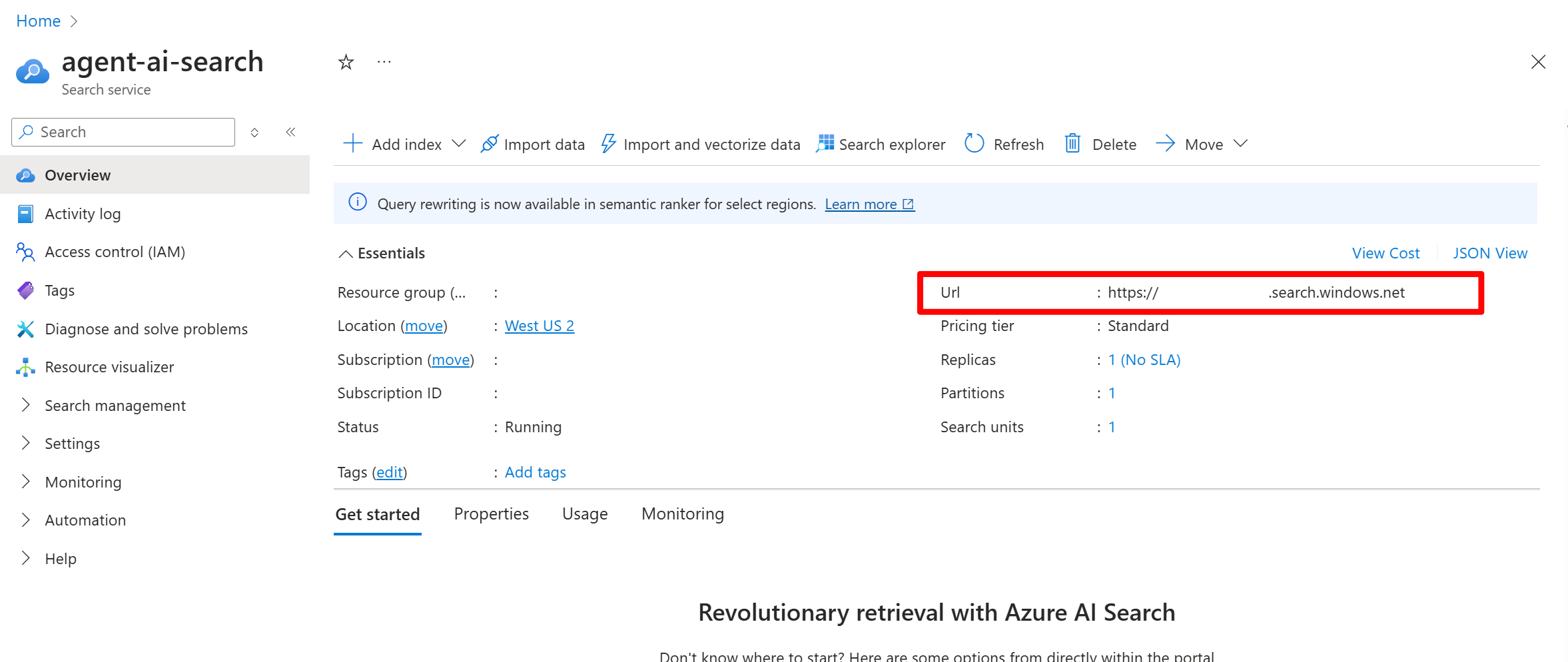
2. To get the endpoint:
1. From the left pane, select **Overview**.
2. Make a note of the URL, which should look like `https://my-service.search.windows.net`.
1. To get the API key:
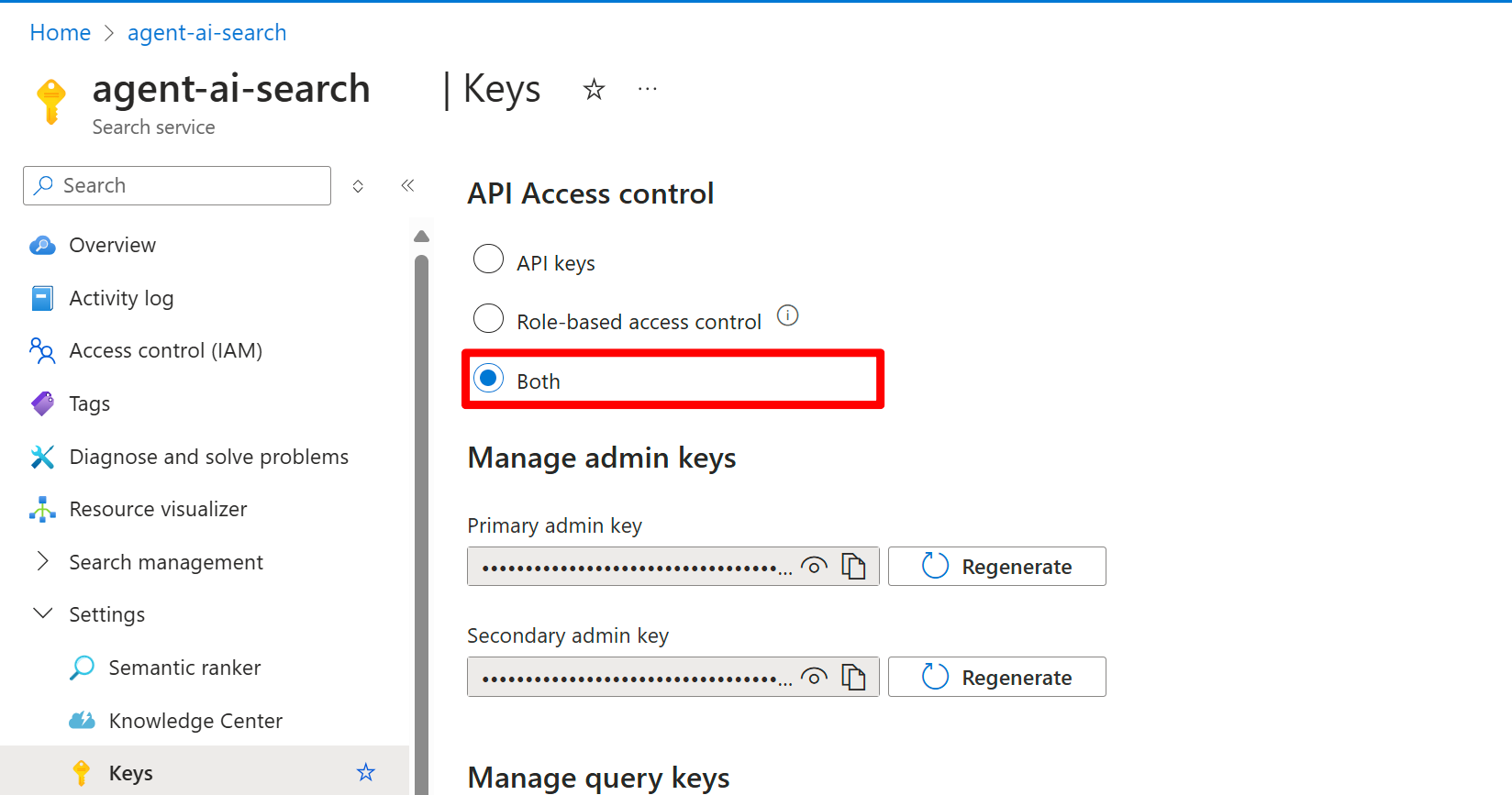
1. From the left pane, select **Settings** > **Keys**.
2. Select **Both** to enable both key-based and keyless authentication, which is recommended for most scenarios.
1. Make a note of one of the keys under **Manage admin keys**.
1. Sign in to the [Azure portal](https://portal.azure.com/) and select your search service.
2. To get the endpoint:
1. From the left pane, select **Overview**.
2. Make a note of the URL, which should look like `https://my-service.search.windows.net`.
1. To enable RBAC:
1. From the left pane, select **Settings** > **Keys**.
2. Select **Both** to enable both key-based and keyless authentication, which is recommended for most scenarios.
1. To assign the necessary roles:
1. From the left pane, select **Access control (IAM)**.
2. Select **Add** > **Add role assignment**.
3. Assign the **Search Index Data Contributor** role to the managed identity of your project.
4. Repeat the role assignment for **Search Service Contributor**.
### Create a project connection
Create the project connection by using the search service details you gathered.
Use one of the following options.
1. Go to the [Foundry portal](https://ai.azure.com).
2. Open your project, then select **Operate** > **Admin**.
3. Select your project name in the **Manage all projects** list.
4. Select **Add connection**.
5. Select **Azure AI Search** from the list of available services.
6. Browse for and select your Azure AI Search service, then select the type of **Authentication** to use.
7. Select **Add connection**.
For more detailed steps, see [Add a new connection to your project](../../../how-to/connections-add).
Create a JSON connection file and use the `az cognitiveservices` CLI to create the connection on your Foundry project.
For keyless authentication, create a file named `connection.json`:
```json theme={null}
{
"properties": {
"category": "CognitiveSearch",
"target": "https://{searchServiceName}.search.windows.net",
"authType": "AAD"
}
}
```
For key-based authentication, use `ApiKey` as the `authType` and include the credentials:
```json theme={null}
{
"properties": {
"category": "CognitiveSearch",
"target": "https://{searchServiceName}.search.windows.net",
"authType": "ApiKey",
"credentials": {
"key": "{searchAdminKey}"
}
}
}
```
Don't put real keys in source control. Store secrets in a secure store (for example, Azure Key Vault) and inject them at deployment time.
Run the following command. Replace the placeholders with your resource group, Foundry resource name, project name, and connection name.
```azurecli theme={null}
az cognitiveservices account project connection create \
--resource-group \
--name \
--project-name \
--connection-name \
--file connection.json
```
Use the `azure-mgmt-cognitiveservices` management SDK to create the connection. Install the package:
```bash theme={null}
pip install azure-mgmt-cognitiveservices azure-identity
```
For keyless authentication:
```python theme={null}
from azure.identity import DefaultAzureCredential
from azure.mgmt.cognitiveservices import CognitiveServicesManagementClient
from azure.mgmt.cognitiveservices.models import (
ConnectionPropertiesV2BasicResource,
AADAuthTypeConnectionProperties,
)
# Foundry resource details
SUBSCRIPTION_ID = ""
RESOURCE_GROUP = ""
FOUNDRY_RESOURCE_NAME = ""
PROJECT_NAME = ""
CONNECTION_NAME = "my-search-connection"
SEARCH_ENDPOINT = "https://my-service.search.windows.net"
# Create the management client
client = CognitiveServicesManagementClient(
credential=DefaultAzureCredential(),
subscription_id=SUBSCRIPTION_ID,
)
# Create a keyless Azure AI Search connection
connection = client.project_connections.create(
resource_group_name=RESOURCE_GROUP,
account_name=FOUNDRY_RESOURCE_NAME,
project_name=PROJECT_NAME,
connection_name=CONNECTION_NAME,
connection=ConnectionPropertiesV2BasicResource(
properties=AADAuthTypeConnectionProperties(
category="CognitiveSearch",
target=SEARCH_ENDPOINT,
)
),
)
print(f"Connection created: {connection.name}")
```
Reference: [CognitiveServicesManagementClient](https://learn.microsoft.com/python/api/azure-mgmt-cognitiveservices/azure.mgmt.cognitiveservices.CognitiveServicesManagementClient), [ProjectConnectionsOperations](https://learn.microsoft.com/python/api/azure-mgmt-cognitiveservices/azure.mgmt.cognitiveservices.operations.projectconnectionsoperations).
Use the Foundry account management REST API to create a project connection. Replace the placeholders with your subscription, resource group, Foundry resource, project, and connection details.
First, obtain a bearer token:
```bash theme={null}
export MGMT_TOKEN=$(az account get-access-token --resource "https://management.azure.com" --query accessToken -o tsv)
```
For keyless authentication:
```bash theme={null}
curl -X PUT "https://management.azure.com/subscriptions/{subscriptionId}/resourceGroups/{resourceGroupName}/providers/Microsoft.CognitiveServices/accounts/{foundryResourceName}/projects/{projectName}/connections/{connectionName}?api-version=2025-06-01" \
-H "Authorization: Bearer $MGMT_TOKEN" \
-H "Content-Type: application/json" \
-d '{
"properties": {
"category": "CognitiveSearch",
"target": "https://{searchServiceName}.search.windows.net",
"authType": "AAD"
}
}'
```
For key-based authentication, use `ApiKey` as the `authType` and include the credentials:
```bash theme={null}
curl -X PUT "https://management.azure.com/subscriptions/{subscriptionId}/resourceGroups/{resourceGroupName}/providers/Microsoft.CognitiveServices/accounts/{foundryResourceName}/projects/{projectName}/connections/{connectionName}?api-version=2025-06-01" \
-H "Authorization: Bearer $MGMT_TOKEN" \
-H "Content-Type: application/json" \
-d '{
"properties": {
"category": "CognitiveSearch",
"target": "https://{searchServiceName}.search.windows.net",
"authType": "ApiKey",
"credentials": {
"key": "{searchAdminKey}"
}
}
}'
```
Don't put real keys in source control. Store secrets in a secure store (for example, Azure Key Vault) and inject them at deployment time.
For the full API specification, see [Project Connections REST API reference](https://learn.microsoft.com/rest/api/microsoftfoundry/accountmanagement/project-connections).
Use a Bicep template to create an Azure AI Search connection as part of your infrastructure deployment.
See the [AI Search connection Bicep templates](https://github.com/microsoft-foundry/foundry-samples/tree/main/infrastructure/infrastructure-setup-bicep/01-connections) in the foundry-samples repository for complete examples.
For more information about deploying connections with Bicep, see [Add a new connection to your project](../../../how-to/connections-add).
### Confirm the connection ID
If you use the REST or TypeScript sample, you need the project connection ID.
**Python**
```python theme={null}
from azure.identity import DefaultAzureCredential
from azure.ai.projects import AIProjectClient
# Format: "https://resource_name.ai.azure.com/api/projects/project_name"
PROJECT_ENDPOINT = "your_project_endpoint"
SEARCH_CONNECTION_NAME = "my-search-connection"
project = AIProjectClient(
endpoint=PROJECT_ENDPOINT,
credential=DefaultAzureCredential(),
)
connection = project.connections.get(SEARCH_CONNECTION_NAME)
print(connection.id)
```
**C#**
```csharp theme={null}
// Format: "https://resource_name.ai.azure.com/api/projects/project_name"
var projectEndpoint = "your_project_endpoint";
var searchConnectionName = "my-search-connection";
AIProjectClient projectClient = new(endpoint: new Uri(projectEndpoint), tokenProvider: new DefaultAzureCredential());
AIProjectConnection connection = projectClient.Connections.GetConnection(connectionName: searchConnectionName);
Console.WriteLine(connection.Id);
```
## Troubleshooting
| Issue | Cause | Resolution |
| --------------------------------------------------------------------------------------------------------------------------------------------------------------------------------------------------------------------------------------------------------------------------- | -------------------------------------------------------------------------------------------------------------------------------------------------------------------------------------- | -------------------------------------------------------------------------------------------------------------------------------------------------------------------------------------------------------------------------------------- |
| "Workspace not found" when creating a connection | The `az ml` CLI and `azure-ai-ml` Python SDK use the `Microsoft.MachineLearningServices` resource provider, which doesn't support new Foundry projects (`Microsoft.CognitiveServices`) | Use `az cognitiveservices account project connection create` or the `azure-mgmt-cognitiveservices` Python SDK instead. See [Create a project connection](#create-a-project-connection). |
| Response has no citations | Agent instructions don't request citations | Update your agent instructions to explicitly request citations in responses. |
| Response has no citations (streaming) | Annotations not captured | Confirm you receive `url_citation` annotations when streaming. Check your stream processing logic. |
| Tool can't access the index (401/403) | Missing RBAC roles (keyless auth) | Assign the **Search Index Data Contributor** and **Search Service Contributor** roles to the Foundry project's managed identity. See [Azure RBAC in Foundry](../../../concepts/rbac-foundry). |
| Tool can't access the index (401/403) | Invalid or disabled API key | Confirm the API key is correct and enabled in the Azure AI Search resource. |
| Tool returns "index not found" | Index name mismatch | Confirm the index name matches the exact index name in your Azure AI Search resource (case-sensitive). |
| Tool returns "index not found" | Wrong connection endpoint | Confirm the project connection points to the Azure AI Search resource that contains the index. |
| Search returns no results | Query doesn't match indexed content | Verify the index contains the expected data. Use Azure AI Search's test query feature to validate. |
| Slow search performance | Index not optimized | Review index configuration, consider adding semantic ranking, or optimize the index schema. |
| "Unable to connect to Azure AI Search Resource. Please ensure the Azure AI Search Connection has the correct endpoint and the search resource has appropriate network settings for the agents setup. Cannot connect to host ... \[DNS server returned answer with no data]" | The Azure AI Search connection uses key-based authentication with a private virtual network | Switch the Azure AI Search connection to use Microsoft Entra project managed identity (keyless authentication). Key-based authentication isn't supported with private virtual networking. See the [Limitations](#limitations) section. |
## Related content
* [Add a new connection to your project](../../../how-to/connections-add)
* [Project Connections REST API reference](https://learn.microsoft.com/rest/api/microsoftfoundry/accountmanagement/project-connections)
* [Connect a Foundry IQ knowledge base to Foundry Agent Service](/tools-and-knowledge/foundry-iq-connect)
* [Tool best practices](/agents/tool-best-practice)
* [Create a vector search index in Azure AI Search](../../../../search/search-get-started-portal-import-vectors)
* [Quickstart: Build an agent with Foundry](/get-started/get-started-code)
 1. To get the API key:
1. From the left pane, select **Settings** > **Keys**.
2. Select **Both** to enable both key-based and keyless authentication, which is recommended for most scenarios.
1. To get the API key:
1. From the left pane, select **Settings** > **Keys**.
2. Select **Both** to enable both key-based and keyless authentication, which is recommended for most scenarios.
 1. Make a note of one of the keys under **Manage admin keys**.